

School-level feature — managed within your school portal at
yourschool.deandesk.com.Video walkthrough
This walkthrough uses the real DeanDesk interface with the fictional Northstar Academy demo school and a calm, AI-generated English voice. Payments and outside services are not connected in the demo.
- Volunteer Management — an application and approval flow that controls who can work on school projects. Found under Admin Dashboard → People → Volunteer Management.
- Volunteer Hours — community-service hour logging for parents and other members, with admin review. Found under Admin Dashboard → People → Volunteer Hours.
The volunteer application flow
Members apply to become volunteers from the Projects page in the main portal.1
Member applies
A member who is not yet an approved volunteer opens Projects and sees Join the Volunteer Program. They answer Why would you like to volunteer? and submit their application.
2
Application is pending
While the application is under review, the member sees a pending notice on the Projects page instead of the project list.
3
Admin reviews
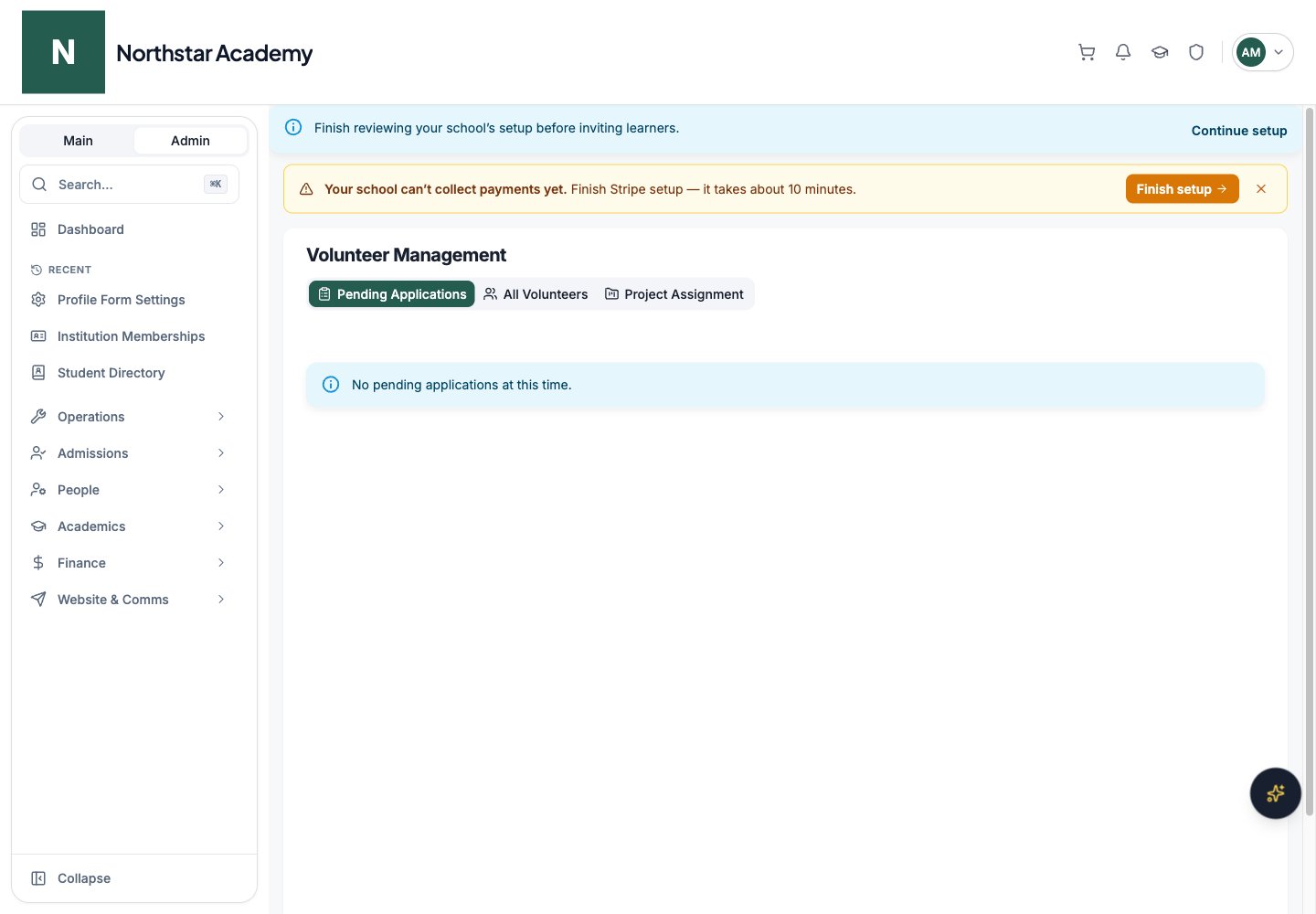
An admin opens Admin Dashboard → People → Volunteer Management. New applications appear in the Pending Applications tab with the applicant’s name, email, application reason, and submitted date.
4
Approve or reject
The admin clicks the approve or reject action and can add optional notes. Approved volunteers gain access to the school’s projects. Rejected applicants can reapply later.
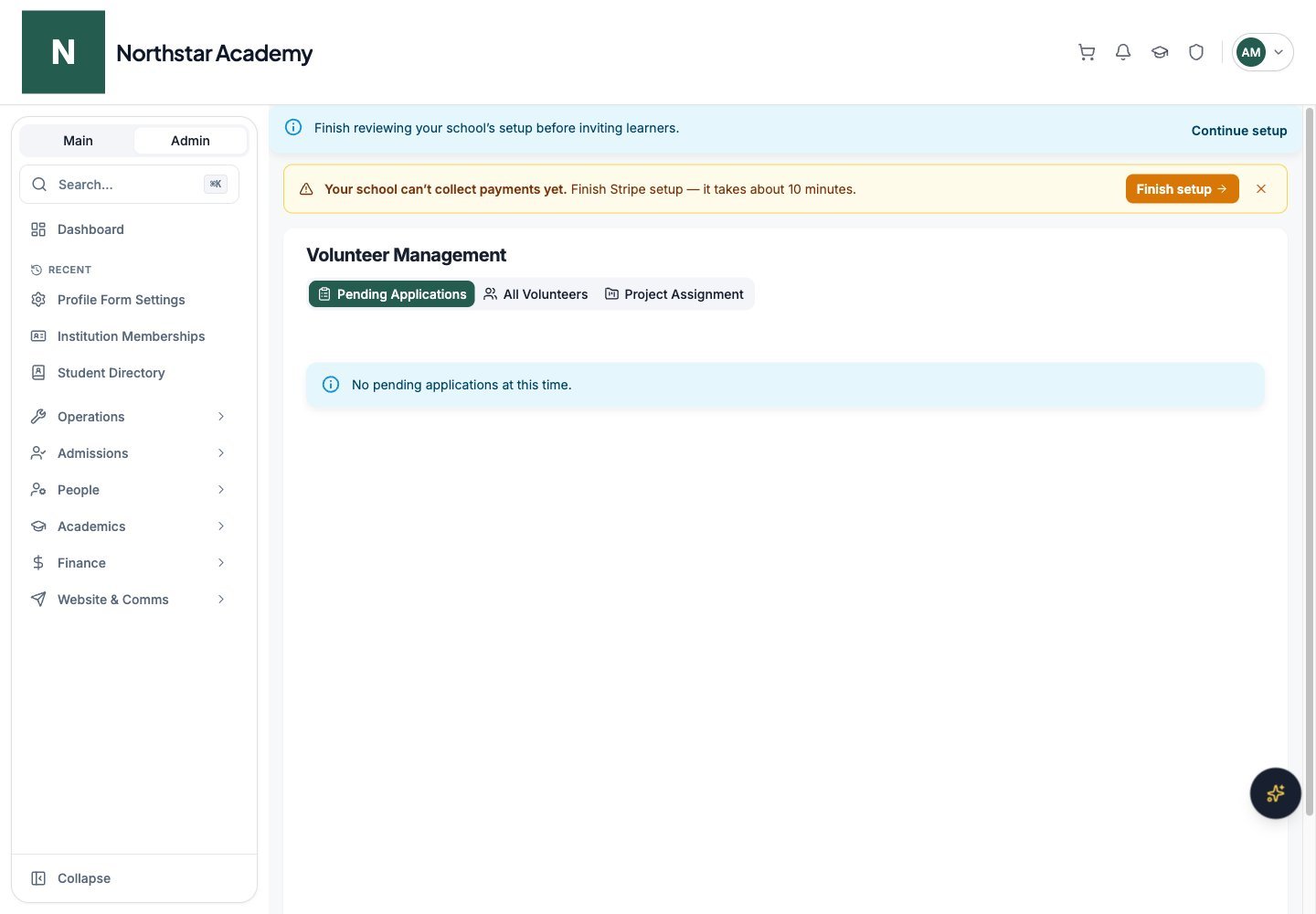
Northstar demo — Volunteer Management — Pending Applications
Volunteer statuses
Managing volunteers
Volunteer Management has three tabs:- Pending Applications — review and approve or reject new applications.
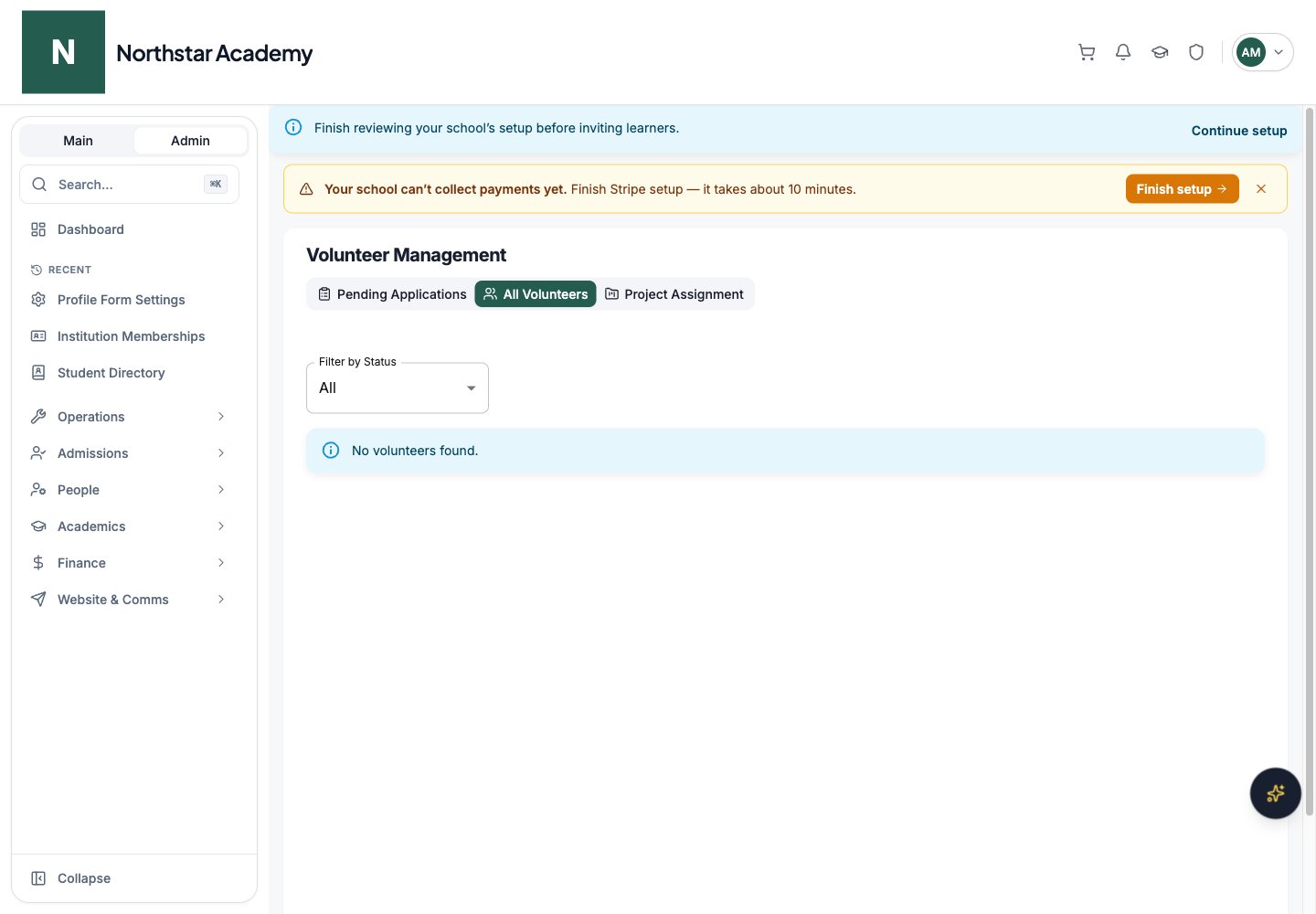
- All Volunteers — every volunteer record, filterable by status (All, Pending, Approved, Rejected, Deactivated). From here you can deactivate an approved volunteer, reactivate a deactivated one, or delete a record entirely.
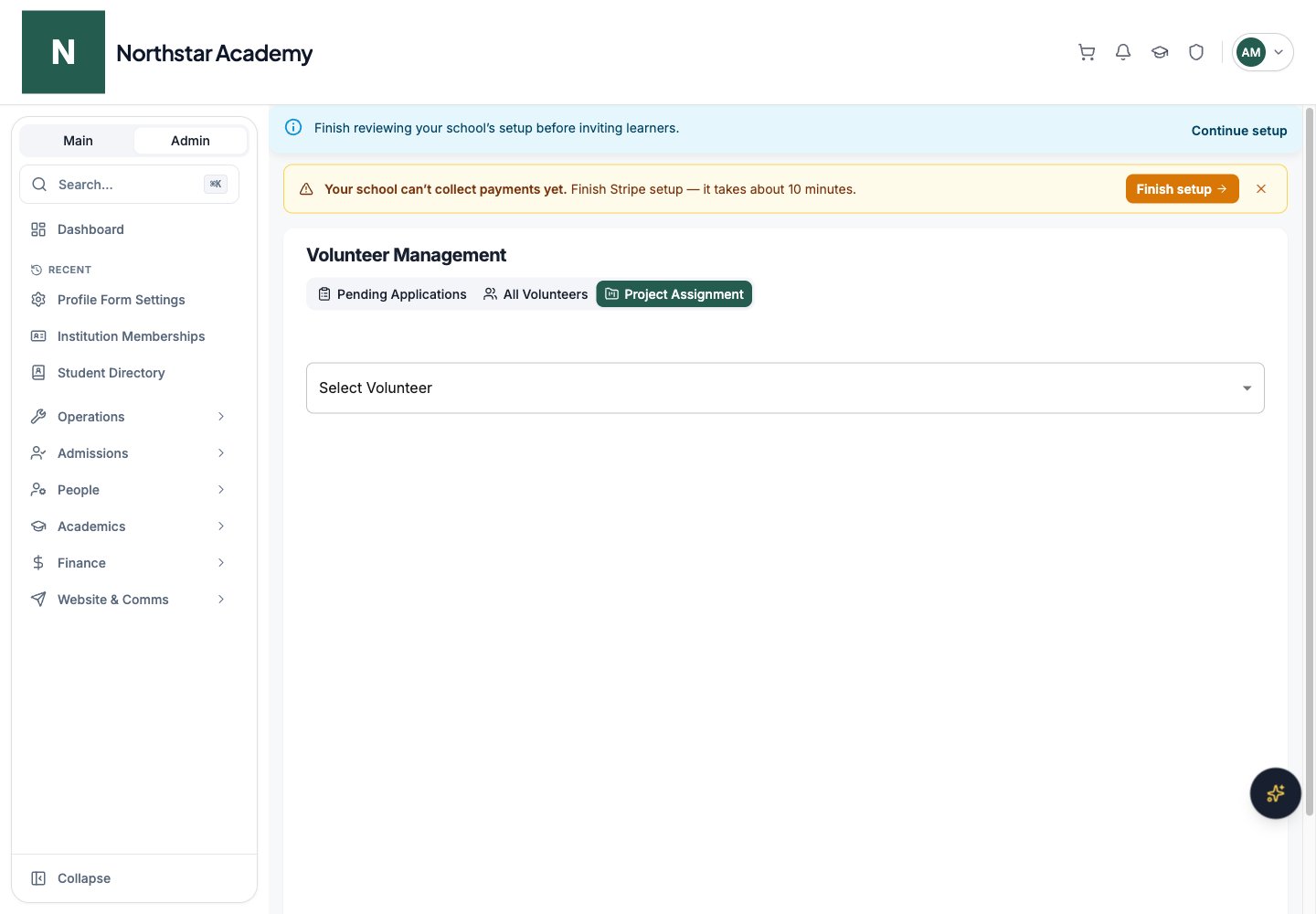
- Project Assignment — pick an approved volunteer, check the projects they should work on, and click Save Assignments.
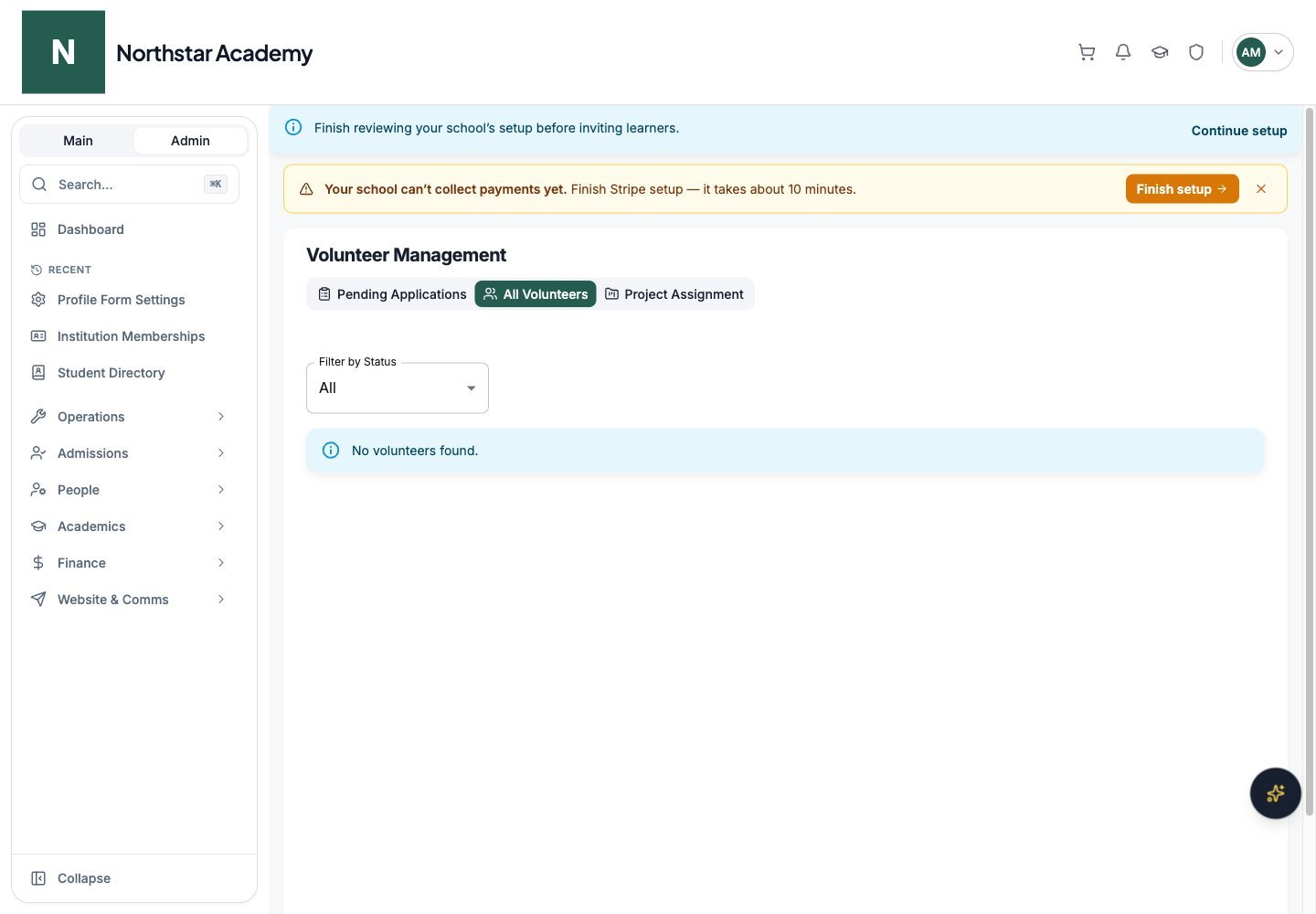
Northstar demo — Volunteer Management — All Volunteers
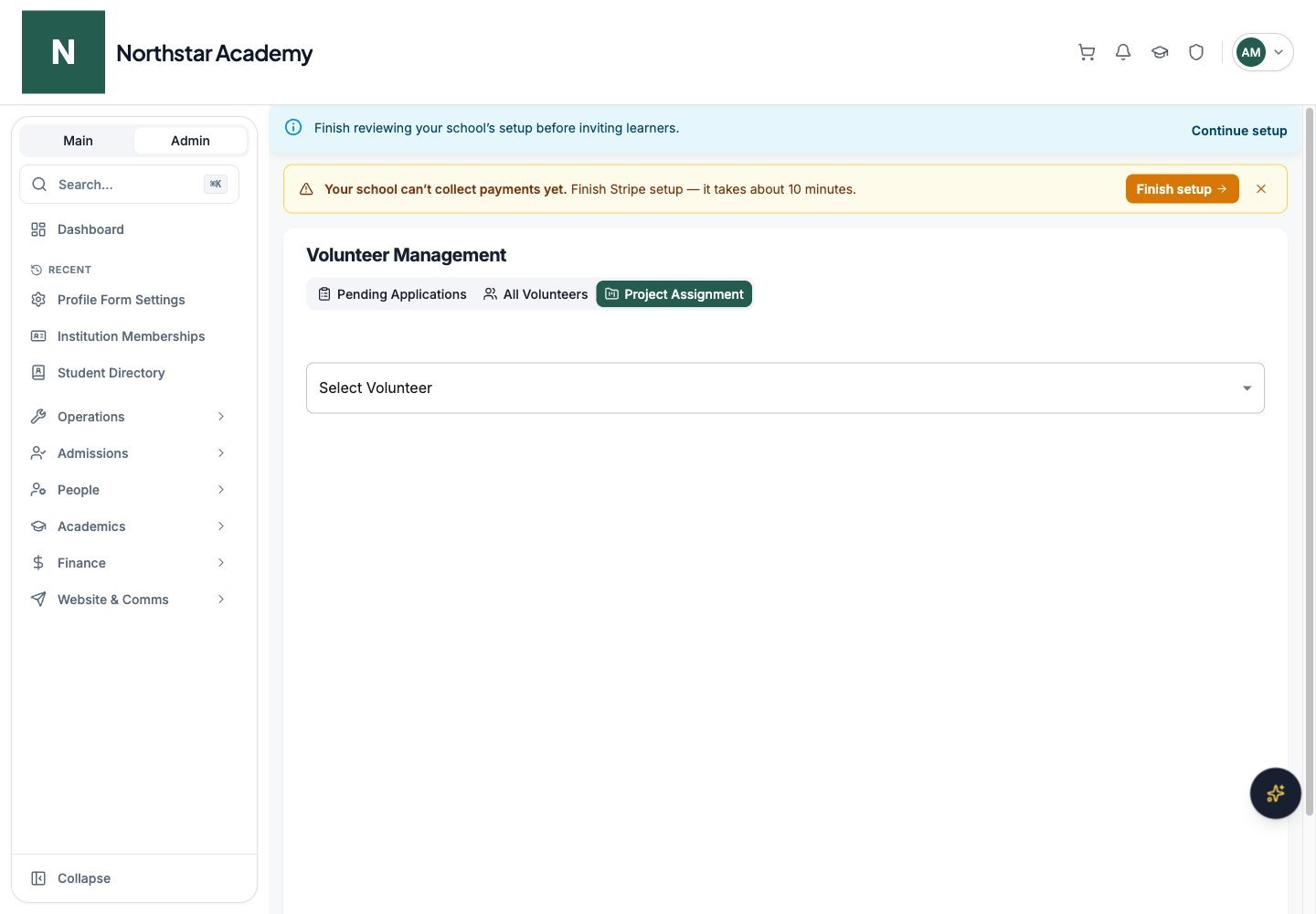
Northstar demo — Volunteer Management — Project Assignment
Logging volunteer hours (members)
Any signed-in user — parent, member, student, teacher, or admin — can log volunteer hours, as long as the school has volunteer hours visible (see Visibility setting below). There are two places to log:- My Family tab — go to My Profile → My Family → Volunteer Hours. This tab shows your total approved hours, hours by category, and a My Submissions table. Click Log Hours to submit.
- Dashboard widget — parents with the parent dashboard also see a Volunteer Hours widget on their Dashboard with their total approved hours and a category breakdown. Click Log Volunteer Hours to submit an entry without leaving the Dashboard.
Submissions start as Pending. While a submission is pending, you can still edit or delete it from the My Submissions table. Once an admin approves or rejects it, the entry locks. If a submission was rejected, hover over its status chip to see the reason.
Only approved hours count toward your total.
Reviewing hours (admins)
Open Admin Dashboard → People → Volunteer Hours to reach the Volunteer Hours Management page. At the top, three stat cards summarize activity: Pending Review, Hours Approved This Month, and Total Approved Hours. Below, the submissions table shows who submitted, the date, hours, category, description, and status. Filter by:- Status — All, Pending, Approved, Rejected
- Category — Classroom, Event, Fundraising, Administrative, Other
- Approve — the hours are added to the member’s approved total immediately.
- Reject — you must enter a Rejection Reason, which is visible to the volunteer on their submission.
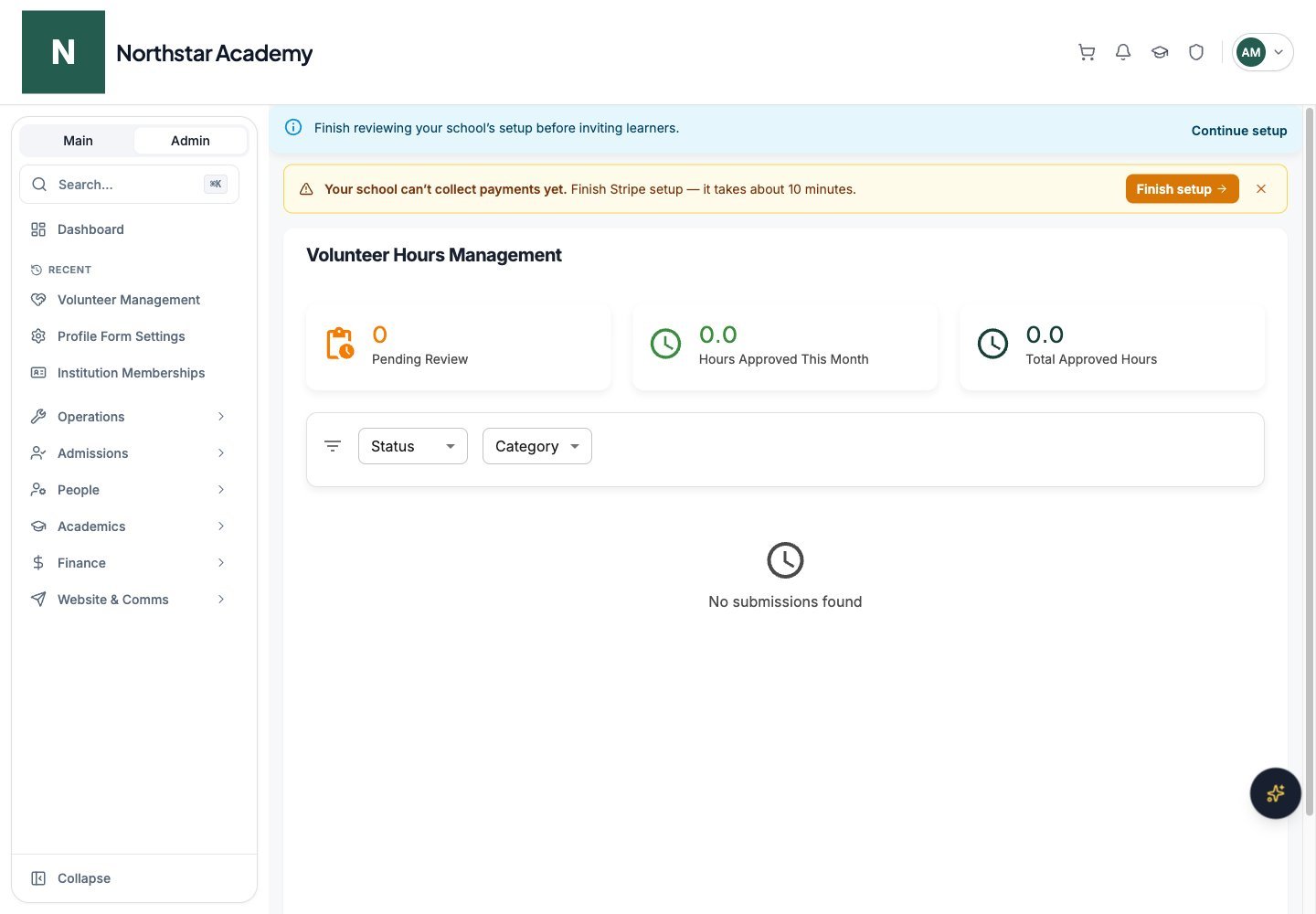
Northstar demo — Volunteer Hours
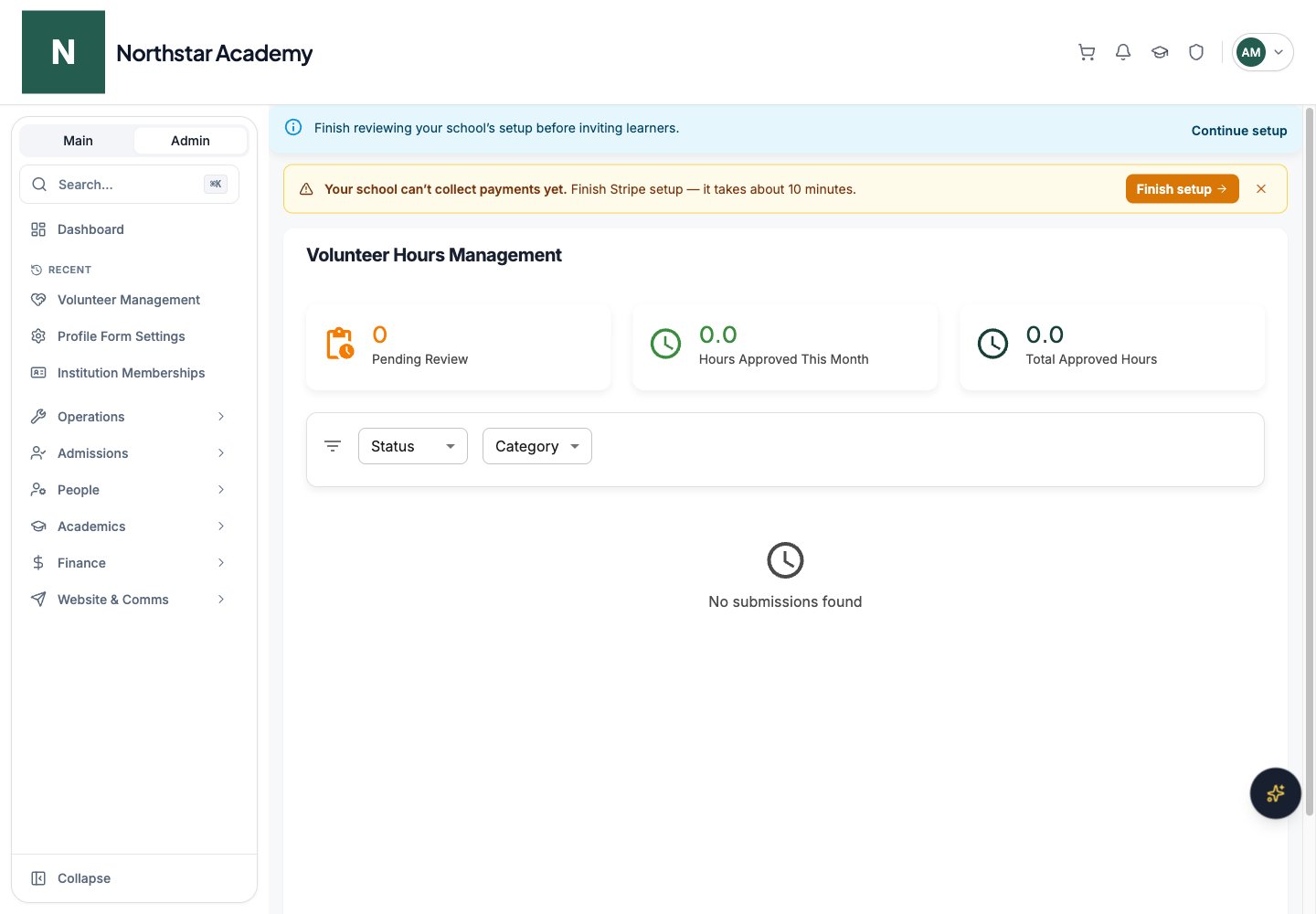
Visibility setting
You can hide volunteer hours from everyone except admins:1
Open the Features tab
Go to Admin Dashboard → School Configuration → Features.
2
Toggle visibility
In the Volunteer Hours card, switch Show volunteer hours to non-admin users on or off, then click Save Changes.