yourschool.deandesk.com. For managing institution-level staff, see Institutions & Schools.Video walkthrough
Navigate to User Creation
From the Admin Dashboard, open User Management → Create Users. Use the same form for staff, students, applicants, and child accounts.Understanding roles
Every DeanDesk account has one or more roles that control what the user can see and do.Find school accounts
Use Search Users to combine name, account, role, enrollment, and purchase filters, then open a matching User or export the results.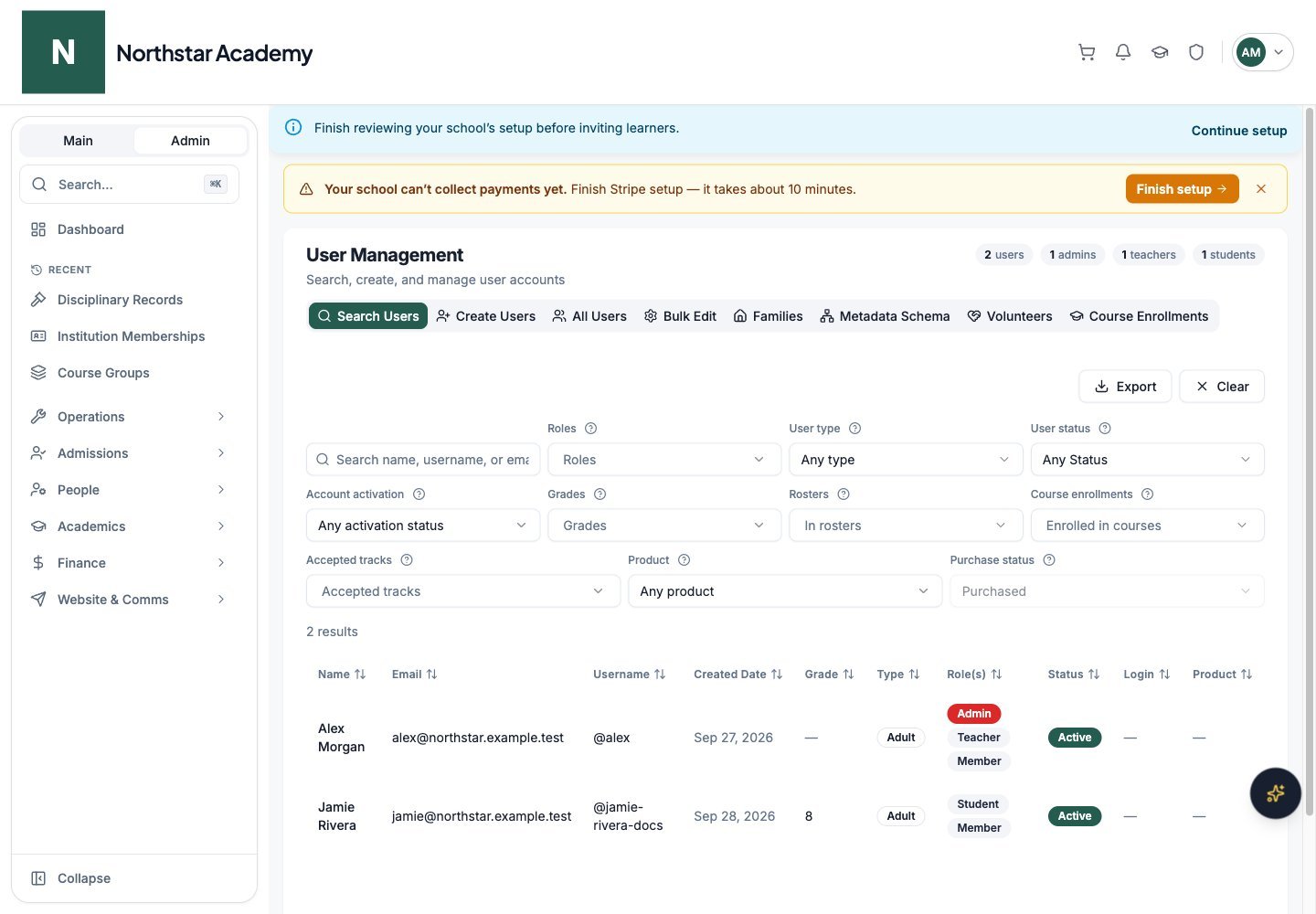
Northstar demo — User Management — Search Users
Browse all accounts
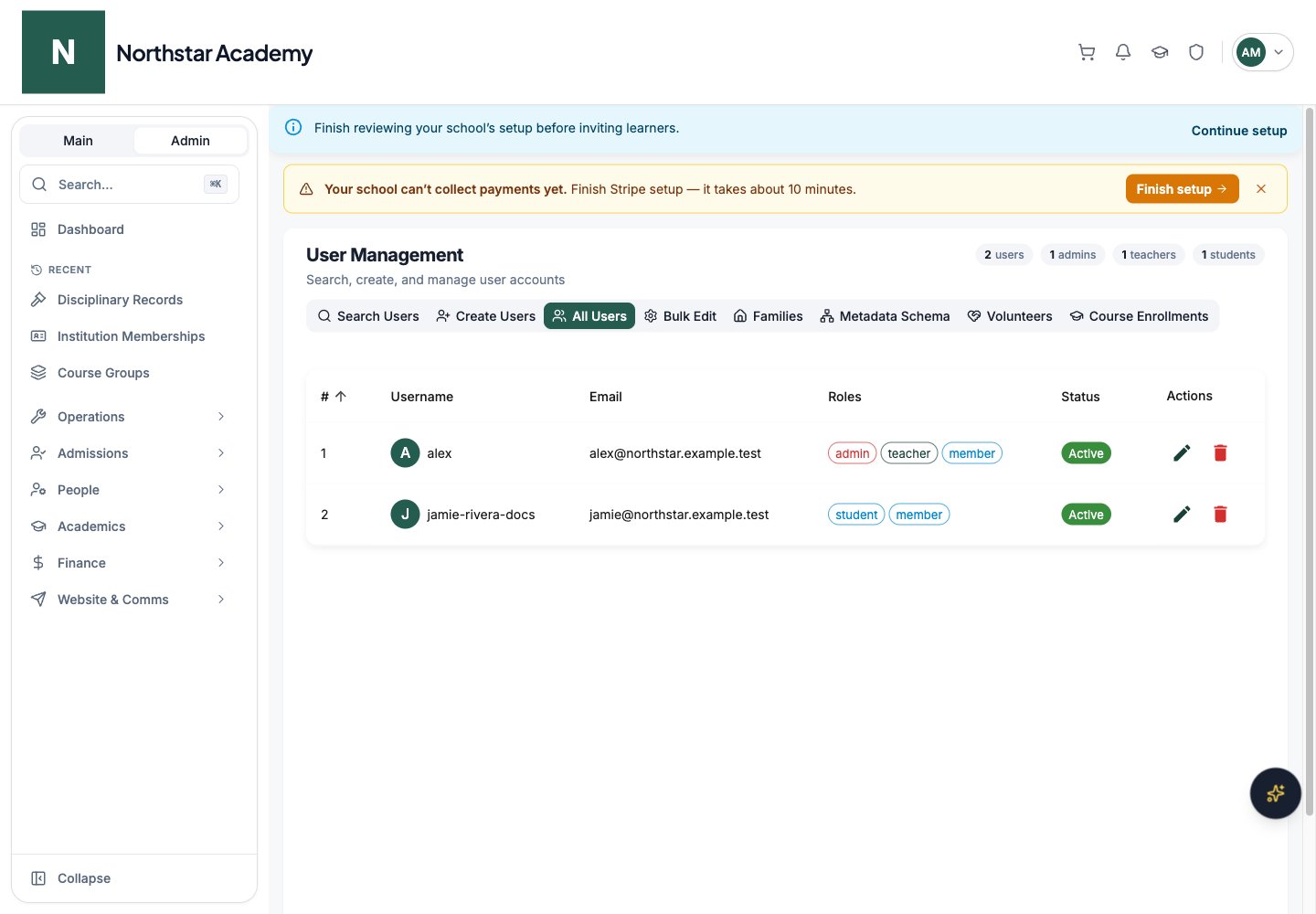
Use All Users for the school account list and its profile-management actions.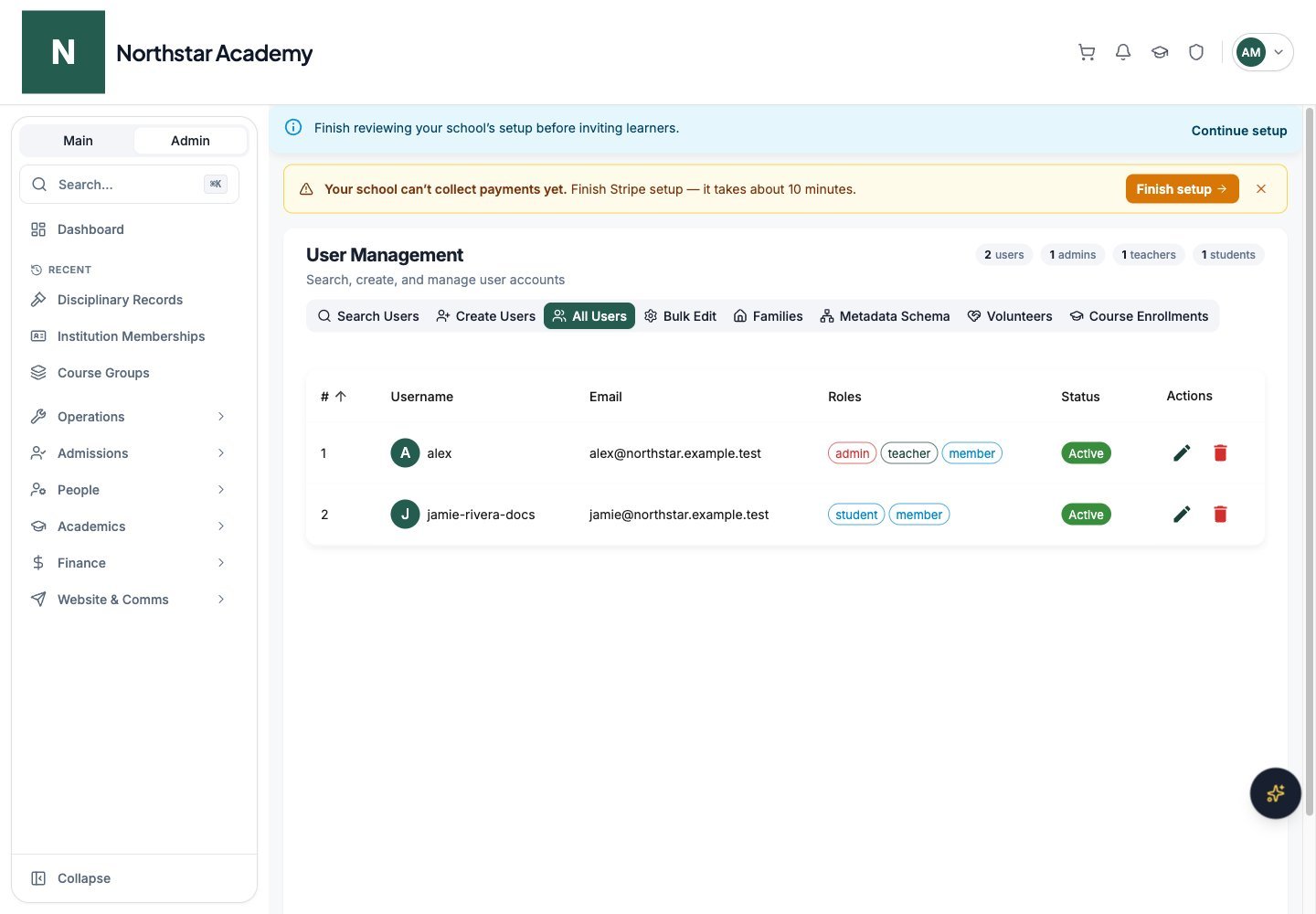
Northstar demo — User Management — All Users
Create accounts
Choose the account type
Enter or import user data
Choose roles and destinations
Choose activation delivery
Review and create
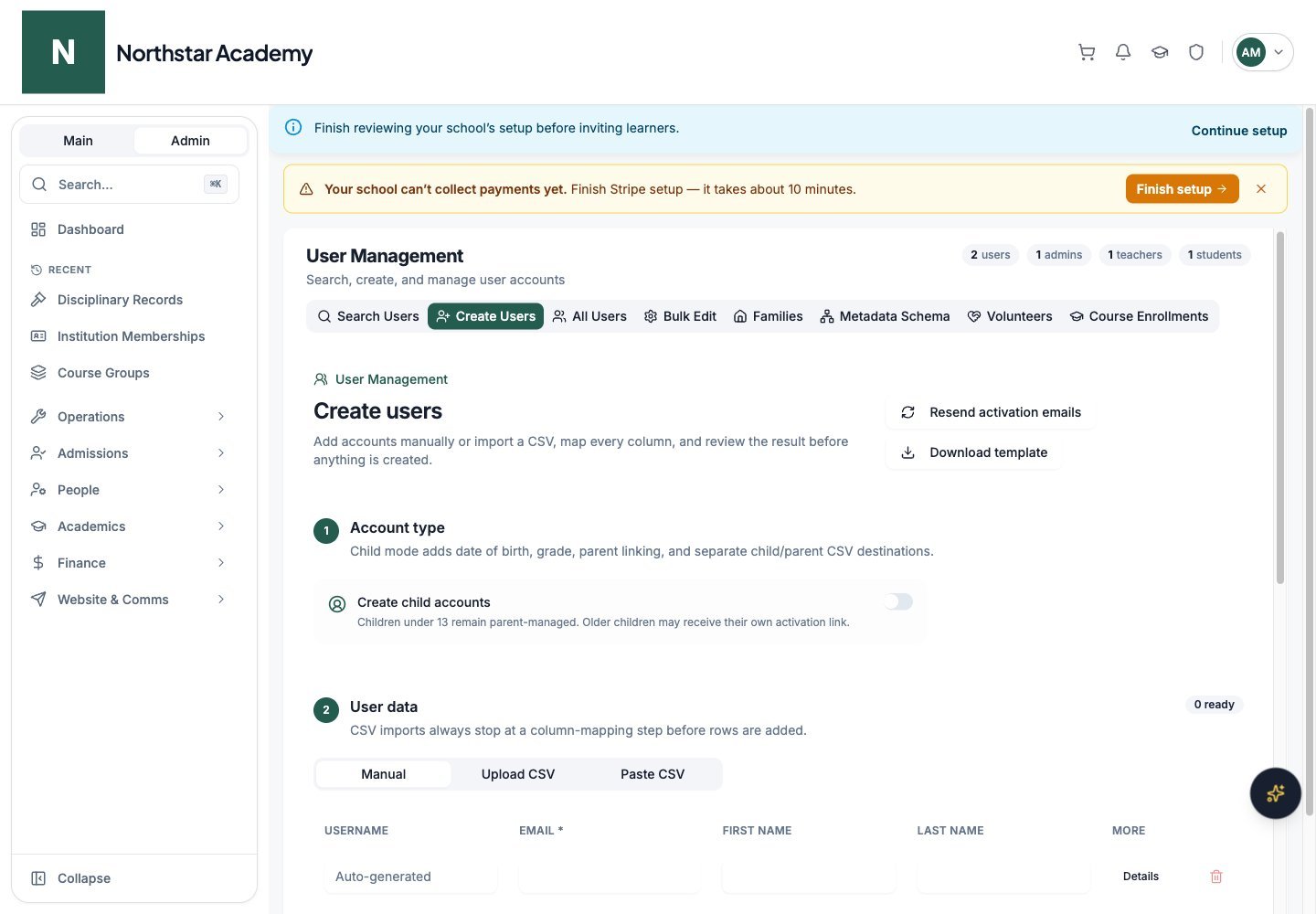
Northstar demo — User Management — Create Users
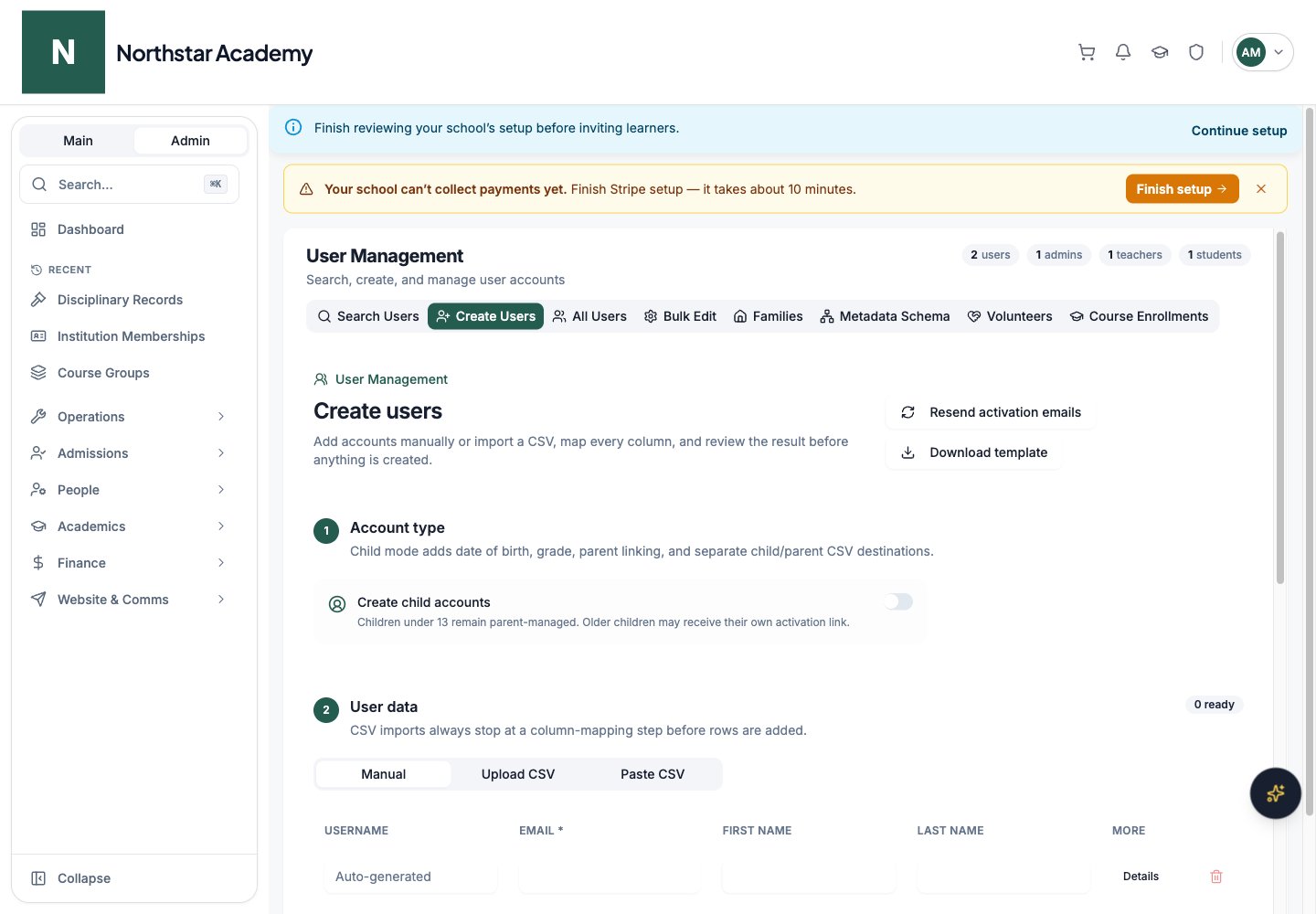
Bulk creation via CSV upload
CSV headers can use your existing names. Imports always stop at a mapping and review step before users are created.Upload or paste the CSV
Map columns
Review rows
Finish account creation
Separate child and parent welcome emails
Each template supports its own subject and body. Parent templates include placeholders such as{{firstName}}, {{childNames}}, and {{resetUrl}}. Preview the message before creation. When activation emails are deferred, no activation token or email is generated until you use Resend activation emails.
Admin user spreadsheet
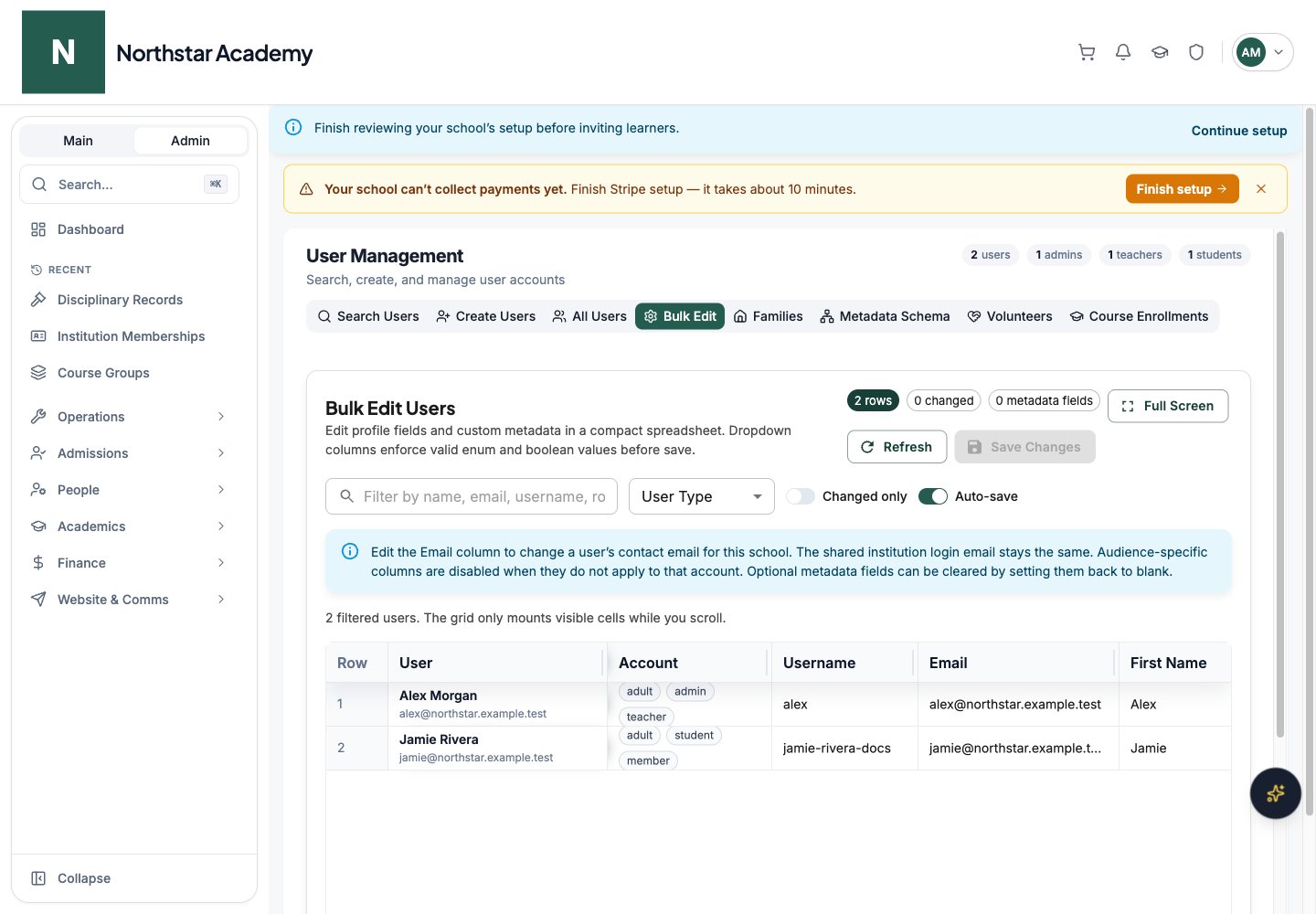
For high-volume edits, the Admin User Spreadsheet provides a familiar grid-style editor for users.Open the spreadsheet
Edit cells inline
Save
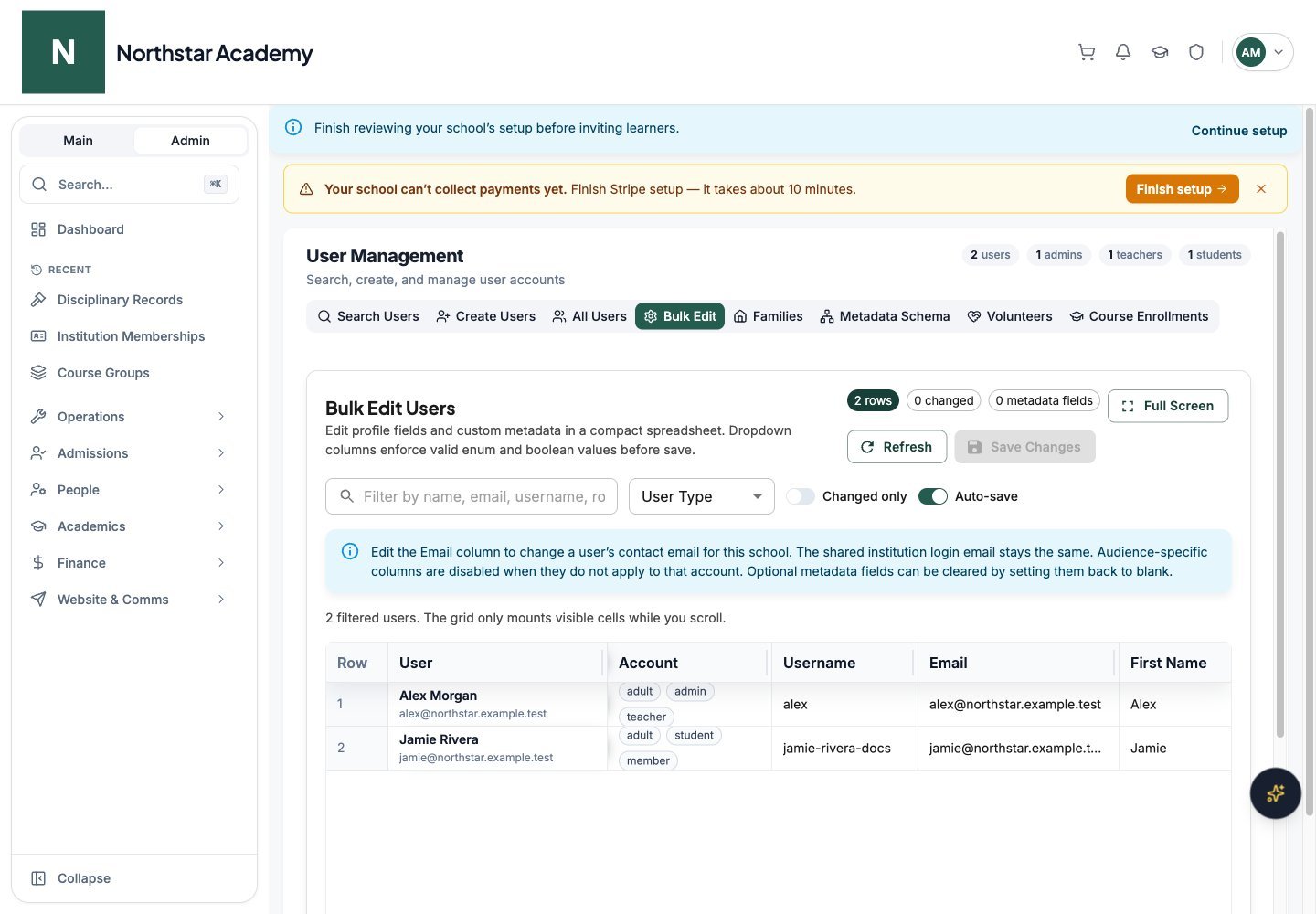
Northstar demo — User Management — Bulk Edit
Course Distribution canvas
To enroll many students into many courses at once, use the Course Distribution canvas — a drag-and-drop workspace for bulk enrollments.Open Distribution
Pick courses
Pick students
Drag to enroll
Resend activation emails
If a user did not receive their welcome email, the activation link expired, or you deferred activation emails during creation, you can send a fresh link.Open the resend tool
Select inactive users
Send
Review family groups
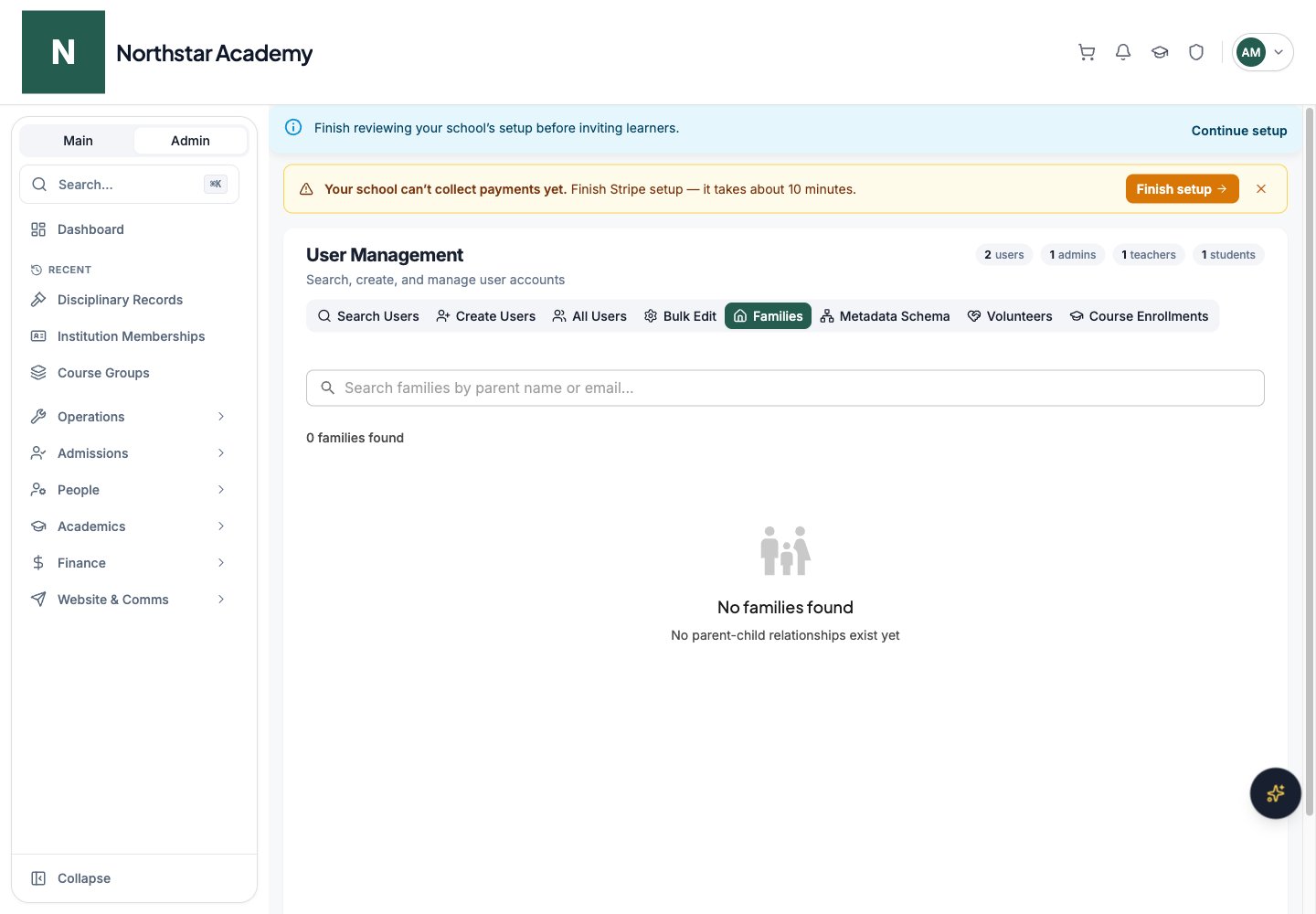
Open Families to review linked parents and children. Open the relevant User to manage a relationship.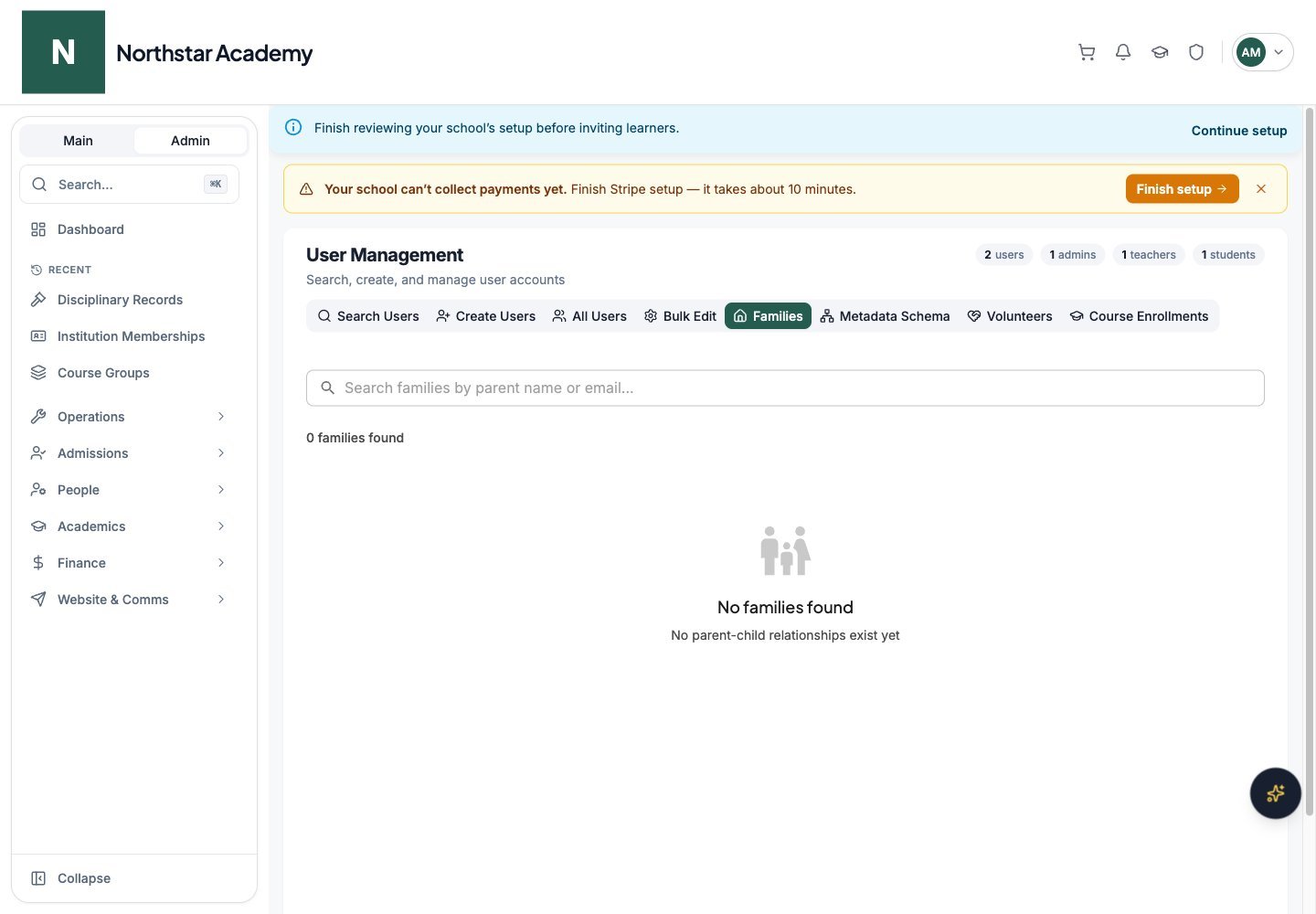
Northstar demo — User Management — Families
Configure account metadata
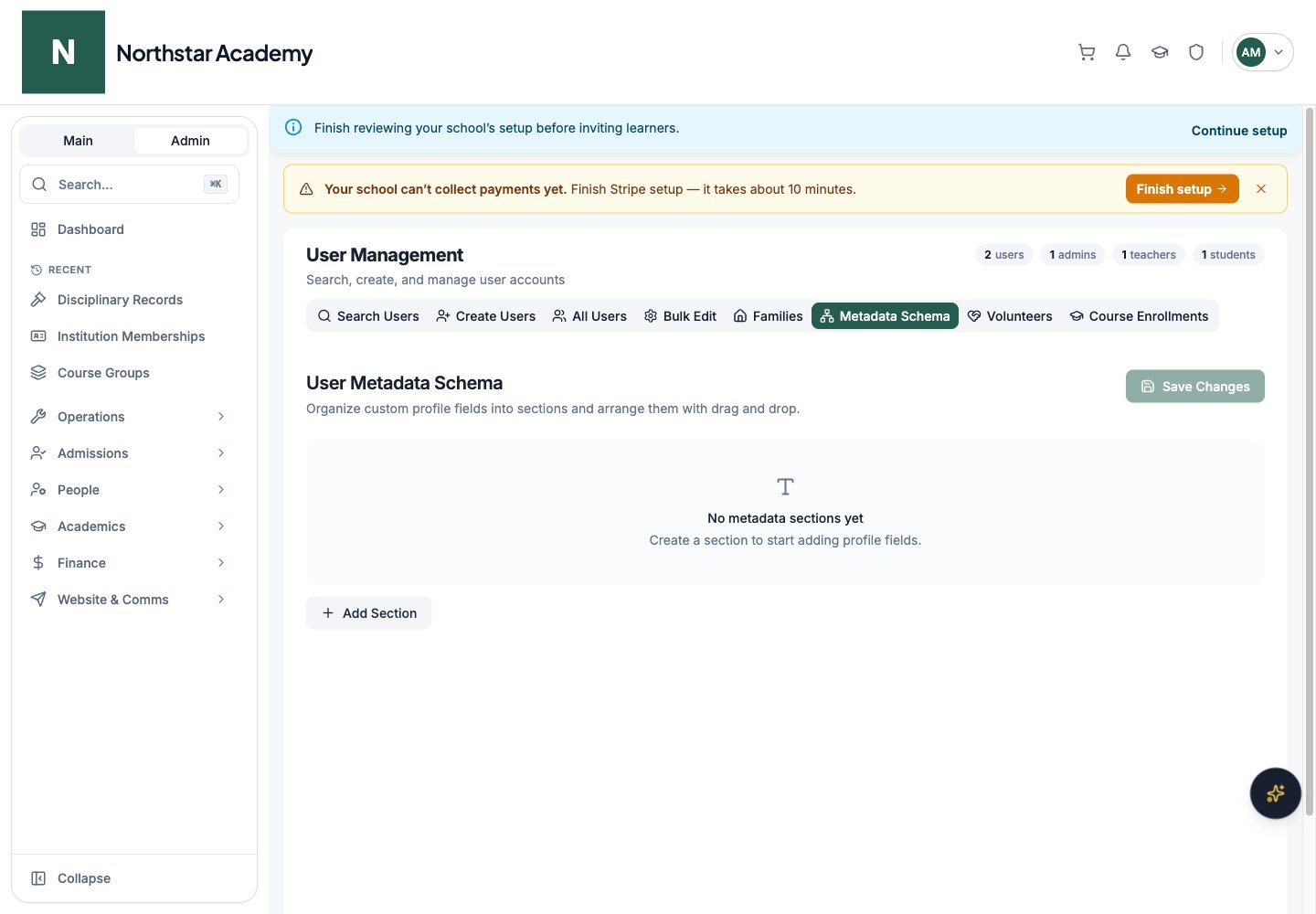
Use Metadata Schema to add and order custom sections and fields, set their type and audience, and save the schema. See Profile forms and metadata.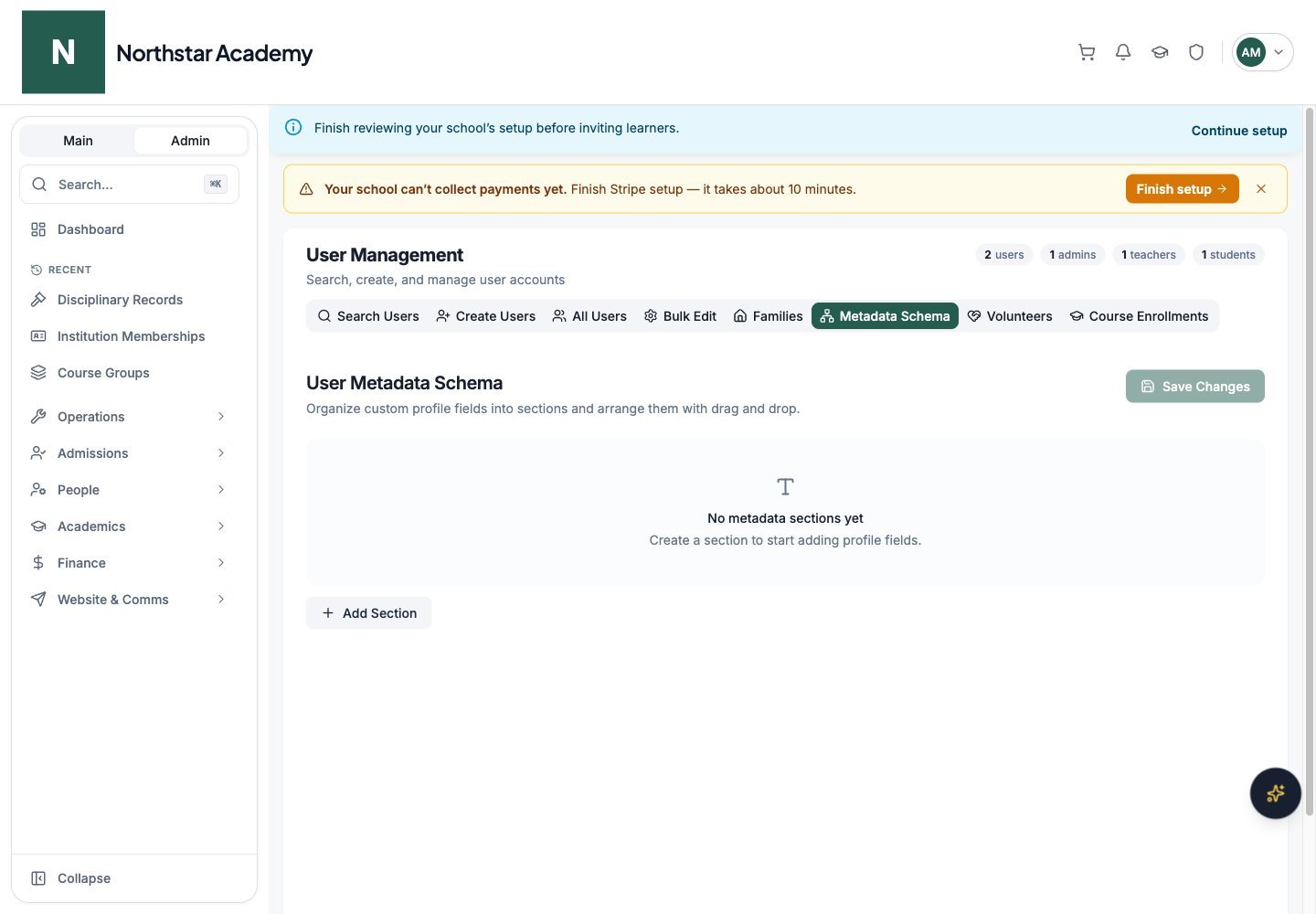
Northstar demo — User Management — Metadata Schema
Manage volunteers
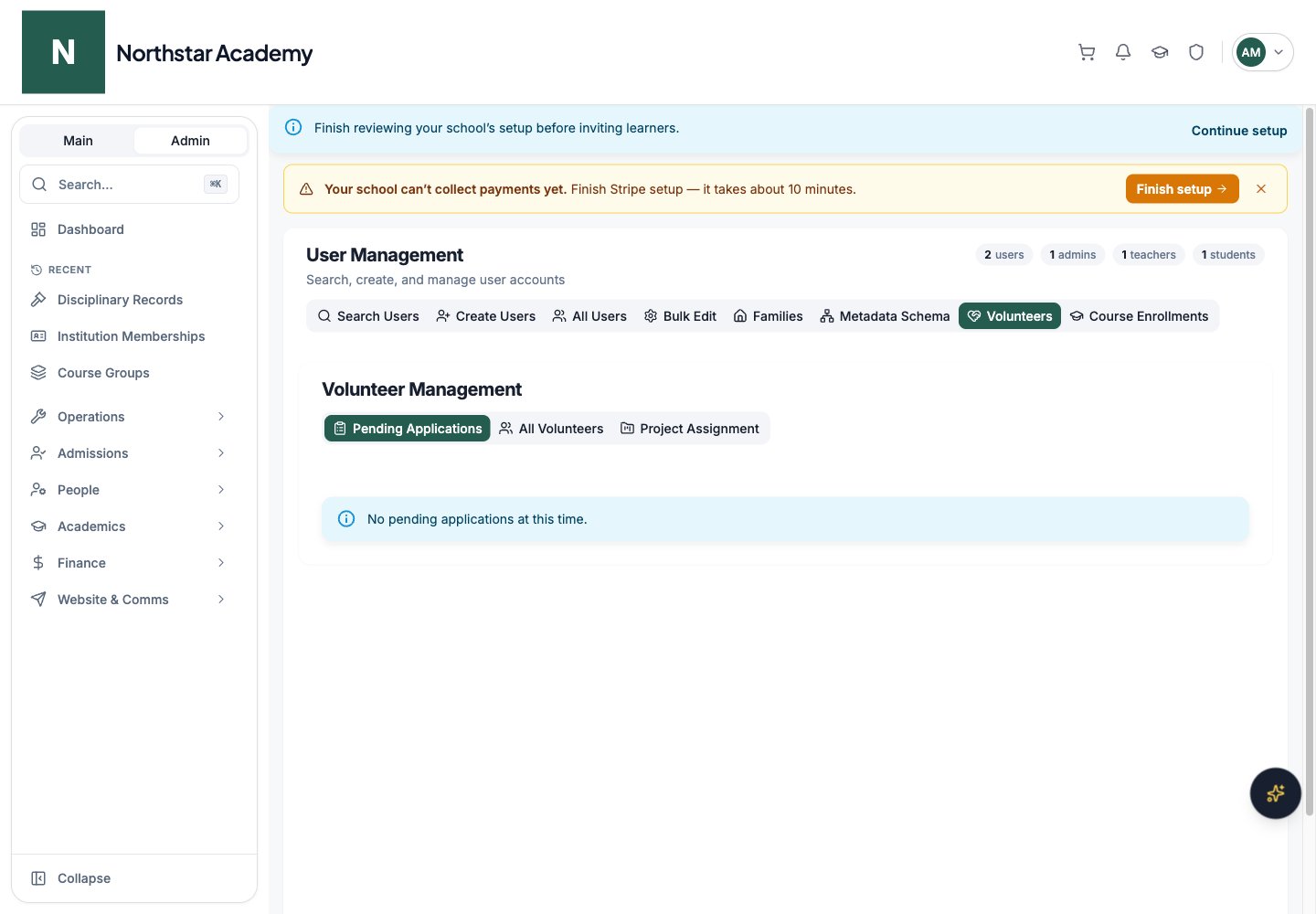
The Volunteers tab opens the volunteer application, approved-volunteer, and project-assignment views. See Volunteers for those workflows.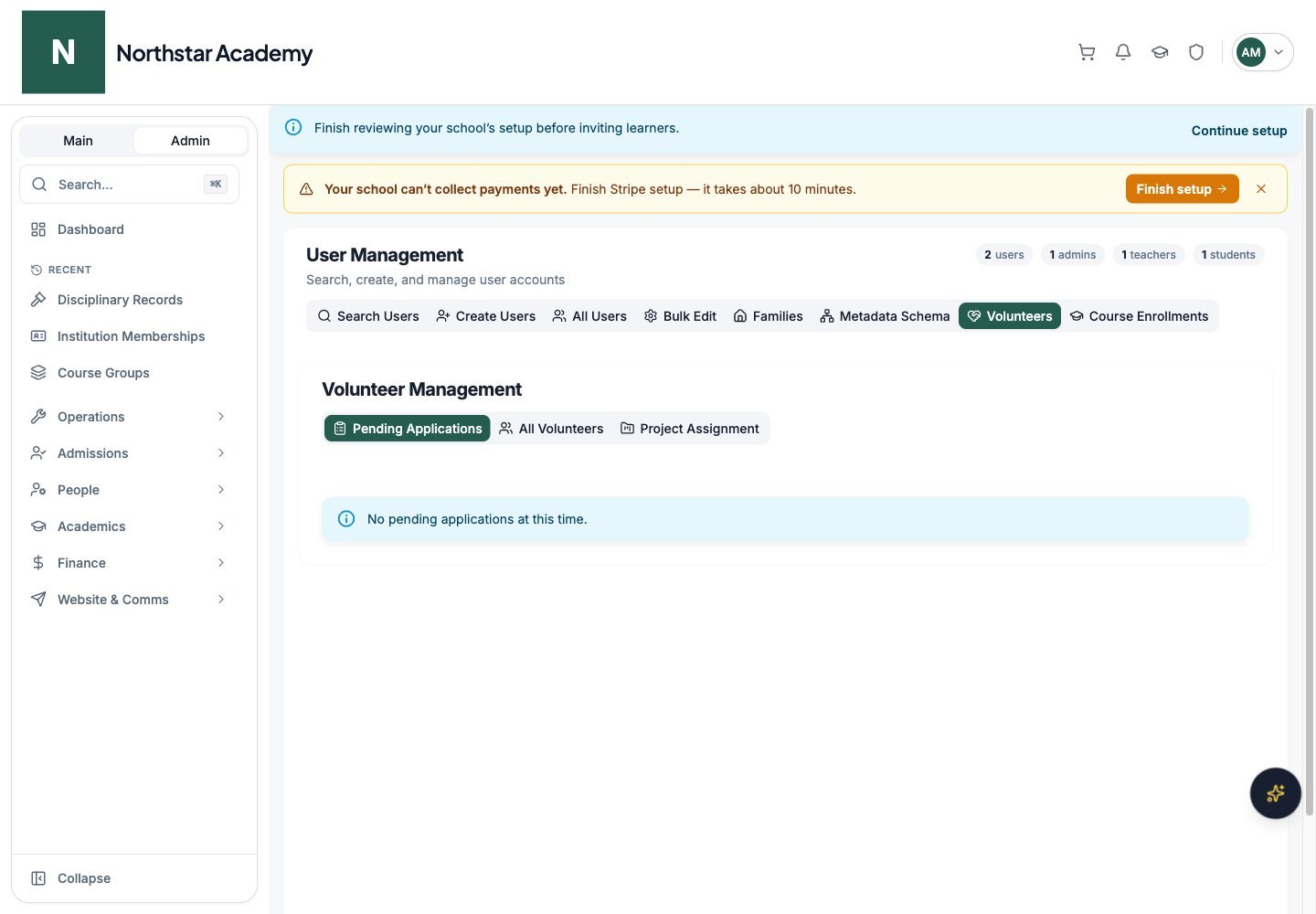
Northstar demo — User Management — Volunteers
Manage and change roles
To update access after creation, open the user in User Management → Roles & Enrollments. Click Save roles after changing roles. Review the Courses, Rosters, and Programs & events tabs for enrollments. Search or filter enrollments there before making changes.Account status
Every user account has a status of Active or Inactive.- User Management shows a sortable Status column, and the status filter defaults to Any Status so inactive users appear in search results.
- A user’s profile shows an Account status field with an Active or Inactive chip. In edit mode, a dropdown lets you activate or deactivate the account manually.
Accepted tracks
Users who came through admissions carry a list of accepted tracks — the admissions track(s) they were accepted into. Tracks are stamped on the account automatically when an applicant is accepted.- Filter by track — the admin user search has an Accepted tracks multi-select filter. Options are listed as ” — ”.
- Assign tracks manually — a user’s profile has a Tracks autocomplete for assigning accepted admission tracks. This field is visible to admins only.
- Downstream filtering — the user export and the Scholarship & Aid Rates screen can also filter by enrolled track.
Export users
To download a CSV of your users, open the Export users dialog from User Management. It exports all users matching the current search filters — not just the page of results currently loaded — so set your filters first, then export. The dialog lets you choose the columns to include:- User columns — a checkbox grid of profile columns (name, email, username, created date, grade, type, roles, status, and more), with a Select all option.
- Include parent information — for children, adds the linked parents’ names, emails, phones, and usernames.
- User metadata — any custom field from your school’s user metadata schema, grouped by whether it applies to adults, children, or both. Selected fields are blank for user types they do not apply to.
users-export-YYYY-MM-DD.csv.
Next steps
To remove an existing account, see Delete a user. For email changes and other account actions, see Student records.Create courses
Configure payments
User Management tabs
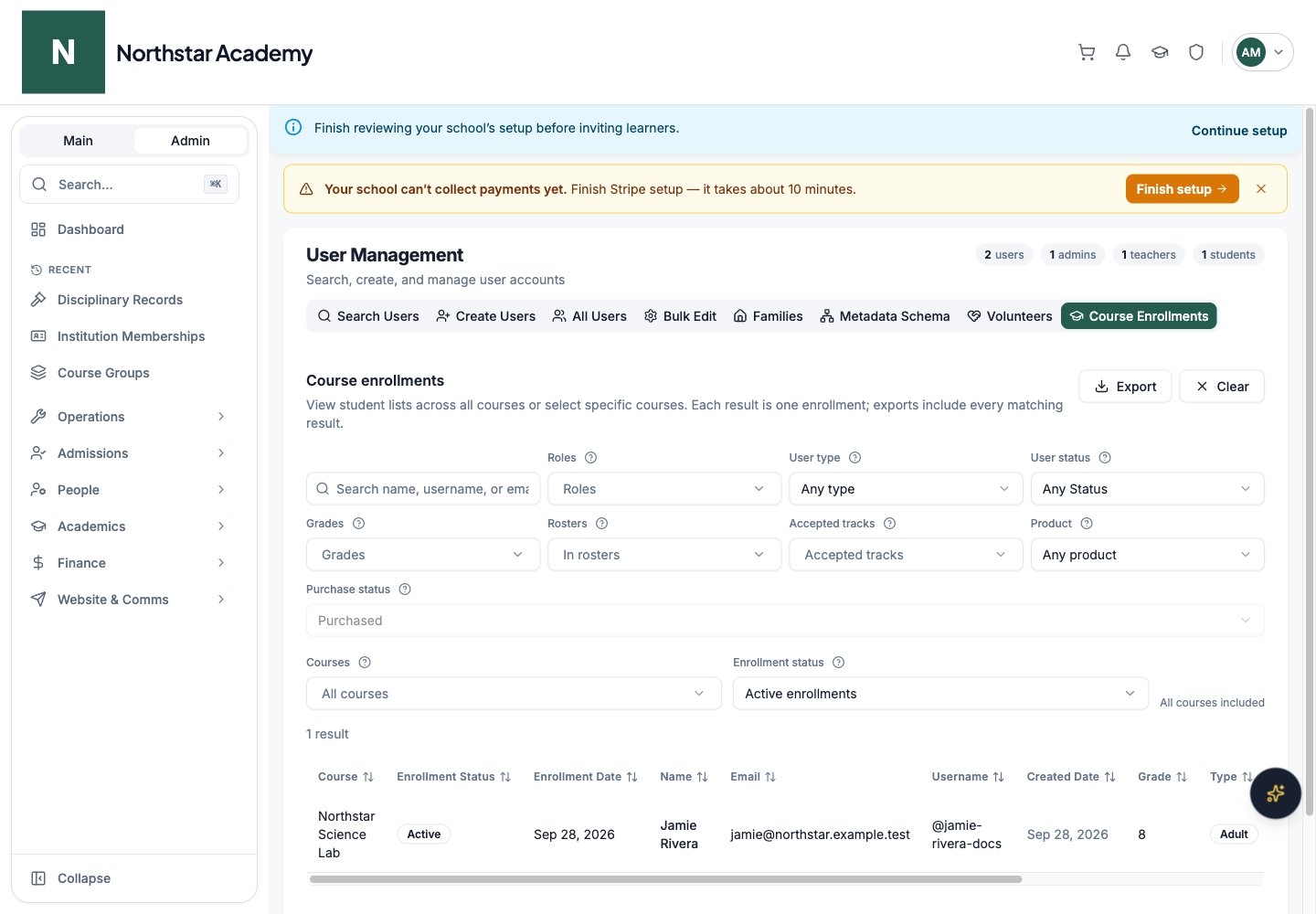
Export course enrollments
Choose the enrollment view
Inspect matching rows
Export
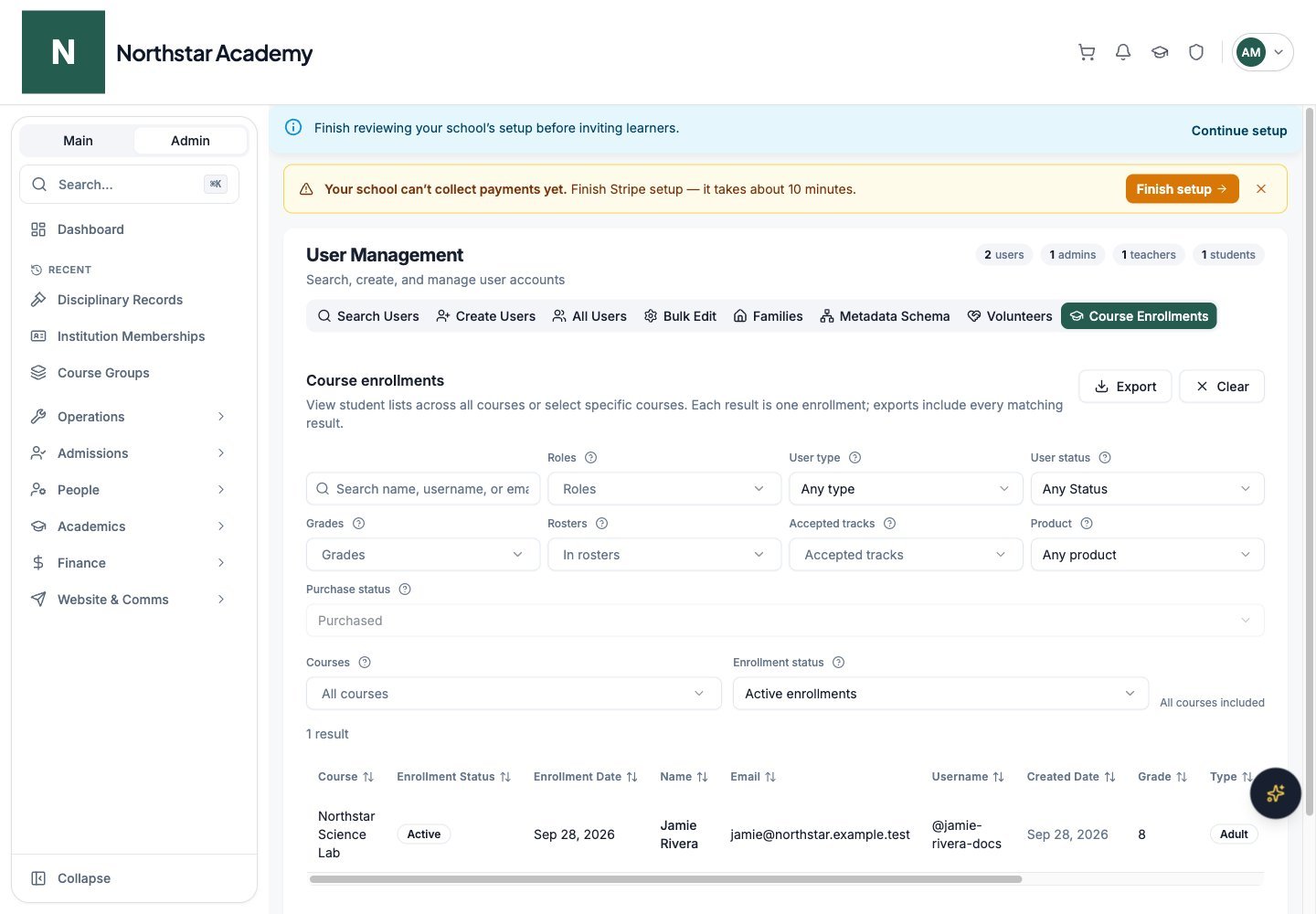
Northstar demo — User Management — Course Enrollments