School-level feature — managed within your school portal at
yourschool.deandesk.com.Video walkthrough
This walkthrough uses the real DeanDesk interface with the fictional Northstar Academy demo school and a calm, AI-generated English voice. Payments and outside services are not connected in the demo.
The Curriculum page
In the Admin Dashboard, go to Academics → Curriculum. The page has two tabs:
The School curriculum tab lists your maps. Each map’s ⋯ menu offers Edit details, Duplicate, and Archive.
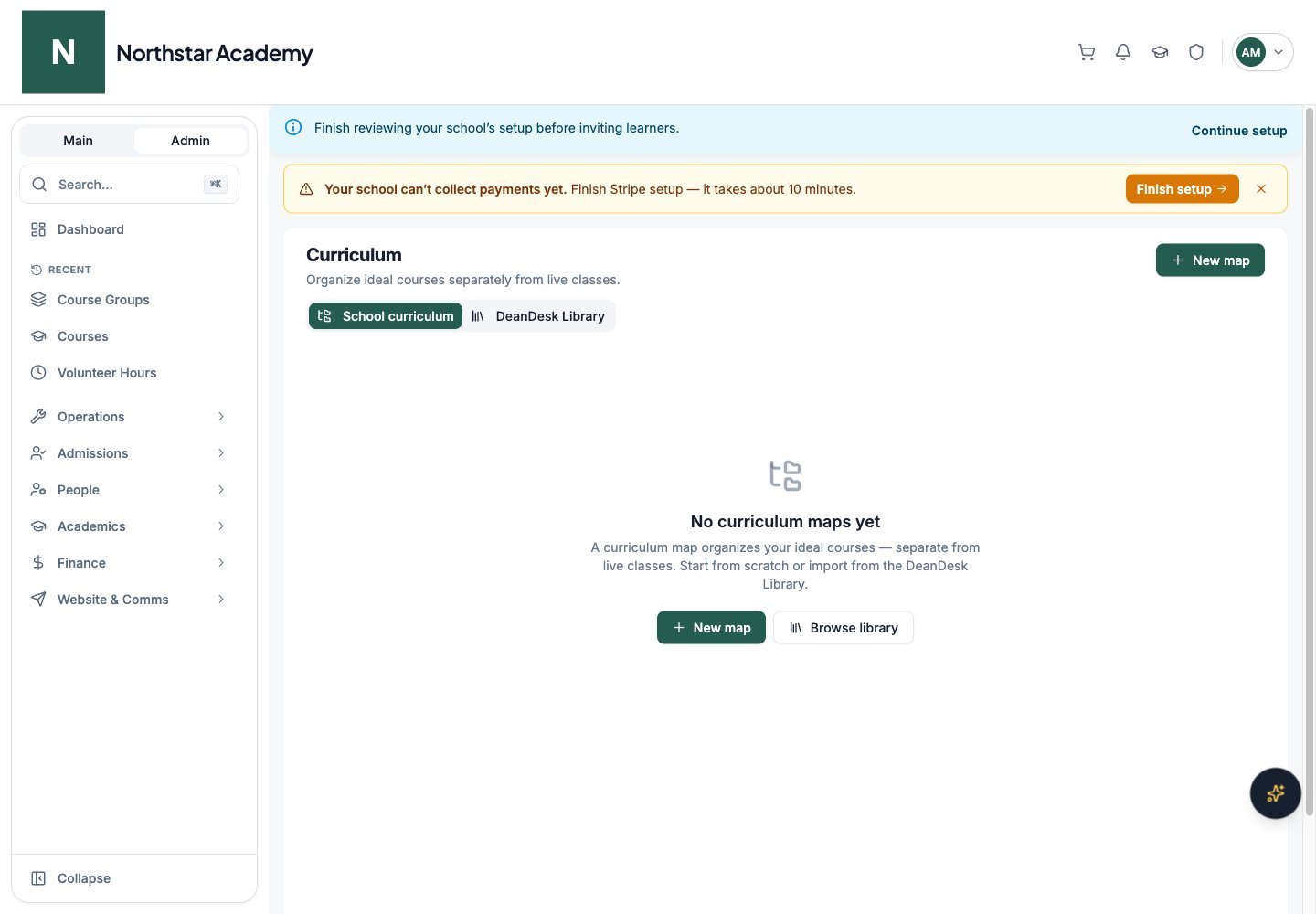
Northstar demo — Curriculum — School curriculum
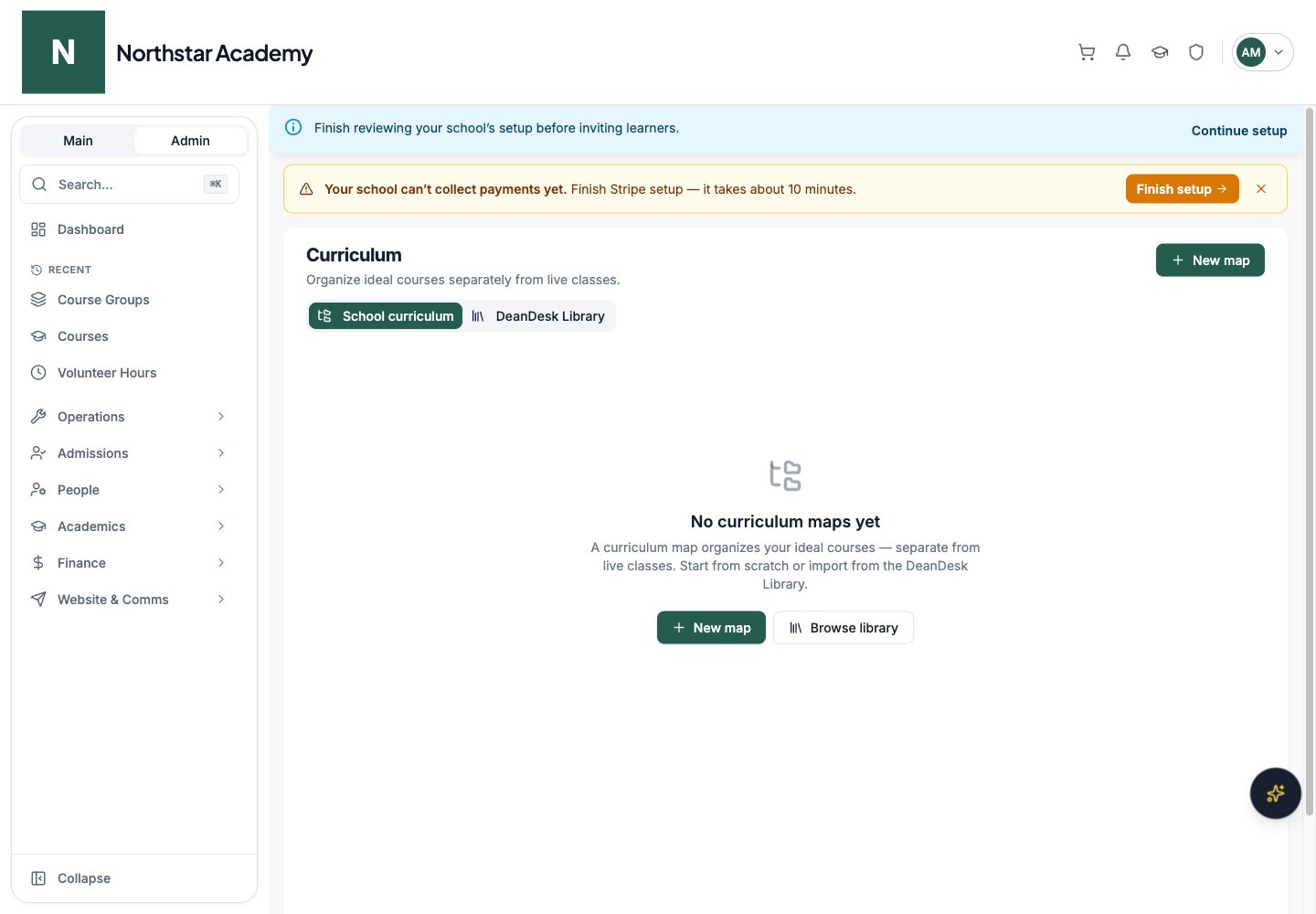
Curriculum maps
A curriculum map carries:
DeanDesk also records where a map came from — built by hand, created from a course, imported from the library, or duplicated from another map.
Starter templates
When creating a map, you can start from a starter template that pre-builds the hierarchy for you. Each preset is configurable before it’s created:
You can also start from a blank map and build the hierarchy yourself.
Nodes: the map hierarchy
Inside a map, the structure is a tree of nodes. Each node has a name, an optional code and description, and a sort order. Node types include program, department, subject, grade, level, stage, track, and category — and you can use custom types. Course templates sit at the leaves of the tree. Open a map to edit it. The editor gives you:- A search box (Search name, code, subject…) to jump to any item
- Node and Course buttons to add a node or course template
- Expand/Collapse all controls and drag handles to reorder items
- Actions on the selected item: Add child, Add course, Move, Move up/down, Remove, and Edit node
Outline and diagram views
A Map view toggle switches between two ways of seeing the same map:- Outline — a collapsible tree with drag handles, in a resizable pane.
- Diagram — a canvas of node cards you can pan and zoom (Drag to pan · Scroll to zoom · Click to open · Hover to add). Zoom in/out and Fit controls frame the map, and hovering a node reveals a + to add a child node or course beneath it.
Multiple placements
A node or course template can live in more than one place in the map — for example, one course template under both “Grade 9” and “Science Department”. The Placements multi-select lets you choose multiple parents, or leave it empty to place the item at the map root. Use the Update curriculum placements dialog to change placements later.Items with multiple placements can’t be drag-reordered in the outline — you’ll see “Shared courses cannot be reordered”. Removing a node only removes children that have no other remaining parent.
Course templates
Course templates are the reusable building blocks at the leaves of a map. A template carries a name, code, description, subject, grade or level, credits, instructional hours, version, status, prerequisites (other templates), and a snapshot of curriculum content — units, modules, materials, and assessments. In the template editor, each module has a title, a Visibility setting (Visible, Hidden, or Scheduled), an objective, and a description. There are three ways templates connect to live courses:- Build from scratch
- Import from an existing course
- Instantiate into a live course
Click Course in the map editor to add a blank template, then fill in its details and curriculum content.
The DeanDesk Library
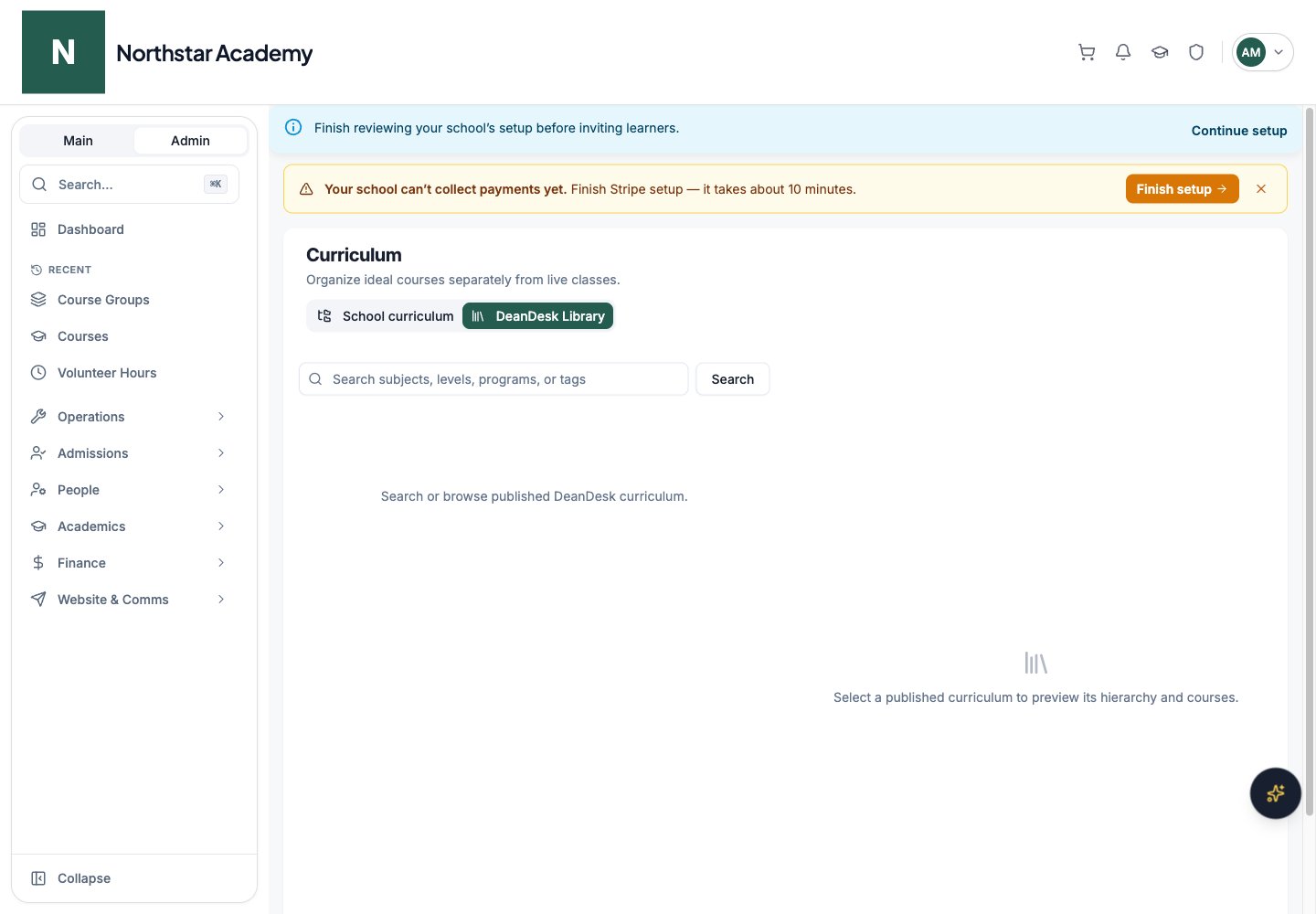
The DeanDesk Library tab is a catalog of curriculum maps and course templates published by DeanDesk. Search across subjects, levels, programs, and tags to find something that fits your school. Library maps are marked with a Read-only source badge. To use one:- Copy entire map — imports the whole map into your school curriculum.
- Copy to map — on any row in a library map’s Course templates list, copies just that template into one of your own maps.
Imported copies belong to your school. You can edit them freely, and they are unaffected if the library map is later unpublished.
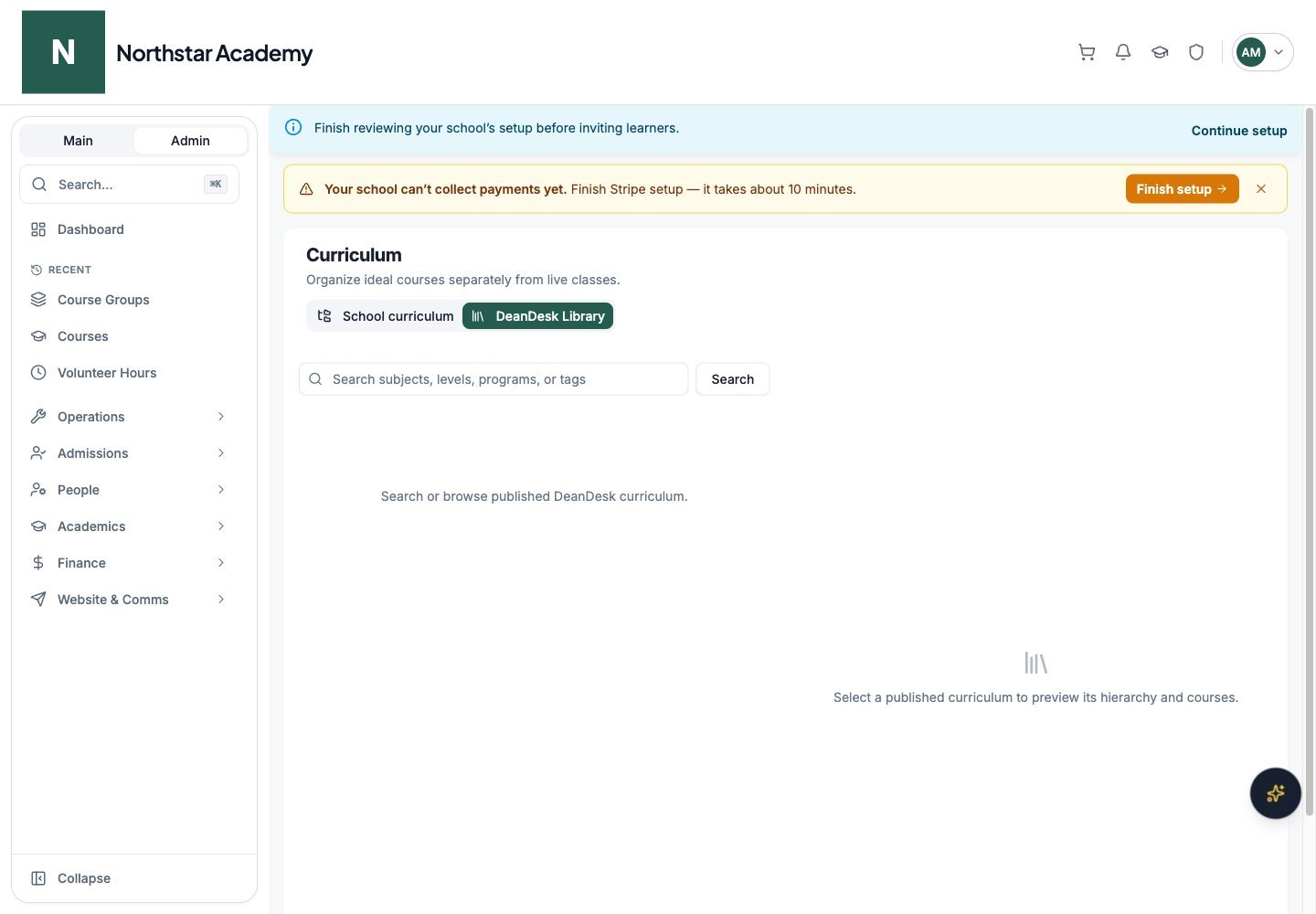
Northstar demo — Curriculum — DeanDesk Library