

School-level feature — managed within your school portal at
yourschool.deandesk.com.Video walkthrough
This walkthrough uses the real DeanDesk interface with the fictional Northstar Academy demo school and a calm, AI-generated English voice. Payments and outside services are not connected in the demo.
Browsing the Events catalog
Members open the Events item in the main sidebar to reach the Events Catalog. Each program card shows its image, instructor, upcoming schedule (recurring sessions are labeled with their repeat pattern, e.g. “Weekly on Tuesday”), and tags. A search box filters by title, description, instructor, or tag. From a card, members can:- View Details — open the program’s detail page.
- Subscribe / Unsubscribe — follow or unfollow the program in one click.
The Events catalog and Programs storefront have separate navigation switches. In Website & Comms → Website → App Menus, the main sidebar switch Events Catalog controls the Events catalog, and Programs controls the Programs storefront.
The program detail page
The detail page opens with a hero image and the program’s status chips — Active or Inactive, the linked term if any, and Private Code if the program has an enrollment code — plus Subscribe/Unsubscribe buttons. Below that:- About — the program description and instructor profile.
- Schedule — every session with its date or recurrence pattern, time (or All Day), location, and session notes.
- Tags — the program’s tags.
- Materials — text notes and downloadable files the instructor has added. The instructor and admins can add materials directly from this page (Add Material, with a Published switch to keep drafts hidden).
- Program Feed — the program’s social feed, on the right side of the page.
Subscriptions
Subscribing is free and instant — there is no approval step or capacity limit. Subscribing does three things:- The program’s sessions appear on the member’s Calendar (instructors see their own programs’ sessions too; admins see all program sessions).
- The program appears in the My Events section of the member’s dashboard.
- The member is notified when someone posts in the program’s feed.
The program feed
Each program has its own post feed where the community around the program lives. Any active subscriber (plus the instructor and admins) can post.- Click Start a post… (or Media / Write Article) to open the composer. Posts have a title, content, and optional file attachments.
- Members can like posts and add comments, including threaded replies.
- The instructor and admins can pin posts to the top of the feed.
Creating a program
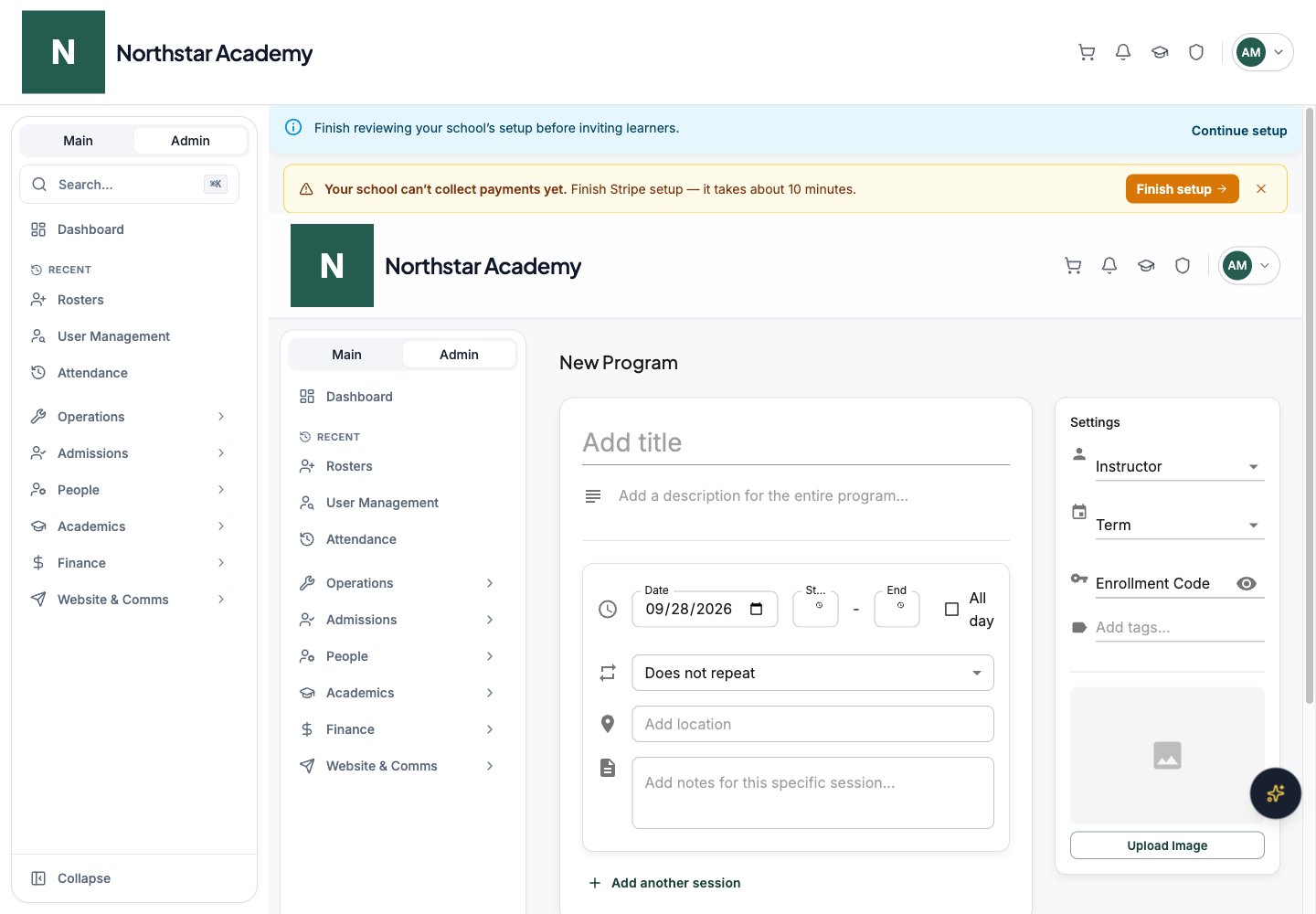
Teachers and admins create programs. Click Create Event at the top of the Events Catalog to open the program form.1
Add the basics
Enter a title and a description for the program as a whole.
2
Build the session schedule
Each program starts with one session; click Add another session for more. Per session you set:
3
Set the program options
The Settings panel on the right holds:
4
Save
Click Create Program. The program appears in the Events Catalog immediately (as long as it is active).
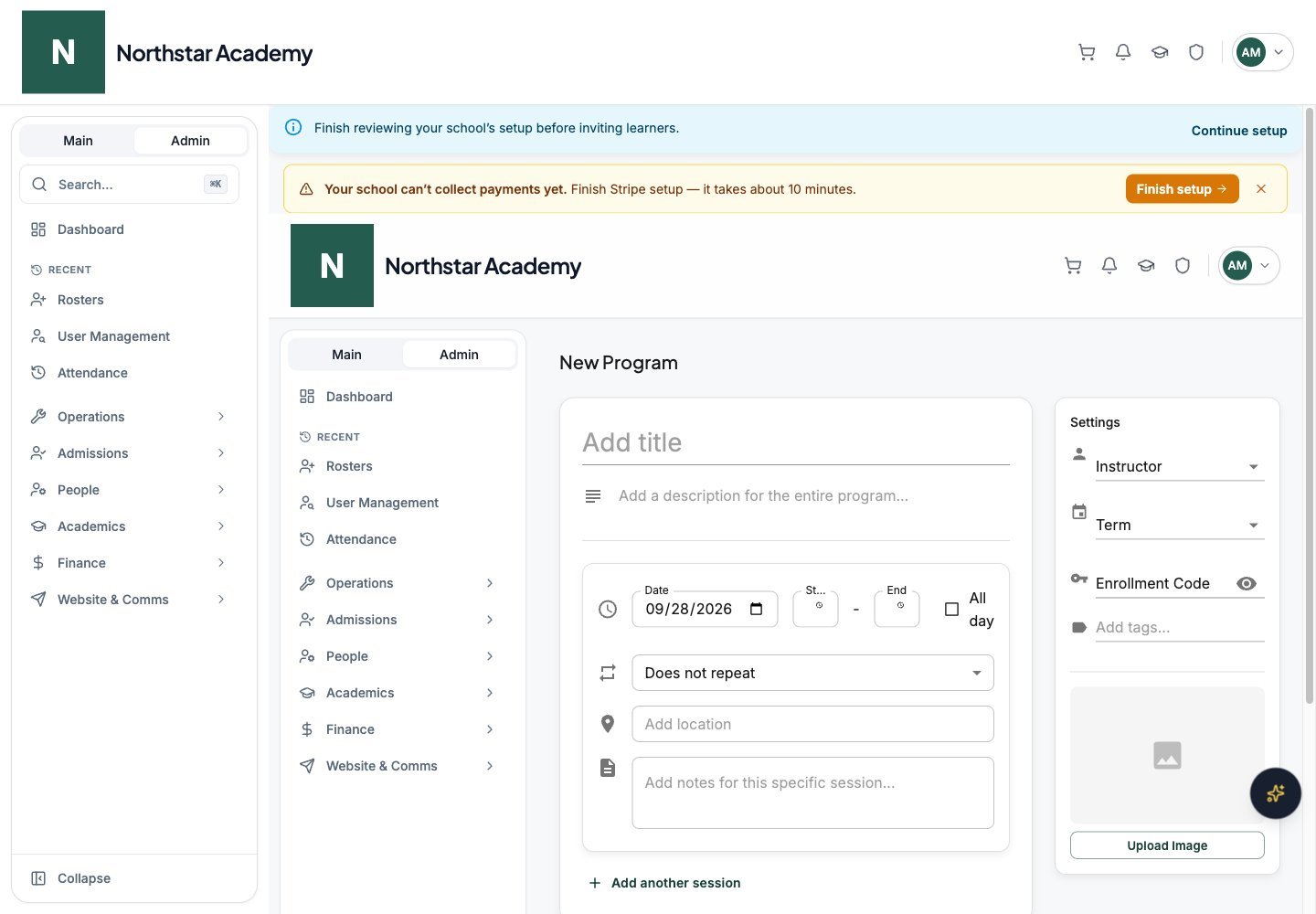
Northstar demo — Create program
Paid programs
Programs themselves have no price — payment is handled by Products. Create a Program-type product, then use Manage Programs on the product to link it to one or more programs. When someone purchases the product (for example from the Explore Programs storefront), they are automatically subscribed to every linked program.Who is attending
Program-product checkout distinguishes the purchaser from each attendee. When buying spots for yourself or someone else, complete the requested attendee details for each spot. For family enrollment, choose the intended family member rather than assuming the paying parent is the participant.Program attendee management
Admins use Program attendees to review purchased program spots. Filter by program and attendee type, or search attendee, purchaser, program, or order. Rows show attendee details separately from purchaser details, and flag spots where attendee information is unavailable. Open an order for its payment and attendee details, or Export CSV for all rows matching the current filters.The attendee list follows Program product purchases. A free subscription to an Events-catalog program and a paid product attendee record serve different purposes.