School-level feature — managed within your school portal at
yourschool.deandesk.com.Video walkthrough
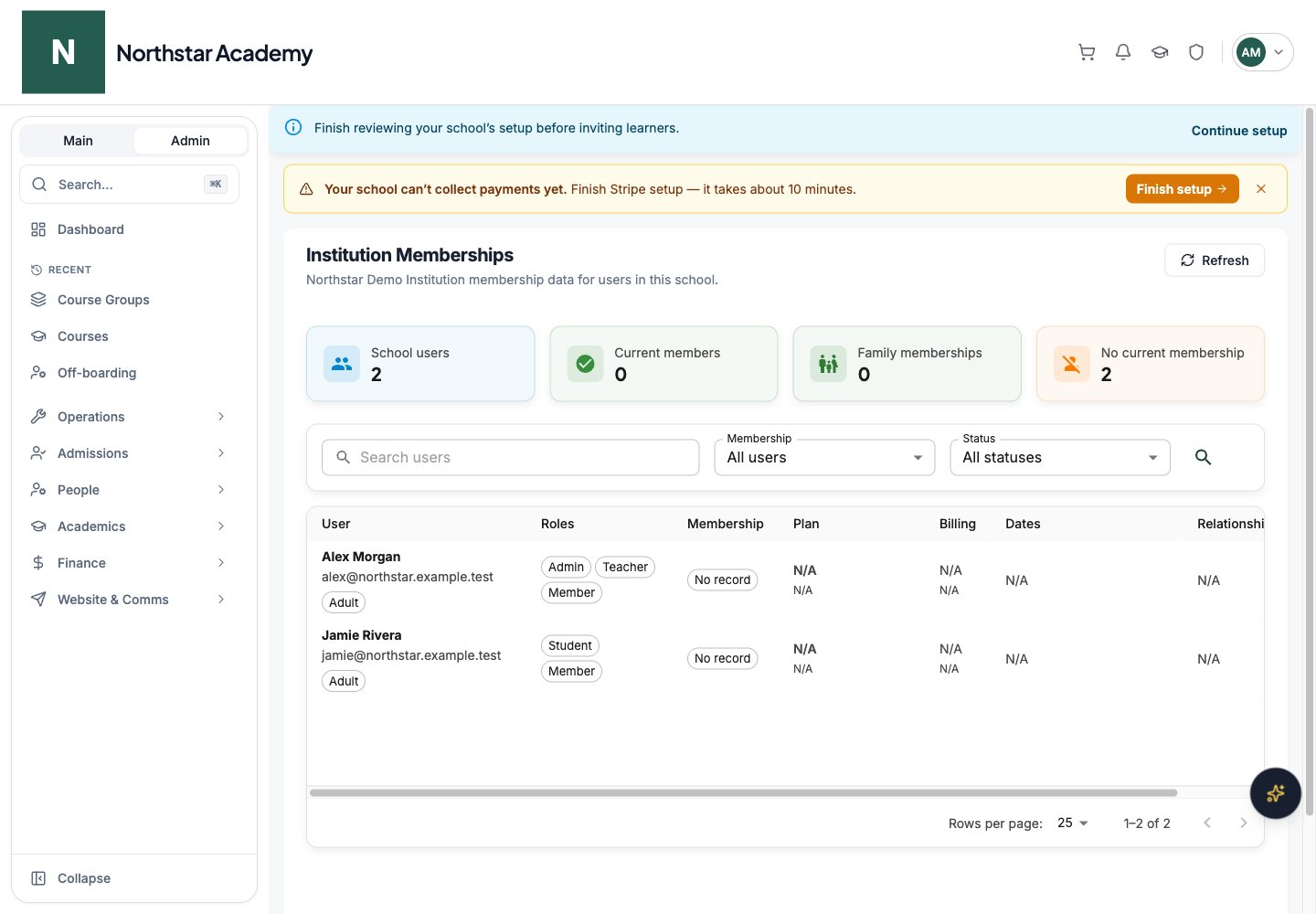
This walkthrough uses the real DeanDesk interface with the fictional Northstar Academy demo school and a calm, AI-generated English voice. Payments and outside services are not connected in the demo.
Find a User’s membership
1
Search the school
Enter a name or account detail in Search users, then press Enter or click the search icon. Clear the search to return to the full list.
2
Filter membership and status
Set Membership to All users, Current members, or No current membership. Use Status for Active, Manual, Past due, Canceled, or Expired, or keep All statuses.
3
Read the membership record
Review the User’s school roles, membership status, plan and tier, billing interval and payment source, dates, and relationship to the membership. Family membership rows also identify the family member role. A cancellation-at-period-end notice appears when applicable.
4
Open the school profile
In the Profile column, click the Open profile icon to open that User’s school record. Use Refresh after an institution administrator updates a membership.
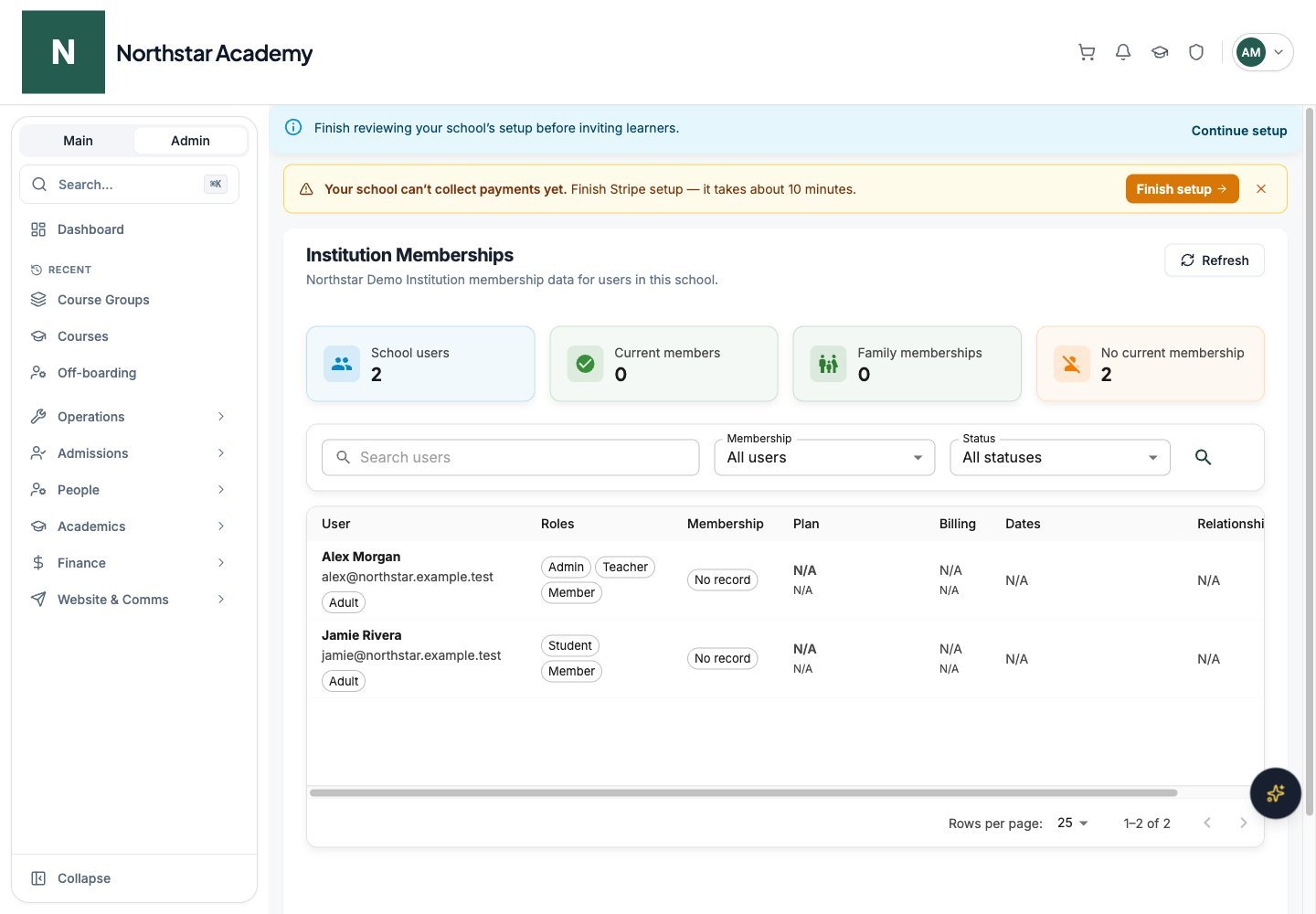
Northstar demo — Institution Memberships