This walkthrough uses the real DeanDesk interface with the fictional Northstar Academy demo school and a calm, AI-generated English voice. Payments and outside services are not connected in the demo.
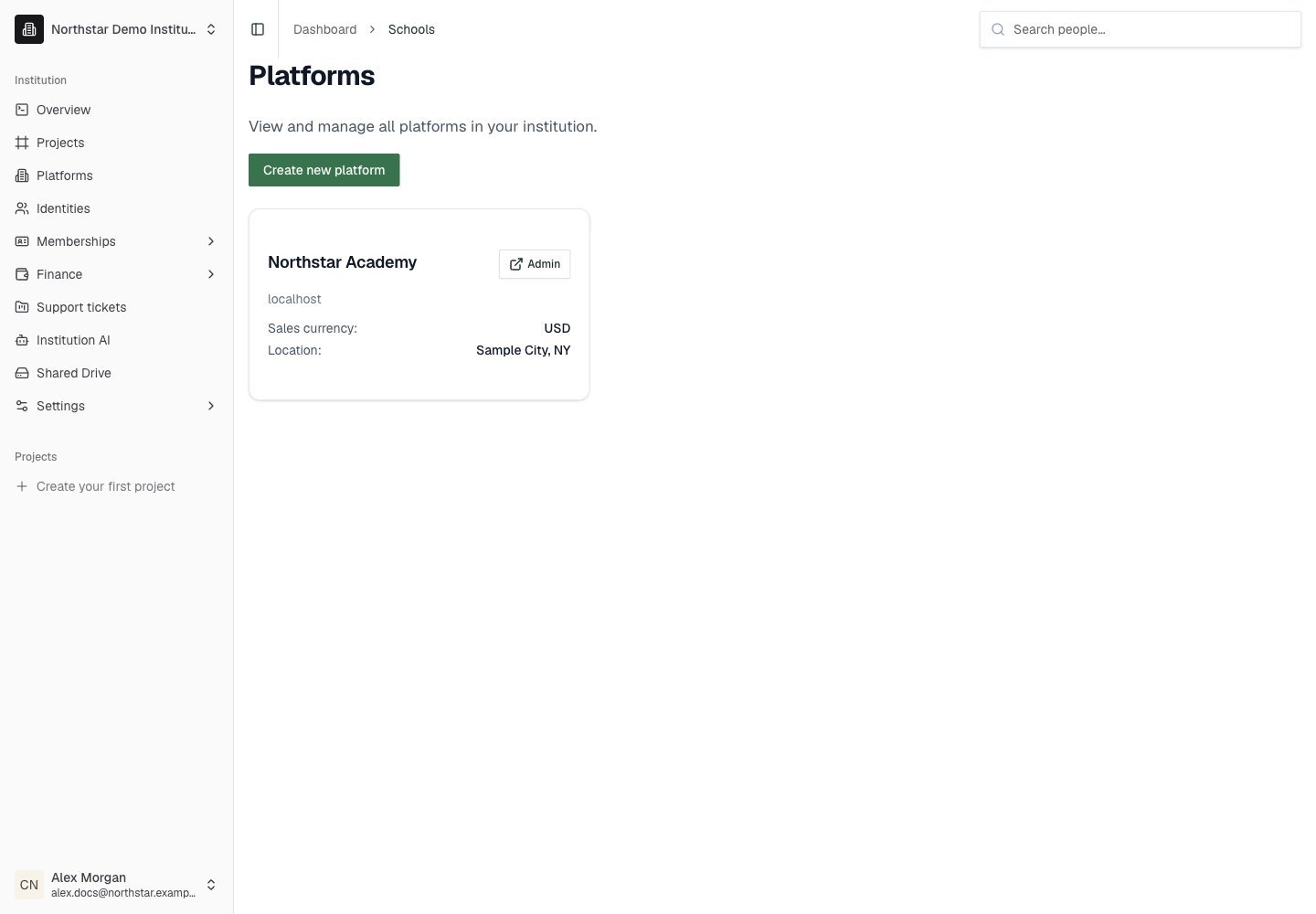
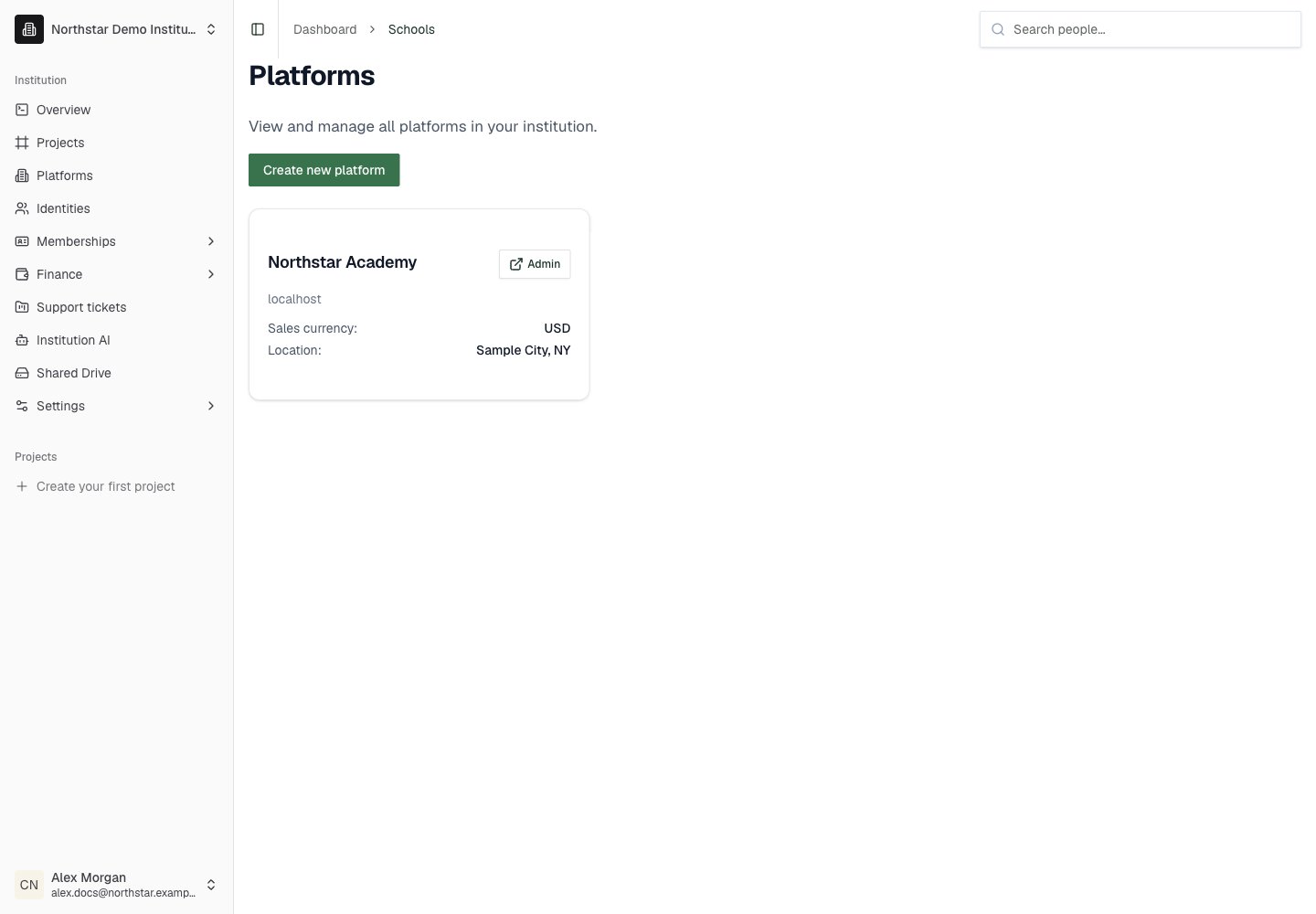
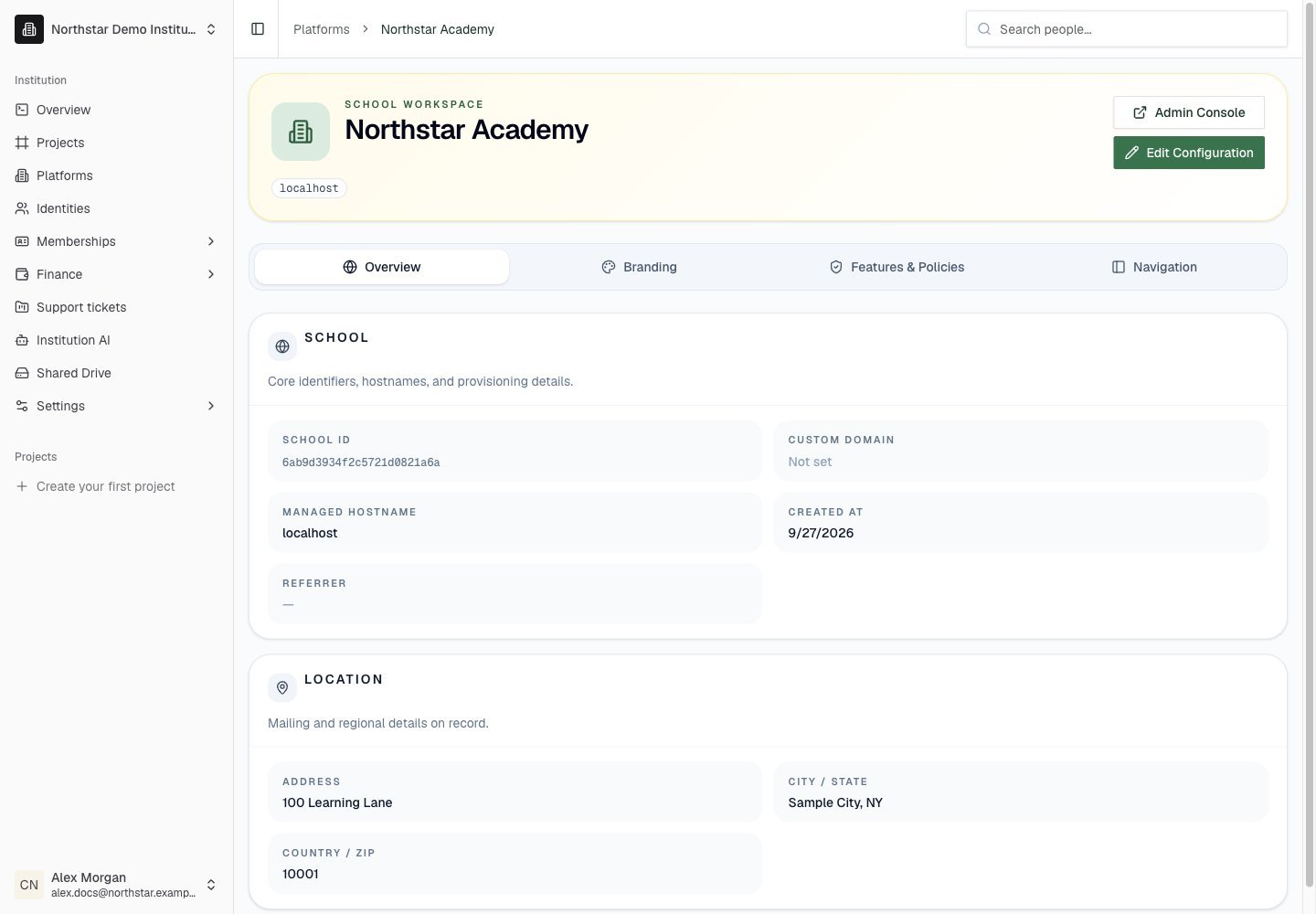
Screenshots use fictional Northstar demo data. Payment and integration screens illustrate the demo setup; no live transactions or connections are shown.Open Platforms in the institution dashboard. Each platform represents one school portal. Your institution owns the school, while its courses, school Users, admissions, and student billing are managed in the school’s Admin Dashboard.
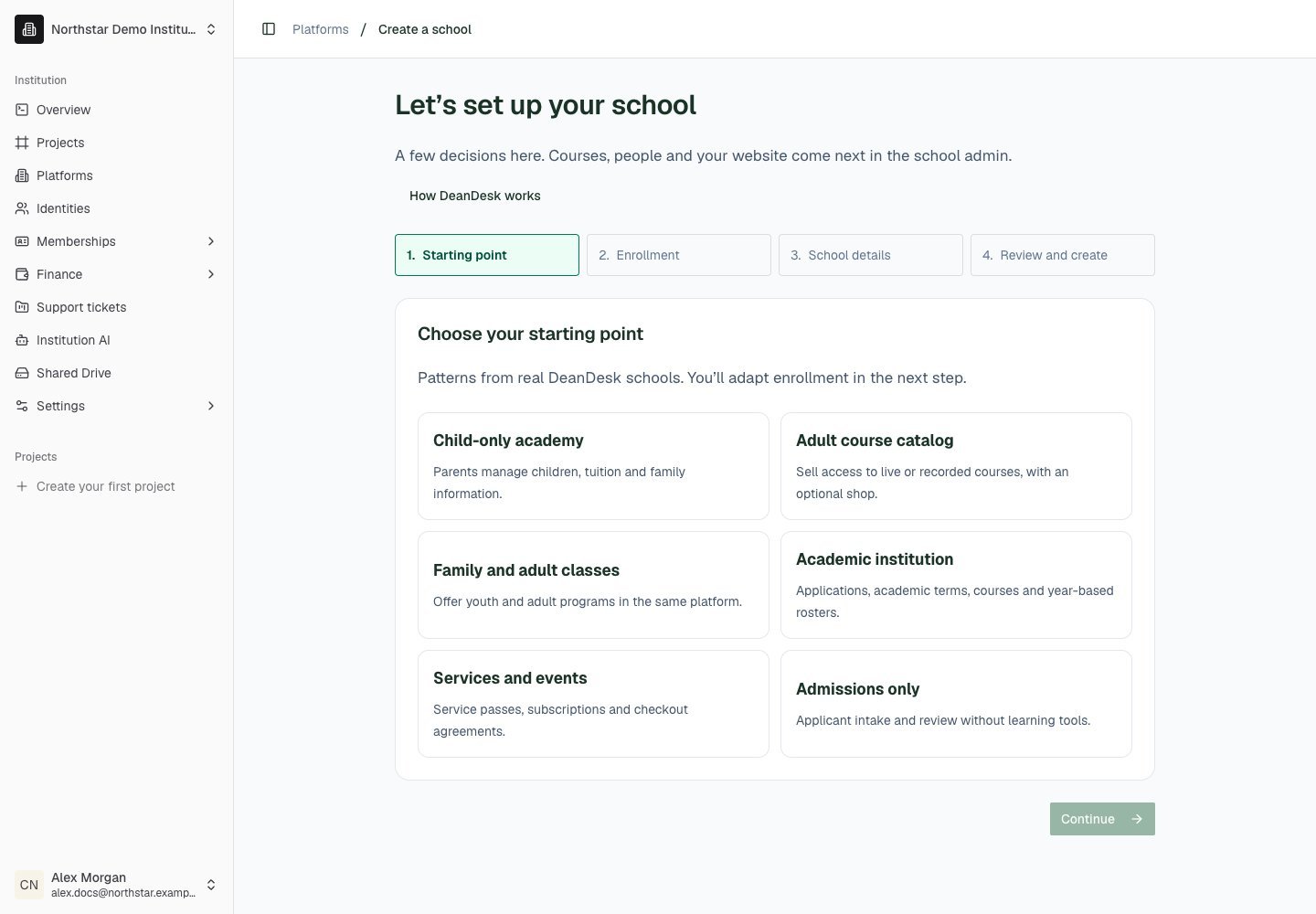
Click Create new platform on Platforms. The setup workspace saves your progress so you can return through Continue a saved setup.
1
Starting point
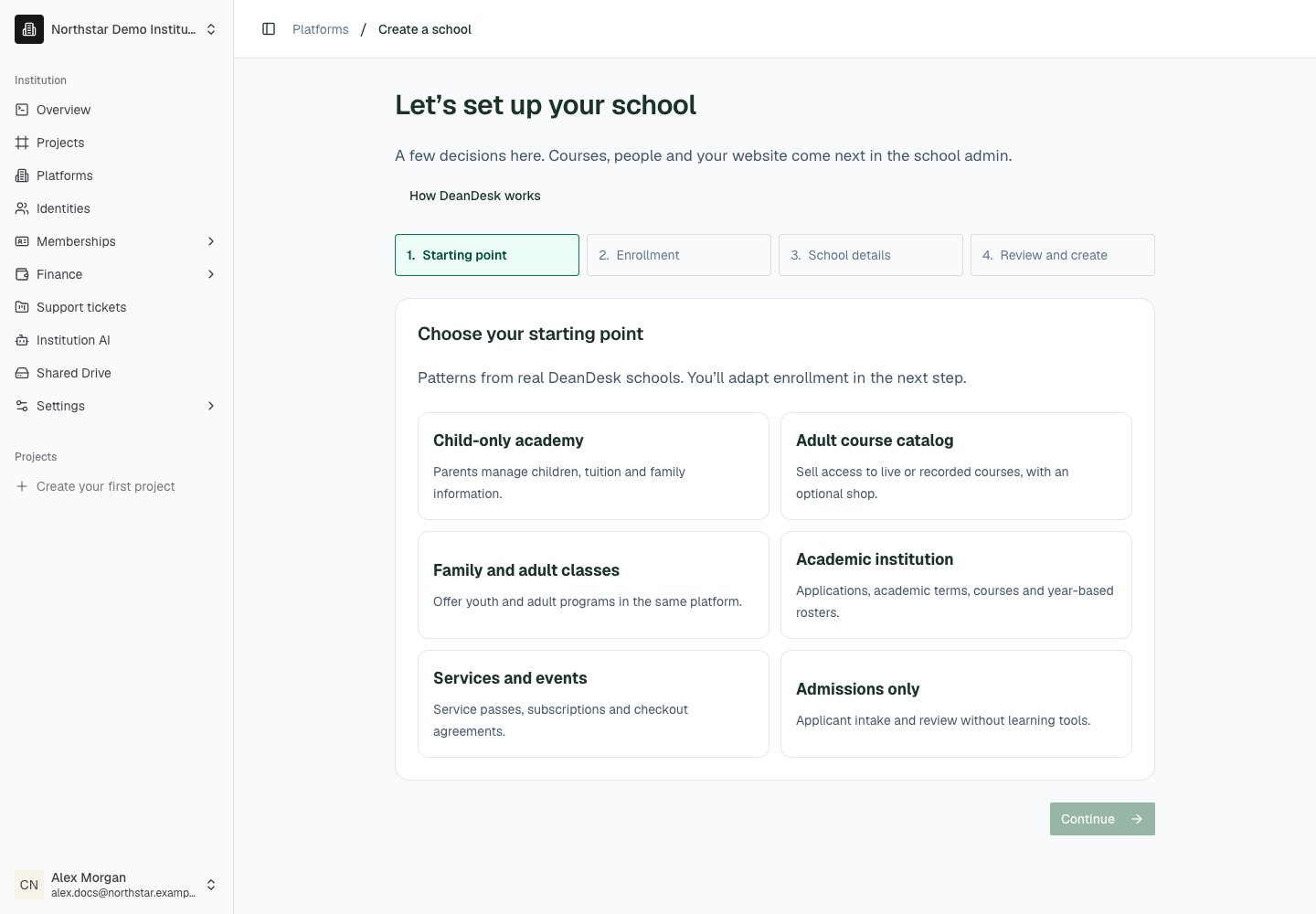
Choose the starting point closest to your school or program. Available starting points depend on your DeanDesk plan. Use How DeanDesk works to replay the introductory tour.
Answer each displayed enrollment question. These choices determine the initial registration and admissions experience. Admissions review and program-selection questions appear where applicable to the enrollment method.
3
School details
Enter School name, DeanDesk web address, and Timezone. Choose the payment account country and sales currency. The web address uses lowercase letters, numbers, and hyphens. Expand Address and branding (optional) to add location and visual details.
4
Review and create
Save and review the proposed setup, resolve missing choices, and confirm that you reviewed it before creating the school. If creation is interrupted, use Refresh status to check the existing setup.
5
Continue inside the school
After creation, click Continue to school setup. Work through the school onboarding checklist for people, courses, products, website content, and launch review.
Sales currency is fixed after creation. Choose the currency your school will charge before confirming the setup.
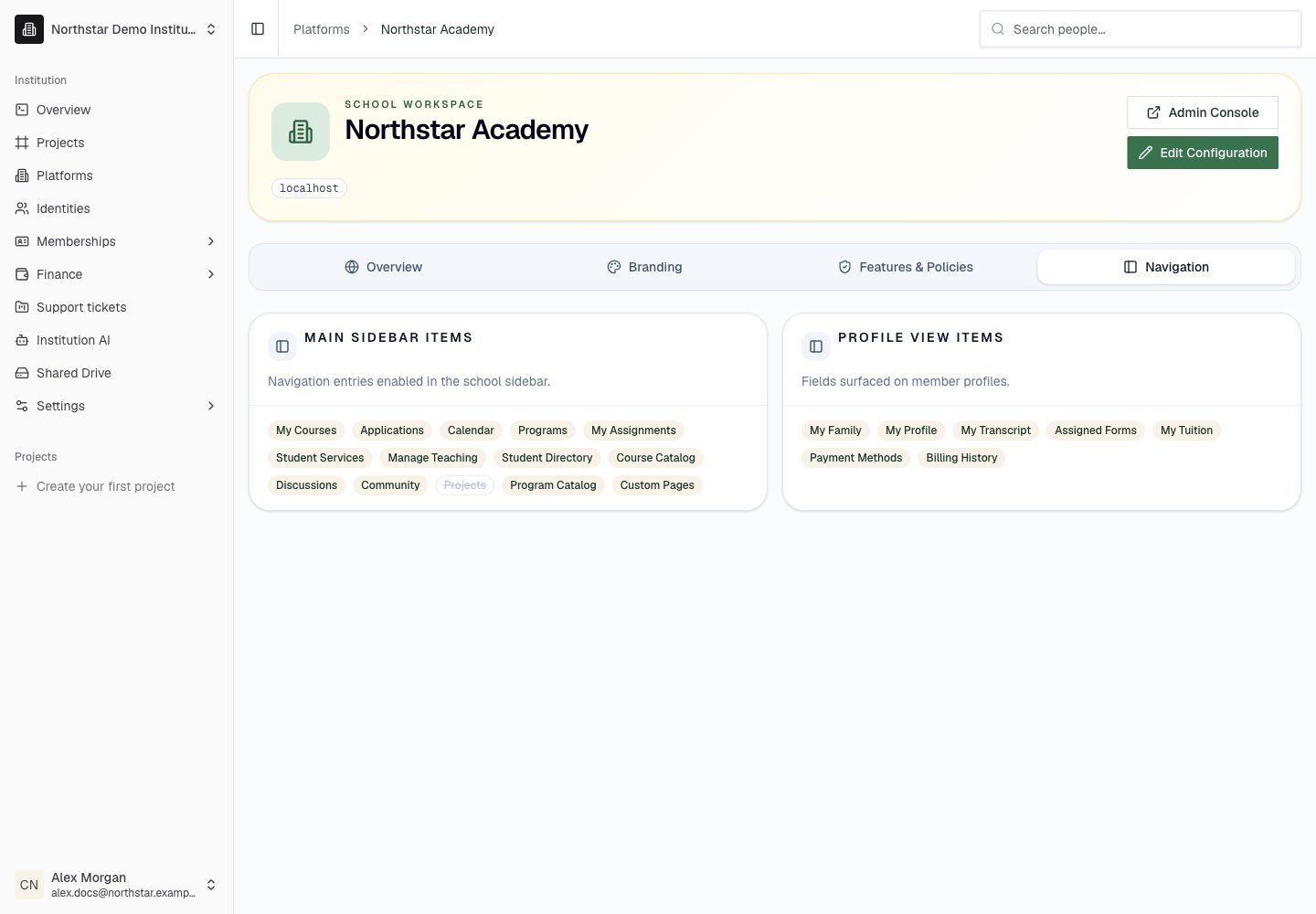
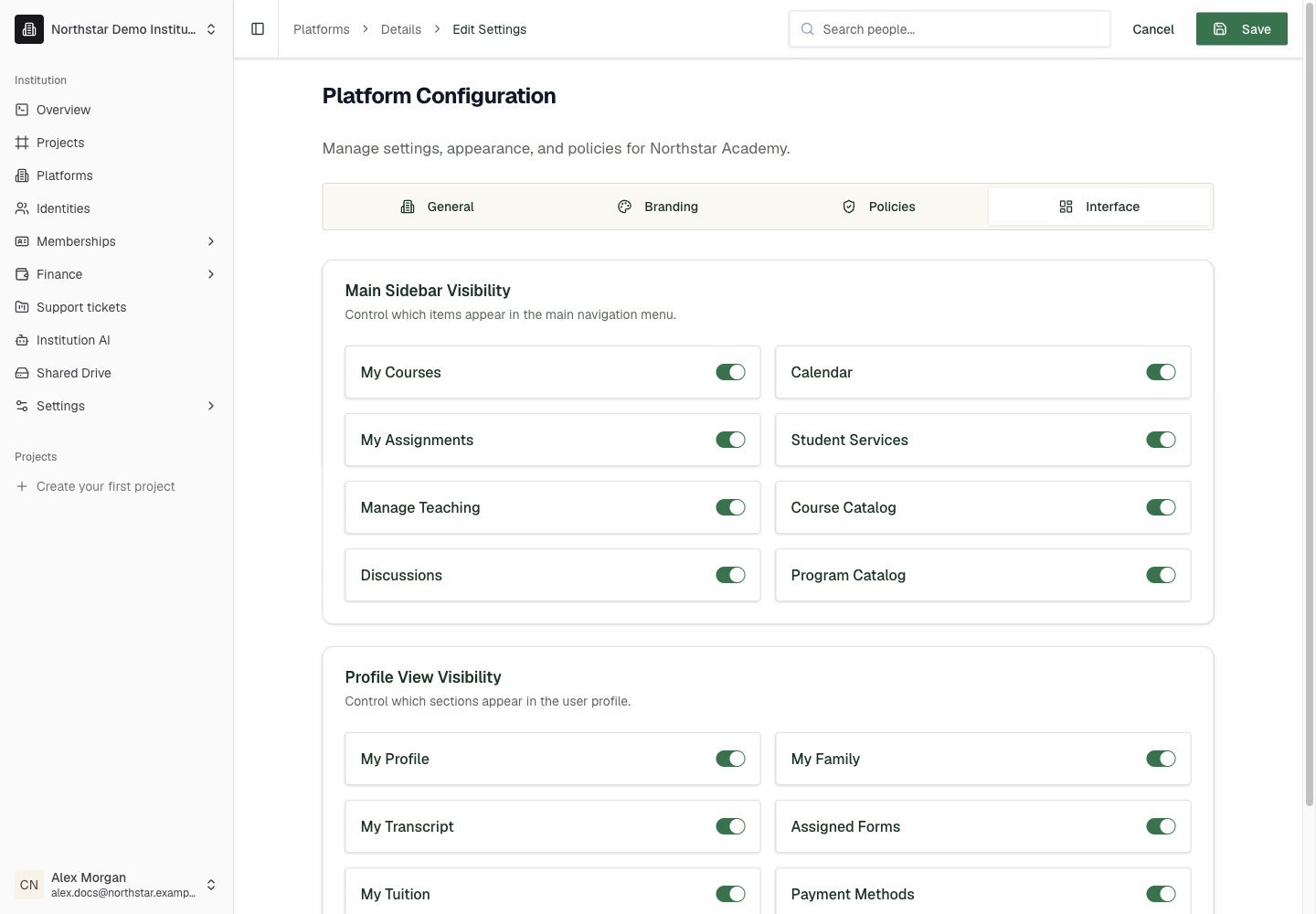
Main sidebar and profile menu items that are enabled for the schoolWhen your Identity has access, click Admin Console on the platform detail page or Overview (the button reads Admin on a Platforms list card) to open the school as its administrator. Check the school name after switching. Use the public-site link to inspect the school’s public experience.
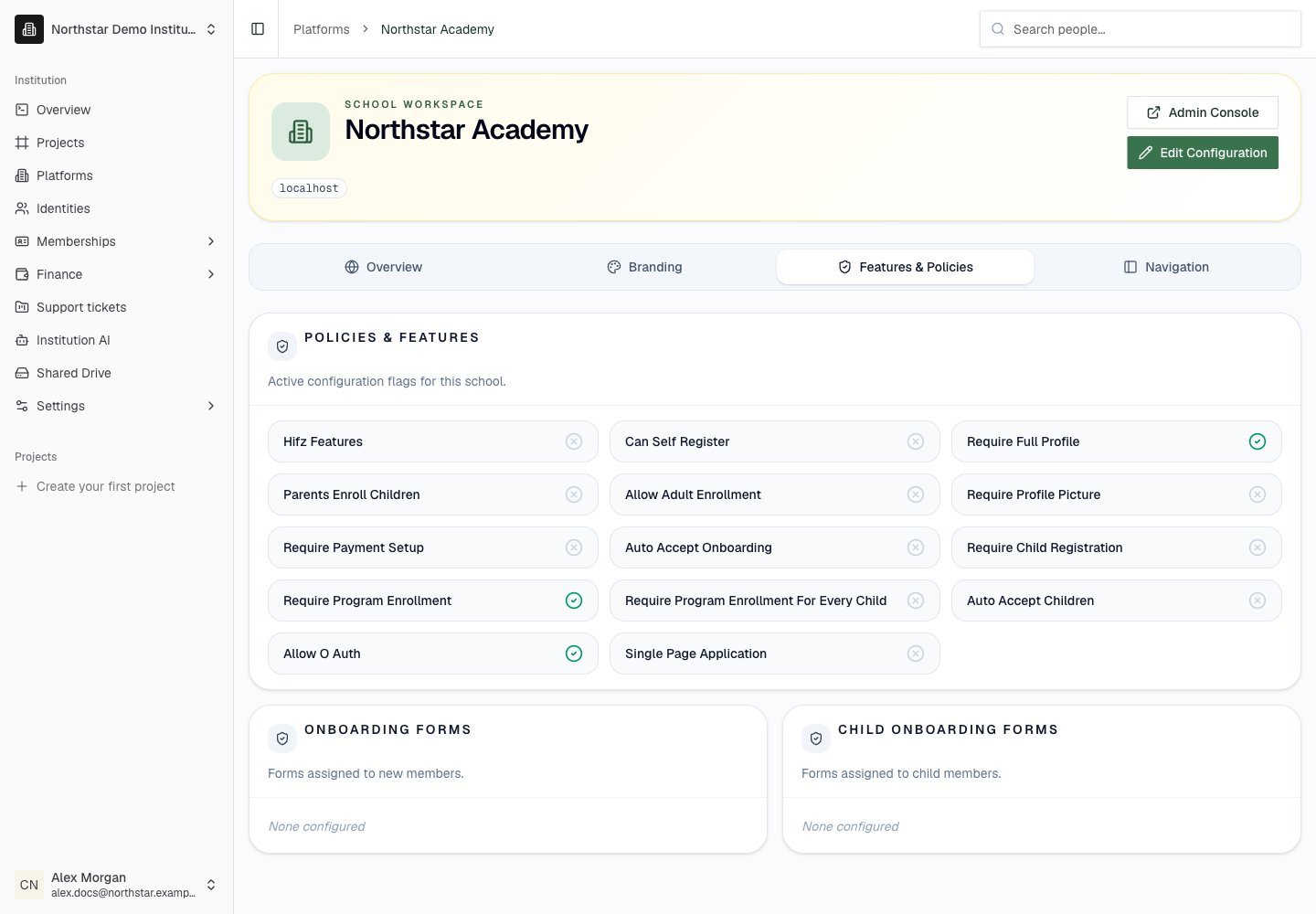
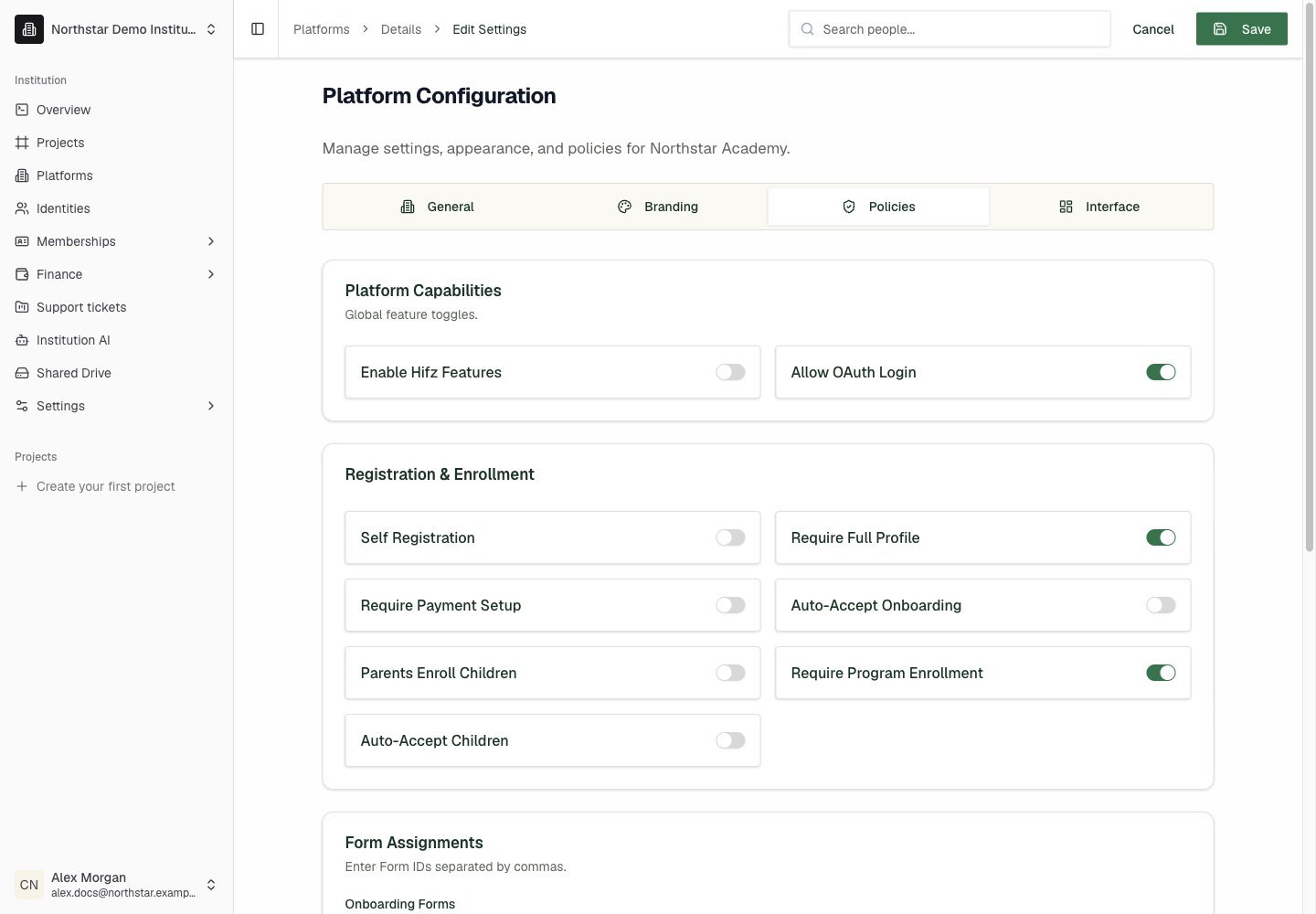
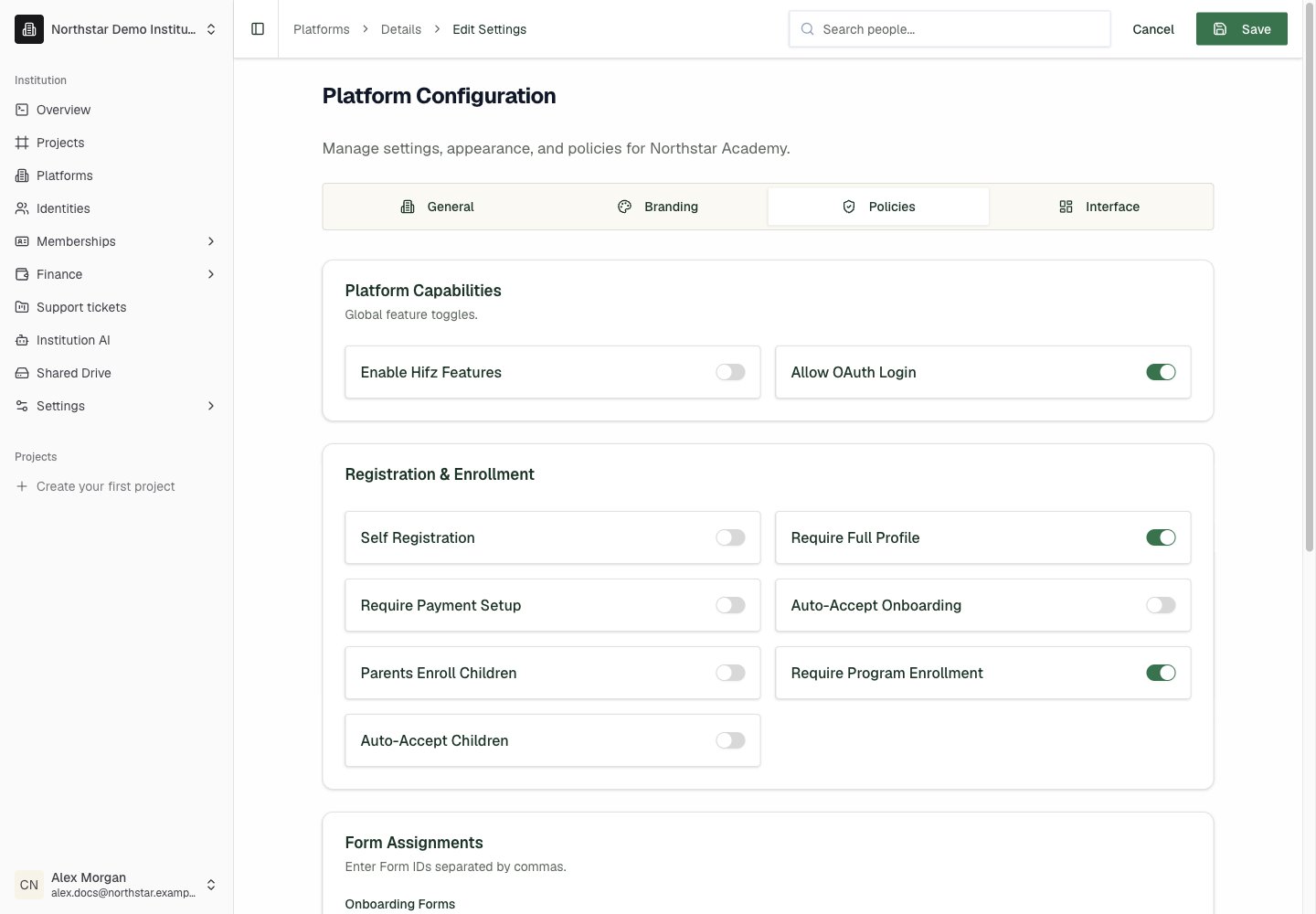
Capability switches, registration and enrollment choices, onboarding form assignments, and application statuses with descriptions, order, and email templates
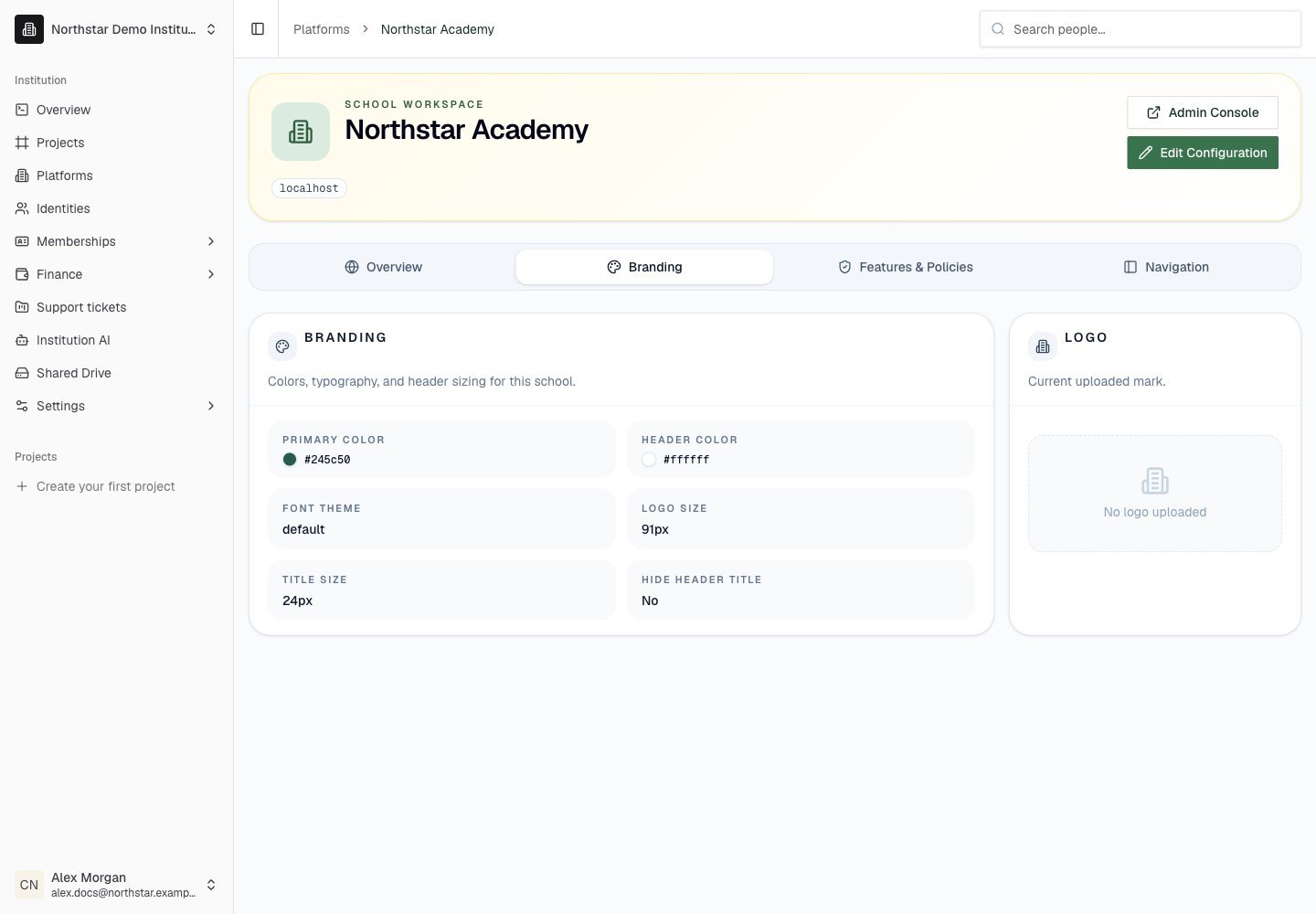
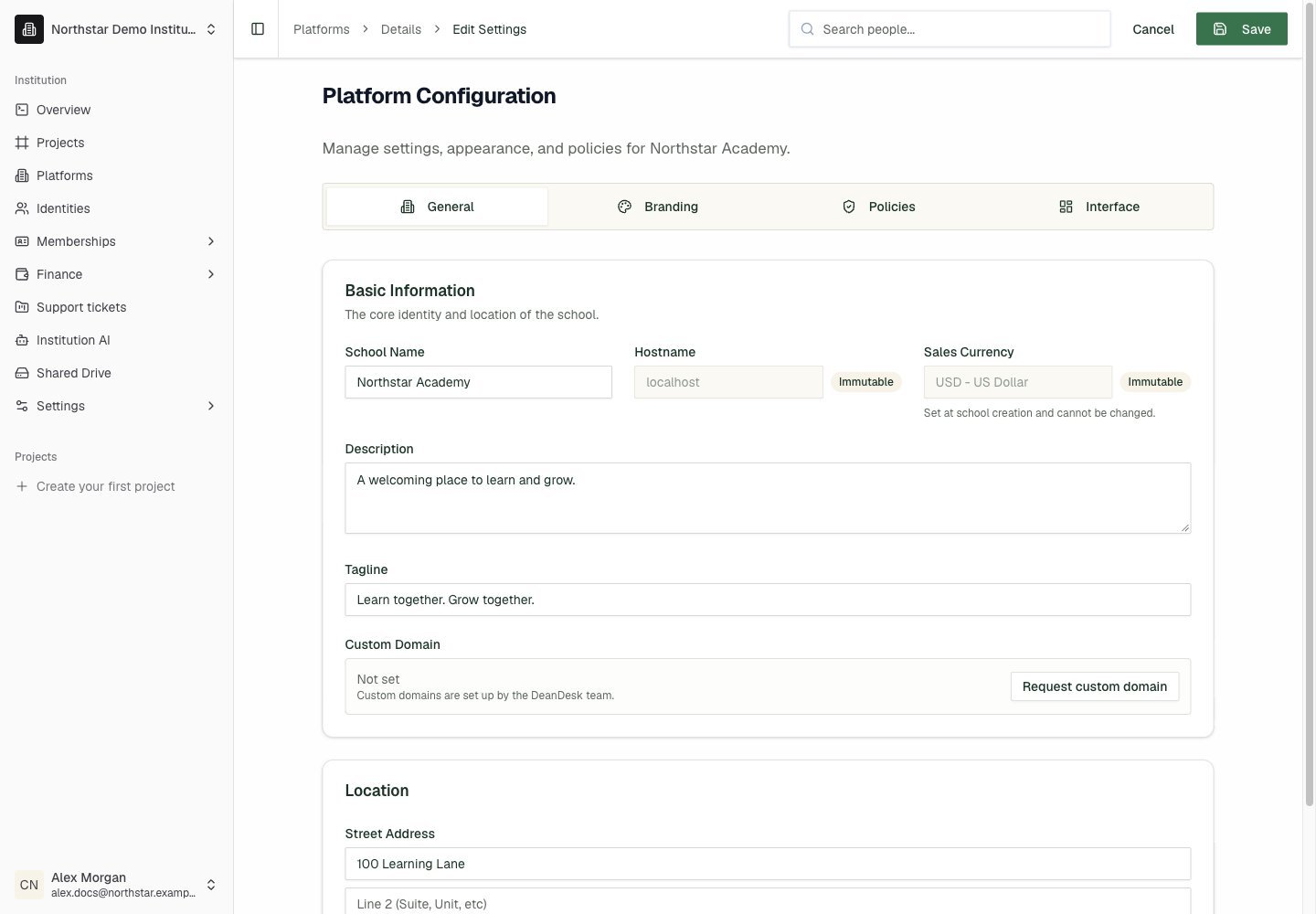
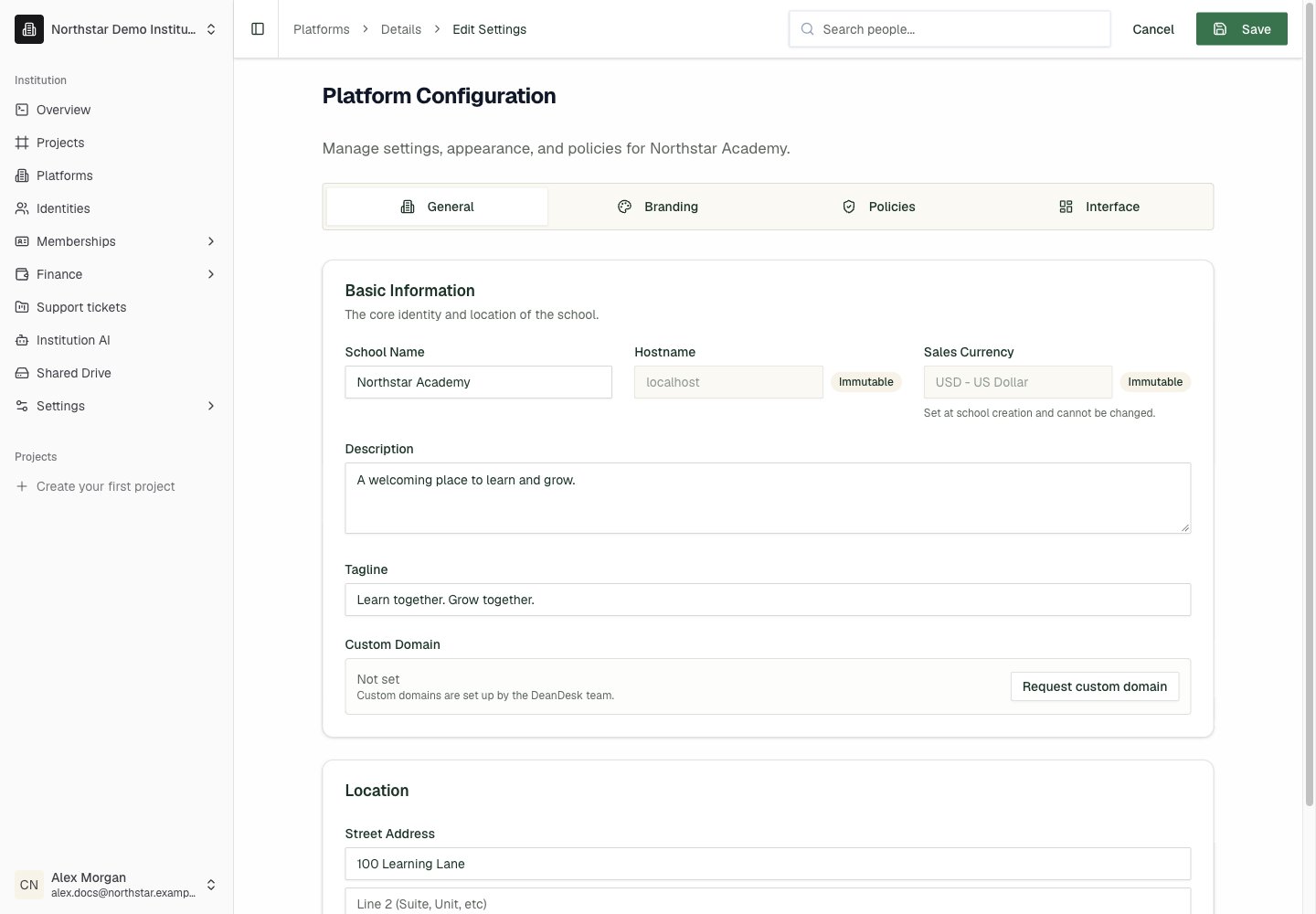
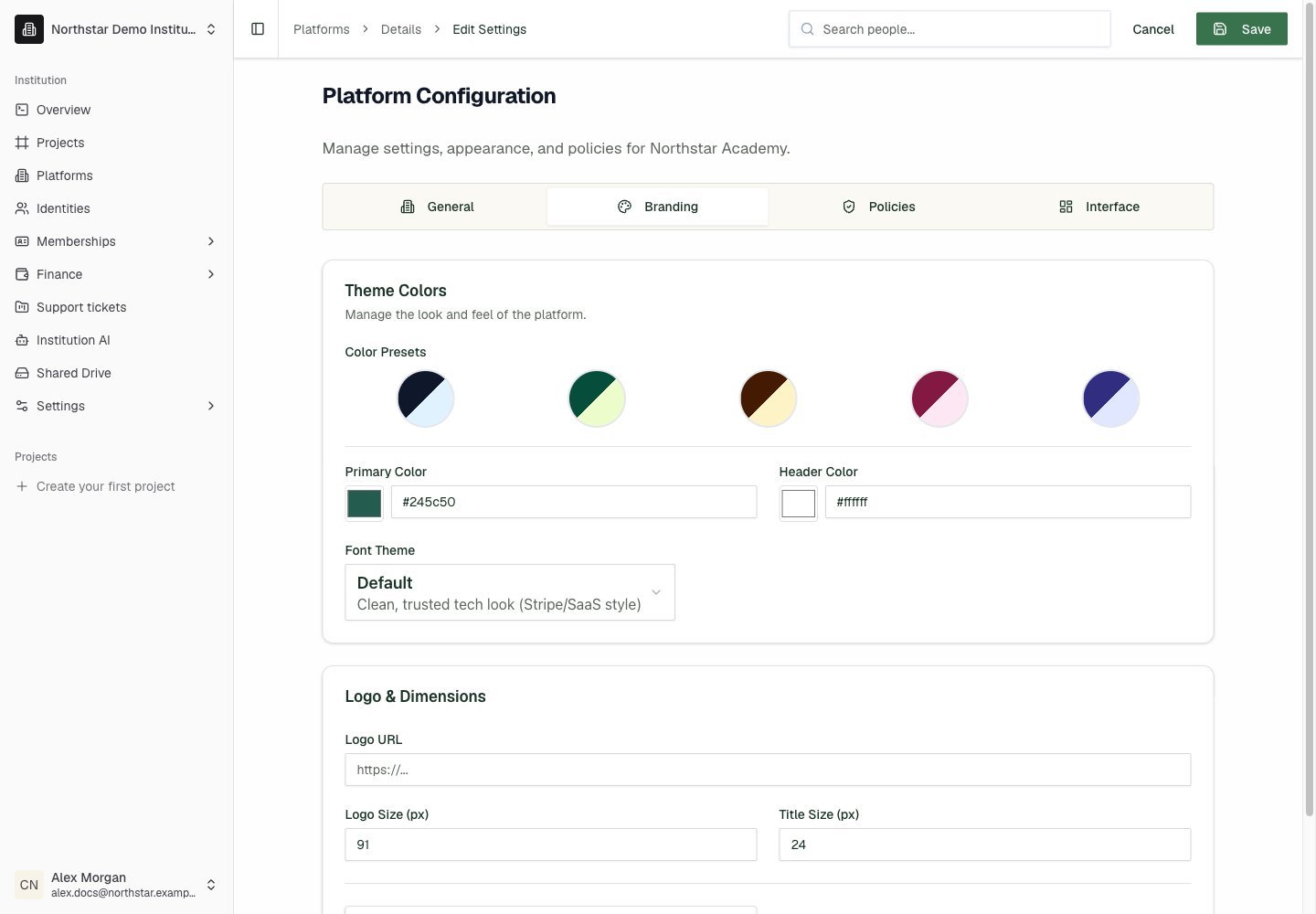
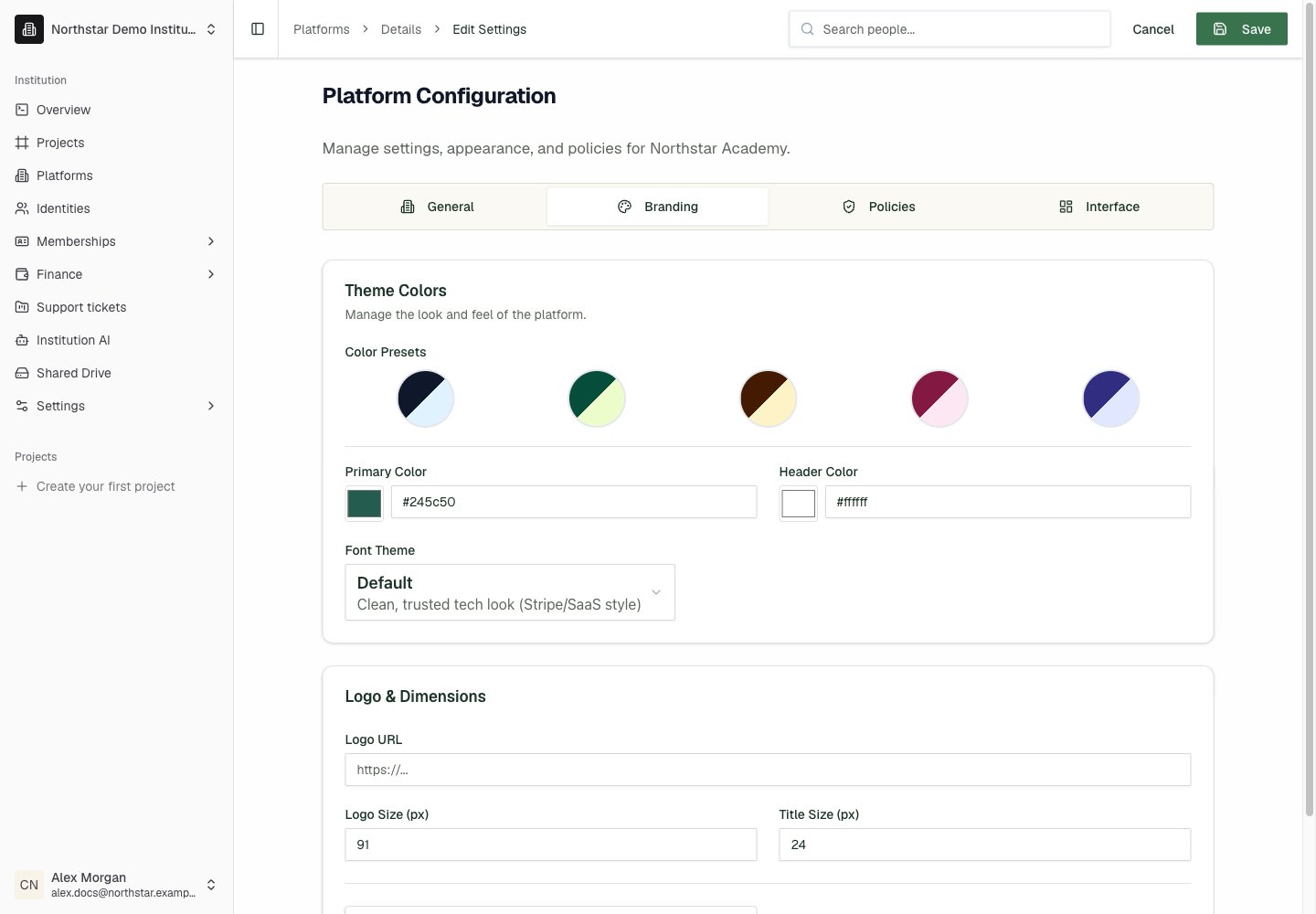
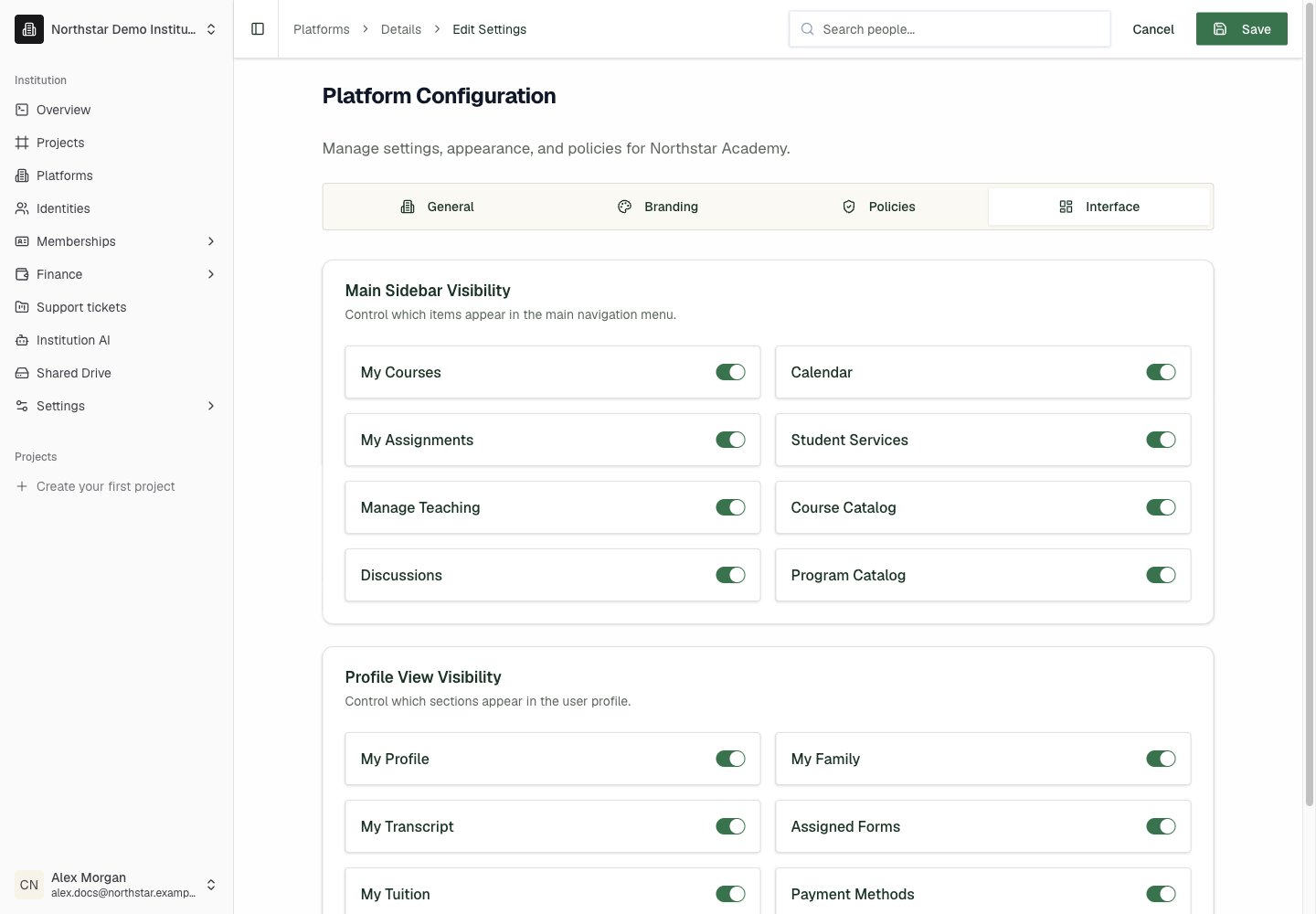
Main sidebar and profile view visibilityReview the changes and click Save, or click Cancel to discard them. Fields marked Immutable, such as the hostname and sales currency, can’t be changed. For the complete school admissions journey and rounds/tracks, enter the school and use Enrollment & Admissions. For public pages, menus, media, and styling, use the school’s Website workspace.
These pages configure an individual school owned by the institution. Settings → Institution controls the institution’s own name, branding, domain, and public portal. Billing & Payments controls the institution’s subscription to DeanDesk.
Was this page helpful?
⌘I
{"docsConfig":{"theme":"almond","$schema":"https://mintlify.com/docs.json","name":"DeanDesk","colors":{"primary":"#7c7c7c","light":"#080808","dark":"#c1c1c1"},"logo":{"light":"https://mintcdn.com/deandesk/fdE4kIsjz9Yc7EsS/images/logo-light.svg?fit=max\u0026auto=format\u0026n=fdE4kIsjz9Yc7EsS\u0026q=85\u0026s=36694fe1a3c1a808d37352d463b6ea86","dark":"https://mintcdn.com/deandesk/fdE4kIsjz9Yc7EsS/images/logo-dark.svg?fit=max\u0026auto=format\u0026n=fdE4kIsjz9Yc7EsS\u0026q=85\u0026s=f4f44881ecac8d74a6400d22000b44b3"},"favicon":"https://mintcdn.com/deandesk/7hPKdyCX79jlDRgL/images/favicon.png?fit=max\u0026auto=format\u0026n=7hPKdyCX79jlDRgL\u0026q=85\u0026s=25ccd86c5c2e369deca23f92cdde87a1","navbar":{"primary":{"type":"button","label":"Get Started Free","href":"https://deandesk.com/get-started"}},"styling":{"latex":true},"navigation":{"pages":[]}},"deployment":{"deploymentMetadataValue":{"subdomain":"deandesk","hasAudioNarration":false,"actualSubdomain":"deandesk","customDomains":["docs.deandesk.com"],"gitSource":{"type":"github","owner":"uthmanq","repo":"docs","deployBranch":"main","isPrivate":true,"contentDirectory":"","mountPath":"","label":""},"chroma":{"liveDeploymentHistoryId":"6ad7f39d011c0457d0ac18e5","collectionId":"281ee397-a7d8-4727-9a3c-3b727dd0589f","schemaVersion":"v3","latestBuiltDeploymentHistoryId":"6ad7f39d011c0457d0ac18e5"},"feedback":{"thumbs":true},"entitlements":{},"buildId":"6ada59180387e457c218a510","clientVersion":"0.0.3933","searchFilterCounts":[{"language":"default","tag":"Documentation","count":104},{"language":"default","tag":"Setup","count":15},{"language":"default","tag":"Finance","count":14},{"language":"default","tag":"Institution Management","count":14},{"language":"default","tag":"Learning Management","count":14},{"language":"default","tag":"Teaching a course","count":12},{"language":"default","tag":"Student Management","count":9},{"language":"default","tag":"School onboarding","count":8},{"language":"default","tag":"Get Started","count":6},{"language":"default","tag":"Communication","count":4}]},"assistantConfig":{"enableAskAiButton":false,"enableStarterQuestions":false,"enableContextualStarterQuestions":false,"enableAskAiSearchBar":true},"hasChatPermissions":false,"hasWebMcpPermissions":false,"toggles":[{"name":"kill-isr","enabled":true,"variant":{"name":"disabled","enabled":false,"feature_enabled":true},"impressionData":false},{"name":"agent-mintlify-slack","enabled":true,"variant":{"name":"disabled","enabled":false,"feature_enabled":true},"impressionData":false},{"name":"editor-v7-file-tree","enabled":true,"variant":{"name":"disabled","enabled":false,"feature_enabled":true},"impressionData":false},{"name":"agent-integrations-settings","enabled":true,"variant":{"name":"disabled","enabled":false,"feature_enabled":true},"impressionData":false},{"name":"automations-pr-grouping","enabled":true,"variant":{"name":"disabled","enabled":false,"feature_enabled":true},"impressionData":false},{"name":"custom-prefix","enabled":true,"variant":{"name":"disabled","enabled":false,"feature_enabled":true},"impressionData":false},{"name":"analytics-v7","enabled":true,"variant":{"name":"disabled","enabled":false,"feature_enabled":true},"impressionData":false},{"name":"user-flows-analytics","enabled":true,"variant":{"name":"disabled","enabled":false,"feature_enabled":true},"impressionData":false},{"name":"no-publish-flow","enabled":true,"variant":{"name":"disabled","enabled":false,"feature_enabled":true},"impressionData":false},{"name":"workos-onboarding","enabled":true,"variant":{"name":"disabled","enabled":false,"feature_enabled":true},"impressionData":false},{"name":"llms-txt-v2","enabled":true,"variant":{"name":"disabled","enabled":false,"feature_enabled":true},"impressionData":false},{"name":"pause-universal-search-reconcile","enabled":true,"variant":{"name":"disabled","enabled":false,"feature_enabled":true},"impressionData":false},{"name":"snapshot-serving-live","enabled":true,"variant":{"name":"disabled","enabled":false,"feature_enabled":true},"impressionData":false},{"name":"stripTemperatureMiddleware","enabled":true,"variant":{"name":"disabled","enabled":false,"feature_enabled":true},"impressionData":false},{"name":"per-site-search-delta","enabled":true,"variant":{"name":"disabled","enabled":false,"feature_enabled":true},"impressionData":false},{"name":"support-platform-pylon-zendesk","enabled":true,"variant":{"name":"disabled","enabled":false,"feature_enabled":true},"impressionData":false},{"name":"snapshot-serving","enabled":true,"variant":{"name":"disabled","enabled":false,"feature_enabled":true},"impressionData":false},{"name":"instant-rollback","enabled":true,"variant":{"name":"disabled","enabled":false,"feature_enabled":true},"impressionData":false},{"name":"granular-notifications-server","enabled":true,"variant":{"name":"disabled","enabled":false,"feature_enabled":true},"impressionData":false},{"name":"granular-notifications","enabled":true,"variant":{"name":"disabled","enabled":false,"feature_enabled":true},"impressionData":false},{"name":"editor-private-page-search","enabled":true,"variant":{"name":"disabled","enabled":false,"feature_enabled":true},"impressionData":false},{"name":"automations-fable","enabled":true,"variant":{"name":"disabled","enabled":false,"feature_enabled":true},"impressionData":false},{"name":"fixed-ai-action-pricing","enabled":true,"variant":{"name":"disabled","enabled":false,"feature_enabled":true},"impressionData":false},{"name":"automation-resolve-merge-conflict","enabled":true,"variant":{"name":"disabled","enabled":false,"feature_enabled":true},"impressionData":false},{"name":"scoped-publishing","enabled":true,"variant":{"name":"disabled","enabled":false,"feature_enabled":true},"impressionData":false},{"name":"mintql","enabled":true,"variant":{"name":"disabled","enabled":false,"feature_enabled":true},"impressionData":false},{"name":"page-level-analytics","enabled":true,"variant":{"name":"disabled","enabled":false,"feature_enabled":true},"impressionData":false},{"name":"editor-version-history-v2","enabled":true,"variant":{"name":"disabled","enabled":false,"feature_enabled":true},"impressionData":false},{"name":"editor-nav-generations","enabled":true,"variant":{"name":"disabled","enabled":false,"feature_enabled":true},"impressionData":false},{"name":"billing-page-v2","enabled":true,"variant":{"name":"disabled","enabled":false,"feature_enabled":true},"impressionData":false},{"name":"vite-origin","enabled":true,"variant":{"name":"disabled","enabled":false,"feature_enabled":true},"impressionData":false},{"name":"workspace-projects","enabled":true,"variant":{"name":"disabled","enabled":false,"feature_enabled":true},"impressionData":false},{"name":"assistant-v5","enabled":true,"variant":{"name":"disabled","enabled":false,"feature_enabled":true},"impressionData":false},{"name":"byok-sep-25","enabled":true,"variant":{"name":"disabled","enabled":false,"feature_enabled":true},"impressionData":false},{"name":"fork-pr-previews","enabled":true,"variant":{"name":"disabled","enabled":false,"feature_enabled":true},"impressionData":false},{"name":"revalidation-jwt","enabled":true,"variant":{"name":"disabled","enabled":false,"feature_enabled":true},"impressionData":false},{"name":"editor-agent-model-picker","enabled":true,"variant":{"name":"disabled","enabled":false,"feature_enabled":true},"impressionData":false},{"name":"billing-updated-9-15","enabled":true,"variant":{"name":"disabled","enabled":false,"feature_enabled":true},"impressionData":false},{"name":"hobby-abuse-scan","enabled":true,"variant":{"name":"disabled","enabled":false,"feature_enabled":true},"impressionData":false},{"name":"dashboard-inbox","enabled":true,"variant":{"name":"disabled","enabled":false,"feature_enabled":true},"impressionData":false}],"isAtlas":false,"googleFontsInlined":true},"customCss":[],"page":{"pagePath":"institution/platforms","slug":"/institution/platforms","pageMetadata":{"title":"Platforms and school setup","description":"Create schools, review each platform, edit configuration, and enter its Admin Dashboard.","href":"/institution/platforms"},"description":{"compiledSource":"\"use strict\";\nconst {jsx: _jsx} = arguments[0];\nconst {useMDXComponents: _provideComponents} = arguments[0];\nfunction _createMdxContent(props) {\n const _components = {\n p: \"p\",\n ..._provideComponents(),\n ...props.components\n };\n return _jsx(_components.p, {\n children: \"Create schools, review each platform, edit configuration, and enter its Admin Dashboard.\"\n });\n}\nfunction MDXContent(props = {}) {\n const {wrapper: MDXLayout} = {\n ..._provideComponents(),\n ...props.components\n };\n return MDXLayout ? _jsx(MDXLayout, {\n ...props,\n children: _jsx(_createMdxContent, {\n ...props\n })\n }) : _createMdxContent(props);\n}\nreturn {\n default: MDXContent\n};\n","frontmatter":{},"scope":{}},"pageType":"default","mdx":{"mdxSource":{"compiledSource":"\"use strict\";const{Fragment:_Fragment,jsx:_jsx,jsxs:_jsxs}=arguments[0];const{useMDXComponents:_provideComponents}=arguments[0];const tutorialCaptions=`WEBVTT\n\n1\n00:00:00.350 --> 00:00:04.730\nIn this video, you'll see how to start a new school and review an existing one.\n\n2\n00:00:05.270 --> 00:00:06.450\nIt takes about two minutes.\n\n3\n00:00:07.564 --> 00:00:09.664\nEach card here is one platform.\n\n4\n00:00:10.224 --> 00:00:11.964\nA platform is one school portal.\n\n5\n00:00:12.604 --> 00:00:14.944\nThe card shows its address and sales currency.\n\n6\n00:00:16.110 --> 00:00:19.490\nTo add a school, click Create new platform.\n\n7\n00:00:20.683 --> 00:00:22.063\nSetup has four steps.\n\n8\n00:00:22.563 --> 00:00:25.123\nYour progress is saved, so you can come back later.\n\n9\n00:00:26.180 --> 00:00:29.300\nFirst, pick the starting point closest to your school.\n\n10\n00:00:30.160 --> 00:00:31.860\nWe'll choose Adult course catalog.\n\n11\n00:00:33.073 --> 00:00:34.213\nClick Continue.\n\n12\n00:00:35.713 --> 00:00:38.173\nNext, you answer a few enrollment questions.\n\n13\n00:00:38.753 --> 00:00:40.853\nThey decide how people register and apply.\n\n14\n00:00:41.913 --> 00:00:47.053\nLater steps ask for the school name, web address, timezone, and sales currency.\n\n15\n00:00:47.733 --> 00:00:50.593\nSales currency can't be changed after the school is created.\n\n16\n00:00:51.213 --> 00:00:53.113\nWe'll stop here, since this is a demo.\n\n17\n00:00:54.245 --> 00:00:56.425\nNow let's review an existing school.\n\n18\n00:00:57.005 --> 00:00:57.745\nClick its card.\n\n19\n00:00:59.205 --> 00:01:02.385\nThe Overview tab shows addresses and location.\n\n20\n00:01:03.305 --> 00:01:07.505\nBranding, Features \u0026 Policies, and Navigation show the school's current setup.\n\n21\n00:01:08.566 --> 00:01:11.526\nTo make changes, click Edit Configuration.\n\n22\n00:01:12.593 --> 00:01:16.553\nOn General, you can edit the name, description, and tagline.\n\n23\n00:01:17.313 --> 00:01:19.133\nNote that Sales Currency is locked.\n\n24\n00:01:20.231 --> 00:01:27.111\nThe other tabs cover colors and fonts, enrollment policies, and which menu items appear.\n\n25\n00:01:28.174 --> 00:01:30.674\nWhen you're done, you'd click Save.\n\n26\n00:01:31.414 --> 00:01:33.054\nWe'll click Cancel instead.\n\n27\n00:01:34.068 --> 00:01:34.748\nThat's it.\n\n28\n00:01:35.268 --> 00:01:37.728\nYou can start a school and review its settings.\n\n29\n00:01:38.748 --> 00:01:40.708\nNext, see Institution settings.\n`;const TutorialVideo=({src,poster,captions,title})=>{const _components={a:`a`,..._provideComponents()};const tutorialVideoSources={\"/videos/tutorials/communication-announcements.mp4\":`https://deandesk-static-img.s3.us-east-1.amazonaws.com/docs/tutorials/communication-announcements.d61d0f3aaca06b46208c74b58c34abefd6c4d48c1e3cdd110ce8cef4d97e2059.mp4`,\"/videos/tutorials/communication-discussions.mp4\":`https://deandesk-static-img.s3.us-east-1.amazonaws.com/docs/tutorials/communication-discussions.4265e479beb59bee1f4961fcfe0fda65d9a1ad7bbb34a14f4ce6a7f10ac45547.mp4`,\"/videos/tutorials/communication-emails.mp4\":`https://deandesk-static-img.s3.us-east-1.amazonaws.com/docs/tutorials/communication-emails.66b457bb909678fbe2448e4b67a204218e2c26034773e4c79775de0b3a3e1ab5.mp4`,\"/videos/tutorials/communication-system-emails.mp4\":`https://deandesk-static-img.s3.us-east-1.amazonaws.com/docs/tutorials/communication-system-emails.3521ae73efaf61bb43c243994e2aee1fca807217a479a33f1f579799b7a7ac52.mp4`,\"/videos/tutorials/finance-bookings.mp4\":`https://deandesk-static-img.s3.us-east-1.amazonaws.com/docs/tutorials/finance-bookings.7705236096cdde510d5119e455aade38f340f4097e14836f63e9758005d16920.mp4`,\"/videos/tutorials/finance-discounts.mp4\":`https://deandesk-static-img.s3.us-east-1.amazonaws.com/docs/tutorials/finance-discounts.fe0f1461aa590192cf536326d7d71e8672f3db34ef66e8803d20de15b82796da.mp4`,\"/videos/tutorials/finance-enrollments.mp4\":`https://deandesk-static-img.s3.us-east-1.amazonaws.com/docs/tutorials/finance-enrollments.aeb02026b9167375fd90259c27891d0b5febcc081b87e1c8218415d5d679dc58.mp4`,\"/videos/tutorials/finance-financial-aid.mp4\":`https://deandesk-static-img.s3.us-east-1.amazonaws.com/docs/tutorials/finance-financial-aid.a7032fc9397476bc5de566eab3189512f69f77783b11a1e6da490926ea1988e2.mp4`,\"/videos/tutorials/finance-invoicing.mp4\":`https://deandesk-static-img.s3.us-east-1.amazonaws.com/docs/tutorials/finance-invoicing.64663d238222b75f23745ea3cc86f205c16a6d4c6f5ff7efc4de0f7e931d1b06.mp4`,\"/videos/tutorials/finance-orders.mp4\":`https://deandesk-static-img.s3.us-east-1.amazonaws.com/docs/tutorials/finance-orders.de6ecd4338396ef1971213ee7b0eae11dbd32fc3c2328275888a1e058669dc50.mp4`,\"/videos/tutorials/finance-payroll.mp4\":`https://deandesk-static-img.s3.us-east-1.amazonaws.com/docs/tutorials/finance-payroll.4c6e0cfed614954988cd644288874f97f6c76f6ffd2494aca95d0819d83b6b14.mp4`,\"/videos/tutorials/finance-products.mp4\":`https://deandesk-static-img.s3.us-east-1.amazonaws.com/docs/tutorials/finance-products.b29af3bf767dc239fd9b9cb17d129887f348e9b890af9f5a79e90bacdce0e7ee.mp4`,\"/videos/tutorials/finance-programs.mp4\":`https://deandesk-static-img.s3.us-east-1.amazonaws.com/docs/tutorials/finance-programs.1db3c13a84c8b33289b79a0e1f8b10a31702808e41304dbdd2f9115a31c91b64.mp4`,\"/videos/tutorials/finance-review-simulator.mp4\":`https://deandesk-static-img.s3.us-east-1.amazonaws.com/docs/tutorials/finance-review-simulator.6bc28008dd5ae393e583119032f00a9075642edf2b236a8915009e3ae49ad220.mp4`,\"/videos/tutorials/finance-stripe.mp4\":`https://deandesk-static-img.s3.us-east-1.amazonaws.com/docs/tutorials/finance-stripe.7d2ab077b67b9634828085dc8776d92057732e0e0f8f18eae46626a46cb9ca3b.mp4`,\"/videos/tutorials/finance-subscriptions.mp4\":`https://deandesk-static-img.s3.us-east-1.amazonaws.com/docs/tutorials/finance-subscriptions.d69ab4e2c401f046307c38ada438ee073fc39c6fb8d44cb3c76a6c8a52de7edb.mp4`,\"/videos/tutorials/finance-transactions.mp4\":`https://deandesk-static-img.s3.us-east-1.amazonaws.com/docs/tutorials/finance-transactions.4b36fac8fc8f819222ca6f51264bb59b623fdb982bf68e0fdf081504b30bdecd.mp4`,\"/videos/tutorials/getting-started-first-login.mp4\":`https://deandesk-static-img.s3.us-east-1.amazonaws.com/docs/tutorials/getting-started-first-login.4bf6eb08484b710d515ff5109364ab6fdc6d9484cfff49bc522494a124f3662f.mp4`,\"/videos/tutorials/getting-started-institutions-and-schools.mp4\":`https://deandesk-static-img.s3.us-east-1.amazonaws.com/docs/tutorials/getting-started-institutions-and-schools.3cbc093a108c9e413310b17dbe4ff458ddfebd09696e152e746800d1f59d9fe1.mp4`,\"/videos/tutorials/getting-started-member-account.mp4\":`https://deandesk-static-img.s3.us-east-1.amazonaws.com/docs/tutorials/getting-started-member-account.0bc088c834d0d9167ce51bd7acefd86178d383ae3aa21ee69ce061486ab52f75.mp4`,\"/videos/tutorials/institution-ai-chat.mp4\":`https://deandesk-static-img.s3.us-east-1.amazonaws.com/docs/tutorials/institution-ai-chat.3ecdad2e67a0acdae16b966d0e3e0f5a98d3ed2e4e5b2b448e36771fe5c4eb3a.mp4`,\"/videos/tutorials/institution-billing.mp4\":`https://deandesk-static-img.s3.us-east-1.amazonaws.com/docs/tutorials/institution-billing.201ee3ee09144b2e7b80c40b4190e398272dceb1d84239923635bcad394bb9c5.mp4`,\"/videos/tutorials/institution-cases.mp4\":`https://deandesk-static-img.s3.us-east-1.amazonaws.com/docs/tutorials/institution-cases.fdab373c1af668fee753ead76325b330e4df5bf9104cc344a389dc672a98bd9d.mp4`,\"/videos/tutorials/institution-dashboard.mp4\":`https://deandesk-static-img.s3.us-east-1.amazonaws.com/docs/tutorials/institution-dashboard.87307184cf6778a379293f1b5357c801b490a060f7ddf852521b2fe193b38464.mp4`,\"/videos/tutorials/institution-finance.mp4\":`https://deandesk-static-img.s3.us-east-1.amazonaws.com/docs/tutorials/institution-finance.95437f6c70956bc1936da4c62a40840e7073a464e869b63e03813d4d23f6403e.mp4`,\"/videos/tutorials/institution-identities.mp4\":`https://deandesk-static-img.s3.us-east-1.amazonaws.com/docs/tutorials/institution-identities.a72756bcf9d7805bf414aa8b6dee36793ffd8bafe336c8b7401af5fd8010acd3.mp4`,\"/videos/tutorials/institution-integrations.mp4\":`https://deandesk-static-img.s3.us-east-1.amazonaws.com/docs/tutorials/institution-integrations.3a89663eb72084750398f385e55d36accdd7ebddb25103fac277a2ce67d0a5a6.mp4`,\"/videos/tutorials/institution-memberships.mp4\":`https://deandesk-static-img.s3.us-east-1.amazonaws.com/docs/tutorials/institution-memberships.74c5080634480a5bb47d2a218ff3c6b3c5a6088d2617722384aa05f112e9b69a.mp4`,\"/videos/tutorials/institution-metadata.mp4\":`https://deandesk-static-img.s3.us-east-1.amazonaws.com/docs/tutorials/institution-metadata.c8a6351fc239cdb417de155a8ecd1891cacec43016e71bda5dc7d98a4db4551c.mp4`,\"/videos/tutorials/institution-platforms.mp4\":`https://deandesk-static-img.s3.us-east-1.amazonaws.com/docs/tutorials/institution-platforms.f0e3081c01b5209498f2bdaf6f26d85cd7a7ec477dba6a18e697aa85b7d2e1b0.mp4`,\"/videos/tutorials/institution-projects.mp4\":`https://deandesk-static-img.s3.us-east-1.amazonaws.com/docs/tutorials/institution-projects.9ffb6d4a23521a263b3a910701873b28b9c17df066151c018da1d73989290a5f.mp4`,\"/videos/tutorials/institution-settings.mp4\":`https://deandesk-static-img.s3.us-east-1.amazonaws.com/docs/tutorials/institution-settings.7dade15c52f9dffa4140e40389f24493a465dd390c05105266707dd25226da08.mp4`,\"/videos/tutorials/institution-shared-drive.mp4\":`https://deandesk-static-img.s3.us-east-1.amazonaws.com/docs/tutorials/institution-shared-drive.13fb8e60028e9a8b60391770c412e154d87ba828fab66f40aa3383c95c7705b8.mp4`,\"/videos/tutorials/institution-stripe.mp4\":`https://deandesk-static-img.s3.us-east-1.amazonaws.com/docs/tutorials/institution-stripe.5120978d70c9c57c3331eebcf6aae8c48cc969d65247c743894ebe8375c8afd8.mp4`,\"/videos/tutorials/integrations-edfi.mp4\":`https://deandesk-static-img.s3.us-east-1.amazonaws.com/docs/tutorials/integrations-edfi.e5e746de9ec2d38ad1c58b09f7eb2ceef393640cf16455721d197b7d9012dc4c.mp4`,\"/videos/tutorials/integrations-zoom-google-calendar.mp4\":`https://deandesk-static-img.s3.us-east-1.amazonaws.com/docs/tutorials/integrations-zoom-google-calendar.f1efc38fc01b29b925837f29f72b2d97ecbfd372c629714e1758a64986cd962b.mp4`,\"/videos/tutorials/introduction.mp4\":`https://deandesk-static-img.s3.us-east-1.amazonaws.com/docs/tutorials/introduction.e7ea81bfc1299fe677a64c779a854c620544167b4e60964e9536525090d6222a.mp4`,\"/videos/tutorials/lms-assignments.mp4\":`https://deandesk-static-img.s3.us-east-1.amazonaws.com/docs/tutorials/lms-assignments.cdcd86e44be5e7f935a166d08d7f3dbea8660d9cf8c994d0a5d881e9cb10d84c.mp4`,\"/videos/tutorials/lms-attendance.mp4\":`https://deandesk-static-img.s3.us-east-1.amazonaws.com/docs/tutorials/lms-attendance.d47f1a8878bcd2666fde728c70b5d96d952156348924614886ae6d0f1b372175.mp4`,\"/videos/tutorials/lms-bulk-enrollment.mp4\":`https://deandesk-static-img.s3.us-east-1.amazonaws.com/docs/tutorials/lms-bulk-enrollment.4f3fecef2abcd3caec39799e1f04bfcf3820dd839fb1b74ca71371ac389c240e.mp4`,\"/videos/tutorials/lms-course-groups.mp4\":`https://deandesk-static-img.s3.us-east-1.amazonaws.com/docs/tutorials/lms-course-groups.cd4757d20152c97b59460cdff9071e0c38e04399872aff50684c2be81e016878.mp4`,\"/videos/tutorials/lms-courses.mp4\":`https://deandesk-static-img.s3.us-east-1.amazonaws.com/docs/tutorials/lms-courses.2625072aad429340f6c852294ab8b8383ef2d6d941fda0b1bc11f8c797d75a84.mp4`,\"/videos/tutorials/lms-curriculum-maps.mp4\":`https://deandesk-static-img.s3.us-east-1.amazonaws.com/docs/tutorials/lms-curriculum-maps.dd7618e3c3eca7229a44b0708d8361ac98a157552b6bf1b37edda024d15fbabc.mp4`,\"/videos/tutorials/lms-gradebook.mp4\":`https://deandesk-static-img.s3.us-east-1.amazonaws.com/docs/tutorials/lms-gradebook.544a98a7050f823fcf69fb98a118e83e4a80426332cce97c5b82a58f90e6f991.mp4`,\"/videos/tutorials/lms-grading-standards.mp4\":`https://deandesk-static-img.s3.us-east-1.amazonaws.com/docs/tutorials/lms-grading-standards.3718f8fa6989d91e12a925ec0970e87e48b048e7d7c309a6c304073648129d7b.mp4`,\"/videos/tutorials/lms-live-classes.mp4\":`https://deandesk-static-img.s3.us-east-1.amazonaws.com/docs/tutorials/lms-live-classes.69bf4279fb8142e8b716c4d7a8fc0941710ee2f8b562865e6c78531ee1639588.mp4`,\"/videos/tutorials/lms-pages.mp4\":`https://deandesk-static-img.s3.us-east-1.amazonaws.com/docs/tutorials/lms-pages.06f155d5269da81708c790e9de8905f6adbaa733fe7603c8bdc7164e2a522e9d.mp4`,\"/videos/tutorials/lms-programs-and-events.mp4\":`https://deandesk-static-img.s3.us-east-1.amazonaws.com/docs/tutorials/lms-programs-and-events.e643aaf472e92f6cb8d2f121c6854a7accf08174e6e909849bada6d3db54f66a.mp4`,\"/videos/tutorials/lms-surveys.mp4\":`https://deandesk-static-img.s3.us-east-1.amazonaws.com/docs/tutorials/lms-surveys.cda5e35ca06c08be5f4db2b96708b167b6856df970c02c043b67430392450560.mp4`,\"/videos/tutorials/lms-waitlists.mp4\":`https://deandesk-static-img.s3.us-east-1.amazonaws.com/docs/tutorials/lms-waitlists.939bf49e062d7dee2f4e9298b6ccf1414fd8bc2fbf6c32946d4dc35a8a68a8e0.mp4`,\"/videos/tutorials/mobile-overview.mp4\":`https://deandesk-static-img.s3.us-east-1.amazonaws.com/docs/tutorials/mobile-overview.6ab058e957e745d8cc25f73a7829b3cb26c366248925d5fa081555947eaa2851.mp4`,\"/videos/tutorials/mobile-push-notifications.mp4\":`https://deandesk-static-img.s3.us-east-1.amazonaws.com/docs/tutorials/mobile-push-notifications.ef7d361233ad52f20b75796d5e4af63bdc0968a8d2e81443728cbc1596e86872.mp4`,\"/videos/tutorials/quickstart.mp4\":`https://deandesk-static-img.s3.us-east-1.amazonaws.com/docs/tutorials/quickstart.83867da9d56a5bfa522b1ac660891ea3489086c851f1462916c69a88f3562b5b.mp4`,\"/videos/tutorials/reports-financial-reports.mp4\":`https://deandesk-static-img.s3.us-east-1.amazonaws.com/docs/tutorials/reports-financial-reports.3a4aec5296b7dcd5d5c1b52e82e802a49a9dfc845701b16e5acebc6a4ad96171.mp4`,\"/videos/tutorials/reports-student-reports.mp4\":`https://deandesk-static-img.s3.us-east-1.amazonaws.com/docs/tutorials/reports-student-reports.66c297c7207c78072ffac0e200a665bc1bb77990a3b49d2a5beae360a72e404a.mp4`,\"/videos/tutorials/school-setup-index.mp4\":`https://deandesk-static-img.s3.us-east-1.amazonaws.com/docs/tutorials/school-setup-index.9ec195ef71468d1b4111b94327c807be2809dcb83bbab6f49218a7ecf23978c3.mp4`,\"/videos/tutorials/setup-admin-ai.mp4\":`https://deandesk-static-img.s3.us-east-1.amazonaws.com/docs/tutorials/setup-admin-ai.445dea379159898c5e8f655396ec32036859532397e90e9d825939899f49a64e.mp4`,\"/videos/tutorials/setup-admin-dashboard.mp4\":`https://deandesk-static-img.s3.us-east-1.amazonaws.com/docs/tutorials/setup-admin-dashboard.44d727b88c08744447c17aee22e5fe0c4acb37bc2dcaf56d8aee1ad137dd2ebb.mp4`,\"/videos/tutorials/setup-branding.mp4\":`https://deandesk-static-img.s3.us-east-1.amazonaws.com/docs/tutorials/setup-branding.c4a554fd99e61fff0de991e237a3b2abba47525abceaf9501585b9855bb9b5c3.mp4`,\"/videos/tutorials/setup-calendar.mp4\":`https://deandesk-static-img.s3.us-east-1.amazonaws.com/docs/tutorials/setup-calendar.8fdb564160abd2c218280957cf451161118960be0c65eb30e75b8cc3e13c1cfe.mp4`,\"/videos/tutorials/setup-courses.mp4\":`https://deandesk-static-img.s3.us-east-1.amazonaws.com/docs/tutorials/setup-courses.80a0fb26a225cceef9f54de289de5720c82219836d8e133d550cb774cd237fa3.mp4`,\"/videos/tutorials/setup-documents.mp4\":`https://deandesk-static-img.s3.us-east-1.amazonaws.com/docs/tutorials/setup-documents.93fe7de38dc6ab7fa79bbc5ca1e53e0de481d40028bab1fac949f25372e76650.mp4`,\"/videos/tutorials/setup-files.mp4\":`https://deandesk-static-img.s3.us-east-1.amazonaws.com/docs/tutorials/setup-files.92c1863756bcdfb01ed84727b238d2dea3cbade69a4e2e61c2e77cfc2539f1a0.mp4`,\"/videos/tutorials/setup-forms.mp4\":`https://deandesk-static-img.s3.us-east-1.amazonaws.com/docs/tutorials/setup-forms.29b27a36108e1def085b71d730e3104971aa0512c39d0d59fc21b592673d0f92.mp4`,\"/videos/tutorials/setup-payments.mp4\":`https://deandesk-static-img.s3.us-east-1.amazonaws.com/docs/tutorials/setup-payments.19b7f4da71ab5e757dc219d1834f8bc8ac3d350f50e5a874e53535d1afe7eebb.mp4`,\"/videos/tutorials/setup-profile-forms.mp4\":`https://deandesk-static-img.s3.us-east-1.amazonaws.com/docs/tutorials/setup-profile-forms.9605222ab15be4ad034927c4ed71c3258210ba181004b11fcd8af1a6f698b98a.mp4`,\"/videos/tutorials/setup-scheduling.mp4\":`https://deandesk-static-img.s3.us-east-1.amazonaws.com/docs/tutorials/setup-scheduling.7aa52ef49c66b62c0fa496364faad5c8324817ebaca956487be5208dbf513b2f.mp4`,\"/videos/tutorials/setup-school-settings.mp4\":`https://deandesk-static-img.s3.us-east-1.amazonaws.com/docs/tutorials/setup-school-settings.4630268d1ae7037a4db0301fb3b44c6c68ee3c3c1f45dd144d574086e6cf9d81.mp4`,\"/videos/tutorials/setup-support.mp4\":`https://deandesk-static-img.s3.us-east-1.amazonaws.com/docs/tutorials/setup-support.7aa86b7535b728696a5d6b70b25802e387c44f9535c496b149ecb5d147ec103b.mp4`,\"/videos/tutorials/setup-users.mp4\":`https://deandesk-static-img.s3.us-east-1.amazonaws.com/docs/tutorials/setup-users.1e5f754622a2a70cfd9dc925bd7e236f9ed0000edf90f8a78982be02a7c9ff58.mp4`,\"/videos/tutorials/setup-website.mp4\":`https://deandesk-static-img.s3.us-east-1.amazonaws.com/docs/tutorials/setup-website.9cac0883b993f455c42c754341da3db441b2a82cd4d4bb8f7e4dba1b5f5d8ba3.mp4`,\"/videos/tutorials/sis-admissions.mp4\":`https://deandesk-static-img.s3.us-east-1.amazonaws.com/docs/tutorials/sis-admissions.610a5bc91a55ab9cb76f445e9417ecdf285e50fca69b4197cd80fba69697bace.mp4`,\"/videos/tutorials/sis-billing.mp4\":`https://deandesk-static-img.s3.us-east-1.amazonaws.com/docs/tutorials/sis-billing.236bbd626e9acfcfae9bffd7cb95c4c89fbaceeac13d7213cb1213c18935a15e.mp4`,\"/videos/tutorials/sis-delete-user.mp4\":`https://deandesk-static-img.s3.us-east-1.amazonaws.com/docs/tutorials/sis-delete-user.80ff44703e0b6dab407b1078fbf146822250759ef1d2a554d1df3c98c16e5c28.mp4`,\"/videos/tutorials/sis-disciplinary-records.mp4\":`https://deandesk-static-img.s3.us-east-1.amazonaws.com/docs/tutorials/sis-disciplinary-records.e78deb5905754cfbf1bea3e76b64455657101a67cd0914896ed6139bf25d2723.mp4`,\"/videos/tutorials/sis-institution-memberships.mp4\":`https://deandesk-static-img.s3.us-east-1.amazonaws.com/docs/tutorials/sis-institution-memberships.c9963739a5b7b191cf95a2a118fa574915235cda66d21acac29d016a99e56799.mp4`,\"/videos/tutorials/sis-offboarding.mp4\":`https://deandesk-static-img.s3.us-east-1.amazonaws.com/docs/tutorials/sis-offboarding.485cd42fec23236ac033690e1b03a311803ed3739695d4d7a9f98172019cb759.mp4`,\"/videos/tutorials/sis-rosters.mp4\":`https://deandesk-static-img.s3.us-east-1.amazonaws.com/docs/tutorials/sis-rosters.76d53f90654b092fb0a7614f59b9defb02129009b9d67a7e49bae88f9fca1eec.mp4`,\"/videos/tutorials/sis-student-records.mp4\":`https://deandesk-static-img.s3.us-east-1.amazonaws.com/docs/tutorials/sis-student-records.0b14caf50fb157b6feac8fb8039f56116ed3c82686bc0ca8ef233807dff28930.mp4`,\"/videos/tutorials/sis-volunteers.mp4\":`https://deandesk-static-img.s3.us-east-1.amazonaws.com/docs/tutorials/sis-volunteers.5d09ff1a9c7e48f1fc5443f52e19ede54a7050ce5da59ab5d3ee6c183f200461.mp4`,\"/videos/tutorials/teaching-announcements.mp4\":`https://deandesk-static-img.s3.us-east-1.amazonaws.com/docs/tutorials/teaching-announcements.e54cab96ce83d445785e9b5fd11fffcd63146d6e04fb4f81087c49d4cecb26d5.mp4`,\"/videos/tutorials/teaching-assignments.mp4\":`https://deandesk-static-img.s3.us-east-1.amazonaws.com/docs/tutorials/teaching-assignments.608e3f31230d4697ddf9fb0583bf38ff69e353302abd15d66ecb6d90f4cd74fb.mp4`,\"/videos/tutorials/teaching-attendance.mp4\":`https://deandesk-static-img.s3.us-east-1.amazonaws.com/docs/tutorials/teaching-attendance.474ebc2ad8d3ee811734e1c10c32737ccba26deee56f76b5c8e697e8283fbda2.mp4`,\"/videos/tutorials/teaching-chat.mp4\":`https://deandesk-static-img.s3.us-east-1.amazonaws.com/docs/tutorials/teaching-chat.5da291eb2789f02c0137793b19827642e3a0da999e659b362df744921fa44a87.mp4`,\"/videos/tutorials/teaching-course-tour.mp4\":`https://deandesk-static-img.s3.us-east-1.amazonaws.com/docs/tutorials/teaching-course-tour.a81774160c8d4f396fd12c5880eced420436010b34f7c56015652d567b0662a9.mp4`,\"/videos/tutorials/teaching-curriculum.mp4\":`https://deandesk-static-img.s3.us-east-1.amazonaws.com/docs/tutorials/teaching-curriculum.389b47bdde4949b813aec6ae4d7d84729c7e9ba380970eb5b1c46573d22b1e17.mp4`,\"/videos/tutorials/teaching-discussions.mp4\":`https://deandesk-static-img.s3.us-east-1.amazonaws.com/docs/tutorials/teaching-discussions.b7a94892f207664f9005b4984d05179d0b8e8f8c0a63302a8c9f91e0e21e98a8.mp4`,\"/videos/tutorials/teaching-gradebook.mp4\":`https://deandesk-static-img.s3.us-east-1.amazonaws.com/docs/tutorials/teaching-gradebook.151560959e3ada107a1c763524432eb7aba36d9775f3ac1c7b530e3eacdd6f36.mp4`,\"/videos/tutorials/teaching-materials.mp4\":`https://deandesk-static-img.s3.us-east-1.amazonaws.com/docs/tutorials/teaching-materials.067c839503bab716f343df2f790a8ef9a1168877647a4af615b71c6d9d867ce9.mp4`,\"/videos/tutorials/teaching-overview.mp4\":`https://deandesk-static-img.s3.us-east-1.amazonaws.com/docs/tutorials/teaching-overview.f8bf741d5ce22b650111d9e49db4931dee417d33f7ae5315f736f3ea36ff1a3f.mp4`,\"/videos/tutorials/teaching-students.mp4\":`https://deandesk-static-img.s3.us-east-1.amazonaws.com/docs/tutorials/teaching-students.a4895c5dc68271dd5d9694578974134ca4bc398ce47e7824d5fc866e0615b8d4.mp4`,\"/videos/tutorials/teaching-surveys.mp4\":`https://deandesk-static-img.s3.us-east-1.amazonaws.com/docs/tutorials/teaching-surveys.d57d6fc33789f1cf46f22df4c52b6dd588b14d7c203a1390690f18547133e935.mp4`};const captionUrl=`data:text/vtt;charset=utf-8,`+encodeURIComponent(captions);const playbackSrc=tutorialVideoSources[src]||src;return _jsxs(`div`,{children:[_jsxs(`video`,{controls:true,playsInline:true,preload:`metadata`,poster,width:`100%`,\"aria-label\":title,children:[_jsx(`source`,{src:playbackSrc,type:`video/mp4`}),_jsx(`track`,{kind:`captions`,src:captionUrl,srcLang:`en`,label:`English`,default:true}),`Your browser does not support embedded video. `,_jsx(_components.a,{href:playbackSrc,children:`Open the video`}),`.`]}),_jsxs(`p`,{children:[_jsx(_components.a,{href:src,download:true,children:`Download the video`}),` · `,_jsx(_components.a,{href:captionUrl,download:`english-captions.vtt`,children:`Download English captions`})]})]})};function _createMdxContent(props){const _components={a:`a`,code:`code`,p:`p`,strong:`strong`,..._provideComponents(),...props.components},{Frame,Heading,Info,Note,OptimizedImage,Step,Steps,_MdxComponentBoundary}=_components;if(!Frame)_missingMdxReference(`Frame`,true);if(!Heading)_missingMdxReference(`Heading`,true);if(!Info)_missingMdxReference(`Info`,true);if(!Note)_missingMdxReference(`Note`,true);if(!OptimizedImage)_missingMdxReference(`OptimizedImage`,true);if(!Step)_missingMdxReference(`Step`,true);if(!Steps)_missingMdxReference(`Steps`,true);if(!_MdxComponentBoundary)_missingMdxReference(`_MdxComponentBoundary`,true);return _jsxs(_Fragment,{children:[_jsx(Info,{children:_jsxs(_components.p,{children:[`This guide covers `,_jsx(_components.strong,{children:`institution-level`}),` setup at `,_jsx(_components.code,{children:`deandesk.com`}),`. See `,_jsx(_components.a,{href:`/getting-started/institutions-and-schools`,children:`Institutions \u0026 Schools`}),` for how these levels relate.`]})}),`\n`,_jsx(Heading,{level:`2`,id:`video-walkthrough`,children:`Video walkthrough`}),`\n`,_jsx(_MdxComponentBoundary,{name:`TutorialVideo`,children:_jsx(TutorialVideo,{src:`/videos/tutorials/institution-platforms.mp4`,poster:`/images/tutorials/institution-platforms.jpg`,captions:tutorialCaptions,title:`Platforms and school setup walkthrough`})}),`\n`,_jsx(Note,{children:`This walkthrough uses the real DeanDesk interface with the fictional Northstar Academy demo school and a calm, AI-generated English voice. Payments and outside services are not connected in the demo.`}),`\n`,_jsx(_components.p,{children:`Screenshots use fictional Northstar demo data. Payment and integration screens illustrate the demo setup; no live transactions or connections are shown.`}),`\n`,_jsxs(_components.p,{children:[`Open `,_jsx(_components.strong,{children:`Platforms`}),` in the institution dashboard. Each platform represents one school portal. Your institution owns the school, while its courses, school Users, admissions, and student billing are managed in the school’s Admin Dashboard.`]}),`\n`,_jsx(Frame,{caption:`Northstar demo — Platforms`,children:_jsx(OptimizedImage,{src:`https://mintcdn.com/deandesk/w4Aa5fKkcT4IMz-4/images/dashboard/institution/platforms.jpg?fit=max\u0026auto=format\u0026n=w4Aa5fKkcT4IMz-4\u0026q=85\u0026s=78865ba4dc96578a44c25e46a905984a`,alt:`Northstar demo: Platforms`,loading:`lazy`,\"data-og-width\":`1440`,width:`1440`,\"data-og-height\":`1000`,height:`1000`,\"data-path\":`images/dashboard/institution/platforms.jpg`,\"data-optimize\":`true`,\"data-opv\":`3`,srcset:`https://mintcdn.com/deandesk/w4Aa5fKkcT4IMz-4/images/dashboard/institution/platforms.jpg?w=280\u0026fit=max\u0026auto=format\u0026n=w4Aa5fKkcT4IMz-4\u0026q=85\u0026s=85895ef22d78d1a2c6b444ba2d35dd45 280w, https://mintcdn.com/deandesk/w4Aa5fKkcT4IMz-4/images/dashboard/institution/platforms.jpg?w=560\u0026fit=max\u0026auto=format\u0026n=w4Aa5fKkcT4IMz-4\u0026q=85\u0026s=2ac93ccd34c6af280bf3d8d6c3271427 560w, https://mintcdn.com/deandesk/w4Aa5fKkcT4IMz-4/images/dashboard/institution/platforms.jpg?w=840\u0026fit=max\u0026auto=format\u0026n=w4Aa5fKkcT4IMz-4\u0026q=85\u0026s=97cc8a40864e92e9916b955233176144 840w, https://mintcdn.com/deandesk/w4Aa5fKkcT4IMz-4/images/dashboard/institution/platforms.jpg?w=1100\u0026fit=max\u0026auto=format\u0026n=w4Aa5fKkcT4IMz-4\u0026q=85\u0026s=3063164625bb047d712796dea0f14915 1100w, https://mintcdn.com/deandesk/w4Aa5fKkcT4IMz-4/images/dashboard/institution/platforms.jpg?w=1650\u0026fit=max\u0026auto=format\u0026n=w4Aa5fKkcT4IMz-4\u0026q=85\u0026s=432f2167baf5d13d50ceb0304eebb911 1650w, https://mintcdn.com/deandesk/w4Aa5fKkcT4IMz-4/images/dashboard/institution/platforms.jpg?w=2500\u0026fit=max\u0026auto=format\u0026n=w4Aa5fKkcT4IMz-4\u0026q=85\u0026s=22b04149ab321c364675a17553e03bad 2500w`})}),`\n`,_jsx(_components.p,{children:_jsx(_components.a,{href:`/images/dashboard/institution/platforms.jpg`,children:`Open full-size screenshot`})}),`\n`,_jsx(Heading,{level:`2`,id:`create-a-school`,children:`Create a school`}),`\n`,_jsxs(_components.p,{children:[`Click `,_jsx(_components.strong,{children:`Create new platform`}),` on Platforms. The setup workspace saves your progress so you can return through `,_jsx(_components.strong,{children:`Continue a saved setup`}),`.`]}),`\n`,_jsxs(Steps,{children:[_jsxs(Step,{title:`Starting point`,children:[_jsxs(_components.p,{children:[`Choose the starting point closest to your school or program. Available starting points depend on your DeanDesk plan. Use `,_jsx(_components.strong,{children:`How DeanDesk works`}),` to replay the introductory tour.`]}),_jsx(Frame,{caption:`Northstar demo — School setup`,children:_jsx(OptimizedImage,{src:`https://mintcdn.com/deandesk/w4Aa5fKkcT4IMz-4/images/dashboard/institution/platforms-new.jpg?fit=max\u0026auto=format\u0026n=w4Aa5fKkcT4IMz-4\u0026q=85\u0026s=e73612293fdc9f65b87ec66bc91bc0eb`,alt:`Northstar demo: School setup`,loading:`lazy`,\"data-og-width\":`1440`,width:`1440`,\"data-og-height\":`1000`,height:`1000`,\"data-path\":`images/dashboard/institution/platforms-new.jpg`,\"data-optimize\":`true`,\"data-opv\":`3`,srcset:`https://mintcdn.com/deandesk/w4Aa5fKkcT4IMz-4/images/dashboard/institution/platforms-new.jpg?w=280\u0026fit=max\u0026auto=format\u0026n=w4Aa5fKkcT4IMz-4\u0026q=85\u0026s=a8cc5a17ef854a3a707594c842a473af 280w, https://mintcdn.com/deandesk/w4Aa5fKkcT4IMz-4/images/dashboard/institution/platforms-new.jpg?w=560\u0026fit=max\u0026auto=format\u0026n=w4Aa5fKkcT4IMz-4\u0026q=85\u0026s=286c8a26ffe75d031cabc6211fc7e954 560w, https://mintcdn.com/deandesk/w4Aa5fKkcT4IMz-4/images/dashboard/institution/platforms-new.jpg?w=840\u0026fit=max\u0026auto=format\u0026n=w4Aa5fKkcT4IMz-4\u0026q=85\u0026s=da60708a8e2ce3e8950889fb7dc92b67 840w, https://mintcdn.com/deandesk/w4Aa5fKkcT4IMz-4/images/dashboard/institution/platforms-new.jpg?w=1100\u0026fit=max\u0026auto=format\u0026n=w4Aa5fKkcT4IMz-4\u0026q=85\u0026s=a3768c63bbc8d8faad498f1542a3f363 1100w, https://mintcdn.com/deandesk/w4Aa5fKkcT4IMz-4/images/dashboard/institution/platforms-new.jpg?w=1650\u0026fit=max\u0026auto=format\u0026n=w4Aa5fKkcT4IMz-4\u0026q=85\u0026s=ffe89643f8e4b1994a2178ea030273af 1650w, https://mintcdn.com/deandesk/w4Aa5fKkcT4IMz-4/images/dashboard/institution/platforms-new.jpg?w=2500\u0026fit=max\u0026auto=format\u0026n=w4Aa5fKkcT4IMz-4\u0026q=85\u0026s=089a5b788f8693b2d8f46251946cf09b 2500w`})}),_jsx(_components.p,{children:_jsx(_components.a,{href:`/images/dashboard/institution/platforms-new.jpg`,children:`Open full-size screenshot`})})]}),_jsx(Step,{title:`Enrollment`,children:_jsx(_components.p,{children:`Answer each displayed enrollment question. These choices determine the initial registration and admissions experience. Admissions review and program-selection questions appear where applicable to the enrollment method.`})}),_jsx(Step,{title:`School details`,children:_jsxs(_components.p,{children:[`Enter `,_jsx(_components.strong,{children:`School name`}),`, `,_jsx(_components.strong,{children:`DeanDesk web address`}),`, and `,_jsx(_components.strong,{children:`Timezone`}),`. Choose the payment account country and sales currency. The web address uses lowercase letters, numbers, and hyphens. Expand `,_jsx(_components.strong,{children:`Address and branding (optional)`}),` to add location and visual details.`]})}),_jsx(Step,{title:`Review and create`,children:_jsxs(_components.p,{children:[`Save and review the proposed setup, resolve missing choices, and confirm that you reviewed it before creating the school. If creation is interrupted, use `,_jsx(_components.strong,{children:`Refresh status`}),` to check the existing setup.`]})}),_jsx(Step,{title:`Continue inside the school`,children:_jsxs(_components.p,{children:[`After creation, click `,_jsx(_components.strong,{children:`Continue to school setup`}),`. Work through the `,_jsx(_components.a,{href:`/school-setup/index`,children:`school onboarding checklist`}),` for people, courses, products, website content, and launch review.`]})})]}),`\n`,_jsx(Note,{children:_jsx(_components.p,{children:`Sales currency is fixed after creation. Choose the currency your school will charge before confirming the setup.`})}),`\n`,_jsx(Heading,{level:`2`,id:`review-a-platform`,children:`Review a platform`}),`\n`,_jsx(_components.p,{children:`Open a school from Platforms or Overview. The detail page has four tabs:`}),`\n`,_jsx(Heading,{level:`3`,id:`overview-tab`,children:`Overview tab`}),`\n`,_jsx(_components.p,{children:`Managed hostname, custom domain, creation details, and school location`}),`\n`,_jsx(Frame,{caption:`Northstar demo — Platform detail — Overview`,children:_jsx(OptimizedImage,{src:`https://mintcdn.com/deandesk/w4Aa5fKkcT4IMz-4/images/dashboard/institution/platforms-id--overview.jpg?fit=max\u0026auto=format\u0026n=w4Aa5fKkcT4IMz-4\u0026q=85\u0026s=0213a8e7d2808dd6aec34dc4b91ce472`,alt:`Northstar demo: Platform detail — Overview`,loading:`lazy`,\"data-og-width\":`1440`,width:`1440`,\"data-og-height\":`1000`,height:`1000`,\"data-path\":`images/dashboard/institution/platforms-id--overview.jpg`,\"data-optimize\":`true`,\"data-opv\":`3`,srcset:`https://mintcdn.com/deandesk/w4Aa5fKkcT4IMz-4/images/dashboard/institution/platforms-id--overview.jpg?w=280\u0026fit=max\u0026auto=format\u0026n=w4Aa5fKkcT4IMz-4\u0026q=85\u0026s=a7aba236fd853305deedad12b3920c67 280w, https://mintcdn.com/deandesk/w4Aa5fKkcT4IMz-4/images/dashboard/institution/platforms-id--overview.jpg?w=560\u0026fit=max\u0026auto=format\u0026n=w4Aa5fKkcT4IMz-4\u0026q=85\u0026s=38f293acad0327e283a8a167ac795f05 560w, https://mintcdn.com/deandesk/w4Aa5fKkcT4IMz-4/images/dashboard/institution/platforms-id--overview.jpg?w=840\u0026fit=max\u0026auto=format\u0026n=w4Aa5fKkcT4IMz-4\u0026q=85\u0026s=93350b43200decd5fb95fdf28f8510c6 840w, https://mintcdn.com/deandesk/w4Aa5fKkcT4IMz-4/images/dashboard/institution/platforms-id--overview.jpg?w=1100\u0026fit=max\u0026auto=format\u0026n=w4Aa5fKkcT4IMz-4\u0026q=85\u0026s=37ea24719214fa57f47fa8800440bc15 1100w, https://mintcdn.com/deandesk/w4Aa5fKkcT4IMz-4/images/dashboard/institution/platforms-id--overview.jpg?w=1650\u0026fit=max\u0026auto=format\u0026n=w4Aa5fKkcT4IMz-4\u0026q=85\u0026s=0f7bb48adc0f40ef0605a0acc3d5e576 1650w, https://mintcdn.com/deandesk/w4Aa5fKkcT4IMz-4/images/dashboard/institution/platforms-id--overview.jpg?w=2500\u0026fit=max\u0026auto=format\u0026n=w4Aa5fKkcT4IMz-4\u0026q=85\u0026s=3d6dc268a2e3b67f05ac9fa6bcdea3cc 2500w`})}),`\n`,_jsx(_components.p,{children:_jsx(_components.a,{href:`/images/dashboard/institution/platforms-id--overview.jpg`,children:`Open full-size screenshot`})}),`\n`,_jsx(Heading,{level:`3`,id:`branding-tab`,children:`Branding tab`}),`\n`,_jsx(_components.p,{children:`Primary and header colors, font theme, logo/title dimensions, header-title visibility, and current logo`}),`\n`,_jsx(Frame,{caption:`Northstar demo — Platform detail — Branding`,children:_jsx(OptimizedImage,{src:`https://mintcdn.com/deandesk/w4Aa5fKkcT4IMz-4/images/dashboard/institution/platforms-id--branding.jpg?fit=max\u0026auto=format\u0026n=w4Aa5fKkcT4IMz-4\u0026q=85\u0026s=11d95ebf5714d883ff5e7f2eb9a90a34`,alt:`Northstar demo: Platform detail — Branding`,loading:`lazy`,\"data-og-width\":`1440`,width:`1440`,\"data-og-height\":`1000`,height:`1000`,\"data-path\":`images/dashboard/institution/platforms-id--branding.jpg`,\"data-optimize\":`true`,\"data-opv\":`3`,srcset:`https://mintcdn.com/deandesk/w4Aa5fKkcT4IMz-4/images/dashboard/institution/platforms-id--branding.jpg?w=280\u0026fit=max\u0026auto=format\u0026n=w4Aa5fKkcT4IMz-4\u0026q=85\u0026s=801dffe43c1a6664d6f190a8c414ab16 280w, https://mintcdn.com/deandesk/w4Aa5fKkcT4IMz-4/images/dashboard/institution/platforms-id--branding.jpg?w=560\u0026fit=max\u0026auto=format\u0026n=w4Aa5fKkcT4IMz-4\u0026q=85\u0026s=bbb83df476bfe438cfb9318ece4b3fac 560w, https://mintcdn.com/deandesk/w4Aa5fKkcT4IMz-4/images/dashboard/institution/platforms-id--branding.jpg?w=840\u0026fit=max\u0026auto=format\u0026n=w4Aa5fKkcT4IMz-4\u0026q=85\u0026s=a2db31f44e0f557201d0dc9772925d2d 840w, https://mintcdn.com/deandesk/w4Aa5fKkcT4IMz-4/images/dashboard/institution/platforms-id--branding.jpg?w=1100\u0026fit=max\u0026auto=format\u0026n=w4Aa5fKkcT4IMz-4\u0026q=85\u0026s=679d1e873dfab48c1a7c061b97d542e4 1100w, https://mintcdn.com/deandesk/w4Aa5fKkcT4IMz-4/images/dashboard/institution/platforms-id--branding.jpg?w=1650\u0026fit=max\u0026auto=format\u0026n=w4Aa5fKkcT4IMz-4\u0026q=85\u0026s=b4de64fb1ae477f572835692a737b03b 1650w, https://mintcdn.com/deandesk/w4Aa5fKkcT4IMz-4/images/dashboard/institution/platforms-id--branding.jpg?w=2500\u0026fit=max\u0026auto=format\u0026n=w4Aa5fKkcT4IMz-4\u0026q=85\u0026s=8fc57fbc3f72dec00922f93459bc0e07 2500w`})}),`\n`,_jsx(_components.p,{children:_jsx(_components.a,{href:`/images/dashboard/institution/platforms-id--branding.jpg`,children:`Open full-size screenshot`})}),`\n`,_jsx(Heading,{level:`3`,id:`features-\u0026-policies-tab`,children:`Features \u0026 Policies tab`}),`\n`,_jsx(_components.p,{children:`Configured feature and policy switches, plus adult and child onboarding forms`}),`\n`,_jsx(Frame,{caption:`Northstar demo — Platform detail — Features \u0026 Policies`,children:_jsx(OptimizedImage,{src:`https://mintcdn.com/deandesk/w4Aa5fKkcT4IMz-4/images/dashboard/institution/platforms-id--features-policies.jpg?fit=max\u0026auto=format\u0026n=w4Aa5fKkcT4IMz-4\u0026q=85\u0026s=fc59993608e255db66e2142aab3c12d7`,alt:`Northstar demo: Platform detail — Features \u0026 Policies`,loading:`lazy`,\"data-og-width\":`1440`,width:`1440`,\"data-og-height\":`1000`,height:`1000`,\"data-path\":`images/dashboard/institution/platforms-id--features-policies.jpg`,\"data-optimize\":`true`,\"data-opv\":`3`,srcset:`https://mintcdn.com/deandesk/w4Aa5fKkcT4IMz-4/images/dashboard/institution/platforms-id--features-policies.jpg?w=280\u0026fit=max\u0026auto=format\u0026n=w4Aa5fKkcT4IMz-4\u0026q=85\u0026s=c37e1a179370f5522e3a91ef5fced5fd 280w, https://mintcdn.com/deandesk/w4Aa5fKkcT4IMz-4/images/dashboard/institution/platforms-id--features-policies.jpg?w=560\u0026fit=max\u0026auto=format\u0026n=w4Aa5fKkcT4IMz-4\u0026q=85\u0026s=102873c511fac52deefdd7e1563d24c4 560w, https://mintcdn.com/deandesk/w4Aa5fKkcT4IMz-4/images/dashboard/institution/platforms-id--features-policies.jpg?w=840\u0026fit=max\u0026auto=format\u0026n=w4Aa5fKkcT4IMz-4\u0026q=85\u0026s=1d4f523b0f0e9d054cf0234ba8dd82d5 840w, https://mintcdn.com/deandesk/w4Aa5fKkcT4IMz-4/images/dashboard/institution/platforms-id--features-policies.jpg?w=1100\u0026fit=max\u0026auto=format\u0026n=w4Aa5fKkcT4IMz-4\u0026q=85\u0026s=40955818ff94b32b8c35d6c94124f6bd 1100w, https://mintcdn.com/deandesk/w4Aa5fKkcT4IMz-4/images/dashboard/institution/platforms-id--features-policies.jpg?w=1650\u0026fit=max\u0026auto=format\u0026n=w4Aa5fKkcT4IMz-4\u0026q=85\u0026s=d065cdbe3852bd2c6cb64352cf648d9e 1650w, https://mintcdn.com/deandesk/w4Aa5fKkcT4IMz-4/images/dashboard/institution/platforms-id--features-policies.jpg?w=2500\u0026fit=max\u0026auto=format\u0026n=w4Aa5fKkcT4IMz-4\u0026q=85\u0026s=c058605a3f2a72177ac60838fc59bf3f 2500w`})}),`\n`,_jsx(_components.p,{children:_jsx(_components.a,{href:`/images/dashboard/institution/platforms-id--features-policies.jpg`,children:`Open full-size screenshot`})}),`\n`,_jsx(Heading,{level:`3`,id:`navigation-tab`,children:`Navigation tab`}),`\n`,_jsx(_components.p,{children:`Main sidebar and profile menu items that are enabled for the school`}),`\n`,_jsxs(_components.p,{children:[`When your Identity has access, click `,_jsx(_components.strong,{children:`Admin Console`}),` on the platform detail page or Overview (the button reads `,_jsx(_components.strong,{children:`Admin`}),` on a Platforms list card) to open the school as its administrator. Check the school name after switching. Use the public-site link to inspect the school’s public experience.`]}),`\n`,_jsx(Frame,{caption:`Northstar demo — Platform detail — Navigation`,children:_jsx(OptimizedImage,{src:`https://mintcdn.com/deandesk/w4Aa5fKkcT4IMz-4/images/dashboard/institution/platforms-id--navigation.jpg?fit=max\u0026auto=format\u0026n=w4Aa5fKkcT4IMz-4\u0026q=85\u0026s=dafe53646ebcb8087eec0398dd8a10ca`,alt:`Northstar demo: Platform detail — Navigation`,loading:`lazy`,\"data-og-width\":`1440`,width:`1440`,\"data-og-height\":`1000`,height:`1000`,\"data-path\":`images/dashboard/institution/platforms-id--navigation.jpg`,\"data-optimize\":`true`,\"data-opv\":`3`,srcset:`https://mintcdn.com/deandesk/w4Aa5fKkcT4IMz-4/images/dashboard/institution/platforms-id--navigation.jpg?w=280\u0026fit=max\u0026auto=format\u0026n=w4Aa5fKkcT4IMz-4\u0026q=85\u0026s=eea49a5a0d05eda56425a8f0203c87a3 280w, https://mintcdn.com/deandesk/w4Aa5fKkcT4IMz-4/images/dashboard/institution/platforms-id--navigation.jpg?w=560\u0026fit=max\u0026auto=format\u0026n=w4Aa5fKkcT4IMz-4\u0026q=85\u0026s=3e7b38ff687d462a77f97bf09221ad6f 560w, https://mintcdn.com/deandesk/w4Aa5fKkcT4IMz-4/images/dashboard/institution/platforms-id--navigation.jpg?w=840\u0026fit=max\u0026auto=format\u0026n=w4Aa5fKkcT4IMz-4\u0026q=85\u0026s=302f3e64d9b68d54a113bad35d1b6840 840w, https://mintcdn.com/deandesk/w4Aa5fKkcT4IMz-4/images/dashboard/institution/platforms-id--navigation.jpg?w=1100\u0026fit=max\u0026auto=format\u0026n=w4Aa5fKkcT4IMz-4\u0026q=85\u0026s=04ad4951e5503f4560215944c9adcb68 1100w, https://mintcdn.com/deandesk/w4Aa5fKkcT4IMz-4/images/dashboard/institution/platforms-id--navigation.jpg?w=1650\u0026fit=max\u0026auto=format\u0026n=w4Aa5fKkcT4IMz-4\u0026q=85\u0026s=3f22b86960c273d7cb49505ce12756e5 1650w, https://mintcdn.com/deandesk/w4Aa5fKkcT4IMz-4/images/dashboard/institution/platforms-id--navigation.jpg?w=2500\u0026fit=max\u0026auto=format\u0026n=w4Aa5fKkcT4IMz-4\u0026q=85\u0026s=0e5c1dd12d44ef56da2b258ed6dfdd8d 2500w`})}),`\n`,_jsx(_components.p,{children:_jsx(_components.a,{href:`/images/dashboard/institution/platforms-id--navigation.jpg`,children:`Open full-size screenshot`})}),`\n`,_jsx(Heading,{level:`2`,id:`edit-platform-configuration`,children:`Edit platform configuration`}),`\n`,_jsxs(_components.p,{children:[`Click `,_jsx(_components.strong,{children:`Edit Configuration`}),`. The editor has a different set of tabs from the read-only detail page:`]}),`\n`,_jsx(Heading,{level:`3`,id:`general-configuration`,children:`General configuration`}),`\n`,_jsx(_components.p,{children:`Name, hostname, read-only sales currency, description, tagline, custom-domain information, and location`}),`\n`,_jsx(Frame,{caption:`Northstar demo — Platform configuration — General`,children:_jsx(OptimizedImage,{src:`https://mintcdn.com/deandesk/w4Aa5fKkcT4IMz-4/images/dashboard/institution/platforms-id-edit--general.jpg?fit=max\u0026auto=format\u0026n=w4Aa5fKkcT4IMz-4\u0026q=85\u0026s=dfcc03c683f278498e2974c972f37dc4`,alt:`Northstar demo: Platform configuration — General`,loading:`lazy`,\"data-og-width\":`1440`,width:`1440`,\"data-og-height\":`1000`,height:`1000`,\"data-path\":`images/dashboard/institution/platforms-id-edit--general.jpg`,\"data-optimize\":`true`,\"data-opv\":`3`,srcset:`https://mintcdn.com/deandesk/w4Aa5fKkcT4IMz-4/images/dashboard/institution/platforms-id-edit--general.jpg?w=280\u0026fit=max\u0026auto=format\u0026n=w4Aa5fKkcT4IMz-4\u0026q=85\u0026s=8deb9e5f407e497c1c7197e2a9ef23d7 280w, https://mintcdn.com/deandesk/w4Aa5fKkcT4IMz-4/images/dashboard/institution/platforms-id-edit--general.jpg?w=560\u0026fit=max\u0026auto=format\u0026n=w4Aa5fKkcT4IMz-4\u0026q=85\u0026s=9977dfaf0a2645b0a02a4107d0e30700 560w, https://mintcdn.com/deandesk/w4Aa5fKkcT4IMz-4/images/dashboard/institution/platforms-id-edit--general.jpg?w=840\u0026fit=max\u0026auto=format\u0026n=w4Aa5fKkcT4IMz-4\u0026q=85\u0026s=efa5ca72eac666f3debf2e71709316c3 840w, https://mintcdn.com/deandesk/w4Aa5fKkcT4IMz-4/images/dashboard/institution/platforms-id-edit--general.jpg?w=1100\u0026fit=max\u0026auto=format\u0026n=w4Aa5fKkcT4IMz-4\u0026q=85\u0026s=fadc05bb9acbf06f06c17a2e2bcee704 1100w, https://mintcdn.com/deandesk/w4Aa5fKkcT4IMz-4/images/dashboard/institution/platforms-id-edit--general.jpg?w=1650\u0026fit=max\u0026auto=format\u0026n=w4Aa5fKkcT4IMz-4\u0026q=85\u0026s=3839eff69ff52a8d0ae0d529cdb8375a 1650w, https://mintcdn.com/deandesk/w4Aa5fKkcT4IMz-4/images/dashboard/institution/platforms-id-edit--general.jpg?w=2500\u0026fit=max\u0026auto=format\u0026n=w4Aa5fKkcT4IMz-4\u0026q=85\u0026s=4b4064817a51a20881c26d6284d2d375 2500w`})}),`\n`,_jsx(_components.p,{children:_jsx(_components.a,{href:`/images/dashboard/institution/platforms-id-edit--general.jpg`,children:`Open full-size screenshot`})}),`\n`,_jsx(Heading,{level:`3`,id:`branding-configuration`,children:`Branding configuration`}),`\n`,_jsx(_components.p,{children:`Color presets, primary/header colors, font theme, logo URL, logo and title sizing, and title visibility`}),`\n`,_jsx(Frame,{caption:`Northstar demo — Platform configuration — Branding`,children:_jsx(OptimizedImage,{src:`https://mintcdn.com/deandesk/w4Aa5fKkcT4IMz-4/images/dashboard/institution/platforms-id-edit--branding.jpg?fit=max\u0026auto=format\u0026n=w4Aa5fKkcT4IMz-4\u0026q=85\u0026s=2b3767ae024e8bb2077f2de1c494af92`,alt:`Northstar demo: Platform configuration — Branding`,loading:`lazy`,\"data-og-width\":`1440`,width:`1440`,\"data-og-height\":`1000`,height:`1000`,\"data-path\":`images/dashboard/institution/platforms-id-edit--branding.jpg`,\"data-optimize\":`true`,\"data-opv\":`3`,srcset:`https://mintcdn.com/deandesk/w4Aa5fKkcT4IMz-4/images/dashboard/institution/platforms-id-edit--branding.jpg?w=280\u0026fit=max\u0026auto=format\u0026n=w4Aa5fKkcT4IMz-4\u0026q=85\u0026s=27d27605b3324e8fd3eeedf7d8e77a7c 280w, https://mintcdn.com/deandesk/w4Aa5fKkcT4IMz-4/images/dashboard/institution/platforms-id-edit--branding.jpg?w=560\u0026fit=max\u0026auto=format\u0026n=w4Aa5fKkcT4IMz-4\u0026q=85\u0026s=5ad4cf45d92c596dfe12ec0bc3719d11 560w, https://mintcdn.com/deandesk/w4Aa5fKkcT4IMz-4/images/dashboard/institution/platforms-id-edit--branding.jpg?w=840\u0026fit=max\u0026auto=format\u0026n=w4Aa5fKkcT4IMz-4\u0026q=85\u0026s=a025bf1697f7a1f9c05736b68a6fa3dc 840w, https://mintcdn.com/deandesk/w4Aa5fKkcT4IMz-4/images/dashboard/institution/platforms-id-edit--branding.jpg?w=1100\u0026fit=max\u0026auto=format\u0026n=w4Aa5fKkcT4IMz-4\u0026q=85\u0026s=7c4904fdbd639372708b8f5b70a0dcb8 1100w, https://mintcdn.com/deandesk/w4Aa5fKkcT4IMz-4/images/dashboard/institution/platforms-id-edit--branding.jpg?w=1650\u0026fit=max\u0026auto=format\u0026n=w4Aa5fKkcT4IMz-4\u0026q=85\u0026s=5c9ecd3bb1628a425db2880943e1ead5 1650w, https://mintcdn.com/deandesk/w4Aa5fKkcT4IMz-4/images/dashboard/institution/platforms-id-edit--branding.jpg?w=2500\u0026fit=max\u0026auto=format\u0026n=w4Aa5fKkcT4IMz-4\u0026q=85\u0026s=8993cc7e9f77da07bd2b909e7547c80c 2500w`})}),`\n`,_jsx(_components.p,{children:_jsx(_components.a,{href:`/images/dashboard/institution/platforms-id-edit--branding.jpg`,children:`Open full-size screenshot`})}),`\n`,_jsx(Heading,{level:`3`,id:`policies-configuration`,children:`Policies configuration`}),`\n`,_jsx(_components.p,{children:`Capability switches, registration and enrollment choices, onboarding form assignments, and application statuses with descriptions, order, and email templates`}),`\n`,_jsx(Frame,{caption:`Northstar demo — Platform configuration — Policies`,children:_jsx(OptimizedImage,{src:`https://mintcdn.com/deandesk/w4Aa5fKkcT4IMz-4/images/dashboard/institution/platforms-id-edit--policies.jpg?fit=max\u0026auto=format\u0026n=w4Aa5fKkcT4IMz-4\u0026q=85\u0026s=196062ca6b07714cf75997d4ee20cee3`,alt:`Northstar demo: Platform configuration — Policies`,loading:`lazy`,\"data-og-width\":`1440`,width:`1440`,\"data-og-height\":`1000`,height:`1000`,\"data-path\":`images/dashboard/institution/platforms-id-edit--policies.jpg`,\"data-optimize\":`true`,\"data-opv\":`3`,srcset:`https://mintcdn.com/deandesk/w4Aa5fKkcT4IMz-4/images/dashboard/institution/platforms-id-edit--policies.jpg?w=280\u0026fit=max\u0026auto=format\u0026n=w4Aa5fKkcT4IMz-4\u0026q=85\u0026s=94203d7499baf1fb220508543105face 280w, https://mintcdn.com/deandesk/w4Aa5fKkcT4IMz-4/images/dashboard/institution/platforms-id-edit--policies.jpg?w=560\u0026fit=max\u0026auto=format\u0026n=w4Aa5fKkcT4IMz-4\u0026q=85\u0026s=add13c76e50b509994665a98c81fcb4d 560w, https://mintcdn.com/deandesk/w4Aa5fKkcT4IMz-4/images/dashboard/institution/platforms-id-edit--policies.jpg?w=840\u0026fit=max\u0026auto=format\u0026n=w4Aa5fKkcT4IMz-4\u0026q=85\u0026s=ce76071691f12101b62dec85d5f15da9 840w, https://mintcdn.com/deandesk/w4Aa5fKkcT4IMz-4/images/dashboard/institution/platforms-id-edit--policies.jpg?w=1100\u0026fit=max\u0026auto=format\u0026n=w4Aa5fKkcT4IMz-4\u0026q=85\u0026s=99c54fed08774d5ed4aa007fdd763774 1100w, https://mintcdn.com/deandesk/w4Aa5fKkcT4IMz-4/images/dashboard/institution/platforms-id-edit--policies.jpg?w=1650\u0026fit=max\u0026auto=format\u0026n=w4Aa5fKkcT4IMz-4\u0026q=85\u0026s=c8341458c5e0451e7b3e4f677698bdc9 1650w, https://mintcdn.com/deandesk/w4Aa5fKkcT4IMz-4/images/dashboard/institution/platforms-id-edit--policies.jpg?w=2500\u0026fit=max\u0026auto=format\u0026n=w4Aa5fKkcT4IMz-4\u0026q=85\u0026s=c9348e1763ff5a8ae9abd85f38c18735 2500w`})}),`\n`,_jsx(_components.p,{children:_jsx(_components.a,{href:`/images/dashboard/institution/platforms-id-edit--policies.jpg`,children:`Open full-size screenshot`})}),`\n`,_jsx(Heading,{level:`3`,id:`interface-configuration`,children:`Interface configuration`}),`\n`,_jsx(_components.p,{children:`Main sidebar and profile view visibility`}),`\n`,_jsxs(_components.p,{children:[`Review the changes and click `,_jsx(_components.strong,{children:`Save`}),`, or click `,_jsx(_components.strong,{children:`Cancel`}),` to discard them. Fields marked `,_jsx(_components.strong,{children:`Immutable`}),`, such as the hostname and sales currency, can’t be changed. For the complete school admissions journey and rounds/tracks, enter the school and use `,_jsx(_components.a,{href:`/sis/admissions`,children:`Enrollment \u0026 Admissions`}),`. For public pages, menus, media, and styling, use the school’s `,_jsx(_components.a,{href:`/setup/website`,children:`Website workspace`}),`.`]}),`\n`,_jsx(Frame,{caption:`Northstar demo — Platform configuration — Interface`,children:_jsx(OptimizedImage,{src:`https://mintcdn.com/deandesk/w4Aa5fKkcT4IMz-4/images/dashboard/institution/platforms-id-edit--interface.jpg?fit=max\u0026auto=format\u0026n=w4Aa5fKkcT4IMz-4\u0026q=85\u0026s=e022019495262b7d7d5d98163c1496d7`,alt:`Northstar demo: Platform configuration — Interface`,loading:`lazy`,\"data-og-width\":`1440`,width:`1440`,\"data-og-height\":`1000`,height:`1000`,\"data-path\":`images/dashboard/institution/platforms-id-edit--interface.jpg`,\"data-optimize\":`true`,\"data-opv\":`3`,srcset:`https://mintcdn.com/deandesk/w4Aa5fKkcT4IMz-4/images/dashboard/institution/platforms-id-edit--interface.jpg?w=280\u0026fit=max\u0026auto=format\u0026n=w4Aa5fKkcT4IMz-4\u0026q=85\u0026s=42ad9c5f66e9b3d02d527e75dc3b8265 280w, https://mintcdn.com/deandesk/w4Aa5fKkcT4IMz-4/images/dashboard/institution/platforms-id-edit--interface.jpg?w=560\u0026fit=max\u0026auto=format\u0026n=w4Aa5fKkcT4IMz-4\u0026q=85\u0026s=ff32af060138a8ea464ad856049a690e 560w, https://mintcdn.com/deandesk/w4Aa5fKkcT4IMz-4/images/dashboard/institution/platforms-id-edit--interface.jpg?w=840\u0026fit=max\u0026auto=format\u0026n=w4Aa5fKkcT4IMz-4\u0026q=85\u0026s=5427e1d2649616d6bd8d0871df67543e 840w, https://mintcdn.com/deandesk/w4Aa5fKkcT4IMz-4/images/dashboard/institution/platforms-id-edit--interface.jpg?w=1100\u0026fit=max\u0026auto=format\u0026n=w4Aa5fKkcT4IMz-4\u0026q=85\u0026s=123cd0ca4270001e2960b7f263c23632 1100w, https://mintcdn.com/deandesk/w4Aa5fKkcT4IMz-4/images/dashboard/institution/platforms-id-edit--interface.jpg?w=1650\u0026fit=max\u0026auto=format\u0026n=w4Aa5fKkcT4IMz-4\u0026q=85\u0026s=83b87cf4813ccf5861e4b47481f76c71 1650w, https://mintcdn.com/deandesk/w4Aa5fKkcT4IMz-4/images/dashboard/institution/platforms-id-edit--interface.jpg?w=2500\u0026fit=max\u0026auto=format\u0026n=w4Aa5fKkcT4IMz-4\u0026q=85\u0026s=5316db359470bf41b8b02f628ee07cc4 2500w`})}),`\n`,_jsx(_components.p,{children:_jsx(_components.a,{href:`/images/dashboard/institution/platforms-id-edit--interface.jpg`,children:`Open full-size screenshot`})}),`\n`,_jsx(Heading,{level:`2`,id:`keep-the-two-settings-levels-separate`,children:`Keep the two settings levels separate`}),`\n`,_jsxs(_components.p,{children:[`These pages configure an individual school owned by the institution. `,_jsx(_components.a,{href:`/institution/settings`,children:`Settings → Institution`}),` controls the institution’s own name, branding, domain, and public portal. `,_jsx(_components.a,{href:`/institution/billing`,children:`Billing \u0026 Payments`}),` controls the institution’s subscription to DeanDesk.`]})]})}function MDXContent(props={}){const{wrapper:MDXLayout}={..._provideComponents(),...props.components};return MDXLayout?_jsx(MDXLayout,{...props,children:_jsx(_createMdxContent,{...props})}):_createMdxContent(props)}return{tutorialCaptions,TutorialVideo,default:MDXContent};function _missingMdxReference(id,component){throw new Error(`Expected `+(component?`component`:`object`)+\" `\"+id+\"` to be defined: you likely forgot to import, pass, or provide it.\")}","frontmatter":{},"scope":{"config":{},"pageMetadata":{"title":"Platforms and school setup","description":"Create schools, review each platform, edit configuration, and enter its Admin Dashboard.","href":"/institution/platforms"}}},"mdxSourceWithNoJs":null,"noJsSplices":[[134,145,"TutorialVideo=()=>null;const tutorialCap"],[2413,22016,""],[49145,49185,"TutorialVideo,tutorialCaptions,default:M"]]},"mdxExtracts":{"tableOfContents":[{"title":"Video walkthrough","slug":"video-walkthrough","depth":2,"children":[]},{"title":"Create a school","slug":"create-a-school","depth":2,"children":[]},{"title":"Review a platform","slug":"review-a-platform","depth":2,"children":[{"title":"Overview tab","slug":"overview-tab","depth":3,"children":[]},{"title":"Branding tab","slug":"branding-tab","depth":3,"children":[]},{"title":"Features \u0026 Policies tab","slug":"features-\u0026-policies-tab","depth":3,"children":[]},{"title":"Navigation tab","slug":"navigation-tab","depth":3,"children":[]}]},{"title":"Edit platform configuration","slug":"edit-platform-configuration","depth":2,"children":[{"title":"General configuration","slug":"general-configuration","depth":3,"children":[]},{"title":"Branding configuration","slug":"branding-configuration","depth":3,"children":[]},{"title":"Policies configuration","slug":"policies-configuration","depth":3,"children":[]},{"title":"Interface configuration","slug":"interface-configuration","depth":3,"children":[]}]},{"title":"Keep the two settings levels separate","slug":"keep-the-two-settings-levels-separate","depth":2,"children":[]}],"codeExamples":{}},"jsLinks":[],"subdomain":"deandesk","siteName":"DeanDesk","title":"Platforms and school setup - DeanDesk","navMaps":{"firstHrefInVersion":{},"firstHrefInLanguage":{}},"lastModified":"2026-10-20T23:06:09.204Z","originalFileLocation":"institution/platforms.mdx"},"headHtml":"\u003cscript data-mint-head>(function(){var d=document.documentElement,p=null;if(!p){try{p=localStorage.getItem(\"isDarkMode\")}catch(e){}if(p==='true')p='dark';else if(p==='false')p='light';if(p!=='light'\u0026\u0026p!=='dark'\u0026\u0026p!=='system')p=\"system\"}var r=p==='system'?(matchMedia(\"(prefers-color-scheme: dark)\").matches?'dark':'light'):p;d.classList.remove(r==='dark'?'light':'dark');d.classList.add(r);d.setAttribute(\"data-theme-preference\",p)})();\u003c/script>\u003cmeta data-mint-head name=\"description\" content=\"Create schools, review each platform, edit configuration, and enter its Admin Dashboard.\">\u003cmeta data-mint-head name=\"application-name\" content=\"DeanDesk\">\u003cmeta data-mint-head name=\"generator\" content=\"Mintlify\">\u003clink data-mint-head rel=\"icon\" type=\"image/png\" sizes=\"192x192\" href=\"/mintlify-assets/_mintlify/favicons/deandesk/wAy75GituRfENpuV/_generated/favicon/android-chrome-192x192.png\" media=\"(prefers-color-scheme: light)\">\u003clink data-mint-head rel=\"apple-touch-icon\" type=\"image/png\" sizes=\"180x180\" href=\"/mintlify-assets/_mintlify/favicons/deandesk/wAy75GituRfENpuV/_generated/favicon/apple-touch-icon.png\">\u003clink data-mint-head rel=\"icon\" type=\"image/png\" sizes=\"16x16\" href=\"/mintlify-assets/_mintlify/favicons/deandesk/wAy75GituRfENpuV/_generated/favicon/favicon-16x16.png\" media=\"(prefers-color-scheme: light)\">\u003clink data-mint-head rel=\"icon\" type=\"image/png\" sizes=\"32x32\" href=\"/mintlify-assets/_mintlify/favicons/deandesk/wAy75GituRfENpuV/_generated/favicon/favicon-32x32.png\" media=\"(prefers-color-scheme: light)\">\u003clink data-mint-head rel=\"shortcut icon\" type=\"image/x-icon\" href=\"/mintlify-assets/_mintlify/favicons/deandesk/wAy75GituRfENpuV/_generated/favicon/favicon.ico\" media=\"(prefers-color-scheme: light)\">\u003clink data-mint-head rel=\"icon\" type=\"image/png\" sizes=\"192x192\" href=\"/mintlify-assets/_mintlify/favicons/deandesk/wAy75GituRfENpuV/_generated/favicon-dark/android-chrome-192x192.png\" media=\"(prefers-color-scheme: dark)\">\u003clink data-mint-head rel=\"icon\" type=\"image/png\" sizes=\"16x16\" href=\"/mintlify-assets/_mintlify/favicons/deandesk/wAy75GituRfENpuV/_generated/favicon-dark/favicon-16x16.png\" media=\"(prefers-color-scheme: dark)\">\u003clink data-mint-head rel=\"icon\" type=\"image/png\" sizes=\"32x32\" href=\"/mintlify-assets/_mintlify/favicons/deandesk/wAy75GituRfENpuV/_generated/favicon-dark/favicon-32x32.png\" media=\"(prefers-color-scheme: dark)\">\u003clink data-mint-head rel=\"shortcut icon\" type=\"image/x-icon\" href=\"/mintlify-assets/_mintlify/favicons/deandesk/wAy75GituRfENpuV/_generated/favicon-dark/favicon.ico\" media=\"(prefers-color-scheme: dark)\">\u003cmeta data-mint-head property=\"og:title\" content=\"Platforms and school setup - DeanDesk\">\u003cmeta data-mint-head property=\"og:description\" content=\"Create schools, review each platform, edit configuration, and enter its Admin Dashboard.\">\u003cmeta data-mint-head property=\"og:site_name\" content=\"DeanDesk\">\u003cmeta data-mint-head property=\"og:url\" content=\"https://docs.deandesk.com/institution/platforms\">\u003cmeta data-mint-head property=\"og:type\" content=\"website\">\u003cmeta data-mint-head property=\"og:image\" content=\"https://deandesk.mintlify.app/_mintlify/api/og/v2?division=Institution+Management\u0026amp;title=Platforms+and+school+setup\u0026amp;description=Create+schools%2C+review+each+platform%2C+edit+configuration%2C+and+enter+its+Admin+Dashboard.\u0026amp;theme=4e434e52de398c186cf0595b\u0026amp;signature=a56e999c2490e45c444963aed90bd4b1968e120f9a6d054fa43fa5720d31e159\">\u003cmeta data-mint-head property=\"og:image:width\" content=\"1200\">\u003cmeta data-mint-head property=\"og:image:height\" content=\"630\">\u003cmeta data-mint-head name=\"twitter:card\" content=\"summary_large_image\">\u003cmeta data-mint-head name=\"twitter:title\" content=\"Platforms and school setup - DeanDesk\">\u003cmeta data-mint-head name=\"twitter:description\" content=\"Create schools, review each platform, edit configuration, and enter its Admin Dashboard.\">\u003cmeta data-mint-head name=\"twitter:image\" content=\"https://deandesk.mintlify.app/_mintlify/api/og/v2?division=Institution+Management\u0026amp;title=Platforms+and+school+setup\u0026amp;description=Create+schools%2C+review+each+platform%2C+edit+configuration%2C+and+enter+its+Admin+Dashboard.\u0026amp;theme=4e434e52de398c186cf0595b\u0026amp;signature=a56e999c2490e45c444963aed90bd4b1968e120f9a6d054fa43fa5720d31e159\">\u003cmeta data-mint-head name=\"twitter:image:width\" content=\"1200\">\u003cmeta data-mint-head name=\"twitter:image:height\" content=\"630\">\u003cmeta data-mint-head name=\"msapplication-config\" content=\"/mintlify-assets/_mintlify/favicons/deandesk/wAy75GituRfENpuV/_generated/favicon/browserconfig.xml\">\u003cmeta data-mint-head name=\"apple-mobile-web-app-title\" content=\"DeanDesk\">\u003cmeta data-mint-head name=\"msapplication-TileColor\" content=\"#7c7c7c\">\u003clink data-mint-head rel=\"canonical\" href=\"https://docs.deandesk.com/institution/platforms\">\u003clink data-mint-head rel=\"alternate\" type=\"application/xml\" href=\"/sitemap.xml\">\u003clink data-mint-head rel=\"alternate\" type=\"text/markdown\" href=\"/institution/platforms.md\">\u003cscript data-mint-head type=\"application/ld+json\">{\"@context\":\"https://schema.org\",\"@graph\":[{\"@type\":\"Organization\",\"@id\":\"https://docs.deandesk.com/#organization\",\"name\":\"DeanDesk\",\"url\":\"https://docs.deandesk.com\",\"logo\":{\"@type\":\"ImageObject\",\"url\":\"https://mintcdn.com/deandesk/fdE4kIsjz9Yc7EsS/images/logo-light.svg?fit=max\u0026auto=format\u0026n=fdE4kIsjz9Yc7EsS\u0026q=85\u0026s=36694fe1a3c1a808d37352d463b6ea86\"}},{\"@type\":\"WebSite\",\"@id\":\"https://docs.deandesk.com#website\",\"name\":\"DeanDesk\",\"url\":\"https://docs.deandesk.com\",\"publisher\":{\"@id\":\"https://docs.deandesk.com/#organization\"}},{\"@type\":\"WebPage\",\"@id\":\"https://docs.deandesk.com/institution/platforms#webpage\",\"url\":\"https://docs.deandesk.com/institution/platforms\",\"name\":\"Platforms and school setup\",\"description\":\"Create schools, review each platform, edit configuration, and enter its Admin Dashboard.\",\"dateModified\":\"2026-10-20T23:06:09.204Z\",\"isPartOf\":{\"@id\":\"https://docs.deandesk.com#website\"},\"breadcrumb\":{\"@id\":\"https://docs.deandesk.com/institution/platforms#breadcrumb\"}},{\"@type\":\"BreadcrumbList\",\"@id\":\"https://docs.deandesk.com/institution/platforms#breadcrumb\",\"itemListElement\":[{\"@type\":\"ListItem\",\"position\":1,\"name\":\"Institution Management\",\"item\":\"https://docs.deandesk.com/institution/dashboard\"},{\"@type\":\"ListItem\",\"position\":2,\"name\":\"Platforms and school setup\",\"item\":\"https://docs.deandesk.com/institution/platforms\"}]},{\"@type\":[\"Article\",\"TechArticle\"],\"@id\":\"https://docs.deandesk.com/institution/platforms#article\",\"headline\":\"Platforms and school setup\",\"name\":\"Platforms and school setup\",\"description\":\"Create schools, review each platform, edit configuration, and enter its Admin Dashboard.\",\"url\":\"https://docs.deandesk.com/institution/platforms\",\"mainEntityOfPage\":{\"@id\":\"https://docs.deandesk.com/institution/platforms#webpage\"},\"dateModified\":\"2026-10-20T23:06:09.204Z\",\"publisher\":{\"@id\":\"https://docs.deandesk.com/#organization\"},\"isPartOf\":{\"@id\":\"https://docs.deandesk.com#website\"}}]}\u003c/script>\u003cscript data-mint-head type=\"application/ld+json\">{\"@context\":\"https://schema.org\",\"@type\":\"WebSite\",\"name\":\"DeanDesk\",\"creator\":{\"@type\":\"Organization\",\"name\":\"Mintlify\",\"url\":\"https://mintlify.com\"}}\u003c/script>","siteName":"DeanDesk","nav":{"global":null,"tabs":[{"tab":"Documentation","groups":[{"group":"Get Started","pages":[{"title":"Welcome to DeanDesk","href":"/introduction"},{"title":"Institutions \u0026 Schools","href":"/getting-started/institutions-and-schools"},{"title":"Quick start","href":"/quickstart"},{"title":"First login","href":"/getting-started/first-login"},{"title":"Your account \u0026 family portal","href":"/getting-started/member-account"},{"title":"Understanding your payment","href":"/getting-started/payment-breakdown"}]},{"group":"School onboarding","pages":[{"title":"School setup, one step at a time","href":"/school-setup/index"},{"title":"1. School identity and branding","href":"/school-setup/school-identity"},{"title":"2. Enrollment and admissions","href":"/school-setup/enrollment"},{"title":"3. Courses and learning material","href":"/school-setup/courses-and-materials"},{"title":"4. Staff, learners and families","href":"/school-setup/people-and-families"},{"title":"5. Products, prices and payments","href":"/school-setup/products-and-payments"},{"title":"6. Website and content","href":"/school-setup/website"},{"title":"7. Test the complete experience","href":"/school-setup/test-and-launch"}]},{"group":"Institution Management","pages":[{"title":"Institution dashboard directory","description":"Find every institution sidebar page, its tabs, and related management guides.","href":"/institution/dashboard"},{"title":"Platforms and school setup","href":"/institution/platforms"},{"title":"Identity metadata","description":"Define institution-level custom fields and control whether Identities can edit them.","href":"/institution/metadata"},{"title":"Institution Stripe","href":"/institution/stripe"},{"title":"Institution settings","href":"/institution/settings"},{"title":"DeanDesk subscription and billing","href":"/institution/billing"},{"title":"Institution finance","href":"/institution/finance"},{"title":"Identities","href":"/institution/identities"},{"title":"Membership Management","href":"/institution/memberships"},{"title":"Support tickets and cases","href":"/institution/cases"},{"title":"Institution AI","href":"/institution/ai-chat"},{"title":"Shared Drive","href":"/institution/shared-drive"},{"title":"Projects and task lists","href":"/institution/projects"},{"title":"Integrations","href":"/institution/integrations"}]},{"group":"Setup","pages":[{"title":"Admin Dashboard directory","href":"/setup/admin-dashboard"},{"title":"Documents and acknowledgments","href":"/setup/documents"},{"title":"Website workspace","href":"/setup/website"},{"title":"Academic calendar","href":"/setup/calendar"},{"title":"Scheduling \u0026 calendars","href":"/setup/scheduling"},{"title":"Add users","href":"/setup/users"},{"title":"Create courses","href":"/setup/courses"},{"title":"Profile forms \u0026 metadata","href":"/setup/profile-forms"},{"title":"Forms","href":"/setup/forms"},{"title":"School branding","href":"/setup/branding"},{"title":"School configuration","href":"/setup/school-settings"},{"title":"File library","href":"/setup/files"},{"title":"DeanDesk AI for admins","href":"/setup/admin-ai"},{"title":"Payment setup","href":"/setup/payments"},{"title":"School support tickets","href":"/setup/support"}]},{"group":"Learning Management","pages":[{"title":"Course groups","href":"/lms/course-groups"},{"title":"Bulk enrollment","href":"/lms/bulk-enrollment"},{"title":"Waitlist manager","href":"/lms/waitlists"},{"title":"Grading standards","href":"/lms/grading-standards"},{"title":"Courses","href":"/lms/courses"},{"title":"Course not showing on a student's dashboard","sidebarTitle":"Missing course troubleshooting","href":"/lms/course-not-showing"},{"title":"Curriculum maps","href":"/lms/curriculum-maps"},{"title":"Assignments","href":"/lms/assignments"},{"title":"Surveys","href":"/lms/surveys"},{"title":"Gradebook","href":"/lms/gradebook"},{"title":"Attendance","href":"/lms/attendance"},{"title":"Live classes","href":"/lms/live-classes"},{"title":"Pages","href":"/lms/pages"},{"title":"Programs \u0026 events","href":"/lms/programs-and-events"}]},{"group":"Teaching a course","pages":[{"title":"Course sidebar tour","href":"/teaching/course-tour"},{"title":"Overview","href":"/teaching/overview"},{"title":"Materials","href":"/teaching/materials"},{"title":"Assignments","href":"/teaching/assignments"},{"title":"Surveys","href":"/teaching/surveys"},{"title":"Curriculum","href":"/teaching/curriculum"},{"title":"Announcements","href":"/teaching/announcements"},{"title":"Discussions","href":"/teaching/discussions"},{"title":"Chat","href":"/teaching/chat"},{"title":"Students","href":"/teaching/students"},{"title":"Attendance","href":"/teaching/attendance"},{"title":"Gradebook","href":"/teaching/gradebook"}]},{"group":"Student Management","pages":[{"title":"Off-boarding","href":"/sis/offboarding"},{"title":"Institution memberships in your school","href":"/sis/institution-memberships"},{"title":"Student records","href":"/sis/student-records"},{"title":"Delete a user","href":"/sis/delete-user"},{"title":"Rosters","href":"/sis/rosters"},{"title":"Admissions","href":"/sis/admissions"},{"title":"Billing \u0026 payments","href":"/sis/billing"},{"title":"Disciplinary records","href":"/sis/disciplinary-records"},{"title":"Volunteers \u0026 volunteer hours","href":"/sis/volunteers"}]},{"group":"Communication","pages":[{"title":"Emails","href":"/communication/emails"},{"title":"System emails","href":"/communication/system-emails"},{"title":"Announcements","href":"/communication/announcements"},{"title":"Chat \u0026 discussions","href":"/communication/discussions"}]},{"group":"Finance","pages":[{"title":"Review simulator","href":"/finance/review-simulator"},{"title":"Program attendees","href":"/finance/programs"},{"title":"Products","href":"/finance/products"},{"title":"Discounts","href":"/finance/discounts"},{"title":"Scholarship \u0026 financial aid rates","href":"/finance/financial-aid"},{"title":"Invoicing","href":"/finance/invoicing"},{"title":"Subscriptions","href":"/finance/subscriptions"},{"title":"Enrollments","href":"/finance/enrollments"},{"title":"Physical products \u0026 orders","href":"/finance/orders"},{"title":"Booking sessions","href":"/finance/bookings"},{"title":"Transactions \u0026 refunds","href":"/finance/transactions"},{"title":"Online processing fee","href":"/finance/online-processing-fee"},{"title":"Stripe configuration","href":"/finance/stripe"},{"title":"Time and payroll","href":"/finance/payroll"}]},{"group":"Reports \u0026 Analytics","pages":[{"title":"Student reports","href":"/reports/student-reports"},{"title":"Financial reports","href":"/reports/financial-reports"}]},{"group":"Integrations","pages":[{"title":"Ed-Fi export","href":"/integrations/edfi"},{"title":"MCP server","href":"/integrations/mcp"},{"title":"DeanDesk Sync","href":"/integrations/deandesk-sync"},{"title":"Zoom \u0026 Google Calendar","href":"/integrations/zoom-google-calendar"}]},{"group":"Mobile App","pages":[{"title":"Mobile app","href":"/mobile/overview"},{"title":"Push notifications","href":"/mobile/push-notifications"}]}]}]},"title":"Platforms and school setup - DeanDesk","buildId":"dpl_GnxaU9nEer7XK27kw3dpfPrs9geh","deploymentId":"dpl_GnxaU9nEer7XK27kw3dpfPrs9geh","dynamics":["07c022d89b","a74be98ba7","a9bb46feb3"],"chunks":["Frame-C1EX3v38.js","DynamicMarkdown-BPGty-u8.js","zoom-image-lightbox-Cv5hibpS.js","PlusIcon-owOTCErD.js","lightbox-handle-r17bVUz3.js","Markdown-DBoyz2JY.js","clsx-BTaOLP1x.js","lib--scc4DXi.js","lib-B8HbPgcC.js","html-void-elements-mCSPHezU.js","dist-BFj0_khV.js","katex-YMM-FMeD.js","marked.esm-CZWythHk.js","AssistantPageLink-BXlqNIdH.js"]}