

School-level feature — managed within your school portal at
yourschool.deandesk.com.Video walkthrough
This walkthrough uses the real DeanDesk interface with the fictional Northstar Academy demo school and a calm, AI-generated English voice. Payments and outside services are not connected in the demo.
Standard sections
Profile forms are made up of standard sections plus any custom sections you add. Basic Information (name, email, phone) is marked Always on and cannot be turned off. Each other section has a Visible switch you can turn off to hide it.For child applications, first name, last name, date of birth, and grade are all required before the child record can be submitted. The validation message is: First name, last name, date of birth, and grade are required.
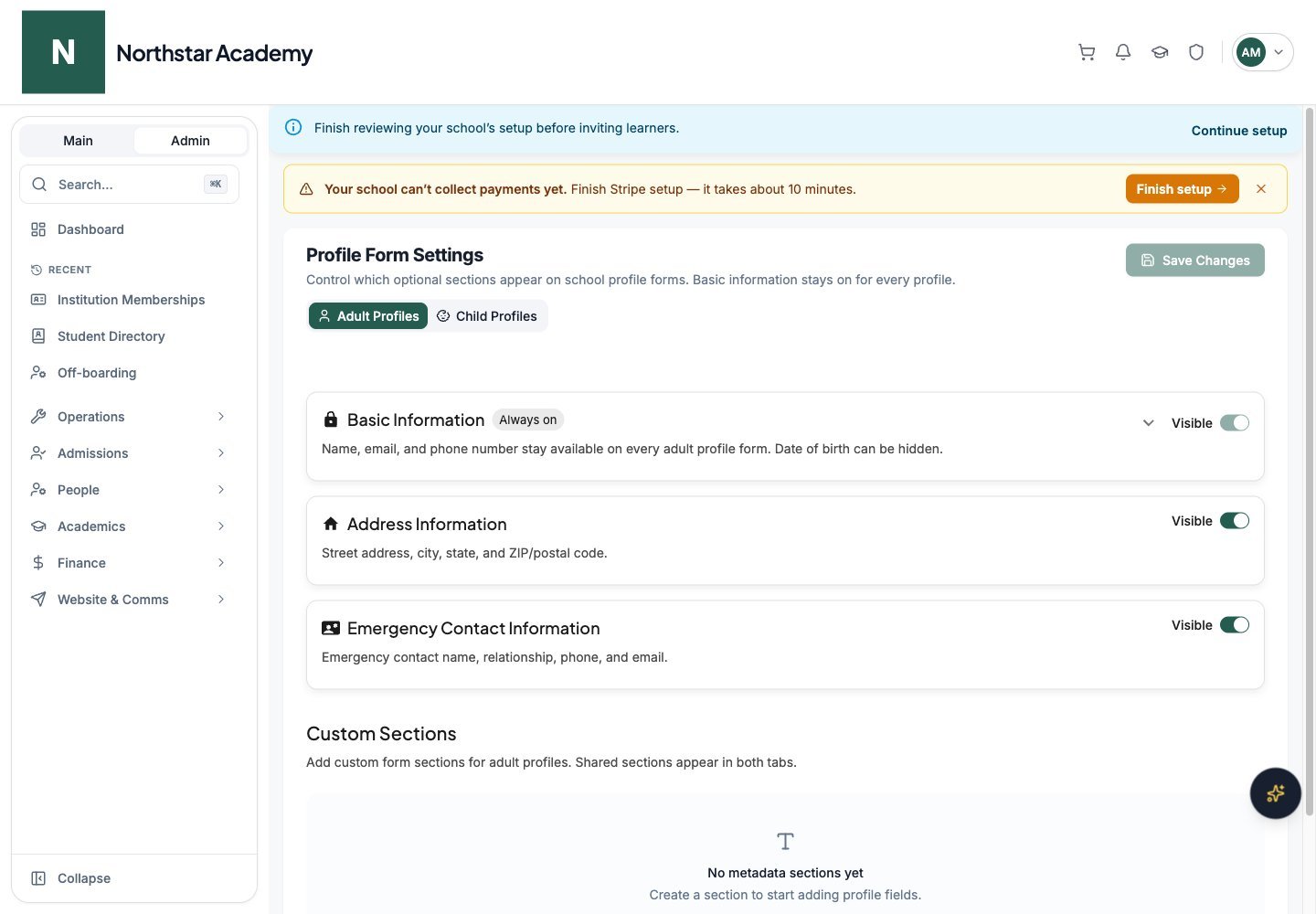
Northstar demo — Profile Form Settings — Adult Profiles
Customizing child grade options
The Grade picker on a child profile defaults to Pre-School, Pre-K, KG, and grades 1–12. Common variants such as Kindergarten and K display consistently as KG; school-specific grade labels are also supported. You can replace this list with your school’s own grade labels under Profile Form Settings → Child Profiles → Basic Information → Grade Options.1
Open Grade Options
On the Child Profiles tab, expand Basic Information to show Grade Options.
2
Hide default grades
Under Default Options, turn off the Visible switch for any default grade you do not use.
3
Add custom grades
Under Custom Options, type a label such as Nursery, KG1, KG2, or Year 1 in Add custom grade option, then click Add. Click Remove next to any custom option you no longer offer.
4
Review options
Check the list of visible grades at the top of Grade Options.
5
Save
Click Save Changes. The saved options apply across child profile and application grade pickers. Existing grade values remain displayable even when an option is no longer offered for new selection. These grade levels are separate from the school assessment scale in Grading Standards.
1
Open Profile Form Settings
Go to Admin Dashboard → Profile Form Settings.
2
Pick the audience tab
Use the Adult Profiles or Child Profiles tab depending on which audience you want to configure.
3
Toggle sections
Turn each optional section’s Visible switch on or off.
4
Save
Click Save Changes. The button stays disabled until you make a change. Saved settings apply to all surfaces — application flow, the Profile tab in User Management, and the Child Application Manager.
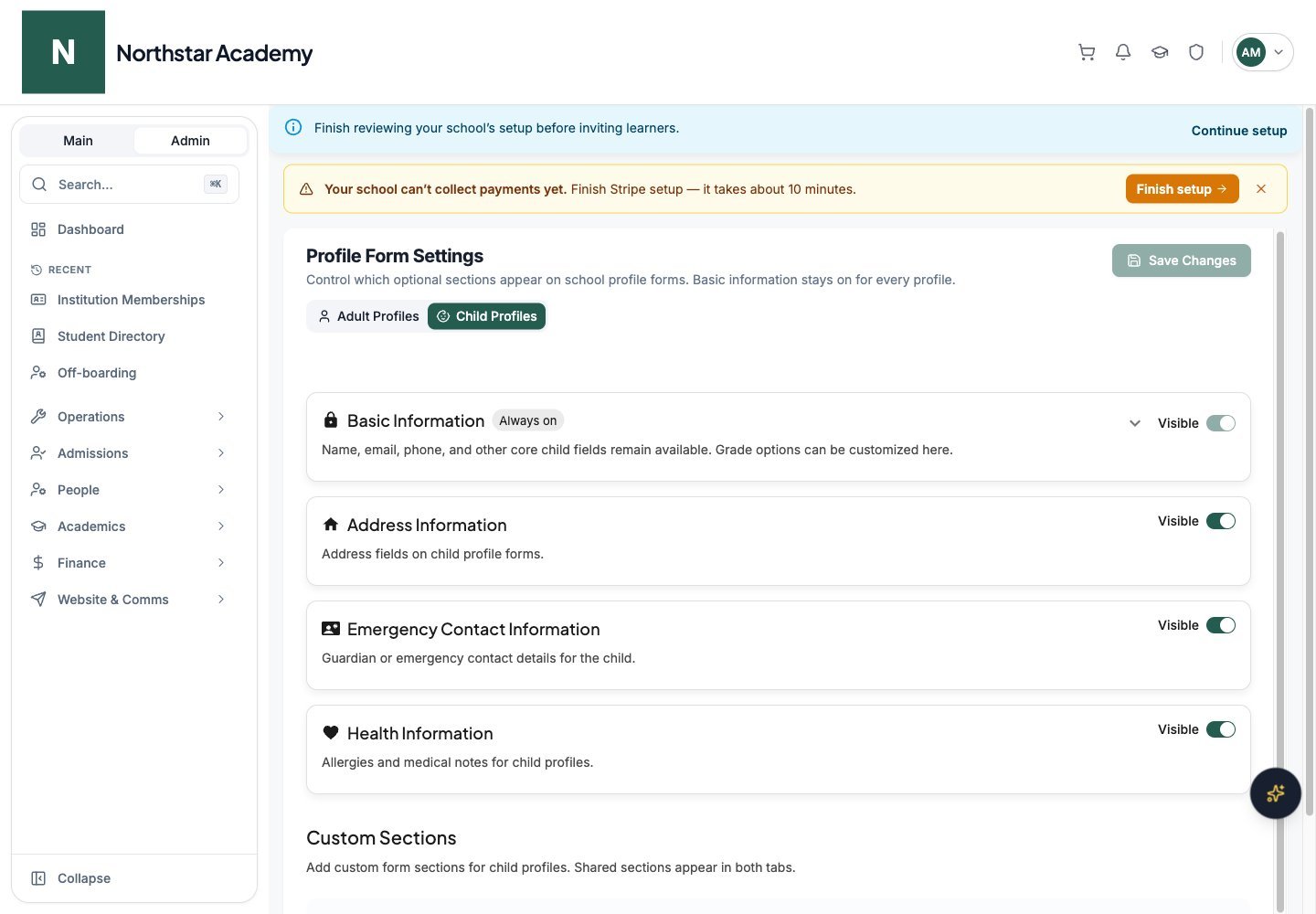
Northstar demo — Profile Form Settings — Child Profiles
Custom sections and fields
Custom fields let you collect information that isn’t covered by the standard sections — anything from “preferred pronouns” to “bus route” to “scholarship status”. Every custom field belongs to a custom section, which groups related fields under one heading on the profile form. You manage both under Custom Sections at the bottom of the Adult Profiles and Child Profiles tabs.Section audience
Each section has an Audience that controls which profiles show its fields:
A field’s audience always follows its section. To change who sees a field, move it to a section with a different audience.
For example, you might create a Health & Safety section for children that contains “Allergies”, “Doctor’s contact”, and “Vaccination record” — three different field types presented under one heading.
Field types
Public and admin-only fields
Each field has a Public field switch:- On — the user can view and edit the field on their own profile, and it’s collected during application onboarding.
- Off — the field is admin-only. Admins edit it from their view of the user’s profile, and it’s never shown to the user.
Required fields
Turn on Required field to block submission until the field is filled in. Required fields are enforced both during application onboarding and when admins edit a profile.Adding a custom section and field
1
Open Custom Sections
Go to Admin Dashboard → Profile Form Settings, pick the Adult Profiles or Child Profiles tab, and scroll to Custom Sections.
2
Create a section
Click Add Section. Enter a Section Name, choose an Audience, and click Create Section. Skip this step if the section you need already exists.
3
Add a field
Expand the section, click Add Field, and pick the field type from the list.
4
Configure the field
In the field dialog, set the Field Name (internal identifier used when saving profile data), Field Label (shown on the profile form), and an optional Description (helper text under the field). You can change the Field Type or move the field to another Section. For Dropdown and Multi-Select fields, enter one option per line under Options. Optionally set a Default Value, then turn Required field and Public field on or off.
5
Save the field
Click Save Field.
6
Save your changes
Click Save Changes at the top of the page. The field goes live on every relevant profile and application surface after you save.
Where metadata appears
Once configured, custom fields appear in the following places:Reordering and removing fields
- Drag fields up or down within their section to reorder them.
- Delete a field with its delete icon, or with Delete Field in the field dialog. Existing data on user profiles is preserved but is no longer surfaced anywhere in the UI.
- Use the section’s rename and delete icons to rename or remove a whole section.
- Click Save Changes to apply reordering and deletions.