deandesk.com/dashboard. Memberships are scoped to your institution, not to individual schools. See Institutions & Schools for how these levels relate.Video walkthrough
What is a membership?
A Membership represents a person’s paid or manually-assigned membership in your institution. It is separate from — and sits alongside — the Identity and User account systems.How Membership, Identity, and User relate
Membership plans
Before you can add members, you need to create at least one membership plan. You can publish multiple plans within the same tier (e.g. a “Standard Family” and a “Supporter Family” plan), and each plan has its own pricing, features, and display order on the public landing page.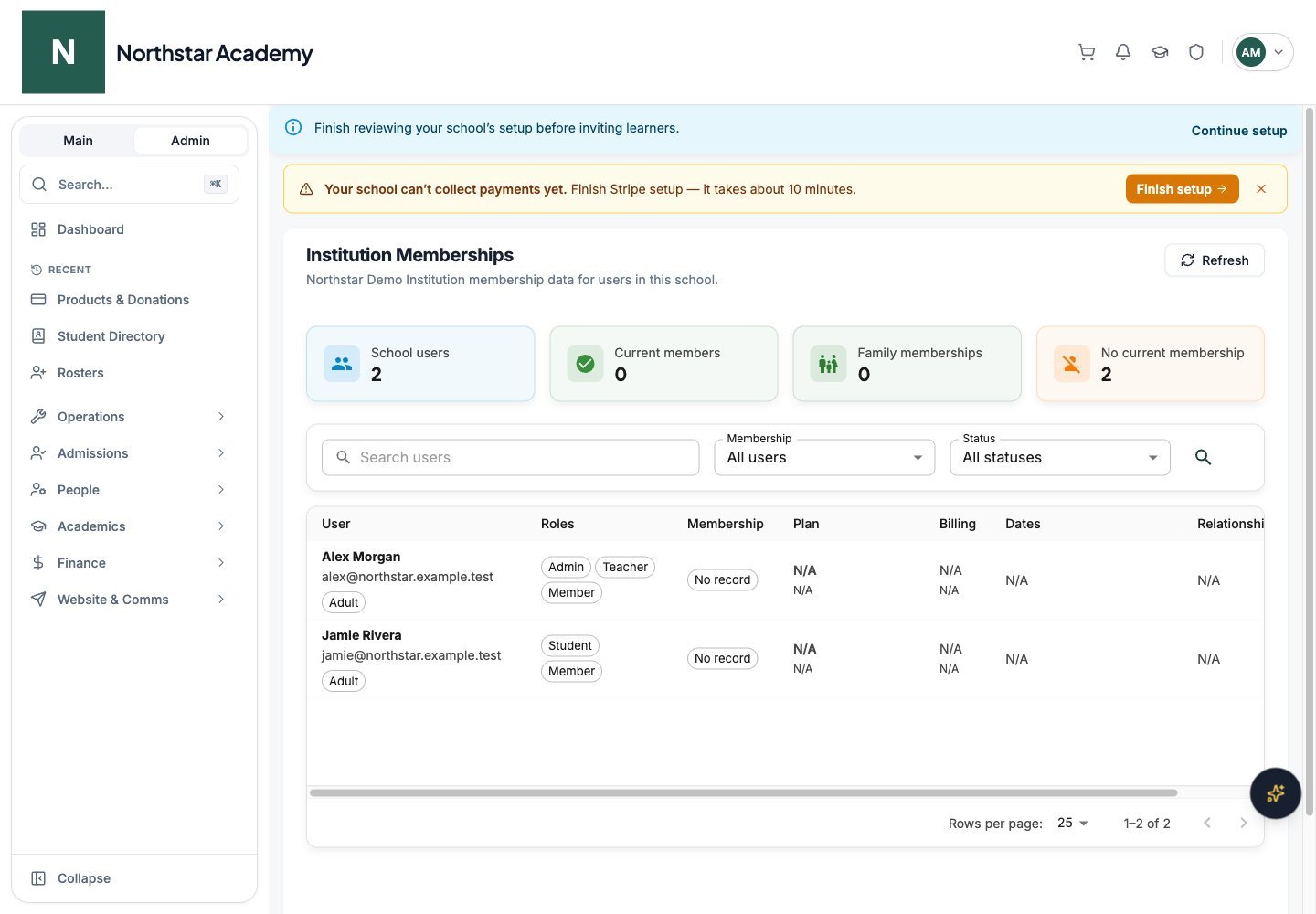
Northstar demo — Configuration
Creating a plan
Open Membership settings
Choose a tier type
Set pricing
- Monthly price — recurring charge every month
- Annual price — recurring charge once per year
Add plan details
- Features — a list of benefits shown to prospective members
- Terms — terms and conditions members must accept when subscribing
- Policies — free-text policy text shown alongside the plan
- Max family size — for family plans, the maximum number of members (default 5, max 20)
- Display order — controls the order plans appear in their tier section on the landing page
- Active toggle — hide a plan from the landing page without deleting it
Save
Membership term settings
Configure when your membership year starts and ends, and how to handle members who join mid-term.Open Membership settings
Set the annual term dates
Choose a late join policy
Adding members
There are three ways to add members: self-service signup, manual activation, and bulk import.Browse current members
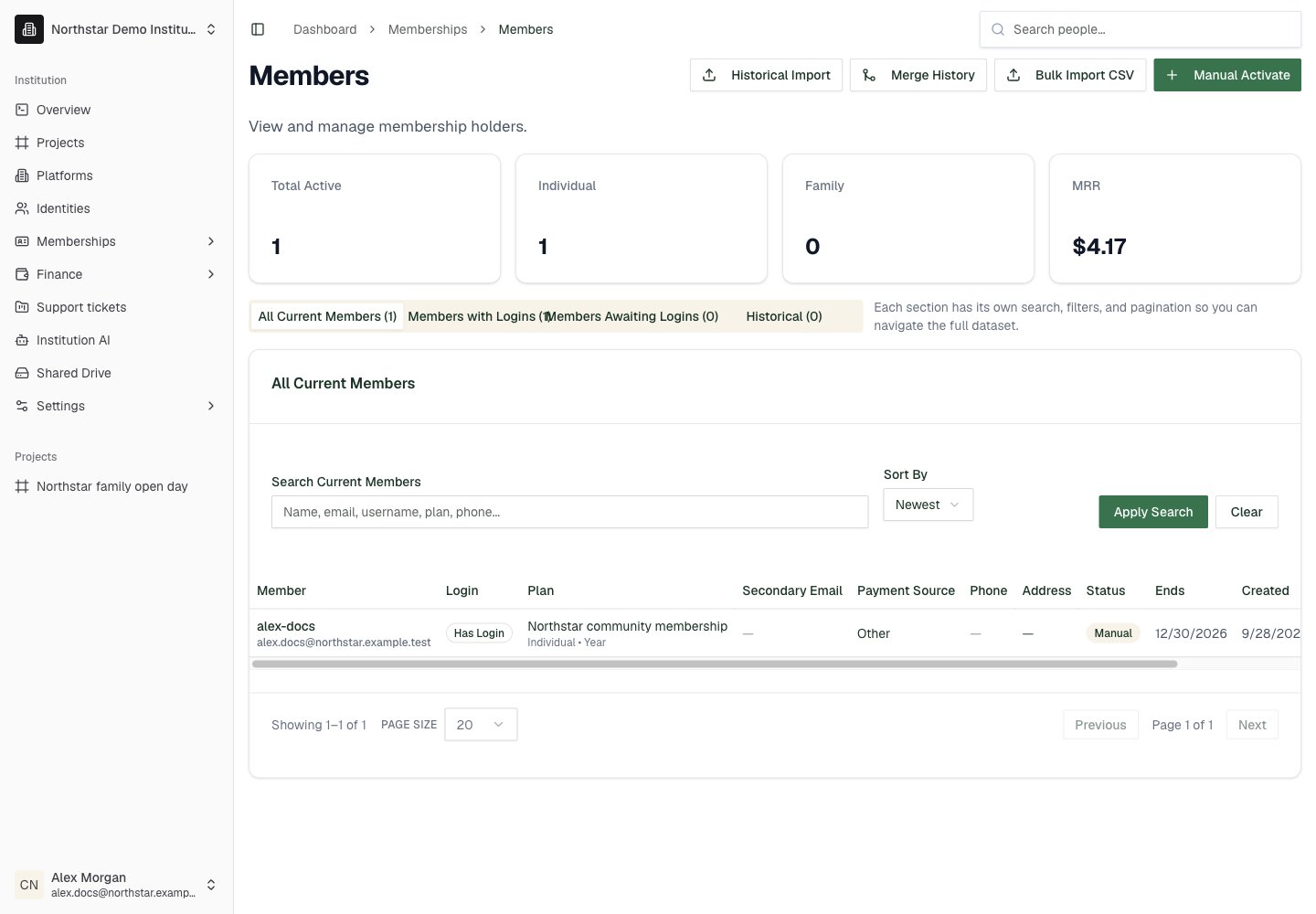
In Members, use All Current Members to review current membership records, including people who have not connected a login.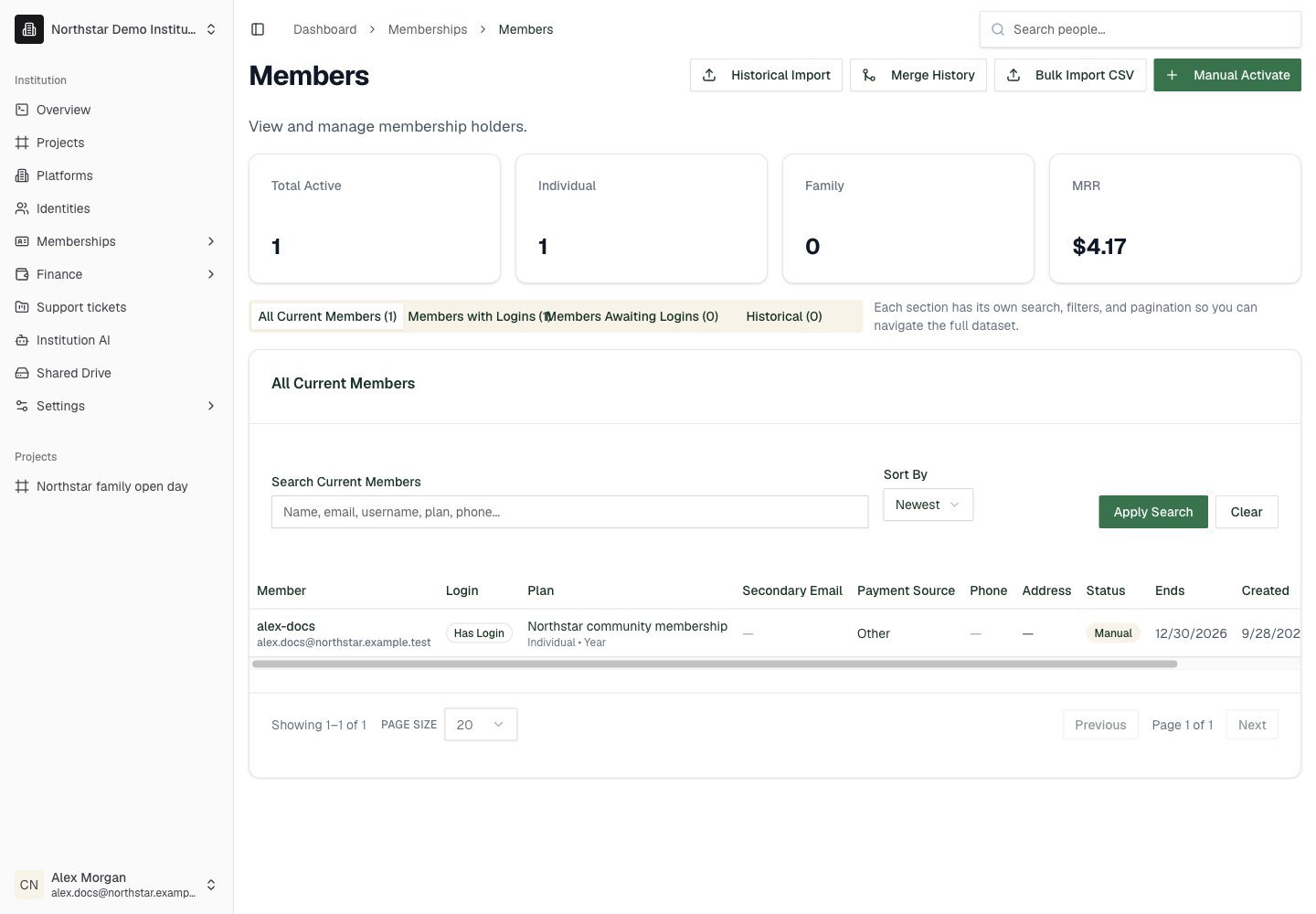
Northstar demo — Members — All Current Members
Find members with logins
Use Members with Logins to work with current members who have an institution Identity. Open a member to review their details.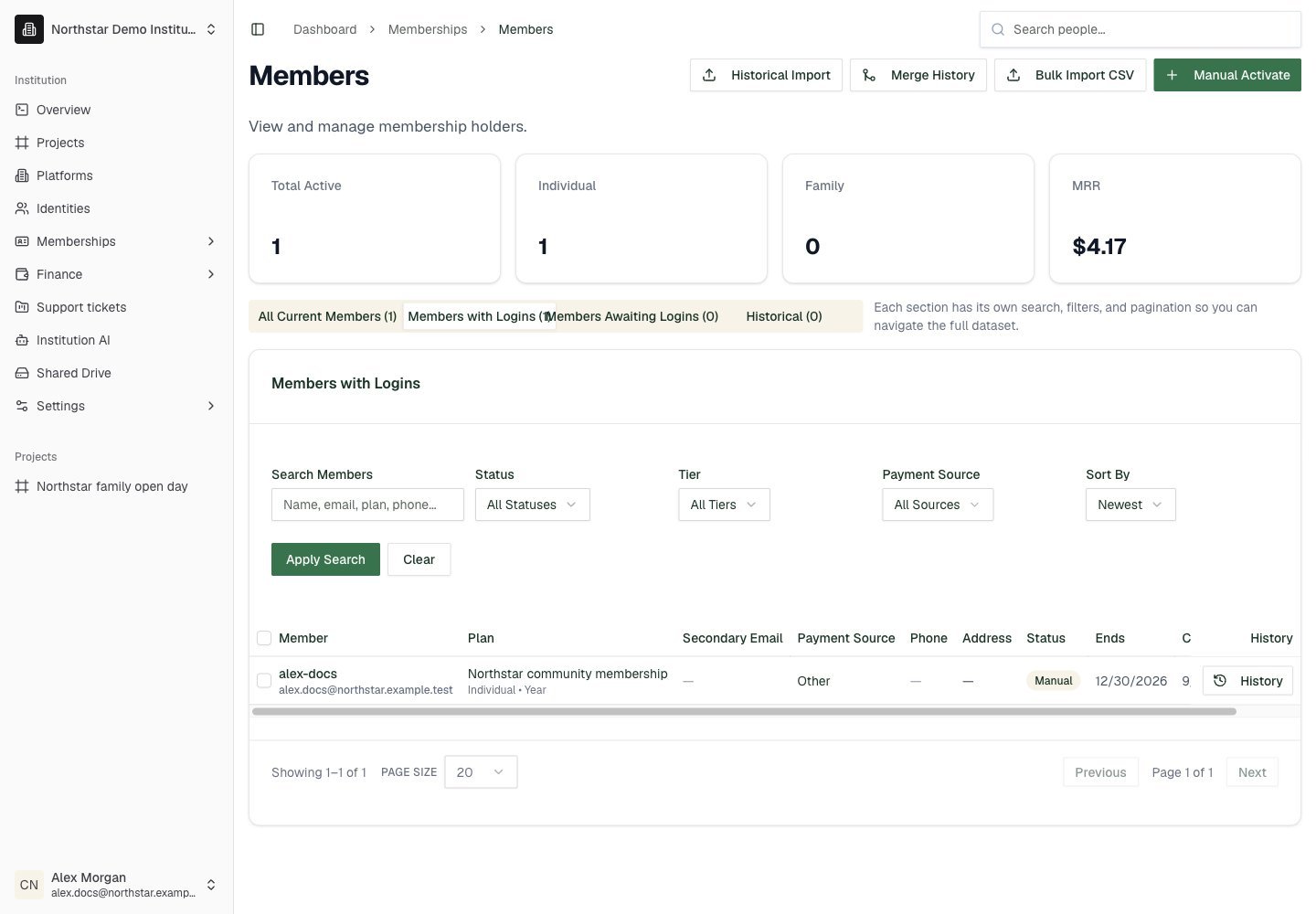
Northstar demo — Members — Members with Logins
Self-service signup
Members can purchase a membership themselves from your institution portal.- The member visits your institution’s portal and clicks to join.
- They see the available plans with pricing (including prorated amounts if applicable).
- They select a plan and billing interval, enter payment details, and accept the terms.
- Stripe processes the payment and DeanDesk creates the membership automatically.
- The member receives a confirmation email for their purchase.
Manual activation
Admins can activate memberships on behalf of individuals — useful for members who pay in person, sign up over the phone, or receive complimentary memberships. Go to Memberships → Members and click Manual Activate to open a four-step wizard.Identity
Details
Payment
Membership
Bulk import
Import hundreds or thousands of members at once using the Bulk Import wizard. The wizard walks you through column mapping, validation, and execution, and tracks every import as a job you can revisit and retry.Open Bulk Import
Upload your CSV
Map your columns
Validate
Execute the import
- If the Identity exists: creates the membership immediately
- If the Identity doesn’t exist yet: queues as a pending member
- If the person already has an active membership: skipped
Review the job
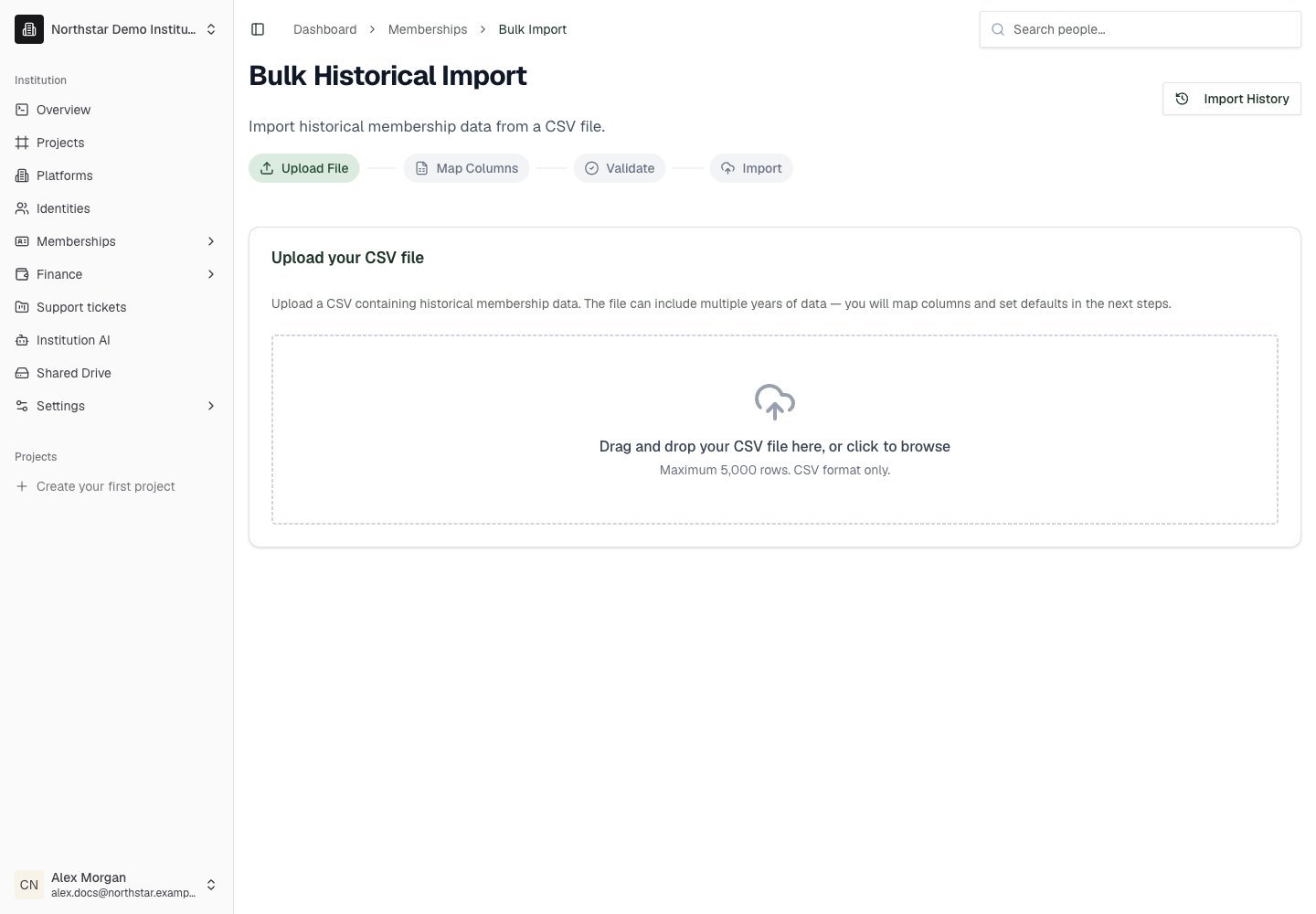
Northstar demo — Bulk Import
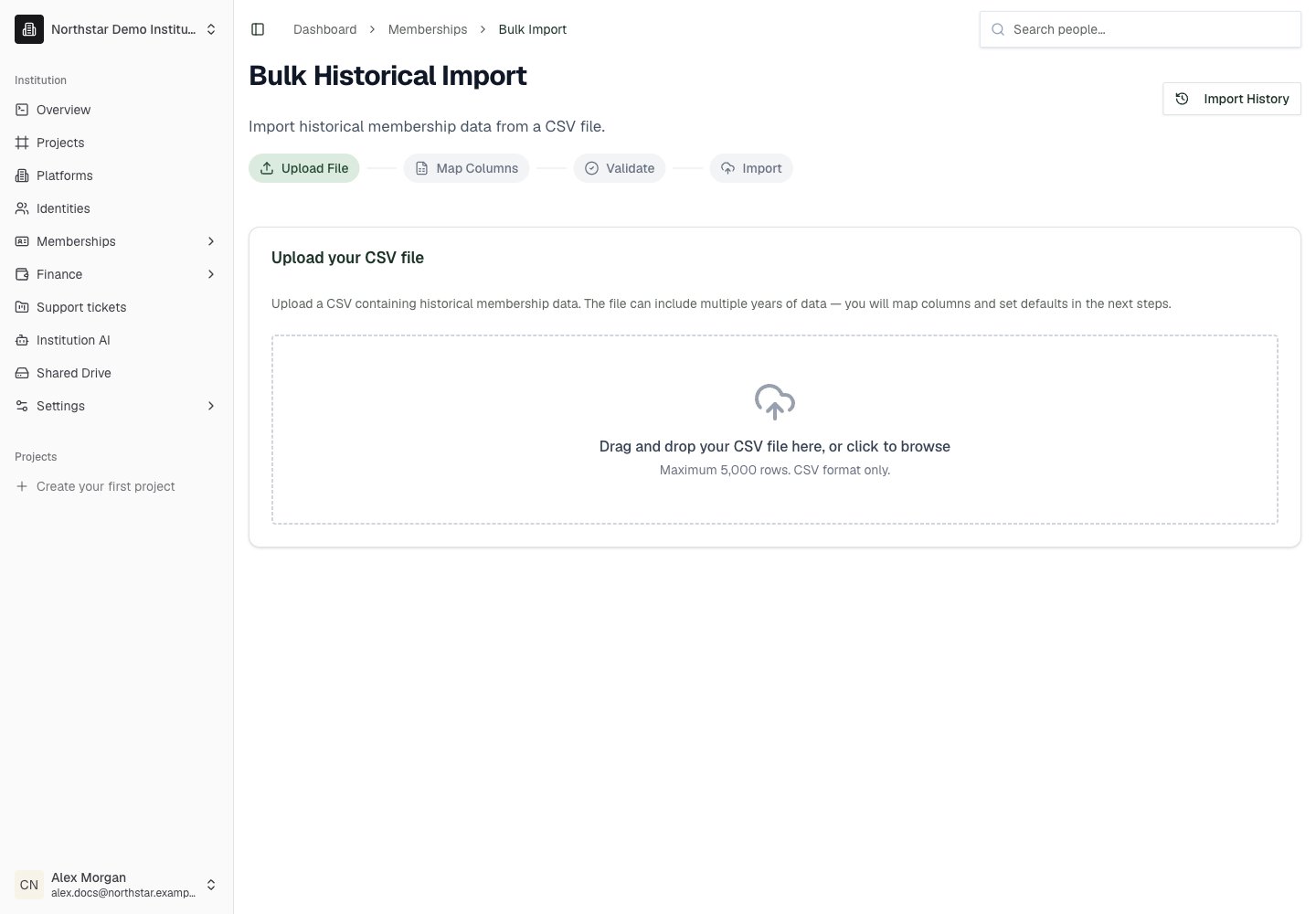
Historical backfill from an import
Once a bulk import job has completed, you can use it as the source for a historical backfill — converting the imported rows into historical membership periods on existing member profiles. This is useful when you import a snapshot of a prior membership year and want to keep it as a closed historical period rather than an active membership.Open the completed import
Open the Historical Backfill panel
Pick the target plan and year
Run the backfill
Awaiting-login members
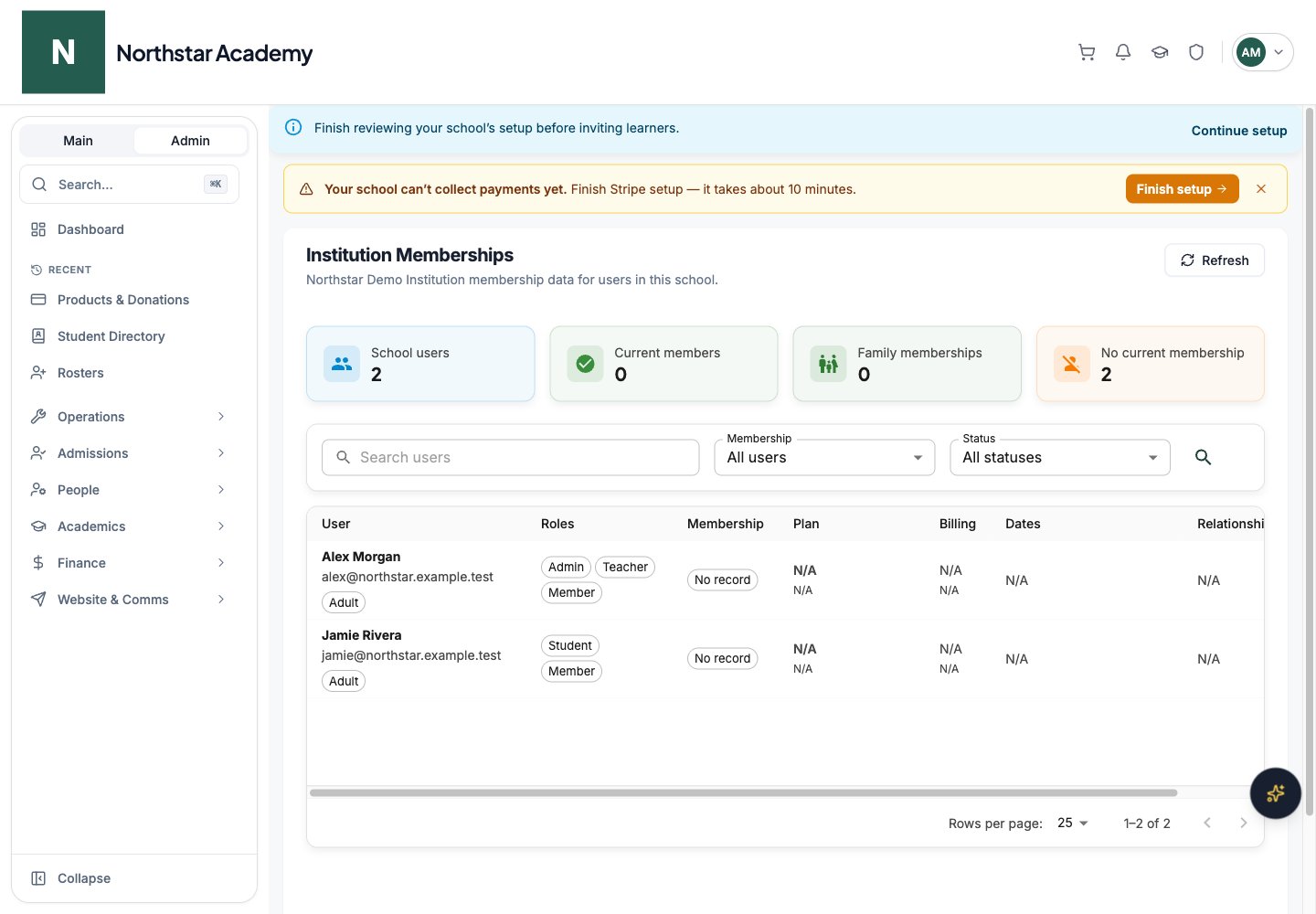
When a membership is created for someone whose Identity doesn’t exist yet, it is saved as an awaiting-login member. The Members page has tabs that segment the list:- When a new Identity is created (via signup or invitation), DeanDesk checks for any awaiting records that match the email or username.
- If a match is found, the membership is created and linked to the new Identity automatically.
- You can also manually trigger a sync or link individual awaiting records from the Awaiting logins tab.
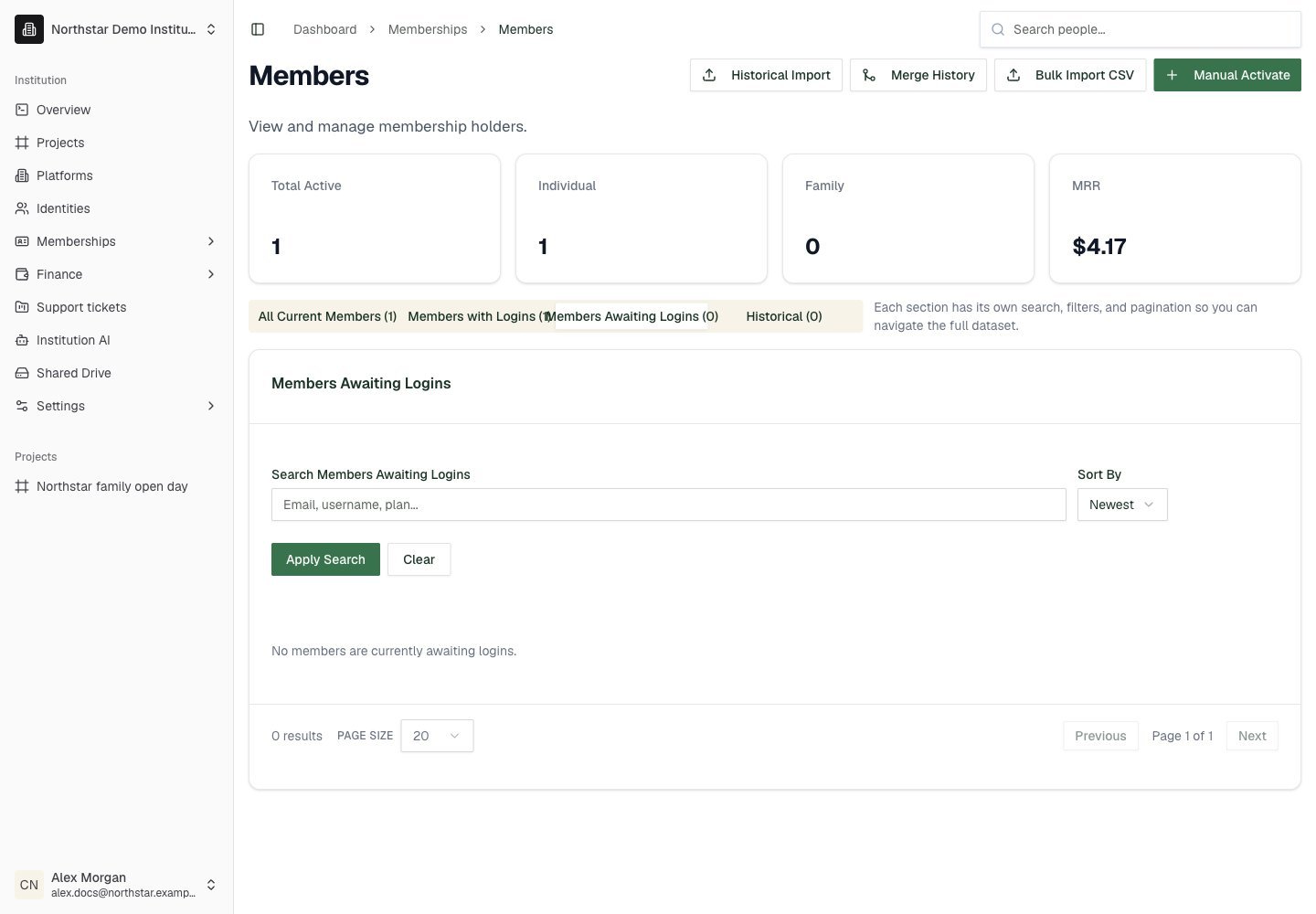
Northstar demo — Members — Members Awaiting Logins
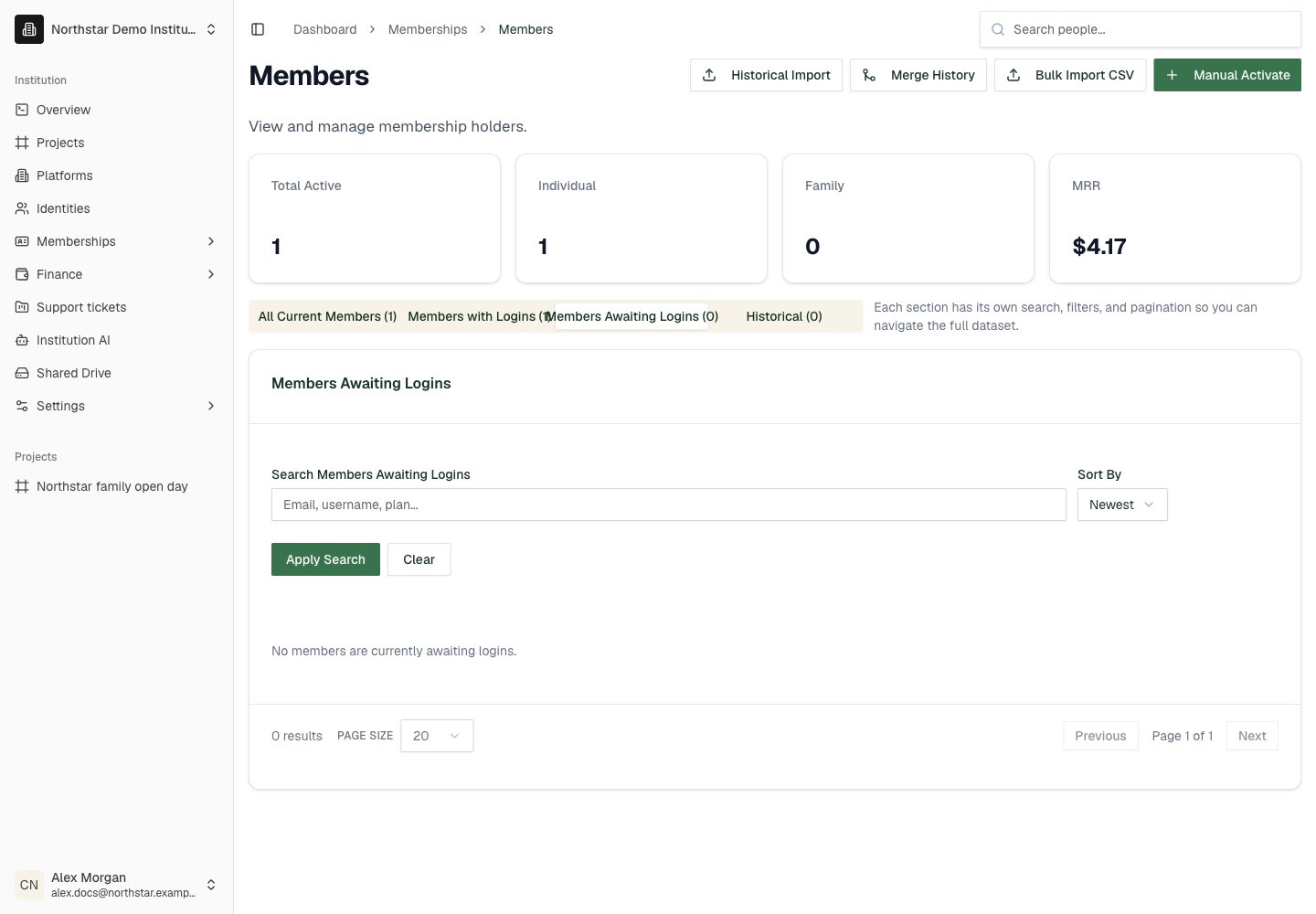
Undo an incorrect import link
For a member connected from an awaiting-login import, open the member detail page and choose Undo Identity Link when available. Review the confirmation carefully: the imported profile returns to Awaiting Login; a membership created by that link is removed, while a pre-existing membership is left unchanged. This is an import-link correction, not a subscription cancellation. If DeanDesk asks you to review an older family link, check the household and spouse details after unlinking.Member detail page
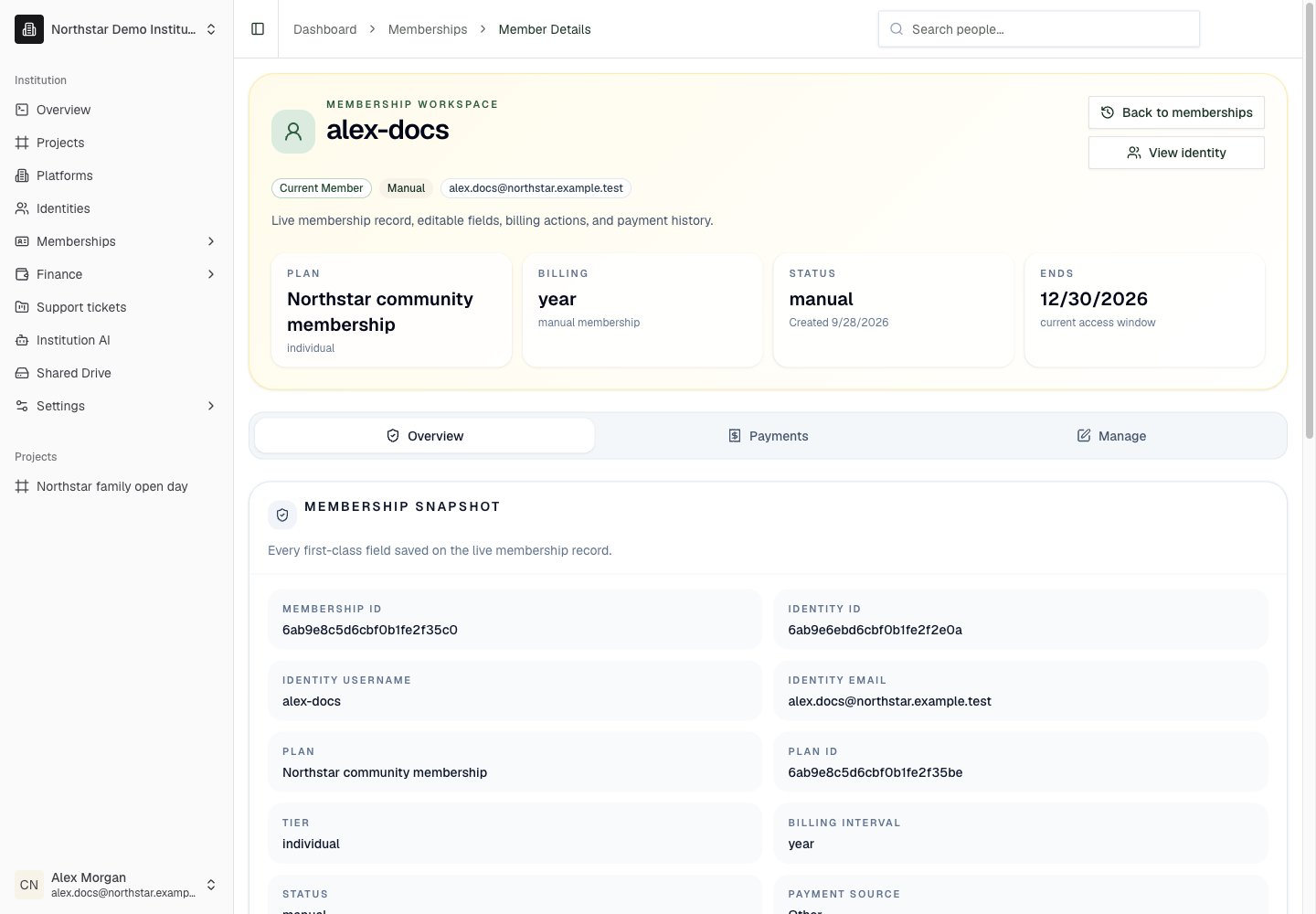
Clicking a row in any Members tab opens a dedicated detail page at/dashboard/memberships/members/[kind]/[id] (where kind is current, awaiting-login, or historical). The page is organized into tabs — Overview, Manage, Payments, Timeline, and Connect — with panels like Membership Snapshot, Membership Actions, Payment History, and Custom Member Fields. Awaiting-login and historical members show their saved import snapshot.
Across the tabs you can:
- Re-link the membership to a different Identity
- Edit contact info, address, payment source, referral source, and custom metadata
- Edit spouse details on the membership
- Change the plan or billing interval
- View transaction history
- Add or edit history periods (historical members)
- Merge duplicate profiles when the same person appears more than once
- Manually change membership status
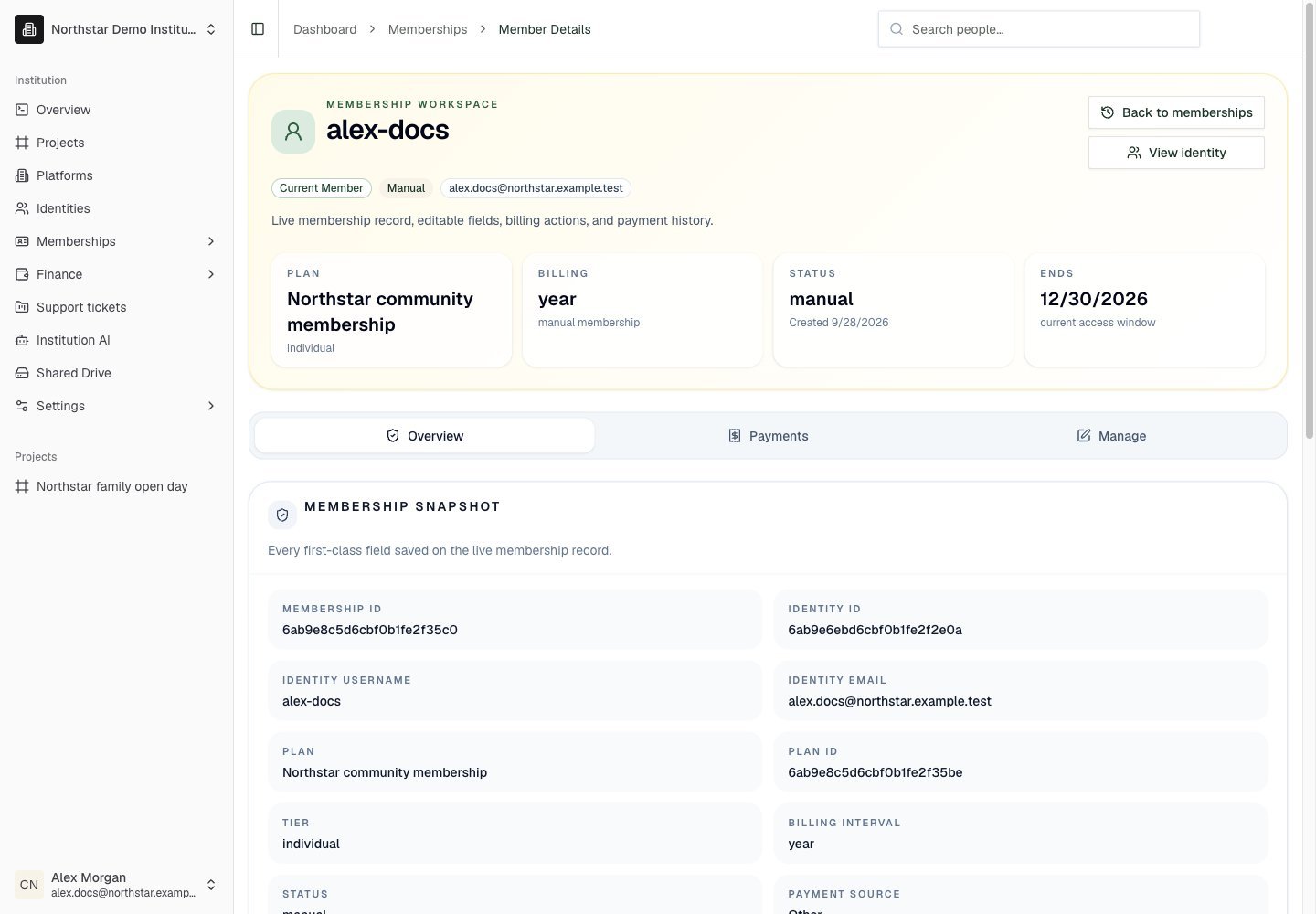
Northstar demo — Member detail — Overview
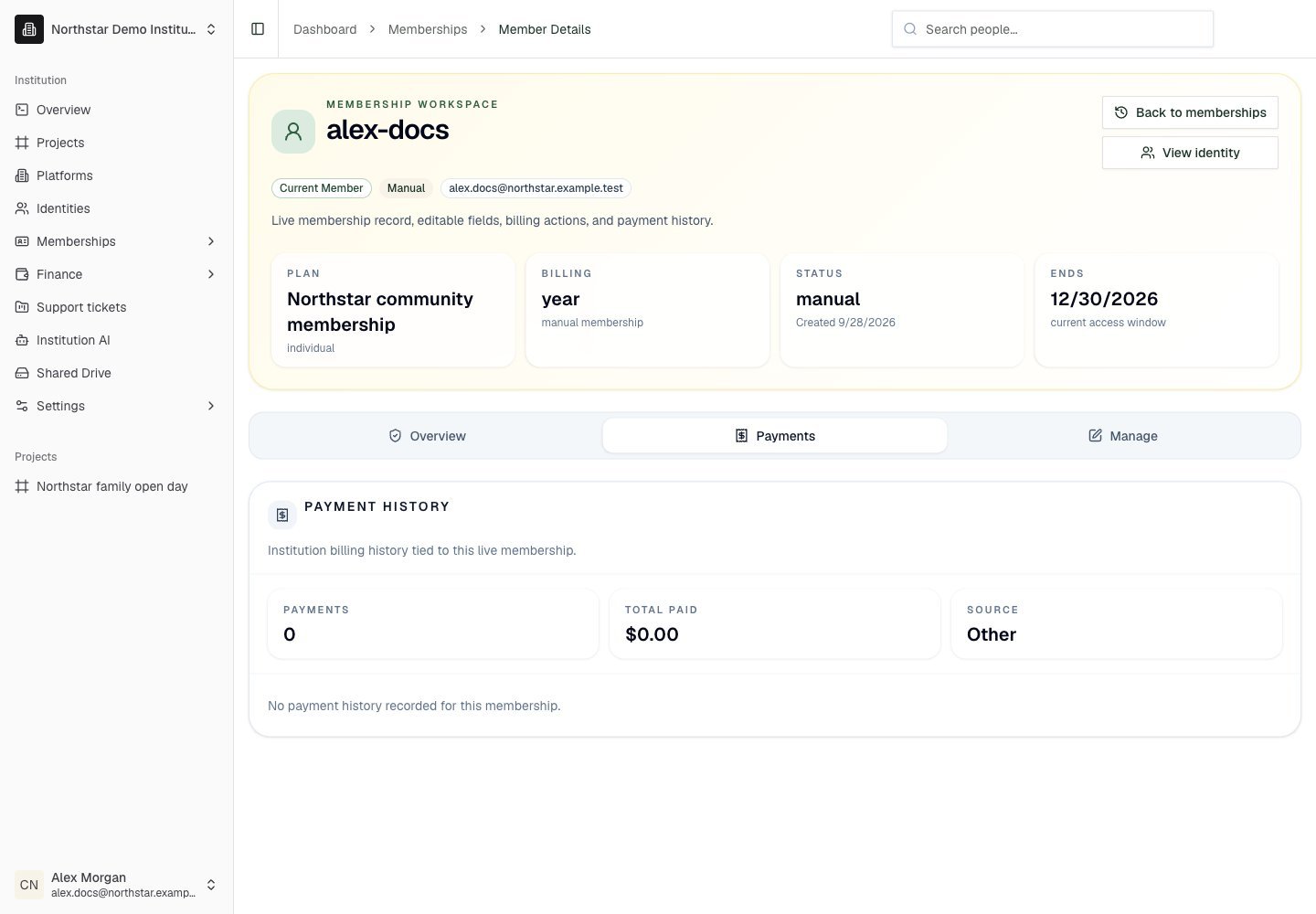
Northstar demo — Member detail — Payments
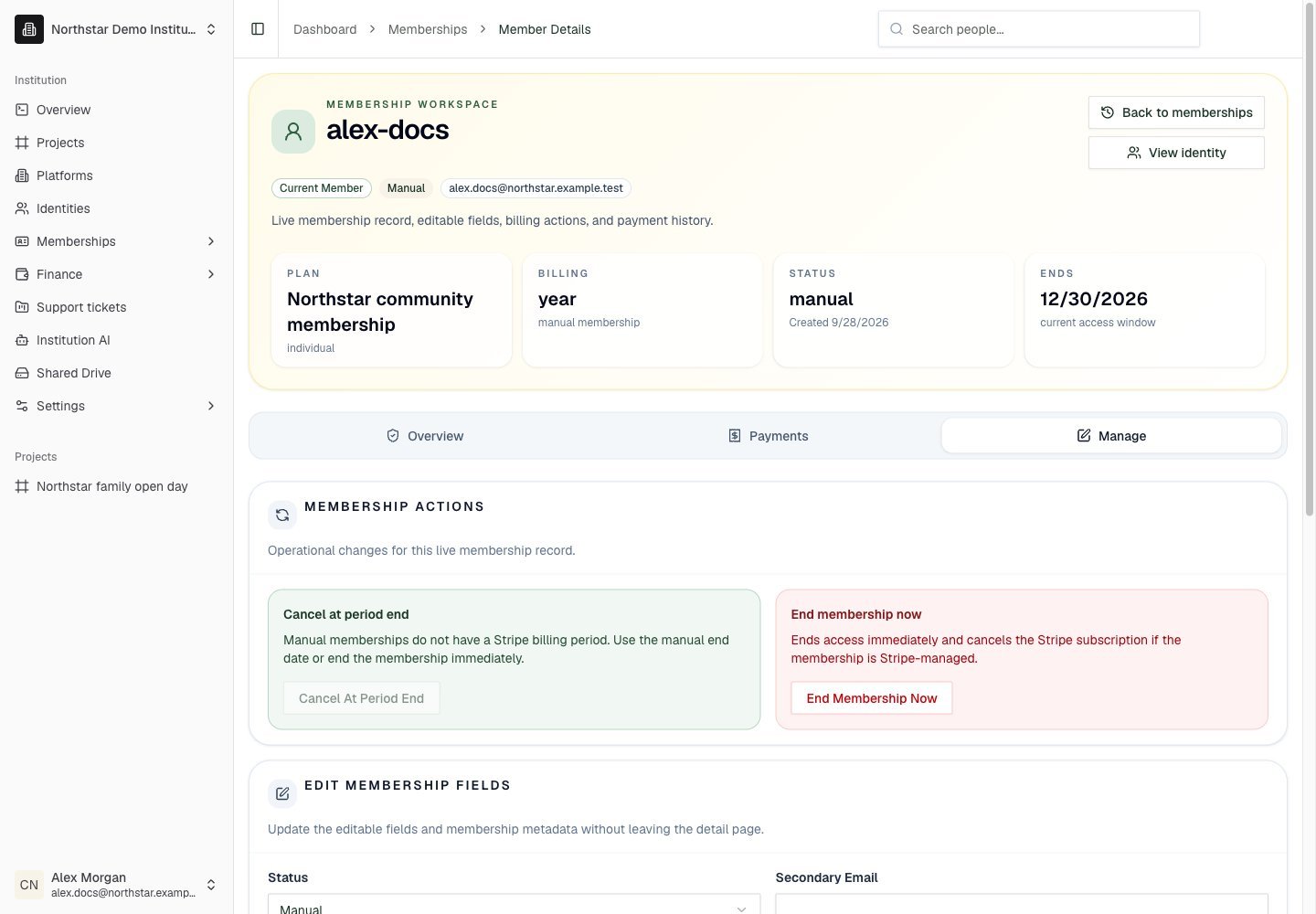
Northstar demo — Member detail — Manage
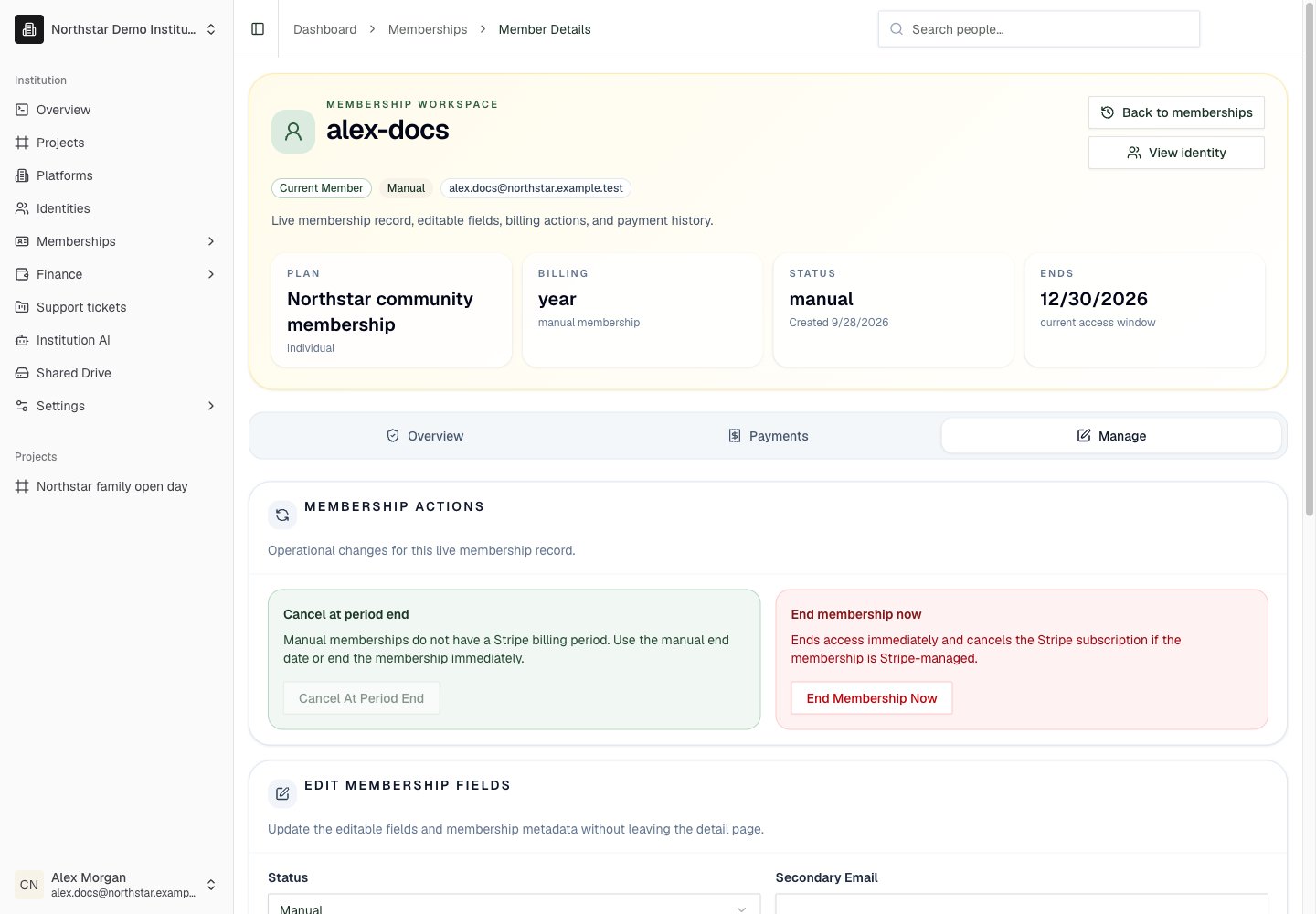
Household and spouse
The Household and Spouse panel on the member detail page shows the member’s family group, the number of active members in it, and the spouse’s name, email, phone, and linked identity.Membership metadata
Custom metadata fields let you store institution-specific information on each membership — volunteer roles, committee assignments, t-shirt sizes, dietary restrictions, or anything else your organization needs to track.Configuring metadata fields
Open metadata settings
Add a field
Supported field types
Where metadata appears
- Member list and detail views in the institution dashboard
- Bulk import — metadata values can be included in import data and are validated against the schema
- Reports — custom metadata columns are included when exporting membership reports as CSV
- Discount rules — metadata fields can be used as conditions in rule-based discounts (see Membership entitlements below)
Referral source tracking
To understand where new members come from, you can configure a Referral Source dropdown that appears during membership signup.Define your referral options
Members select on signup
Report on referral channels
Demographic sync
Memberships can store demographic data on each member — useful for community reporting, grant applications, and program eligibility. Demographic fields collected during signup or import are synced into the membership record automatically.Family memberships
When a member subscribes to the Family tier, DeanDesk creates a family group that the primary member can manage.Family roles
Adding family members
The primary member (or an admin) can invite family members from the membership portal:- Click Invite Family Member and choose the role (spouse or child).
- For spouse and children 13+, enter their email. DeanDesk creates an Identity for them if one doesn’t exist and sends an invitation email.
- For children under 13, enter their name only — they are listed on the family group without an account.
- Invited members accept the invitation by signing in and confirming.
Membership entitlements
Membership status can be used to control access and pricing across your schools.Members-only products
When creating or editing a tuition product, you can set its access to Members Only. When a product is marked as members-only:- Only users with a valid, active membership at the institution level can select and purchase it.
- Users without a membership see the product but are blocked from enrolling with a message indicating a membership is required.
- Admins can always bypass this restriction.
Membership-based discounts
The discount rule engine can evaluate a user’s membership status when deciding whether to apply a discount. Two membership-related fields are available as discount rule conditions:- “10% off all tuition for active members”
- “Family plan members get $50 off per child enrollment”
- “$25 discount for anyone with an active membership”
Membership history
DeanDesk maintains a historical record of all membership periods — both current DeanDesk-managed memberships and imported historical data.Historical profiles
Each person gets a history profile that tracks all their membership periods across time. This is useful for:- Tracking long-term membership tenure for members who joined before you started using DeanDesk
- Importing records from a previous membership system
- Maintaining a complete audit trail of membership activity
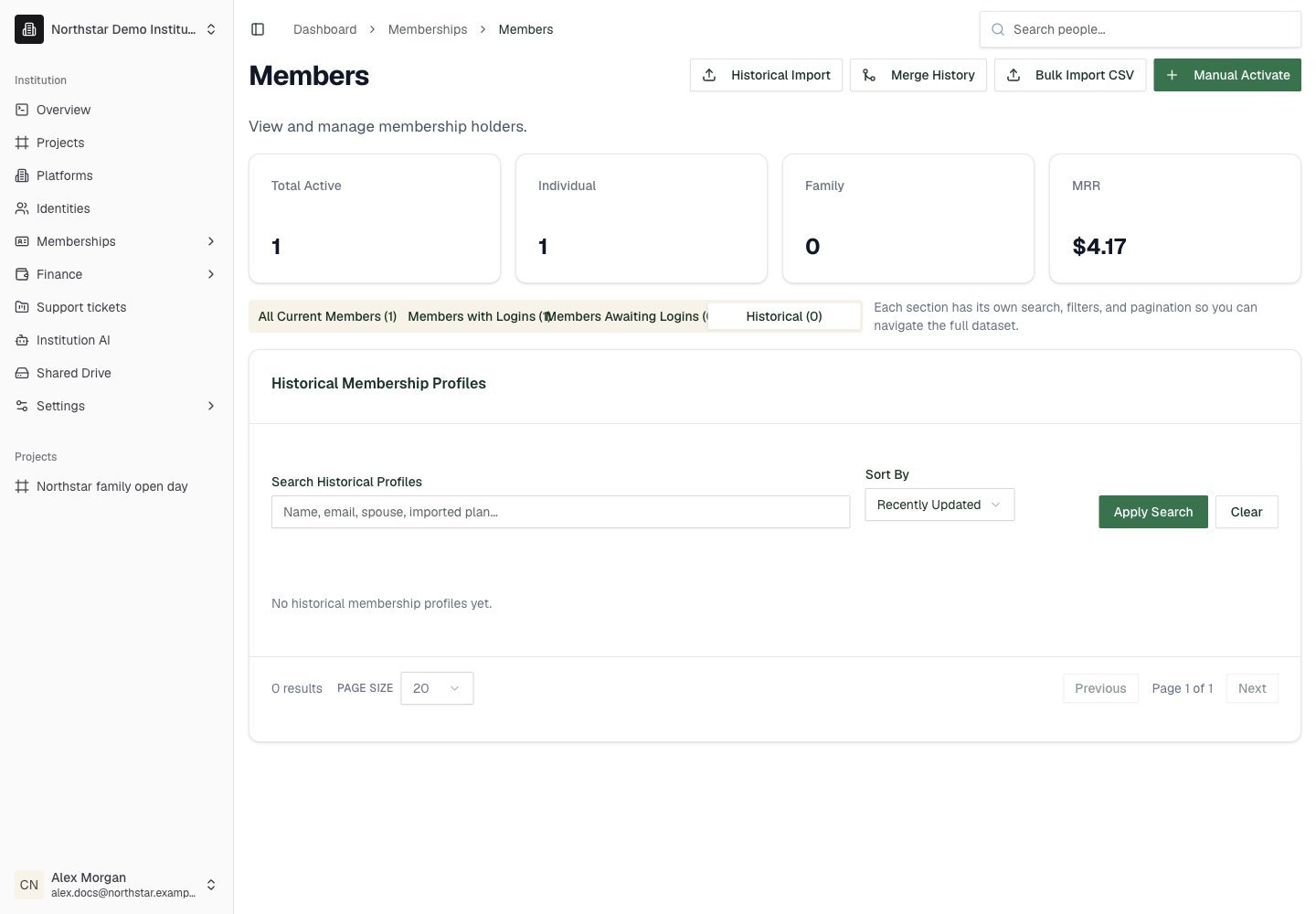
Northstar demo — Members — Historical
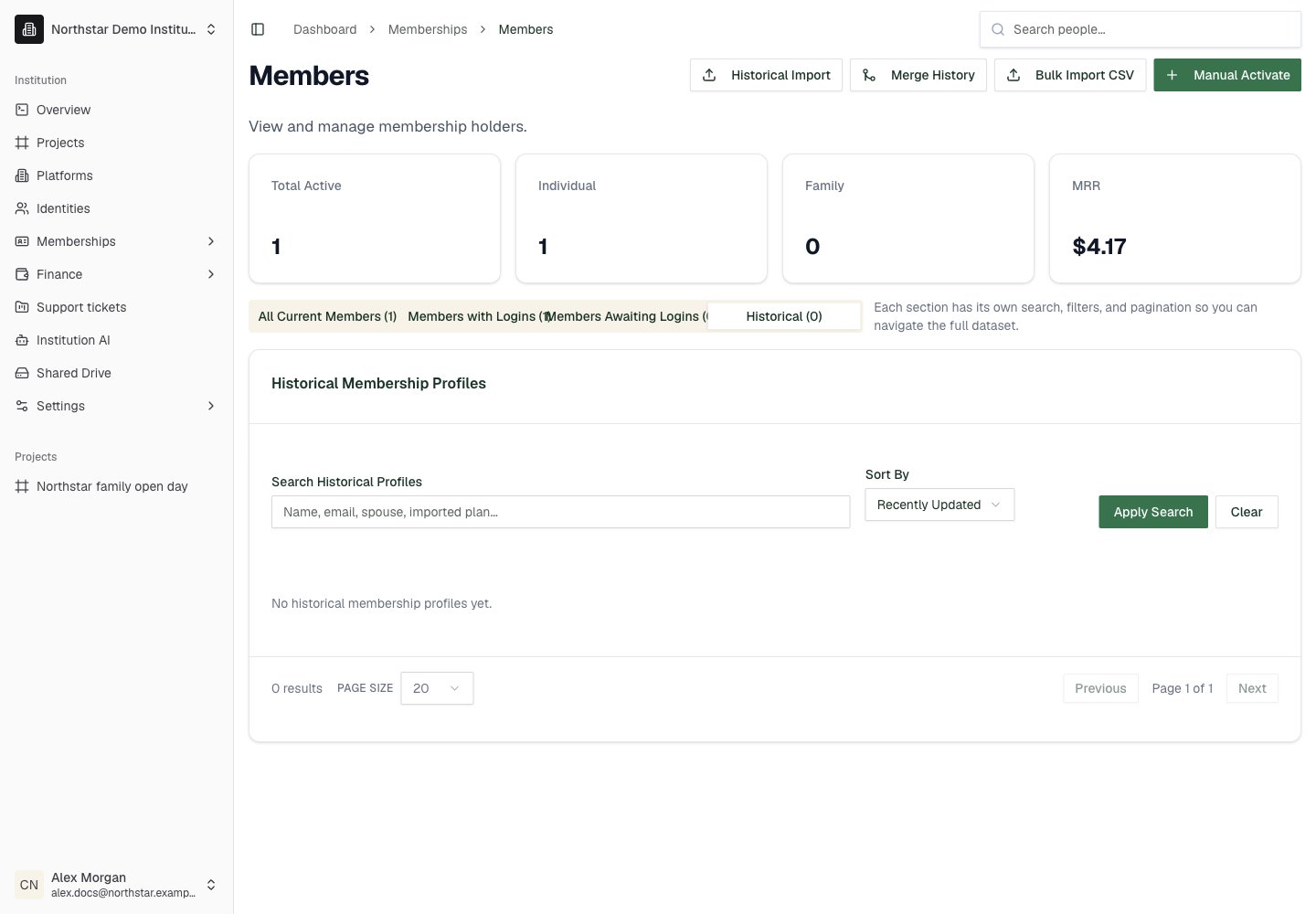
Importing historical data
Use the historical import to load past membership periods. Each imported record includes:- The member’s email (used to match or create a profile)
- The period’s start and end dates
- An import label (e.g. “2022-2023 Membership Year”)
- Plan name, tier type, and any metadata
Active membership sync
When a member subscribes or renews through Stripe, DeanDesk automatically adds a period to their history profile. This keeps the historical record up to date without manual intervention.Membership reports
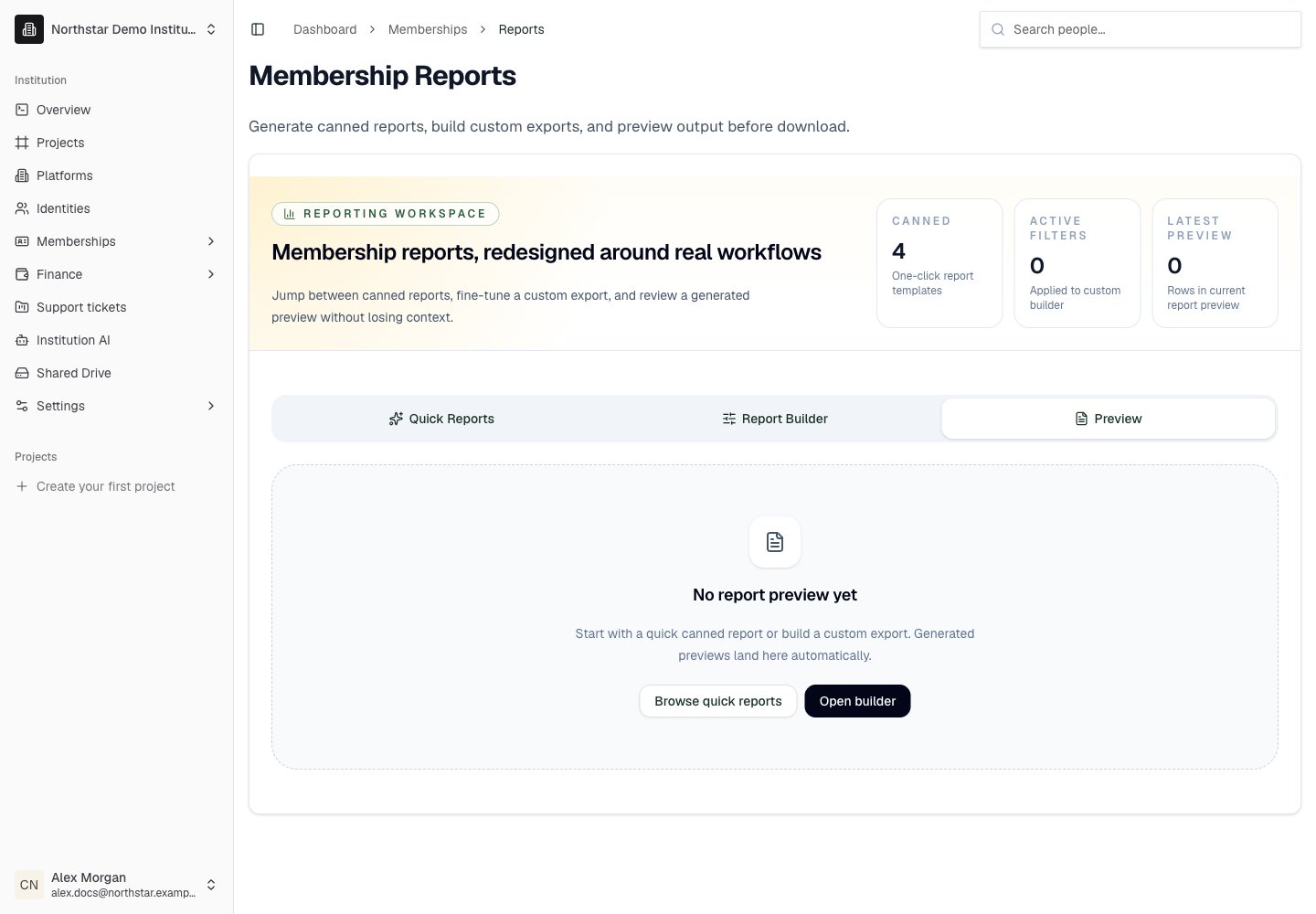
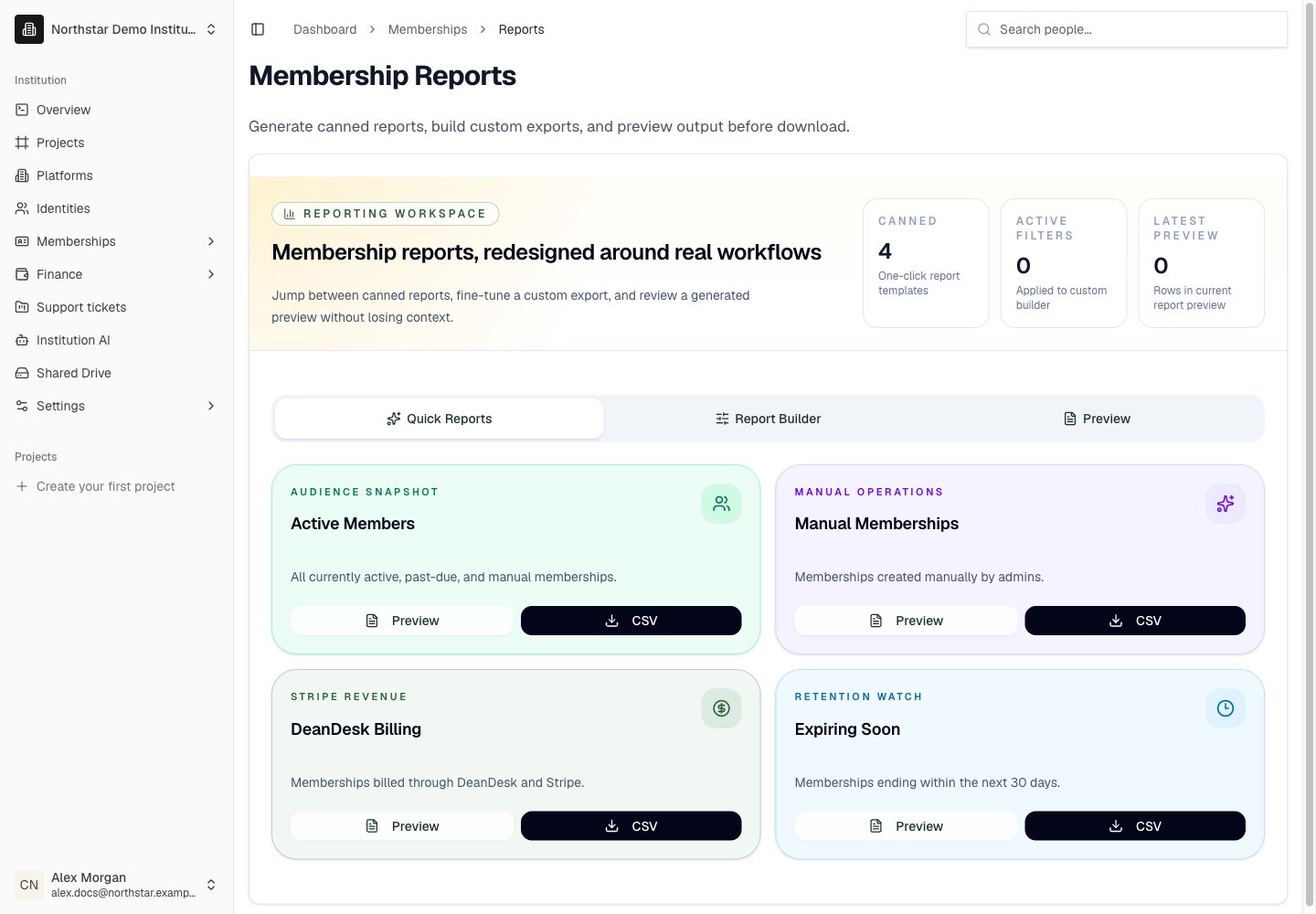
The Reports workspace at Memberships → Reports lets you preview and download canned reports, or build a custom report with the filters you need.Canned reports
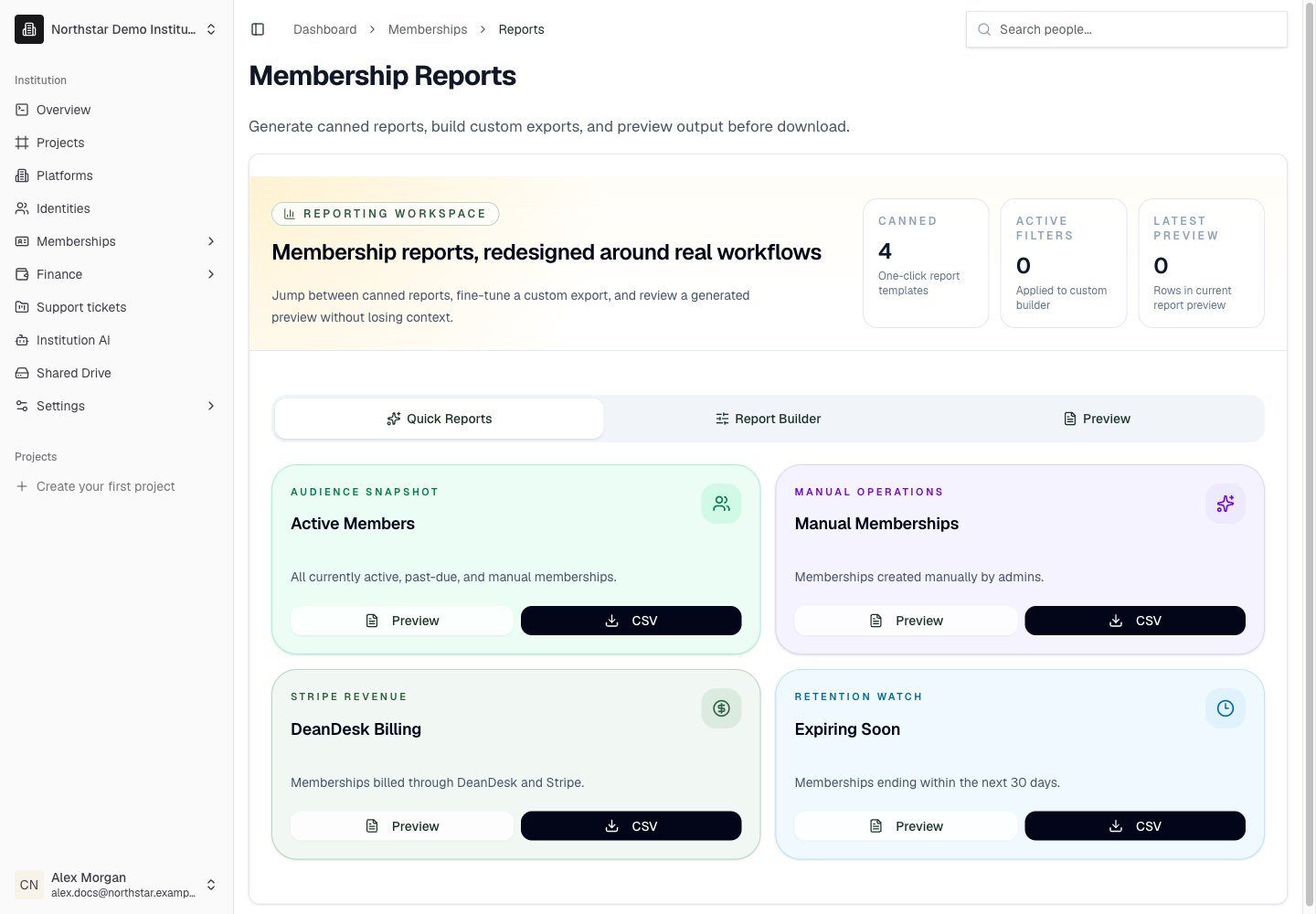
Northstar demo — Reports — Quick Reports
Custom report builder
Build a report tailored to a specific question by filtering on: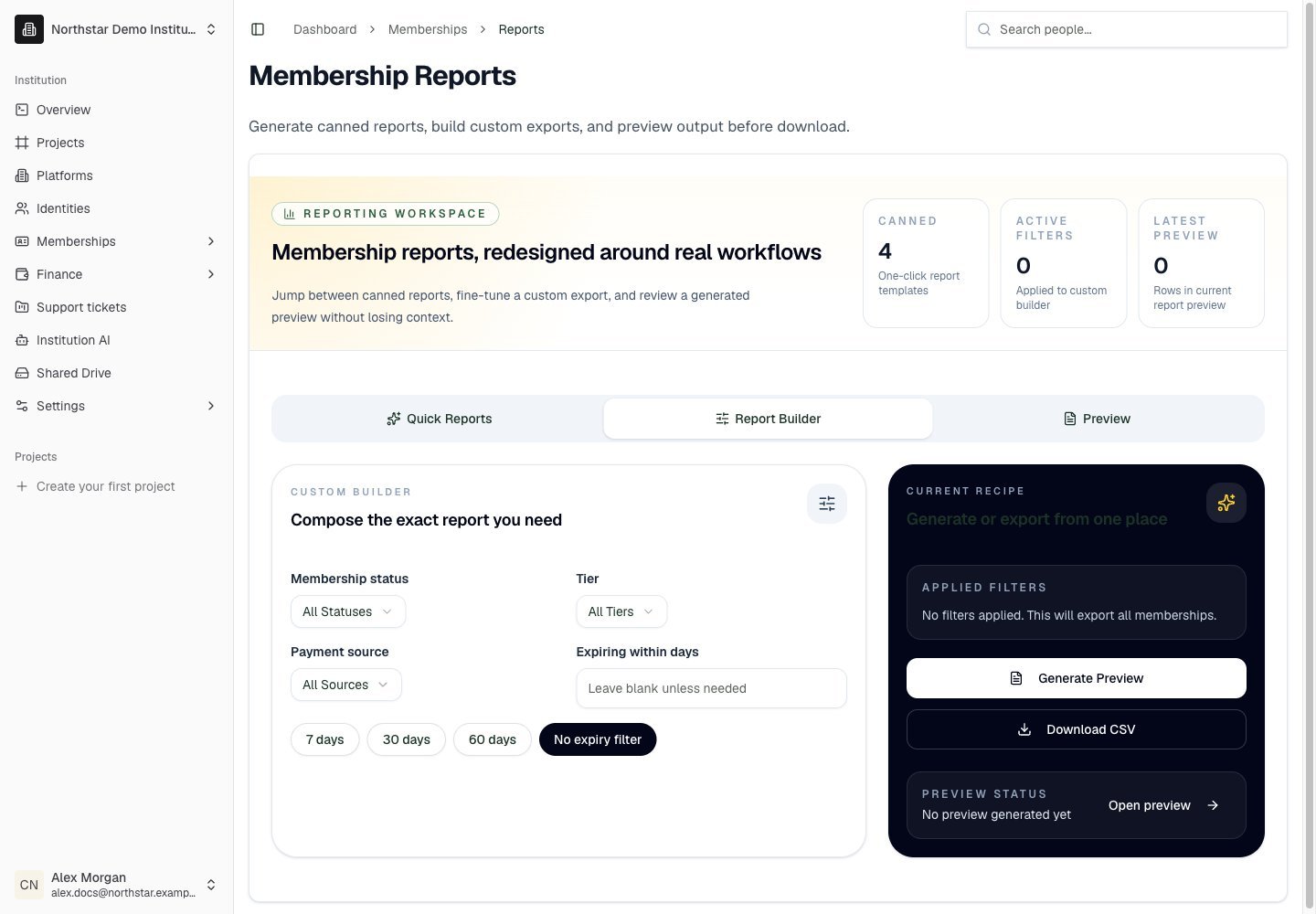
Northstar demo — Reports — Report Builder
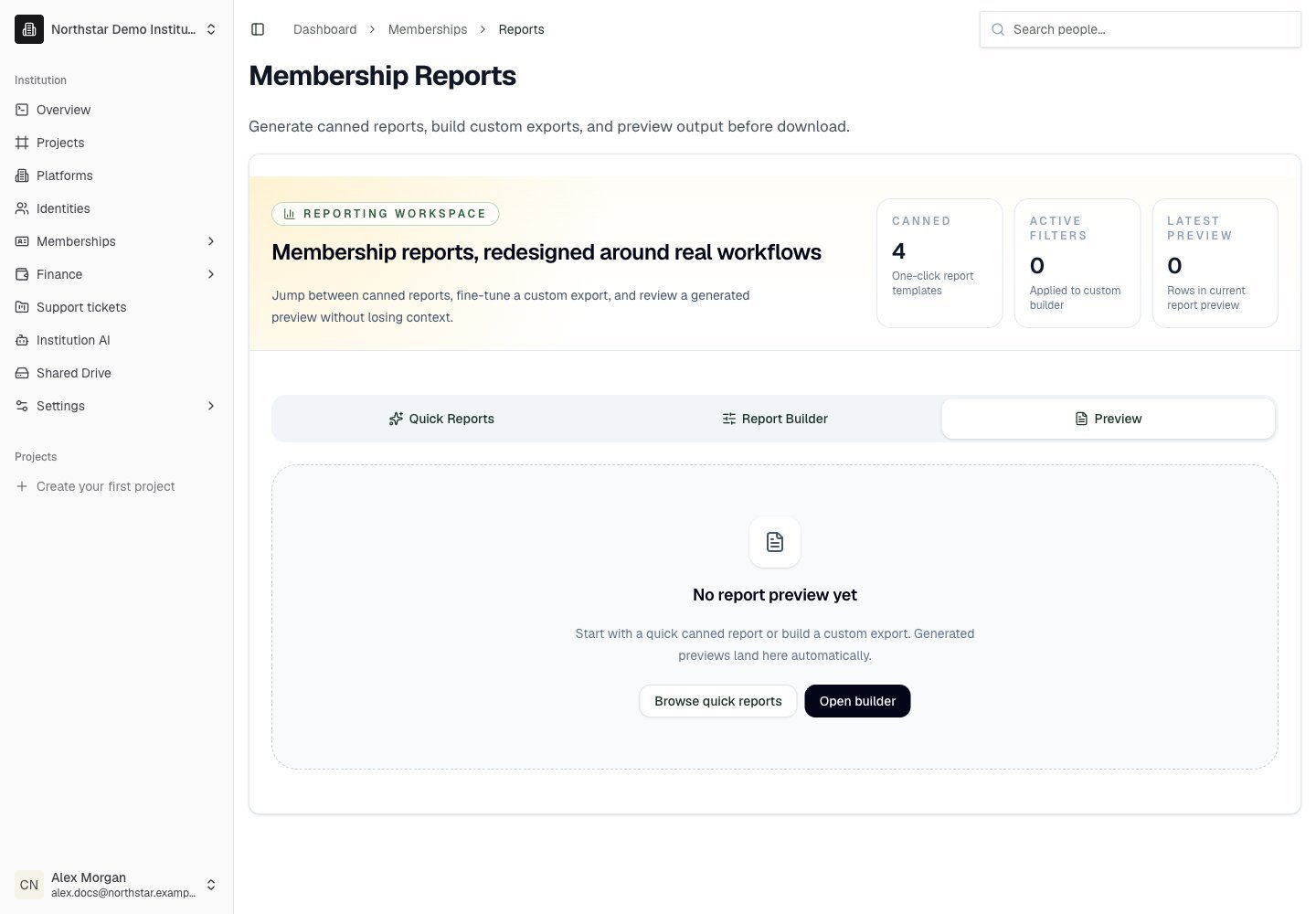
Northstar demo — Reports — Preview