

School-level feature — managed within your school portal at
yourschool.deandesk.com.Video walkthrough
This walkthrough uses the real DeanDesk interface with the fictional Northstar Academy demo school and a calm, AI-generated English voice. Payments and outside services are not connected in the demo.
Creating a roster
1
Open Rosters
Go to Admin Dashboard → Operations → Rosters. On the All Rosters tab, click New Roster to open the Create Roster dialog.
2
Name and describe
Enter a Name (e.g. “5th Grade Camp Group A”, “Drama Club”, “Bus Route 4”), an optional Description, and a Status of Active or Inactive.
3
Link courses
Optionally pick courses in Courses, or use Add courses from a group to add every course in a course group. See Linking rosters to courses.
4
Fill in custom metadata
If your school has configured custom roster fields, fill them in. See Roster metadata below.
5
Create
Click Create. The roster is now available across DeanDesk wherever you can target a roster (email composer, announcements, reports).
6
Add students
Open the roster to show the Roster Details tab. Under Add Students, click Find Students, then use Add Selected or Add All Results. For bulk assignment across several rosters, use the Roster Distribution canvas.
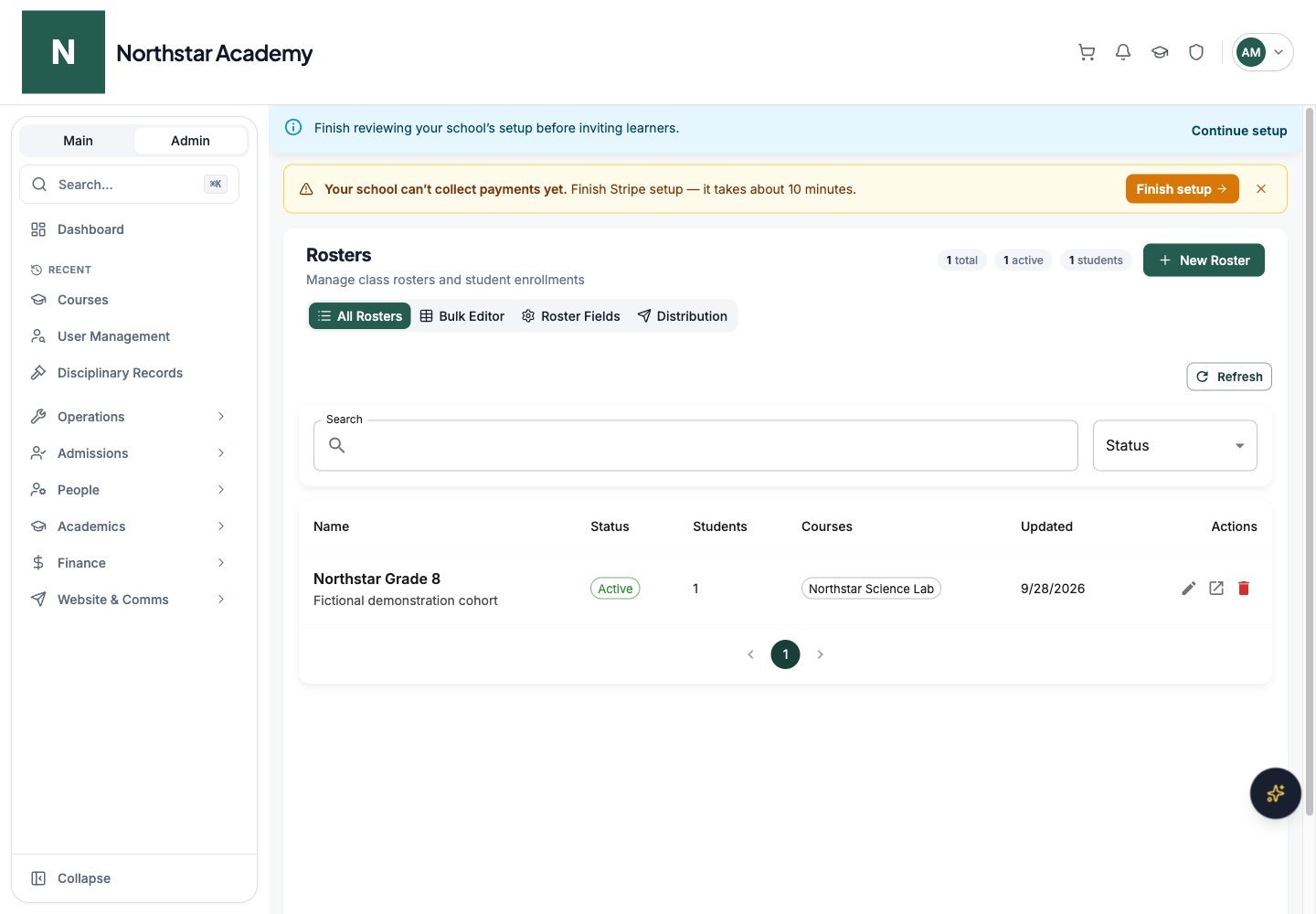
Northstar demo — Rosters — All Rosters
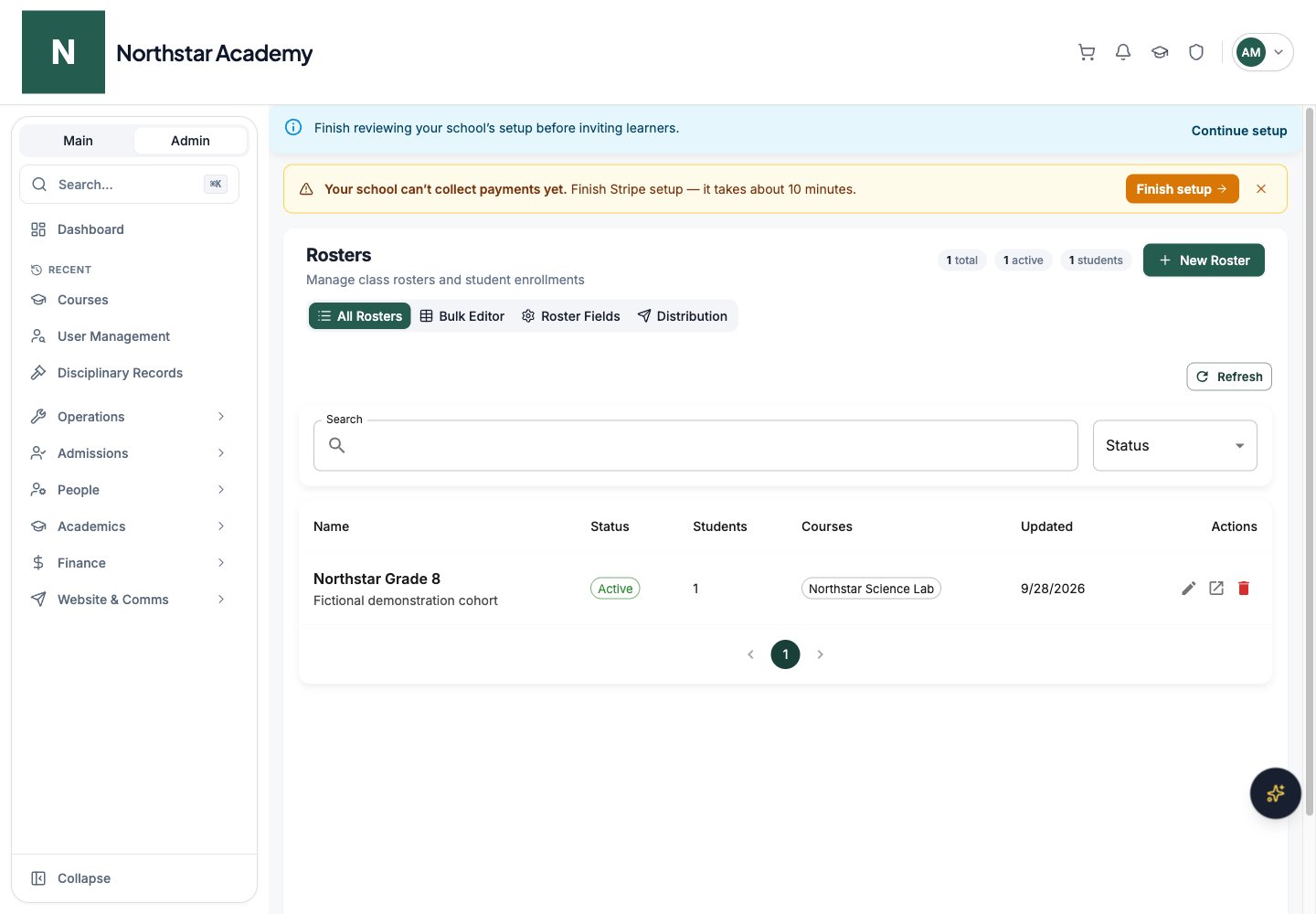
Roster metadata
Custom metadata fields let you attach school-specific information to each roster — things like meeting time, instructor, room number, or season.Configuring the schema
1
Open the metadata schema
Go to Admin Dashboard → Operations → Rosters and open the Roster Fields tab.
2
Add a field
Click Add Field. In the Add Roster Field dialog, set:
3
Create
Click Create. The fields appear on the roster create/edit form immediately.
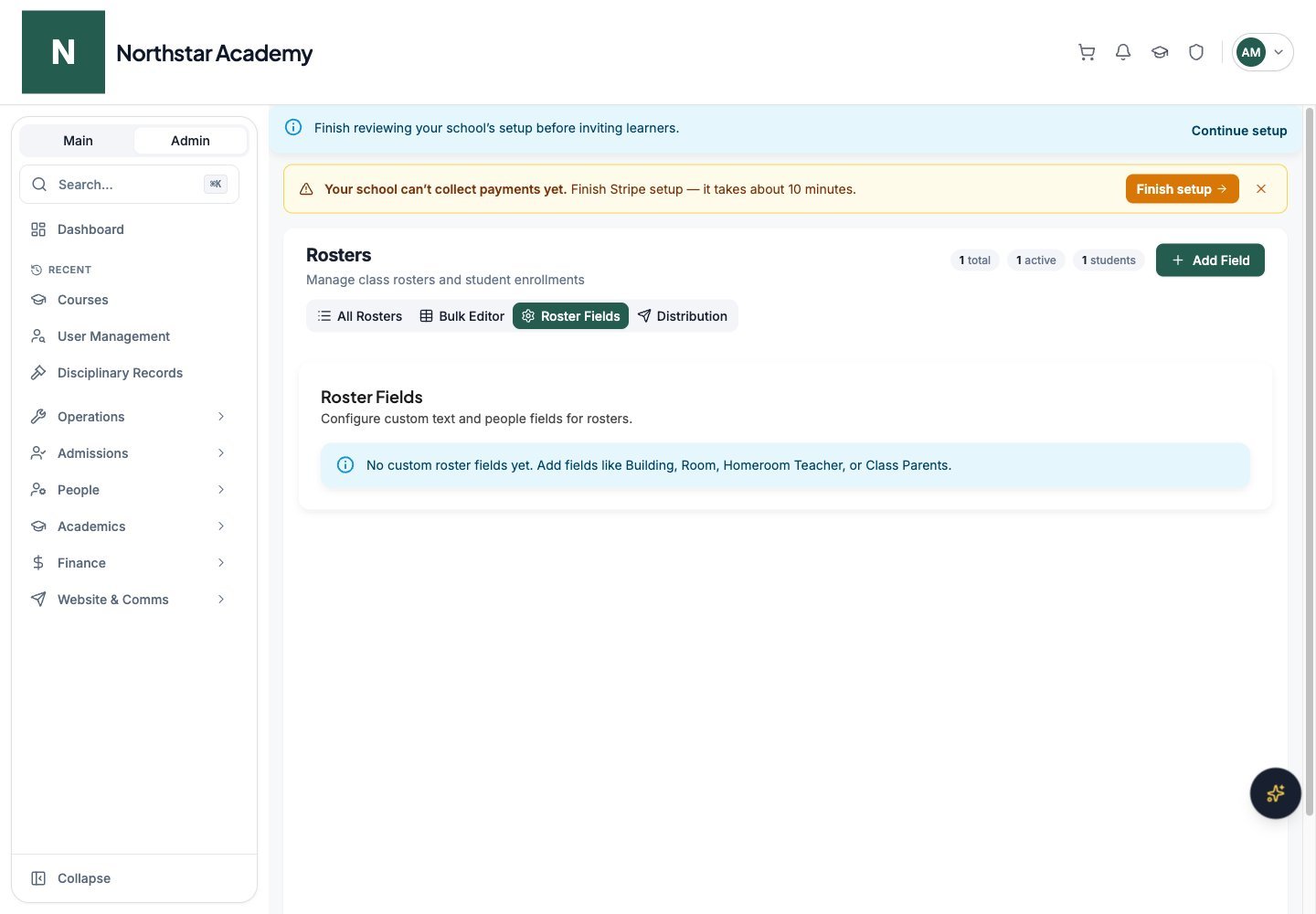
Northstar demo — Rosters — Roster Fields
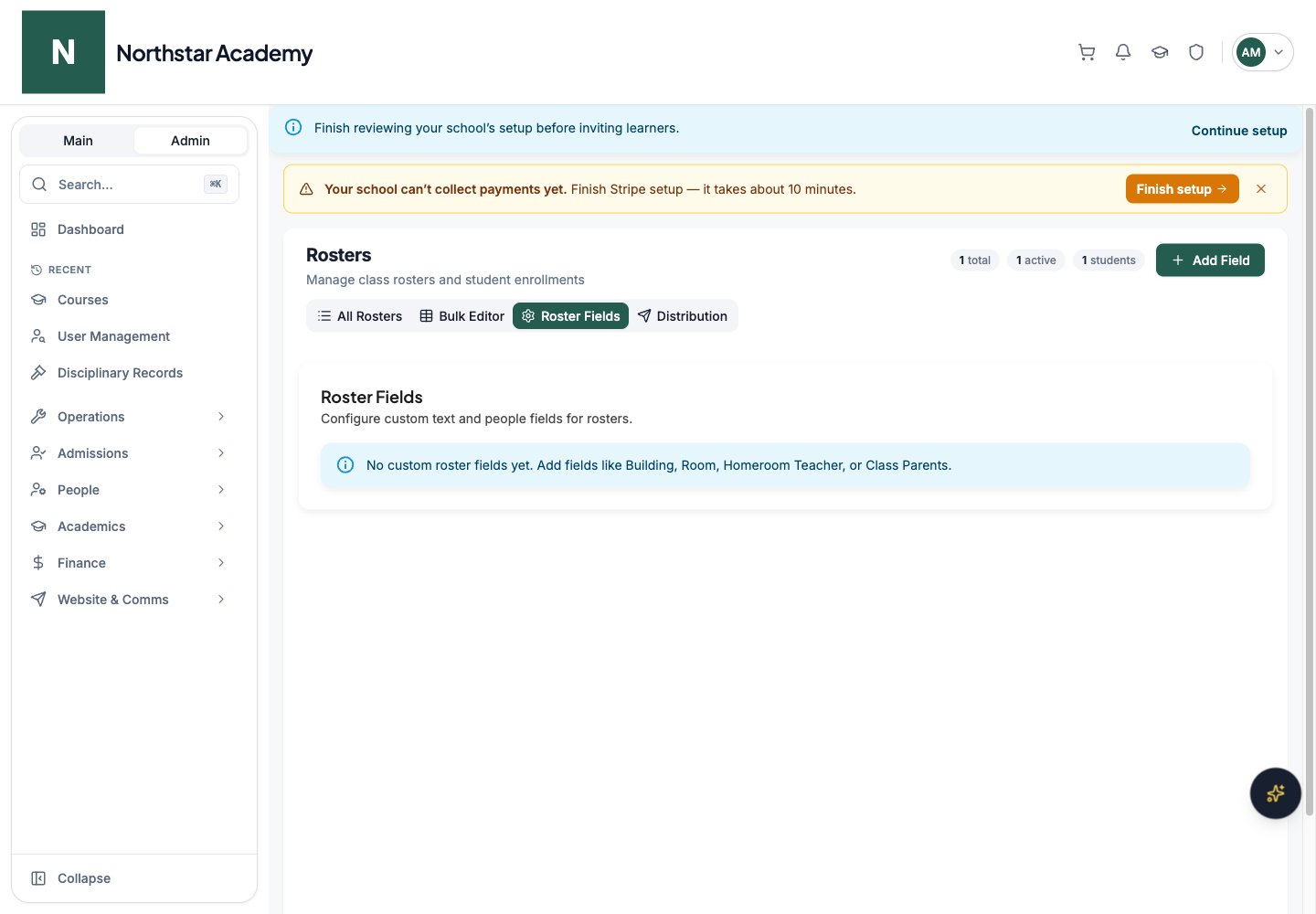
Person and people fields
The Person and People field types let you reference specific users (e.g. an instructor or co-leaders) directly on the roster, with a search picker that pulls from your school’s users.Roster Distribution canvas
For bulk assignment of students into multiple rosters at once, use the Roster Distribution canvas — a drag-and-drop workspace.1
Open Roster Distribution
Go to Admin Dashboard → Operations → Rosters and open the Distribution tab.
2
Step 1 — Pick rosters
Select the rosters you want to distribute students into. Each becomes a “bucket” on the canvas.
3
Step 2 — Pick students
Select the pool of students to distribute. Students appear as draggable tiles.
4
Step 3 — Open the canvas
The canvas opens with rosters as buckets and students as tiles. Drag tiles into buckets to add, drag them out to remove. Use search, zoom, and fullscreen to navigate large distributions.
5
Save
Apply changes. DeanDesk processes all the additions and removals in bulk.
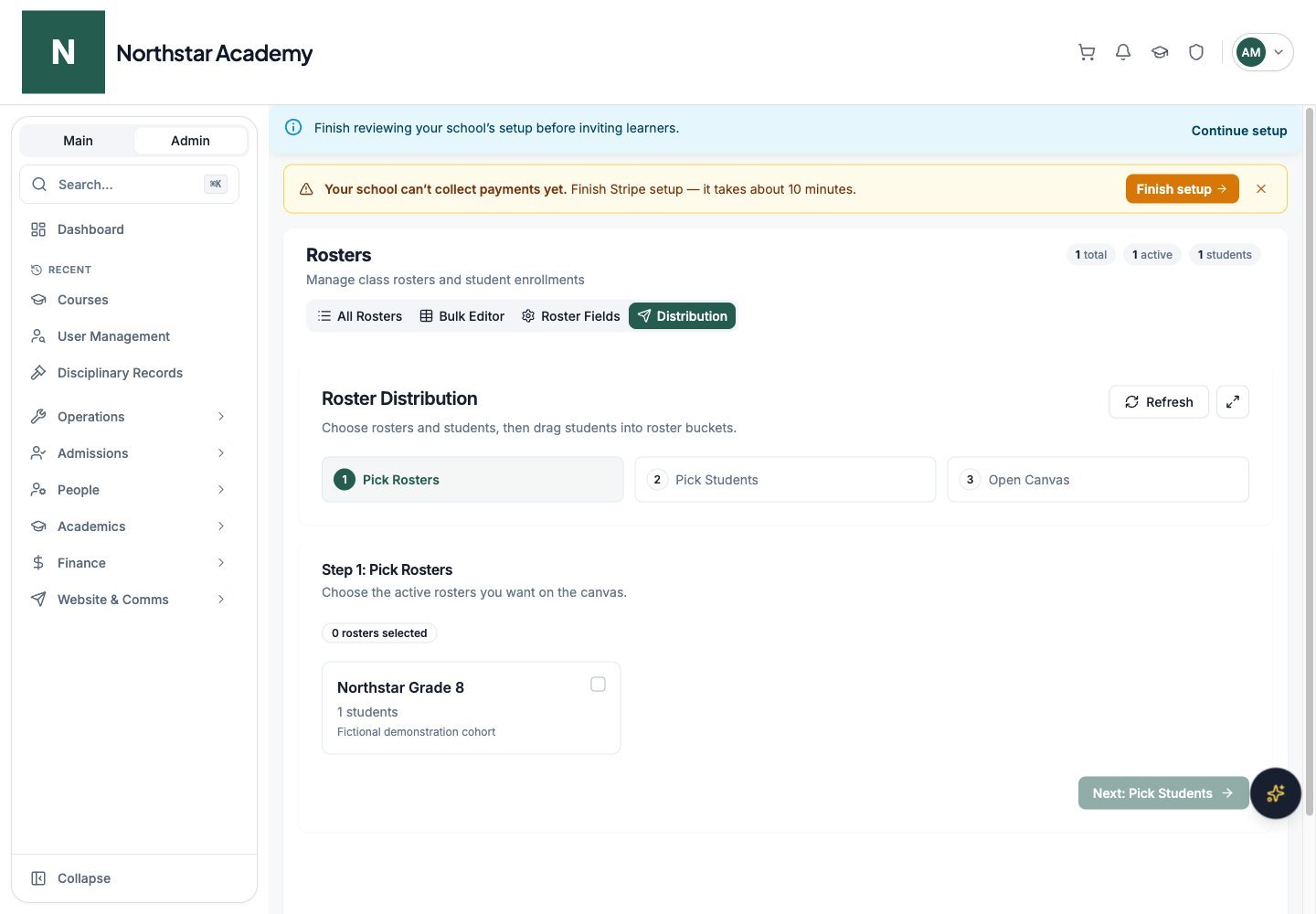
Northstar demo — Rosters — Distribution
Spreadsheet view
For roster-by-roster bulk edits (e.g. fixing typos or updating metadata across many rosters), open the Bulk Editor tab. It loads all rosters into a grid editor where you can edit cells inline and submit only changed rows.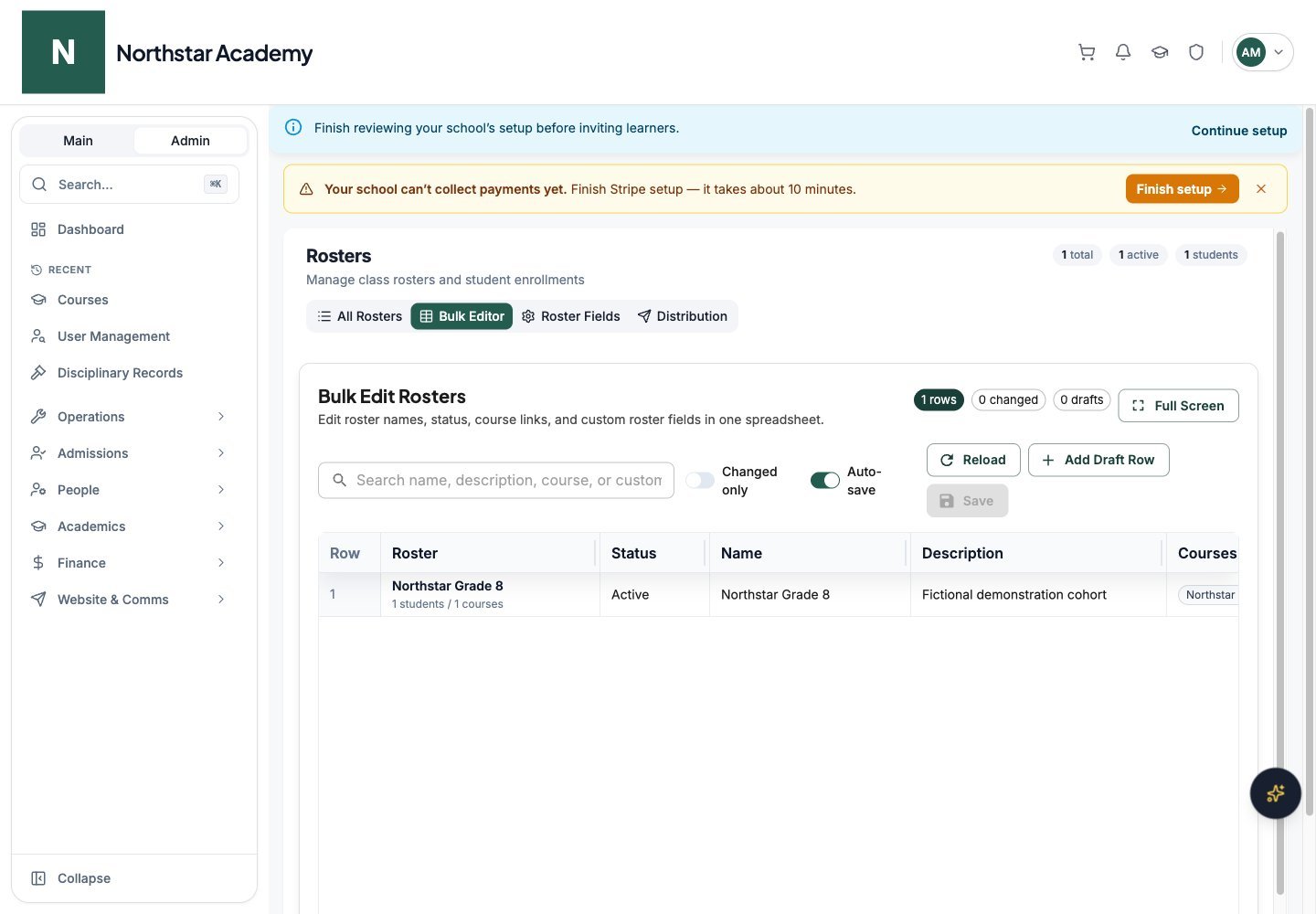
Northstar demo — Rosters — Bulk Editor
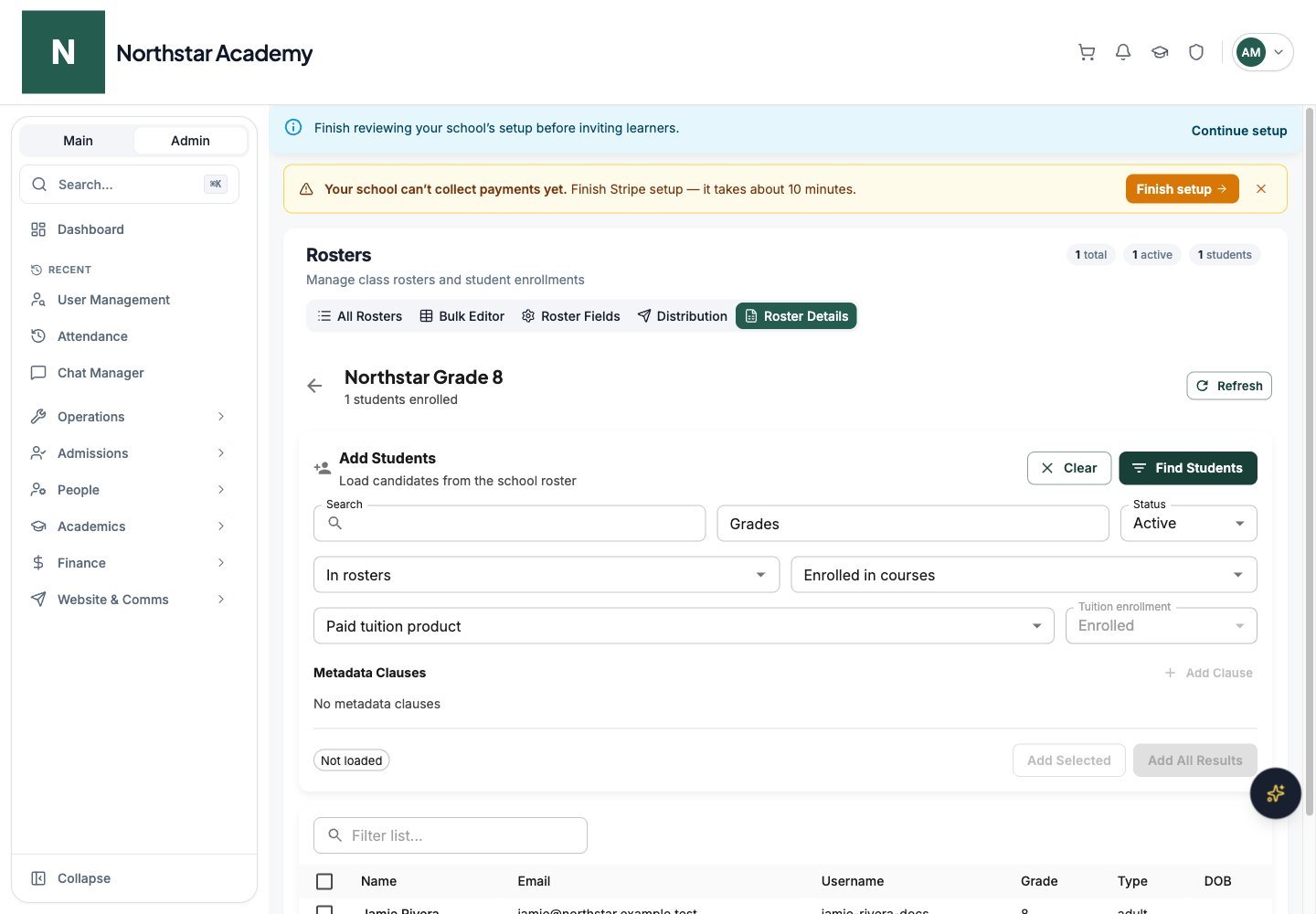
Northstar demo — Roster Details
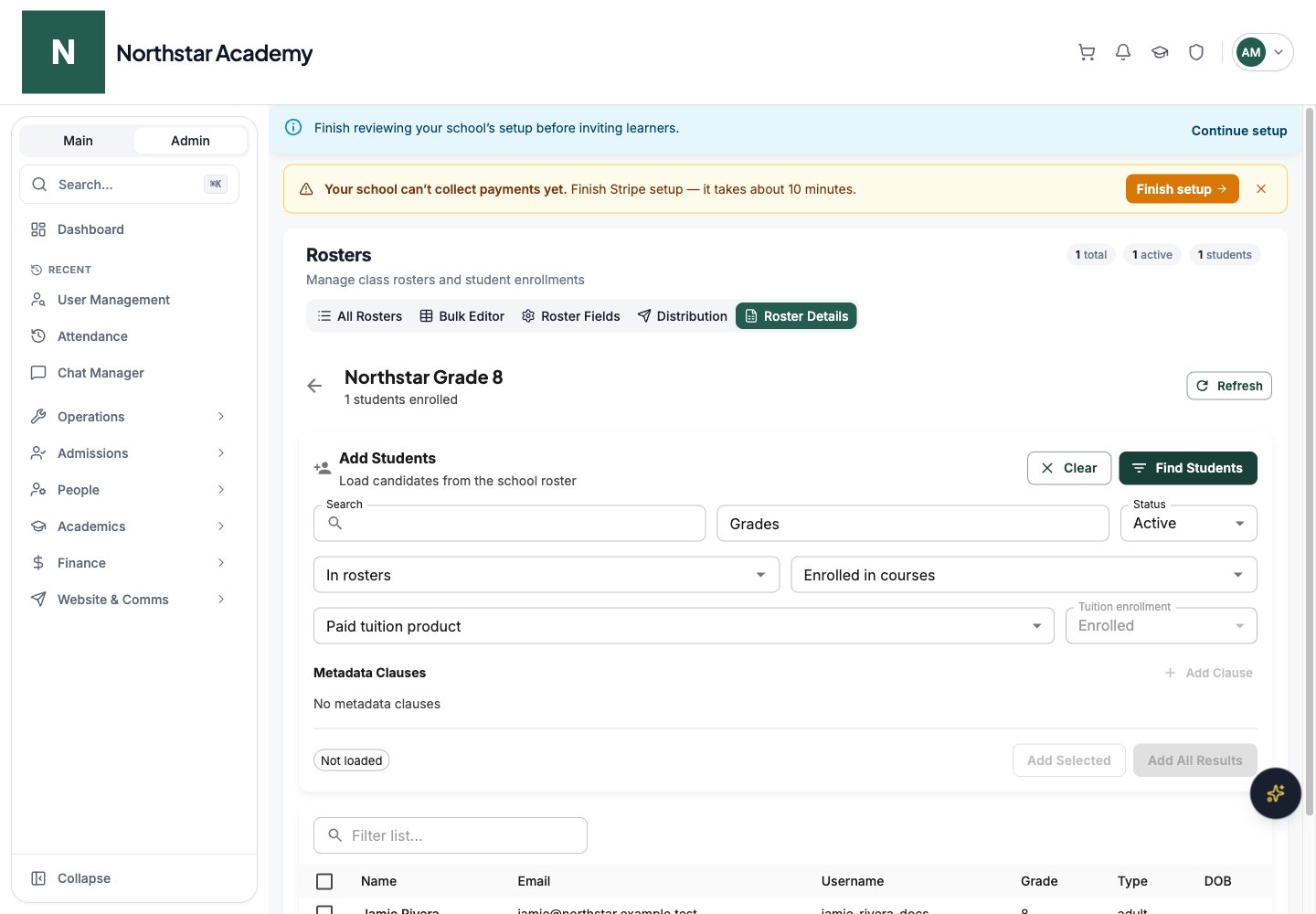
Linking rosters to courses
Each roster can have one or more linked courses. When you add a student to a roster that has linked courses, DeanDesk automatically creates an active enrollment for that student in every linked course. Likewise, adding a new course to a roster enrolls every current member of the roster in that course.1
Open the roster
From Admin Dashboard → Operations → Rosters, find the roster on the All Rosters tab and click its edit action to open Edit Roster.
2
Add courses
In Courses, pick the courses you want to link, or use Add courses from a group.
3
Update
Click Update. DeanDesk enrolls every current roster member in the newly linked courses, reactivating archived enrollments where they exist.
Course enrollment sync only fires when you add students or courses to a roster. Removing a student from a roster does not automatically unenroll them from the linked courses — you’ll need to manage that separately if you want them removed.
Linking rosters to tuition products
Tuition products in Finance → Products can be associated with rosters from the product detail page. This lets the Roster Distribution canvas highlight which students in your pool are already enrolled in a specific tuition product — useful for distributing only newly-paid students into camp groups or class sections. When you open the distribution canvas with a tuition product filter, each student card shows a Tuition label of Enrolled or Not enrolled, and you can sort by tuition enrollment to surface the relevant students at the top. See Products → Associated rosters for how to set up the link on the product side.Where rosters appear
Once a roster exists, you can target it from:Rosters workspace tabs
Use Course Groups for reusable sets of courses. A course group contains courses; a roster groups school Users.