

School-level feature — managed within your school portal at
yourschool.deandesk.com.Video walkthrough
This walkthrough uses the real DeanDesk interface with the fictional Northstar Academy demo school and a calm, AI-generated English voice. Payments and outside services are not connected in the demo.
Pages
The Pages tab lists custom and built-in public pages. Search or filter the list, open a page’s editor, preview it, and use the row actions to manage navigation placement or publishing where offered. Create a custom page with the create action. A built-in page is part of the school’s public experience, such as the product catalog, login, signup, or donation page. Its available settings differ from a custom page. Review its enabled state and template rather than assuming every built-in page is a free-form document. See Custom pages and the page editor for block editing, HTML, audience roles, slugs, previews, and publishing.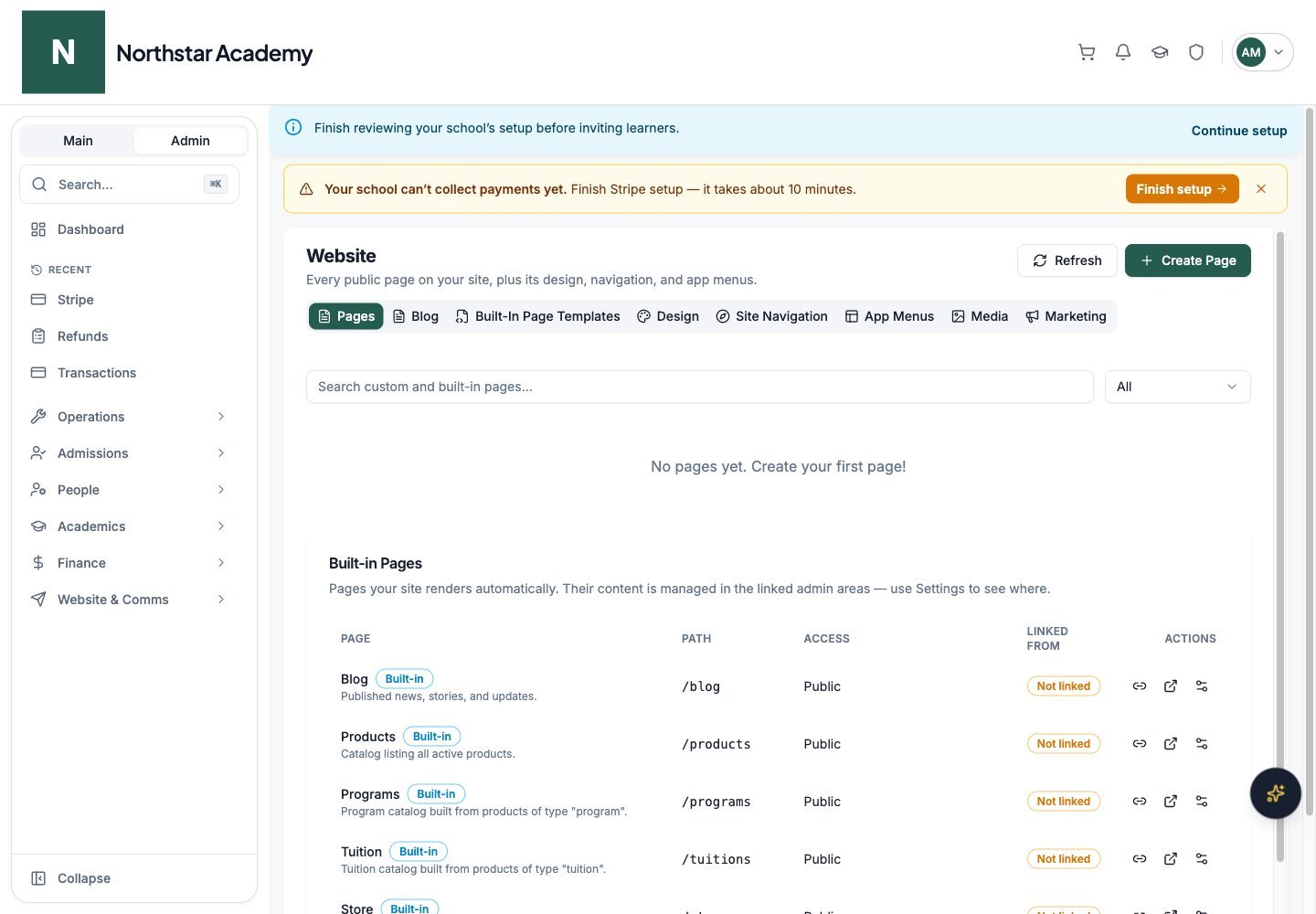
Northstar demo — Website — Pages
Blog
Create and manage school blog posts in Blog. Edit the title, slug, excerpt, content, and cover image, then review the draft/published state and preview before publishing. Use the list controls to find and maintain existing posts. Blog content is separate from a course announcement or a chat topic.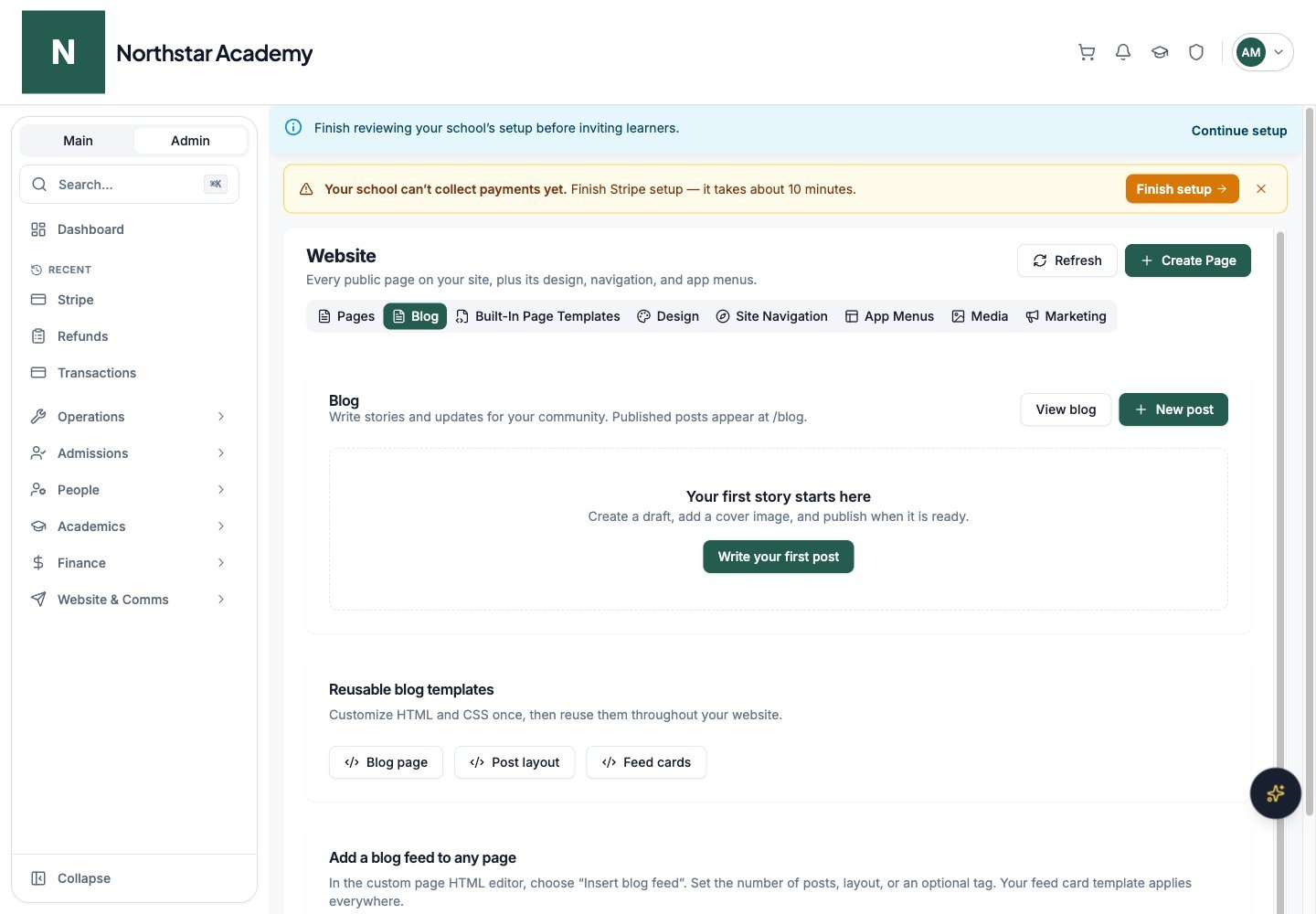
Northstar demo — Website — Blog
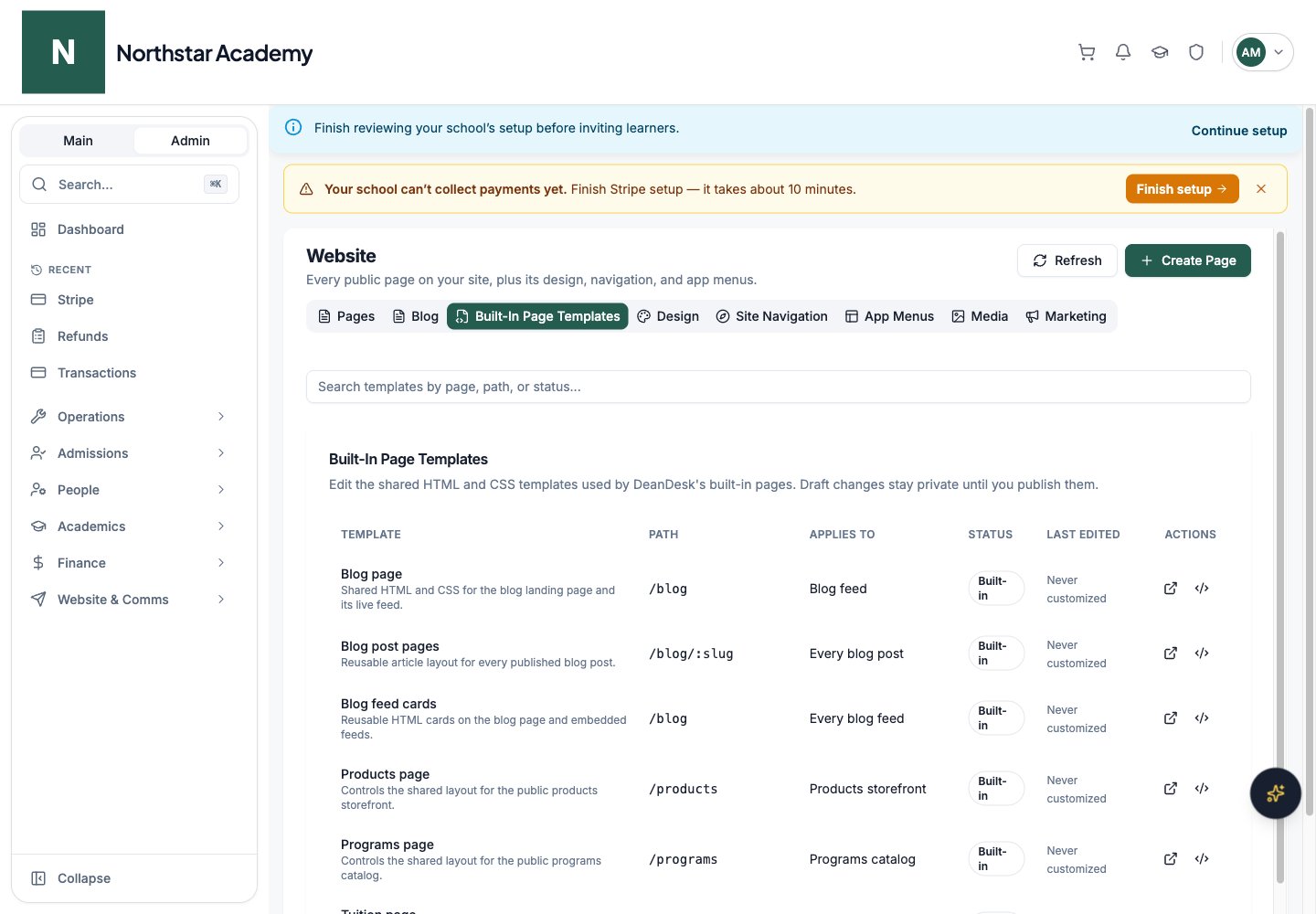
Built-In Page Templates
Manage reusable templates for the built-in public pages. Select a supported page type, use the HTML and CSS editor tabs to edit its content and styling, and preview the result. Templates affect how the corresponding built-in page is presented; they do not create a new course, product, or form. See Built-in page templates.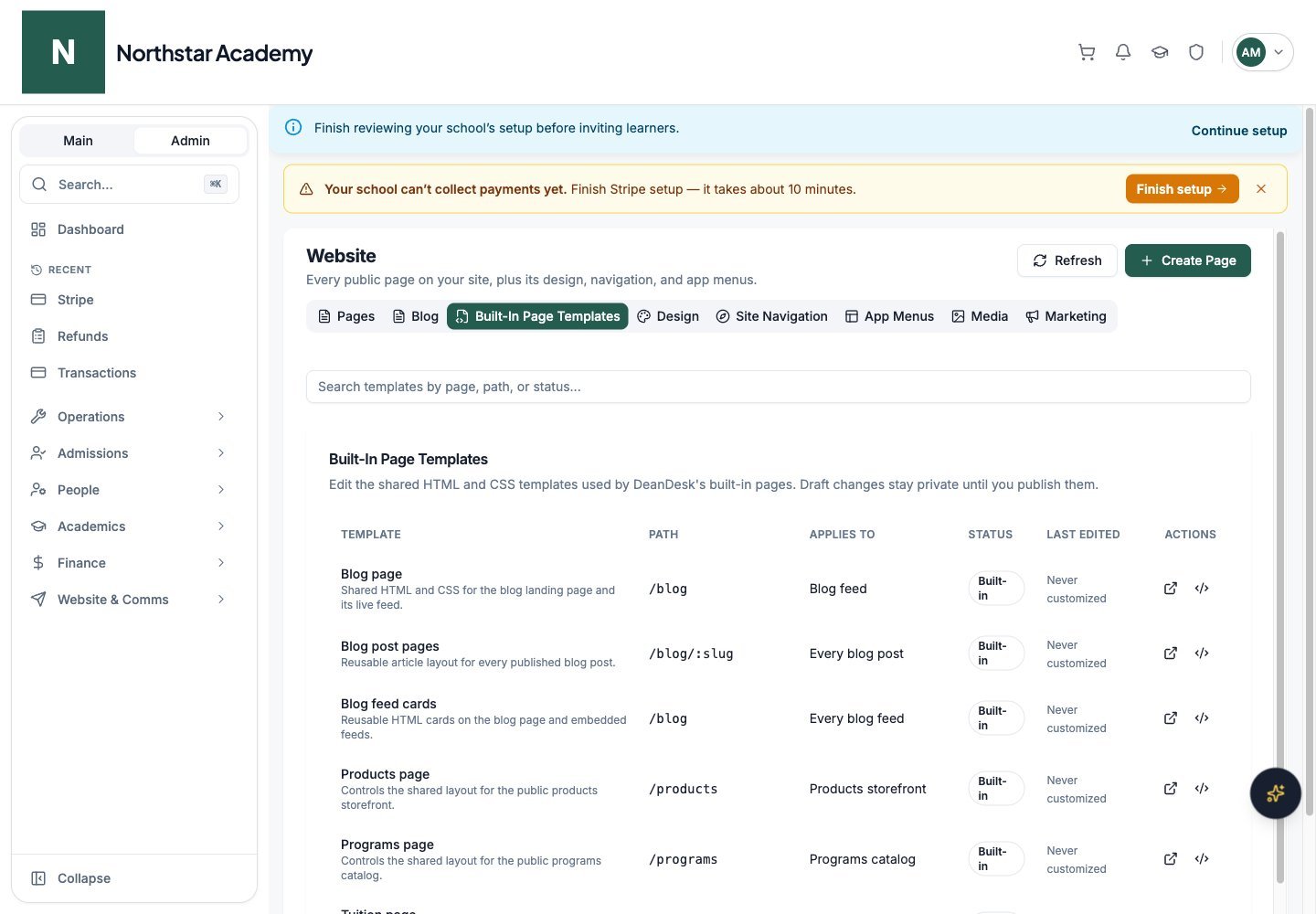
Northstar demo — Website — Built-In Page Templates
Design
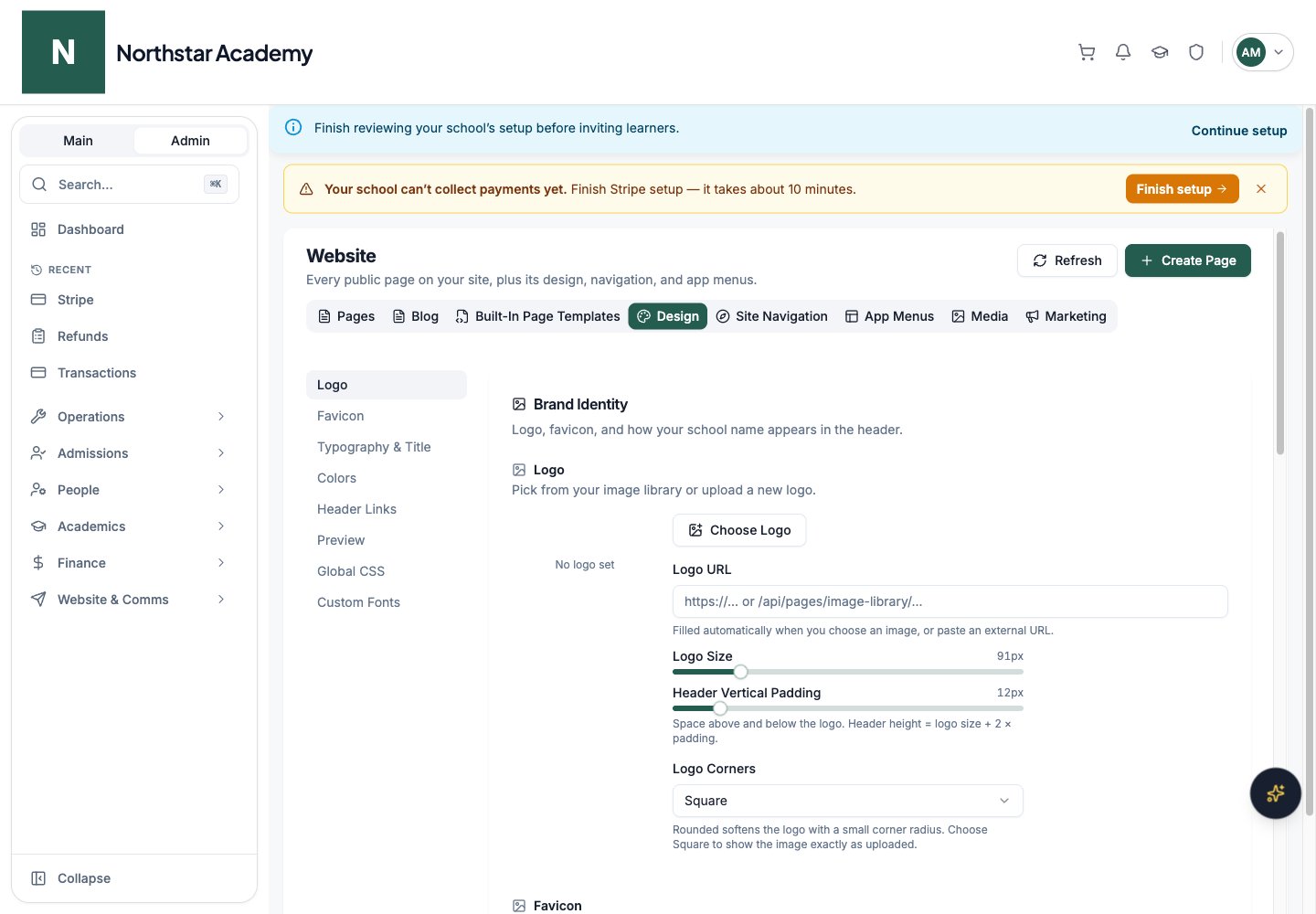
The Design sections cover Logo, Favicon, Typography & Title, Colors, Header Links, Preview, Global CSS, and Custom Fonts. Review header visibility and sizes, font choices, color choices, and site-wide styling before saving. Image pickers let you choose from Image Library or Upload New. See Branding for the individual settings and custom page theme behavior.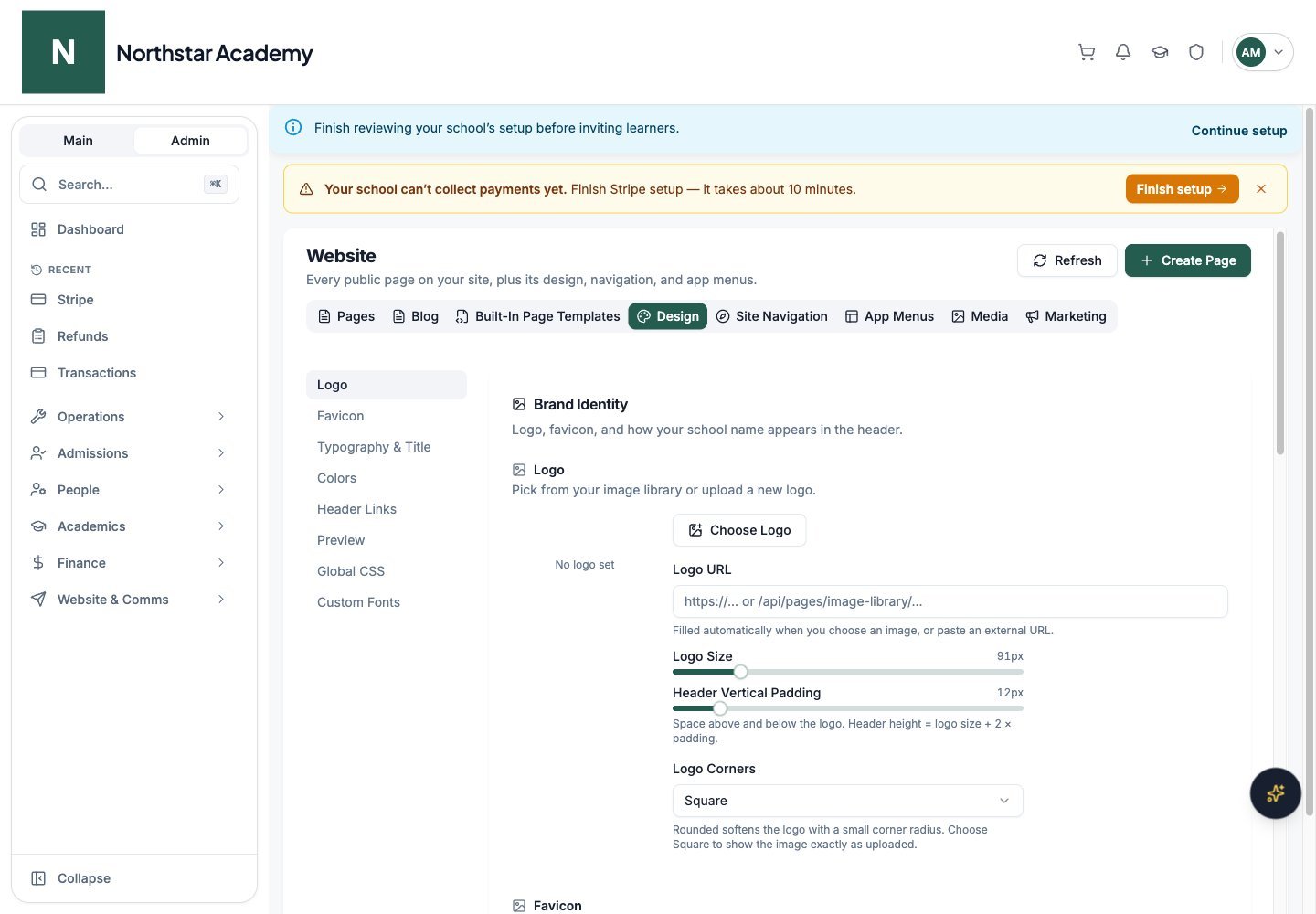
Northstar demo — Website — Design
Site Navigation
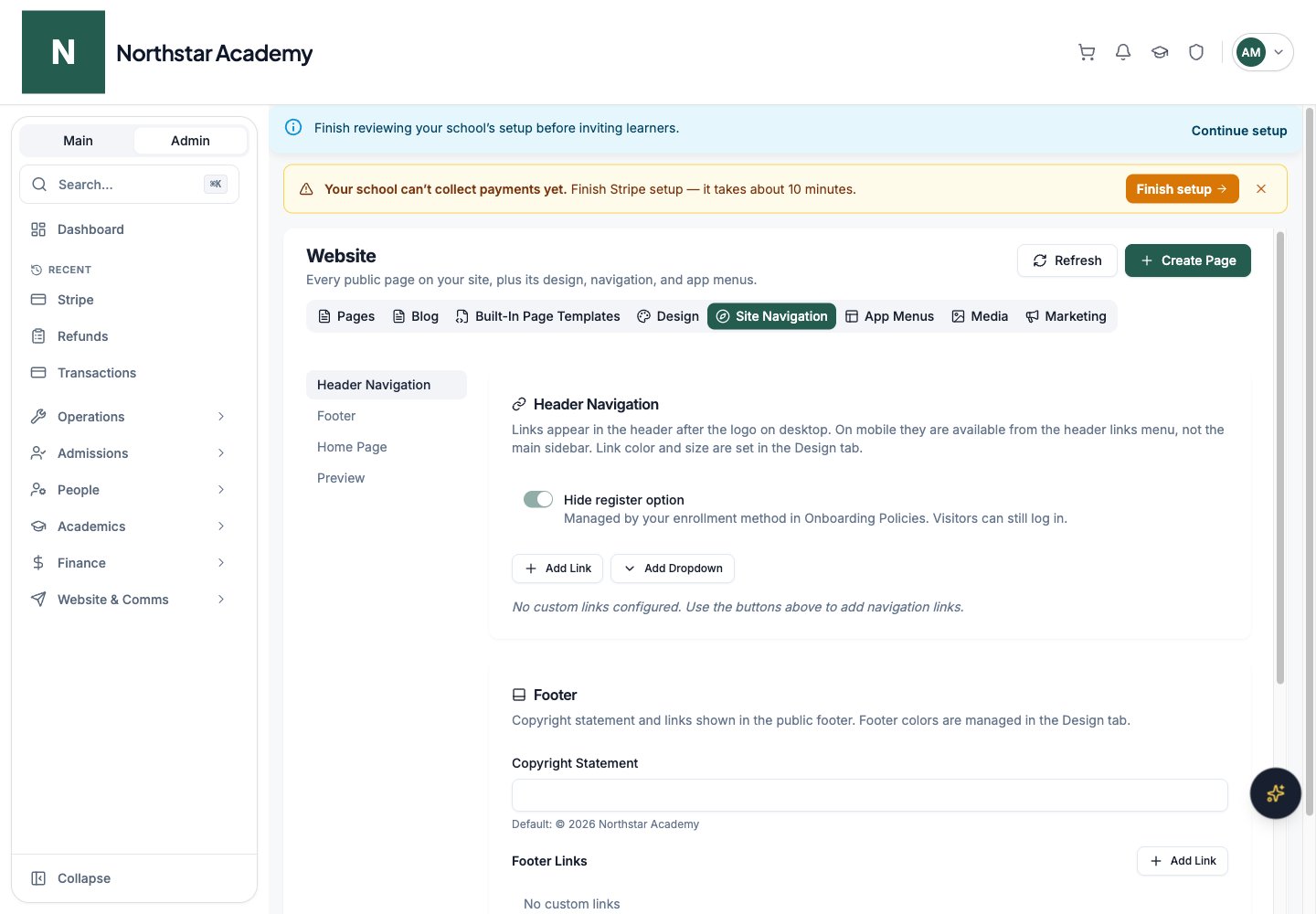
Use Header Navigation for top-level links and dropdowns, Footer for footer links and copy, and Home Page for the public landing destination. The Preview section shows the result of your navigation choices.1
Add or edit a destination
In Header Navigation, add a link or dropdown. Give it a clear label and choose its destination. For a dropdown, review each child link.
2
Order and preview
Arrange links in the order visitors should see them. Check the preview and confirm that the target page or product is available to the intended audience.
3
Save and test
Save the changes, then open the public school site and test the link as a visitor.
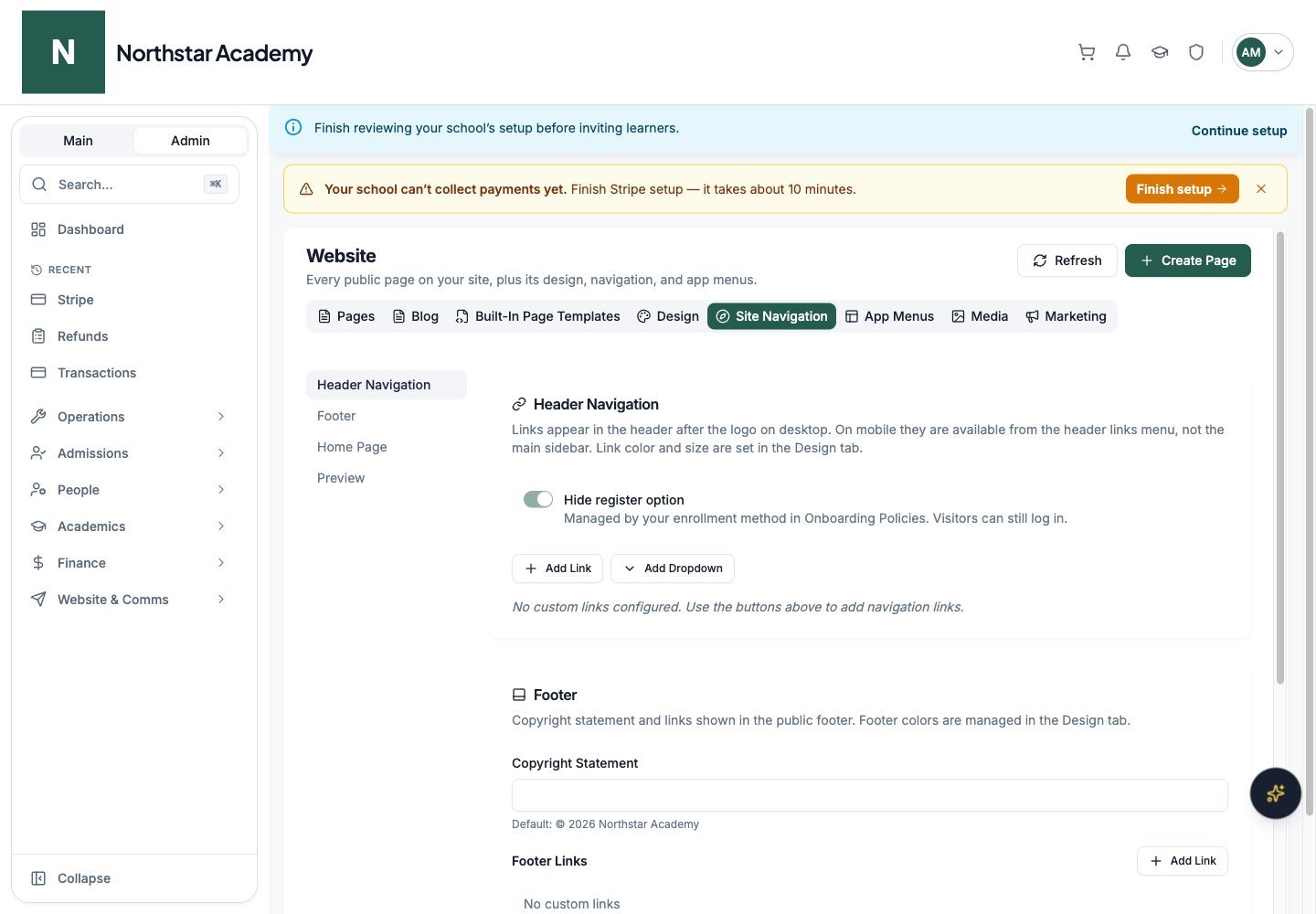
Northstar demo — Website — Site Navigation
App Menus
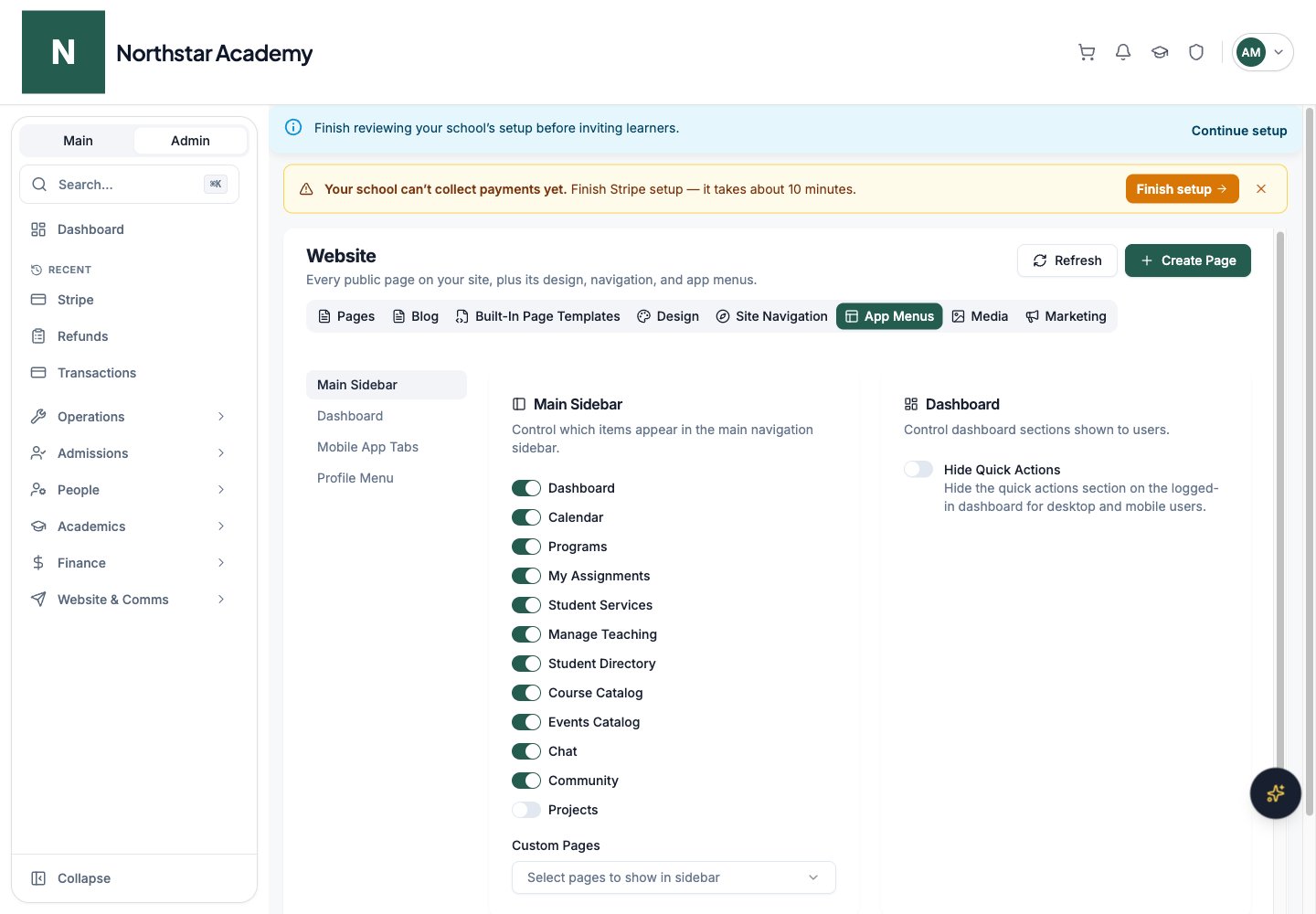
Use Main Sidebar, Dashboard, Mobile App Tabs, and Profile Menu to choose which navigation items appear in the signed-in school experience. These controls change visibility; account roles and feature access still apply. See School navigation.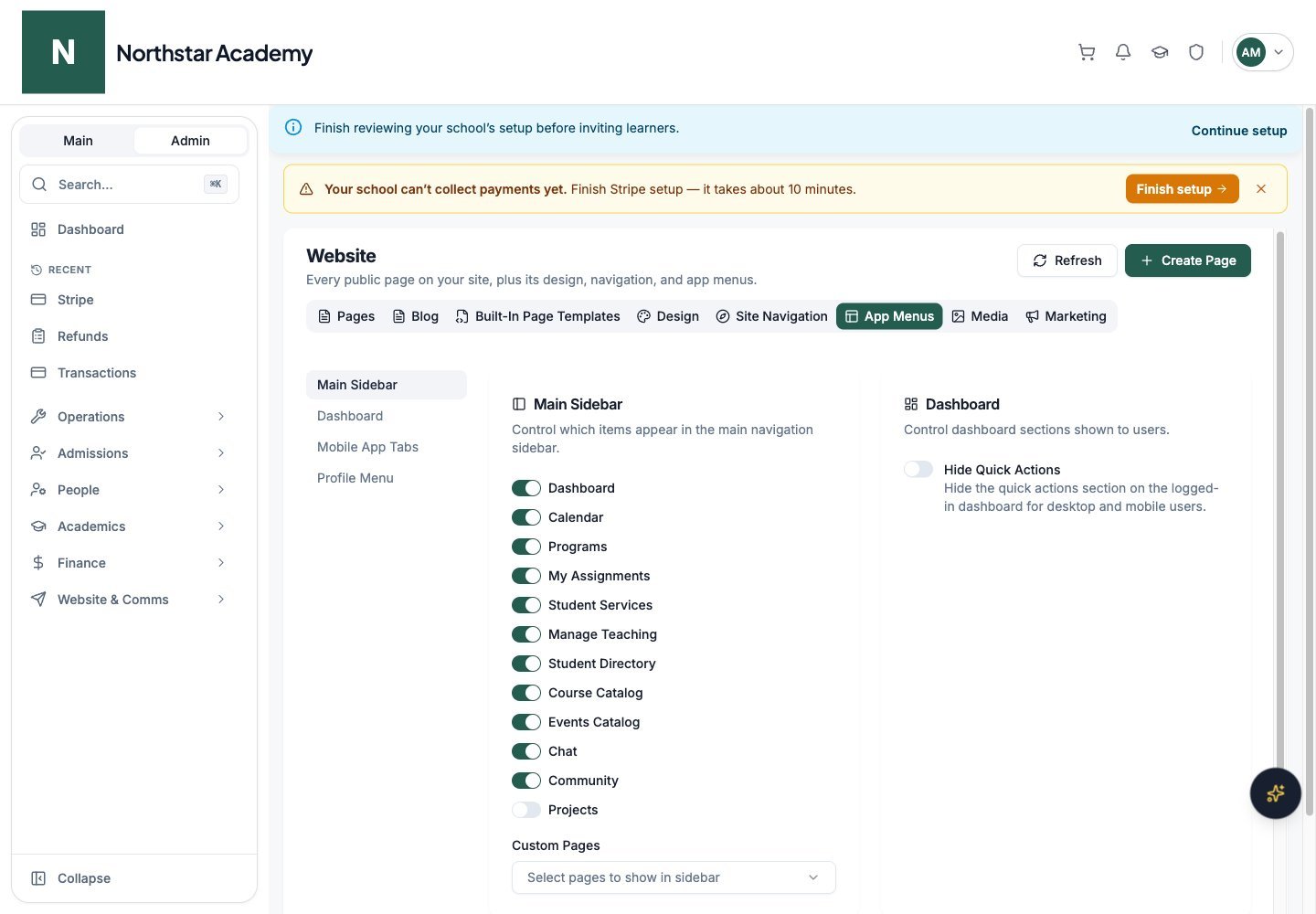
Northstar demo — Website — App Menus
Media
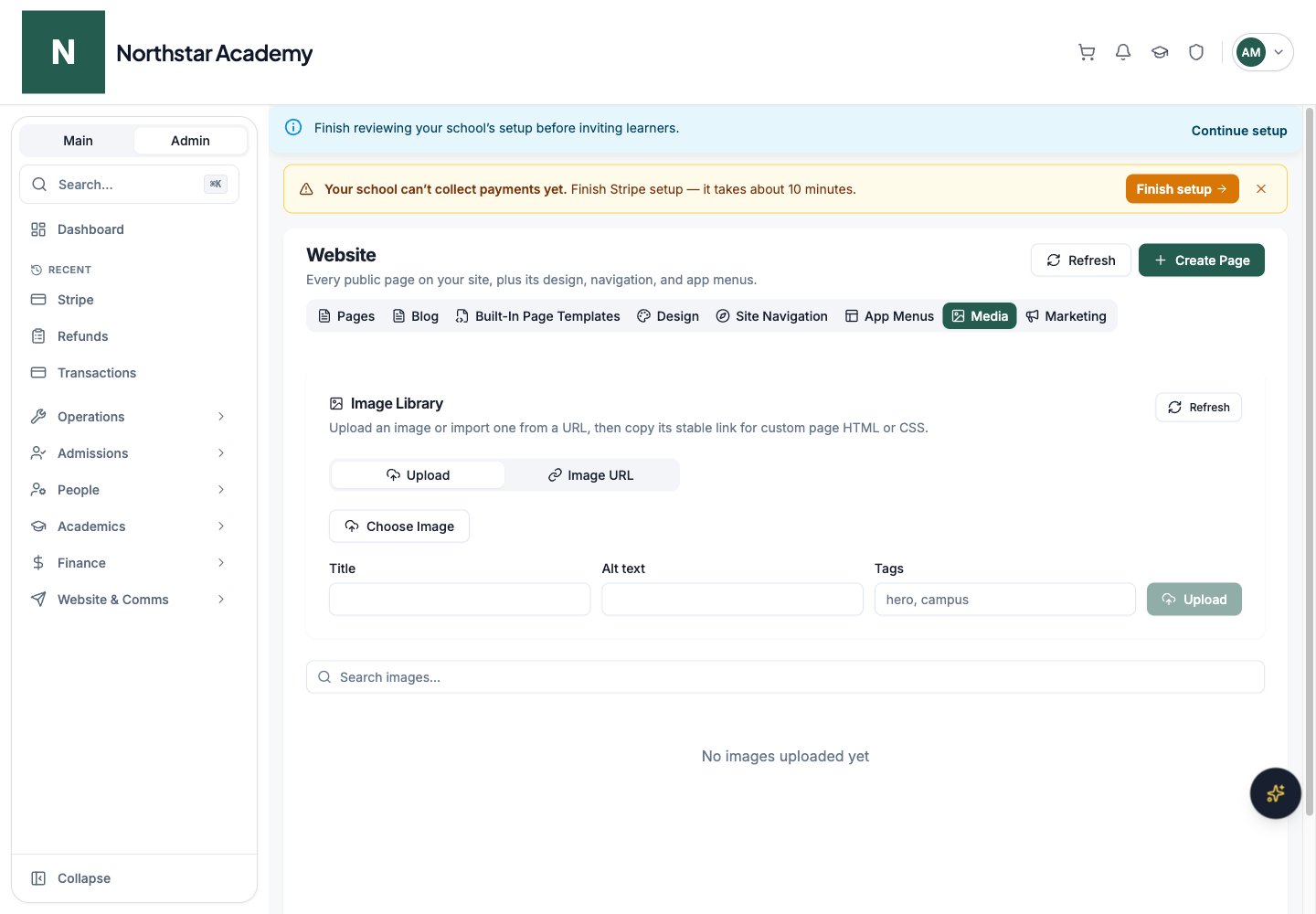
Maintain the image library used by the website. Search the library, upload images, or add a supported image URL through the media dialog’s Upload and Image URL tabs. Review image details and usage before removing an image that a page still references.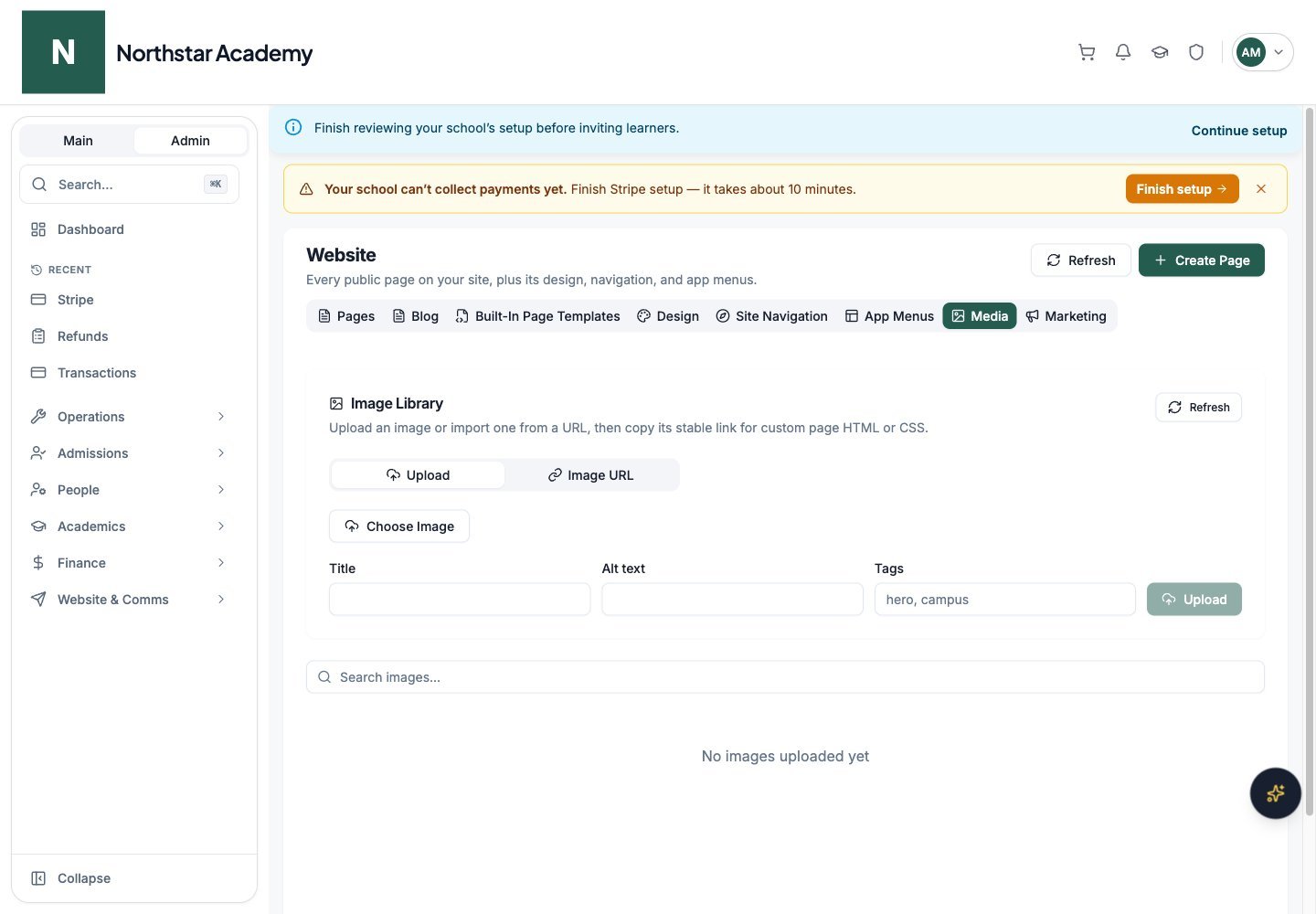
Northstar demo — Website — Media
Marketing
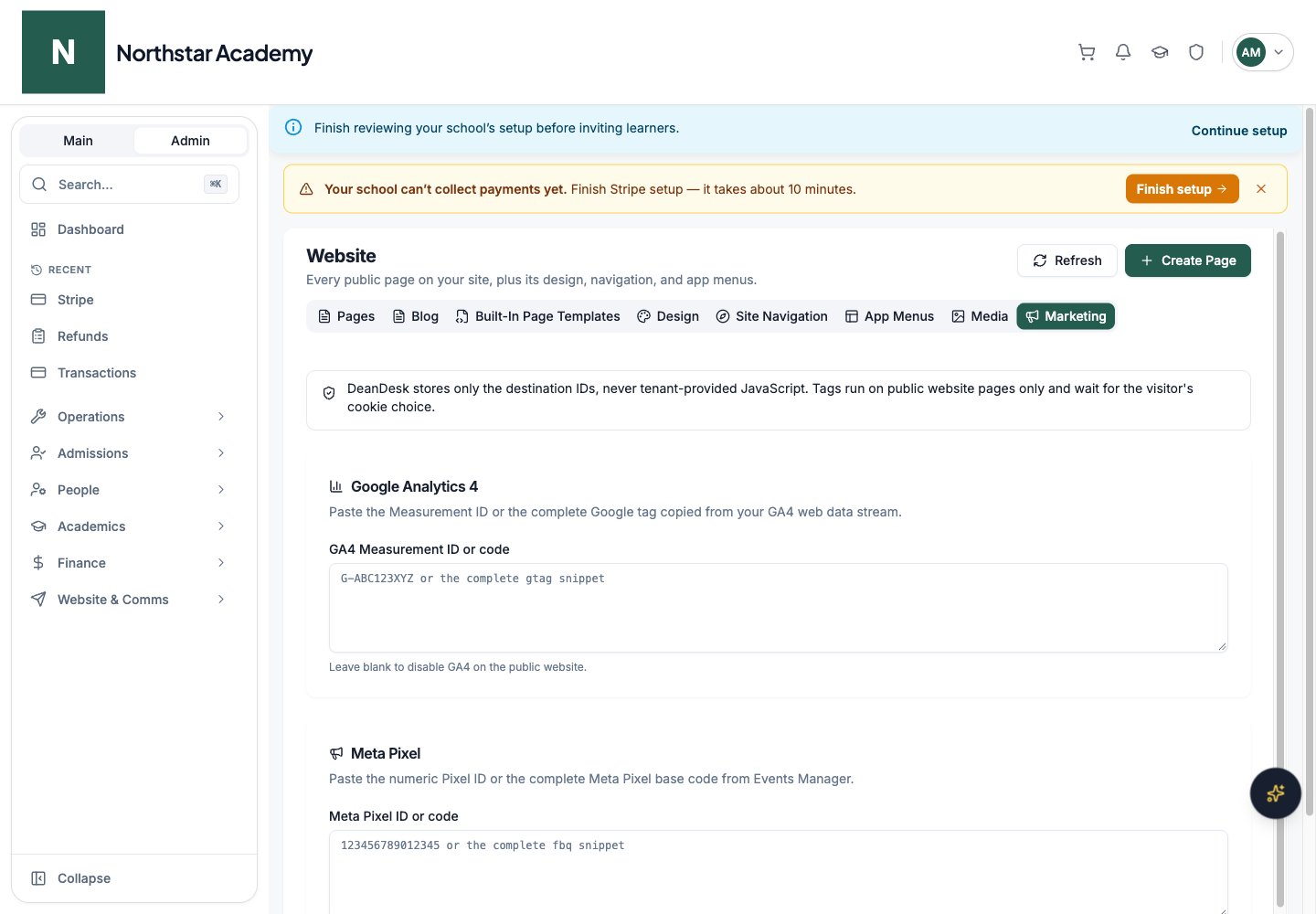
Configure the analytics and tracking identifiers offered in Marketing, then save. See Marketing analytics for supported tracking settings.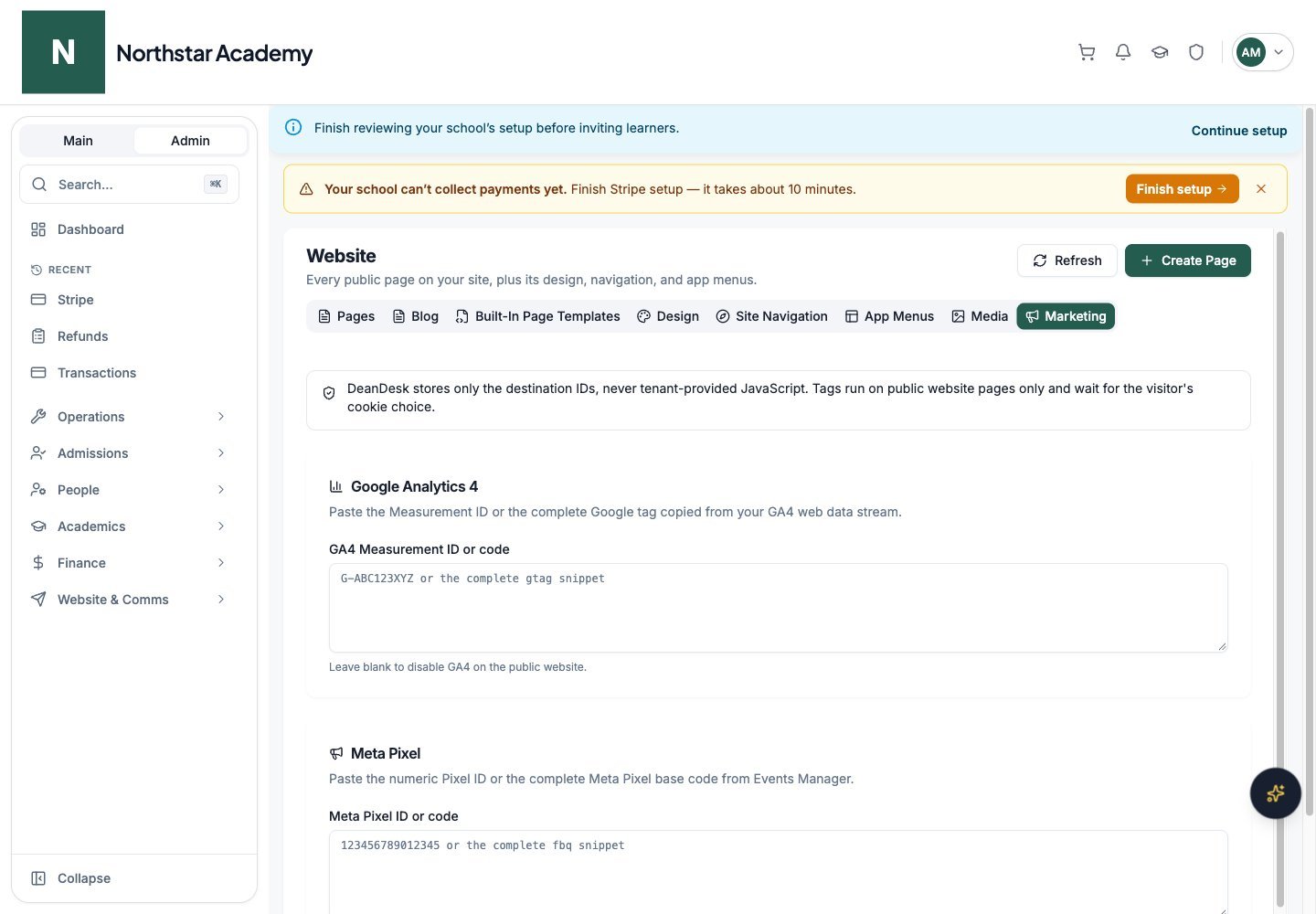
Northstar demo — Website — Marketing
Save and preview changes
Some tabs share a pending-changes bar. Save or discard those changes when prompted before leaving. Other editors have their own save or publish actions. A visual preview does not by itself publish a draft page.Publish a blog post
1
Create the draft
Open Blog and click New post. Enter the Post title and Post content, then review the URL slug, Author, Excerpt, and optional Tags (comma separated). The slug fills in from the title while the post is unpublished. Under Cover image, click Choose Image to pick from the Image Library or Upload New, then enter a Cover image description.
2
Preview and save
Click Preview to inspect the post (click Write to return to editing), then click Save draft. Draft edits do not replace the public version until you publish them.
3
Publish or withdraw
Click Publish post when ready, then use View post to open it on your public blog. After you edit a published post, the list marks it Unpublished changes and the button reads Publish changes. Use Unpublish to remove the public version while retaining its saved draft. A published post’s URL slug is locked; unpublish it first if you need to change the URL.