

Institution-level feature — open Support tickets in the institution dashboard at
deandesk.com/dashboard. Tickets can relate to schools and school Users. Institution Super Admins can act on tickets; Admin Readonly Identities can review them.Video walkthrough
This walkthrough uses the real DeanDesk interface with the fictional Northstar Academy demo school and a calm, AI-generated English voice. Payments and outside services are not connected in the demo.
Find and triage a ticket
Open Support tickets. Use All tickets, DeanDesk escalations, or Overdue, then narrow with search, status, priority, assignee, and tag filters. The list is paginated, and summary cards provide status counts. Open a ticket for its full details and conversation.
A linked Identity supplies the displayed contact information. Use the reference code when discussing the ticket with another staff member.
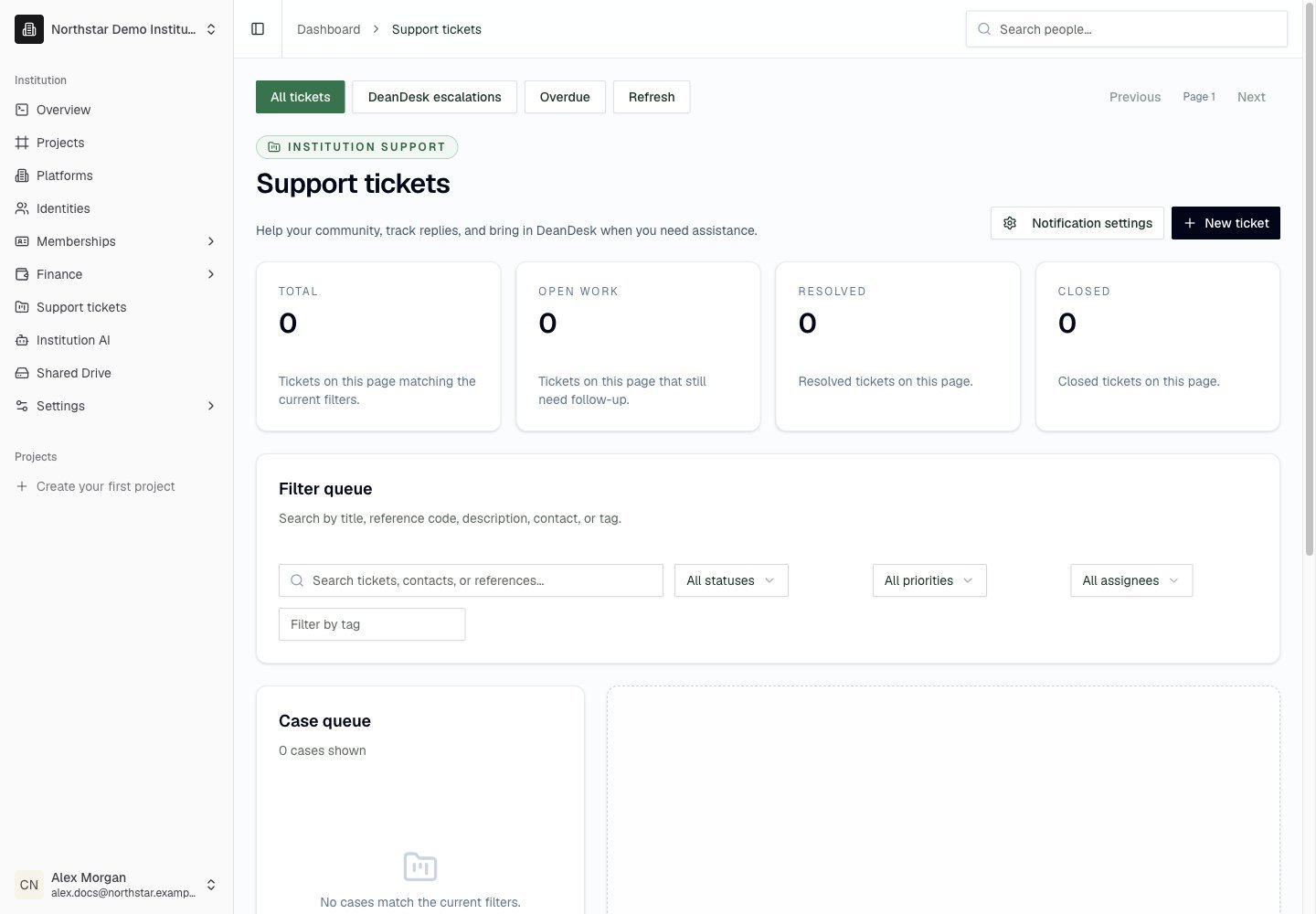
Northstar demo — Support tickets
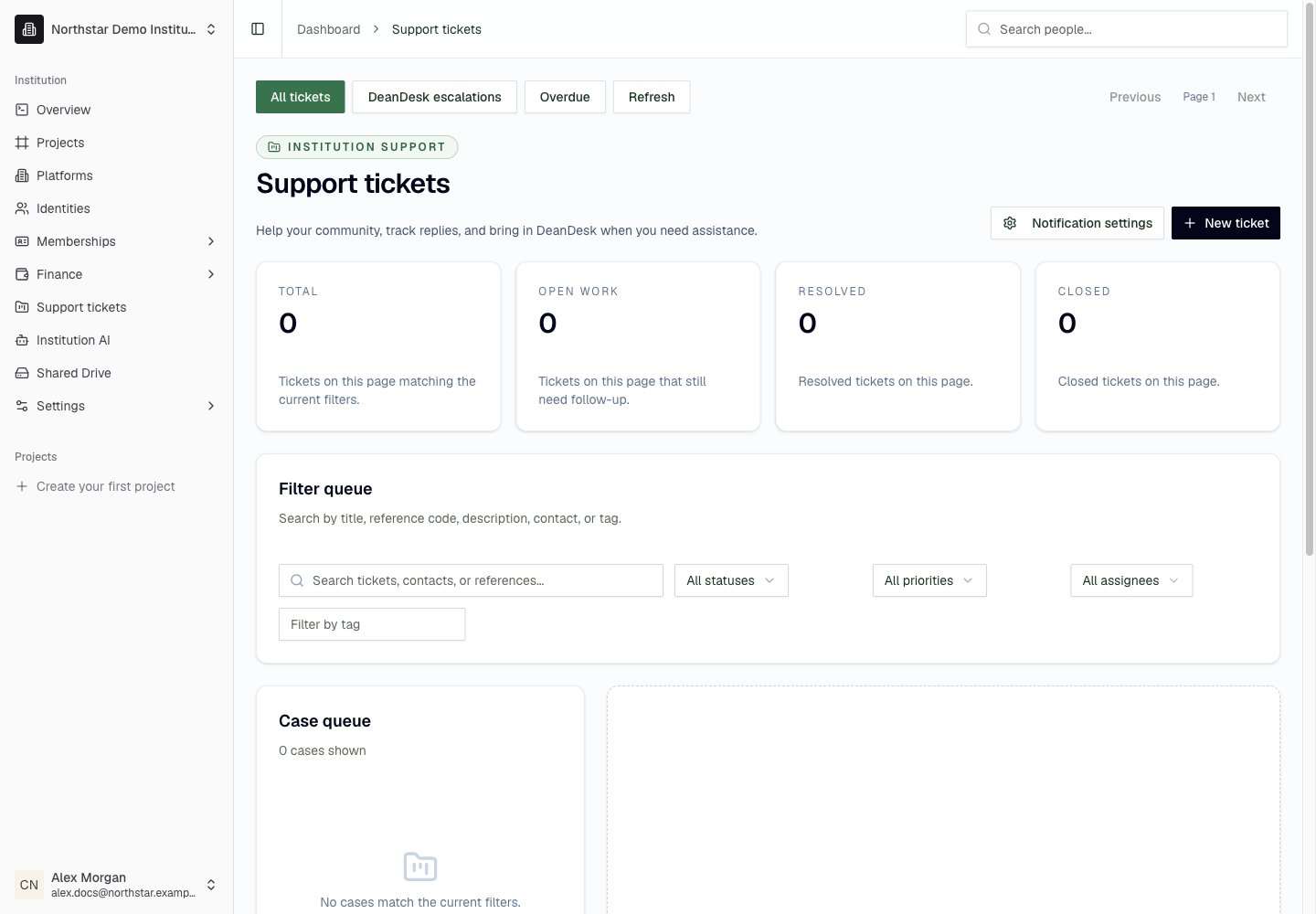
Create a ticket
1
Open intake
Choose New ticket in Support tickets. The Create ticket page opens with a Ticket intake card that offers AI intake and Manual entry modes.
2
Enter or draft the details
With Manual entry, fill in Title, Description, Type, Priority, and the other fields yourself. With AI intake, paste an email, conversation, or notes into Intake text and click Generate case. The assistant fills the form, sets a starting priority, and keeps the original text as the initial note. Review the filled fields and triage summary. If you change the intake text, click Regenerate case to refresh the form.
3
Link the people and school
Search for the relevant Identity in Linked identity, review any suggested match, and choose a School and an assignee in Assign to where appropriate. Add a Contact name and Contact email for someone who does not yet have an Identity.
4
Review and save
Check the Status, Tags, and optional Initial note, then click Create ticket.
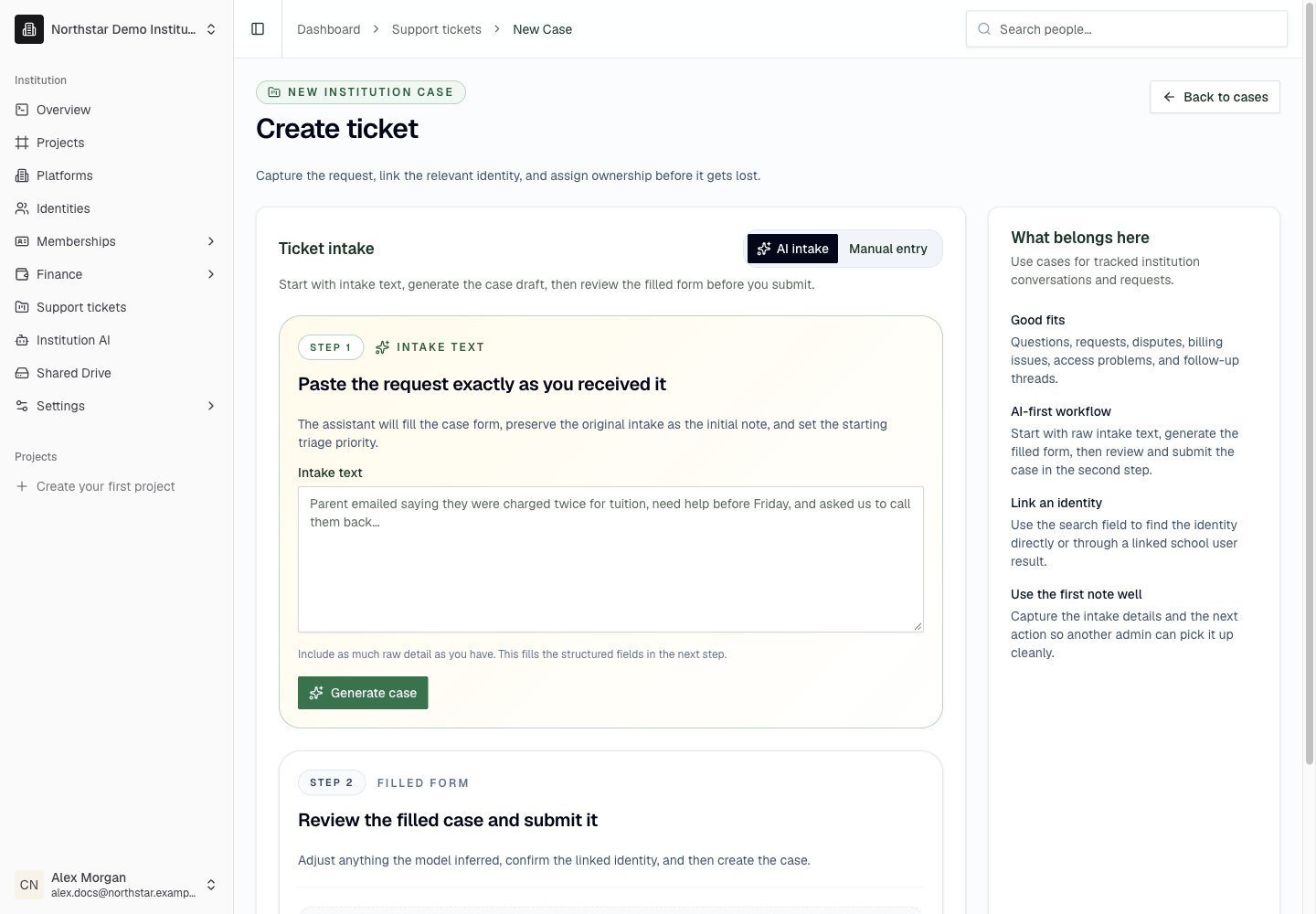
Northstar demo — New support ticket
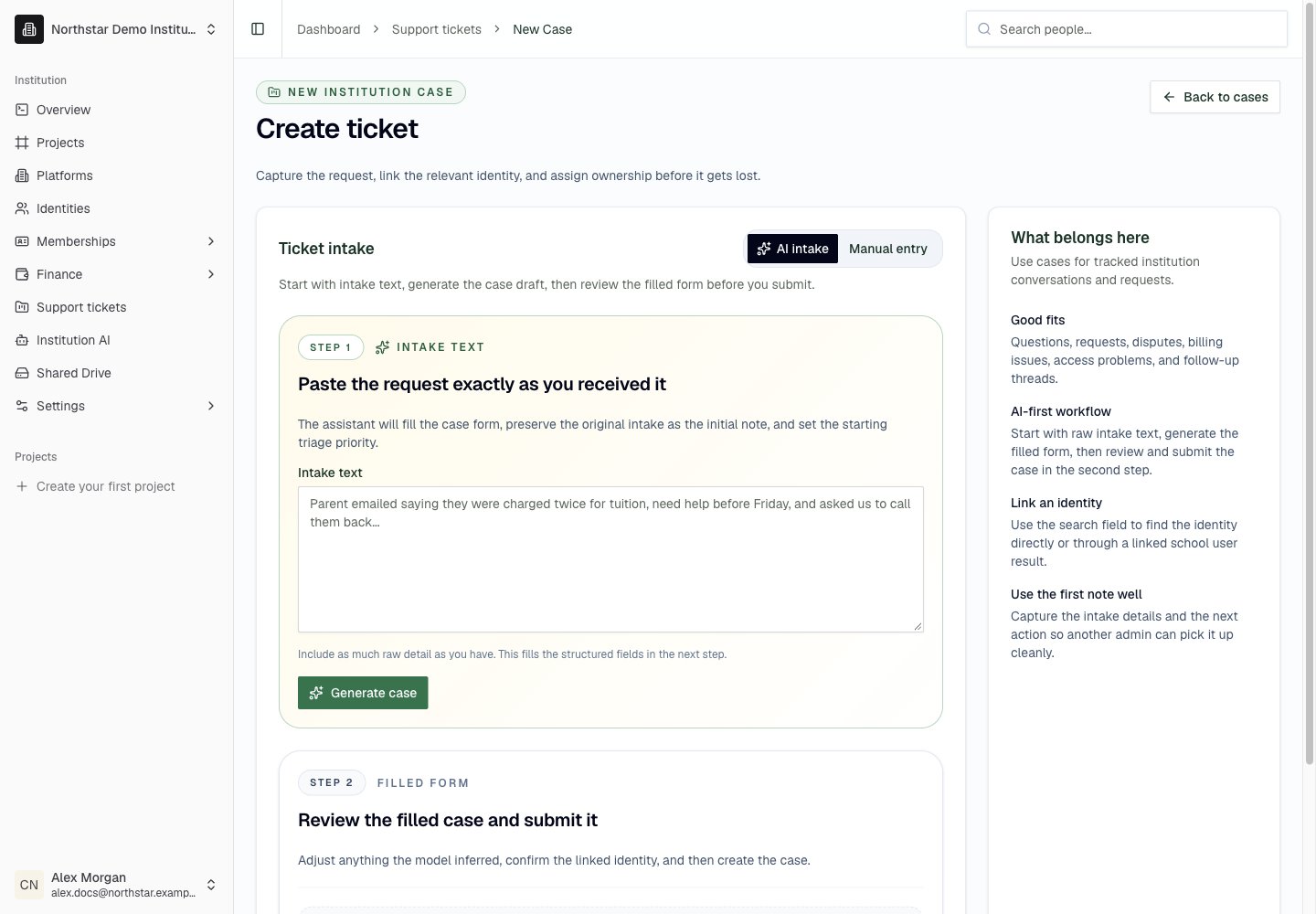
Reply or leave a private note
The Conversation & handoff section contains the message thread, ticket source, response target when available, and escalation state.1
Read the context
Review the request and expand Requester & diagnostic context when available. It can include the school User, application status and step, reported pending items, page, browser, timezone, and language.
2
Choose the audience
Leave Private staff note unchecked to write a reply visible to the requester. Check it for investigation findings or an internal handoff.
3
Send or save
Click Send reply or Add private note. Messages display their author and time. Where email delivery information exists, the thread shows its state and any error.
Escalate to DeanDesk
In Need help from DeanDesk?, describe the issue and what you have already tried. Choose Escalate to DeanDesk. DeanDesk employees receive the ticket, conversation, and diagnostic context, including private staff notes. The ticket shows DeanDesk assisting while escalation is active. This handoff uses DeanDesk’s employee support workspace; institution staff continue working from their own Support tickets page.Track resolution
Update the ticket’s status as work progresses. Status changes and edits appear in its activity history.
Bookmark or share the ticket’s detail link with staff who have access. Keep the conversation and final resolution on the ticket so future staff can understand what happened.