

Institution-level feature — open Shared Drive at
deandesk.com/dashboard. The workspace contains an institution root and separate school roots. For files inside a school portal, see File management.Video walkthrough
This walkthrough uses the real DeanDesk interface with the fictional Northstar Academy demo school and a calm, AI-generated English voice. Payments and outside services are not connected in the demo.
Choose a location
Select Institution or a school in the left-hand scope list. Use folders and breadcrumbs to navigate within that root. Place a school-specific handbook in that school’s root and institution-wide reference material in the institution root.1
Create a folder
Navigate to its intended parent and click New folder. In the Create Folder dialog, enter a Folder name and click Create folder.
2
Select your files
Open the destination folder and click Choose files. Select up to 10 files, with a maximum of 20 MB per file.
3
Upload
Click Upload and wait for completion. Applicable institution storage limits also apply.
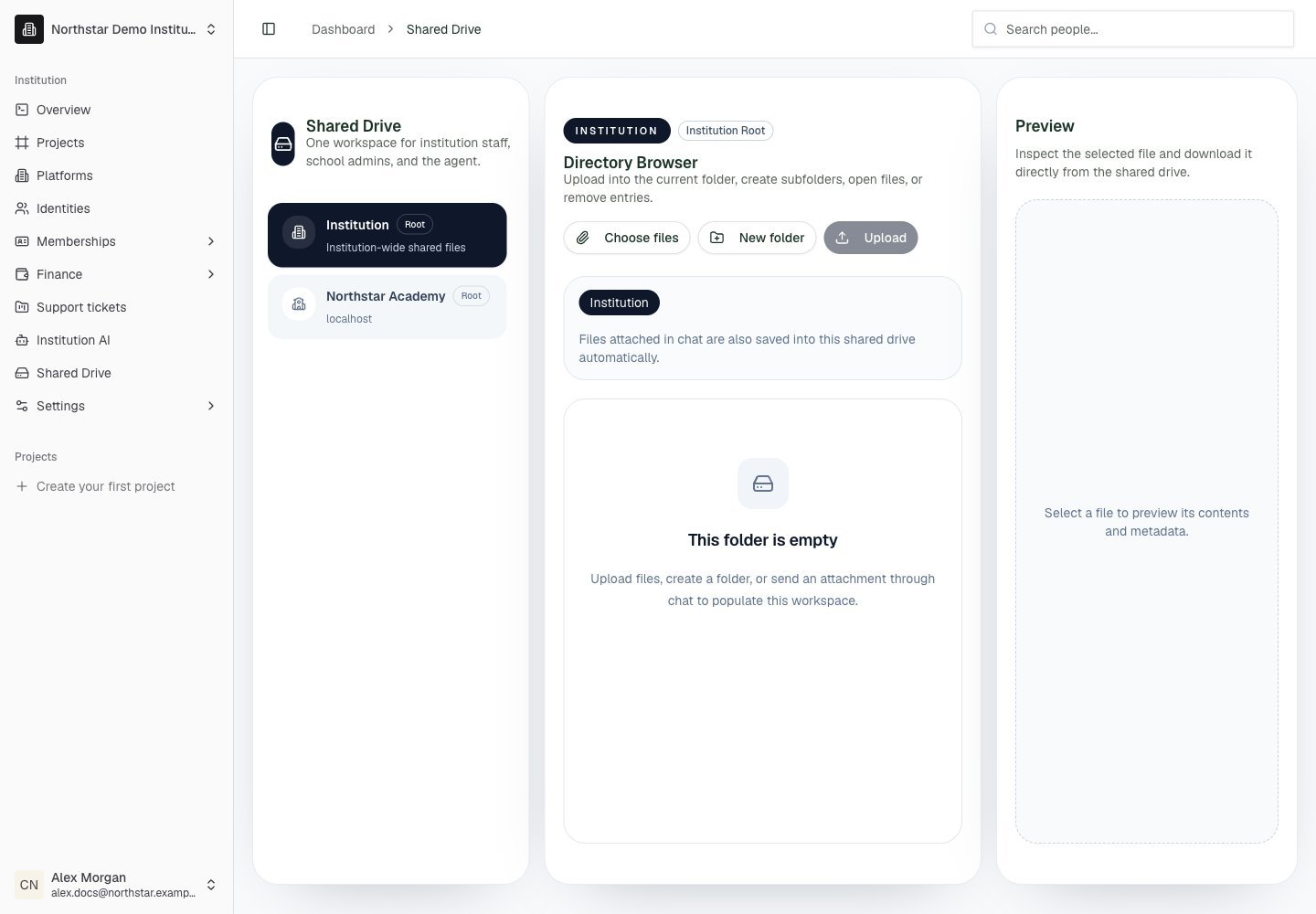
Northstar demo — Shared Drive
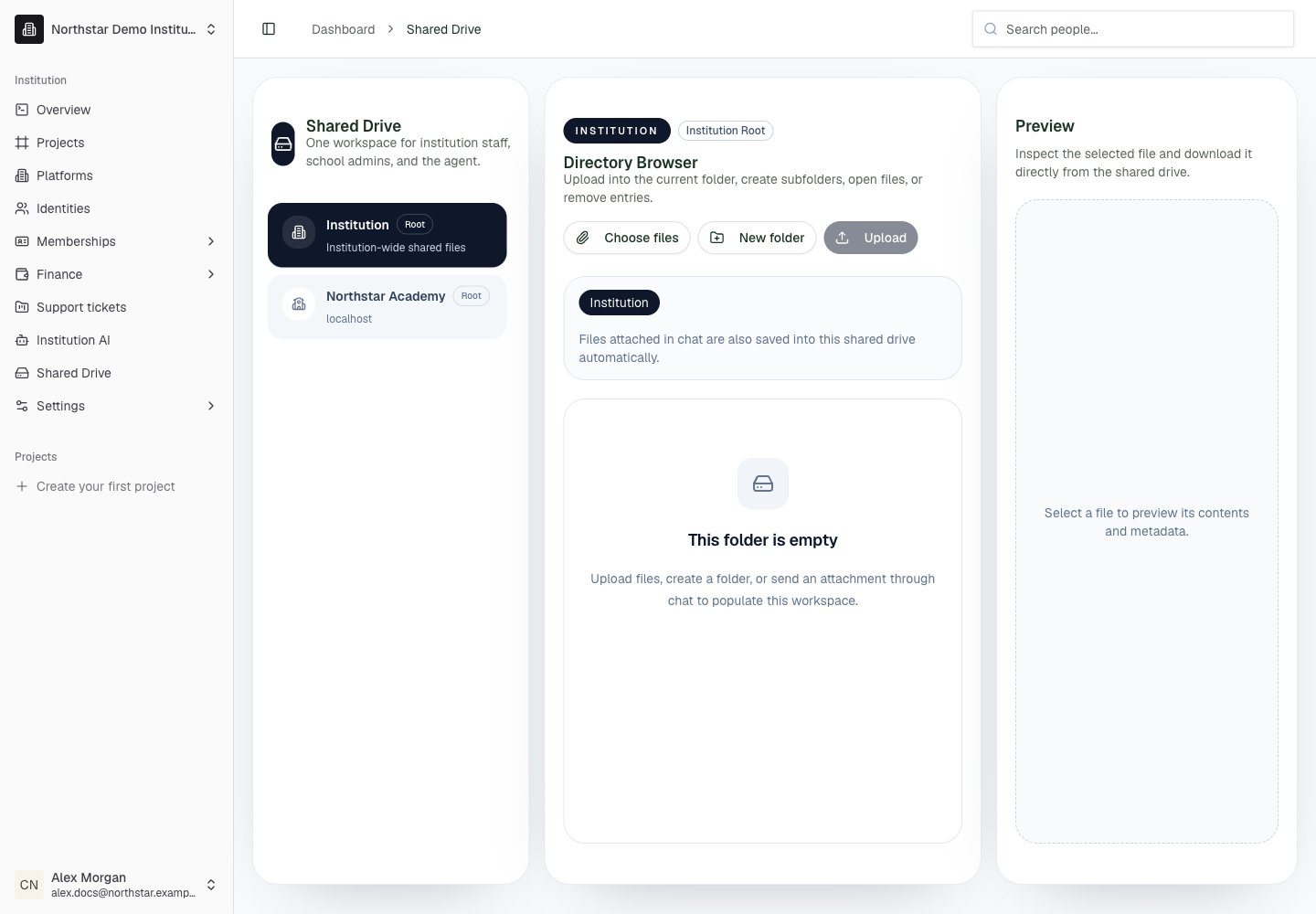
Preview and download
Click a file to open it in the Preview panel. Extracted text is available for supported document formats; not every file has searchable text. Click Download when you need the original file. Review the preview before expecting AI to answer questions from a document’s contents. For a new text document, ask Institution AI to write it into the appropriate Shared Drive folder, or create the file locally and upload it. The file browser itself does not have an inline text-file editor.Delete files or folders
Click the trash icon next to a file or folder, then confirm the deletion. Deleting a folder removes its contents as well. The institution and school root folders are fixed locations. Deleting a source document removes it from future Shared Drive retrieval. It does not remove copies you downloaded or text already quoted in a saved conversation.Use files with Institution AI
Files you attach in an Institution AI conversation are also saved into the Shared Drive automatically. Name the document and scope in your request, for example:- “Summarize the cancellation policy in our institution handbook.”
- “Find the parent waiver instructions in this school’s camp materials.”
- “Draft a welcome message using the reference letter in our templates folder.”