Documentation Index
Fetch the complete documentation index at: https://docs.deandesk.com/llms.txt
Use this file to discover all available pages before exploring further.
Institution-level feature — available from your institution dashboard at
deandesk.com/dashboard. For the school-level admin AI assistant, see Admin AI.Open the chat
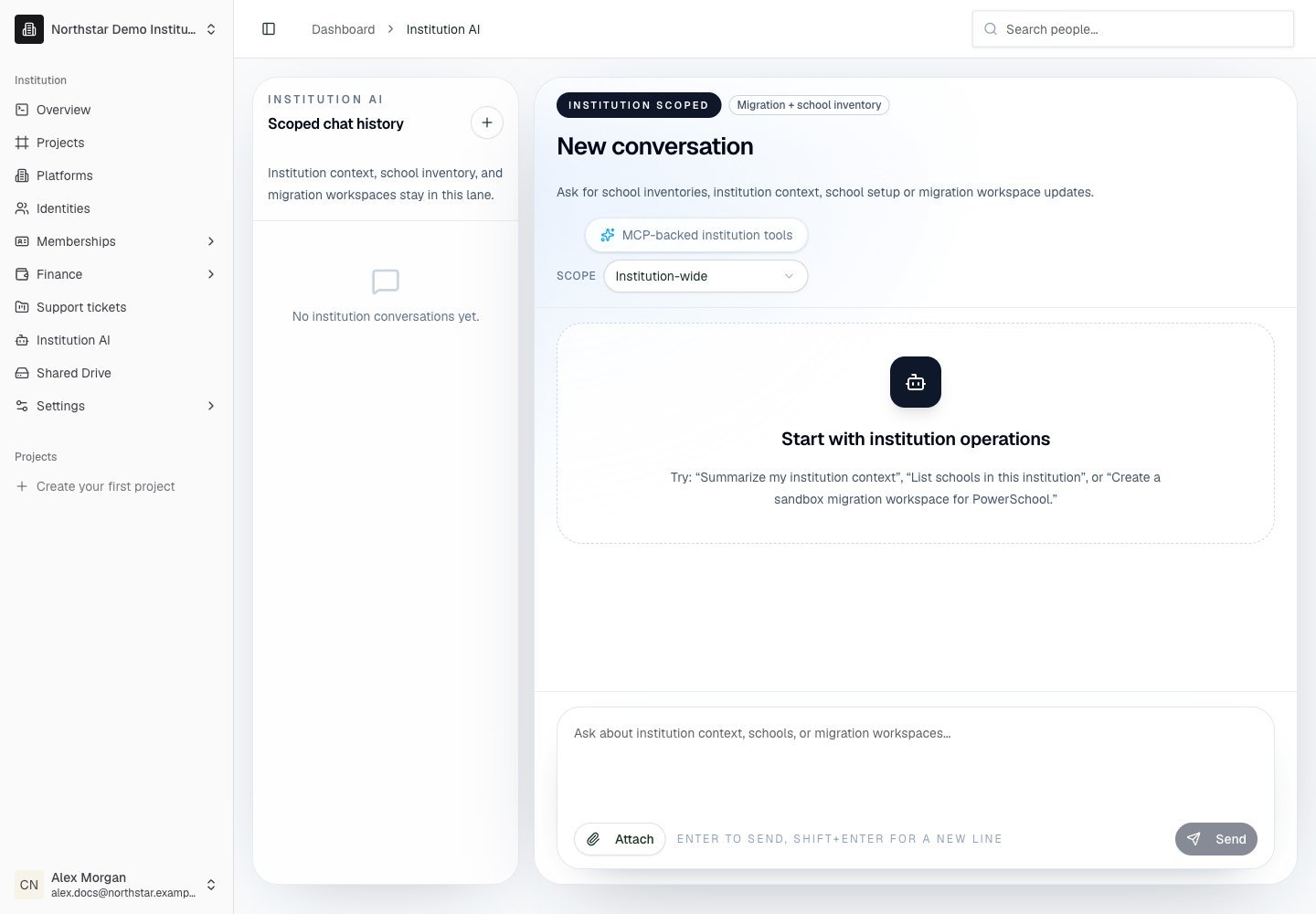
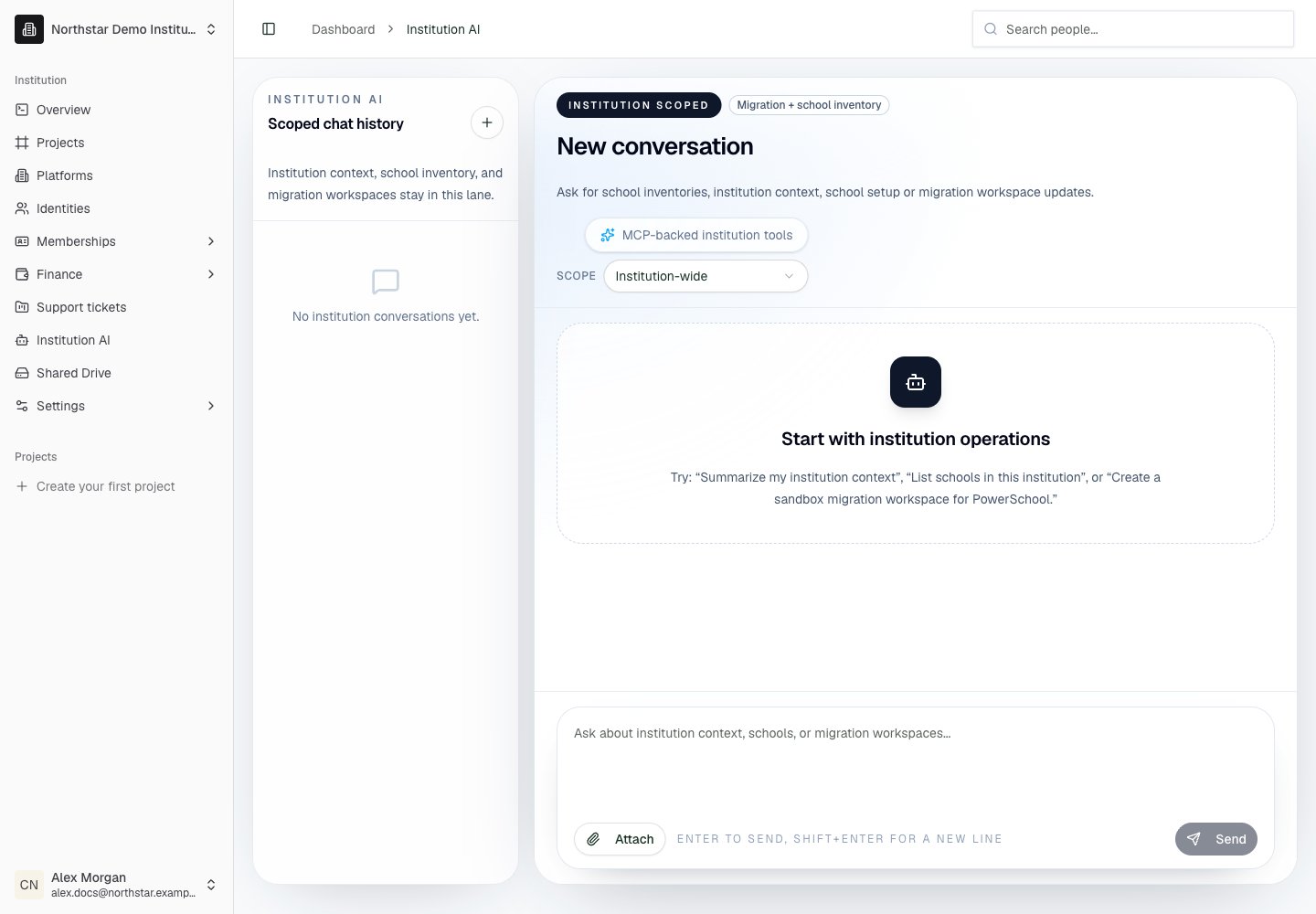
Go to Chat in the institution dashboard sidebar. The chat opens in a full-page workspace with your conversation history on the left and the active conversation on the right.What the assistant can do
The institution assistant has tools for the following areas:| Area | What it can do |
|---|---|
| People search | Find identities or school users by name, email, or context |
| Identity context | Pull AI insights, activity, memberships, and case history for an identity |
| Cases | Draft a new case from raw conversation text and link it to an identity |
| Email drafting | Compose an email to members or specific recipients (see Inline Email Draft below) |
| Shared Drive | Search and read files you’ve uploaded to the institution memory |
| Docs | Look up DeanDesk documentation to answer how-to questions |
| Memberships | Query membership status, plans, and expiration dates |
| Schools | Look up school configuration, hostnames, and per-school stats |
Tool calls in the chat
The assistant’s responses stream in real time, and every tool call it makes (people search, case open, email draft, etc.) is rendered as a card inline in the chat above its text reply. You can see the tool name, its arguments, and its result without leaving the conversation. The most common tool — drafting an email — has its own interactive card, described next. Assistant replies are rendered as full Markdown, including headings, lists, links, and code blocks.Inline Email Draft
When you ask the assistant to draft an email, it renders an inline composer directly in the chat — not just a block of text. The composer shows:- Subject and HTML body the assistant proposed
- Audience selector — pick recipients from courses, rosters, email lists, or manually entered addresses (manual recipients are validated as you type)
- Send / Edit / Discard controls
Scoping a conversation to a school
By default the assistant operates at the institution level — it can answer questions across all of your schools. If you want to focus a conversation on one specific school, use the school scope selector at the top of the chat to pin the conversation to that school. While pinned, the assistant prefers tools and data scoped to the selected school. You can switch back to the institution scope at any time. Each conversation remembers its own scope, so different chats can be working in different contexts side by side.Attaching files
You can attach files to any message — PDFs, images, Word docs, or plain text. The assistant reads the file as additional context and can extract or summarize its contents. Attached files are stored with the conversation and remain available if you resume the chat later.Conversation history
Every conversation is saved automatically. From the conversation list in the left rail you can:- Resume any past conversation
- Rename or delete a conversation
- Start a new conversation with New Chat
Model selection
The chat lets you pick the underlying model — typically a faster lower-latency model for routine queries and a more capable model for complex multi-step tasks. The model picker is in the chat header.Privacy & scope
- The assistant only sees data within your institution. It cannot read across institutions.
- Conversations are stored on your institution’s account and are visible only to identities with access to the chat.
- Actions the assistant takes (sending an email, opening a case, etc.) are recorded in the relevant audit log under the identity who confirmed the action.