Compute staff pay per pay period from scheduled course sessions, set staff and course rates, and track payroll records.
School-level feature — managed within your school portal at yourschool.deandesk.com, but access is institution-gated: Super Admin Identities can view and edit, and Admin Read-Only Identities can view. Other school admins see this page only if they have been granted delegated payroll access; payroll changes always remain limited to institution super-admins. See Institutions & Schools for how the two levels relate.
This walkthrough uses the real DeanDesk interface with the fictional Northstar Academy demo school and a calm, AI-generated English voice. Payments and outside services are not connected in the demo.
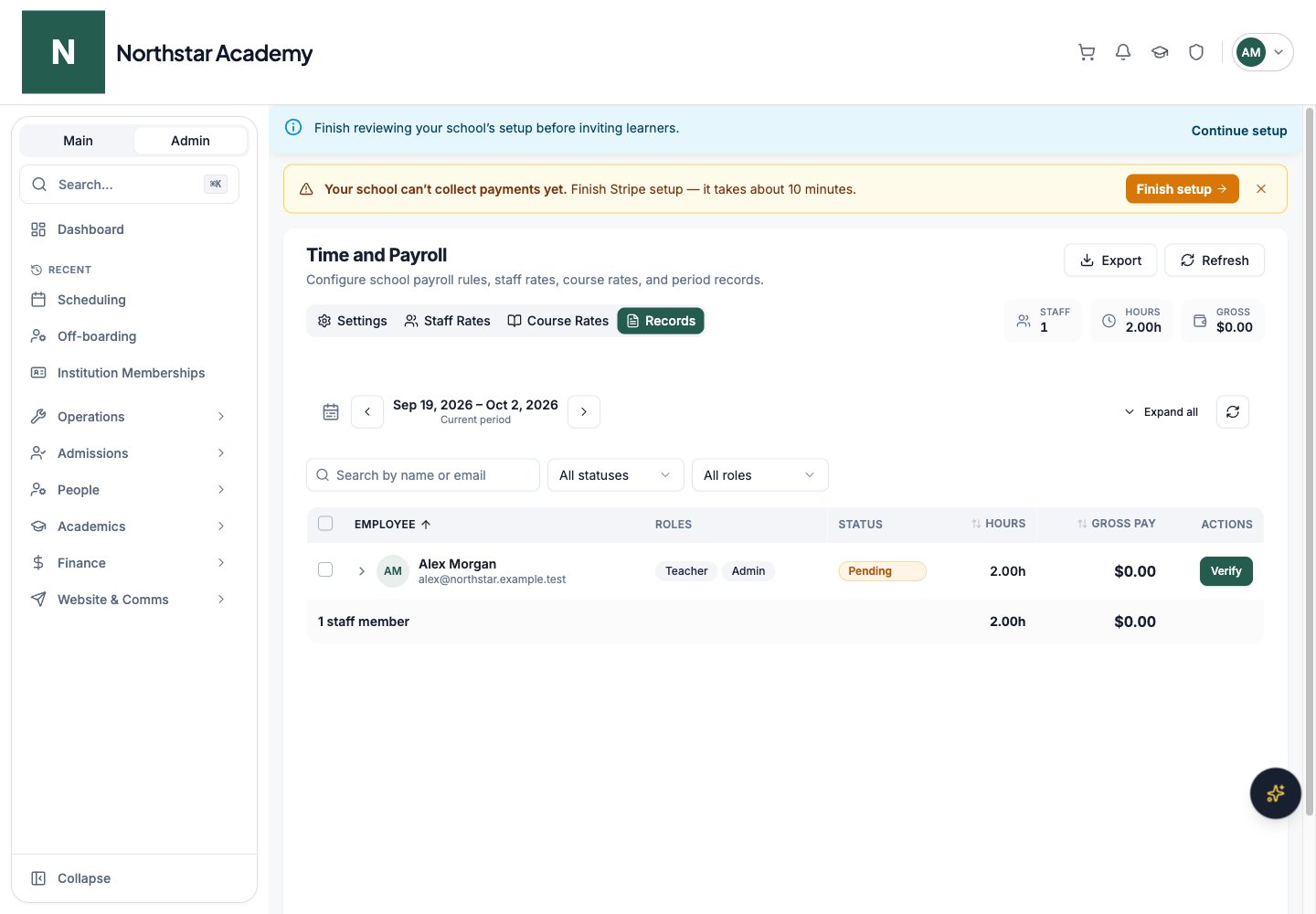
Screenshots use fictional Northstar demo data. Payment and integration screens illustrate the demo setup; no live transactions or connections are shown.Time and Payroll computes what each staff member earns per pay period based on your scheduled course sessions. You set hourly and per-period rates once, and DeanDesk attributes course hours to staff automatically each period — no timesheets required for regular teaching time.Open Time and Payroll from the school Admin Dashboard. On the Records tab, three stat pills at the top summarize the selected period: Staff, Hours, and Gross.
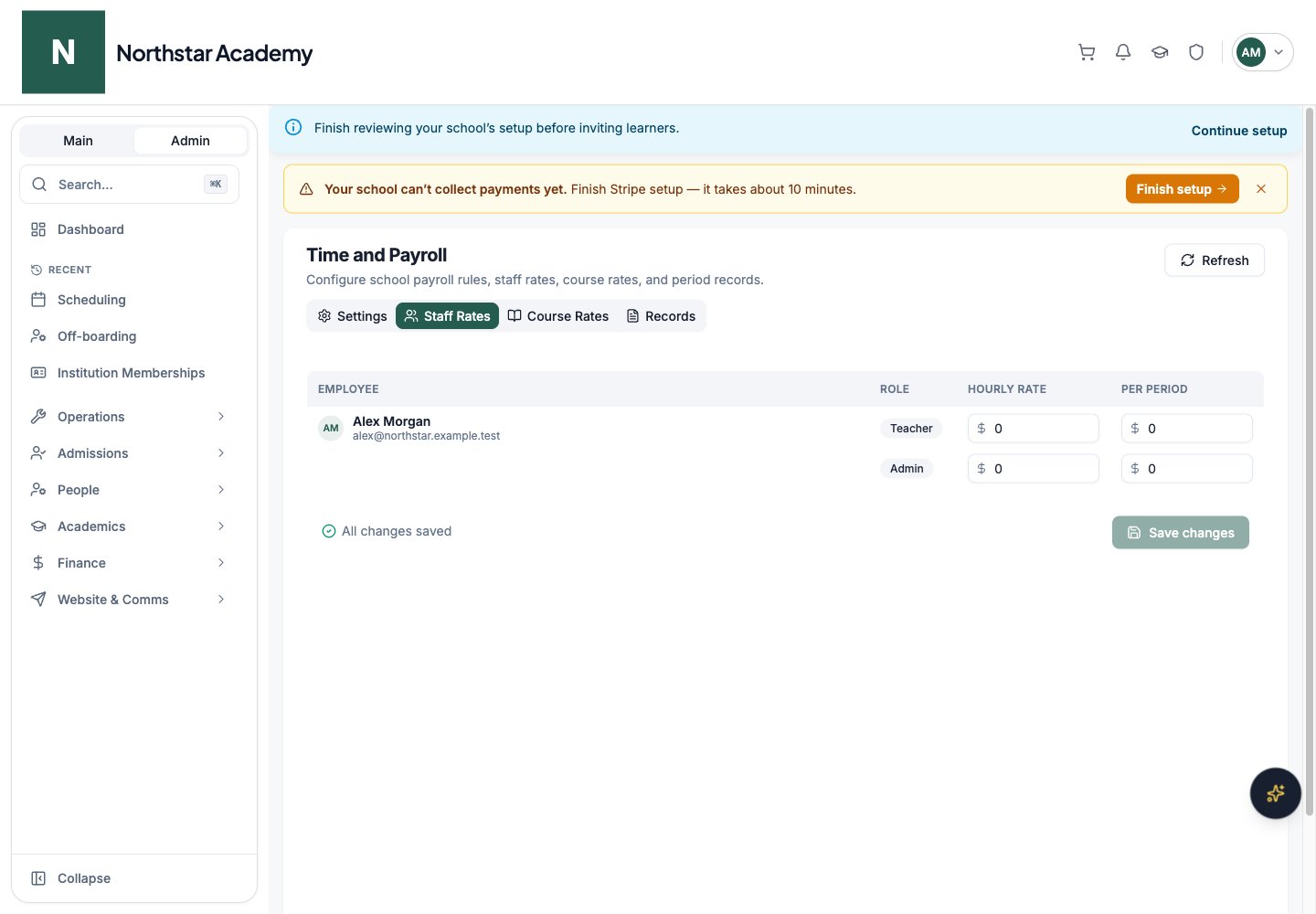
A staff member with multiple roles (e.g., teacher in one course, TA in another) gets a separate line per role, and their record totals the roles together.
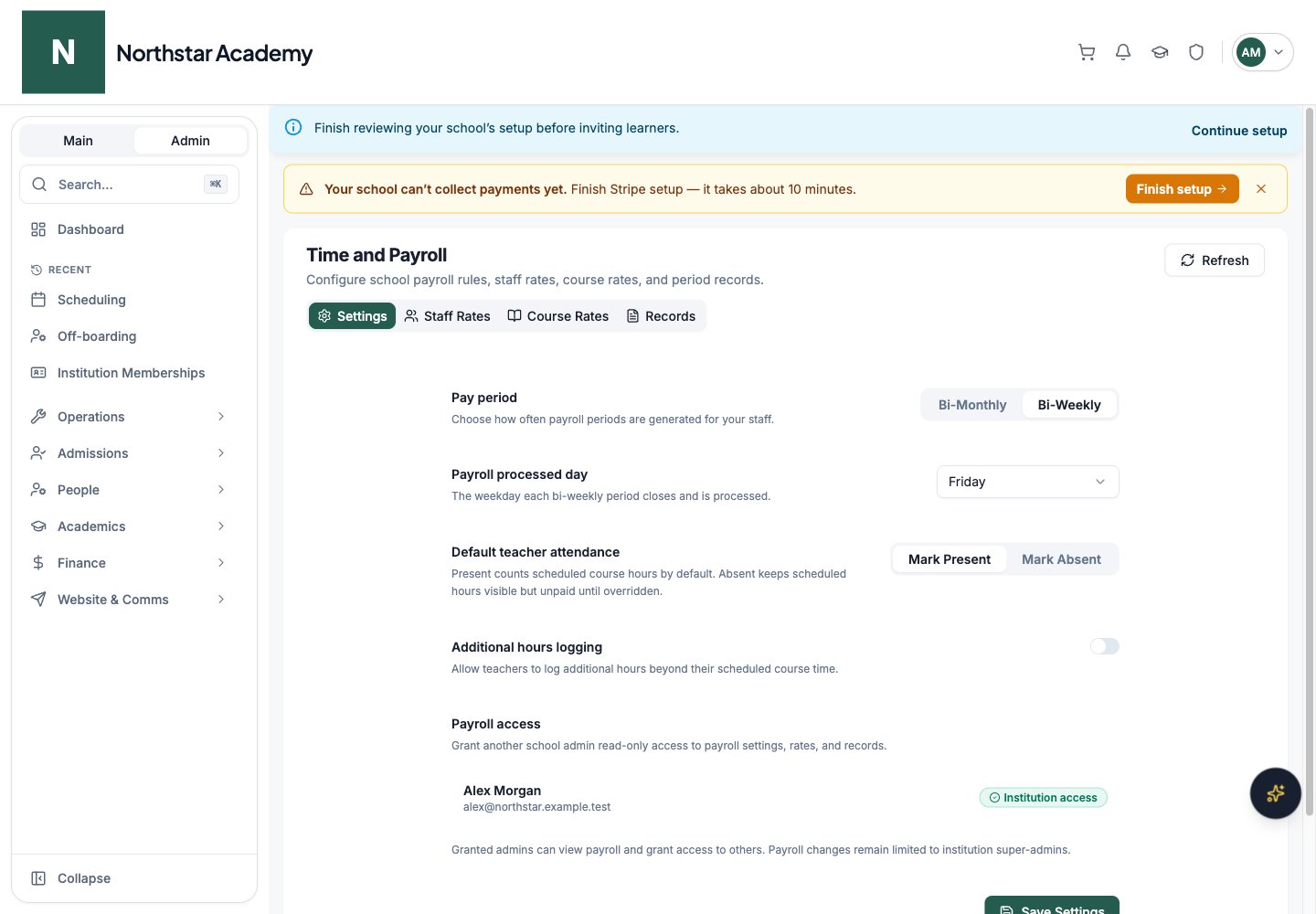
Pay period — Bi-Monthly or Bi-Weekly (default bi-weekly)
Payroll processed day — bi-weekly only: the weekday each period closes (default Friday)
Default teacher attendance — Mark Present counts scheduled course hours toward pay by default; Mark Absent keeps scheduled hours visible but unpaid until you override them
Allow teachers to log additional hours — toggle whether staff can record hours beyond their scheduled course time from their own profile (see My Hours)
Each row has Verify and Mark Paid actions. Mark Paid records that payment has been handled; it does not transfer wages or run a bank payout. To process many records at once, select multiple rows with the checkboxes, choose a status under Set status to, and click Apply. In the Change status dialog, add an optional Status note and click Apply.
Expand a row to see a per-role breakdown: source hours, payable hours, hourly rate, per-period pay, ad-hoc pay, and the role total. From the expanded view you can also:
Add ad-hoc hours — date, hours, an optional rate, and a description (e.g., a substitute shift or event coverage)
Override the record — open the pay override dialog to adjust hours, hourly rate, per-period pay, or Total pay (optional). Override only the values that need adjustment — blank fields continue using the calculated value, and the total pay field shows the auto-calculated amount (e.g., Auto: $450.00) as its placeholder.
Every change to a payroll record is captured in an audit log, so you always have a trail of who adjusted what and when.
Click Export on the Records tab to have the period’s payroll records emailed as an attachment. The Email payroll export dialog collects:
Format — CSV spreadsheet or PDF document
Show statuses — check Unverified (records shown as Pending elsewhere), Verified, and/or Paid (at least one)
Show zero values? — when off, staff with 0 hours and $0 pay are omitted
Email records to — choose at least one admin recipient
Click Create and email export and the file is delivered to the selected admins by email.The CSV has one row per payroll record with the columns Employee, Email, Roles, Status, Source Hours, Payable Hours, and Gross Pay. The PDF opens with a ” Payroll Summary” page — a pay-by-employee table — followed by per-employee detail pages covering role calculations, course-session actuals, overrides, and ad-hoc entries. A period that spans two months is labeled with both (e.g., “July-August 2026”).
The export email uses the Payroll Records Export system email template, which school admins can customize like any other system email.
When Allow teachers to log additional hours is enabled in payroll settings, staff with a payroll role (teacher, TA, or admin) get a self-service My Hours page — under Work → My Hours in their profile sidebar — to record time beyond their scheduled course sessions, without going through an admin.The pay-period card at the top shows the period’s dates, its status chip (Pending, Verified, or Paid), the total additional hours logged this period, and arrows to browse other periods.To record time, staff click Log Hours and fill in:
Date — hours are applied to the pay period containing this date; future dates are not allowed
Hours — in quarter-hour steps (e.g., 1.5 for 1 hour 30 minutes)
Role — one of the staff member’s own payroll roles
Description — what the time covers
Entries appear in the Logged Hours table (Date, Role, Hours, Description), where staff can edit or delete the entries they created themselves.Once a pay period is marked Verified or Paid, it locks: the Log Hours button is disabled and existing entries can no longer be changed.
Staff only ever see hours on this page — never pay rates or dollar amounts. Every entry a staff member adds, edits, or deletes is recorded in the payroll audit log.
By default, payroll is only visible to admins with an institution Identity. The Payroll access panel in Time and Payroll lets you grant another school admin read-only access to payroll settings, rates, and records — without giving them an institution-level role. Granted admins get the Time and Payroll tile in their admin navigation.The panel lists your school’s active admins. Each row shows either a Grant access button or a badge indicating how the admin already has access:
Institution access — inherited from an institution role. This access is inherited from the institution role.
Has access — delegated access, explicitly granted here.
Granted admins can view payroll and grant access to others. This panel provides a grant action; it does not provide a revoke action. Payroll changes remain limited to institution super-admins.
Verify before you pay. Use Verify as a review checkpoint, then bulk Mark Paid once payments go out — the status filter makes it easy to see what’s left.
Assign staff to sessions. Setting the Teacher/TA on each schedule entry keeps payroll accurate when someone other than the instructor covers a class.
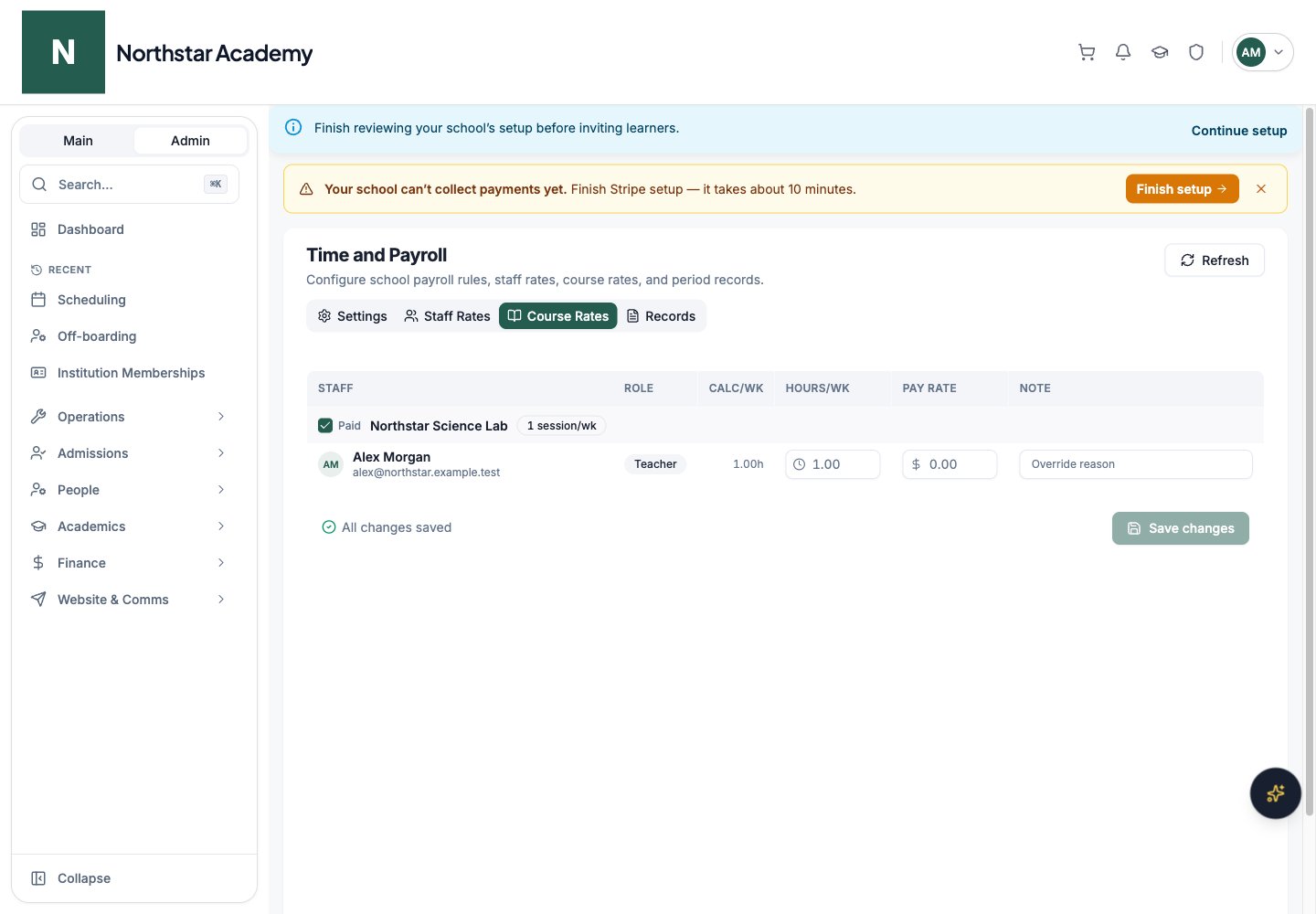
Use course overrides sparingly. Staff rates cover most cases; reserve course-level overrides for courses with genuinely different pay arrangements, and leave a note.
Always add a note when overriding a record. Notes make the audit log useful when you review pay history later.
Payroll configuration, pay-period cadence, and attendance defaults used for unfinalized sessions. Review Bi-Monthly versus Bi-Weekly and Mark Present versus Mark Absent before saving.
Staff Rates
Default rates for individual staff members.
Course Rates
Rates associated with particular courses. Review how these interact with staff rates.
Records
Period-based payroll records; filter Pending, Verified, or Paid, inspect calculations, verify records, mark payment, and export.
My Hours is the staff member’s own view; it is not another administrator tab on this page. Payroll access may be delegated separately from general school administration. Review the access rules above if the tool is missing.
Was this page helpful?
⌘I
{"docsConfig":{"theme":"almond","$schema":"https://mintlify.com/docs.json","name":"DeanDesk","colors":{"primary":"#7c7c7c","light":"#080808","dark":"#c1c1c1"},"logo":{"light":"https://mintcdn.com/deandesk/fdE4kIsjz9Yc7EsS/images/logo-light.svg?fit=max\u0026auto=format\u0026n=fdE4kIsjz9Yc7EsS\u0026q=85\u0026s=36694fe1a3c1a808d37352d463b6ea86","dark":"https://mintcdn.com/deandesk/fdE4kIsjz9Yc7EsS/images/logo-dark.svg?fit=max\u0026auto=format\u0026n=fdE4kIsjz9Yc7EsS\u0026q=85\u0026s=f4f44881ecac8d74a6400d22000b44b3"},"favicon":"https://mintcdn.com/deandesk/7hPKdyCX79jlDRgL/images/favicon.png?fit=max\u0026auto=format\u0026n=7hPKdyCX79jlDRgL\u0026q=85\u0026s=25ccd86c5c2e369deca23f92cdde87a1","navbar":{"primary":{"type":"button","label":"Get Started Free","href":"https://deandesk.com/get-started"}},"styling":{"latex":true},"navigation":{"pages":[]}},"deployment":{"deploymentMetadataValue":{"subdomain":"deandesk","hasAudioNarration":false,"actualSubdomain":"deandesk","customDomains":["docs.deandesk.com"],"gitSource":{"type":"github","owner":"uthmanq","repo":"docs","deployBranch":"main","isPrivate":true,"contentDirectory":"","mountPath":"","label":""},"chroma":{"liveDeploymentHistoryId":"6ad7f39d011c0457d0ac18e5","collectionId":"281ee397-a7d8-4727-9a3c-3b727dd0589f","schemaVersion":"v3","latestBuiltDeploymentHistoryId":"6ad7f39d011c0457d0ac18e5"},"feedback":{"thumbs":true},"entitlements":{},"buildId":"6ada59180387e457c218a510","clientVersion":"0.0.3933","searchFilterCounts":[{"language":"default","tag":"Documentation","count":104},{"language":"default","tag":"Setup","count":15},{"language":"default","tag":"Finance","count":14},{"language":"default","tag":"Institution Management","count":14},{"language":"default","tag":"Learning Management","count":14},{"language":"default","tag":"Teaching a course","count":12},{"language":"default","tag":"Student Management","count":9},{"language":"default","tag":"School onboarding","count":8},{"language":"default","tag":"Get Started","count":6},{"language":"default","tag":"Communication","count":4}]},"assistantConfig":{"enableAskAiButton":false,"enableStarterQuestions":false,"enableContextualStarterQuestions":false,"enableAskAiSearchBar":true},"hasChatPermissions":false,"hasWebMcpPermissions":false,"toggles":[{"name":"kill-isr","enabled":true,"variant":{"name":"disabled","enabled":false,"feature_enabled":true},"impressionData":false},{"name":"agent-mintlify-slack","enabled":true,"variant":{"name":"disabled","enabled":false,"feature_enabled":true},"impressionData":false},{"name":"editor-v7-file-tree","enabled":true,"variant":{"name":"disabled","enabled":false,"feature_enabled":true},"impressionData":false},{"name":"agent-integrations-settings","enabled":true,"variant":{"name":"disabled","enabled":false,"feature_enabled":true},"impressionData":false},{"name":"automations-pr-grouping","enabled":true,"variant":{"name":"disabled","enabled":false,"feature_enabled":true},"impressionData":false},{"name":"custom-prefix","enabled":true,"variant":{"name":"disabled","enabled":false,"feature_enabled":true},"impressionData":false},{"name":"analytics-v7","enabled":true,"variant":{"name":"disabled","enabled":false,"feature_enabled":true},"impressionData":false},{"name":"user-flows-analytics","enabled":true,"variant":{"name":"disabled","enabled":false,"feature_enabled":true},"impressionData":false},{"name":"no-publish-flow","enabled":true,"variant":{"name":"disabled","enabled":false,"feature_enabled":true},"impressionData":false},{"name":"workos-onboarding","enabled":true,"variant":{"name":"disabled","enabled":false,"feature_enabled":true},"impressionData":false},{"name":"llms-txt-v2","enabled":true,"variant":{"name":"disabled","enabled":false,"feature_enabled":true},"impressionData":false},{"name":"pause-universal-search-reconcile","enabled":true,"variant":{"name":"disabled","enabled":false,"feature_enabled":true},"impressionData":false},{"name":"snapshot-serving-live","enabled":true,"variant":{"name":"disabled","enabled":false,"feature_enabled":true},"impressionData":false},{"name":"stripTemperatureMiddleware","enabled":true,"variant":{"name":"disabled","enabled":false,"feature_enabled":true},"impressionData":false},{"name":"per-site-search-delta","enabled":true,"variant":{"name":"disabled","enabled":false,"feature_enabled":true},"impressionData":false},{"name":"support-platform-pylon-zendesk","enabled":true,"variant":{"name":"disabled","enabled":false,"feature_enabled":true},"impressionData":false},{"name":"snapshot-serving","enabled":true,"variant":{"name":"disabled","enabled":false,"feature_enabled":true},"impressionData":false},{"name":"instant-rollback","enabled":true,"variant":{"name":"disabled","enabled":false,"feature_enabled":true},"impressionData":false},{"name":"granular-notifications-server","enabled":true,"variant":{"name":"disabled","enabled":false,"feature_enabled":true},"impressionData":false},{"name":"granular-notifications","enabled":true,"variant":{"name":"disabled","enabled":false,"feature_enabled":true},"impressionData":false},{"name":"editor-private-page-search","enabled":true,"variant":{"name":"disabled","enabled":false,"feature_enabled":true},"impressionData":false},{"name":"automations-fable","enabled":true,"variant":{"name":"disabled","enabled":false,"feature_enabled":true},"impressionData":false},{"name":"fixed-ai-action-pricing","enabled":true,"variant":{"name":"disabled","enabled":false,"feature_enabled":true},"impressionData":false},{"name":"automation-resolve-merge-conflict","enabled":true,"variant":{"name":"disabled","enabled":false,"feature_enabled":true},"impressionData":false},{"name":"scoped-publishing","enabled":true,"variant":{"name":"disabled","enabled":false,"feature_enabled":true},"impressionData":false},{"name":"mintql","enabled":true,"variant":{"name":"disabled","enabled":false,"feature_enabled":true},"impressionData":false},{"name":"page-level-analytics","enabled":true,"variant":{"name":"disabled","enabled":false,"feature_enabled":true},"impressionData":false},{"name":"editor-version-history-v2","enabled":true,"variant":{"name":"disabled","enabled":false,"feature_enabled":true},"impressionData":false},{"name":"editor-nav-generations","enabled":true,"variant":{"name":"disabled","enabled":false,"feature_enabled":true},"impressionData":false},{"name":"billing-page-v2","enabled":true,"variant":{"name":"disabled","enabled":false,"feature_enabled":true},"impressionData":false},{"name":"vite-origin","enabled":true,"variant":{"name":"disabled","enabled":false,"feature_enabled":true},"impressionData":false},{"name":"workspace-projects","enabled":true,"variant":{"name":"disabled","enabled":false,"feature_enabled":true},"impressionData":false},{"name":"assistant-v5","enabled":true,"variant":{"name":"disabled","enabled":false,"feature_enabled":true},"impressionData":false},{"name":"byok-sep-25","enabled":true,"variant":{"name":"disabled","enabled":false,"feature_enabled":true},"impressionData":false},{"name":"fork-pr-previews","enabled":true,"variant":{"name":"disabled","enabled":false,"feature_enabled":true},"impressionData":false},{"name":"revalidation-jwt","enabled":true,"variant":{"name":"disabled","enabled":false,"feature_enabled":true},"impressionData":false},{"name":"editor-agent-model-picker","enabled":true,"variant":{"name":"disabled","enabled":false,"feature_enabled":true},"impressionData":false},{"name":"billing-updated-9-15","enabled":true,"variant":{"name":"disabled","enabled":false,"feature_enabled":true},"impressionData":false},{"name":"hobby-abuse-scan","enabled":true,"variant":{"name":"disabled","enabled":false,"feature_enabled":true},"impressionData":false},{"name":"dashboard-inbox","enabled":true,"variant":{"name":"disabled","enabled":false,"feature_enabled":true},"impressionData":false}],"isAtlas":false,"googleFontsInlined":true},"customCss":[],"page":{"pagePath":"finance/payroll","slug":"/finance/payroll","pageMetadata":{"title":"Time and payroll","description":"Compute staff pay per pay period from scheduled course sessions, set staff and course rates, and track payroll records.","href":"/finance/payroll"},"description":{"compiledSource":"\"use strict\";\nconst {jsx: _jsx} = arguments[0];\nconst {useMDXComponents: _provideComponents} = arguments[0];\nfunction _createMdxContent(props) {\n const _components = {\n p: \"p\",\n ..._provideComponents(),\n ...props.components\n };\n return _jsx(_components.p, {\n children: \"Compute staff pay per pay period from scheduled course sessions, set staff and course rates, and track payroll records.\"\n });\n}\nfunction MDXContent(props = {}) {\n const {wrapper: MDXLayout} = {\n ..._provideComponents(),\n ...props.components\n };\n return MDXLayout ? _jsx(MDXLayout, {\n ...props,\n children: _jsx(_createMdxContent, {\n ...props\n })\n }) : _createMdxContent(props);\n}\nreturn {\n default: MDXContent\n};\n","frontmatter":{},"scope":{}},"pageType":"default","mdx":{"mdxSource":{"compiledSource":"\"use strict\";const{Fragment:_Fragment,jsx:_jsx,jsxs:_jsxs}=arguments[0];const{useMDXComponents:_provideComponents}=arguments[0];const tutorialCaptions=`WEBVTT\n\n1\n00:00:00.350 --> 00:00:04.370\nIn this video, you'll set a staff pay rate and review a payroll period.\n\n2\n00:00:04.850 --> 00:00:06.030\nIt takes about two minutes.\n\n3\n00:00:07.159 --> 00:00:09.639\nPayroll lives under People in the sidebar.\n\n4\n00:00:13.086 --> 00:00:15.125\nChoose Time and Payroll.\n\n5\n00:00:13.086 --> 00:00:19.346\nDeanDesk works out pay from your scheduled course sessions, so regular teaching needs no timesheets.\n\n6\n00:00:20.464 --> 00:00:24.124\nSettings holds your pay period and attendance defaults.\n\n7\n00:00:24.324 --> 00:00:25.284\nSet these once.\n\n8\n00:00:26.340 --> 00:00:27.900\nOpen Staff Rates.\n\n9\n00:00:28.520 --> 00:00:30.820\nEach person has one row per role.\n\n10\n00:00:31.838 --> 00:00:33.938\nEnter an hourly rate for teaching.\n\n11\n00:00:35.085 --> 00:00:37.945\nPer period adds a flat amount every pay period.\n\n12\n00:00:38.465 --> 00:00:39.145\nWe'll leave it at zero.\n\n13\n00:00:40.265 --> 00:00:41.725\nClick Save changes.\n\n14\n00:00:42.941 --> 00:00:48.261\nCourse Rates lets you mark a course unpaid, or set a special rate for one person.\n\n15\n00:00:49.392 --> 00:00:50.772\nNow open Records.\n\n16\n00:00:51.472 --> 00:00:53.392\nThis is the payroll run for one period.\n\n17\n00:00:54.485 --> 00:00:57.045\nUse the arrows to move between pay periods.\n\n18\n00:00:58.168 --> 00:01:00.868\nExpand a row to see the breakdown by role.\n\n19\n00:01:01.408 --> 00:01:04.688\nYou'll see scheduled hours, payable hours, and the rate.\n\n20\n00:01:05.743 --> 00:01:12.283\nUse Override to adjust a value, or Add ad-hoc hours for extra work like cover shifts.\n\n21\n00:01:12.963 --> 00:01:14.143\nEvery change is logged.\n\n22\n00:01:15.208 --> 00:01:18.168\nWhen the numbers look right, click Verify.\n\n23\n00:01:19.298 --> 00:01:23.178\nAdd an optional note for the audit log, then click Apply.\n\n24\n00:01:24.249 --> 00:01:27.649\nAfter you've paid staff, Mark Paid records it.\n\n25\n00:01:28.249 --> 00:01:29.529\nIt doesn't send any money.\n\n26\n00:01:30.642 --> 00:01:35.122\nExport emails a spreadsheet or PDF of the period to chosen admins.\n\n27\n00:01:35.762 --> 00:01:37.622\nWe'll cancel here, since this is a demo.\n\n28\n00:01:38.759 --> 00:01:39.359\nThat's it.\n\n29\n00:01:39.779 --> 00:01:42.379\nYou've set a pay rate and verified a payroll record.\n\n30\n00:01:43.199 --> 00:01:45.579\nNext, see Scholarship and Financial Aid Rates.\n`;const TutorialVideo=({src,poster,captions,title})=>{const _components={a:`a`,..._provideComponents()};const tutorialVideoSources={\"/videos/tutorials/communication-announcements.mp4\":`https://deandesk-static-img.s3.us-east-1.amazonaws.com/docs/tutorials/communication-announcements.d61d0f3aaca06b46208c74b58c34abefd6c4d48c1e3cdd110ce8cef4d97e2059.mp4`,\"/videos/tutorials/communication-discussions.mp4\":`https://deandesk-static-img.s3.us-east-1.amazonaws.com/docs/tutorials/communication-discussions.4265e479beb59bee1f4961fcfe0fda65d9a1ad7bbb34a14f4ce6a7f10ac45547.mp4`,\"/videos/tutorials/communication-emails.mp4\":`https://deandesk-static-img.s3.us-east-1.amazonaws.com/docs/tutorials/communication-emails.66b457bb909678fbe2448e4b67a204218e2c26034773e4c79775de0b3a3e1ab5.mp4`,\"/videos/tutorials/communication-system-emails.mp4\":`https://deandesk-static-img.s3.us-east-1.amazonaws.com/docs/tutorials/communication-system-emails.3521ae73efaf61bb43c243994e2aee1fca807217a479a33f1f579799b7a7ac52.mp4`,\"/videos/tutorials/finance-bookings.mp4\":`https://deandesk-static-img.s3.us-east-1.amazonaws.com/docs/tutorials/finance-bookings.7705236096cdde510d5119e455aade38f340f4097e14836f63e9758005d16920.mp4`,\"/videos/tutorials/finance-discounts.mp4\":`https://deandesk-static-img.s3.us-east-1.amazonaws.com/docs/tutorials/finance-discounts.fe0f1461aa590192cf536326d7d71e8672f3db34ef66e8803d20de15b82796da.mp4`,\"/videos/tutorials/finance-enrollments.mp4\":`https://deandesk-static-img.s3.us-east-1.amazonaws.com/docs/tutorials/finance-enrollments.aeb02026b9167375fd90259c27891d0b5febcc081b87e1c8218415d5d679dc58.mp4`,\"/videos/tutorials/finance-financial-aid.mp4\":`https://deandesk-static-img.s3.us-east-1.amazonaws.com/docs/tutorials/finance-financial-aid.a7032fc9397476bc5de566eab3189512f69f77783b11a1e6da490926ea1988e2.mp4`,\"/videos/tutorials/finance-invoicing.mp4\":`https://deandesk-static-img.s3.us-east-1.amazonaws.com/docs/tutorials/finance-invoicing.64663d238222b75f23745ea3cc86f205c16a6d4c6f5ff7efc4de0f7e931d1b06.mp4`,\"/videos/tutorials/finance-orders.mp4\":`https://deandesk-static-img.s3.us-east-1.amazonaws.com/docs/tutorials/finance-orders.de6ecd4338396ef1971213ee7b0eae11dbd32fc3c2328275888a1e058669dc50.mp4`,\"/videos/tutorials/finance-payroll.mp4\":`https://deandesk-static-img.s3.us-east-1.amazonaws.com/docs/tutorials/finance-payroll.4c6e0cfed614954988cd644288874f97f6c76f6ffd2494aca95d0819d83b6b14.mp4`,\"/videos/tutorials/finance-products.mp4\":`https://deandesk-static-img.s3.us-east-1.amazonaws.com/docs/tutorials/finance-products.b29af3bf767dc239fd9b9cb17d129887f348e9b890af9f5a79e90bacdce0e7ee.mp4`,\"/videos/tutorials/finance-programs.mp4\":`https://deandesk-static-img.s3.us-east-1.amazonaws.com/docs/tutorials/finance-programs.1db3c13a84c8b33289b79a0e1f8b10a31702808e41304dbdd2f9115a31c91b64.mp4`,\"/videos/tutorials/finance-review-simulator.mp4\":`https://deandesk-static-img.s3.us-east-1.amazonaws.com/docs/tutorials/finance-review-simulator.6bc28008dd5ae393e583119032f00a9075642edf2b236a8915009e3ae49ad220.mp4`,\"/videos/tutorials/finance-stripe.mp4\":`https://deandesk-static-img.s3.us-east-1.amazonaws.com/docs/tutorials/finance-stripe.7d2ab077b67b9634828085dc8776d92057732e0e0f8f18eae46626a46cb9ca3b.mp4`,\"/videos/tutorials/finance-subscriptions.mp4\":`https://deandesk-static-img.s3.us-east-1.amazonaws.com/docs/tutorials/finance-subscriptions.d69ab4e2c401f046307c38ada438ee073fc39c6fb8d44cb3c76a6c8a52de7edb.mp4`,\"/videos/tutorials/finance-transactions.mp4\":`https://deandesk-static-img.s3.us-east-1.amazonaws.com/docs/tutorials/finance-transactions.4b36fac8fc8f819222ca6f51264bb59b623fdb982bf68e0fdf081504b30bdecd.mp4`,\"/videos/tutorials/getting-started-first-login.mp4\":`https://deandesk-static-img.s3.us-east-1.amazonaws.com/docs/tutorials/getting-started-first-login.4bf6eb08484b710d515ff5109364ab6fdc6d9484cfff49bc522494a124f3662f.mp4`,\"/videos/tutorials/getting-started-institutions-and-schools.mp4\":`https://deandesk-static-img.s3.us-east-1.amazonaws.com/docs/tutorials/getting-started-institutions-and-schools.3cbc093a108c9e413310b17dbe4ff458ddfebd09696e152e746800d1f59d9fe1.mp4`,\"/videos/tutorials/getting-started-member-account.mp4\":`https://deandesk-static-img.s3.us-east-1.amazonaws.com/docs/tutorials/getting-started-member-account.0bc088c834d0d9167ce51bd7acefd86178d383ae3aa21ee69ce061486ab52f75.mp4`,\"/videos/tutorials/institution-ai-chat.mp4\":`https://deandesk-static-img.s3.us-east-1.amazonaws.com/docs/tutorials/institution-ai-chat.3ecdad2e67a0acdae16b966d0e3e0f5a98d3ed2e4e5b2b448e36771fe5c4eb3a.mp4`,\"/videos/tutorials/institution-billing.mp4\":`https://deandesk-static-img.s3.us-east-1.amazonaws.com/docs/tutorials/institution-billing.201ee3ee09144b2e7b80c40b4190e398272dceb1d84239923635bcad394bb9c5.mp4`,\"/videos/tutorials/institution-cases.mp4\":`https://deandesk-static-img.s3.us-east-1.amazonaws.com/docs/tutorials/institution-cases.fdab373c1af668fee753ead76325b330e4df5bf9104cc344a389dc672a98bd9d.mp4`,\"/videos/tutorials/institution-dashboard.mp4\":`https://deandesk-static-img.s3.us-east-1.amazonaws.com/docs/tutorials/institution-dashboard.87307184cf6778a379293f1b5357c801b490a060f7ddf852521b2fe193b38464.mp4`,\"/videos/tutorials/institution-finance.mp4\":`https://deandesk-static-img.s3.us-east-1.amazonaws.com/docs/tutorials/institution-finance.95437f6c70956bc1936da4c62a40840e7073a464e869b63e03813d4d23f6403e.mp4`,\"/videos/tutorials/institution-identities.mp4\":`https://deandesk-static-img.s3.us-east-1.amazonaws.com/docs/tutorials/institution-identities.a72756bcf9d7805bf414aa8b6dee36793ffd8bafe336c8b7401af5fd8010acd3.mp4`,\"/videos/tutorials/institution-integrations.mp4\":`https://deandesk-static-img.s3.us-east-1.amazonaws.com/docs/tutorials/institution-integrations.3a89663eb72084750398f385e55d36accdd7ebddb25103fac277a2ce67d0a5a6.mp4`,\"/videos/tutorials/institution-memberships.mp4\":`https://deandesk-static-img.s3.us-east-1.amazonaws.com/docs/tutorials/institution-memberships.74c5080634480a5bb47d2a218ff3c6b3c5a6088d2617722384aa05f112e9b69a.mp4`,\"/videos/tutorials/institution-metadata.mp4\":`https://deandesk-static-img.s3.us-east-1.amazonaws.com/docs/tutorials/institution-metadata.c8a6351fc239cdb417de155a8ecd1891cacec43016e71bda5dc7d98a4db4551c.mp4`,\"/videos/tutorials/institution-platforms.mp4\":`https://deandesk-static-img.s3.us-east-1.amazonaws.com/docs/tutorials/institution-platforms.f0e3081c01b5209498f2bdaf6f26d85cd7a7ec477dba6a18e697aa85b7d2e1b0.mp4`,\"/videos/tutorials/institution-projects.mp4\":`https://deandesk-static-img.s3.us-east-1.amazonaws.com/docs/tutorials/institution-projects.9ffb6d4a23521a263b3a910701873b28b9c17df066151c018da1d73989290a5f.mp4`,\"/videos/tutorials/institution-settings.mp4\":`https://deandesk-static-img.s3.us-east-1.amazonaws.com/docs/tutorials/institution-settings.7dade15c52f9dffa4140e40389f24493a465dd390c05105266707dd25226da08.mp4`,\"/videos/tutorials/institution-shared-drive.mp4\":`https://deandesk-static-img.s3.us-east-1.amazonaws.com/docs/tutorials/institution-shared-drive.13fb8e60028e9a8b60391770c412e154d87ba828fab66f40aa3383c95c7705b8.mp4`,\"/videos/tutorials/institution-stripe.mp4\":`https://deandesk-static-img.s3.us-east-1.amazonaws.com/docs/tutorials/institution-stripe.5120978d70c9c57c3331eebcf6aae8c48cc969d65247c743894ebe8375c8afd8.mp4`,\"/videos/tutorials/integrations-edfi.mp4\":`https://deandesk-static-img.s3.us-east-1.amazonaws.com/docs/tutorials/integrations-edfi.e5e746de9ec2d38ad1c58b09f7eb2ceef393640cf16455721d197b7d9012dc4c.mp4`,\"/videos/tutorials/integrations-zoom-google-calendar.mp4\":`https://deandesk-static-img.s3.us-east-1.amazonaws.com/docs/tutorials/integrations-zoom-google-calendar.f1efc38fc01b29b925837f29f72b2d97ecbfd372c629714e1758a64986cd962b.mp4`,\"/videos/tutorials/introduction.mp4\":`https://deandesk-static-img.s3.us-east-1.amazonaws.com/docs/tutorials/introduction.e7ea81bfc1299fe677a64c779a854c620544167b4e60964e9536525090d6222a.mp4`,\"/videos/tutorials/lms-assignments.mp4\":`https://deandesk-static-img.s3.us-east-1.amazonaws.com/docs/tutorials/lms-assignments.cdcd86e44be5e7f935a166d08d7f3dbea8660d9cf8c994d0a5d881e9cb10d84c.mp4`,\"/videos/tutorials/lms-attendance.mp4\":`https://deandesk-static-img.s3.us-east-1.amazonaws.com/docs/tutorials/lms-attendance.d47f1a8878bcd2666fde728c70b5d96d952156348924614886ae6d0f1b372175.mp4`,\"/videos/tutorials/lms-bulk-enrollment.mp4\":`https://deandesk-static-img.s3.us-east-1.amazonaws.com/docs/tutorials/lms-bulk-enrollment.4f3fecef2abcd3caec39799e1f04bfcf3820dd839fb1b74ca71371ac389c240e.mp4`,\"/videos/tutorials/lms-course-groups.mp4\":`https://deandesk-static-img.s3.us-east-1.amazonaws.com/docs/tutorials/lms-course-groups.cd4757d20152c97b59460cdff9071e0c38e04399872aff50684c2be81e016878.mp4`,\"/videos/tutorials/lms-courses.mp4\":`https://deandesk-static-img.s3.us-east-1.amazonaws.com/docs/tutorials/lms-courses.2625072aad429340f6c852294ab8b8383ef2d6d941fda0b1bc11f8c797d75a84.mp4`,\"/videos/tutorials/lms-curriculum-maps.mp4\":`https://deandesk-static-img.s3.us-east-1.amazonaws.com/docs/tutorials/lms-curriculum-maps.dd7618e3c3eca7229a44b0708d8361ac98a157552b6bf1b37edda024d15fbabc.mp4`,\"/videos/tutorials/lms-gradebook.mp4\":`https://deandesk-static-img.s3.us-east-1.amazonaws.com/docs/tutorials/lms-gradebook.544a98a7050f823fcf69fb98a118e83e4a80426332cce97c5b82a58f90e6f991.mp4`,\"/videos/tutorials/lms-grading-standards.mp4\":`https://deandesk-static-img.s3.us-east-1.amazonaws.com/docs/tutorials/lms-grading-standards.3718f8fa6989d91e12a925ec0970e87e48b048e7d7c309a6c304073648129d7b.mp4`,\"/videos/tutorials/lms-live-classes.mp4\":`https://deandesk-static-img.s3.us-east-1.amazonaws.com/docs/tutorials/lms-live-classes.69bf4279fb8142e8b716c4d7a8fc0941710ee2f8b562865e6c78531ee1639588.mp4`,\"/videos/tutorials/lms-pages.mp4\":`https://deandesk-static-img.s3.us-east-1.amazonaws.com/docs/tutorials/lms-pages.06f155d5269da81708c790e9de8905f6adbaa733fe7603c8bdc7164e2a522e9d.mp4`,\"/videos/tutorials/lms-programs-and-events.mp4\":`https://deandesk-static-img.s3.us-east-1.amazonaws.com/docs/tutorials/lms-programs-and-events.e643aaf472e92f6cb8d2f121c6854a7accf08174e6e909849bada6d3db54f66a.mp4`,\"/videos/tutorials/lms-surveys.mp4\":`https://deandesk-static-img.s3.us-east-1.amazonaws.com/docs/tutorials/lms-surveys.cda5e35ca06c08be5f4db2b96708b167b6856df970c02c043b67430392450560.mp4`,\"/videos/tutorials/lms-waitlists.mp4\":`https://deandesk-static-img.s3.us-east-1.amazonaws.com/docs/tutorials/lms-waitlists.939bf49e062d7dee2f4e9298b6ccf1414fd8bc2fbf6c32946d4dc35a8a68a8e0.mp4`,\"/videos/tutorials/mobile-overview.mp4\":`https://deandesk-static-img.s3.us-east-1.amazonaws.com/docs/tutorials/mobile-overview.6ab058e957e745d8cc25f73a7829b3cb26c366248925d5fa081555947eaa2851.mp4`,\"/videos/tutorials/mobile-push-notifications.mp4\":`https://deandesk-static-img.s3.us-east-1.amazonaws.com/docs/tutorials/mobile-push-notifications.ef7d361233ad52f20b75796d5e4af63bdc0968a8d2e81443728cbc1596e86872.mp4`,\"/videos/tutorials/quickstart.mp4\":`https://deandesk-static-img.s3.us-east-1.amazonaws.com/docs/tutorials/quickstart.83867da9d56a5bfa522b1ac660891ea3489086c851f1462916c69a88f3562b5b.mp4`,\"/videos/tutorials/reports-financial-reports.mp4\":`https://deandesk-static-img.s3.us-east-1.amazonaws.com/docs/tutorials/reports-financial-reports.3a4aec5296b7dcd5d5c1b52e82e802a49a9dfc845701b16e5acebc6a4ad96171.mp4`,\"/videos/tutorials/reports-student-reports.mp4\":`https://deandesk-static-img.s3.us-east-1.amazonaws.com/docs/tutorials/reports-student-reports.66c297c7207c78072ffac0e200a665bc1bb77990a3b49d2a5beae360a72e404a.mp4`,\"/videos/tutorials/school-setup-index.mp4\":`https://deandesk-static-img.s3.us-east-1.amazonaws.com/docs/tutorials/school-setup-index.9ec195ef71468d1b4111b94327c807be2809dcb83bbab6f49218a7ecf23978c3.mp4`,\"/videos/tutorials/setup-admin-ai.mp4\":`https://deandesk-static-img.s3.us-east-1.amazonaws.com/docs/tutorials/setup-admin-ai.445dea379159898c5e8f655396ec32036859532397e90e9d825939899f49a64e.mp4`,\"/videos/tutorials/setup-admin-dashboard.mp4\":`https://deandesk-static-img.s3.us-east-1.amazonaws.com/docs/tutorials/setup-admin-dashboard.44d727b88c08744447c17aee22e5fe0c4acb37bc2dcaf56d8aee1ad137dd2ebb.mp4`,\"/videos/tutorials/setup-branding.mp4\":`https://deandesk-static-img.s3.us-east-1.amazonaws.com/docs/tutorials/setup-branding.c4a554fd99e61fff0de991e237a3b2abba47525abceaf9501585b9855bb9b5c3.mp4`,\"/videos/tutorials/setup-calendar.mp4\":`https://deandesk-static-img.s3.us-east-1.amazonaws.com/docs/tutorials/setup-calendar.8fdb564160abd2c218280957cf451161118960be0c65eb30e75b8cc3e13c1cfe.mp4`,\"/videos/tutorials/setup-courses.mp4\":`https://deandesk-static-img.s3.us-east-1.amazonaws.com/docs/tutorials/setup-courses.80a0fb26a225cceef9f54de289de5720c82219836d8e133d550cb774cd237fa3.mp4`,\"/videos/tutorials/setup-documents.mp4\":`https://deandesk-static-img.s3.us-east-1.amazonaws.com/docs/tutorials/setup-documents.93fe7de38dc6ab7fa79bbc5ca1e53e0de481d40028bab1fac949f25372e76650.mp4`,\"/videos/tutorials/setup-files.mp4\":`https://deandesk-static-img.s3.us-east-1.amazonaws.com/docs/tutorials/setup-files.92c1863756bcdfb01ed84727b238d2dea3cbade69a4e2e61c2e77cfc2539f1a0.mp4`,\"/videos/tutorials/setup-forms.mp4\":`https://deandesk-static-img.s3.us-east-1.amazonaws.com/docs/tutorials/setup-forms.29b27a36108e1def085b71d730e3104971aa0512c39d0d59fc21b592673d0f92.mp4`,\"/videos/tutorials/setup-payments.mp4\":`https://deandesk-static-img.s3.us-east-1.amazonaws.com/docs/tutorials/setup-payments.19b7f4da71ab5e757dc219d1834f8bc8ac3d350f50e5a874e53535d1afe7eebb.mp4`,\"/videos/tutorials/setup-profile-forms.mp4\":`https://deandesk-static-img.s3.us-east-1.amazonaws.com/docs/tutorials/setup-profile-forms.9605222ab15be4ad034927c4ed71c3258210ba181004b11fcd8af1a6f698b98a.mp4`,\"/videos/tutorials/setup-scheduling.mp4\":`https://deandesk-static-img.s3.us-east-1.amazonaws.com/docs/tutorials/setup-scheduling.7aa52ef49c66b62c0fa496364faad5c8324817ebaca956487be5208dbf513b2f.mp4`,\"/videos/tutorials/setup-school-settings.mp4\":`https://deandesk-static-img.s3.us-east-1.amazonaws.com/docs/tutorials/setup-school-settings.4630268d1ae7037a4db0301fb3b44c6c68ee3c3c1f45dd144d574086e6cf9d81.mp4`,\"/videos/tutorials/setup-support.mp4\":`https://deandesk-static-img.s3.us-east-1.amazonaws.com/docs/tutorials/setup-support.7aa86b7535b728696a5d6b70b25802e387c44f9535c496b149ecb5d147ec103b.mp4`,\"/videos/tutorials/setup-users.mp4\":`https://deandesk-static-img.s3.us-east-1.amazonaws.com/docs/tutorials/setup-users.1e5f754622a2a70cfd9dc925bd7e236f9ed0000edf90f8a78982be02a7c9ff58.mp4`,\"/videos/tutorials/setup-website.mp4\":`https://deandesk-static-img.s3.us-east-1.amazonaws.com/docs/tutorials/setup-website.9cac0883b993f455c42c754341da3db441b2a82cd4d4bb8f7e4dba1b5f5d8ba3.mp4`,\"/videos/tutorials/sis-admissions.mp4\":`https://deandesk-static-img.s3.us-east-1.amazonaws.com/docs/tutorials/sis-admissions.610a5bc91a55ab9cb76f445e9417ecdf285e50fca69b4197cd80fba69697bace.mp4`,\"/videos/tutorials/sis-billing.mp4\":`https://deandesk-static-img.s3.us-east-1.amazonaws.com/docs/tutorials/sis-billing.236bbd626e9acfcfae9bffd7cb95c4c89fbaceeac13d7213cb1213c18935a15e.mp4`,\"/videos/tutorials/sis-delete-user.mp4\":`https://deandesk-static-img.s3.us-east-1.amazonaws.com/docs/tutorials/sis-delete-user.80ff44703e0b6dab407b1078fbf146822250759ef1d2a554d1df3c98c16e5c28.mp4`,\"/videos/tutorials/sis-disciplinary-records.mp4\":`https://deandesk-static-img.s3.us-east-1.amazonaws.com/docs/tutorials/sis-disciplinary-records.e78deb5905754cfbf1bea3e76b64455657101a67cd0914896ed6139bf25d2723.mp4`,\"/videos/tutorials/sis-institution-memberships.mp4\":`https://deandesk-static-img.s3.us-east-1.amazonaws.com/docs/tutorials/sis-institution-memberships.c9963739a5b7b191cf95a2a118fa574915235cda66d21acac29d016a99e56799.mp4`,\"/videos/tutorials/sis-offboarding.mp4\":`https://deandesk-static-img.s3.us-east-1.amazonaws.com/docs/tutorials/sis-offboarding.485cd42fec23236ac033690e1b03a311803ed3739695d4d7a9f98172019cb759.mp4`,\"/videos/tutorials/sis-rosters.mp4\":`https://deandesk-static-img.s3.us-east-1.amazonaws.com/docs/tutorials/sis-rosters.76d53f90654b092fb0a7614f59b9defb02129009b9d67a7e49bae88f9fca1eec.mp4`,\"/videos/tutorials/sis-student-records.mp4\":`https://deandesk-static-img.s3.us-east-1.amazonaws.com/docs/tutorials/sis-student-records.0b14caf50fb157b6feac8fb8039f56116ed3c82686bc0ca8ef233807dff28930.mp4`,\"/videos/tutorials/sis-volunteers.mp4\":`https://deandesk-static-img.s3.us-east-1.amazonaws.com/docs/tutorials/sis-volunteers.5d09ff1a9c7e48f1fc5443f52e19ede54a7050ce5da59ab5d3ee6c183f200461.mp4`,\"/videos/tutorials/teaching-announcements.mp4\":`https://deandesk-static-img.s3.us-east-1.amazonaws.com/docs/tutorials/teaching-announcements.e54cab96ce83d445785e9b5fd11fffcd63146d6e04fb4f81087c49d4cecb26d5.mp4`,\"/videos/tutorials/teaching-assignments.mp4\":`https://deandesk-static-img.s3.us-east-1.amazonaws.com/docs/tutorials/teaching-assignments.608e3f31230d4697ddf9fb0583bf38ff69e353302abd15d66ecb6d90f4cd74fb.mp4`,\"/videos/tutorials/teaching-attendance.mp4\":`https://deandesk-static-img.s3.us-east-1.amazonaws.com/docs/tutorials/teaching-attendance.474ebc2ad8d3ee811734e1c10c32737ccba26deee56f76b5c8e697e8283fbda2.mp4`,\"/videos/tutorials/teaching-chat.mp4\":`https://deandesk-static-img.s3.us-east-1.amazonaws.com/docs/tutorials/teaching-chat.5da291eb2789f02c0137793b19827642e3a0da999e659b362df744921fa44a87.mp4`,\"/videos/tutorials/teaching-course-tour.mp4\":`https://deandesk-static-img.s3.us-east-1.amazonaws.com/docs/tutorials/teaching-course-tour.a81774160c8d4f396fd12c5880eced420436010b34f7c56015652d567b0662a9.mp4`,\"/videos/tutorials/teaching-curriculum.mp4\":`https://deandesk-static-img.s3.us-east-1.amazonaws.com/docs/tutorials/teaching-curriculum.389b47bdde4949b813aec6ae4d7d84729c7e9ba380970eb5b1c46573d22b1e17.mp4`,\"/videos/tutorials/teaching-discussions.mp4\":`https://deandesk-static-img.s3.us-east-1.amazonaws.com/docs/tutorials/teaching-discussions.b7a94892f207664f9005b4984d05179d0b8e8f8c0a63302a8c9f91e0e21e98a8.mp4`,\"/videos/tutorials/teaching-gradebook.mp4\":`https://deandesk-static-img.s3.us-east-1.amazonaws.com/docs/tutorials/teaching-gradebook.151560959e3ada107a1c763524432eb7aba36d9775f3ac1c7b530e3eacdd6f36.mp4`,\"/videos/tutorials/teaching-materials.mp4\":`https://deandesk-static-img.s3.us-east-1.amazonaws.com/docs/tutorials/teaching-materials.067c839503bab716f343df2f790a8ef9a1168877647a4af615b71c6d9d867ce9.mp4`,\"/videos/tutorials/teaching-overview.mp4\":`https://deandesk-static-img.s3.us-east-1.amazonaws.com/docs/tutorials/teaching-overview.f8bf741d5ce22b650111d9e49db4931dee417d33f7ae5315f736f3ea36ff1a3f.mp4`,\"/videos/tutorials/teaching-students.mp4\":`https://deandesk-static-img.s3.us-east-1.amazonaws.com/docs/tutorials/teaching-students.a4895c5dc68271dd5d9694578974134ca4bc398ce47e7824d5fc866e0615b8d4.mp4`,\"/videos/tutorials/teaching-surveys.mp4\":`https://deandesk-static-img.s3.us-east-1.amazonaws.com/docs/tutorials/teaching-surveys.d57d6fc33789f1cf46f22df4c52b6dd588b14d7c203a1390690f18547133e935.mp4`};const captionUrl=`data:text/vtt;charset=utf-8,`+encodeURIComponent(captions);const playbackSrc=tutorialVideoSources[src]||src;return _jsxs(`div`,{children:[_jsxs(`video`,{controls:true,playsInline:true,preload:`metadata`,poster,width:`100%`,\"aria-label\":title,children:[_jsx(`source`,{src:playbackSrc,type:`video/mp4`}),_jsx(`track`,{kind:`captions`,src:captionUrl,srcLang:`en`,label:`English`,default:true}),`Your browser does not support embedded video. `,_jsx(_components.a,{href:playbackSrc,children:`Open the video`}),`.`]}),_jsxs(`p`,{children:[_jsx(_components.a,{href:src,download:true,children:`Download the video`}),` · `,_jsx(_components.a,{href:captionUrl,download:`english-captions.vtt`,children:`Download English captions`})]})]})};function _createMdxContent(props){const _components={a:`a`,blockquote:`blockquote`,code:`code`,li:`li`,p:`p`,strong:`strong`,tbody:`tbody`,td:`td`,th:`th`,thead:`thead`,tr:`tr`,ul:`ul`,..._provideComponents(),...props.components},{Frame,Heading,Info,Note,OptimizedImage,Step,Steps,Table,Tip,_MdxComponentBoundary}=_components;if(!Frame)_missingMdxReference(`Frame`,true);if(!Heading)_missingMdxReference(`Heading`,true);if(!Info)_missingMdxReference(`Info`,true);if(!Note)_missingMdxReference(`Note`,true);if(!OptimizedImage)_missingMdxReference(`OptimizedImage`,true);if(!Step)_missingMdxReference(`Step`,true);if(!Steps)_missingMdxReference(`Steps`,true);if(!Table)_missingMdxReference(`Table`,true);if(!Tip)_missingMdxReference(`Tip`,true);if(!_MdxComponentBoundary)_missingMdxReference(`_MdxComponentBoundary`,true);return _jsxs(_Fragment,{children:[_jsx(Info,{children:_jsxs(_components.p,{children:[_jsx(_components.strong,{children:`School-level feature`}),` — managed within your school portal at `,_jsx(_components.code,{children:`yourschool.deandesk.com`}),`, but access is institution-gated: Super Admin Identities can view and edit, and Admin Read-Only Identities can view. Other school admins see this page only if they have been granted `,_jsx(_components.a,{href:`#delegated-payroll-access`,children:`delegated payroll access`}),`; payroll changes always remain limited to institution super-admins. See `,_jsx(_components.a,{href:`/getting-started/institutions-and-schools`,children:`Institutions \u0026 Schools`}),` for how the two levels relate.`]})}),`\n`,_jsx(Heading,{level:`2`,id:`video-walkthrough`,children:`Video walkthrough`}),`\n`,_jsx(_MdxComponentBoundary,{name:`TutorialVideo`,children:_jsx(TutorialVideo,{src:`/videos/tutorials/finance-payroll.mp4`,poster:`/images/tutorials/finance-payroll.jpg`,captions:tutorialCaptions,title:`Time and payroll walkthrough`})}),`\n`,_jsx(Note,{children:`This walkthrough uses the real DeanDesk interface with the fictional Northstar Academy demo school and a calm, AI-generated English voice. Payments and outside services are not connected in the demo.`}),`\n`,_jsx(_components.p,{children:`Screenshots use fictional Northstar demo data. Payment and integration screens illustrate the demo setup; no live transactions or connections are shown.`}),`\n`,_jsx(_components.p,{children:`Time and Payroll computes what each staff member earns per pay period based on your scheduled course sessions. You set hourly and per-period rates once, and DeanDesk attributes course hours to staff automatically each period — no timesheets required for regular teaching time.`}),`\n`,_jsxs(_components.p,{children:[`Open `,_jsx(_components.strong,{children:`Time and Payroll`}),` from the school `,_jsx(_components.strong,{children:`Admin Dashboard`}),`. On the `,_jsx(_components.strong,{children:`Records`}),` tab, three stat pills at the top summarize the selected period: `,_jsx(_components.strong,{children:`Staff`}),`, `,_jsx(_components.strong,{children:`Hours`}),`, and `,_jsx(_components.strong,{children:`Gross`}),`.`]}),`\n`,_jsx(Heading,{level:`2`,id:`how-pay-is-calculated`,children:`How pay is calculated`}),`\n`,_jsx(_components.p,{children:`For each pay period, DeanDesk attributes scheduled course session hours to your staff. Gross pay for each role is:`}),`\n`,_jsxs(_components.blockquote,{children:[`\n`,_jsx(_components.p,{children:`payable hours × hourly rate + per-period pay + ad-hoc pay`}),`\n`]}),`\n`,_jsx(_components.p,{children:`A staff member with multiple roles (e.g., teacher in one course, TA in another) gets a separate line per role, and their record totals the roles together.`}),`\n`,_jsx(Heading,{level:`3`,id:`who-gets-the-hours-for-a-session`,children:`Who gets the hours for a session`}),`\n`,_jsxs(_components.p,{children:[`Each course schedule entry can have an assigned `,_jsx(_components.strong,{children:`Teacher/TA`}),`, set when creating or editing the course (the default is `,_jsx(_components.strong,{children:`Unassigned`}),`).`]}),`\n`,_jsxs(_components.ul,{children:[`\n`,_jsx(_components.li,{children:`If a session has assigned staff, that person receives the payroll hours for the session.`}),`\n`,_jsx(_components.li,{children:`If a session is unassigned, the hours go to the course instructor.`}),`\n`]}),`\n`,_jsx(_components.p,{children:`Assigned staff also appear on calendar views, so the schedule and payroll always agree on who is teaching.`}),`\n`,_jsx(Heading,{level:`2`,id:`set-up-payroll`,children:`Set up payroll`}),`\n`,_jsxs(Steps,{children:[_jsxs(Step,{title:`Configure settings`,children:[_jsxs(_components.p,{children:[`On the `,_jsx(_components.strong,{children:`Settings`}),` tab, set:`]}),_jsxs(_components.ul,{children:[`\n`,_jsxs(_components.li,{children:[_jsx(_components.strong,{children:`Pay period`}),` — `,_jsx(_components.strong,{children:`Bi-Monthly`}),` or `,_jsx(_components.strong,{children:`Bi-Weekly`}),` (default bi-weekly)`]}),`\n`,_jsxs(_components.li,{children:[_jsx(_components.strong,{children:`Payroll processed day`}),` — bi-weekly only: the weekday each period closes (default Friday)`]}),`\n`,_jsxs(_components.li,{children:[_jsx(_components.strong,{children:`Default teacher attendance`}),` — `,_jsx(_components.strong,{children:`Mark Present`}),` counts scheduled course hours toward pay by default; `,_jsx(_components.strong,{children:`Mark Absent`}),` keeps scheduled hours visible but unpaid until you override them`]}),`\n`,_jsxs(_components.li,{children:[_jsx(_components.strong,{children:`Allow teachers to log additional hours`}),` — toggle whether staff can record hours beyond their scheduled course time from their own profile (see `,_jsx(_components.a,{href:`#my-hours`,children:`My Hours`}),`)`]}),`\n`]}),_jsx(Frame,{caption:`Northstar demo — Time and Payroll — Settings`,children:_jsx(OptimizedImage,{src:`https://mintcdn.com/deandesk/Ib88bqpYdQ7_QHTP/images/dashboard/school/time-payroll--settings.jpg?fit=max\u0026auto=format\u0026n=Ib88bqpYdQ7_QHTP\u0026q=85\u0026s=3148a2b1f5d5ca389fcd3c4f1e9bd2f9`,alt:`Northstar demo: Time and Payroll — Settings`,loading:`lazy`,\"data-og-width\":`1440`,width:`1440`,\"data-og-height\":`1000`,height:`1000`,\"data-path\":`images/dashboard/school/time-payroll--settings.jpg`,\"data-optimize\":`true`,\"data-opv\":`3`,srcset:`https://mintcdn.com/deandesk/Ib88bqpYdQ7_QHTP/images/dashboard/school/time-payroll--settings.jpg?w=280\u0026fit=max\u0026auto=format\u0026n=Ib88bqpYdQ7_QHTP\u0026q=85\u0026s=e392f9ea024489ddcc5e447a4659836b 280w, https://mintcdn.com/deandesk/Ib88bqpYdQ7_QHTP/images/dashboard/school/time-payroll--settings.jpg?w=560\u0026fit=max\u0026auto=format\u0026n=Ib88bqpYdQ7_QHTP\u0026q=85\u0026s=a4a2247f229c75c7830990caab43a24d 560w, https://mintcdn.com/deandesk/Ib88bqpYdQ7_QHTP/images/dashboard/school/time-payroll--settings.jpg?w=840\u0026fit=max\u0026auto=format\u0026n=Ib88bqpYdQ7_QHTP\u0026q=85\u0026s=a19807e6a5e2bc93d81a3952b390c8b8 840w, https://mintcdn.com/deandesk/Ib88bqpYdQ7_QHTP/images/dashboard/school/time-payroll--settings.jpg?w=1100\u0026fit=max\u0026auto=format\u0026n=Ib88bqpYdQ7_QHTP\u0026q=85\u0026s=fceb26caa59c544bcf53de3f1e7fce51 1100w, https://mintcdn.com/deandesk/Ib88bqpYdQ7_QHTP/images/dashboard/school/time-payroll--settings.jpg?w=1650\u0026fit=max\u0026auto=format\u0026n=Ib88bqpYdQ7_QHTP\u0026q=85\u0026s=97dfb8a467791f0ceb3bc0bb938bf88e 1650w, https://mintcdn.com/deandesk/Ib88bqpYdQ7_QHTP/images/dashboard/school/time-payroll--settings.jpg?w=2500\u0026fit=max\u0026auto=format\u0026n=Ib88bqpYdQ7_QHTP\u0026q=85\u0026s=f04dca19e1dffe5ed07c4d2e47cc495d 2500w`})}),_jsx(_components.p,{children:_jsx(_components.a,{href:`/images/dashboard/school/time-payroll--settings.jpg`,children:`Open full-size screenshot`})})]}),_jsxs(Step,{title:`Set staff rates`,children:[_jsxs(_components.p,{children:[`On the `,_jsx(_components.strong,{children:`Staff Rates`}),` tab, each staff member has one row per role (teacher, TA, admin). For each row, set:`]}),_jsxs(_components.ul,{children:[`\n`,_jsxs(_components.li,{children:[_jsx(_components.strong,{children:`Hourly Rate`}),` — applied to payable hours`]}),`\n`,_jsxs(_components.li,{children:[_jsx(_components.strong,{children:`Per Period`}),` — a flat amount added every pay period`]}),`\n`]}),_jsxs(_components.p,{children:[`Edit as many rows as you need, then click `,_jsx(_components.strong,{children:`Save changes`}),` to save them together.`]}),_jsx(Frame,{caption:`Northstar demo — Time and Payroll — Staff Rates`,children:_jsx(OptimizedImage,{src:`https://mintcdn.com/deandesk/Ib88bqpYdQ7_QHTP/images/dashboard/school/time-payroll--staff-rates.jpg?fit=max\u0026auto=format\u0026n=Ib88bqpYdQ7_QHTP\u0026q=85\u0026s=f68322b254c102c0ba984d0822e63b30`,alt:`Northstar demo: Time and Payroll — Staff Rates`,loading:`lazy`,\"data-og-width\":`1440`,width:`1440`,\"data-og-height\":`1000`,height:`1000`,\"data-path\":`images/dashboard/school/time-payroll--staff-rates.jpg`,\"data-optimize\":`true`,\"data-opv\":`3`,srcset:`https://mintcdn.com/deandesk/Ib88bqpYdQ7_QHTP/images/dashboard/school/time-payroll--staff-rates.jpg?w=280\u0026fit=max\u0026auto=format\u0026n=Ib88bqpYdQ7_QHTP\u0026q=85\u0026s=d0cf50fb134c31f4a6ef0998ed2832fc 280w, https://mintcdn.com/deandesk/Ib88bqpYdQ7_QHTP/images/dashboard/school/time-payroll--staff-rates.jpg?w=560\u0026fit=max\u0026auto=format\u0026n=Ib88bqpYdQ7_QHTP\u0026q=85\u0026s=7a30b9e34715ed768976eaba6e40b06d 560w, https://mintcdn.com/deandesk/Ib88bqpYdQ7_QHTP/images/dashboard/school/time-payroll--staff-rates.jpg?w=840\u0026fit=max\u0026auto=format\u0026n=Ib88bqpYdQ7_QHTP\u0026q=85\u0026s=ffd7aaf9a93c28dc4d2b69e835f9eff6 840w, https://mintcdn.com/deandesk/Ib88bqpYdQ7_QHTP/images/dashboard/school/time-payroll--staff-rates.jpg?w=1100\u0026fit=max\u0026auto=format\u0026n=Ib88bqpYdQ7_QHTP\u0026q=85\u0026s=706968e3a6599da85fcee369b3ccc081 1100w, https://mintcdn.com/deandesk/Ib88bqpYdQ7_QHTP/images/dashboard/school/time-payroll--staff-rates.jpg?w=1650\u0026fit=max\u0026auto=format\u0026n=Ib88bqpYdQ7_QHTP\u0026q=85\u0026s=a78ebc4aa67b86b3f073a4a8e9f9d234 1650w, https://mintcdn.com/deandesk/Ib88bqpYdQ7_QHTP/images/dashboard/school/time-payroll--staff-rates.jpg?w=2500\u0026fit=max\u0026auto=format\u0026n=Ib88bqpYdQ7_QHTP\u0026q=85\u0026s=a383fb0ff8852290b29d088c292e243a 2500w`})}),_jsx(_components.p,{children:_jsx(_components.a,{href:`/images/dashboard/school/time-payroll--staff-rates.jpg`,children:`Open full-size screenshot`})})]}),_jsxs(Step,{title:`Set course rates (optional)`,children:[_jsxs(_components.p,{children:[`On the `,_jsx(_components.strong,{children:`Course Rates`}),` tab, fine-tune pay per course:`]}),_jsxs(_components.ul,{children:[`\n`,_jsxs(_components.li,{children:[_jsx(_components.strong,{children:`Paid`}),` checkbox — unmark a course so its sessions generate no pay (useful for volunteer-led or free classes)`]}),`\n`,_jsxs(_components.li,{children:[_jsx(_components.strong,{children:`Per-staff overrides`}),` — for a specific staff member on a specific course, set hours per week, an hourly rate, and a note`]}),`\n`]}),_jsx(_components.p,{children:`Course overrides take precedence over the staff rates you set in the previous step.`}),_jsx(Frame,{caption:`Northstar demo — Time and Payroll — Course Rates`,children:_jsx(OptimizedImage,{src:`https://mintcdn.com/deandesk/Ib88bqpYdQ7_QHTP/images/dashboard/school/time-payroll--course-rates.jpg?fit=max\u0026auto=format\u0026n=Ib88bqpYdQ7_QHTP\u0026q=85\u0026s=408e69a29b1dfc5f8354199533a3cbf7`,alt:`Northstar demo: Time and Payroll — Course Rates`,loading:`lazy`,\"data-og-width\":`1440`,width:`1440`,\"data-og-height\":`1000`,height:`1000`,\"data-path\":`images/dashboard/school/time-payroll--course-rates.jpg`,\"data-optimize\":`true`,\"data-opv\":`3`,srcset:`https://mintcdn.com/deandesk/Ib88bqpYdQ7_QHTP/images/dashboard/school/time-payroll--course-rates.jpg?w=280\u0026fit=max\u0026auto=format\u0026n=Ib88bqpYdQ7_QHTP\u0026q=85\u0026s=5f4ebf44616ab2e7cb256ee0591c77fe 280w, https://mintcdn.com/deandesk/Ib88bqpYdQ7_QHTP/images/dashboard/school/time-payroll--course-rates.jpg?w=560\u0026fit=max\u0026auto=format\u0026n=Ib88bqpYdQ7_QHTP\u0026q=85\u0026s=eb0e1ee2bed7470e75fa586093b39f40 560w, https://mintcdn.com/deandesk/Ib88bqpYdQ7_QHTP/images/dashboard/school/time-payroll--course-rates.jpg?w=840\u0026fit=max\u0026auto=format\u0026n=Ib88bqpYdQ7_QHTP\u0026q=85\u0026s=2b71a3c5241593c34c7d7848aaa4c95b 840w, https://mintcdn.com/deandesk/Ib88bqpYdQ7_QHTP/images/dashboard/school/time-payroll--course-rates.jpg?w=1100\u0026fit=max\u0026auto=format\u0026n=Ib88bqpYdQ7_QHTP\u0026q=85\u0026s=aabf52dc98087faec03ec2bc588ebcfe 1100w, https://mintcdn.com/deandesk/Ib88bqpYdQ7_QHTP/images/dashboard/school/time-payroll--course-rates.jpg?w=1650\u0026fit=max\u0026auto=format\u0026n=Ib88bqpYdQ7_QHTP\u0026q=85\u0026s=e970bc9d406811209944df52e7c9e52a 1650w, https://mintcdn.com/deandesk/Ib88bqpYdQ7_QHTP/images/dashboard/school/time-payroll--course-rates.jpg?w=2500\u0026fit=max\u0026auto=format\u0026n=Ib88bqpYdQ7_QHTP\u0026q=85\u0026s=4a91031ad56b37489948732b25946a6d 2500w`})}),_jsx(_components.p,{children:_jsx(_components.a,{href:`/images/dashboard/school/time-payroll--course-rates.jpg`,children:`Open full-size screenshot`})})]}),_jsx(Step,{title:`Review records each period`,children:_jsxs(_components.p,{children:[`On the `,_jsx(_components.strong,{children:`Records`}),` tab, review the payroll run, verify each staff member’s pay, and mark records paid. See below for everything you can do here.`]})})]}),`\n`,_jsx(Heading,{level:`2`,id:`records`,children:`Records`}),`\n`,_jsxs(_components.p,{children:[`The `,_jsx(_components.strong,{children:`Records`}),` tab is the payroll run view — one row per staff member for the selected pay period.`]}),`\n`,_jsx(Frame,{caption:`Northstar demo — Time and Payroll — Records`,children:_jsx(OptimizedImage,{src:`https://mintcdn.com/deandesk/Ib88bqpYdQ7_QHTP/images/dashboard/school/time-payroll--records.jpg?fit=max\u0026auto=format\u0026n=Ib88bqpYdQ7_QHTP\u0026q=85\u0026s=f932ee61aaea5c9d2ebf07d921e5c366`,alt:`Northstar demo: Time and Payroll — Records`,loading:`lazy`,\"data-og-width\":`1440`,width:`1440`,\"data-og-height\":`1000`,height:`1000`,\"data-path\":`images/dashboard/school/time-payroll--records.jpg`,\"data-optimize\":`true`,\"data-opv\":`3`,srcset:`https://mintcdn.com/deandesk/Ib88bqpYdQ7_QHTP/images/dashboard/school/time-payroll--records.jpg?w=280\u0026fit=max\u0026auto=format\u0026n=Ib88bqpYdQ7_QHTP\u0026q=85\u0026s=4e44e8ccc04147c0e554588796572e1d 280w, https://mintcdn.com/deandesk/Ib88bqpYdQ7_QHTP/images/dashboard/school/time-payroll--records.jpg?w=560\u0026fit=max\u0026auto=format\u0026n=Ib88bqpYdQ7_QHTP\u0026q=85\u0026s=bebd0fc075fd651156ea2f47904402c6 560w, https://mintcdn.com/deandesk/Ib88bqpYdQ7_QHTP/images/dashboard/school/time-payroll--records.jpg?w=840\u0026fit=max\u0026auto=format\u0026n=Ib88bqpYdQ7_QHTP\u0026q=85\u0026s=f72e707c753733d15faad0462e765d77 840w, https://mintcdn.com/deandesk/Ib88bqpYdQ7_QHTP/images/dashboard/school/time-payroll--records.jpg?w=1100\u0026fit=max\u0026auto=format\u0026n=Ib88bqpYdQ7_QHTP\u0026q=85\u0026s=273469fde8c9b094b12dc77bf4fb25d4 1100w, https://mintcdn.com/deandesk/Ib88bqpYdQ7_QHTP/images/dashboard/school/time-payroll--records.jpg?w=1650\u0026fit=max\u0026auto=format\u0026n=Ib88bqpYdQ7_QHTP\u0026q=85\u0026s=a9c2bcda919c1d415462c090bf99fb2f 1650w, https://mintcdn.com/deandesk/Ib88bqpYdQ7_QHTP/images/dashboard/school/time-payroll--records.jpg?w=2500\u0026fit=max\u0026auto=format\u0026n=Ib88bqpYdQ7_QHTP\u0026q=85\u0026s=1420a0abea85e7ed645736ecce6a181e 2500w`})}),`\n`,_jsx(_components.p,{children:_jsx(_components.a,{href:`/images/dashboard/school/time-payroll--records.jpg`,children:`Open full-size screenshot`})}),`\n`,_jsx(Heading,{level:`3`,id:`navigating-and-filtering`,children:`Navigating and filtering`}),`\n`,_jsxs(_components.ul,{children:[`\n`,_jsxs(_components.li,{children:[_jsx(_components.strong,{children:`Pay period navigation`}),` — move between pay periods to review past or upcoming runs`]}),`\n`,_jsxs(_components.li,{children:[_jsx(_components.strong,{children:`Search`}),` — find staff by name`]}),`\n`,_jsxs(_components.li,{children:[_jsx(_components.strong,{children:`Filters`}),` — by status (`,_jsx(_components.strong,{children:`All statuses`}),`, `,_jsx(_components.strong,{children:`Pending`}),`, `,_jsx(_components.strong,{children:`Verified`}),`, `,_jsx(_components.strong,{children:`Paid`}),`) and by role (`,_jsx(_components.strong,{children:`All roles`}),`, `,_jsx(_components.strong,{children:`Teacher`}),`, `,_jsx(_components.strong,{children:`TA`}),`, `,_jsx(_components.strong,{children:`Admin`}),`)`]}),`\n`,_jsxs(_components.li,{children:[_jsx(_components.strong,{children:`Sort`}),` — by employee, hours, or gross pay`]}),`\n`]}),`\n`,_jsx(Heading,{level:`3`,id:`verifying-and-paying`,children:`Verifying and paying`}),`\n`,_jsxs(_components.p,{children:[`Each row has `,_jsx(_components.strong,{children:`Verify`}),` and `,_jsx(_components.strong,{children:`Mark Paid`}),` actions. `,_jsx(_components.strong,{children:`Mark Paid`}),` records that payment has been handled; it does not transfer wages or run a bank payout. To process many records at once, select multiple rows with the checkboxes, choose a status under `,_jsx(_components.strong,{children:`Set status to`}),`, and click `,_jsx(_components.strong,{children:`Apply`}),`. In the `,_jsx(_components.strong,{children:`Change status`}),` dialog, add an optional `,_jsx(_components.strong,{children:`Status note`}),` and click `,_jsx(_components.strong,{children:`Apply`}),`.`]}),`\n`,_jsx(Heading,{level:`3`,id:`record-details`,children:`Record details`}),`\n`,_jsx(_components.p,{children:`Expand a row to see a per-role breakdown: source hours, payable hours, hourly rate, per-period pay, ad-hoc pay, and the role total. From the expanded view you can also:`}),`\n`,_jsxs(_components.ul,{children:[`\n`,_jsxs(_components.li,{children:[_jsx(_components.strong,{children:`Add ad-hoc hours`}),` — date, hours, an optional rate, and a description (e.g., a substitute shift or event coverage)`]}),`\n`,_jsxs(_components.li,{children:[_jsx(_components.strong,{children:`Override the record`}),` — open the pay override dialog to adjust hours, hourly rate, per-period pay, or `,_jsx(_components.strong,{children:`Total pay (optional)`}),`. Override only the values that need adjustment — blank fields continue using the calculated value, and the total pay field shows the auto-calculated amount (e.g., `,_jsx(_components.code,{children:`Auto: $450.00`}),`) as its placeholder.`]}),`\n`]}),`\n`,_jsx(Note,{children:_jsx(_components.p,{children:`Every change to a payroll record is captured in an audit log, so you always have a trail of who adjusted what and when.`})}),`\n`,_jsx(Heading,{level:`3`,id:`exporting-records`,children:`Exporting records`}),`\n`,_jsxs(_components.p,{children:[`Click `,_jsx(_components.strong,{children:`Export`}),` on the `,_jsx(_components.strong,{children:`Records`}),` tab to have the period’s payroll records emailed as an attachment. The `,_jsx(_components.strong,{children:`Email payroll export`}),` dialog collects:`]}),`\n`,_jsxs(_components.ul,{children:[`\n`,_jsxs(_components.li,{children:[_jsx(_components.strong,{children:`Format`}),` — `,_jsx(_components.strong,{children:`CSV spreadsheet`}),` or `,_jsx(_components.strong,{children:`PDF document`})]}),`\n`,_jsxs(_components.li,{children:[_jsx(_components.strong,{children:`Show statuses`}),` — check `,_jsx(_components.strong,{children:`Unverified`}),` (records shown as `,_jsx(_components.strong,{children:`Pending`}),` elsewhere), `,_jsx(_components.strong,{children:`Verified`}),`, and/or `,_jsx(_components.strong,{children:`Paid`}),` (at least one)`]}),`\n`,_jsxs(_components.li,{children:[_jsx(_components.strong,{children:`Show zero values?`}),` — when off, staff with 0 hours and $0 pay are omitted`]}),`\n`,_jsxs(_components.li,{children:[_jsx(_components.strong,{children:`Email records to`}),` — choose at least one admin recipient`]}),`\n`]}),`\n`,_jsxs(_components.p,{children:[`Click `,_jsx(_components.strong,{children:`Create and email export`}),` and the file is delivered to the selected admins by email.`]}),`\n`,_jsxs(_components.p,{children:[`The `,_jsx(_components.strong,{children:`CSV`}),` has one row per payroll record with the columns Employee, Email, Roles, Status, Source Hours, Payable Hours, and Gross Pay. The `,_jsx(_components.strong,{children:`PDF`}),` opens with a ”`,` `,` Payroll Summary” page — a pay-by-employee table — followed by per-employee detail pages covering role calculations, course-session actuals, overrides, and ad-hoc entries. A period that spans two months is labeled with both (e.g., “July-August 2026”).`]}),`\n`,_jsx(Tip,{children:_jsxs(_components.p,{children:[`The export email uses the `,_jsx(_components.strong,{children:`Payroll Records Export`}),` system email template, which school admins can customize like any other system email.`]})}),`\n`,_jsx(Heading,{level:`2`,id:`my-hours`,children:`My Hours`}),`\n`,_jsxs(_components.p,{children:[`When `,_jsx(_components.strong,{children:`Allow teachers to log additional hours`}),` is enabled in payroll settings, staff with a payroll role (teacher, TA, or admin) get a self-service `,_jsx(_components.strong,{children:`My Hours`}),` page — under `,_jsx(_components.strong,{children:`Work → My Hours`}),` in their profile sidebar — to record time beyond their scheduled course sessions, without going through an admin.`]}),`\n`,_jsxs(_components.p,{children:[`The pay-period card at the top shows the period’s dates, its status chip (`,_jsx(_components.strong,{children:`Pending`}),`, `,_jsx(_components.strong,{children:`Verified`}),`, or `,_jsx(_components.strong,{children:`Paid`}),`), the total additional hours logged this period, and arrows to browse other periods.`]}),`\n`,_jsxs(_components.p,{children:[`To record time, staff click `,_jsx(_components.strong,{children:`Log Hours`}),` and fill in:`]}),`\n`,_jsxs(_components.ul,{children:[`\n`,_jsxs(_components.li,{children:[_jsx(_components.strong,{children:`Date`}),` — hours are applied to the pay period containing this date; future dates are not allowed`]}),`\n`,_jsxs(_components.li,{children:[_jsx(_components.strong,{children:`Hours`}),` — in quarter-hour steps (e.g., 1.5 for 1 hour 30 minutes)`]}),`\n`,_jsxs(_components.li,{children:[_jsx(_components.strong,{children:`Role`}),` — one of the staff member’s own payroll roles`]}),`\n`,_jsxs(_components.li,{children:[_jsx(_components.strong,{children:`Description`}),` — what the time covers`]}),`\n`]}),`\n`,_jsxs(_components.p,{children:[`Entries appear in the `,_jsx(_components.strong,{children:`Logged Hours`}),` table (Date, Role, Hours, Description), where staff can edit or delete the entries they created themselves.`]}),`\n`,_jsxs(_components.p,{children:[`Once a pay period is marked `,_jsx(_components.strong,{children:`Verified`}),` or `,_jsx(_components.strong,{children:`Paid`}),`, it locks: the `,_jsx(_components.strong,{children:`Log Hours`}),` button is disabled and existing entries can no longer be changed.`]}),`\n`,_jsx(Note,{children:_jsx(_components.p,{children:`Staff only ever see hours on this page — never pay rates or dollar amounts. Every entry a staff member adds, edits, or deletes is recorded in the payroll audit log.`})}),`\n`,_jsx(Heading,{level:`2`,id:`delegated-payroll-access`,children:`Delegated payroll access`}),`\n`,_jsxs(_components.p,{children:[`By default, payroll is only visible to admins with an institution Identity. The `,_jsx(_components.strong,{children:`Payroll access`}),` panel in Time and Payroll lets you grant another school admin read-only access to payroll settings, rates, and records — without giving them an institution-level role. Granted admins get the `,_jsx(_components.strong,{children:`Time and Payroll`}),` tile in their admin navigation.`]}),`\n`,_jsxs(_components.p,{children:[`The panel lists your school’s active admins. Each row shows either a `,_jsx(_components.strong,{children:`Grant access`}),` button or a badge indicating how the admin already has access:`]}),`\n`,_jsxs(_components.ul,{children:[`\n`,_jsxs(_components.li,{children:[_jsx(_components.strong,{children:`Institution access`}),` — inherited from an institution role. This access is inherited from the institution role.`]}),`\n`,_jsxs(_components.li,{children:[_jsx(_components.strong,{children:`Has access`}),` — delegated access, explicitly granted here.`]}),`\n`]}),`\n`,_jsx(Note,{children:_jsx(_components.p,{children:`Granted admins can view payroll and grant access to others. This panel provides a grant action; it does not provide a revoke action. Payroll changes remain limited to institution super-admins.`})}),`\n`,_jsx(Heading,{level:`2`,id:`best-practices`,children:`Best practices`}),`\n`,_jsxs(_components.ul,{children:[`\n`,_jsxs(_components.li,{children:[_jsx(_components.strong,{children:`Verify before you pay.`}),` Use `,_jsx(_components.strong,{children:`Verify`}),` as a review checkpoint, then bulk `,_jsx(_components.strong,{children:`Mark Paid`}),` once payments go out — the status filter makes it easy to see what’s left.`]}),`\n`,_jsxs(_components.li,{children:[_jsx(_components.strong,{children:`Assign staff to sessions.`}),` Setting the Teacher/TA on each schedule entry keeps payroll accurate when someone other than the instructor covers a class.`]}),`\n`,_jsxs(_components.li,{children:[_jsx(_components.strong,{children:`Use course overrides sparingly.`}),` Staff rates cover most cases; reserve course-level overrides for courses with genuinely different pay arrangements, and leave a note.`]}),`\n`,_jsxs(_components.li,{children:[_jsx(_components.strong,{children:`Always add a note when overriding a record.`}),` Notes make the audit log useful when you review pay history later.`]}),`\n`]}),`\n`,_jsx(Heading,{level:`2`,id:`time-and-payroll-tabs`,children:`Time and Payroll tabs`}),`\n`,_jsxs(Table,{children:[_jsx(_components.thead,{children:_jsxs(_components.tr,{children:[_jsx(_components.th,{children:`Tab`}),_jsx(_components.th,{children:`What you manage`})]})}),_jsxs(_components.tbody,{children:[_jsxs(_components.tr,{children:[_jsx(_components.td,{children:_jsx(_components.strong,{children:`Settings`})}),_jsx(_components.td,{children:`Payroll configuration, pay-period cadence, and attendance defaults used for unfinalized sessions. Review Bi-Monthly versus Bi-Weekly and Mark Present versus Mark Absent before saving.`})]}),_jsxs(_components.tr,{children:[_jsx(_components.td,{children:_jsx(_components.strong,{children:`Staff Rates`})}),_jsx(_components.td,{children:`Default rates for individual staff members.`})]}),_jsxs(_components.tr,{children:[_jsx(_components.td,{children:_jsx(_components.strong,{children:`Course Rates`})}),_jsx(_components.td,{children:`Rates associated with particular courses. Review how these interact with staff rates.`})]}),_jsxs(_components.tr,{children:[_jsx(_components.td,{children:_jsx(_components.strong,{children:`Records`})}),_jsx(_components.td,{children:`Period-based payroll records; filter Pending, Verified, or Paid, inspect calculations, verify records, mark payment, and export.`})]})]})]}),`\n`,_jsxs(_components.p,{children:[_jsx(_components.strong,{children:`My Hours`}),` is the staff member’s own view; it is not another administrator tab on this page. Payroll access may be delegated separately from general school administration. Review the access rules above if the tool is missing.`]})]})}function MDXContent(props={}){const{wrapper:MDXLayout}={..._provideComponents(),...props.components};return MDXLayout?_jsx(MDXLayout,{...props,children:_jsx(_createMdxContent,{...props})}):_createMdxContent(props)}return{tutorialCaptions,TutorialVideo,default:MDXContent};function _missingMdxReference(id,component){throw new Error(`Expected `+(component?`component`:`object`)+\" `\"+id+\"` to be defined: you likely forgot to import, pass, or provide it.\")}","frontmatter":{},"scope":{"config":{},"pageMetadata":{"title":"Time and payroll","description":"Compute staff pay per pay period from scheduled course sessions, set staff and course rates, and track payroll records.","href":"/finance/payroll"}}},"mdxSourceWithNoJs":null,"noJsSplices":[[134,145,"TutorialVideo=()=>null;const tutorialCap"],[2480,22083,""],[49101,49141,"TutorialVideo,tutorialCaptions,default:M"]]},"mdxExtracts":{"tableOfContents":[{"title":"Video walkthrough","slug":"video-walkthrough","depth":2,"children":[]},{"title":"How pay is calculated","slug":"how-pay-is-calculated","depth":2,"children":[{"title":"Who gets the hours for a session","slug":"who-gets-the-hours-for-a-session","depth":3,"children":[]}]},{"title":"Set up payroll","slug":"set-up-payroll","depth":2,"children":[]},{"title":"Records","slug":"records","depth":2,"children":[{"title":"Navigating and filtering","slug":"navigating-and-filtering","depth":3,"children":[]},{"title":"Verifying and paying","slug":"verifying-and-paying","depth":3,"children":[]},{"title":"Record details","slug":"record-details","depth":3,"children":[]},{"title":"Exporting records","slug":"exporting-records","depth":3,"children":[]}]},{"title":"My Hours","slug":"my-hours","depth":2,"children":[]},{"title":"Delegated payroll access","slug":"delegated-payroll-access","depth":2,"children":[]},{"title":"Best practices","slug":"best-practices","depth":2,"children":[]},{"title":"Time and Payroll tabs","slug":"time-and-payroll-tabs","depth":2,"children":[]}],"codeExamples":{}},"jsLinks":[],"subdomain":"deandesk","siteName":"DeanDesk","title":"Time and payroll - DeanDesk","navMaps":{"firstHrefInVersion":{},"firstHrefInLanguage":{}},"lastModified":"2026-10-20T23:06:09.172Z","originalFileLocation":"finance/payroll.mdx"},"headHtml":"\u003cscript data-mint-head>(function(){var d=document.documentElement,p=null;if(!p){try{p=localStorage.getItem(\"isDarkMode\")}catch(e){}if(p==='true')p='dark';else if(p==='false')p='light';if(p!=='light'\u0026\u0026p!=='dark'\u0026\u0026p!=='system')p=\"system\"}var r=p==='system'?(matchMedia(\"(prefers-color-scheme: dark)\").matches?'dark':'light'):p;d.classList.remove(r==='dark'?'light':'dark');d.classList.add(r);d.setAttribute(\"data-theme-preference\",p)})();\u003c/script>\u003cmeta data-mint-head name=\"description\" content=\"Compute staff pay per pay period from scheduled course sessions, set staff and course rates, and track payroll records.\">\u003cmeta data-mint-head name=\"application-name\" content=\"DeanDesk\">\u003cmeta data-mint-head name=\"generator\" content=\"Mintlify\">\u003clink data-mint-head rel=\"icon\" type=\"image/png\" sizes=\"192x192\" href=\"/mintlify-assets/_mintlify/favicons/deandesk/wAy75GituRfENpuV/_generated/favicon/android-chrome-192x192.png\" media=\"(prefers-color-scheme: light)\">\u003clink data-mint-head rel=\"apple-touch-icon\" type=\"image/png\" sizes=\"180x180\" href=\"/mintlify-assets/_mintlify/favicons/deandesk/wAy75GituRfENpuV/_generated/favicon/apple-touch-icon.png\">\u003clink data-mint-head rel=\"icon\" type=\"image/png\" sizes=\"16x16\" href=\"/mintlify-assets/_mintlify/favicons/deandesk/wAy75GituRfENpuV/_generated/favicon/favicon-16x16.png\" media=\"(prefers-color-scheme: light)\">\u003clink data-mint-head rel=\"icon\" type=\"image/png\" sizes=\"32x32\" href=\"/mintlify-assets/_mintlify/favicons/deandesk/wAy75GituRfENpuV/_generated/favicon/favicon-32x32.png\" media=\"(prefers-color-scheme: light)\">\u003clink data-mint-head rel=\"shortcut icon\" type=\"image/x-icon\" href=\"/mintlify-assets/_mintlify/favicons/deandesk/wAy75GituRfENpuV/_generated/favicon/favicon.ico\" media=\"(prefers-color-scheme: light)\">\u003clink data-mint-head rel=\"icon\" type=\"image/png\" sizes=\"192x192\" href=\"/mintlify-assets/_mintlify/favicons/deandesk/wAy75GituRfENpuV/_generated/favicon-dark/android-chrome-192x192.png\" media=\"(prefers-color-scheme: dark)\">\u003clink data-mint-head rel=\"icon\" type=\"image/png\" sizes=\"16x16\" href=\"/mintlify-assets/_mintlify/favicons/deandesk/wAy75GituRfENpuV/_generated/favicon-dark/favicon-16x16.png\" media=\"(prefers-color-scheme: dark)\">\u003clink data-mint-head rel=\"icon\" type=\"image/png\" sizes=\"32x32\" href=\"/mintlify-assets/_mintlify/favicons/deandesk/wAy75GituRfENpuV/_generated/favicon-dark/favicon-32x32.png\" media=\"(prefers-color-scheme: dark)\">\u003clink data-mint-head rel=\"shortcut icon\" type=\"image/x-icon\" href=\"/mintlify-assets/_mintlify/favicons/deandesk/wAy75GituRfENpuV/_generated/favicon-dark/favicon.ico\" media=\"(prefers-color-scheme: dark)\">\u003cmeta data-mint-head property=\"og:title\" content=\"Time and payroll - DeanDesk\">\u003cmeta data-mint-head property=\"og:description\" content=\"Compute staff pay per pay period from scheduled course sessions, set staff and course rates, and track payroll records.\">\u003cmeta data-mint-head property=\"og:site_name\" content=\"DeanDesk\">\u003cmeta data-mint-head property=\"og:url\" content=\"https://docs.deandesk.com/finance/payroll\">\u003cmeta data-mint-head property=\"og:type\" content=\"website\">\u003cmeta data-mint-head property=\"og:image\" content=\"https://deandesk.mintlify.app/_mintlify/api/og/v2?division=Finance\u0026amp;title=Time+and+payroll\u0026amp;description=Compute+staff+pay+per+pay+period+from+scheduled+course+sessions%2C+set+staff+and+course+rates%2C+and+track+payroll+records.\u0026amp;theme=4e434e52de398c186cf0595b\u0026amp;signature=8296e32191619d474c6ce864bf7e9b9faa1e7ebee70149e145f892dda855dd67\">\u003cmeta data-mint-head property=\"og:image:width\" content=\"1200\">\u003cmeta data-mint-head property=\"og:image:height\" content=\"630\">\u003cmeta data-mint-head name=\"twitter:card\" content=\"summary_large_image\">\u003cmeta data-mint-head name=\"twitter:title\" content=\"Time and payroll - DeanDesk\">\u003cmeta data-mint-head name=\"twitter:description\" content=\"Compute staff pay per pay period from scheduled course sessions, set staff and course rates, and track payroll records.\">\u003cmeta data-mint-head name=\"twitter:image\" content=\"https://deandesk.mintlify.app/_mintlify/api/og/v2?division=Finance\u0026amp;title=Time+and+payroll\u0026amp;description=Compute+staff+pay+per+pay+period+from+scheduled+course+sessions%2C+set+staff+and+course+rates%2C+and+track+payroll+records.\u0026amp;theme=4e434e52de398c186cf0595b\u0026amp;signature=8296e32191619d474c6ce864bf7e9b9faa1e7ebee70149e145f892dda855dd67\">\u003cmeta data-mint-head name=\"twitter:image:width\" content=\"1200\">\u003cmeta data-mint-head name=\"twitter:image:height\" content=\"630\">\u003cmeta data-mint-head name=\"msapplication-config\" content=\"/mintlify-assets/_mintlify/favicons/deandesk/wAy75GituRfENpuV/_generated/favicon/browserconfig.xml\">\u003cmeta data-mint-head name=\"apple-mobile-web-app-title\" content=\"DeanDesk\">\u003cmeta data-mint-head name=\"msapplication-TileColor\" content=\"#7c7c7c\">\u003clink data-mint-head rel=\"canonical\" href=\"https://docs.deandesk.com/finance/payroll\">\u003clink data-mint-head rel=\"alternate\" type=\"application/xml\" href=\"/sitemap.xml\">\u003clink data-mint-head rel=\"alternate\" type=\"text/markdown\" href=\"/finance/payroll.md\">\u003cscript data-mint-head type=\"application/ld+json\">{\"@context\":\"https://schema.org\",\"@graph\":[{\"@type\":\"Organization\",\"@id\":\"https://docs.deandesk.com/#organization\",\"name\":\"DeanDesk\",\"url\":\"https://docs.deandesk.com\",\"logo\":{\"@type\":\"ImageObject\",\"url\":\"https://mintcdn.com/deandesk/fdE4kIsjz9Yc7EsS/images/logo-light.svg?fit=max\u0026auto=format\u0026n=fdE4kIsjz9Yc7EsS\u0026q=85\u0026s=36694fe1a3c1a808d37352d463b6ea86\"}},{\"@type\":\"WebSite\",\"@id\":\"https://docs.deandesk.com#website\",\"name\":\"DeanDesk\",\"url\":\"https://docs.deandesk.com\",\"publisher\":{\"@id\":\"https://docs.deandesk.com/#organization\"}},{\"@type\":\"WebPage\",\"@id\":\"https://docs.deandesk.com/finance/payroll#webpage\",\"url\":\"https://docs.deandesk.com/finance/payroll\",\"name\":\"Time and payroll\",\"description\":\"Compute staff pay per pay period from scheduled course sessions, set staff and course rates, and track payroll records.\",\"dateModified\":\"2026-10-20T23:06:09.172Z\",\"isPartOf\":{\"@id\":\"https://docs.deandesk.com#website\"},\"breadcrumb\":{\"@id\":\"https://docs.deandesk.com/finance/payroll#breadcrumb\"}},{\"@type\":\"BreadcrumbList\",\"@id\":\"https://docs.deandesk.com/finance/payroll#breadcrumb\",\"itemListElement\":[{\"@type\":\"ListItem\",\"position\":1,\"name\":\"Finance\",\"item\":\"https://docs.deandesk.com/finance/review-simulator\"},{\"@type\":\"ListItem\",\"position\":2,\"name\":\"Time and payroll\",\"item\":\"https://docs.deandesk.com/finance/payroll\"}]},{\"@type\":[\"Article\",\"TechArticle\"],\"@id\":\"https://docs.deandesk.com/finance/payroll#article\",\"headline\":\"Time and payroll\",\"name\":\"Time and payroll\",\"description\":\"Compute staff pay per pay period from scheduled course sessions, set staff and course rates, and track payroll records.\",\"url\":\"https://docs.deandesk.com/finance/payroll\",\"mainEntityOfPage\":{\"@id\":\"https://docs.deandesk.com/finance/payroll#webpage\"},\"dateModified\":\"2026-10-20T23:06:09.172Z\",\"publisher\":{\"@id\":\"https://docs.deandesk.com/#organization\"},\"isPartOf\":{\"@id\":\"https://docs.deandesk.com#website\"}}]}\u003c/script>\u003cscript data-mint-head type=\"application/ld+json\">{\"@context\":\"https://schema.org\",\"@type\":\"WebSite\",\"name\":\"DeanDesk\",\"creator\":{\"@type\":\"Organization\",\"name\":\"Mintlify\",\"url\":\"https://mintlify.com\"}}\u003c/script>","siteName":"DeanDesk","nav":{"global":null,"tabs":[{"tab":"Documentation","groups":[{"group":"Get Started","pages":[{"title":"Welcome to DeanDesk","href":"/introduction"},{"title":"Institutions \u0026 Schools","href":"/getting-started/institutions-and-schools"},{"title":"Quick start","href":"/quickstart"},{"title":"First login","href":"/getting-started/first-login"},{"title":"Your account \u0026 family portal","href":"/getting-started/member-account"},{"title":"Understanding your payment","href":"/getting-started/payment-breakdown"}]},{"group":"School onboarding","pages":[{"title":"School setup, one step at a time","href":"/school-setup/index"},{"title":"1. School identity and branding","href":"/school-setup/school-identity"},{"title":"2. Enrollment and admissions","href":"/school-setup/enrollment"},{"title":"3. Courses and learning material","href":"/school-setup/courses-and-materials"},{"title":"4. Staff, learners and families","href":"/school-setup/people-and-families"},{"title":"5. Products, prices and payments","href":"/school-setup/products-and-payments"},{"title":"6. Website and content","href":"/school-setup/website"},{"title":"7. Test the complete experience","href":"/school-setup/test-and-launch"}]},{"group":"Institution Management","pages":[{"title":"Institution dashboard directory","href":"/institution/dashboard"},{"title":"Platforms and school setup","href":"/institution/platforms"},{"title":"Identity metadata","href":"/institution/metadata"},{"title":"Institution Stripe","href":"/institution/stripe"},{"title":"Institution settings","href":"/institution/settings"},{"title":"DeanDesk subscription and billing","href":"/institution/billing"},{"title":"Institution finance","href":"/institution/finance"},{"title":"Identities","href":"/institution/identities"},{"title":"Membership Management","href":"/institution/memberships"},{"title":"Support tickets and cases","href":"/institution/cases"},{"title":"Institution AI","href":"/institution/ai-chat"},{"title":"Shared Drive","href":"/institution/shared-drive"},{"title":"Projects and task lists","href":"/institution/projects"},{"title":"Integrations","href":"/institution/integrations"}]},{"group":"Setup","pages":[{"title":"Admin Dashboard directory","href":"/setup/admin-dashboard"},{"title":"Documents and acknowledgments","href":"/setup/documents"},{"title":"Website workspace","href":"/setup/website"},{"title":"Academic calendar","href":"/setup/calendar"},{"title":"Scheduling \u0026 calendars","href":"/setup/scheduling"},{"title":"Add users","href":"/setup/users"},{"title":"Create courses","href":"/setup/courses"},{"title":"Profile forms \u0026 metadata","href":"/setup/profile-forms"},{"title":"Forms","href":"/setup/forms"},{"title":"School branding","href":"/setup/branding"},{"title":"School configuration","href":"/setup/school-settings"},{"title":"File library","href":"/setup/files"},{"title":"DeanDesk AI for admins","href":"/setup/admin-ai"},{"title":"Payment setup","href":"/setup/payments"},{"title":"School support tickets","href":"/setup/support"}]},{"group":"Learning Management","pages":[{"title":"Course groups","href":"/lms/course-groups"},{"title":"Bulk enrollment","href":"/lms/bulk-enrollment"},{"title":"Waitlist manager","href":"/lms/waitlists"},{"title":"Grading standards","href":"/lms/grading-standards"},{"title":"Courses","href":"/lms/courses"},{"title":"Course not showing on a student's dashboard","sidebarTitle":"Missing course troubleshooting","href":"/lms/course-not-showing"},{"title":"Curriculum maps","href":"/lms/curriculum-maps"},{"title":"Assignments","href":"/lms/assignments"},{"title":"Surveys","href":"/lms/surveys"},{"title":"Gradebook","href":"/lms/gradebook"},{"title":"Attendance","href":"/lms/attendance"},{"title":"Live classes","href":"/lms/live-classes"},{"title":"Pages","href":"/lms/pages"},{"title":"Programs \u0026 events","href":"/lms/programs-and-events"}]},{"group":"Teaching a course","pages":[{"title":"Course sidebar tour","href":"/teaching/course-tour"},{"title":"Overview","href":"/teaching/overview"},{"title":"Materials","href":"/teaching/materials"},{"title":"Assignments","href":"/teaching/assignments"},{"title":"Surveys","href":"/teaching/surveys"},{"title":"Curriculum","href":"/teaching/curriculum"},{"title":"Announcements","href":"/teaching/announcements"},{"title":"Discussions","href":"/teaching/discussions"},{"title":"Chat","href":"/teaching/chat"},{"title":"Students","href":"/teaching/students"},{"title":"Attendance","href":"/teaching/attendance"},{"title":"Gradebook","href":"/teaching/gradebook"}]},{"group":"Student Management","pages":[{"title":"Off-boarding","href":"/sis/offboarding"},{"title":"Institution memberships in your school","href":"/sis/institution-memberships"},{"title":"Student records","href":"/sis/student-records"},{"title":"Delete a user","href":"/sis/delete-user"},{"title":"Rosters","href":"/sis/rosters"},{"title":"Admissions","href":"/sis/admissions"},{"title":"Billing \u0026 payments","href":"/sis/billing"},{"title":"Disciplinary records","href":"/sis/disciplinary-records"},{"title":"Volunteers \u0026 volunteer hours","href":"/sis/volunteers"}]},{"group":"Communication","pages":[{"title":"Emails","href":"/communication/emails"},{"title":"System emails","href":"/communication/system-emails"},{"title":"Announcements","href":"/communication/announcements"},{"title":"Chat \u0026 discussions","href":"/communication/discussions"}]},{"group":"Finance","pages":[{"title":"Review simulator","href":"/finance/review-simulator"},{"title":"Program attendees","href":"/finance/programs"},{"title":"Products","href":"/finance/products"},{"title":"Discounts","href":"/finance/discounts"},{"title":"Scholarship \u0026 financial aid rates","href":"/finance/financial-aid"},{"title":"Invoicing","href":"/finance/invoicing"},{"title":"Subscriptions","href":"/finance/subscriptions"},{"title":"Enrollments","href":"/finance/enrollments"},{"title":"Physical products \u0026 orders","href":"/finance/orders"},{"title":"Booking sessions","href":"/finance/bookings"},{"title":"Transactions \u0026 refunds","href":"/finance/transactions"},{"title":"Online processing fee","href":"/finance/online-processing-fee"},{"title":"Stripe configuration","description":"Connect and manage your school's Stripe account to accept payments.","href":"/finance/stripe"},{"title":"Time and payroll","href":"/finance/payroll"}]},{"group":"Reports \u0026 Analytics","pages":[{"title":"Student reports","description":"Generate attendance, grade, transcript, and enrollment reports for your students.","href":"/reports/student-reports"},{"title":"Financial reports","href":"/reports/financial-reports"}]},{"group":"Integrations","pages":[{"title":"Ed-Fi export","href":"/integrations/edfi"},{"title":"MCP server","href":"/integrations/mcp"},{"title":"DeanDesk Sync","href":"/integrations/deandesk-sync"},{"title":"Zoom \u0026 Google Calendar","href":"/integrations/zoom-google-calendar"}]},{"group":"Mobile App","pages":[{"title":"Mobile app","href":"/mobile/overview"},{"title":"Push notifications","href":"/mobile/push-notifications"}]}]}]},"title":"Time and payroll - DeanDesk","buildId":"dpl_GnxaU9nEer7XK27kw3dpfPrs9geh","deploymentId":"dpl_GnxaU9nEer7XK27kw3dpfPrs9geh","dynamics":["07c022d89b","a74be98ba7"],"chunks":["Frame-C1EX3v38.js","DynamicMarkdown-BPGty-u8.js","zoom-image-lightbox-Cv5hibpS.js","PlusIcon-owOTCErD.js","lightbox-handle-r17bVUz3.js"]}