School-level feature — managed within your school portal at
yourschool.deandesk.com.Video walkthrough
This walkthrough uses the real DeanDesk interface with the fictional Northstar Academy demo school and a calm, AI-generated English voice. Payments and outside services are not connected in the demo.
Open academic calendar management
In the Admin Dashboard sidebar, open Operations → Calendar Management. The page is titled Academic Calendar, with Academic Years and Terms as sections on the same page. The Academic Calendar tab in Operations → Scheduling shows the same year and term tools. Create a term before assigning courses to it. Evergreen courses can leave the term blank.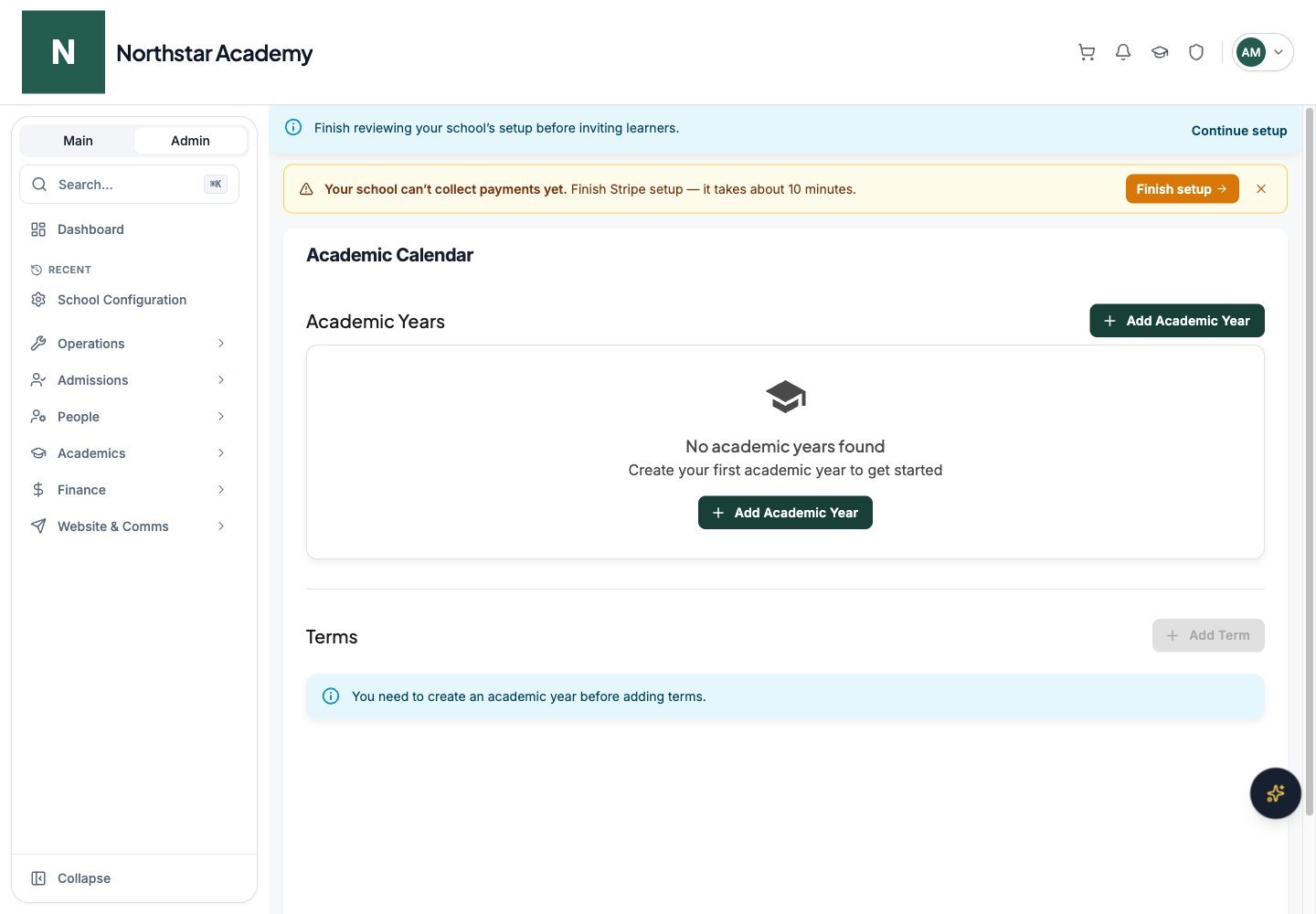
Northstar demo — Calendar Management
Create an academic year
1
Add the year
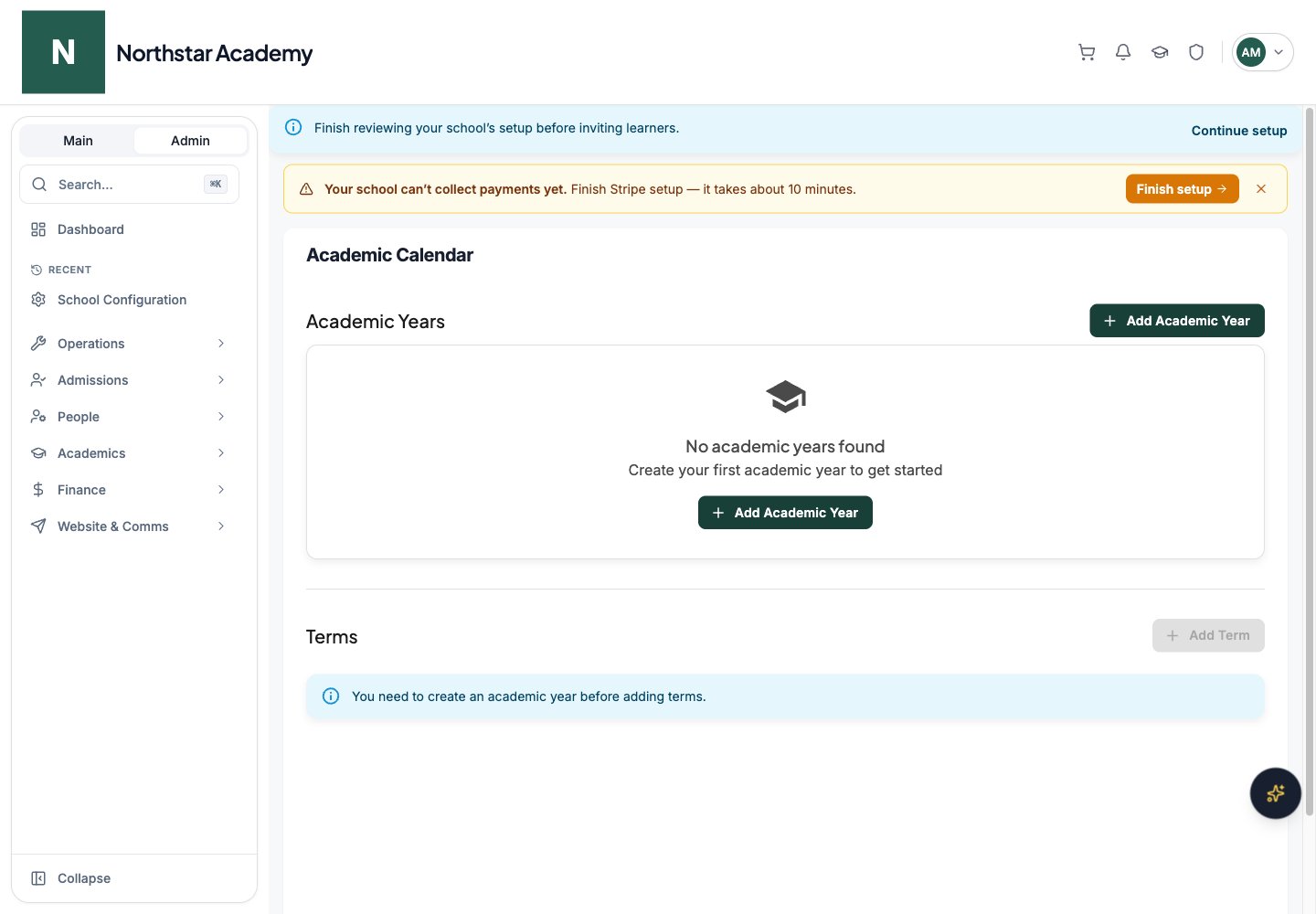
In Academic Years, click Add Academic Year. Enter the Academic Year Name, Start Date, and End Date.
2
Create
Click Create. The year appears as a card with dates and edit/delete actions.
Create a term
1
Add the term
In Terms, click Add Term. Enter the Term Name, select the parent Academic Year, and set the Start Date and End Date. Add Term stays disabled until at least one academic year exists.
2
Create
Click Create. The term becomes available when creating or editing courses.
Add calendar events
Open Operations → Scheduling and select the Events tab. Use Filter by Calendar and Event Type to narrow the list.1
Create an event
Click Add Event. In the Create Event dialog, enter the Event Title, an optional Description, and the Event Type (for example Class, Exam, Meeting, Holiday, or Announcement). Optionally pick a calendar in Calendar (Optional).
2
Set the schedule
Enter the start and end dates and times, or turn on All Day Event. Set the Location and an optional Color.
3
Choose visibility and save
Turn on Public Event (visible to everyone) when appropriate, then click Create. Review the calendar and visibility settings before sharing the event.
Next steps
Create courses
Connect courses with your terms and schedules.
Manage attendance
Choose daily or course-session attendance.
Calendar viewer
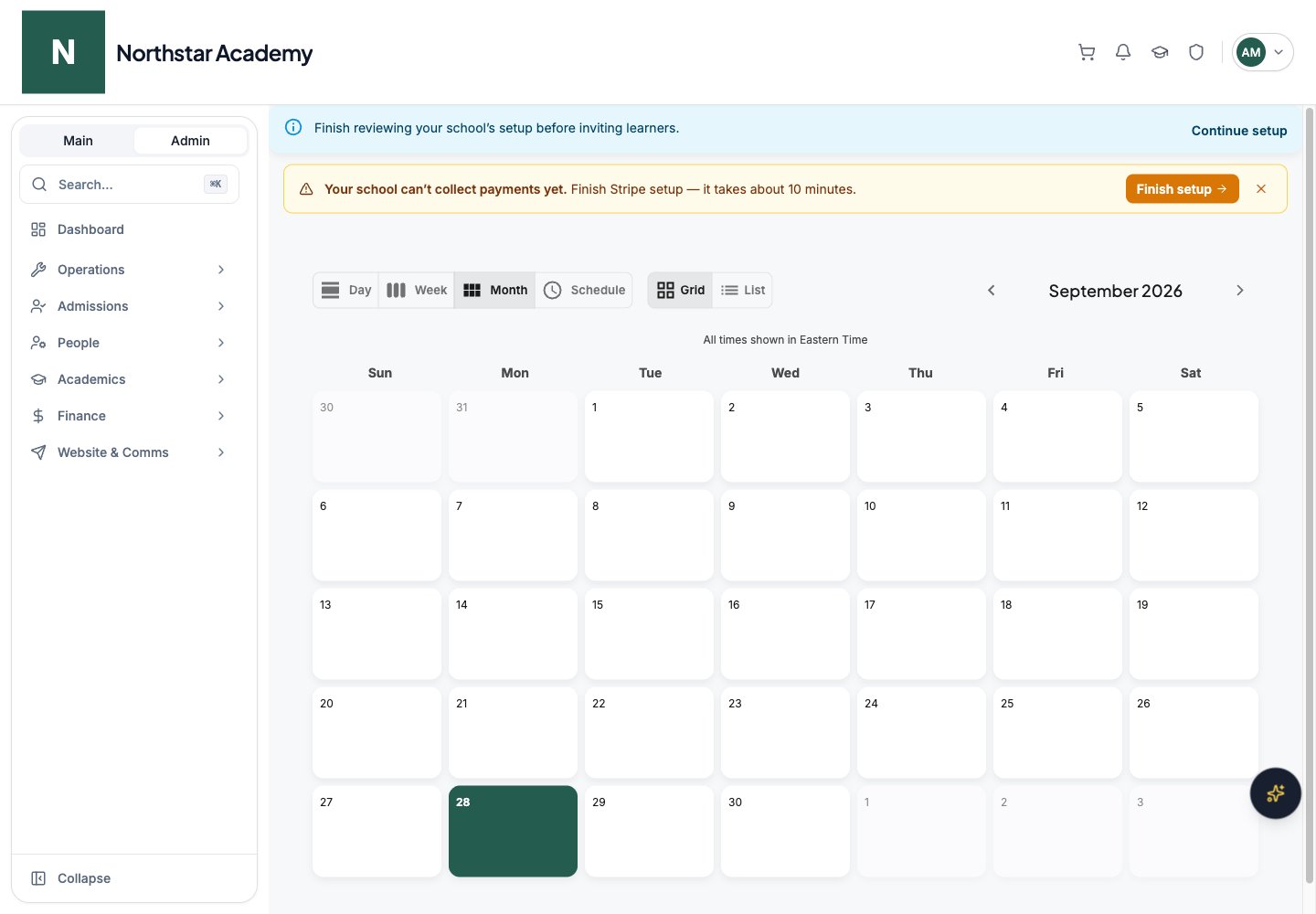
The administrator calendar viewer at/admin/my-calendar displays Day, Week, Month, and Schedule views, with Grid and List display controls where available. Move through dates and check the displayed timezone when reviewing events. Use Calendar Management to edit academic years and terms, and the Events tab in Scheduling to manage event records.
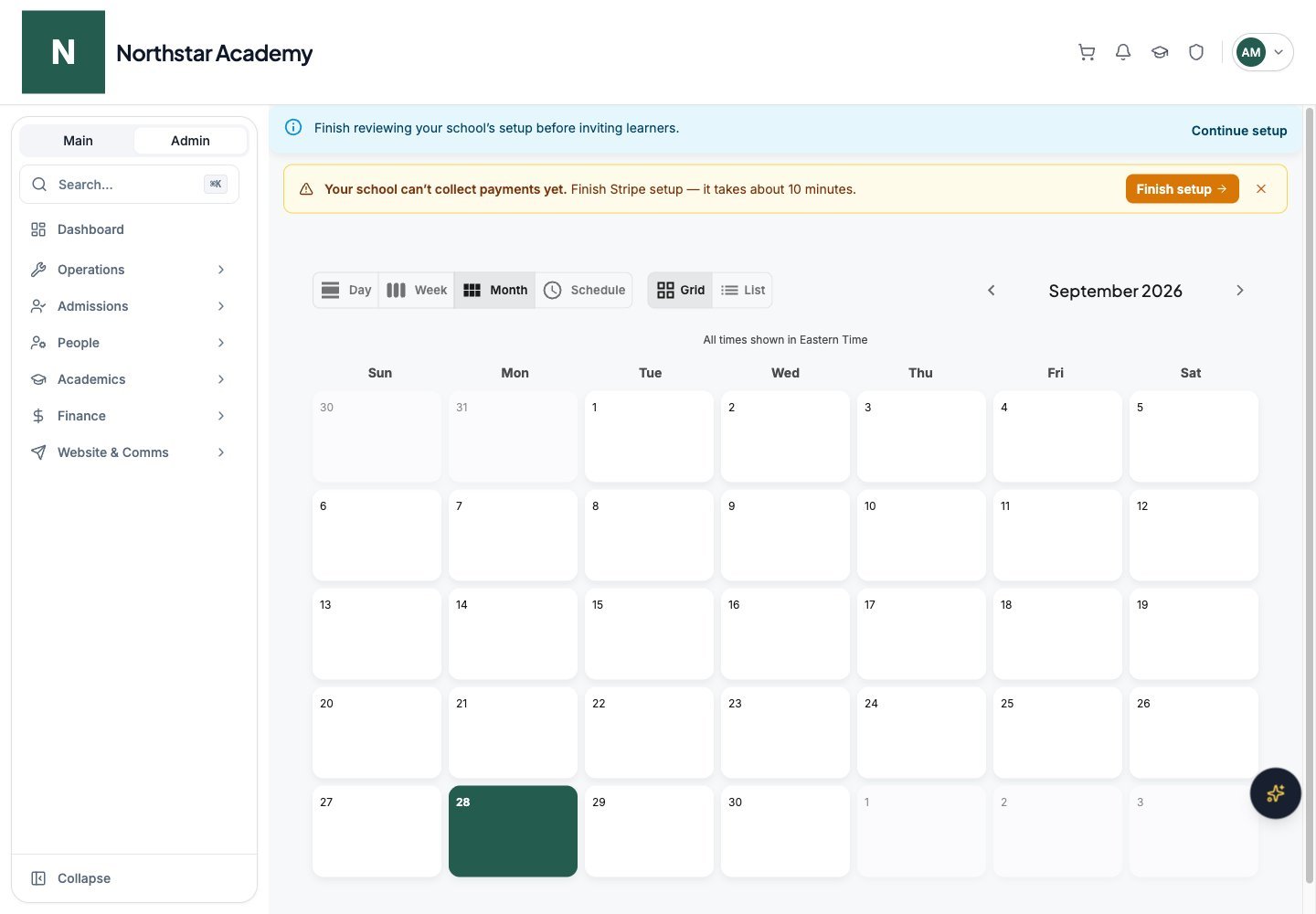
Northstar demo — Calendar viewer