

School-level feature — managed within your school portal at
yourschool.deandesk.com.Video walkthrough
This walkthrough uses the real DeanDesk interface with the fictional Northstar Academy demo school and a calm, AI-generated English voice. Payments and outside services are not connected in the demo.
Open a gradebook
- Teachers
- Admins
Open a course and choose Gradebook, or open Teacher Gradebook and select one of your courses.
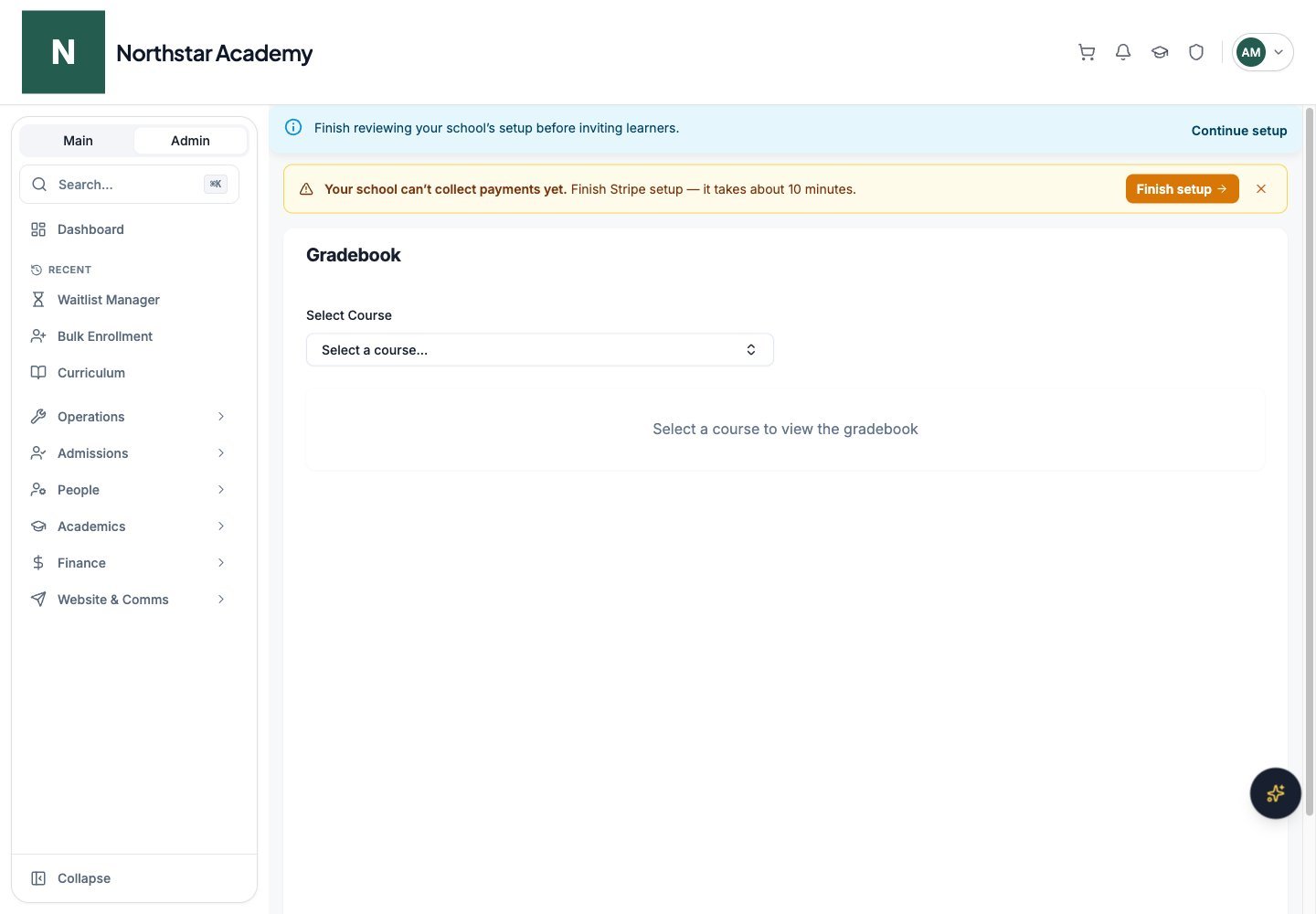
Northstar demo — Gradebook
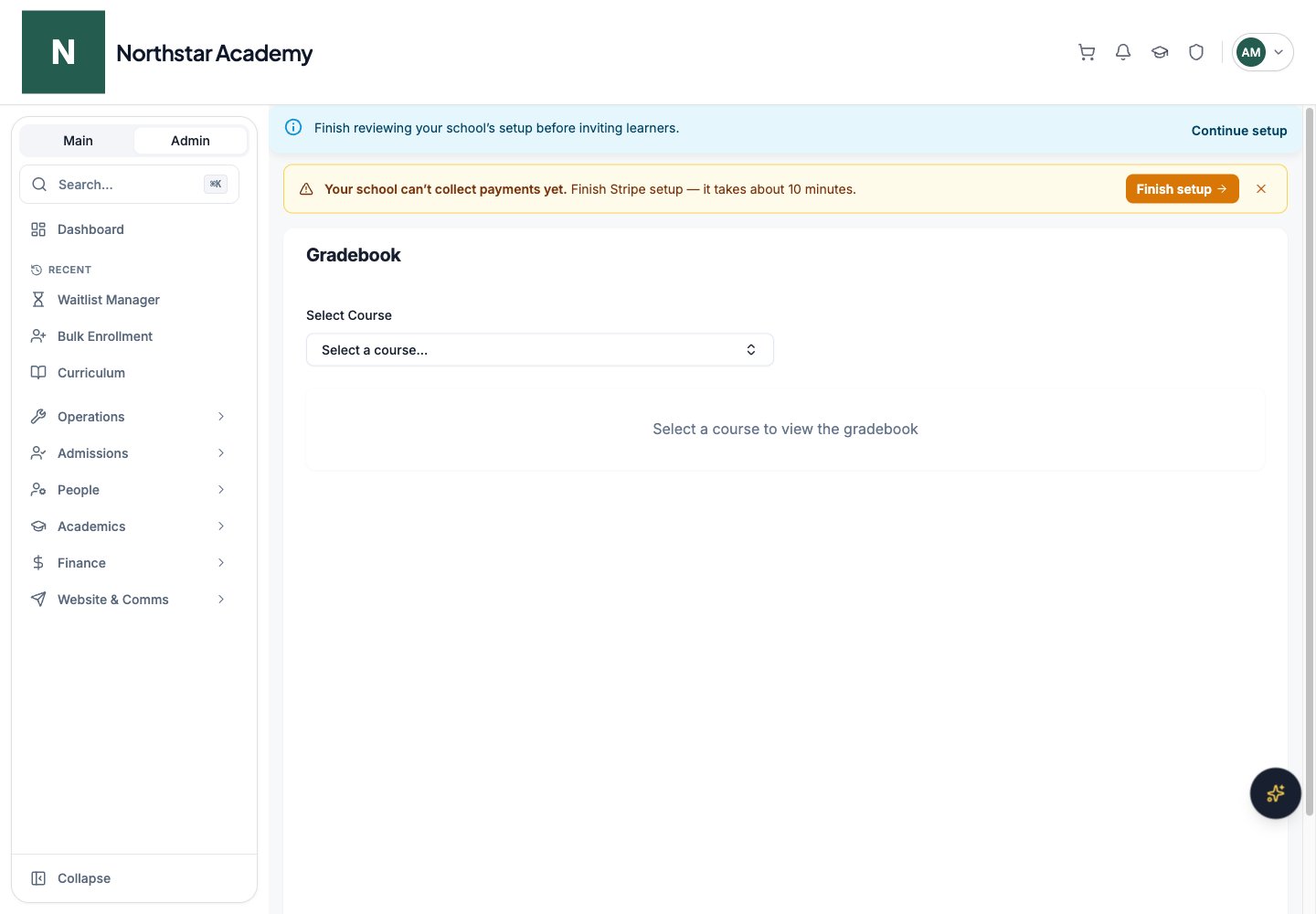
Configure grading
1
Choose a grading type
Open Settings. Choose Points-Based or Weighted Categories grading. In points-based mode, configure Total Course Points. In weighted mode, categories contribute a percentage of the course grade.
2
Save the configuration
Click Save Settings before continuing. Changing the display between points and percentages on the Grades tab does not change this calculation method.
3
Organize categories and items
Add categories with a name and optional description. Points categories have a point value; weighted categories have a percentage weight. Weighted category weights should total 100%.In weighted mode, expand categories to manage their assignments and grade items. Use drag and drop or the category selectors to move items. Add grade items for assessments that do not need an online assignment, such as participation. Grade items must belong to a category.
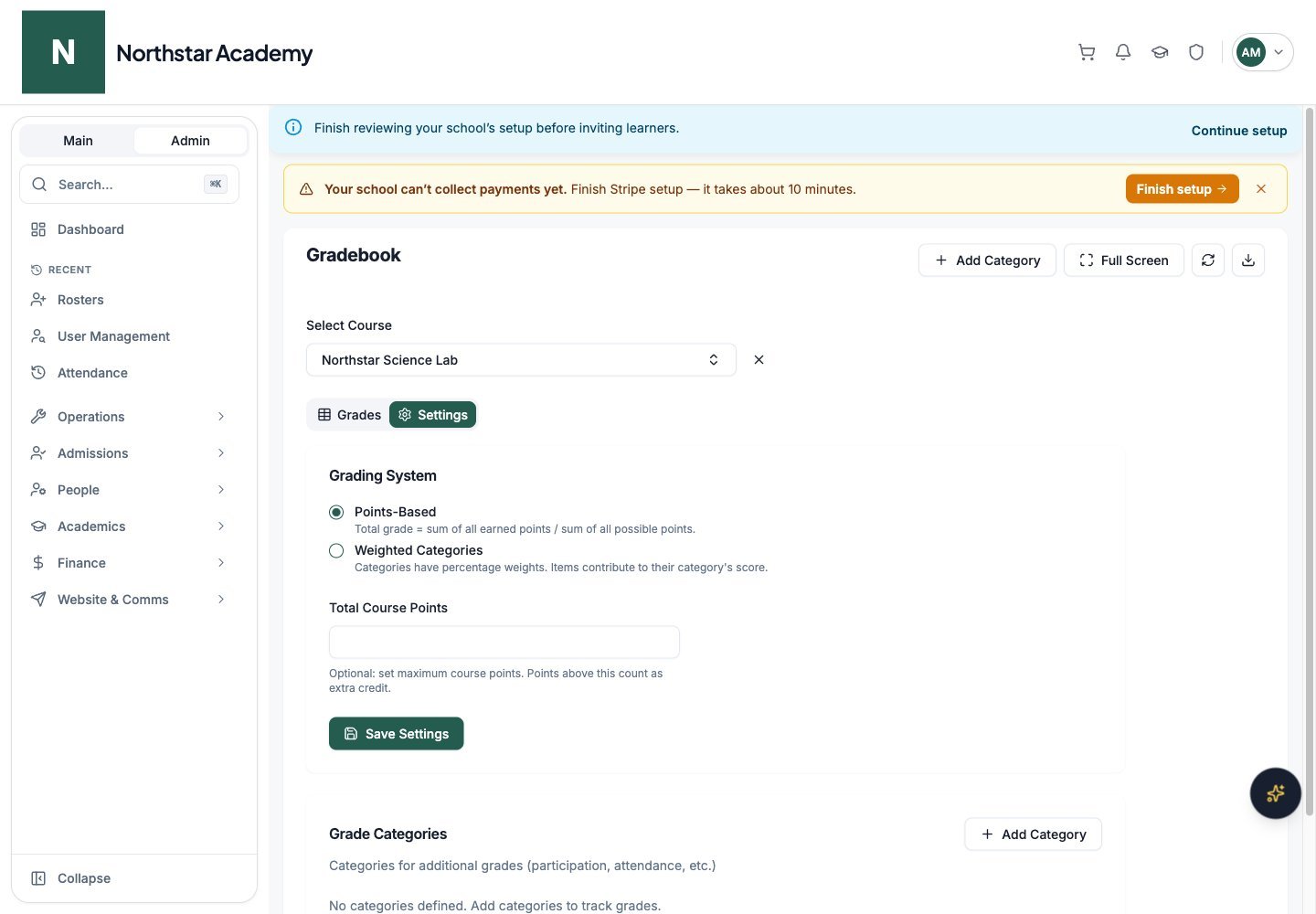
Northstar demo — Course gradebook — Settings
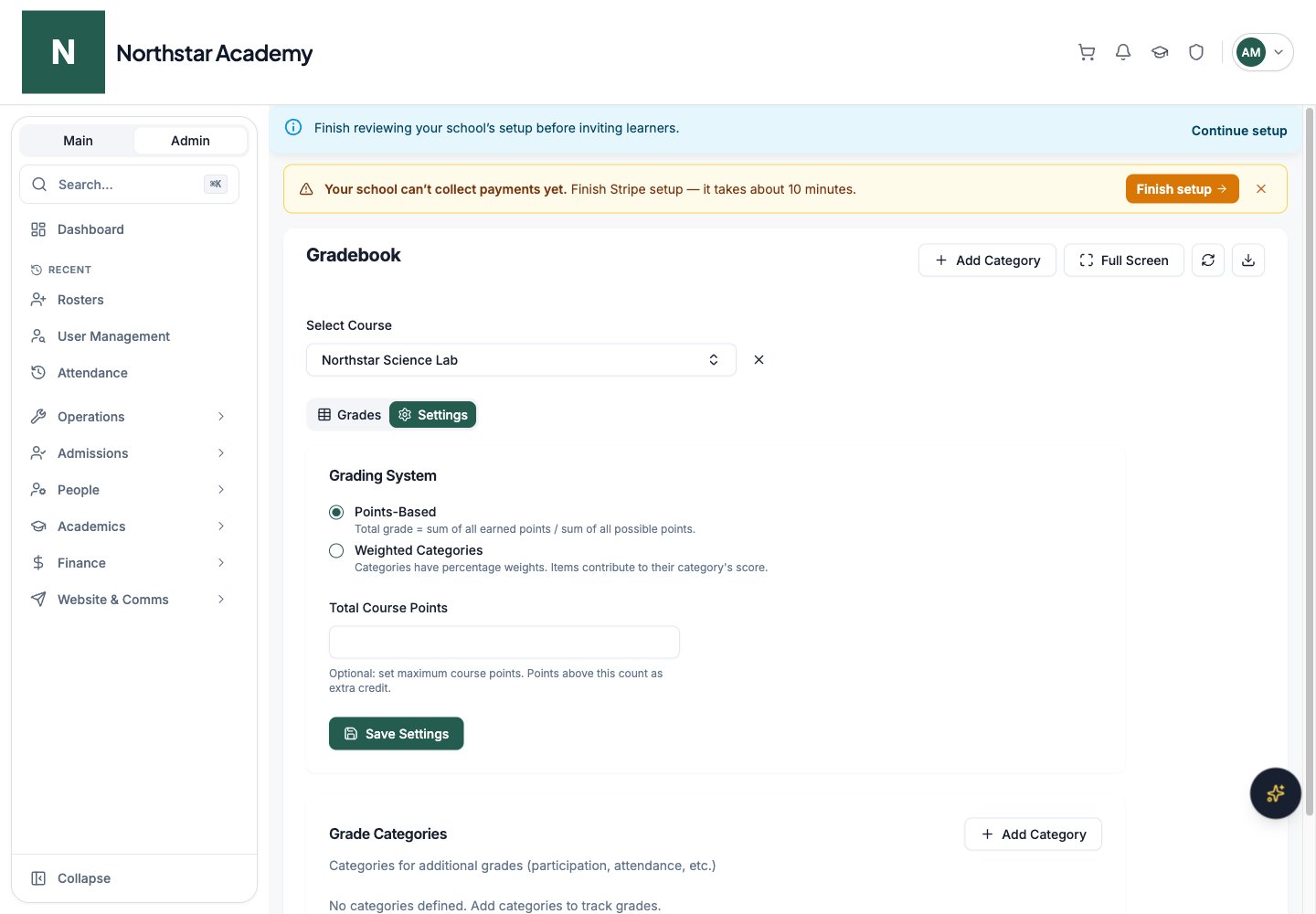
Enter and save grades
1
Choose the input units
On Grades, select Percentage or Points. This setting controls both the cell display and the number you enter. For a 20-point assignment, entering 80 in Percentage mode represents 16 points; entering 16 in Points mode represents the same score.
2
Edit a student's score
Click a cell, enter a non-negative number, then press Enter or click away to stage the change. Press Escape to cancel the cell edit. A dash means no score has been entered; entering zero records a zero.
3
Save your changes
When you have unsaved changes, a Save button appears in the header with the number of pending changes, for example Save (3). Click it and wait for confirmation before refreshing or changing courses.
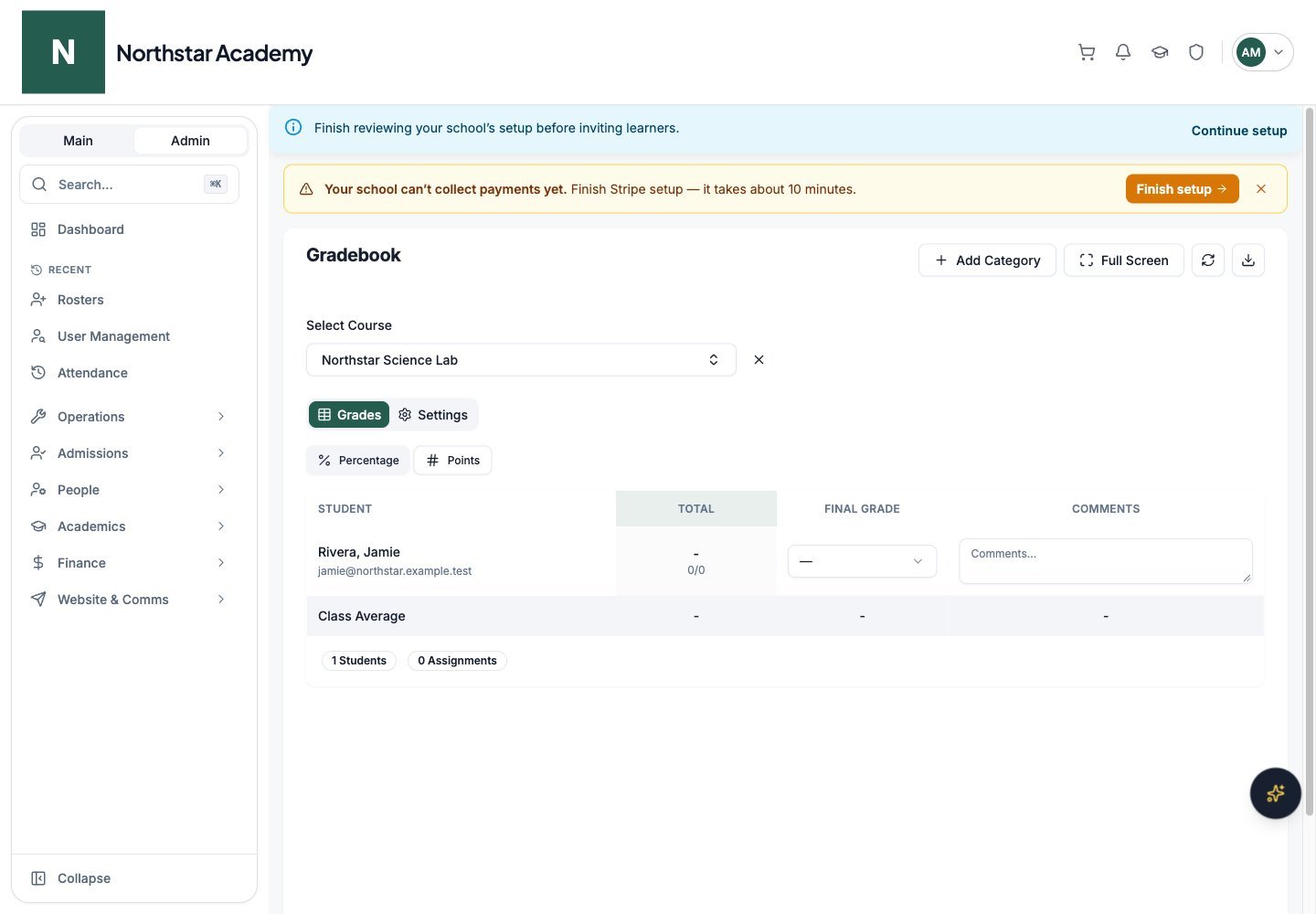
Northstar demo — Course gradebook — Grades
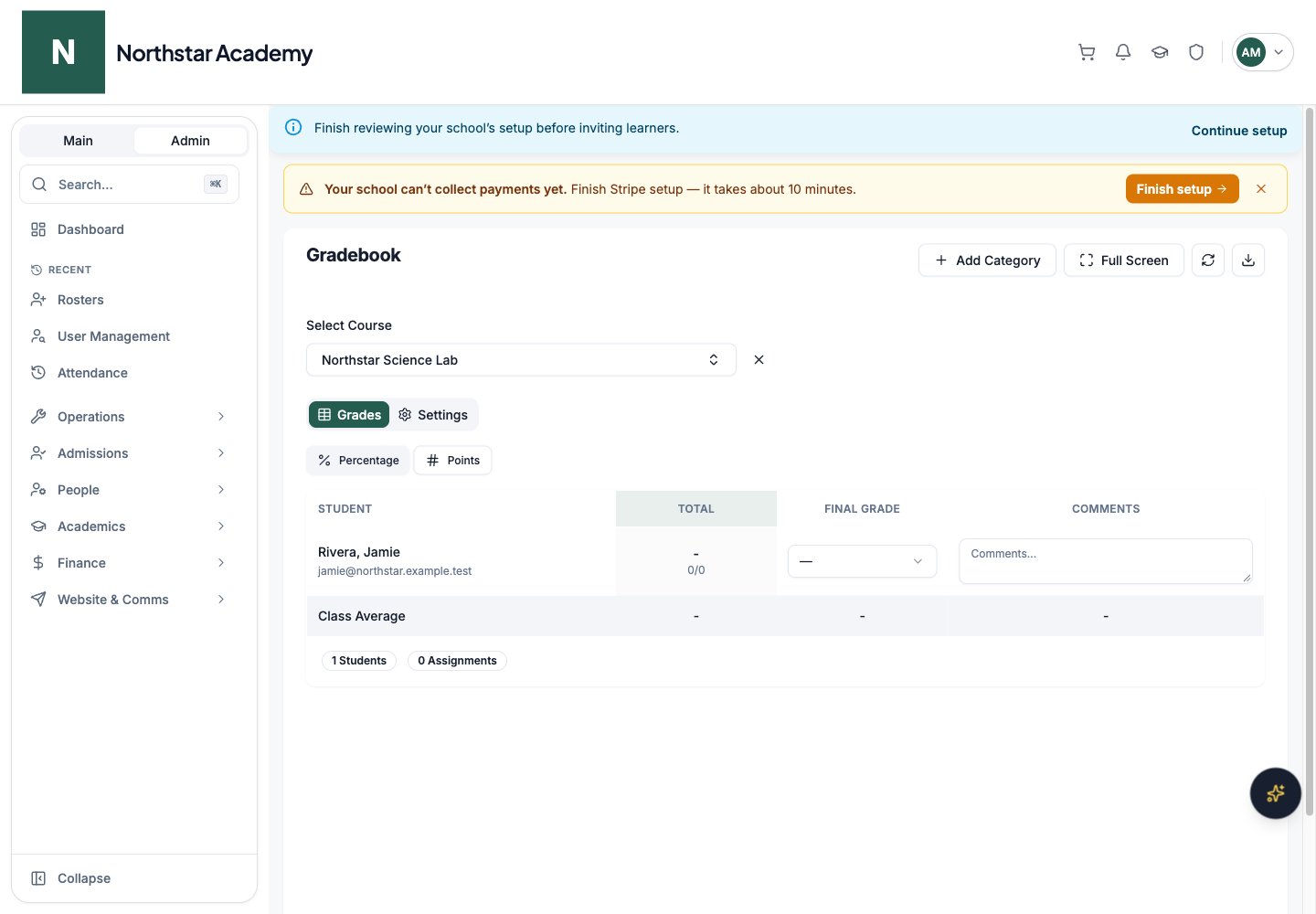
Totals and final grades
The Total column shows the calculated result, its points or weighted context, and the corresponding letter grade. Extra credit can produce a total above 100%. Use Final Grade to select a letter from the school scale and Comments to add a course-level comment. These are separate from the calculated total and are included in the same explicit Save operation. Existing final grades from an older scale remain visible.School grading standards
Admins open Grading Standards from the Admin Dashboard to define the scale used across gradebooks, transcripts, and reports.- Set the highest possible GPA scale.
- Add numeric grade bands with a letter, minimum percentage, and GPA points.
- Add non-numeric grades such as Pass, Incomplete, or Withdrawn; these do not contribute to GPA.
- Optionally apply a U.S., Canadian, or UK preset, review its bands, then click Save standards.