School-level feature — managed within your school portal at
yourschool.deandesk.com.Video walkthrough
This walkthrough uses the real DeanDesk interface with the fictional Northstar Academy demo school and a calm, AI-generated English voice. Payments and outside services are not connected in the demo.
Enrollment tab
1
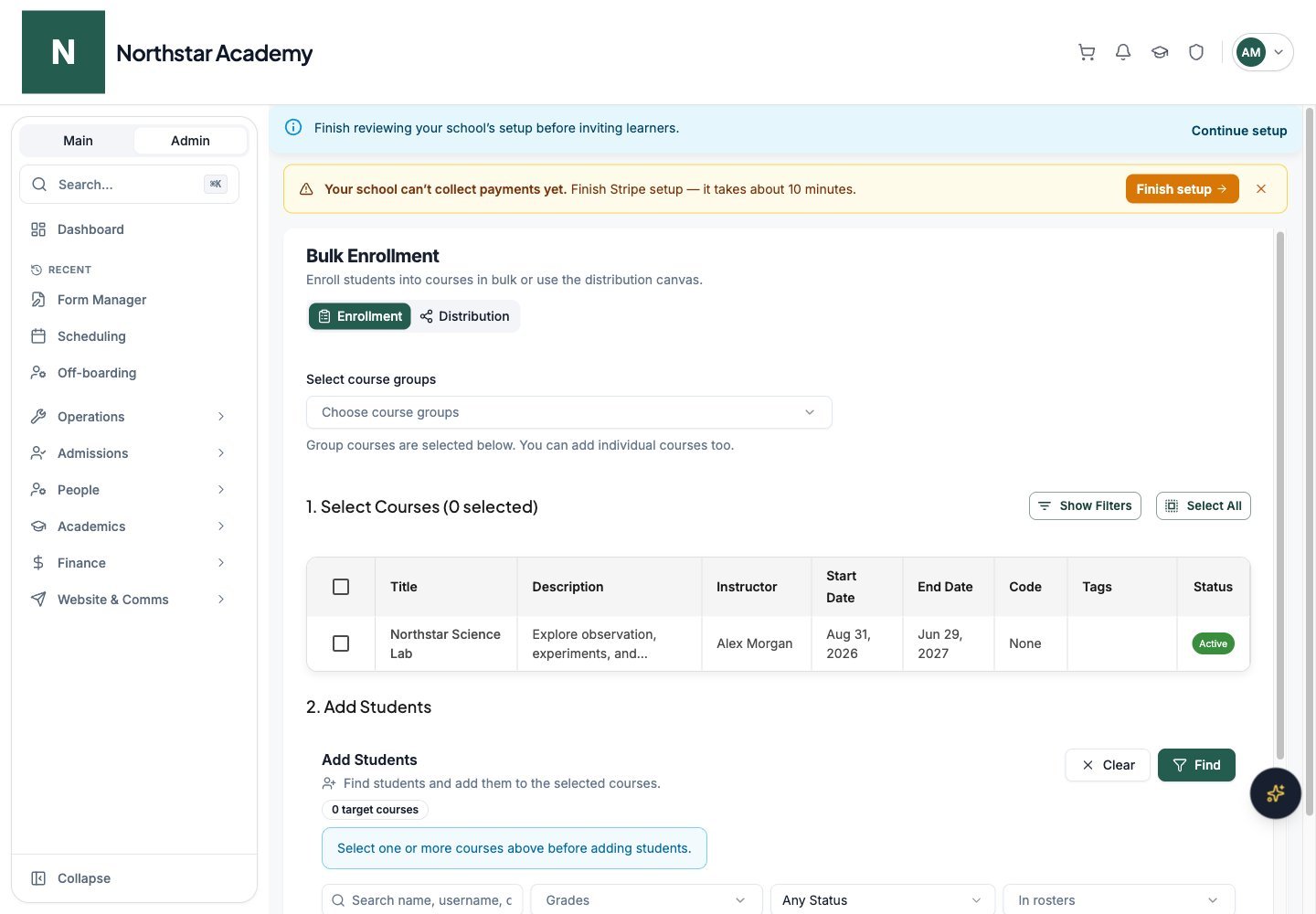
Choose course groups (optional)
Under Select course groups, pick one or more active groups from Choose course groups. Every course in a selected group is selected in the course table below. Courses included through a group stay selected until you remove that group. You can add individual courses too.
2
Select courses
Under 1. Select Courses, check the courses you want. The heading shows how many are selected. Click Show Filters to filter by Course Title, Instructor, Tag, and Status, and to sort by title, instructor, start date, or end date. Select All selects every course that matches the current filters.
3
Find students
Under 2. Add Students, the panel shows how many target courses are selected. Search by name, username, or email, and narrow the list with filters such as grade, status, rosters, current course enrollments, tuition product, and metadata clauses. Click Find to load matching students. Clear resets the filters.
4
Add students
Check the students you want and click Add Selected, or click Add All Results to add everyone in the results. If a selected course group contains courses with sections, the Assign course sections dialog opens. Choose at least one section per student for each sectioned course, or use Assign all students to apply the same sections to everyone, then click Enroll students.
5
Review the results
An Enrollment Results message shows how many enrollments succeeded and how many failed, with the reason for each failure. Students who were enrolled are removed from the results list. Resolve any failed entries, then check a selected learner under User Management → User Details → Roles & Enrollments → Courses.
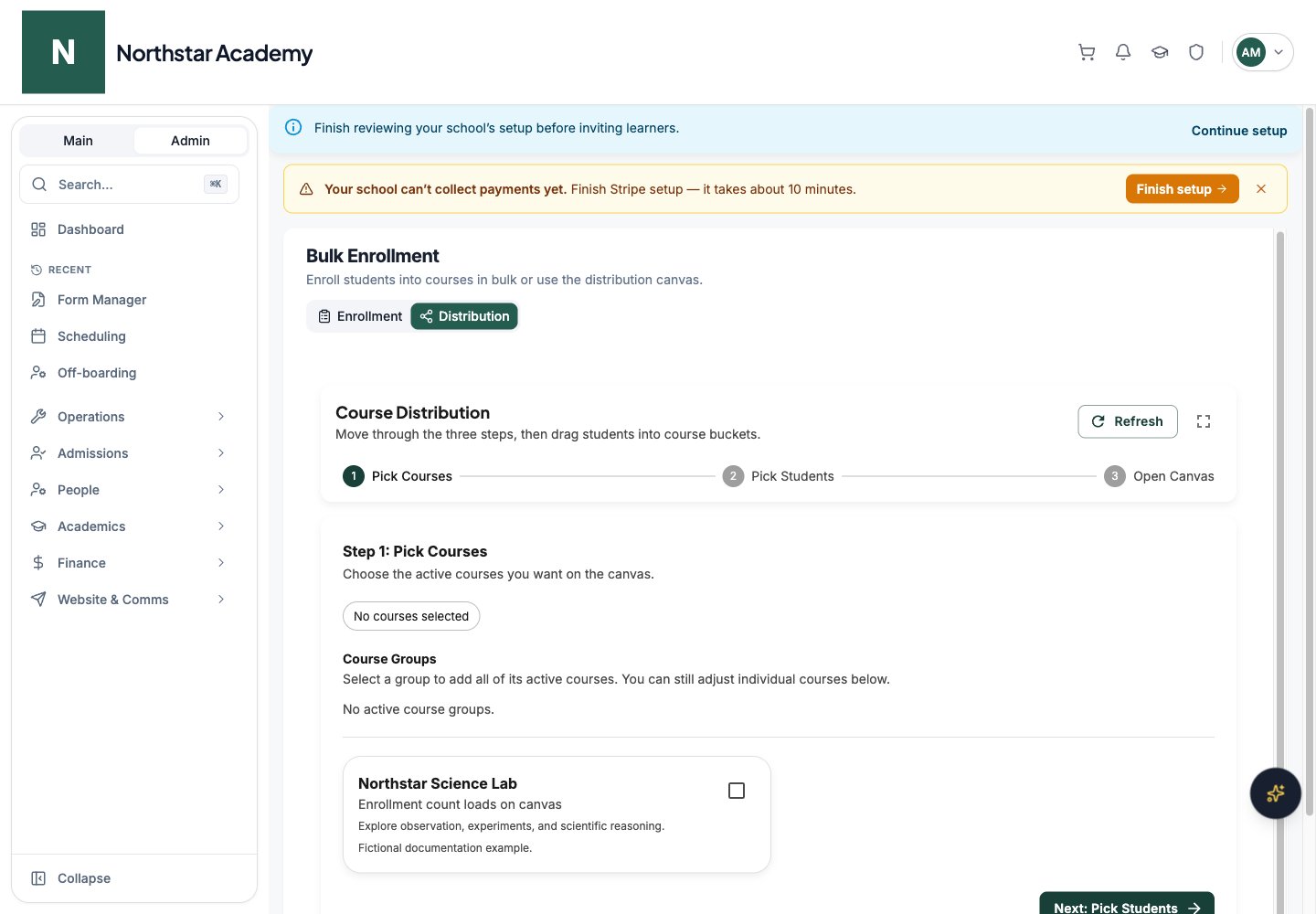
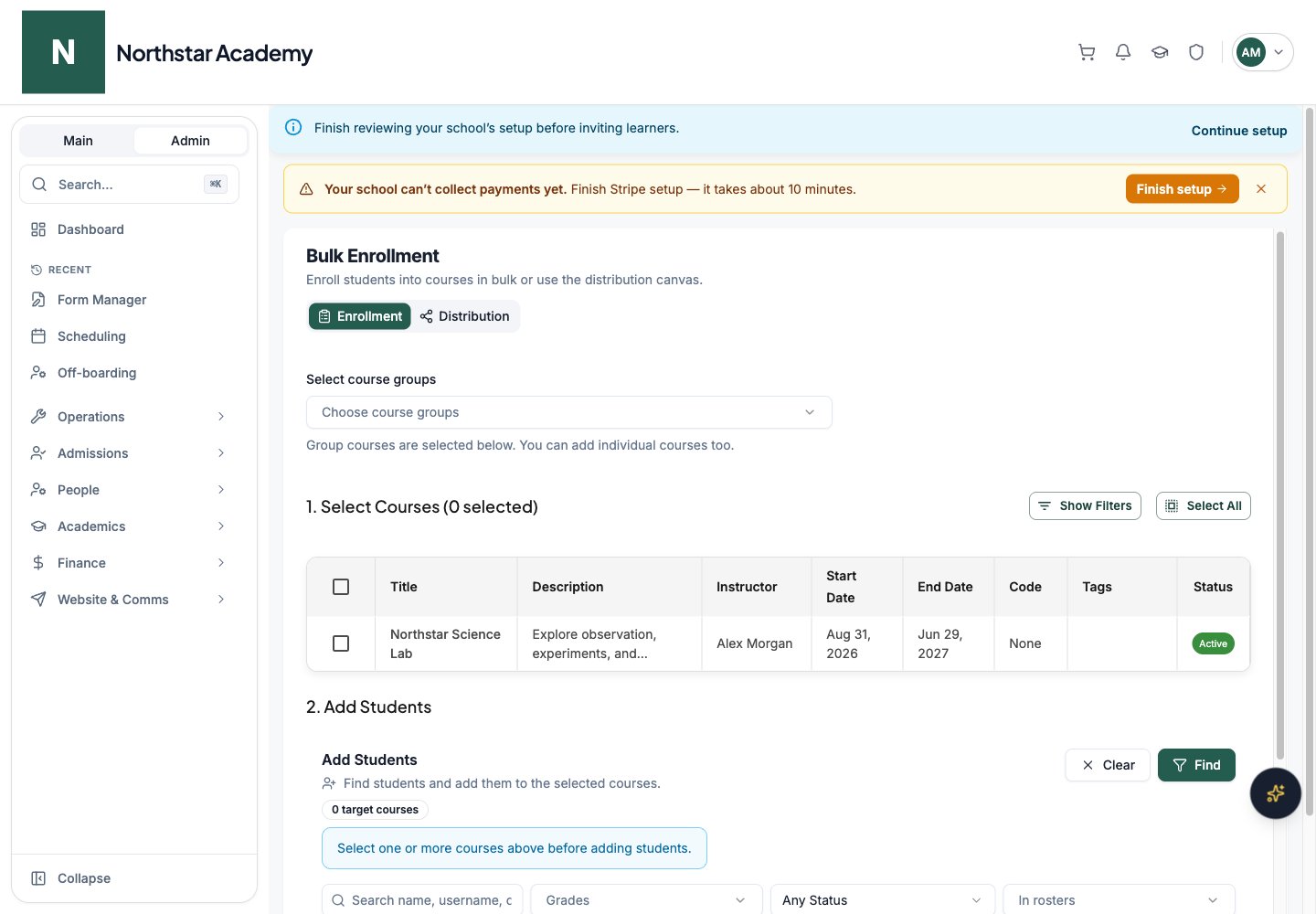
Northstar demo — Bulk Enrollment — Enrollment
Distribution tab
Use Distribution to organize a pool of learners across several courses visually. The Course Distribution view walks through three steps:1
Pick courses
Select the destination courses, or click an active course group to add its courses. Click Next: Pick Students.
2
Pick students
Search and filter students by active status, current rosters, or active courses, then select them. Select all visible selects everyone shown. Click Open Canvas.
3
Place students on the canvas
Drag students from Students To Place into course buckets. Drag a student from one bucket to another to move them, or back to Students To Place to remove them from that course. Use the search field, zoom controls, Reset View, and the expand button to work with larger groups.
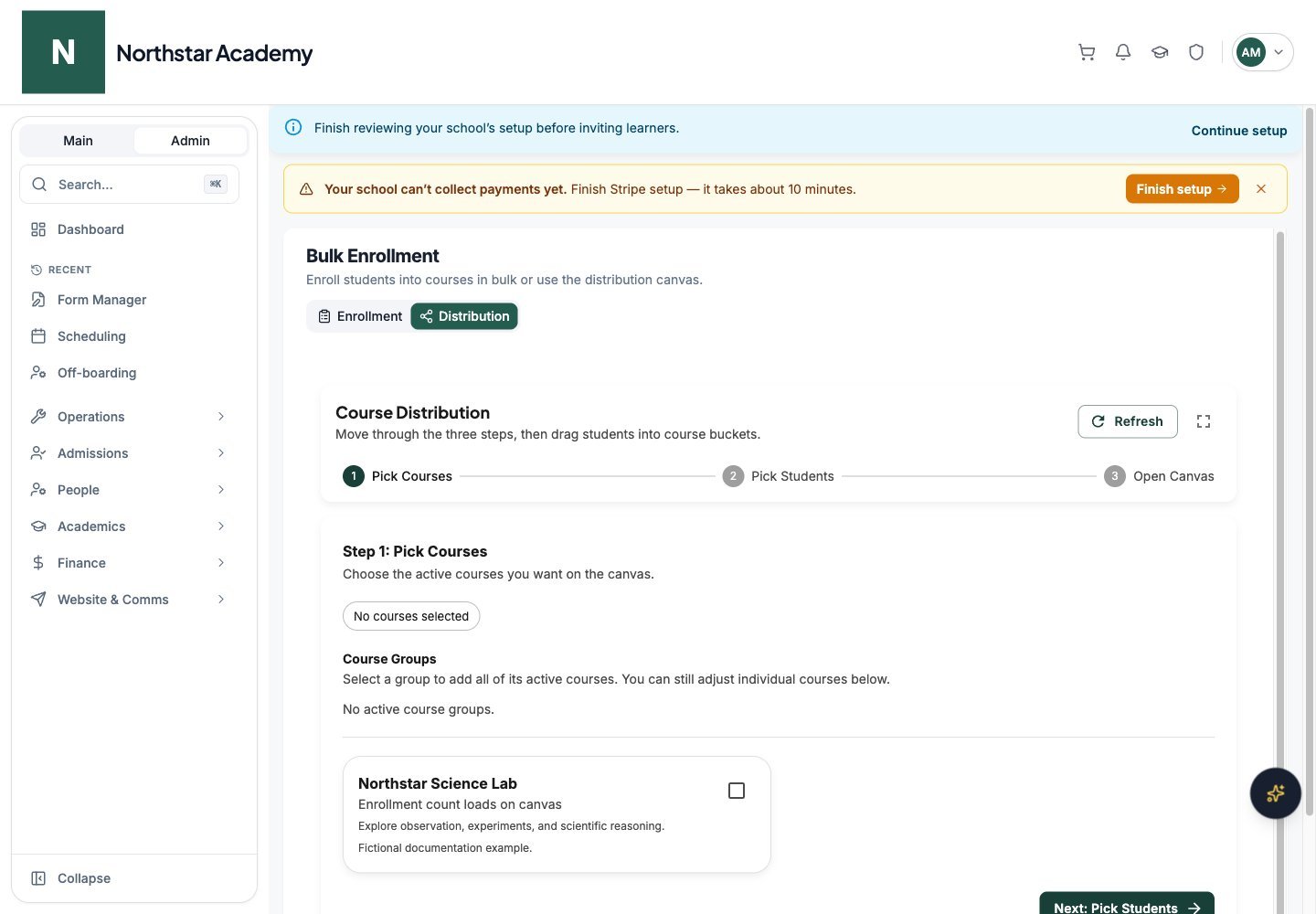
Northstar demo — Bulk Enrollment — Distribution