School-level feature — managed within your school portal at
yourschool.deandesk.com.Video walkthrough
This walkthrough uses the real DeanDesk interface with the fictional Northstar Academy demo school and a calm, AI-generated English voice. Payments and outside services are not connected in the demo.
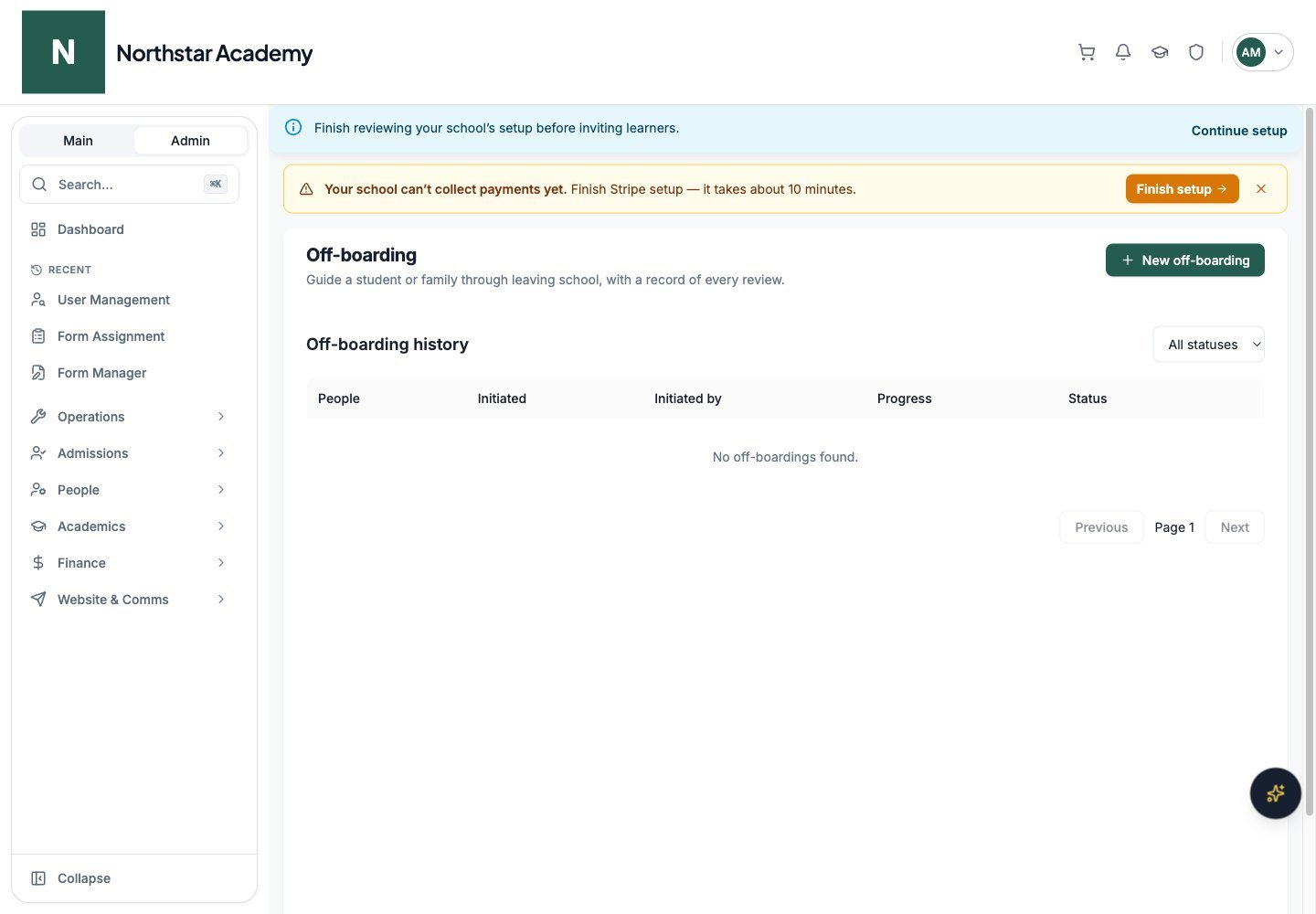
Northstar demo — Off-boarding
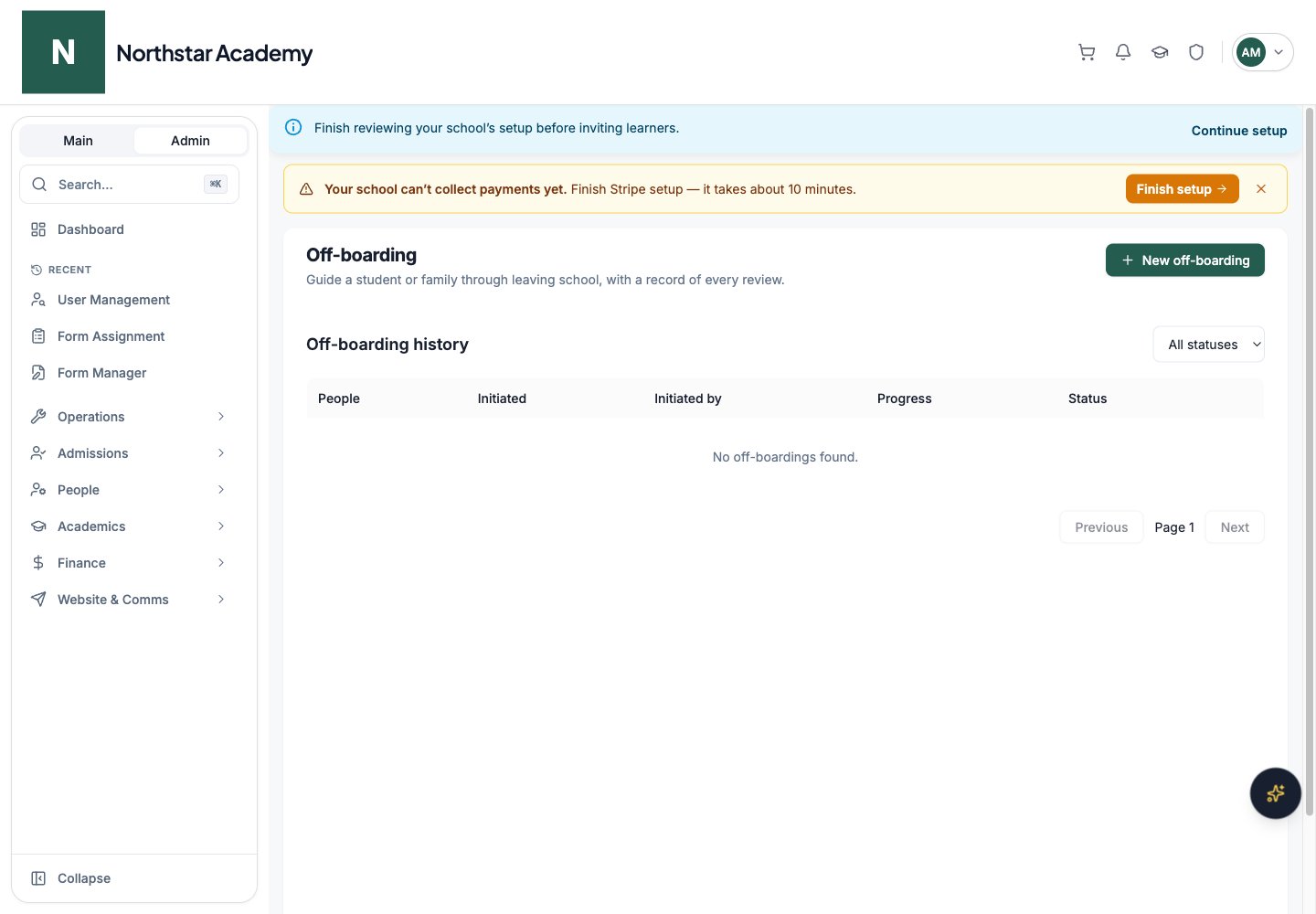
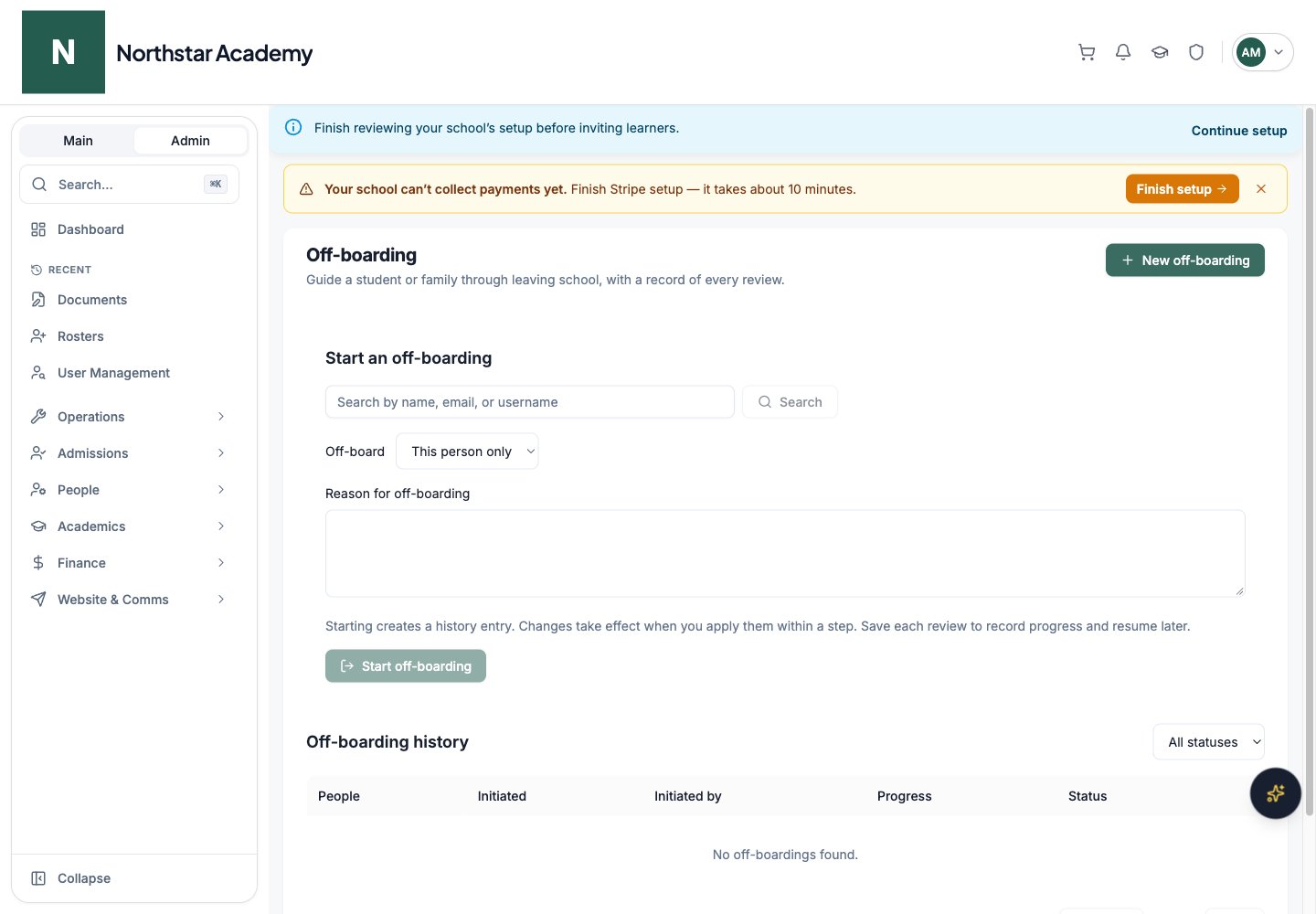
Start a departure review
1
Find the person
Click New off-boarding, search by name, email, or username, and select the correct account.
2
Choose the scope
Select This person only or Entire family. Review every person included in the preview before continuing.
3
Record the reason
Enter a reason, then click Start off-boarding. This creates a history entry you can resume later.
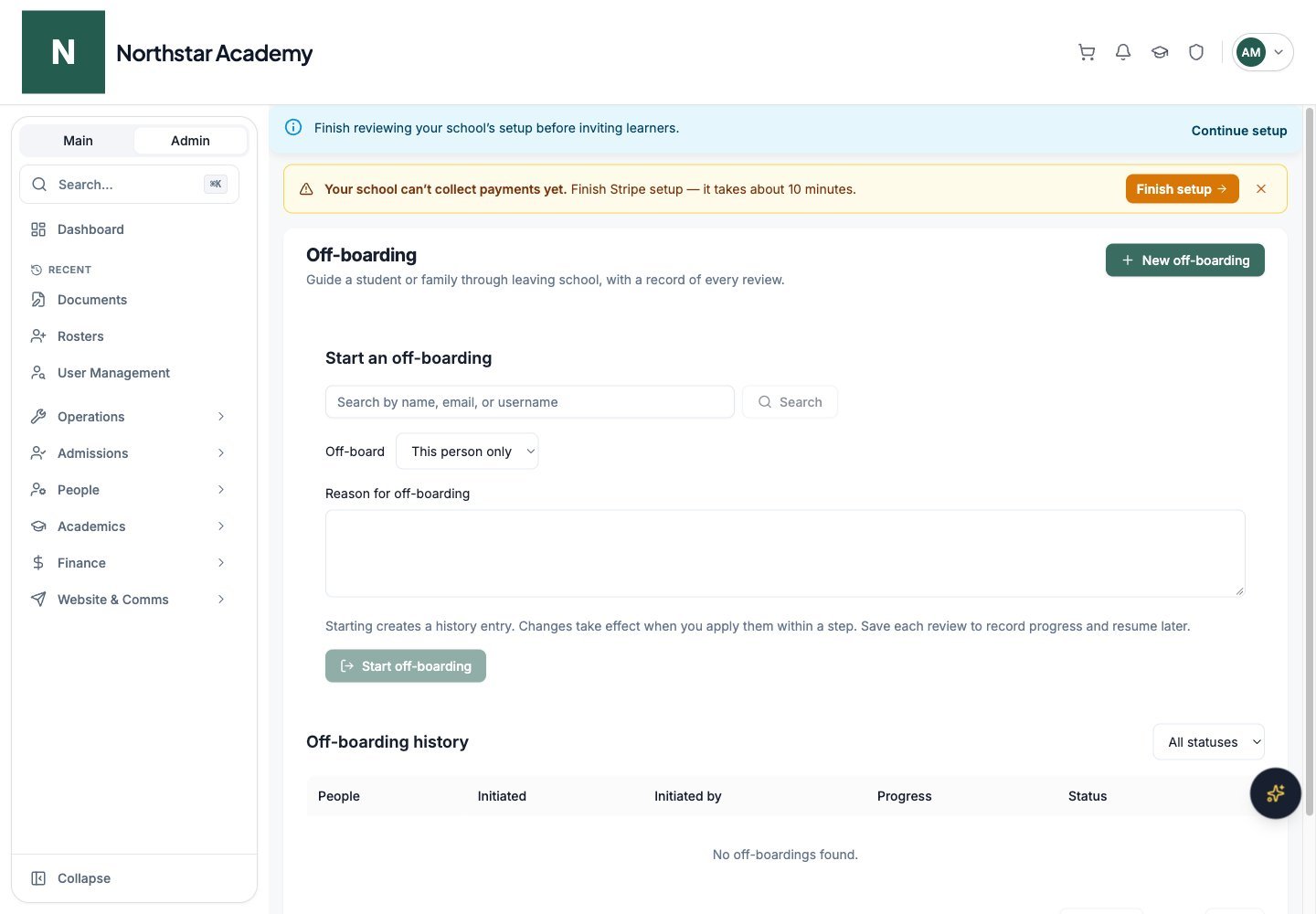
Northstar demo — Off-boarding — New off-boarding
Review all six steps
For a family, review each member in the current step before moving to the next step. Add review notes and save each review. Saved reviews remain in the history; the workspace resumes at the next unfinished review.
An unavailable billing service is not evidence that there is no balance. Resolve load errors before marking a review complete. If the school has no connected Stripe account, record any external billing arrangements in the notes.
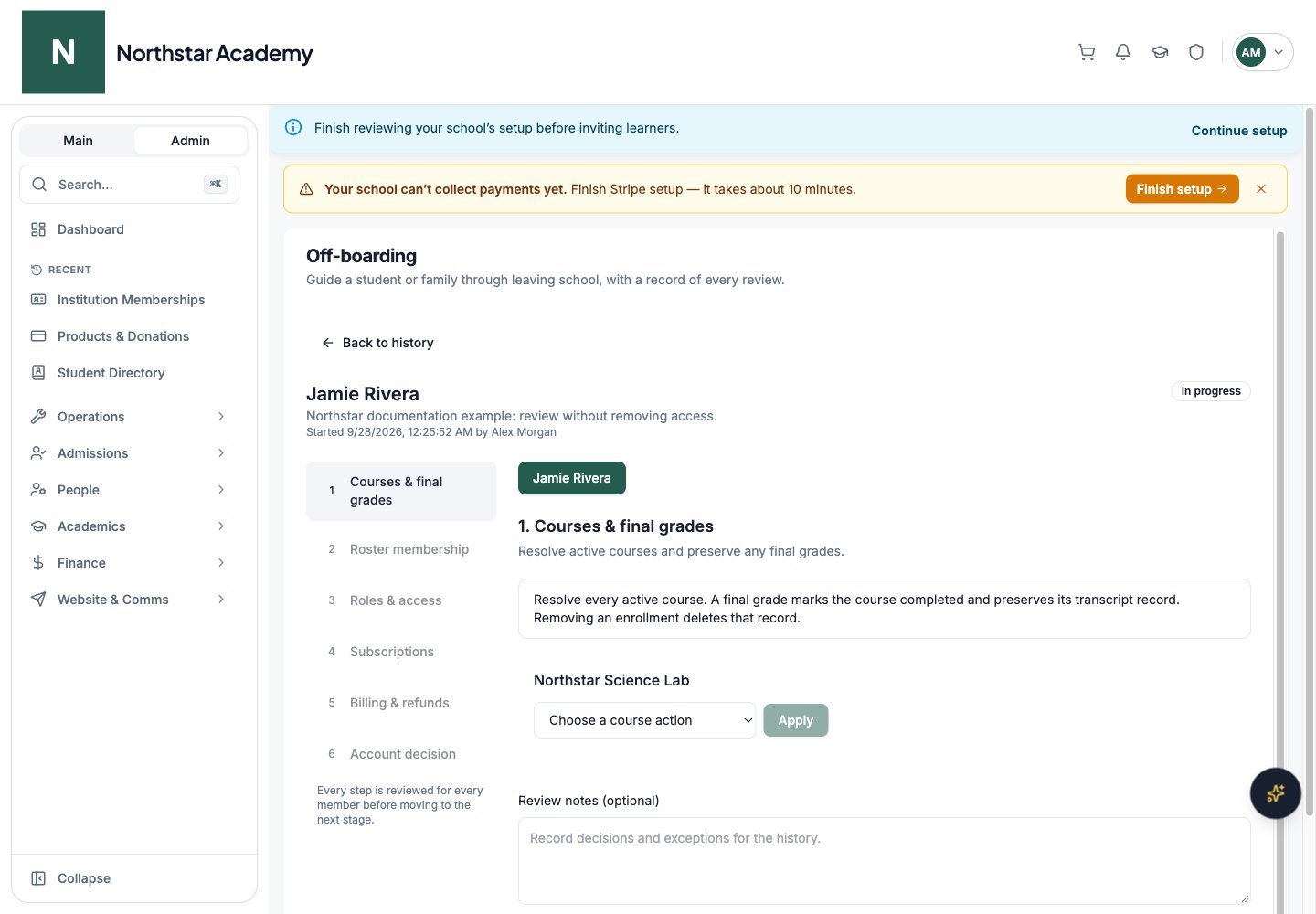
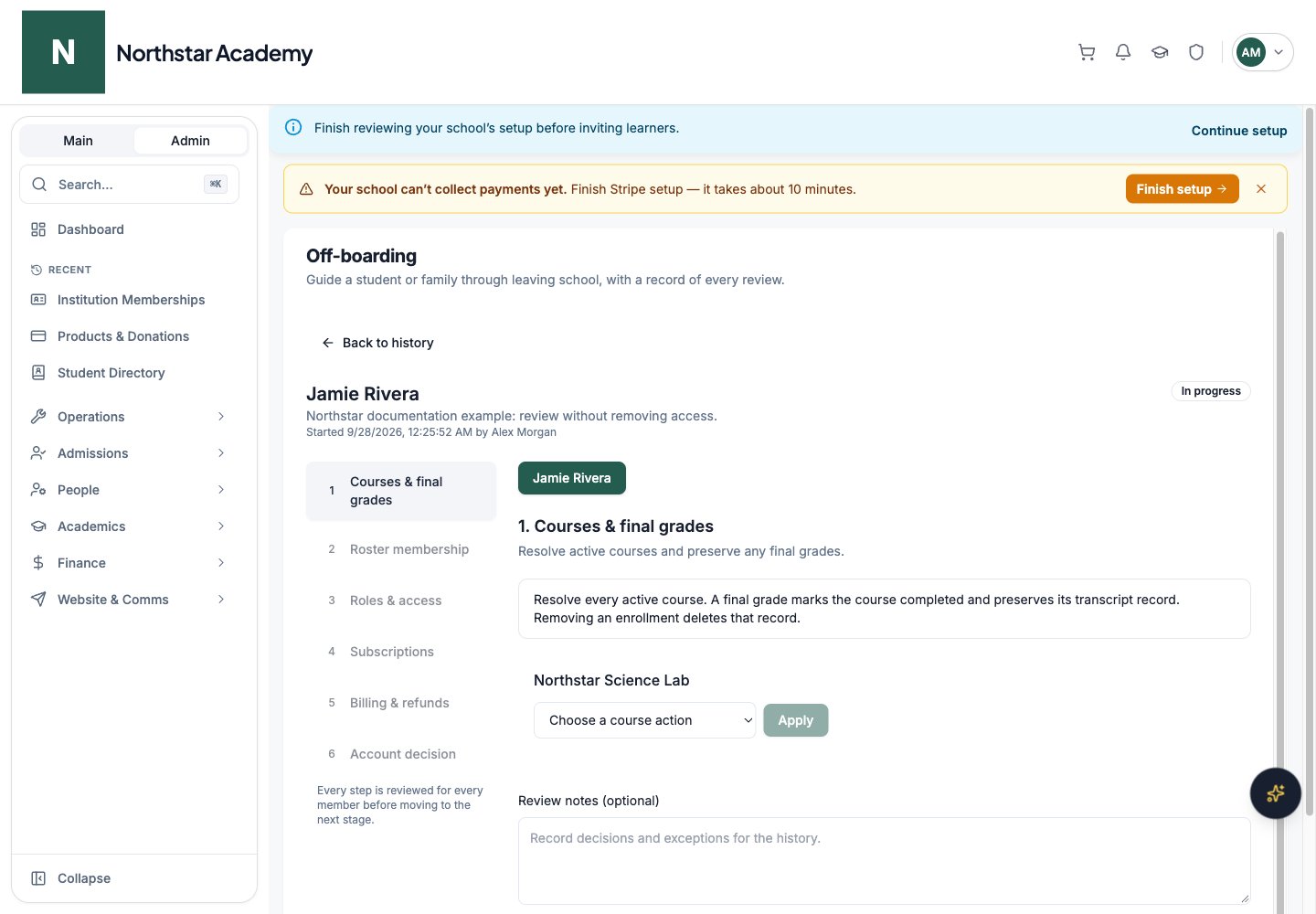
Northstar demo — Off-boarding review — Courses & final grades