

Institution-level feature — open Settings → Billing & Payments at
deandesk.com/dashboard. This is the subscription your institution pays DeanDesk. For payments you collect from families and members, see Institution finance.Video walkthrough
This walkthrough uses the real DeanDesk interface with the fictional Northstar Academy demo school and a calm, AI-generated English voice. Payments and outside services are not connected in the demo.
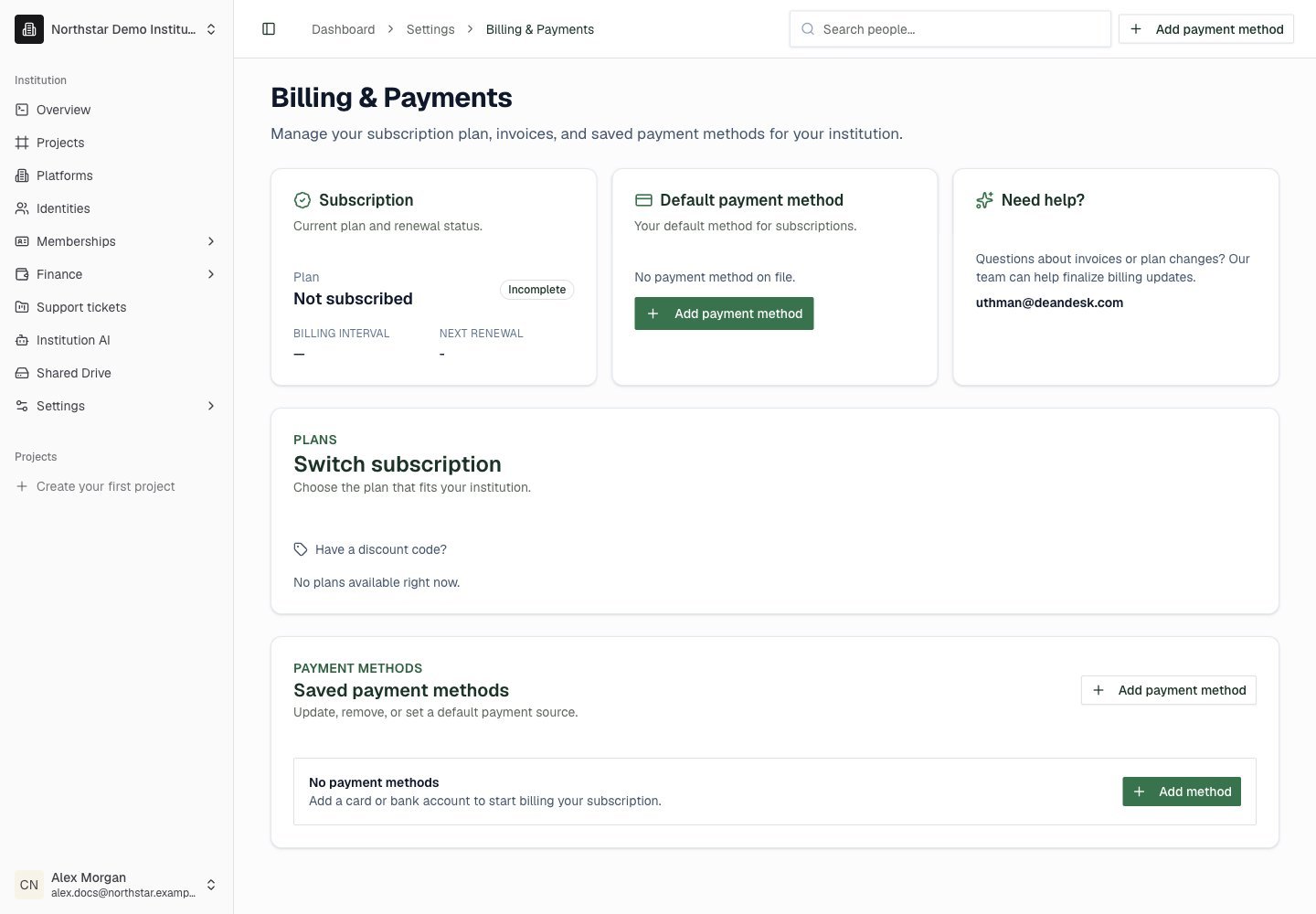
Northstar demo — Billing & Payments
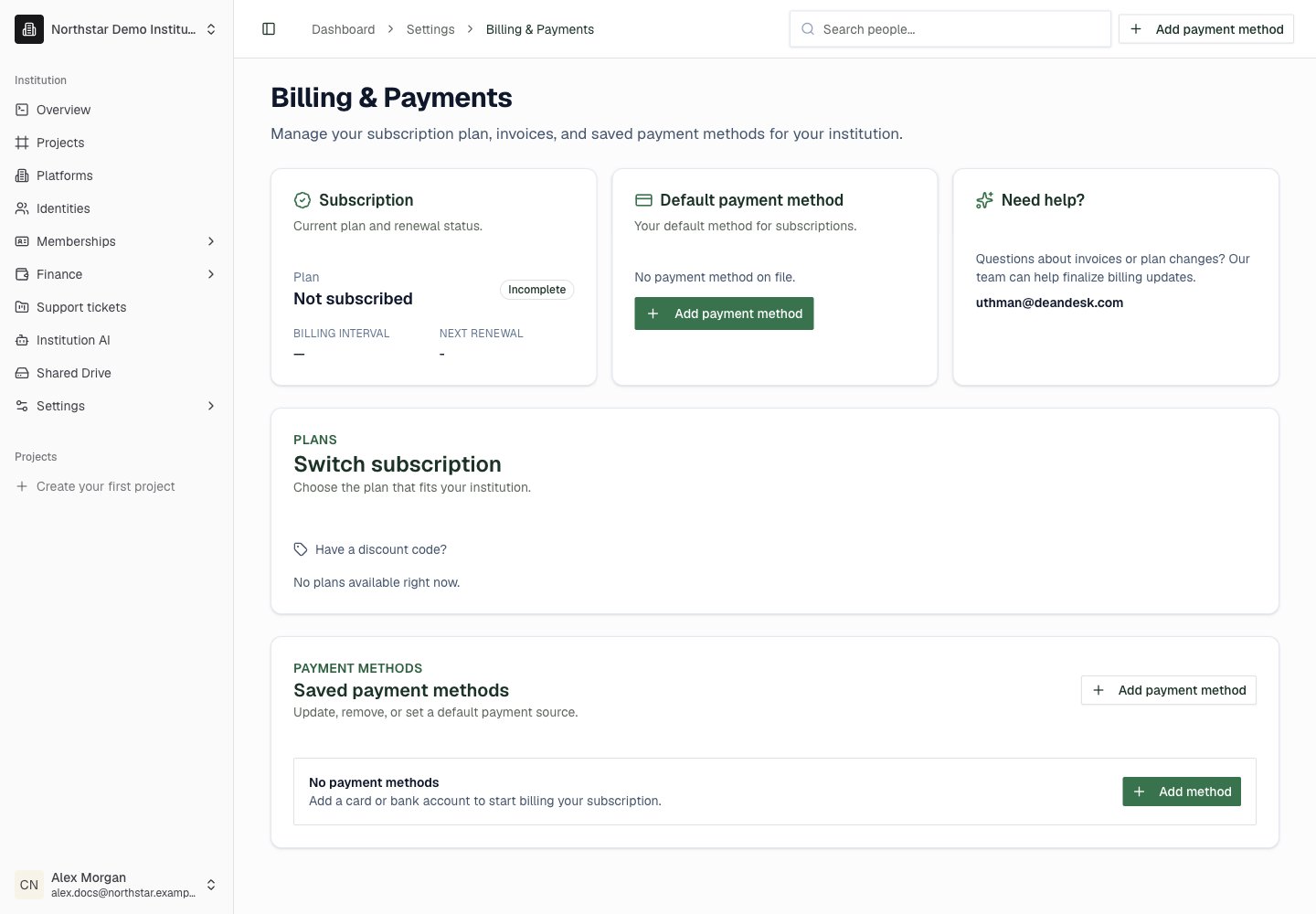
Choose or switch plans
In Switch subscription, compare the available plans and billing intervals. If you have a discount code, enter it in the discount field and apply it before proceeding. Review the displayed plan, pricing, and limits before confirming the change. Plan availability affects school features. Use the plan information shown on this page when checking what your institution has purchased.Payment methods
The Default payment method card shows the card or bank account used for your subscription. Use Add payment method, Add another method, or Add method to save a new method through the payment form. In Saved payment methods, click Make default to change the default method, or Remove to delete a method you no longer need. Set another method as the default before removing the current one. These methods pay DeanDesk. They are separate from the connected Stripe account that receives your institution’s sales and donations.Usage and overages
Usage & overages shows plan allowances and current usage, aggregated across all of your platforms:- Platforms — schools under your institution.
- Active students — unique students with a current course enrollment, counted once across all of your platforms. Expand the section to see who is counted.
- Cloud storage — uploaded content across the institution.
- Video & recording — live call and recording time this month.
- DeanDesk service hours this month — DeanDesk support time used against your plan’s monthly allowance.
- Tickets escalated to DeanDesk this month — support tickets you escalated, including resolved ones.
Who counts as an active student
A student counts as active when they hold an active enrollment in a course that is running or upcoming, or when they completed a course within the last three months. The same person is counted once even if they have accounts on several platforms. Deactivated accounts, students with no current enrollment, and DeanDesk staff never count. Click Show the active students counted toward your plan under the usage meters to expand the list. Each row shows the student’s name, the platform they are enrolled on, the course enrollment that qualifies them, and whether that enrollment is current or recently completed. When a student has several qualifying enrollments, the row shows one and notes how many others exist. Use the search box to filter long lists by name, email, course, or platform. A badge shows whether you are Within plan allowances or how much you owe in overages this period. Student, storage, and video overages use your plan’s configured rates. Storage is a soft allowance: uploads are never blocked, and storage above your allowance is billed as an overage. Video usage, service hours, and escalation counts reset at the start of each month (UTC); storage and student counts are continuous.Pause and resume billing
1
Open the subscription card
Choose Pause billing on an eligible subscription.
2
Review the pause
Confirm the dialog. DeanDesk remains available while Stripe stops collecting future invoices. Invoices created during the pause are voided and will not be collected later.
3
Resume when ready
The card shows Billing paused and Paused until resumed. Choose Resume billing to restart collection.