This guide covers institution-level setup at
deandesk.com. See Institutions & Schools for how these levels relate.Video walkthrough
This walkthrough uses the real DeanDesk interface with the fictional Northstar Academy demo school and a calm, AI-generated English voice. Payments and outside services are not connected in the demo.
Add a field
1
Name the field
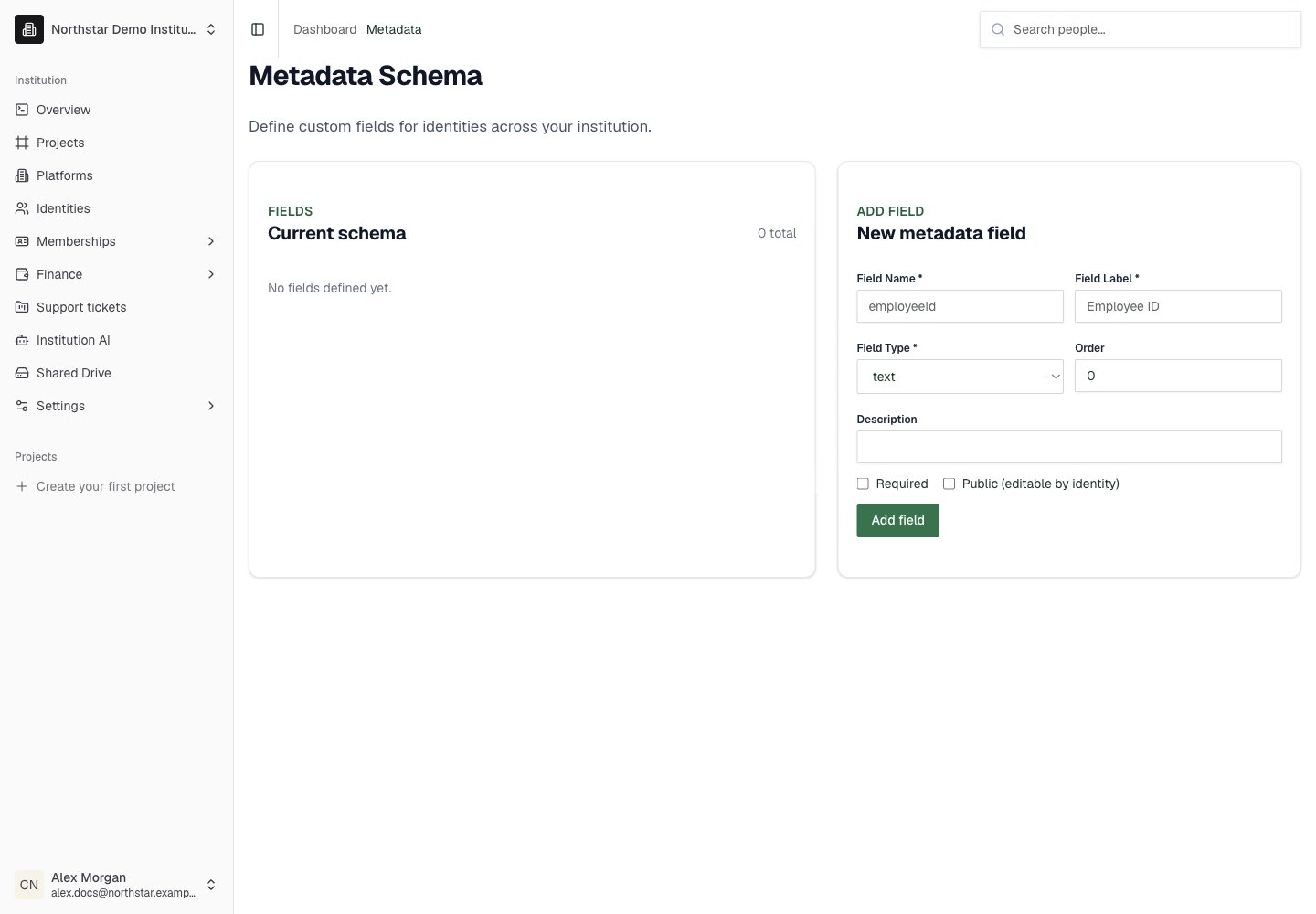
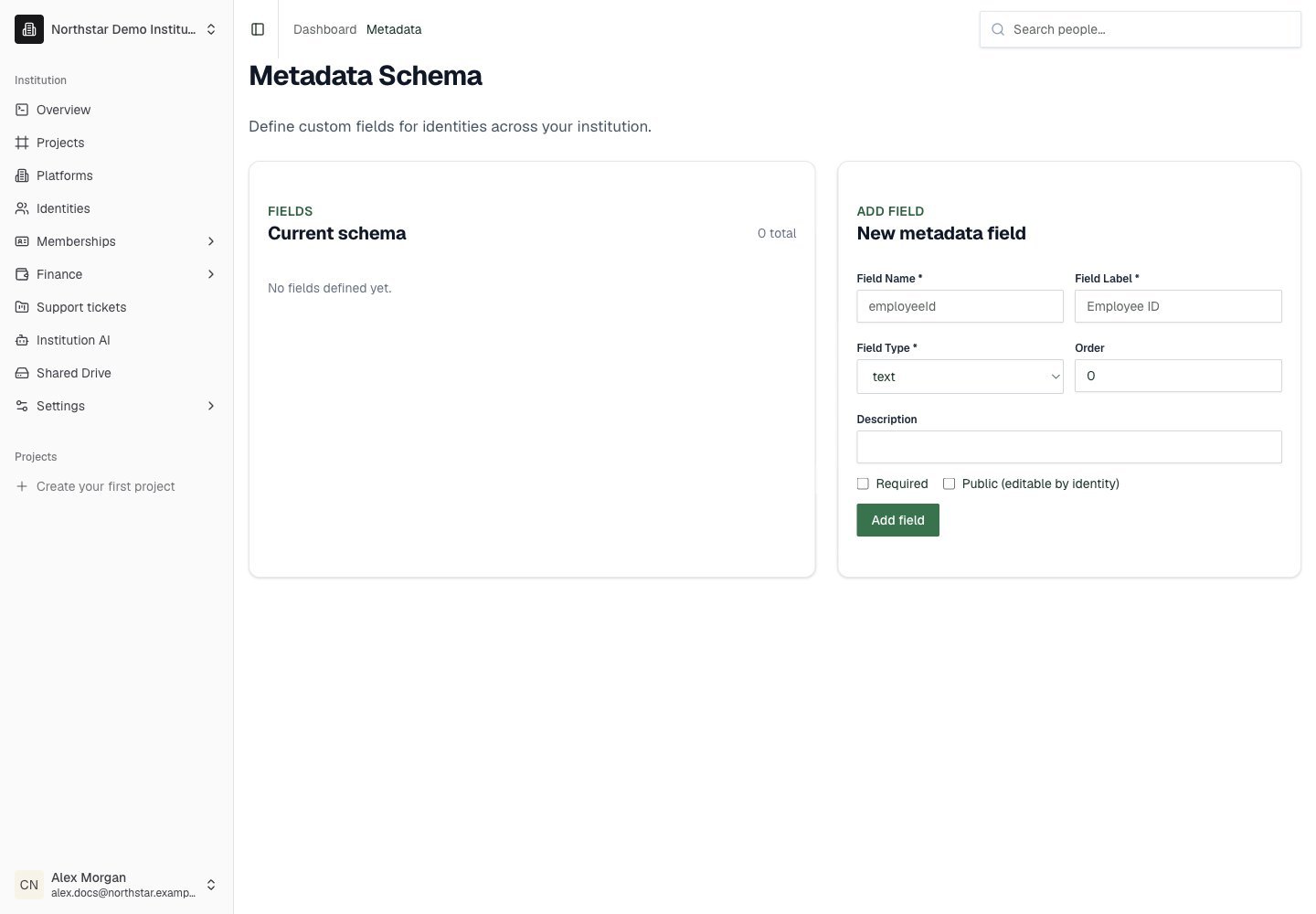
In New metadata field, enter a unique Field Name, such as
department, and a readable Field Label, such as Department.2
Choose its format
Choose a Field Type: text, textarea, number, date, boolean, select, or multiselect. For select and multiselect, enter the allowed values in Options (comma separated), which appears after you choose one of those types.
3
Set behavior
Set Order and an optional Description. Enable Required if the field must be completed. Enable Public (editable by identity) if the Identity should be able to edit it; this label does not mean the value becomes a public directory listing.
4
Save and verify
Click Add field. Check its label, type, options, and Required/Public badges under Current schema, then inspect an Identity’s metadata fields.
Northstar demo — Metadata