This guide covers institution-level setup at
deandesk.com. See Institutions & Schools for how these levels relate.Video walkthrough
This walkthrough uses the real DeanDesk interface with the fictional Northstar Academy demo school and a calm, AI-generated English voice. Payments and outside services are not connected in the demo.
Account tab
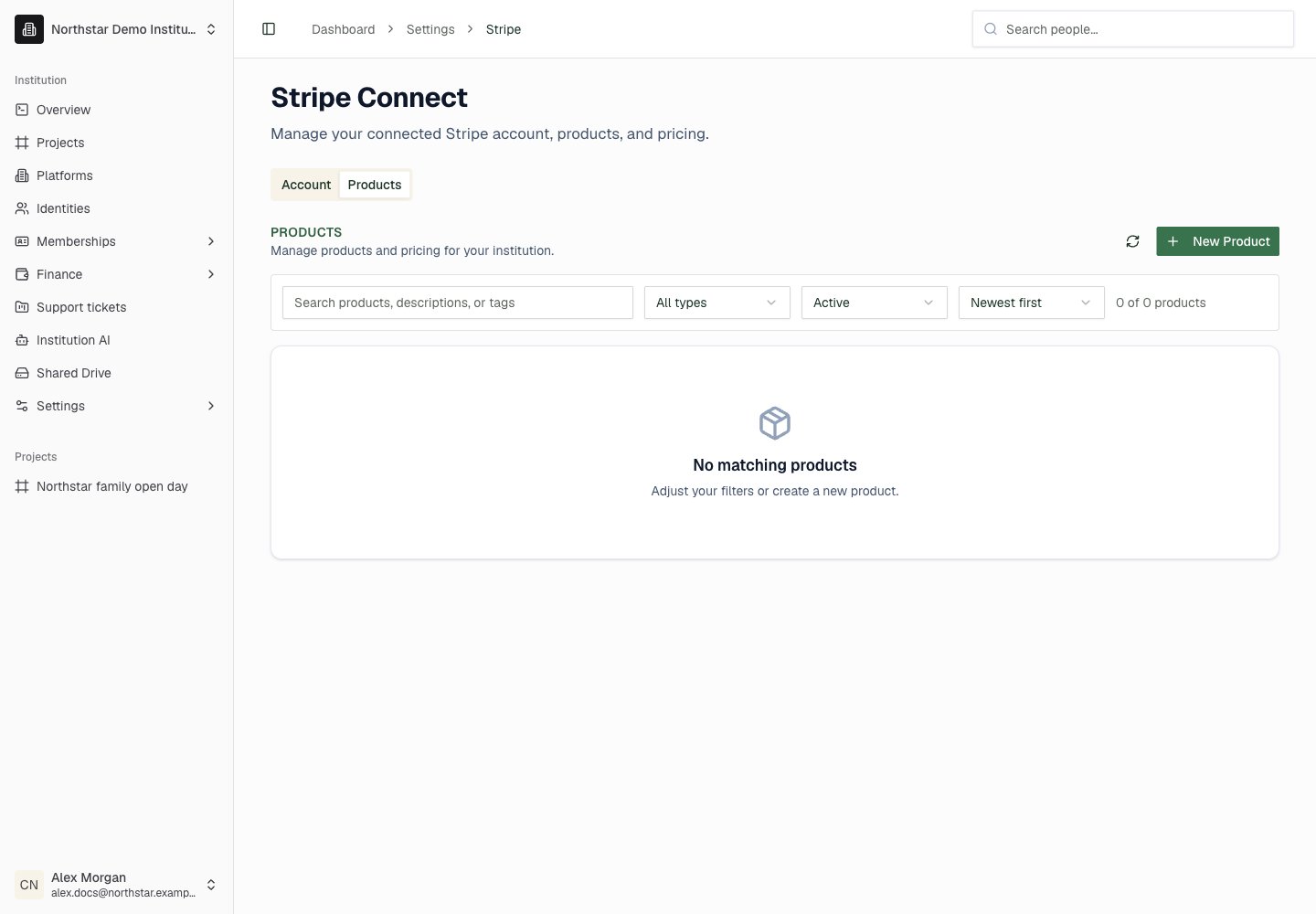
If no account is connected, the Connect Stripe Account card appears. Enter the Email address and Country, then click Connect Stripe to begin onboarding. Complete the requested business and bank information in Stripe, then return to DeanDesk and refresh the account status. For a connected account, the Connected Account card shows the status of Charges, Payouts, and Onboarding. The Balance card shows Available and Pending amounts for the current mode. Outstanding items appear in an Action required alert. While onboarding is incomplete, click Complete Onboarding to resolve them. Use Update Account to change account details in Stripe, or Stripe Dashboard to open the account in Stripe. The Mode switch shows whether you are working in Test or Live. Flipping the switch changes the environment for this page, so check it before you review or create anything. Each environment has its own account and records. Completing test setup does not mean live charges are enabled.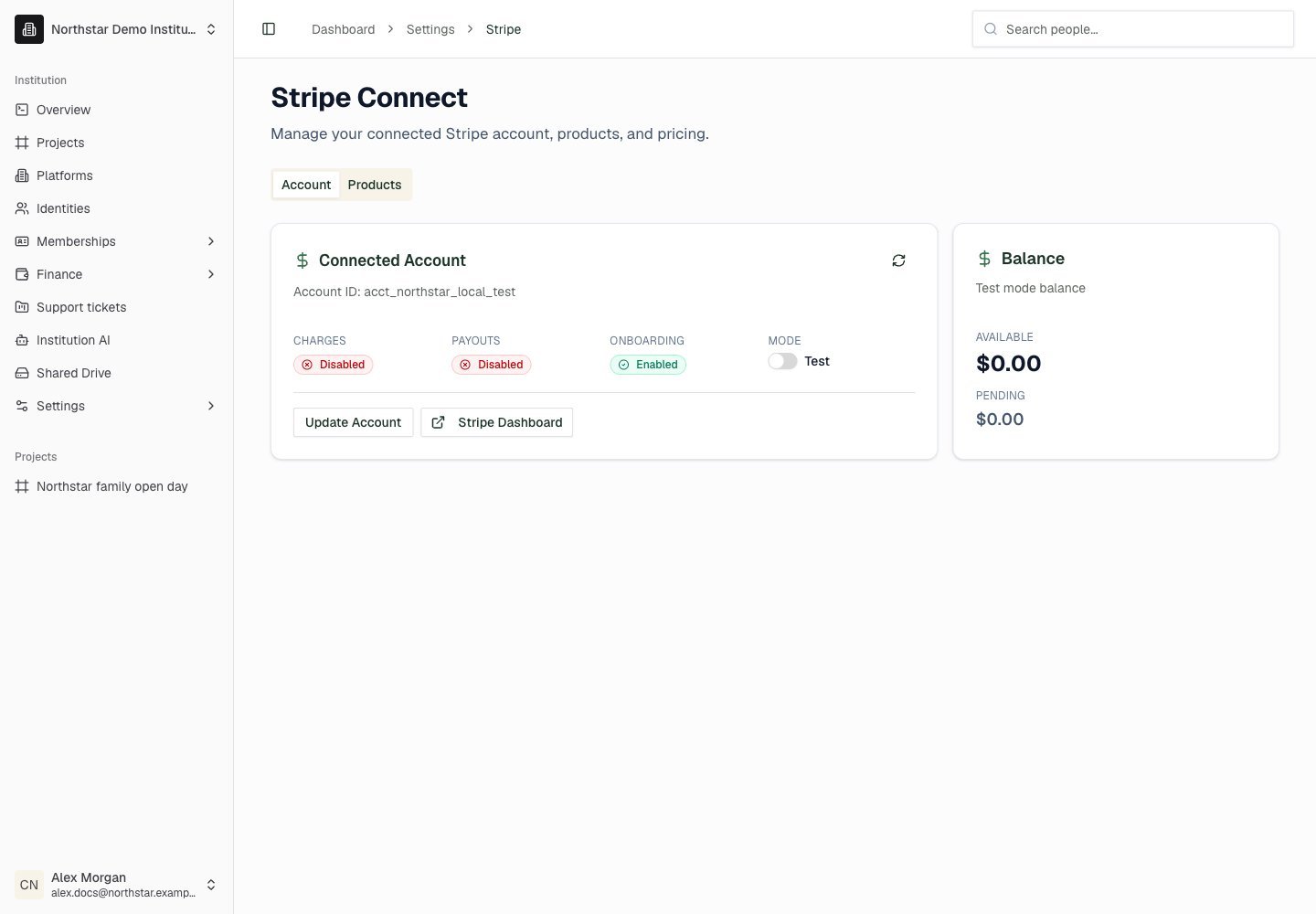
Northstar demo — Stripe — Account
Products tab
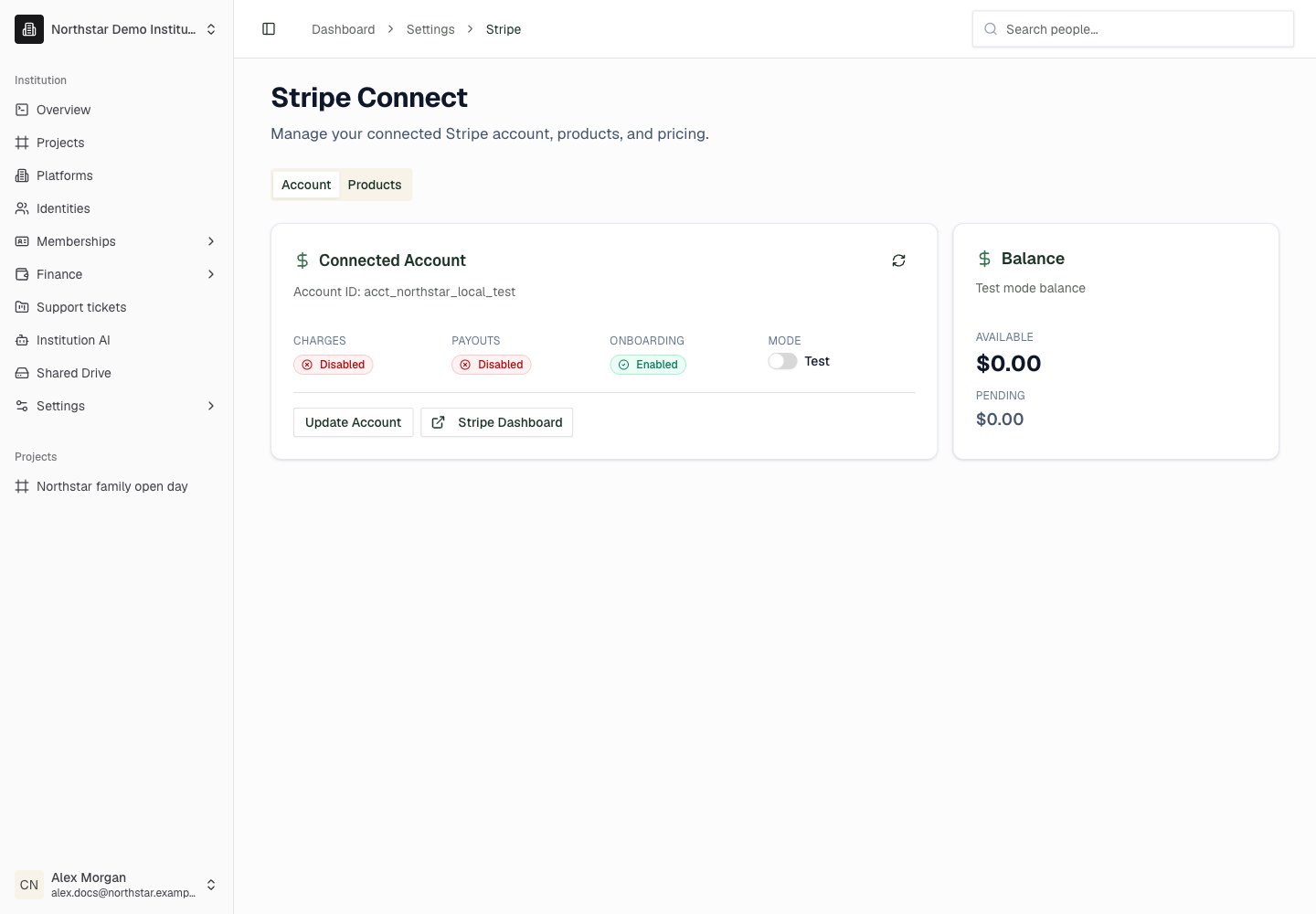
Use Products to inspect the connected account’s catalog and prices. Click New Product to open the Create Product panel. Enter a Name, Description, and Type (fee, tuition, program, course, item, or donation), then click Create Product. Click a product to review it, and click Edit to change it. Finance → Products provides the dedicated catalog workspace; Finance → Donations adds campaign and contribution views.1
Check the environment
Check the Mode switch to confirm whether you are working in Test or Live, and confirm that the account is connected.
2
Review the catalog
Open Products, find the product, and inspect active state, price amount, currency, and recurring interval where applicable.
3
Verify the collection workflow
Return to the relevant membership or finance workflow and confirm that it uses the intended product and price. Confirm actual payments in Transactions.
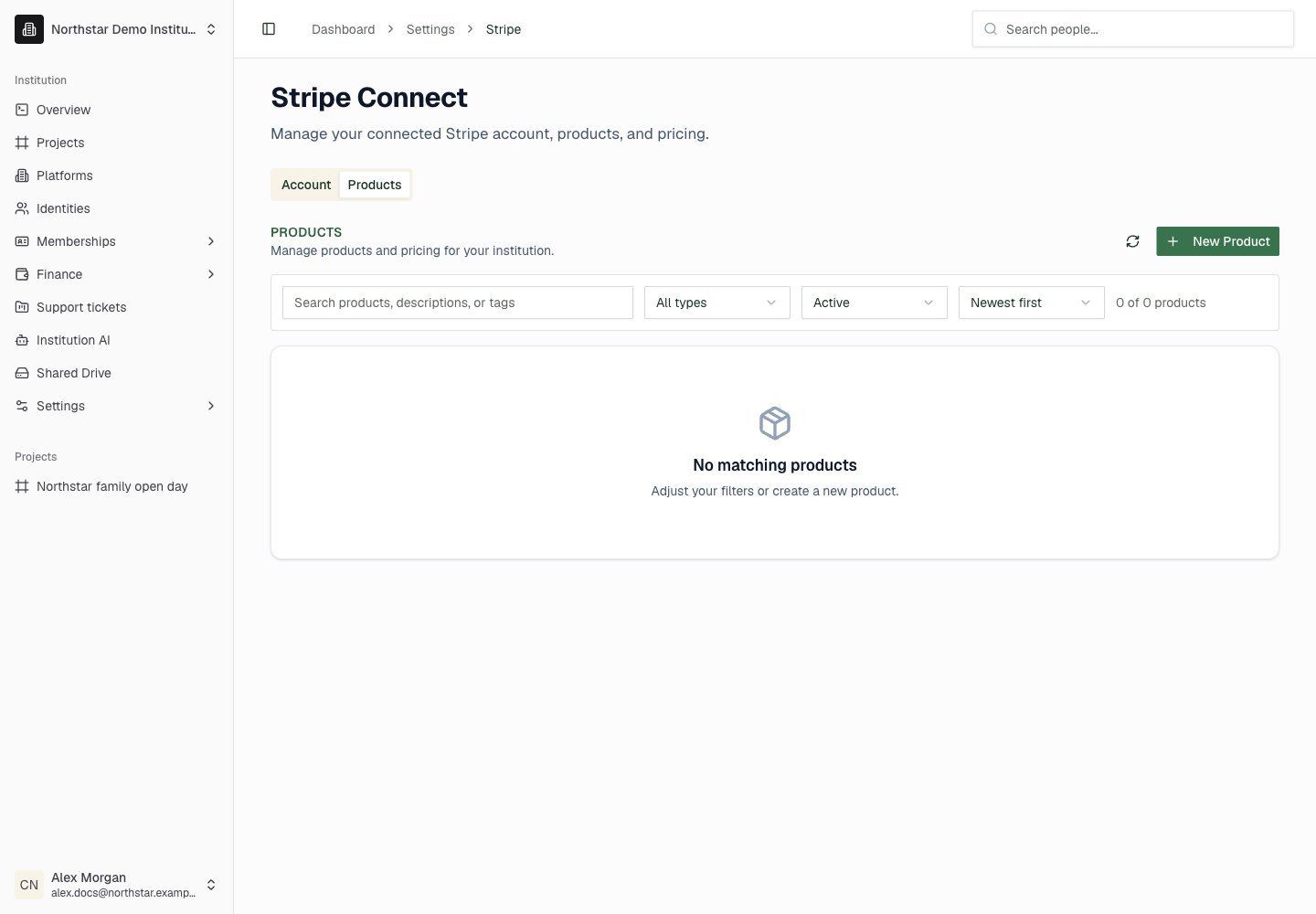
Northstar demo — Stripe — Products