

School-level feature — managed within your school portal at
yourschool.deandesk.com.Video walkthrough
This walkthrough uses the real DeanDesk interface with the fictional Northstar Academy demo school and a calm, AI-generated English voice. Payments and outside services are not connected in the demo.
Transactions
Open Finance → Transactions in the admin sidebar.Transaction list
Each transaction row shows: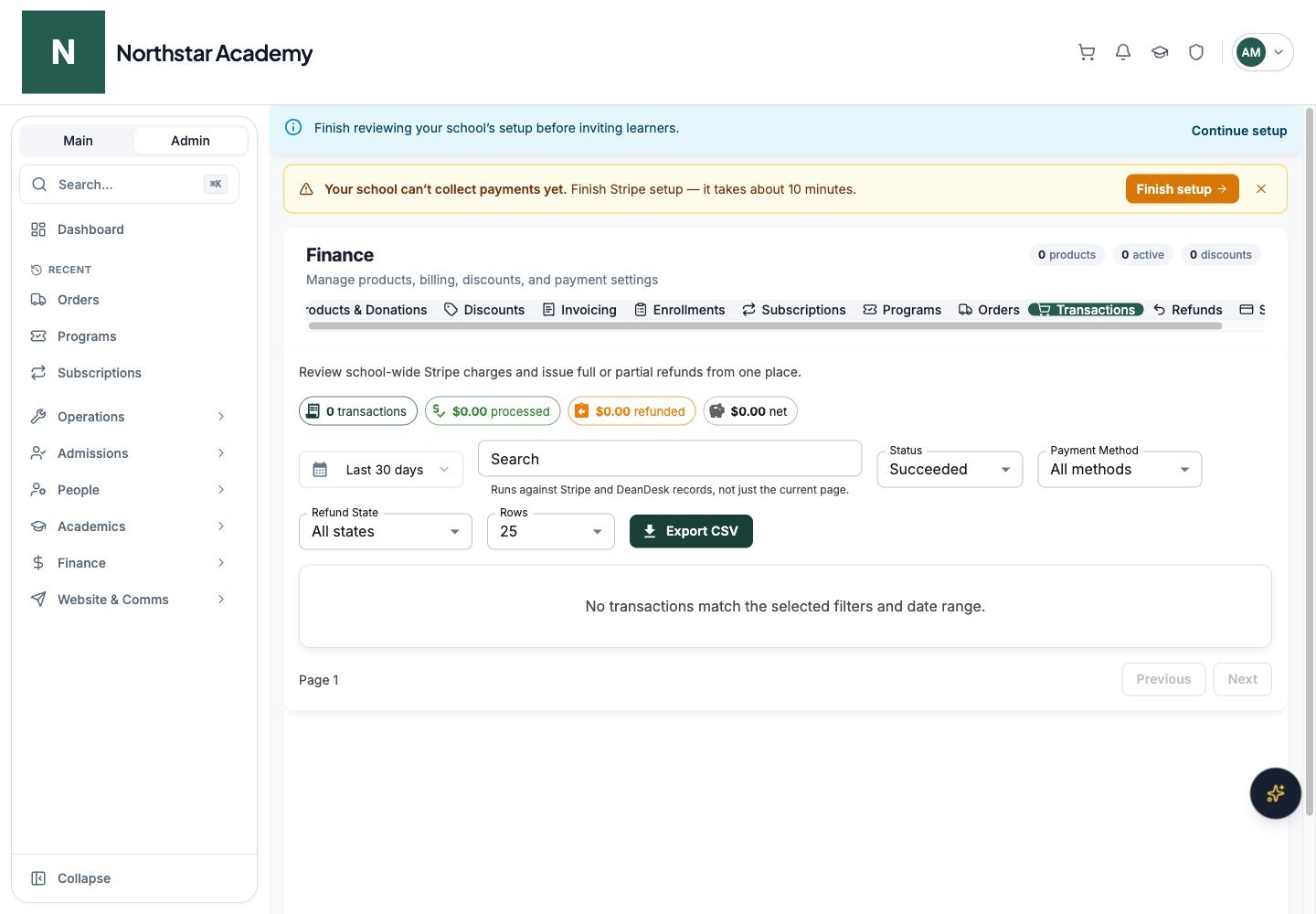
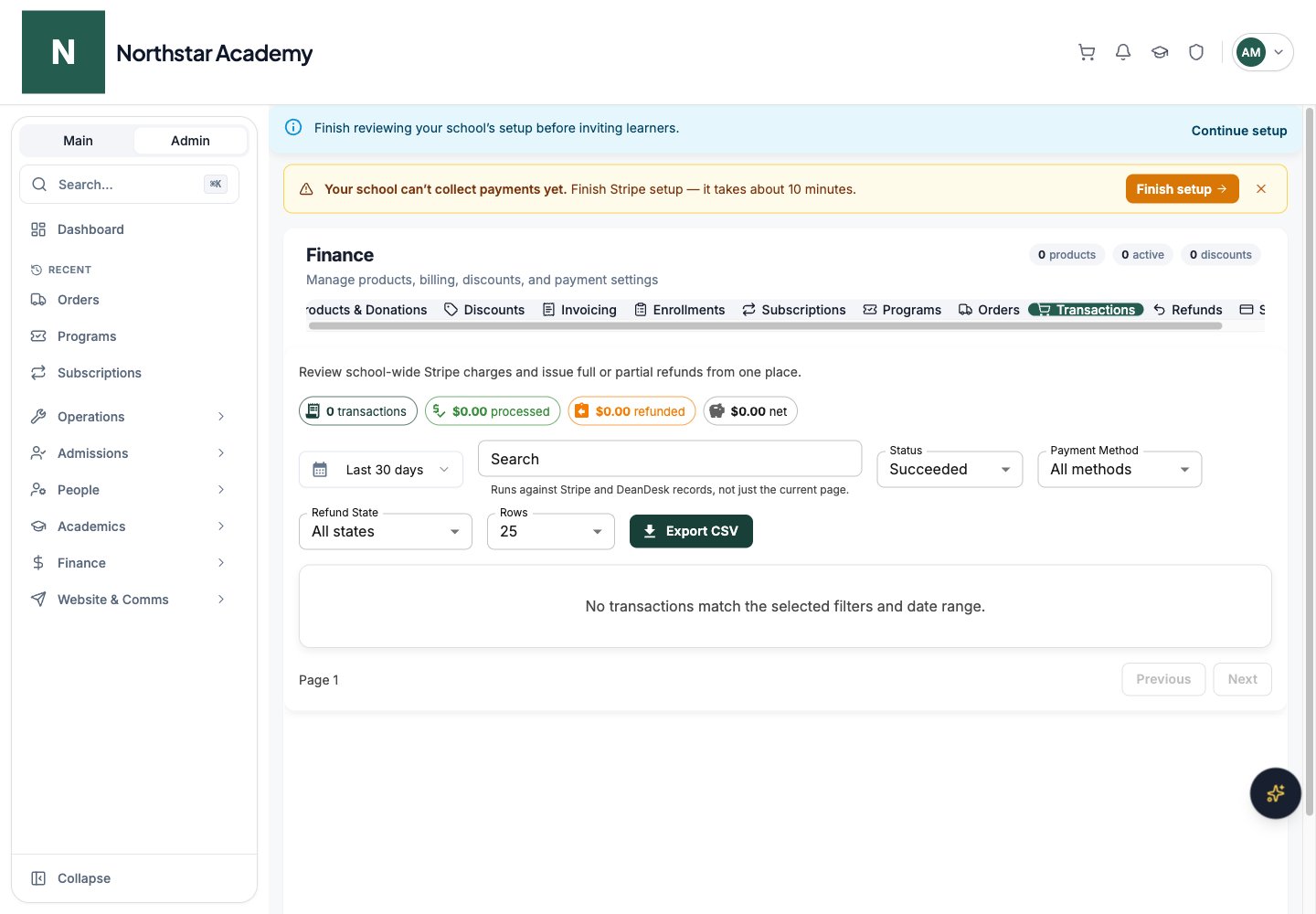
Northstar demo — Transactions
Summary statistics
Four summary chips appear at the top of the page:- transactions — number of transactions (for example, “12 transactions”)
- processed — total amount collected from successful payments
- refunded — total amount refunded across all transactions
- net — processed minus refunded
Searching transactions
Use the search bar to find transactions by:- Customer name or email
- Charge ID
- Invoice ID
- Payment intent ID
- Payment description
Filtering transactions
By date: choose Last 24 hours, Last 7 days, Last 30 days, Last 90 days, Last 365 days, or Custom range. For a custom range, enter the start and end dates and click Apply range. By status: choose Succeeded, Pending, Failed, or All statuses. Payment status is separate from refund state. By payment method:- All methods
- Card
- ACH (bank transfer)
- Link
- All states
- Not refunded
- Partially refunded
- Fully refunded
Pagination
Use Rows to show 10, 25, or 50 transactions per page. Navigate between pages using the Previous and Next buttons.Export to CSV
Use the export control at the top of the Transactions tab to download transactions as a CSV file:1
Choose a date range
Choose a date preset or Custom range, then apply the start and end dates. Set the search, payment status, method, and refund filters as needed.
2
Export
Click Export CSV. The download uses the current date range and filters, rather than only the visible table page.
Issuing refunds
You can issue full or partial refunds directly from the Transactions tab.1
Find the transaction
Use search and filters to locate the payment you want to refund.
2
Click Refund
Click the Refund button on the transaction row. The button is disabled if the transaction has already been fully refunded.
3
Add an internal note (optional)
The Issue Refund dialog shows the amount available to refund — the original charge minus any previous refunds and minus the non-refundable online processing fee. Enter an Internal note for your records. This note is visible only to admins in the refunds overview.
4
Choose the refund amount and confirm
You have two options:
- Partial refund — enter a custom dollar amount in Refund amount (minimum $0.01, maximum the available amount), then click Refund Amount
- Full refund — click Full Refund to refund the entire available amount
Refunds return money through Stripe to the original payment method. Processing time depends on Stripe and the receiving bank. Review the returned status before assuming the funds have reached the customer.
Refunds overview
Open Finance → Refunds for a dedicated view of all refunds issued from your school.Refund list
Each refund row shows:Summary statistics
Four metrics appear at the top:- Total Refunded — sum of all succeeded refunds
- Pending — number of refunds still processing
- Fee Waivers — number of refunds linked to approved fee waiver requests
- Other Refunds — number of manually issued refunds
Refund categories
DeanDesk tracks two categories of refunds: Fee waiver refunds are created automatically when an admin approves a fee waiver request (e.g., waiving an application fee). These show the fee names in the Notes column and include a sub-type indicating whether it was an application fee or child application fee. Manual refunds are issued from the Transactions tab or an eligible payment in a User’s Billing History by an admin. These show the admin’s internal note in the Notes column.Filtering refunds
By category:- All categories
- Fee waiver refunds only
- Manual refunds only
- Search by customer name or order reference
Refund statuses
Best practices
- Prefer partial refunds when appropriate. If a student attended part of a program, a partial refund is more appropriate than a full one.
- Always add internal notes. Notes create an audit trail that helps when reviewing refund history later.
- Check the Refunds tab after issuing refunds. Investigate pending, failed, or action-required results before issuing another refund.
- Use fee waivers for application fees. If a student requests a fee waiver, process it through the admissions fee waiver workflow rather than issuing a manual refund. This keeps the waiver linked to the original application.