

School-level feature — managed within your school portal at
yourschool.deandesk.com.Video walkthrough
This walkthrough uses the real DeanDesk interface with the fictional Northstar Academy demo school and a calm, AI-generated English voice. Payments and outside services are not connected in the demo.
What’s inside a course
Courses can include the following sections. The course settings control which sidebar entries appear:Creating a course
1
Open the Courses page
In the Admin Dashboard, go to Academics → Courses. Instructors can also use Create Course from their teaching dashboard.
2
Click Create Course
Click Create Course at the top of the page. The dialog walks through five steps; use Next and Back to move between them.
3
Basics
Under Create course, choose Start with a blank course, start from a course template, or copy an existing live course. Then fill in the details:
4
Staff & Term
5
Schedule
Under Weekly Schedule, click Add Time to add meeting days, times, and locations. Each session can also have its own assigned teacher or TA. Under Schedule Overrides, click Add Override for temporary schedules — see Schedule overrides.
6
Features
Turn Publish course on to let students discover and open the course, or leave it off while you finish setting it up. Choose which Course Sidebar sections appear, and optionally turn on a Welcome Email.
7
Access and Pricing (optional)
Set an optional Enrollment Code. Turn on Create Product to create the course’s tuition product in the same flow. Add one or more price rows — Recurring (with a billing interval), One-time (with optional installments), or Free. See Products for how pricing works.
8
Create the course
Click Create Course. DeanDesk creates the course and provisions all its tabs immediately.
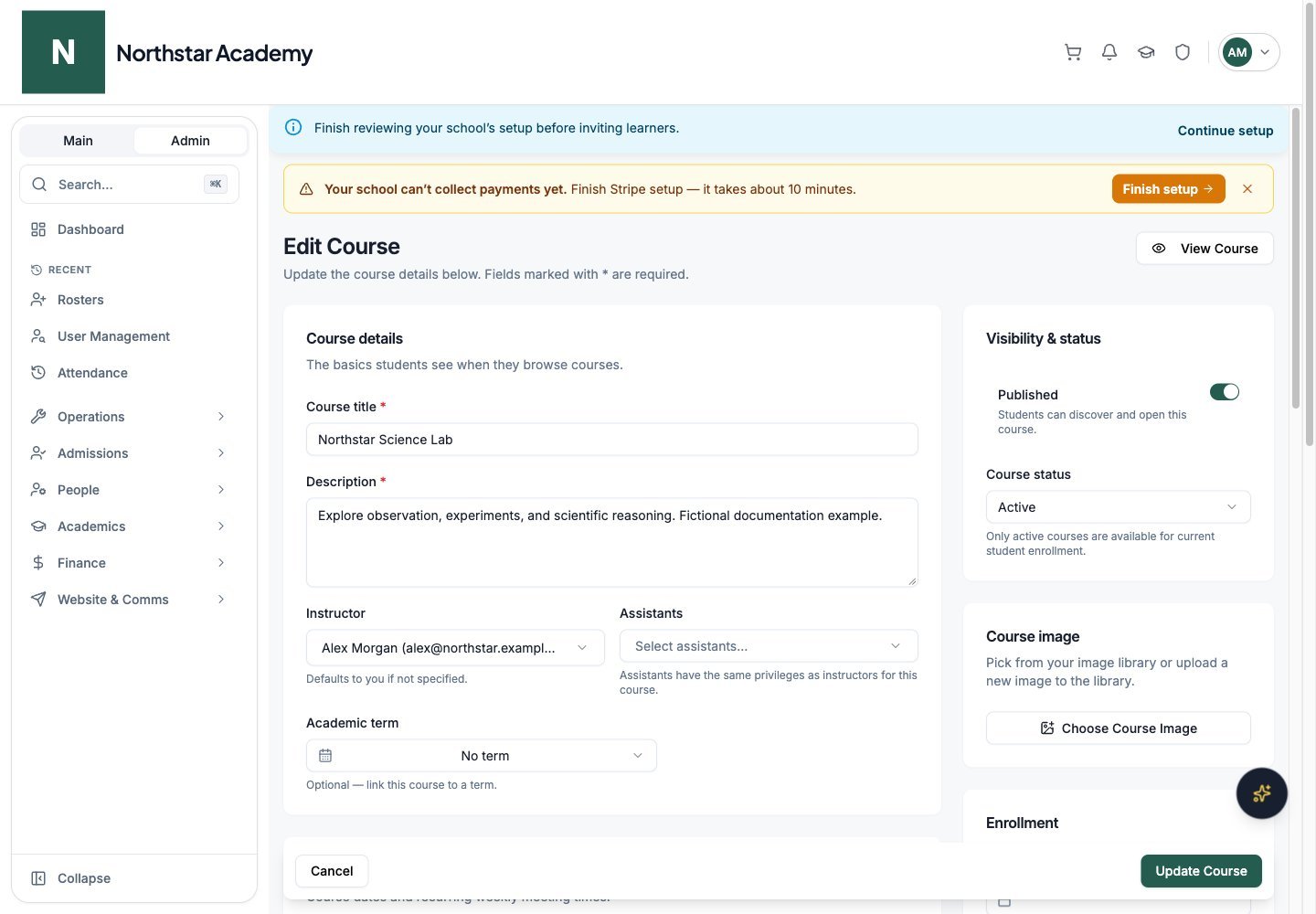
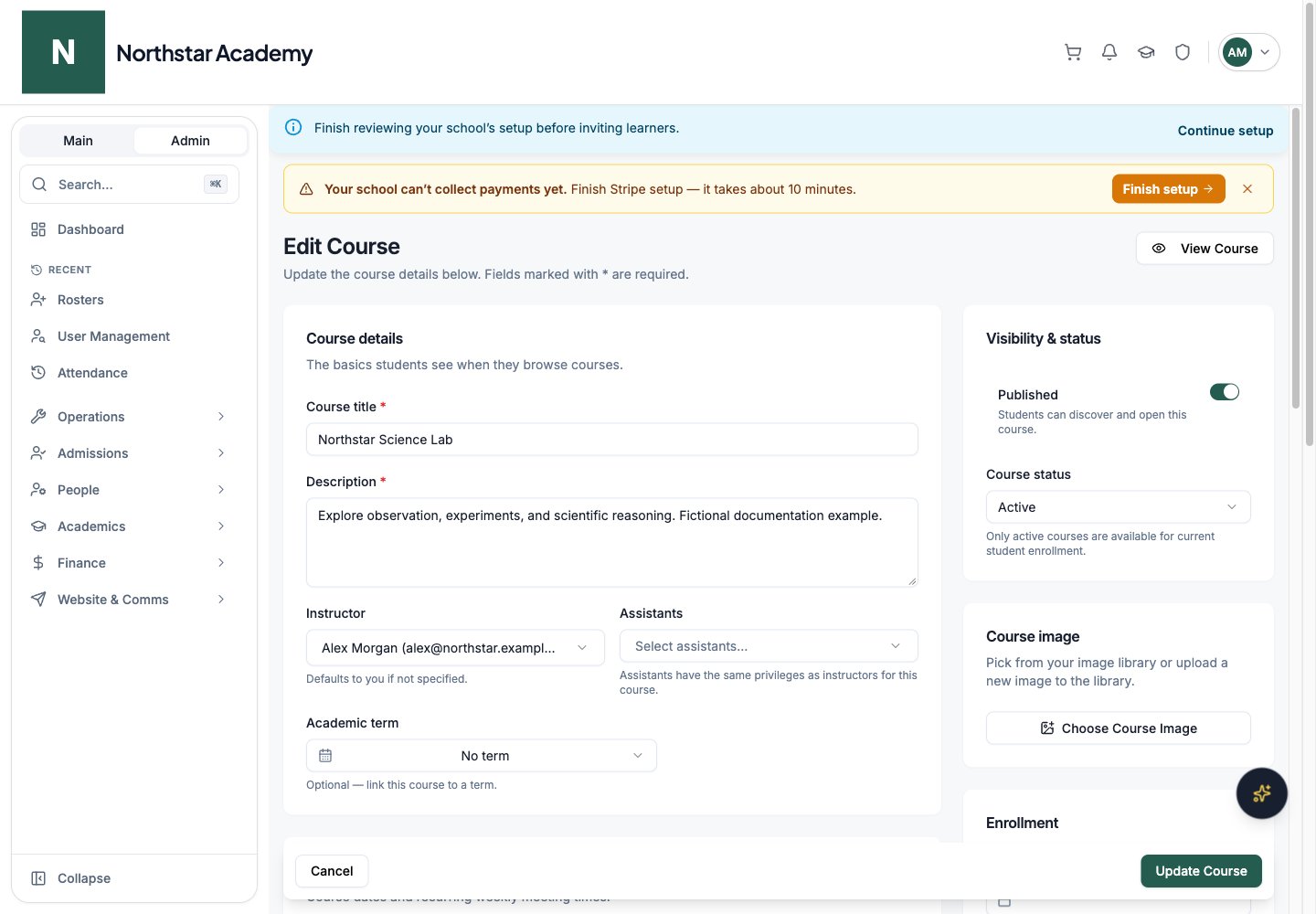
Northstar demo — Edit course
Session staff assignments
Each schedule row in the Create Course dialog and the Edit Course page (and in the Bulk Edit Courses) has a Teacher/TA dropdown, which defaults to Unassigned. Use it to assign a specific staff member to that weekly session — useful when different teachers or TAs cover different days of the same course. Assigned staff appear on calendar views and in the course header, and their session hours feed into payroll hour attribution.Schedule overrides
A schedule override temporarily replaces a course’s weekly schedule during an inclusive date range — for a holiday break, exam week, or a special intensive. During the override’s dates, its schedule completely replaces the default weekly schedule. An override with no meeting times pauses classes entirely — the supported way to model holidays and reading weeks.1
Add an override
In the Create Course dialog’s Schedule step, the Edit Course page (or the Bulk Edit Courses), find the schedule overrides section and click Add Override.
2
Name it and set the date range
Give the override an optional name (e.g., “Ramadan schedule” or “Exam week”) and set the Starts and Ends dates. Both dates are inclusive.
3
Add the temporary meeting times
Add the override’s own schedule rows — day of week, start and end time, location, online flag with meeting link, and assigned staff. Leave the schedule empty if the course should not meet at all during the window.
- Course page — while an override is in effect, the schedule heading changes to Current Temporary Schedule with an alert naming the override and its end date. An empty override shows “No meetings during this period”.
- Calendars — student, teacher, and parent calendar entries on affected days show an orange chip with the override’s name (or “Temporary schedule”).
- Staff assignments — staff assigned only inside an override get the course in My Teaching, receive course-staff permissions, and appear on the admin master schedule.
- Payroll — session counts use the override-aware schedule.
- Auto-scheduled video meetings — automatically scheduled meetings look ahead to the next actual meeting time under the effective schedule.
- Spreadsheet import/export — overrides are included in the admin course spreadsheet import and export.
Course welcome emails
You can have DeanDesk email each student automatically when their enrollment in the course becomes active.1
Turn on the welcome email
In the Create Course dialog’s Features step, turn on Welcome Email. On the Edit Course page, turn on the Welcome email switch.
2
Write the subject and body
When the switch is on, a Subject field and a message field (Message in the create dialog, Body on the edit page) appear — both are required. The body accepts plain text (converted to paragraphs automatically) or full HTML.
3
Personalize with placeholders
Use placeholders anywhere in the subject or body:
The email sends automatically when a student’s enrollment becomes active — you don’t need to trigger it manually.
Evergreen vs. term-based courses
DeanDesk supports two course models:A linked term supplies date context when the course has no overriding dates. Review course-specific start and end dates when adjusting a term.
Course status
Every course has a lifecycle status, set with Course Status on the Basics step of the Create Course dialog, or Course status under Visibility & status on the Edit Course page:
In addition, DeanDesk derives two display states for Active courses from their dates: an active course whose start date (or term start date) is in the future shows as Upcoming, and an active course past its end date shows as Completed.
The current status appears as a colored chip on course headers, home banners, course cards, and admin course tables. The course catalog can filter by any of the four statuses as well as the derived Upcoming state.
The student enrolled course list and compact My Courses widget show active and upcoming courses by default. My Teaching defaults to active courses. In the course lists, use Show all courses to include inactive, completed, and cancelled courses.
Course Builder: units and modules
Open Curriculum to view the course’s learning sequence. Staff use the curriculum editor to organize units and modules, attach materials and assessments, and adjust visibility. Content can be visible, hidden, or scheduled; students see the content currently available to them. Course curriculum is the live learning sequence. Curriculum maps are reusable school planning structures and course templates.Adding course materials
Open Materials and create a material with its title, content, and publication settings. Materials can include text, files, hosted video, external video, YouTube playlists, or a linked page. Organize resources with the available course sections and curriculum rather than assuming every material is a downloadable file. The detail page previews supported images, PDFs, video, and audio inline. External video embeds include YouTube and Vimeo. Available previews depend on the material type and whether processing has finished.Notifications and downloads
On material creation, Notify enrolled students by email is off by default; enable it to announce the material. Content copied from curriculum templates is not an automatic announcement to students. File materials can disable student downloads. A Downloads disabled notice explains that students use the embedded viewer, while authorized course staff retain a Staff download action. This setting governs DeanDesk’s download controls; it does not make displayed content impossible to capture. See File library for file metadata and library visibility.Video hosting
Upload video materials and wait for processing before expecting playback. Videos can be attached to the course learning sequence, and built-in classroom recordings are saved to course materials after processing. See Live classes.Scheduling a live session
Set recurring meeting times and any temporary overrides in course settings. On the Edit Course page, go to Schedule → Weekly meetings and turn on Online meeting for a session (in the Create Course dialog, use the Online meeting switch on the Schedule step). Then choose a Meeting provider:- DeanDesk uses the course’s built-in call room. No meeting link is needed.
- External link requires a Meeting link, such as a Google Meet or Microsoft Teams URL.
- Start Call (staff) or Join Call (students) opens the built-in classroom.
- Join Meeting opens the external meeting link in a new tab.
- Start Zoom (staff) or Join Zoom (students) opens a linked Zoom meeting.
Curriculum editor
Use the course curriculum editor to add and arrange units, modules, materials, and assessments, then save changes. Visibility controls determine what students can see. Course content can also be reused through course templates and course package import/export.Enrolling students
- Enroll from the course
- Bulk Enrollment (Admin)
1
Open the Students tab
Navigate to the course and click the Students tab.
2
Add students
Click Add Students, search active students by name, username, or email, select them, then confirm Add Students.
Manage enrolled students
The Students section lets course staff open a student’s management panel to assign or update a final grade, change enrollment status, or remove the student from the course. Final-grade choices use your school’s grading standards. You can also select multiple students and choose Remove from course. Review the confirmation: it removes course enrollments while keeping the school accounts. If some removals fail, successfully removed students disappear and the failed students remain selected for retry.Waitlists
Courses with a capacity limit can fill up. When that happens, students can join the waitlist directly from the course page — and leave it the same way if they change their mind. When capacity increases or a spot opens up, waitlisted users are notified automatically. Admins review and manage waitlists from the Waitlist Manager.1
Open the Waitlist Manager
Go to Admin Dashboard → Waitlist Manager. A summary count shows how many users are currently waitlisted across your school.
2
Find the entries you care about
Filter the table by name, course, or product. Each row shows the waitlisted user (child accounts are flagged), the course — including its active status and current load vs. capacity — and any related products.
3
Adjust capacity if needed
Use the inline capacity editor to raise, lower, or remove a course’s capacity limit. Raising capacity frees up spots, and waitlisted users are notified automatically.
4
Enroll someone directly (optional)
Click Enroll on a row to open the Manual Enrollment Override dialog. Choose the program or product to enroll them under and add an internal note. The user is enrolled immediately and their waitlist entry is cleared.