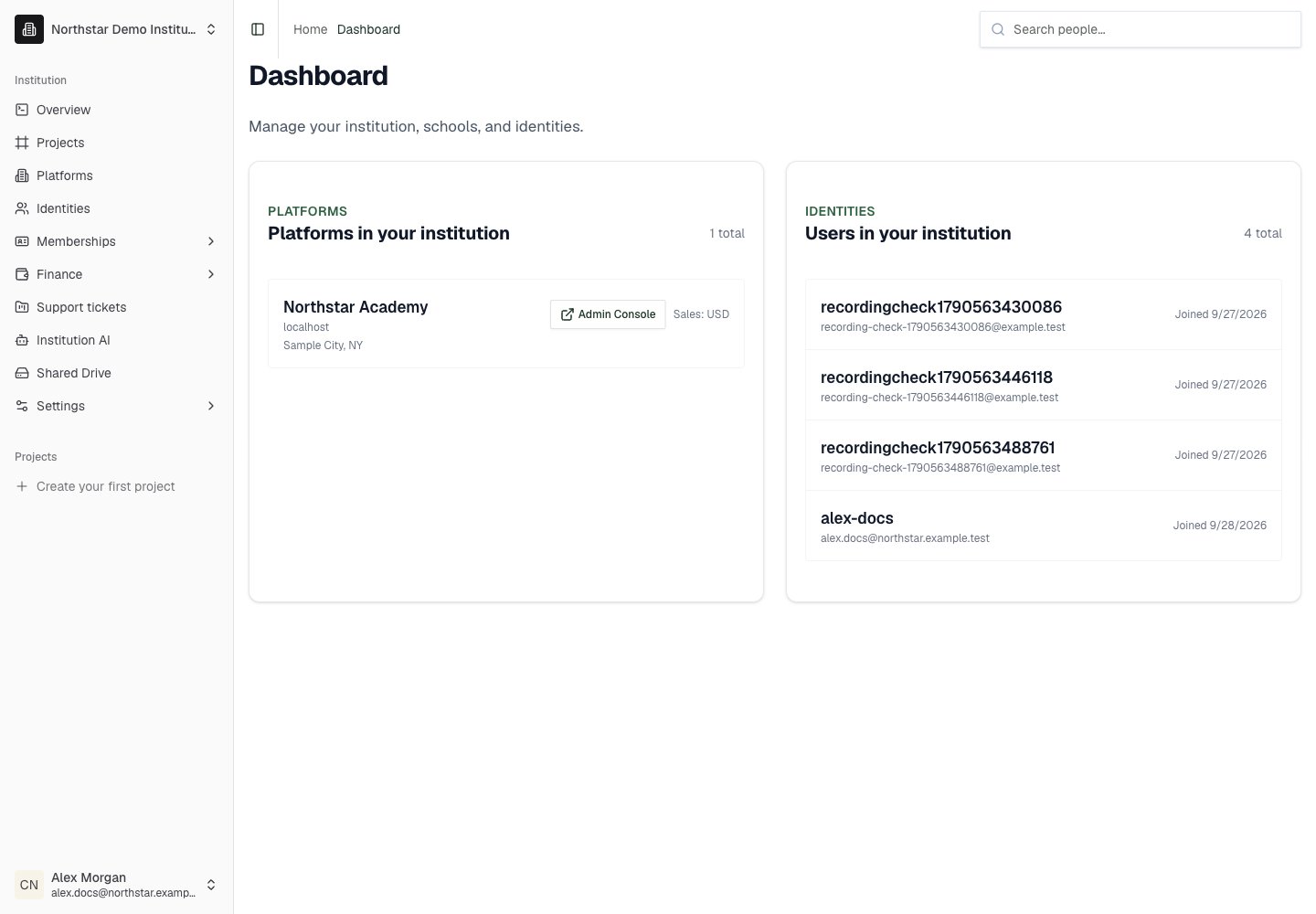
This guide covers institution-level management at
deandesk.com/dashboard. See Institutions & Schools for how these levels relate.Video walkthrough
This walkthrough uses the real DeanDesk interface with the fictional Northstar Academy demo school and a calm, AI-generated English voice. Payments and outside services are not connected in the demo.
deandesk.com/dashboard manages your organization, its schools, and its Identities. Sign in with an institution Identity and confirm the selected institution before making changes. Institution access is separate from a school User’s roles.
Overview
Overview lists the platforms and Identities in your institution. A platform card shows its name, host, location when provided, and sales currency. Click the card to open its details or Admin Console to enter that school’s administration portal. An Identity row opens that person’s institution record. When the institution has no platforms, Start or continue school setup opens the guided platform creation workspace. The welcome tutorial introduces institutions, schools, and accounts; you can finish or skip it.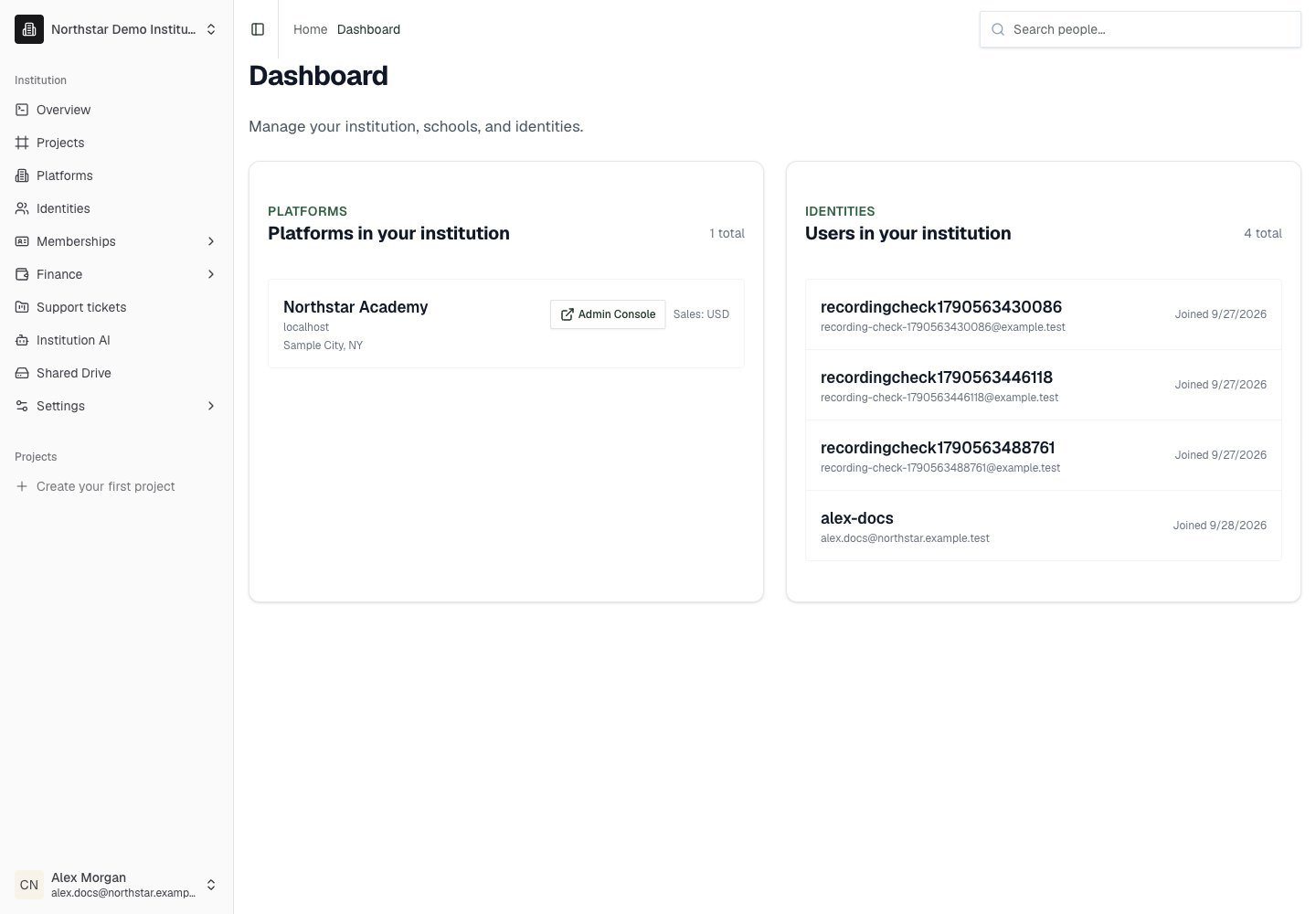
Northstar demo — Overview