

School-level feature — managed within your school portal at
yourschool.deandesk.com.Video walkthrough
This walkthrough uses the real DeanDesk interface with the fictional Northstar Academy demo school and a calm, AI-generated English voice. Payments and outside services are not connected in the demo.
Course discussions
Open a course and select Discussions. The board lists discussion prompts with their author, last activity, reply count, and pinned, locked, or graded state. Open a prompt to read and respond.Who can participate
Course staff and authorized admins can create and moderate discussions. The course’s discussion setting determines whether everyone or only staff can create new prompts. Eligible enrolled students can reply even when creating new prompts is restricted to staff. Read-only course access does not grant posting or grading rights. The actions shown depend on your course access and the discussion’s locked state.Create a discussion
1
Open the board
Open the course’s Discussions area and click New discussion.
2
Write the prompt
Enter a Title and the Prompt, and add optional Attachments.
3
Choose grading settings if needed
Course staff can turn on Graded discussion. Set the Points, an optional Due date and Due time, Posts required, and Replies to classmates. Date and time must be supplied together; the dialog displays the timezone used.
4
Post the discussion
Click Post discussion, then open the prompt to follow responses. Students participate from the thread.
Reply and moderate
Post a response to the prompt or reply to a classmate. Replies can include text or attachments. Authors can edit or delete their own content; course staff can moderate the discussion. Open the prompt’s Discussion actions menu to Edit or Delete it. Course staff also see Pin, Unpin, Lock, or Unlock. Locked discussions remain readable; only course staff can add replies while locked. Deleting a discussion also removes its replies. Reply notifications go to the prompt author and, for a reply to another response, that response’s author, excluding the person replying. These are in-app notifications; course discussion replies do not send an email to the entire class.Grade participation
For a graded discussion, click Grade responses. Review each active student’s participation against Posts required and Replies to classmates, enter their score and optional feedback, and click Save for that student. Grades appear in the gradebook. A response to the prompt counts toward required posts. A reply to another student’s response counts toward replies to classmates; replying to yourself does not satisfy that requirement. Completion counts help you review participation; you still assign the score.Chat
Select Chat in the school sidebar to open the real-time messaging workspace. Select a topic to read the conversation and send messages. Course chat is separate from the course’s discussion board.How chat groups are created
Course and program creation can create a general chat group, and enrollment adds participants to the associated group. Instructors and assistants manage their assigned groups. Admins can also create custom topics in Admin Dashboard → Website & Comms → Chat Manager.Sending messages
Open the topic, type a message, and send it. Messages update in real time for connected members. The topic list shows recent activity and unread indicators; your own messages do not create an unread indicator for you.Custom chat topics
1
Open the manager
School admins go to Admin Dashboard → Website & Comms → Chat Manager. The page opens as Admin Chat Manager.
2
Create a topic
Enter the title, description, path, and Public or Private visibility, then click Create Topic.
3
Manage membership
Open the topic’s edit controls to add Users and manage member roles. Use a private topic for a selected group.
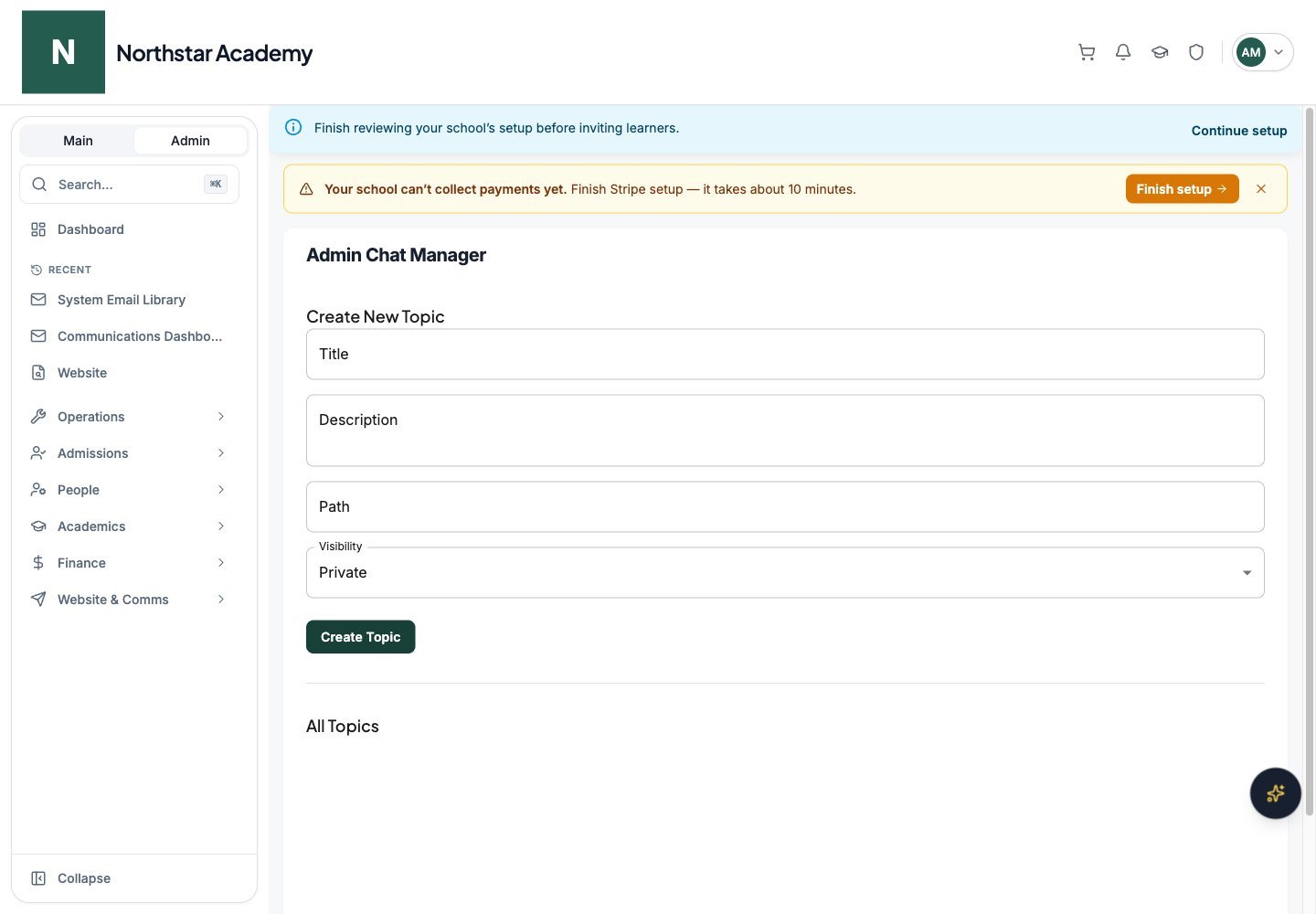
Northstar demo — Chat Manager
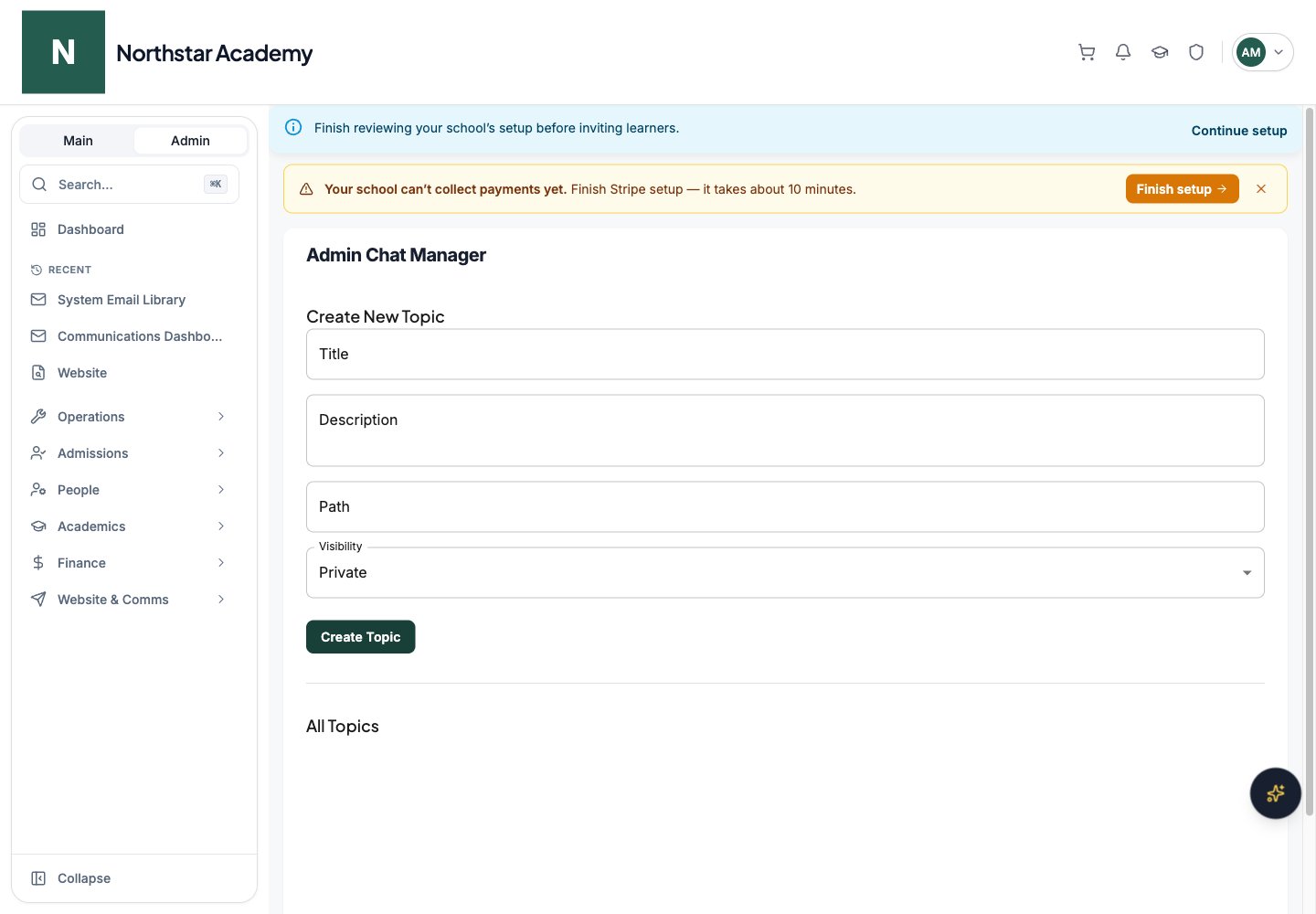
Chat roles
Chat notifications follow the messaging and notification settings available to the recipient. Push delivery also requires an eligible signed-in device and enabled notifications.
Use Announcements for a course update and Emails for admin outreach to a selected audience.