yourschool.deandesk.com. Only administrators can access the Communications Dashboard.Video walkthrough
Opening the Communications Dashboard
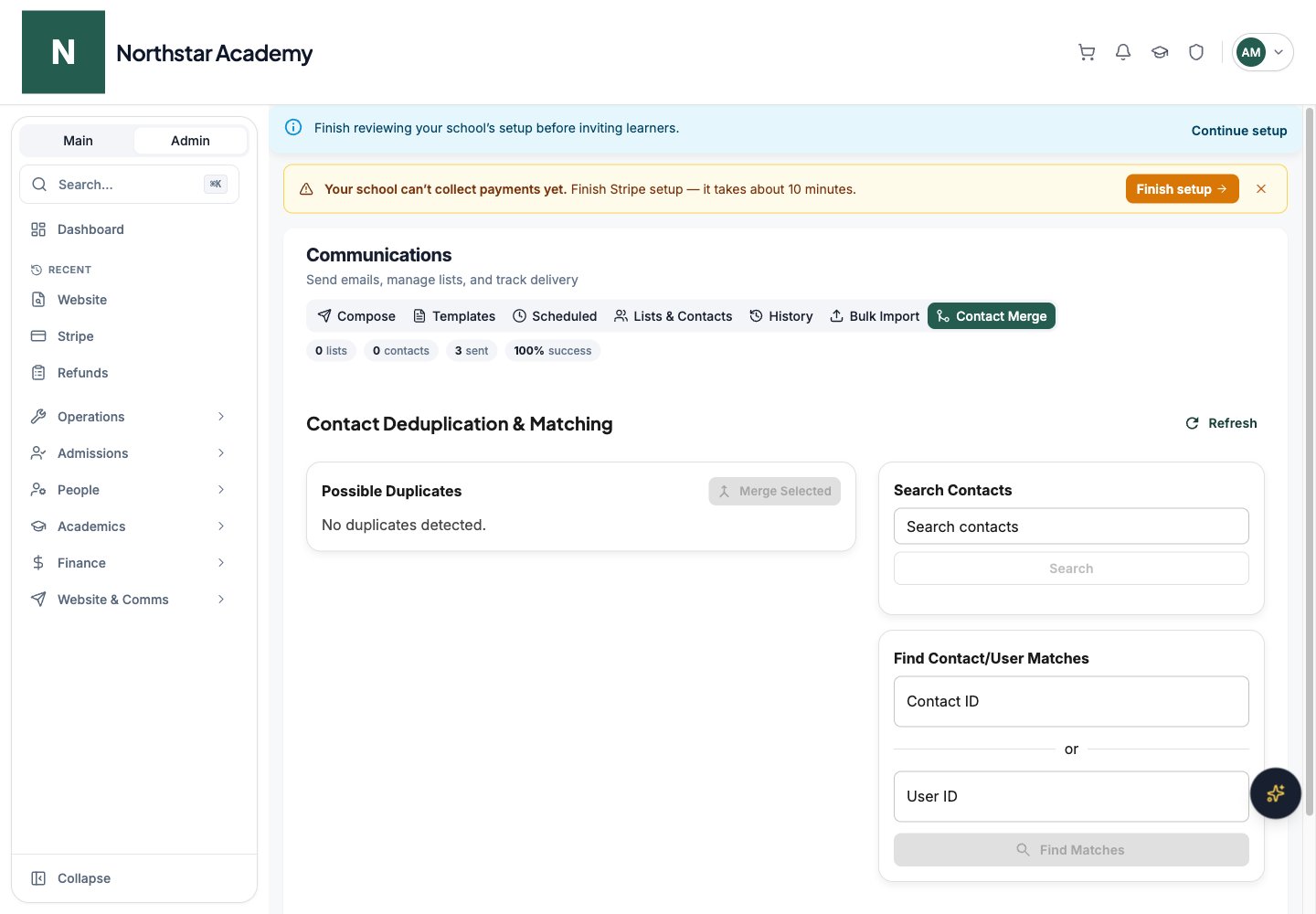
Go to Admin Dashboard → Website & Comms → Communications Dashboard. The page opens with the heading Communications and shows quick counts for your lists, contacts, sent emails, and delivery success rate. It has seven tabs:Composing an email
Open the Compose tab
Add recipients
- Users — search by username or email and filter by role (Admin, Teacher, Student, Parent, Accepted Parent, Applicant, or Public). Select individuals, select the whole page, or click Select all to select every user matching your filters.
- Lists — select email lists to include all their subscribers.
- Rosters — select rosters to include all their students.
- Courses — select courses to email all enrolled students.
Choose a reply-to address (optional)
Enter a subject line
Write your email
- Simple — a rich text editor with headings, bold, italic, underline, text color, lists, links, and images.
- Styled — a block-based editor for building branded emails with headings, paragraphs, buttons, images, dividers, videos, and spacers.
Attach files (optional)
Preview
Send or schedule
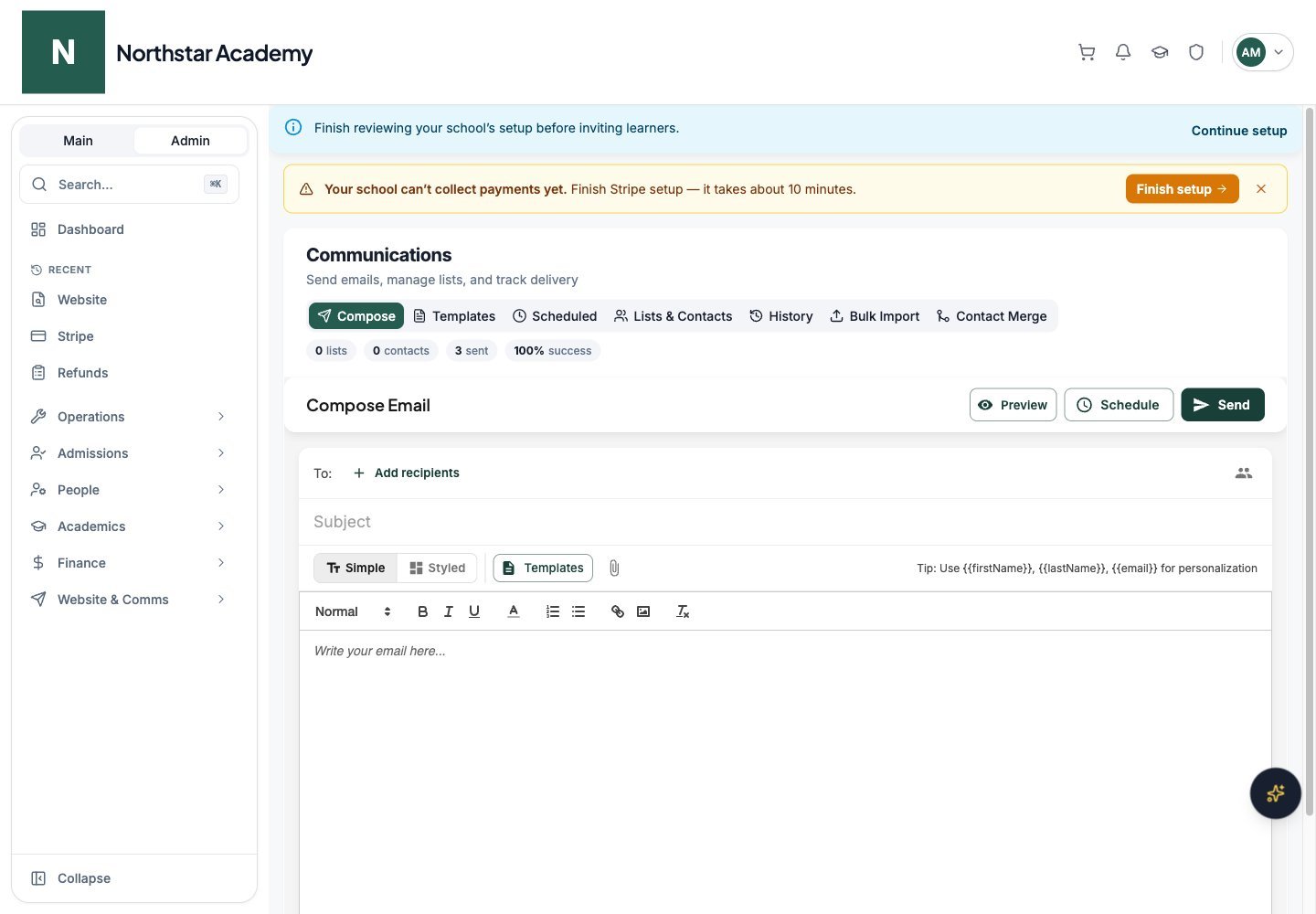
Northstar demo — Communications Dashboard — Compose
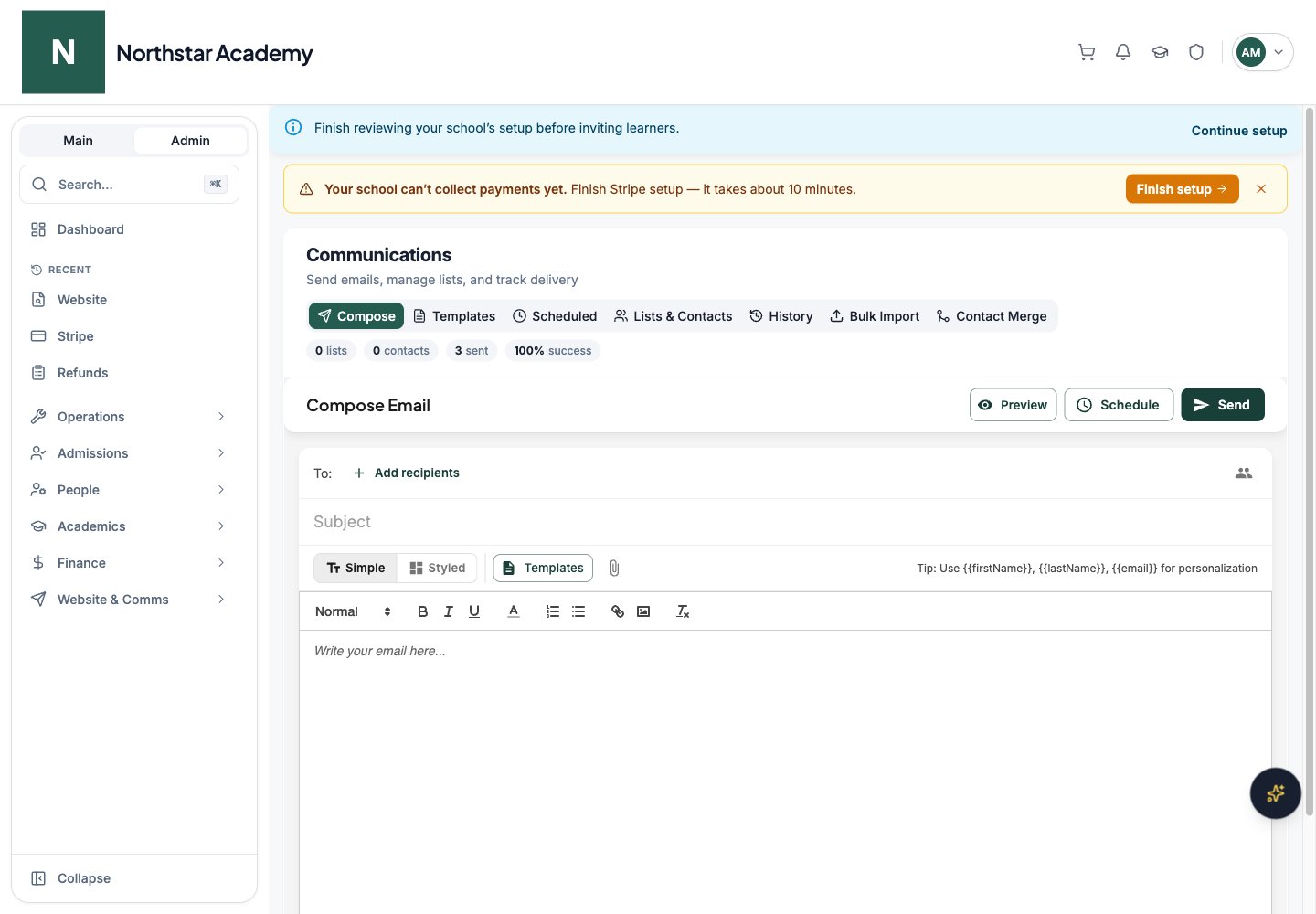
Setting a school-wide reply-to address
Many schools want replies to land in a shared inbox, such as an office or admissions mailbox, rather than with whichever admin pressed Send. Set a default once and every email sent from the Communications Dashboard, plus every automatic system email, uses it unless the sender chooses a different address. You can change the default from three places. They all edit the same setting.- Communications Dashboard
- School Configuration
- System Email Library
Personalizing emails
Use merge tags in your subject line or email body to personalize each email for its recipient. DeanDesk replaces these tags with the recipient’s actual information at send time.Subject: Welcome,Personalization works in both immediate and scheduled emails, and in both editor modes.{{firstName}}! Body: Hi{{firstName}} {{lastName}}, we’re excited to have you join our program…
Email templates
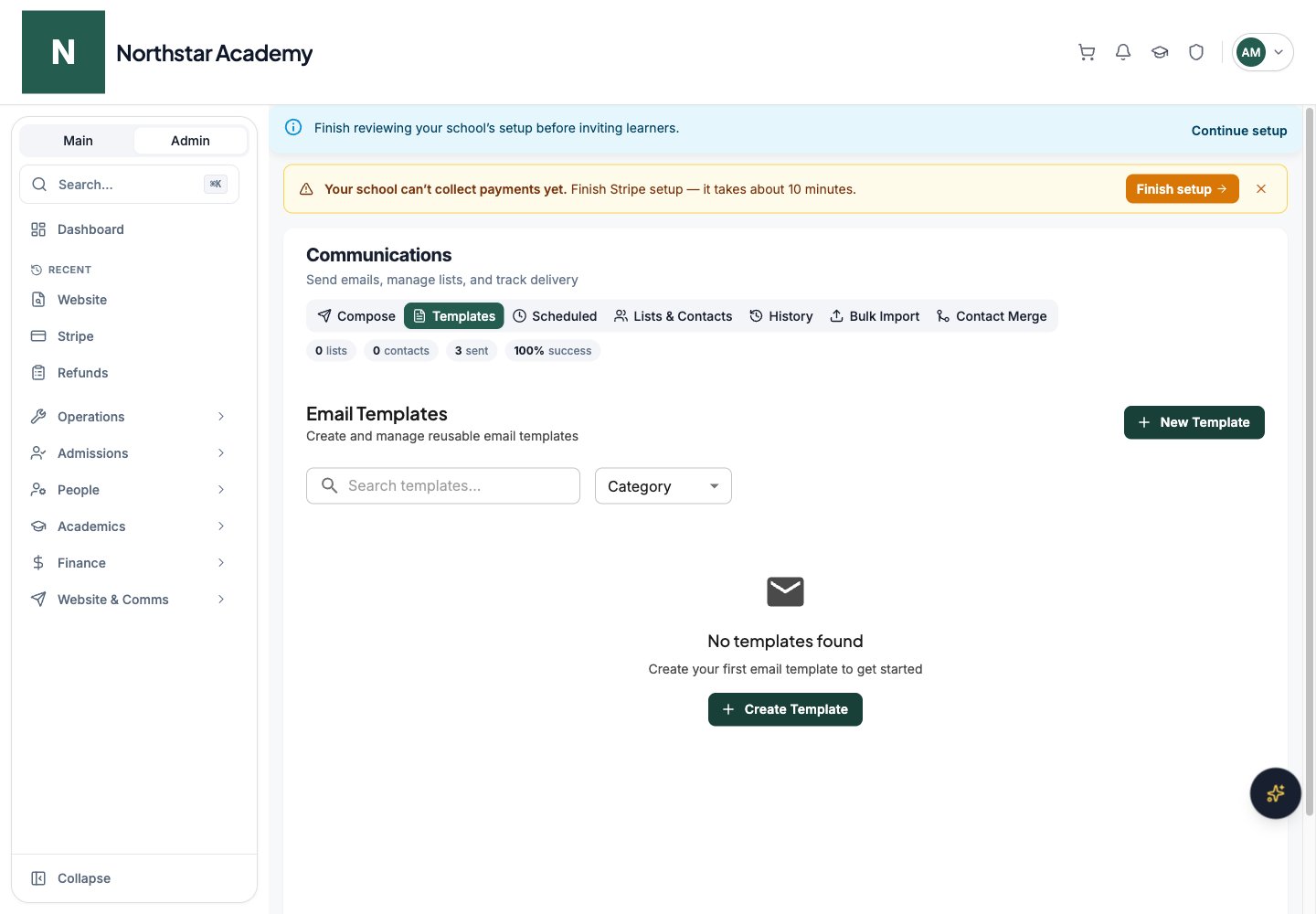
Save time on recurring emails by creating reusable templates. The Templates tab lists your templates with their category, usage count, and last update. Search by name or filter by Category.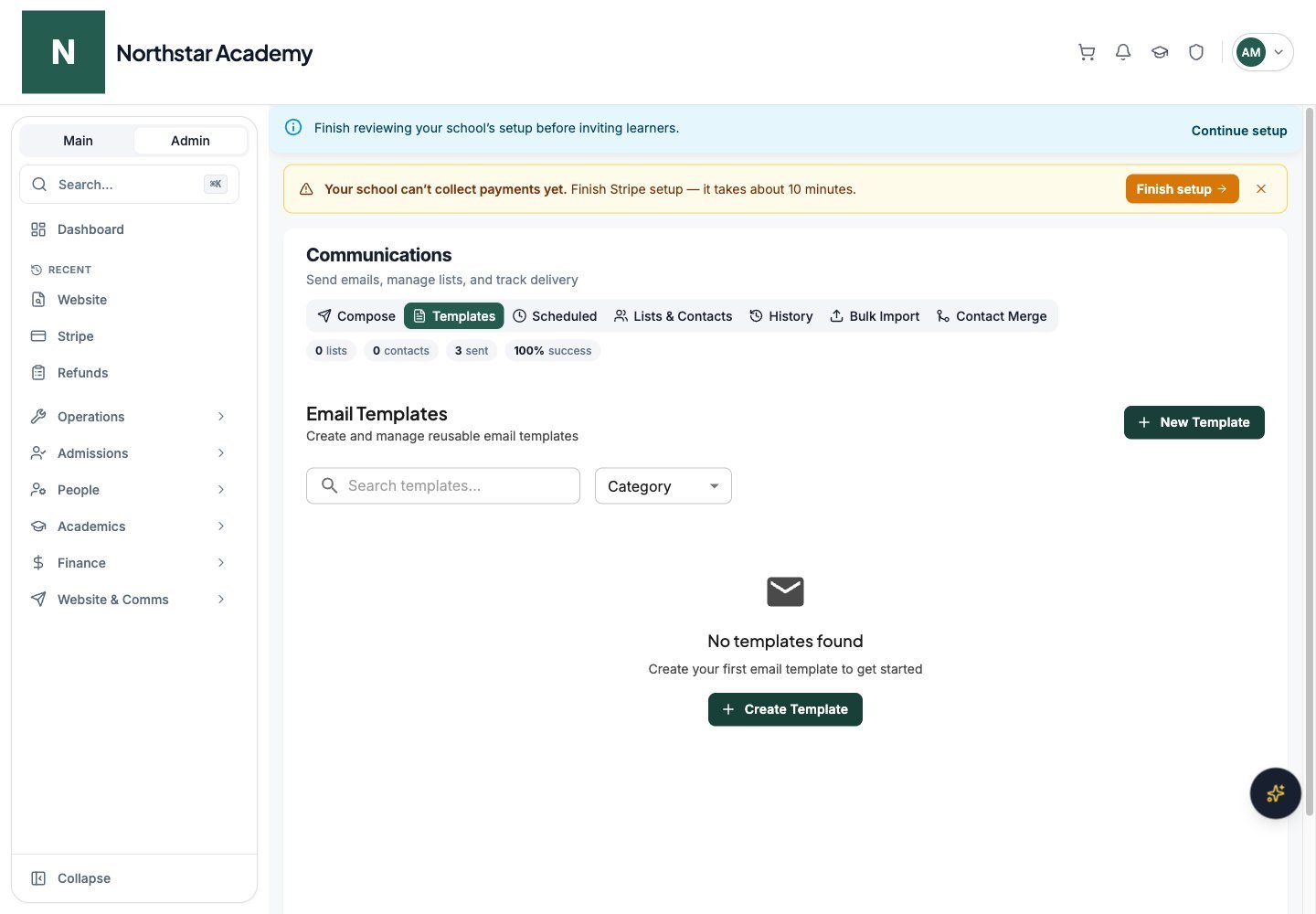
Northstar demo — Communications Dashboard — Templates
Creating a template
Go to the Templates tab
Click New Template
Design your template
Save
Using a template
While composing an email, click Templates to open Select Template. Search your library and select a template to fill in the subject and content, which you can then customize before sending. To create a variation without starting from scratch, open a template’s menu on the Templates tab and click Duplicate. The same menu has Edit and Delete.Scheduling emails
Schedule emails to go out at a specific date and time.Compose your email
Click Schedule
Choose date, time, and timezone
Confirm
Managing scheduled emails
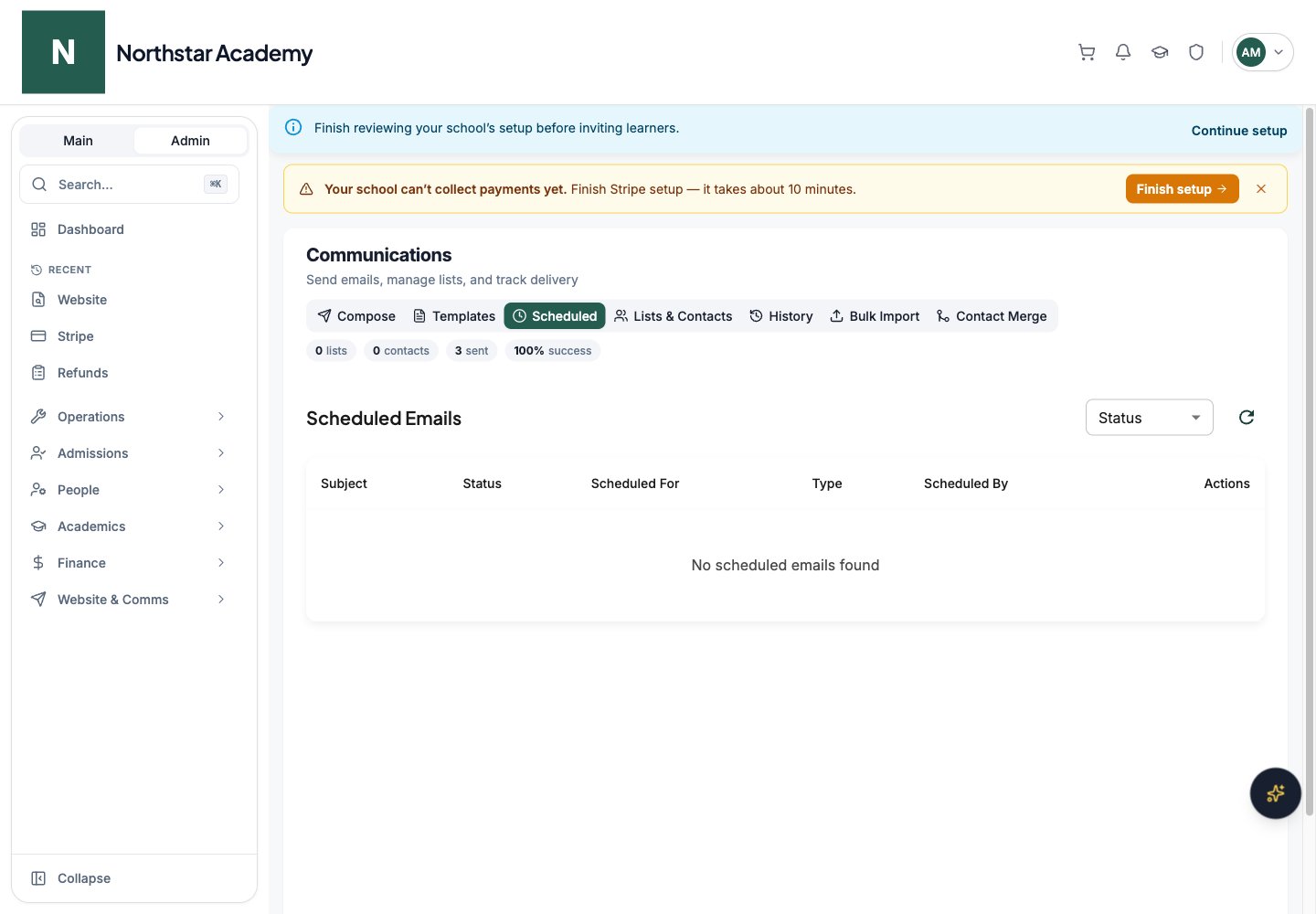
The Scheduled tab lists each email’s subject, status, scheduled time, type, and who scheduled it. You can:- Filter by Status: Pending, Processing, Sent, Failed, or Cancelled
- Cancel a pending email before it sends. Click Cancel, then Yes, Cancel It to confirm.
- Review failures — a failed email shows its error message in the row
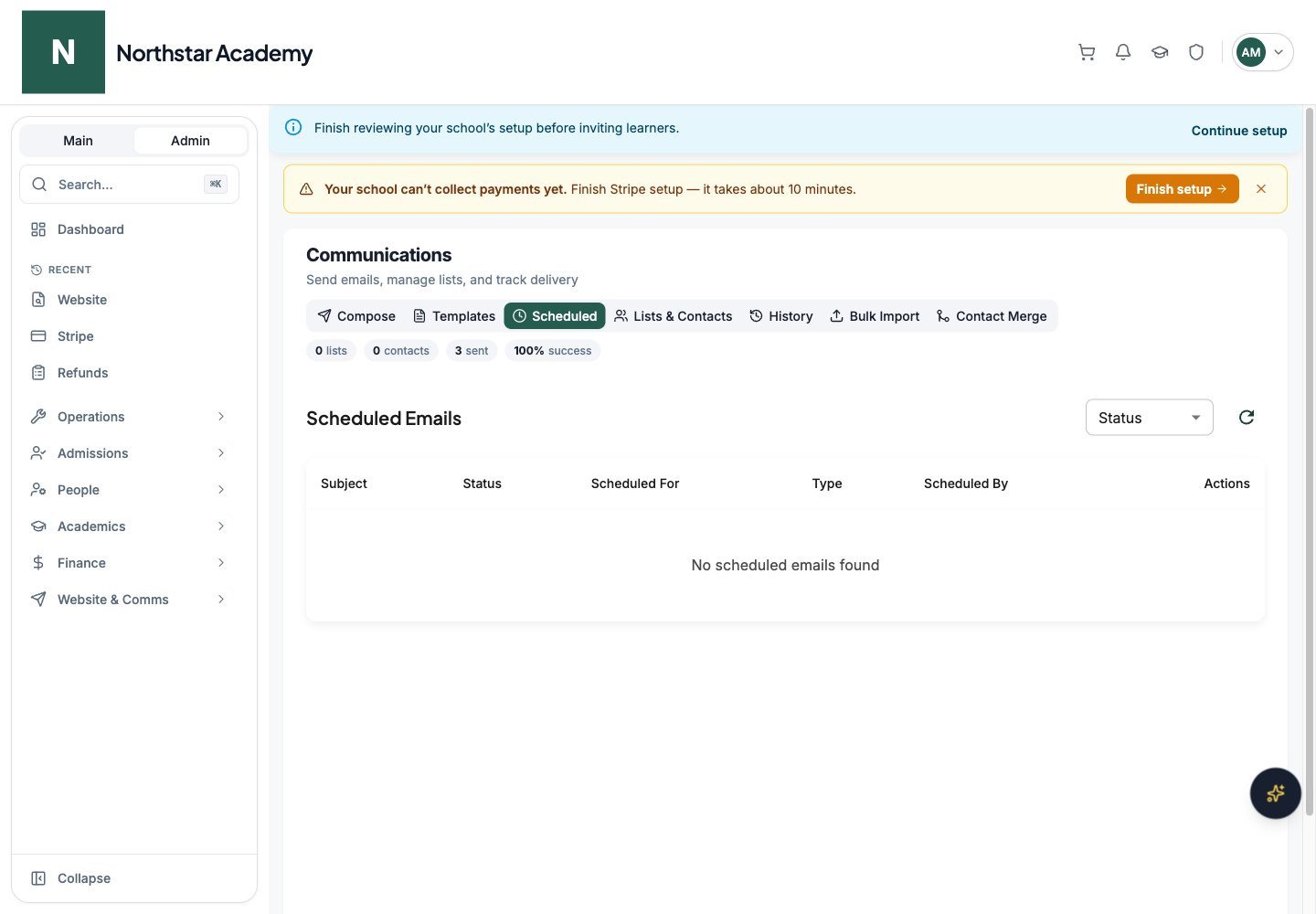
Northstar demo — Communications Dashboard — Scheduled
Email lists and contacts
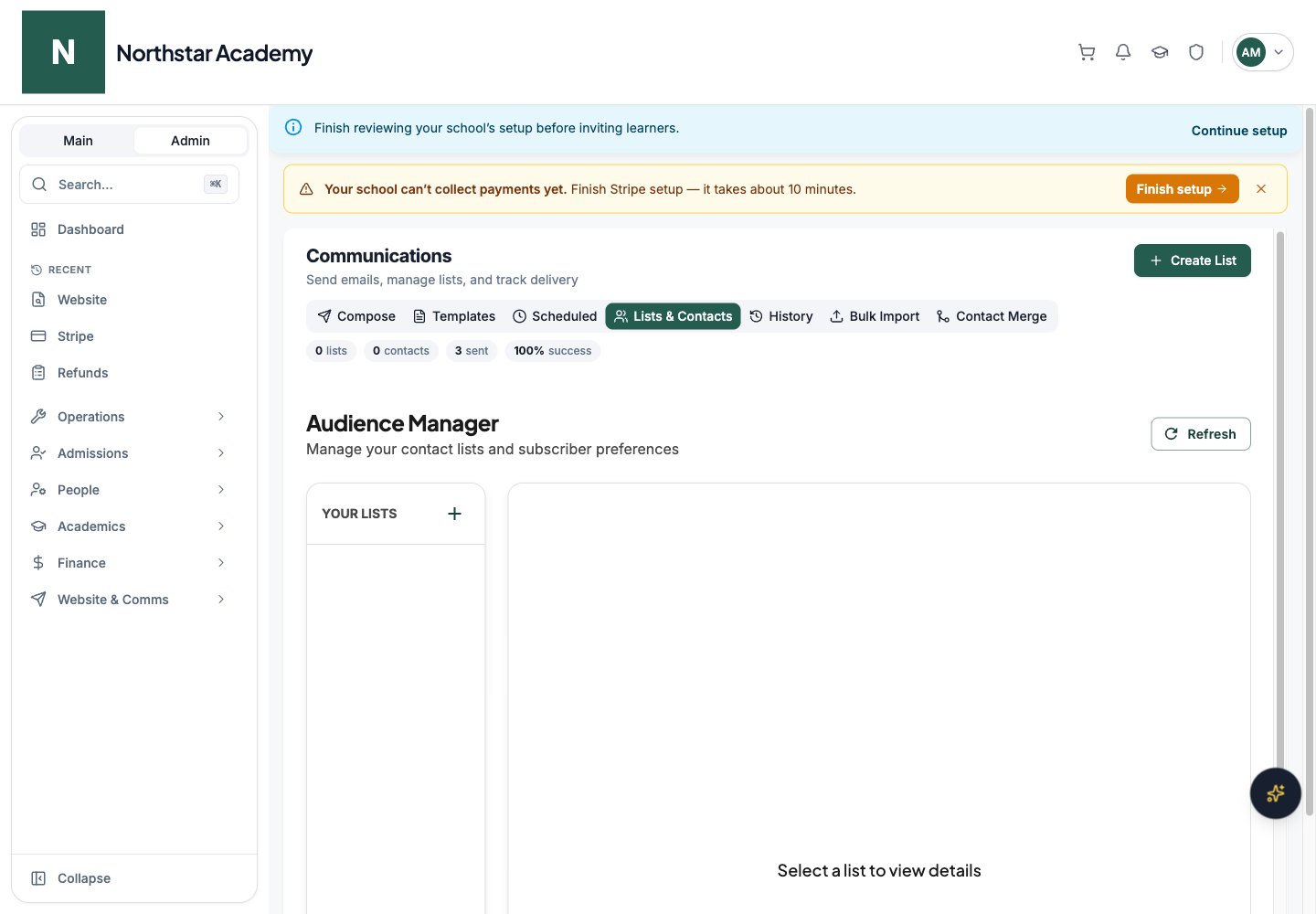
Email lists let you organize contacts into reusable groups for targeted outreach. The Lists & Contacts tab shows your lists on the left and the selected list’s details on the right.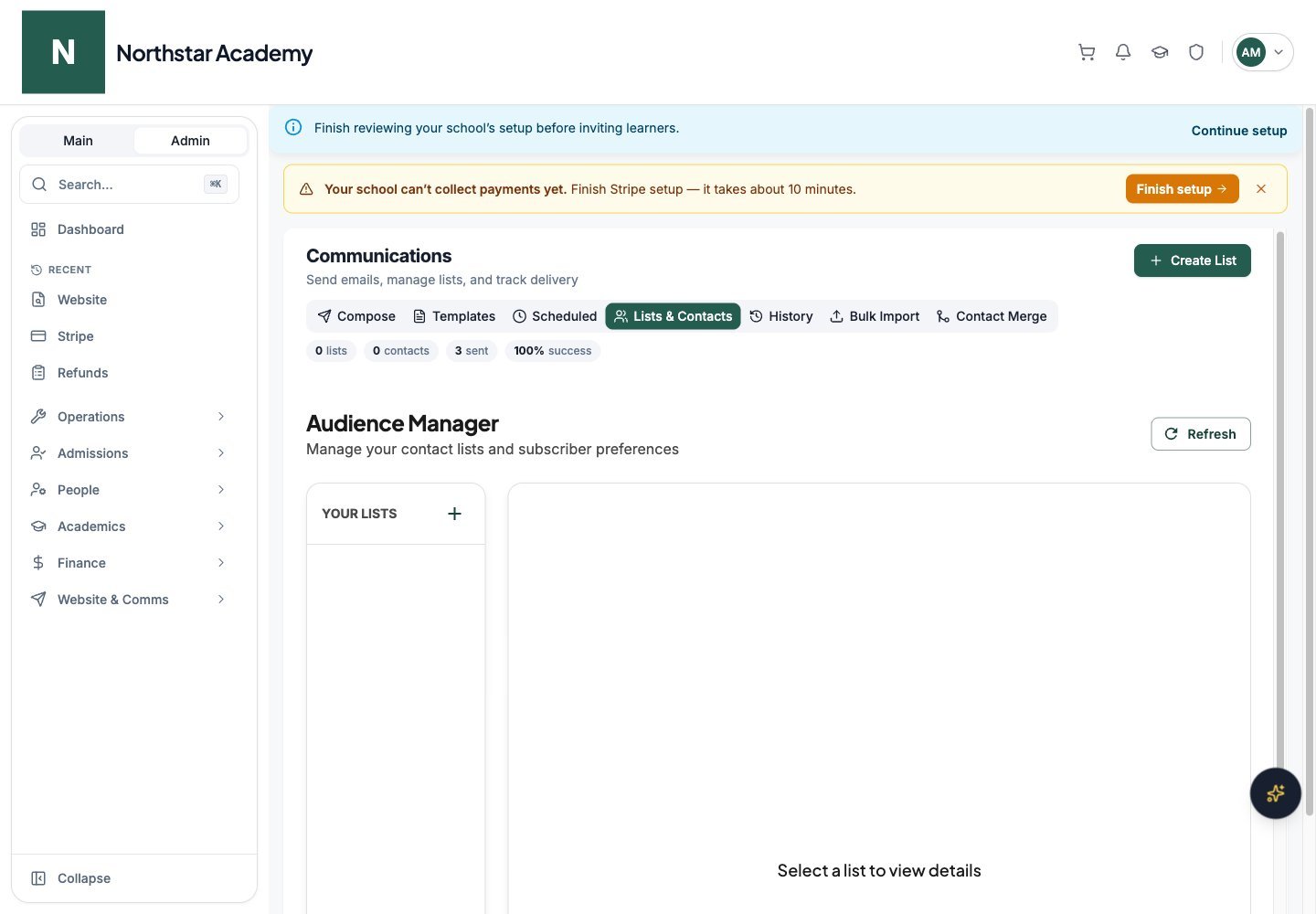
Northstar demo — Communications Dashboard — Lists & Contacts
Creating an email list
Go to Lists & Contacts
Create a new list
Configure the list
Add subscribers
Managing subscribers
- Search subscribers by name, email, or phone, and filter by status: Active or Unsubscribed
- Edit a subscriber’s details, status, or marketing consent, then click Save Changes
- Remove individual subscribers
Email history
The History tab shows a log of every email sent from the Communications Dashboard.- Search by subject line or recipient email address
- Filter by Status: Success, Partial, or Failed
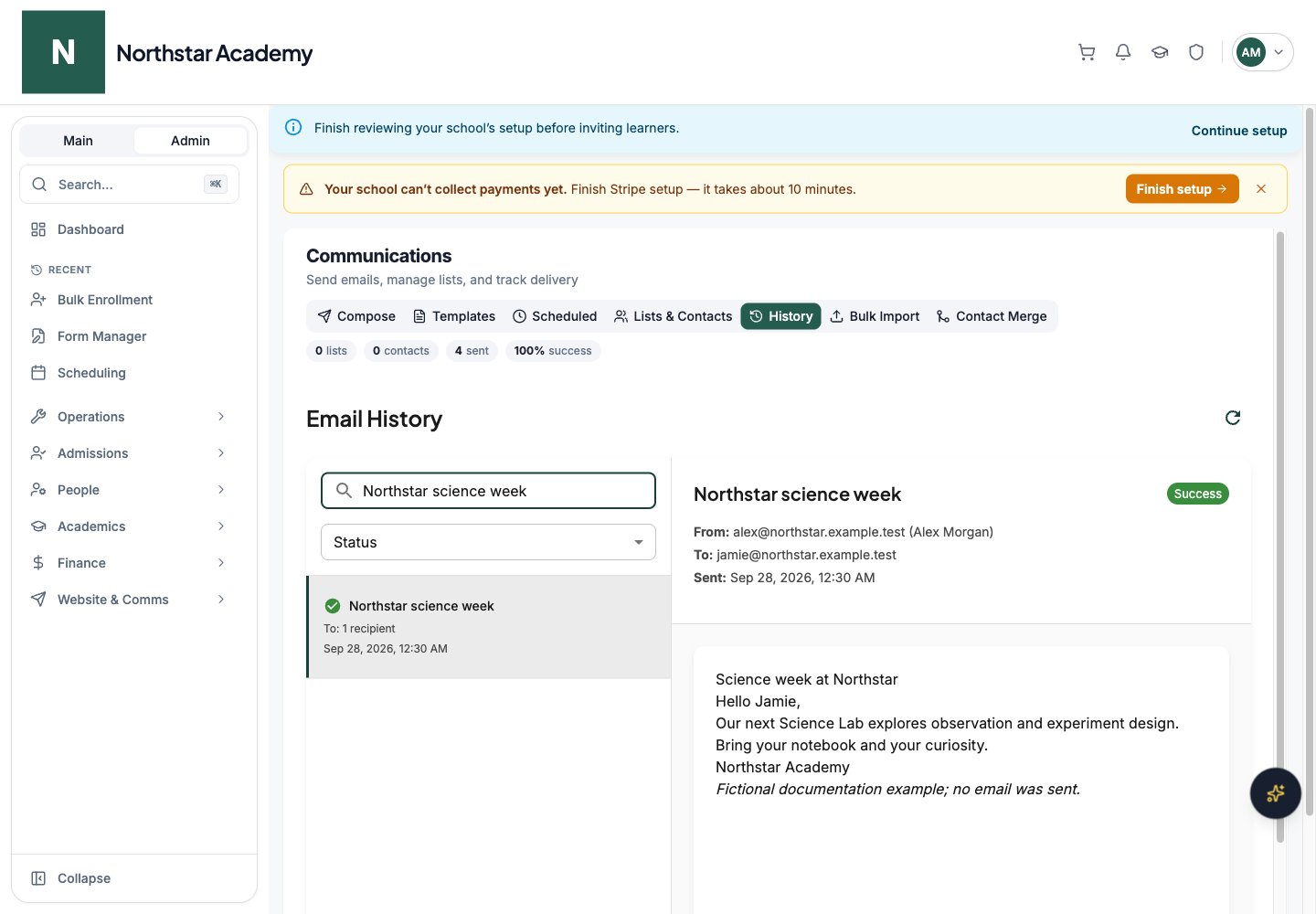
- Select any email to see its status, sender, recipients, send time, attachments, any error message, and the email content
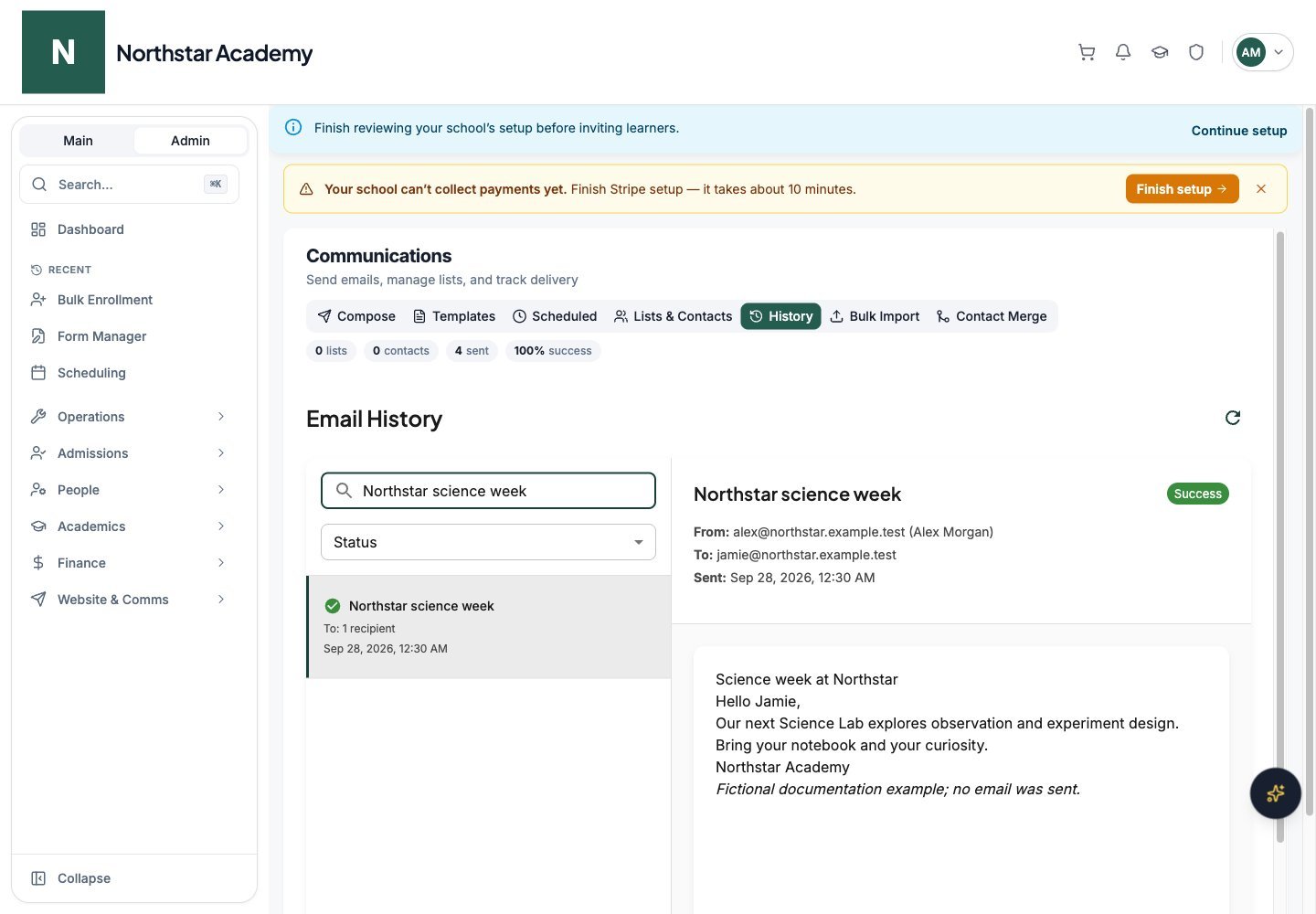
Northstar demo — Communications Dashboard — History
Best practices
- Build templates for recurring emails. Welcome emails, payment reminders, and event invitations are great candidates for templates.
- Use email lists for segmentation. Create lists like “Prospective Students”, “Alumni”, or “Parent Newsletter” to target the right audience without selecting users one by one.
- Preview before sending. Click Preview in the composer and check the Desktop and Mobile views. The preview also shows the reply-to address in use. Send delivers immediately without a confirmation step.
- Route replies to a shared inbox. Set Reply to: to an office or admissions mailbox when several staff members handle responses, so replies do not land in one person’s inbox.
- Personalize. Emails with the recipient’s name in the subject line and greeting feel more personal and get higher engagement.
- Check the History tab after bulk sends. Verify that emails were delivered successfully, especially for large recipient lists.
Email families and product buyers
You can select a child User who has linked parent recipients even if the child has no direct email address. Review the intended family audience before sending; child-account delivery can route to linked parents. For a product-specific message, open Finance → Products & Donations, select the product, open Sales, and click Email buyers. The composer includes buyers across all sales pages and statuses, deduplicated by email address. Remove anyone who should not receive that message or add an extra address, then review the subject, message, and attachments before sending. Buyer messages are sent individually. Read the result after sending. If delivery cannot be confirmed, check History before trying again. Review failed recipients lets you prepare a retry for failures without resending to everyone.All Communications tabs
Import and deduplicate contacts
Prepare the contact list
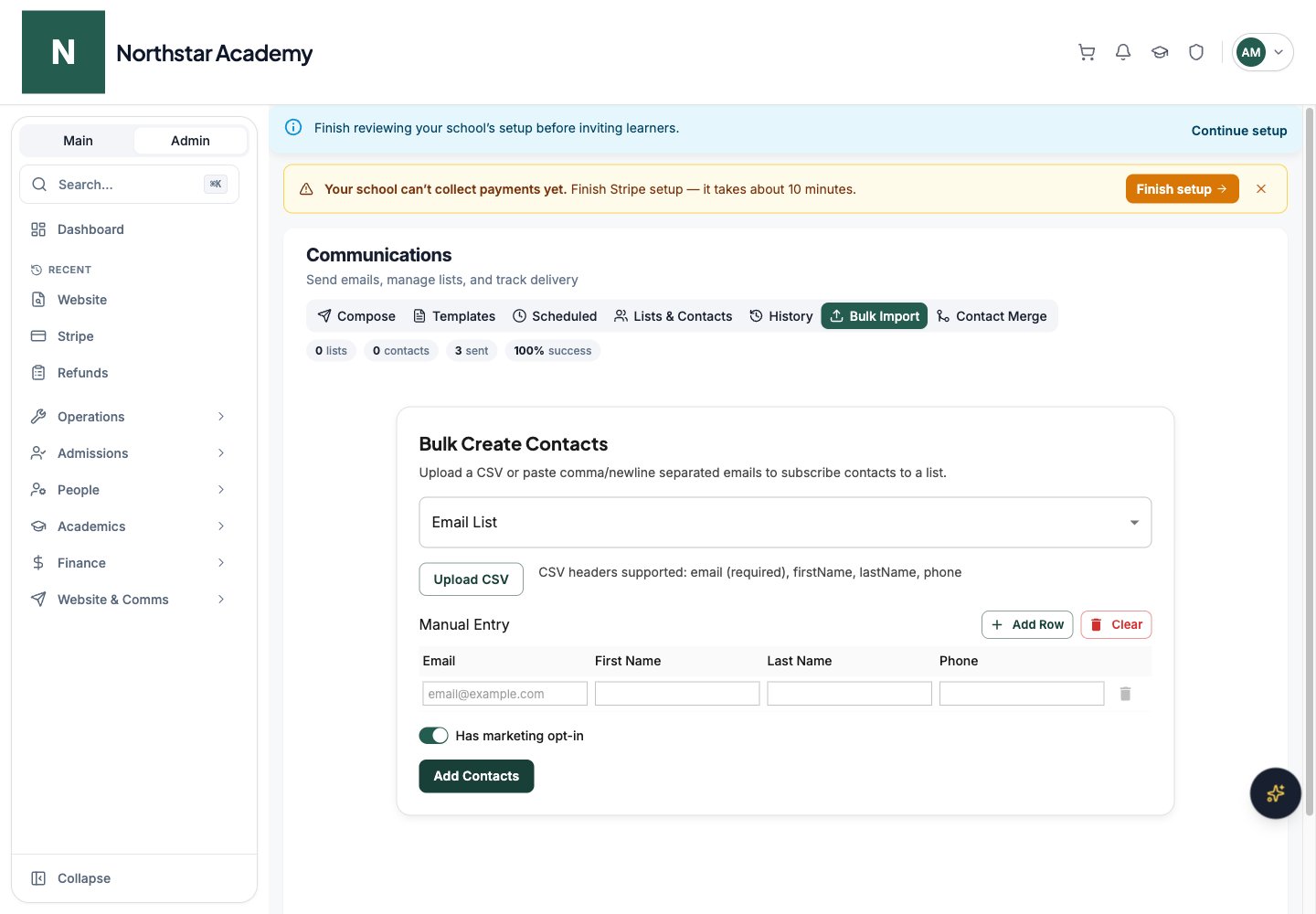
email column (required) and optional firstName, lastName, and phone columns, then use Map to to match each column. Or type contacts under Manual Entry, using Add Row for more rows. Check Has marketing opt-in if these contacts consented to marketing, then click Add Contacts. Bulk Import adds email contacts only; it does not create school User accounts.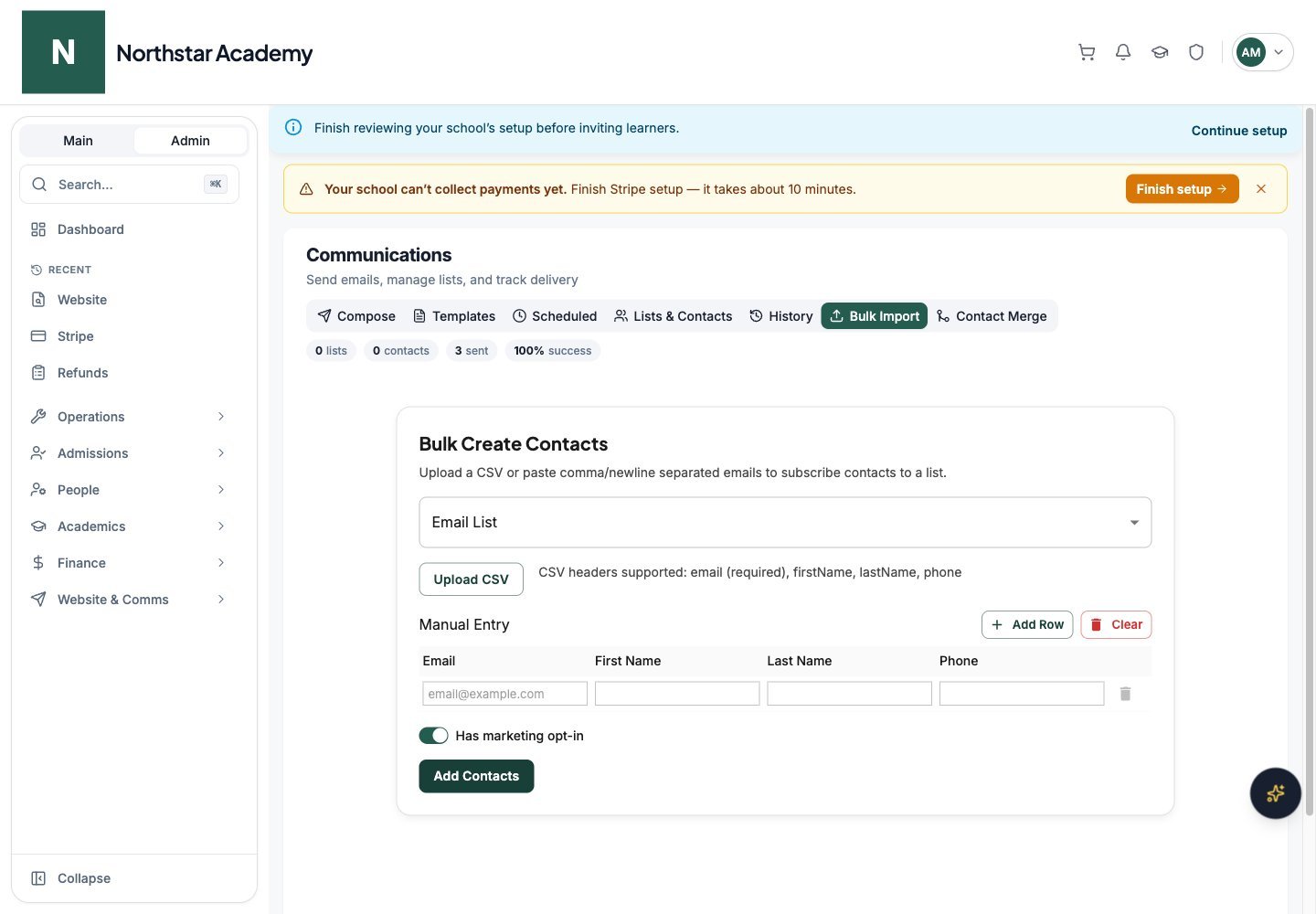
Northstar demo — Communications Dashboard — Bulk Import
Review the import
Resolve duplicates
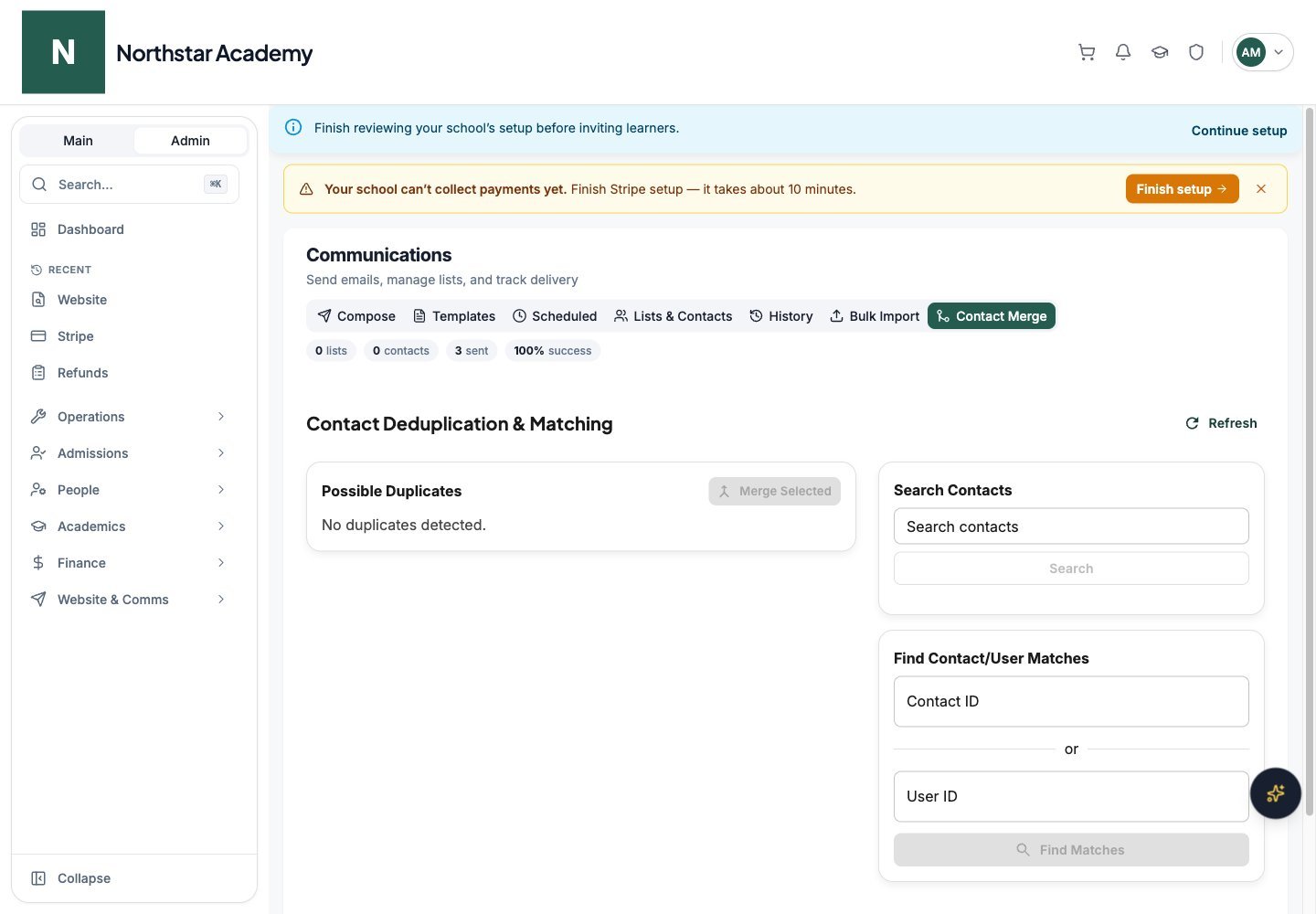
Northstar demo — Communications Dashboard — Contact Merge