School-level feature — managed within your school portal at
yourschool.deandesk.com.Video walkthrough
This walkthrough uses the real DeanDesk interface with the fictional Northstar Academy demo school and a calm, AI-generated English voice. Payments and outside services are not connected in the demo.
Home and category tabs
Home shows attendance, students, revenue, courses, applications, and orders, together with enabled widgets and starred or frequently used tools. Use the revenue range controls to change the displayed period. Click Refresh to reload dashboard data. Use Customize to show or hide home widgets, Create for common creation actions, and a tool’s star control to pin it. The six category tabs show that category’s tools and relevant summaries. They open the same pages as the sidebar.1
Choose your task
Open a sidebar category, select its tool, or use dashboard search to find a tool by name.
2
Choose the workspace tab
Some pages combine several tasks. Use the page tabs listed below; a selected person, course, roster, or product may expose additional detail views.
3
Check the scope before changing settings
Confirm the school name in the header. Institution subscriptions, Identities, and institution memberships are managed separately in the institution dashboard.
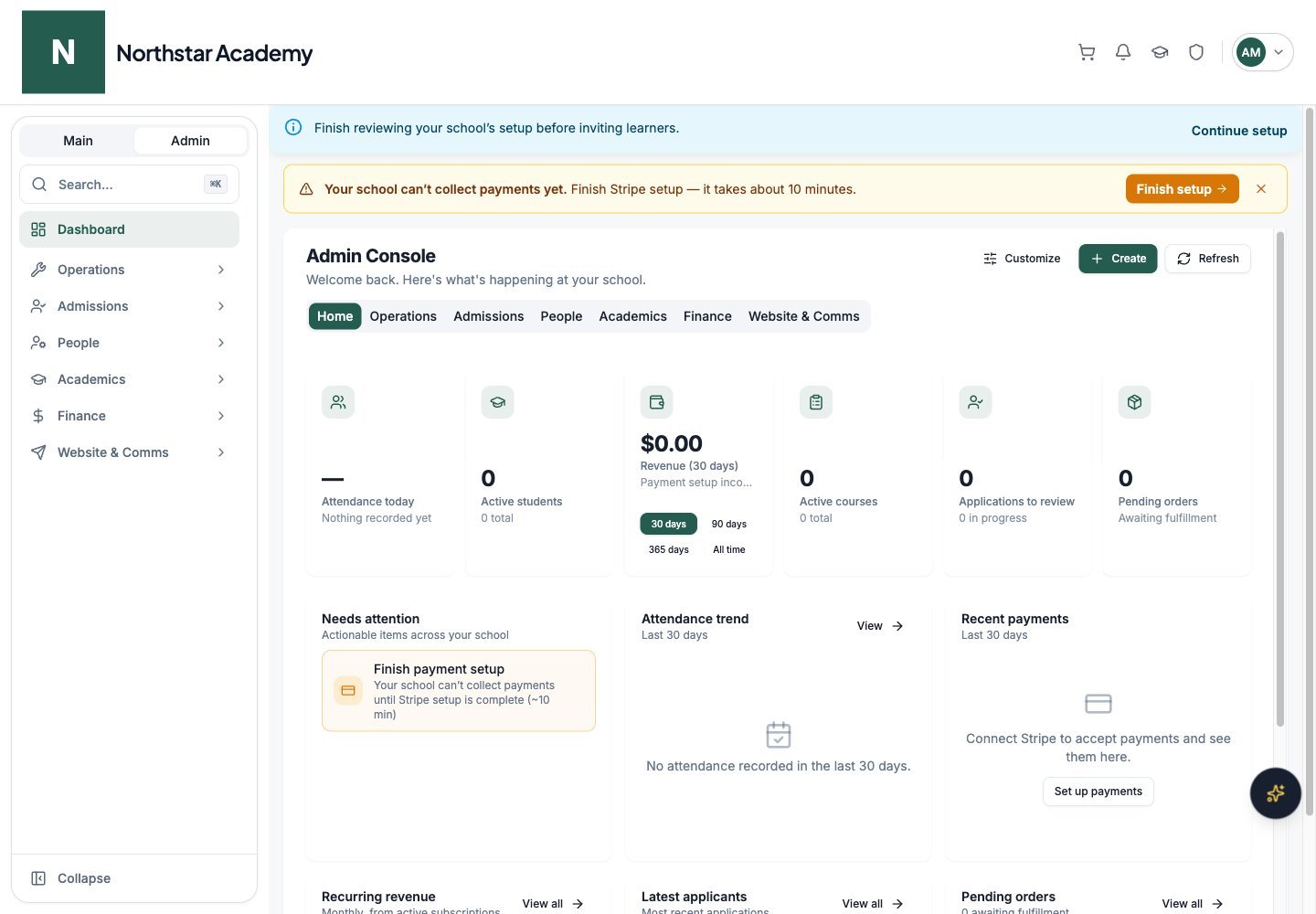
Northstar demo — Admin Console — Home
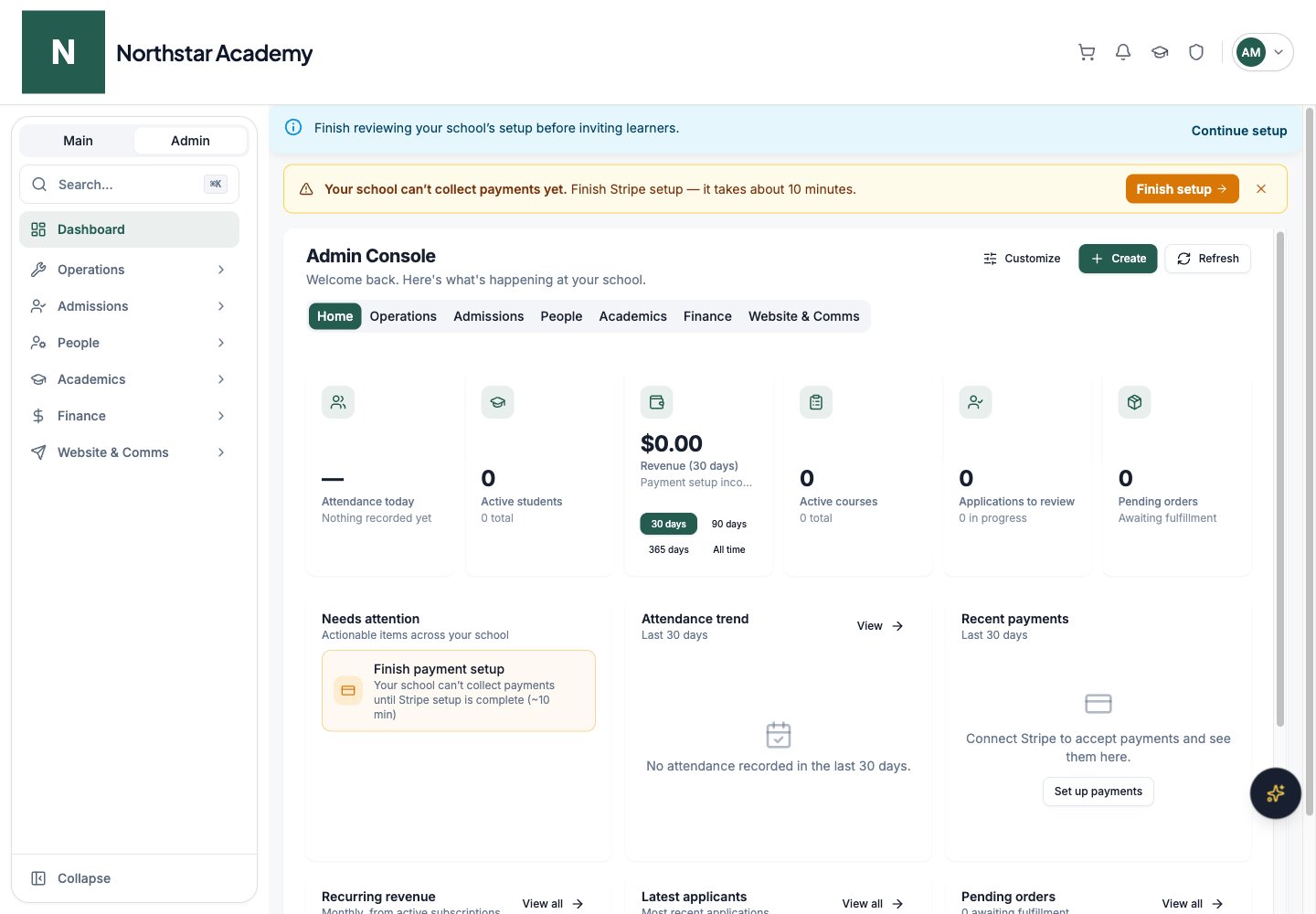
Availability and setup
Your permissions, school product, and enabled features determine which tools appear. The attendance destination changes with the school’s tracking mode. Time and Payroll also requires the applicable institution access. Use Continue setup or School onboarding to review the launch checklist. The floating Ask DeanDesk AI button opens the school assistant.Dashboard pages
Operations pages
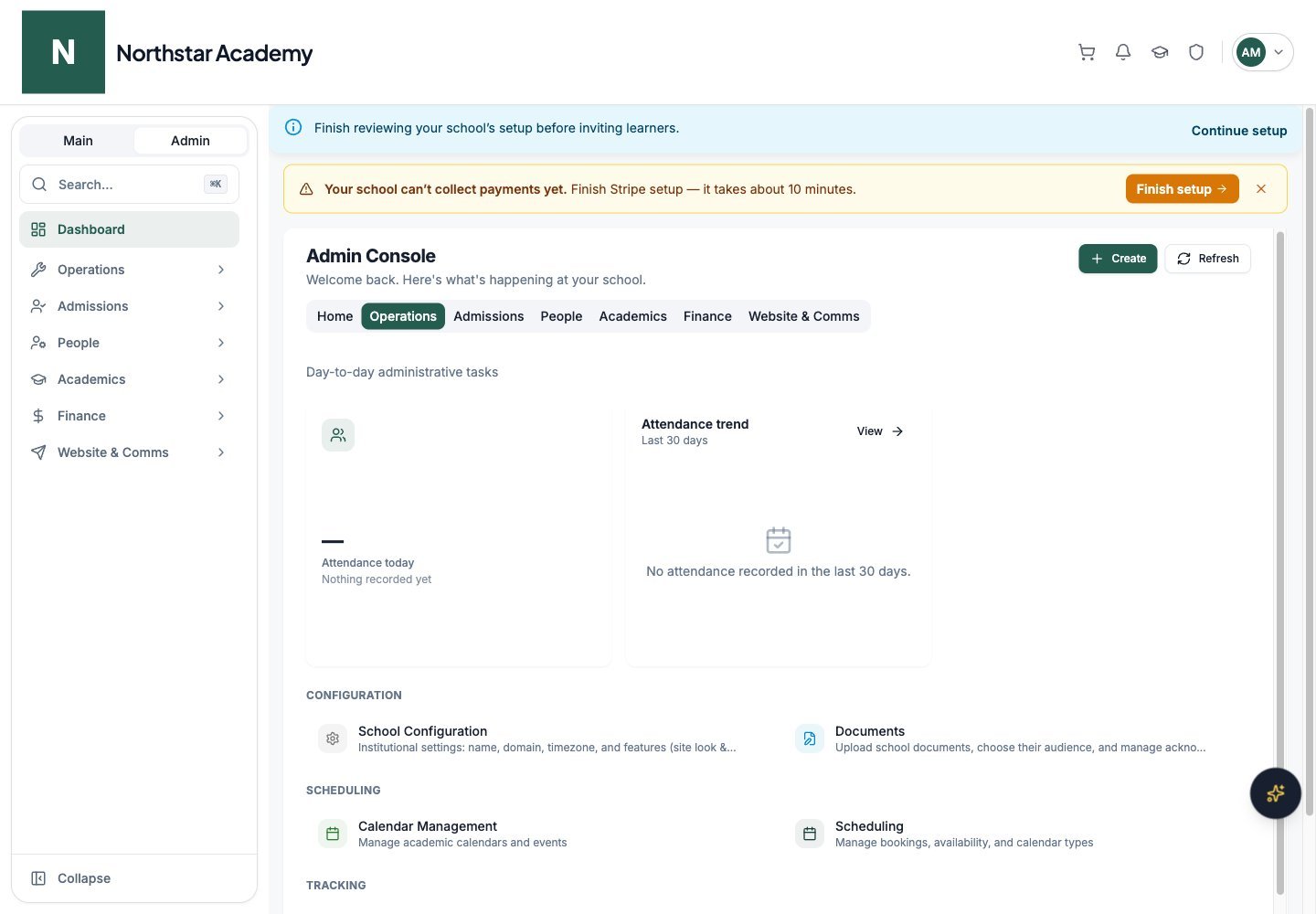
Northstar demo — Admin Console — Operations
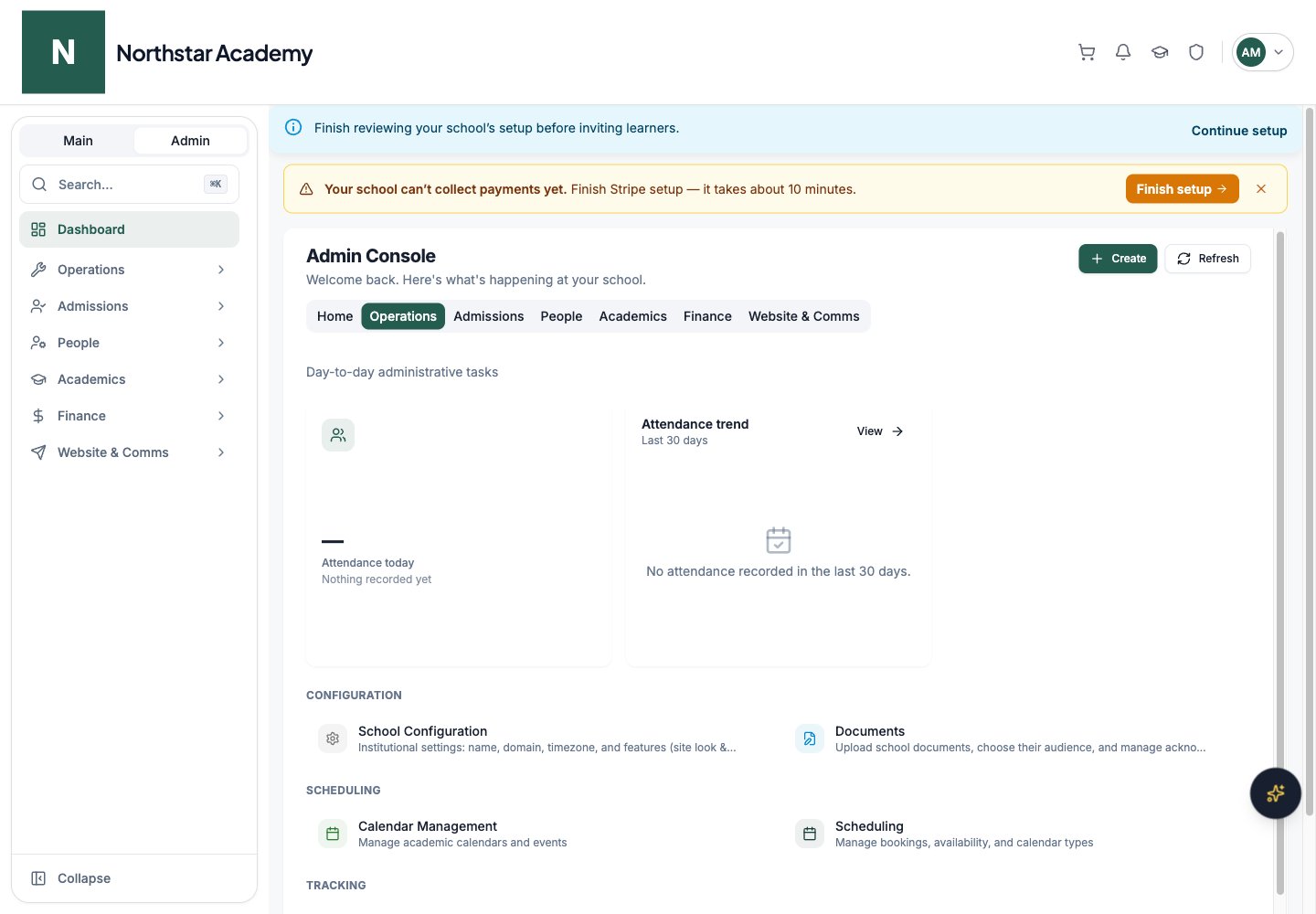
Admissions pages
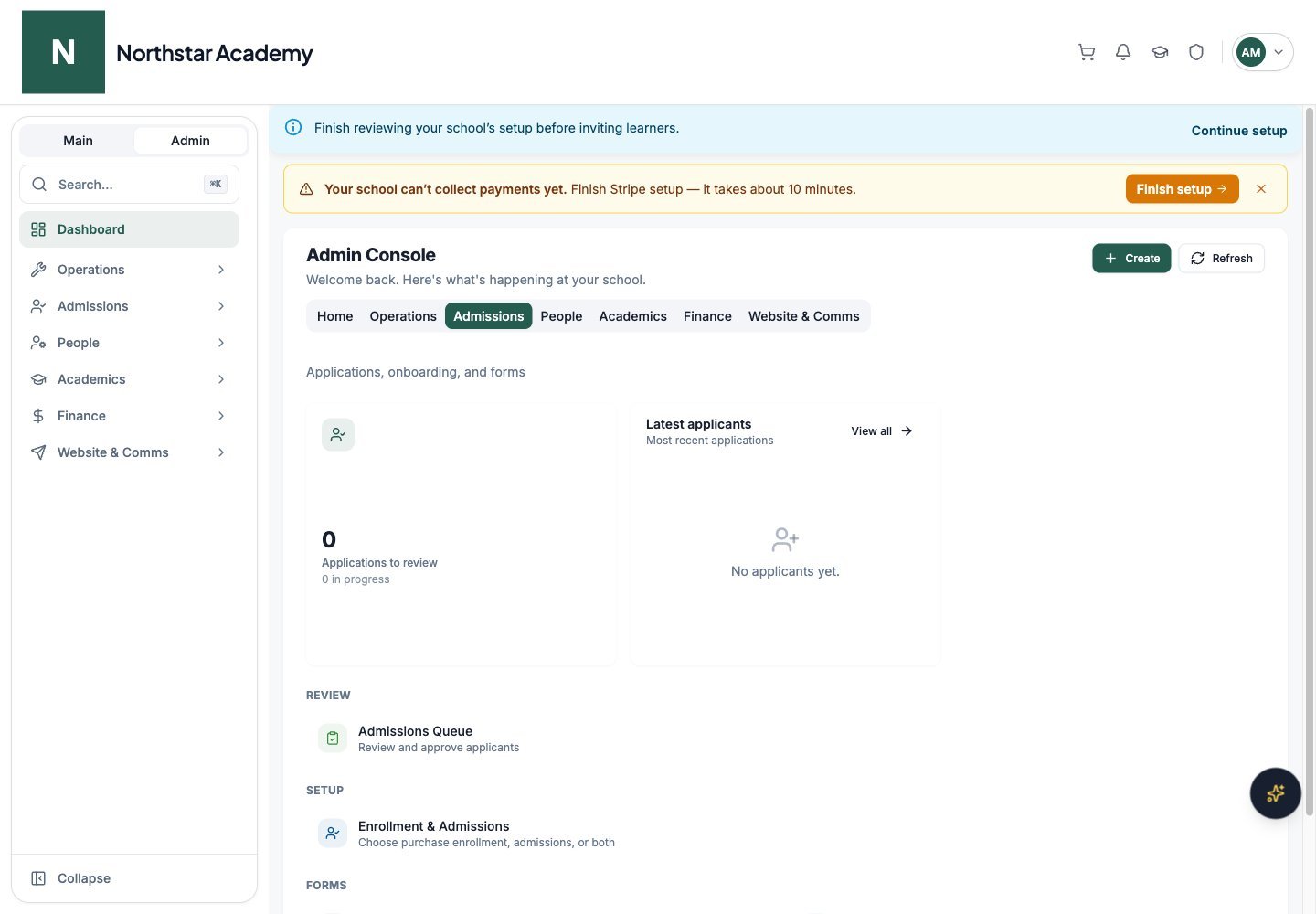
Northstar demo — Admin Console — Admissions
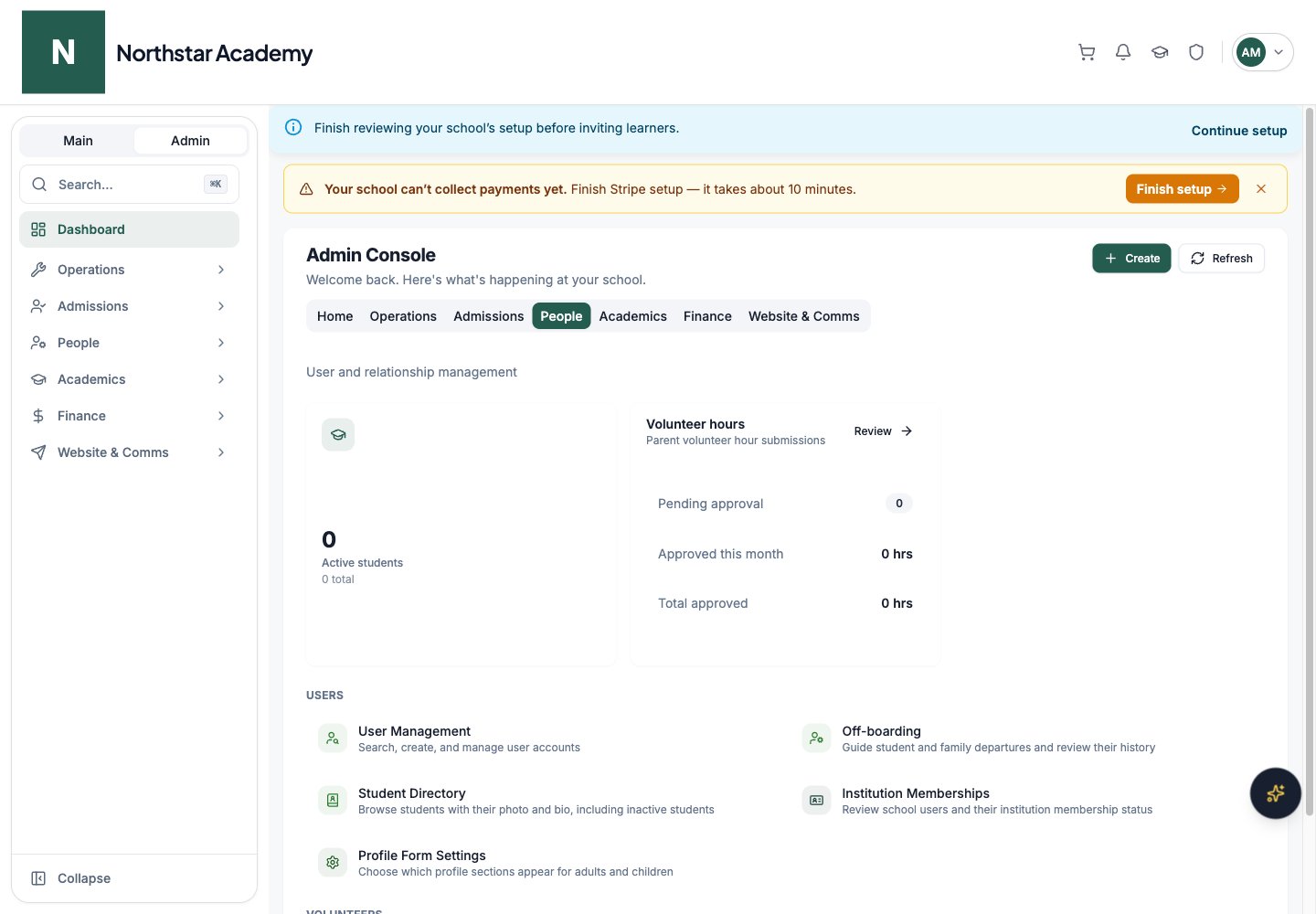
People pages
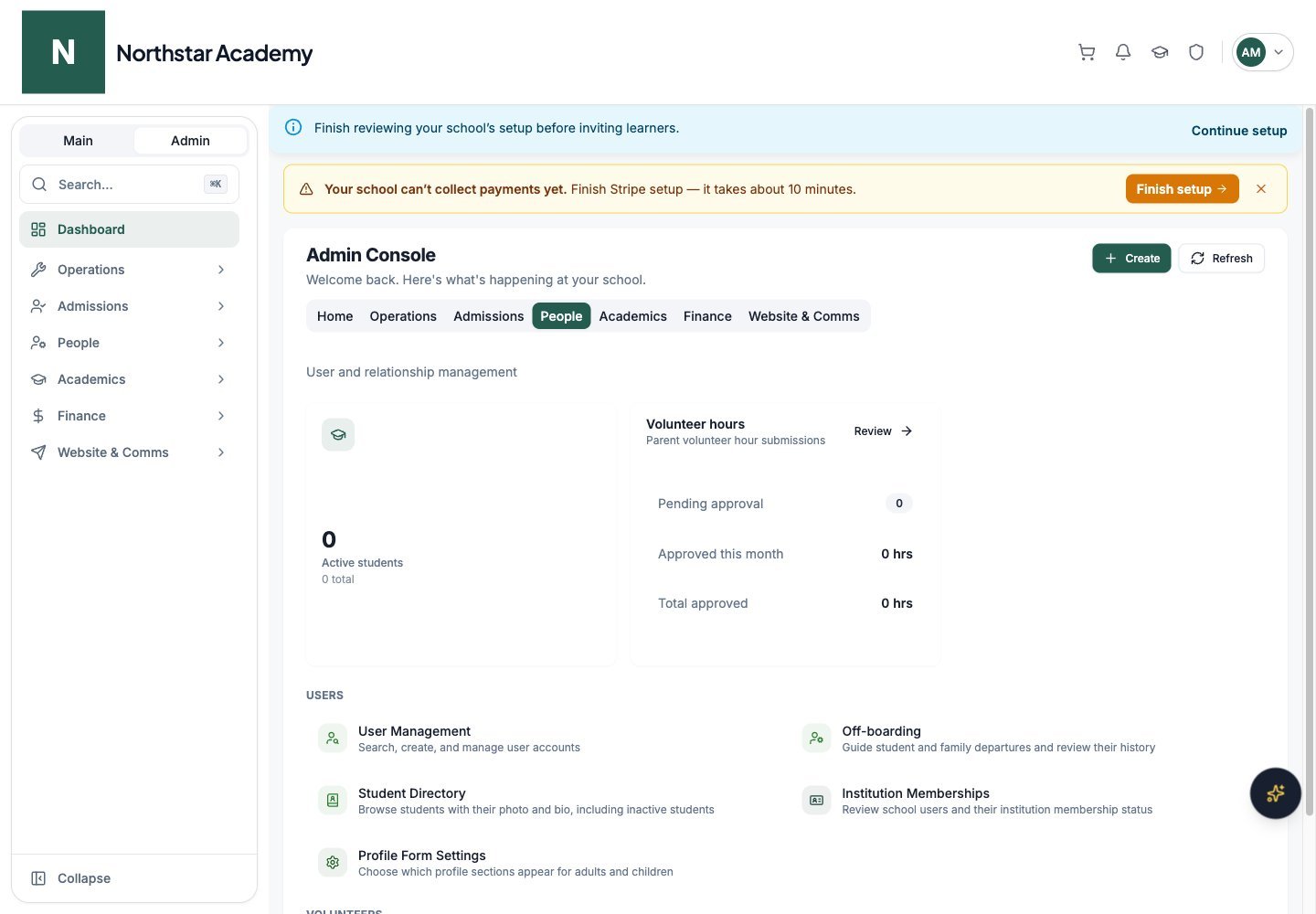
Northstar demo — Admin Console — People
Academics pages
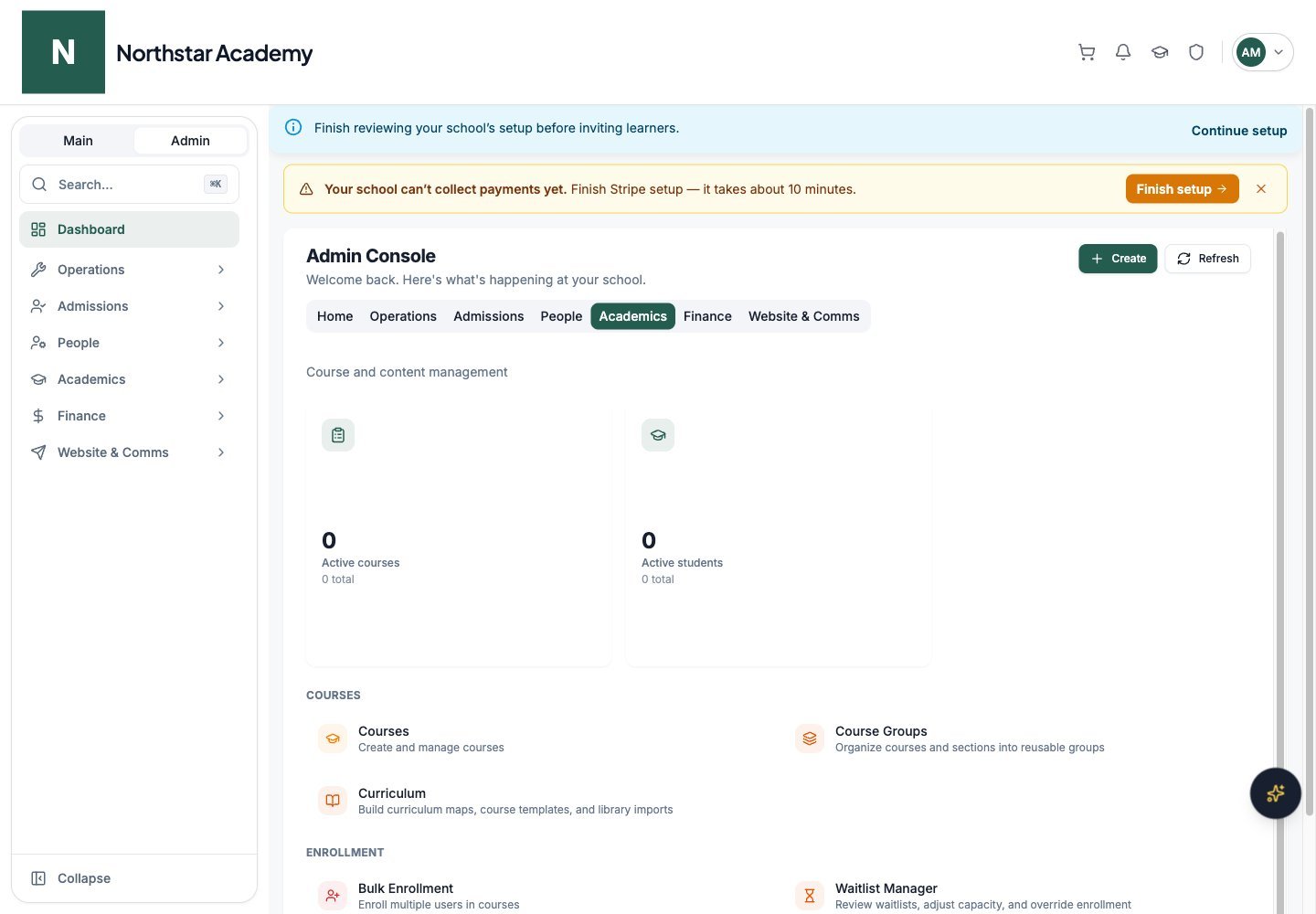
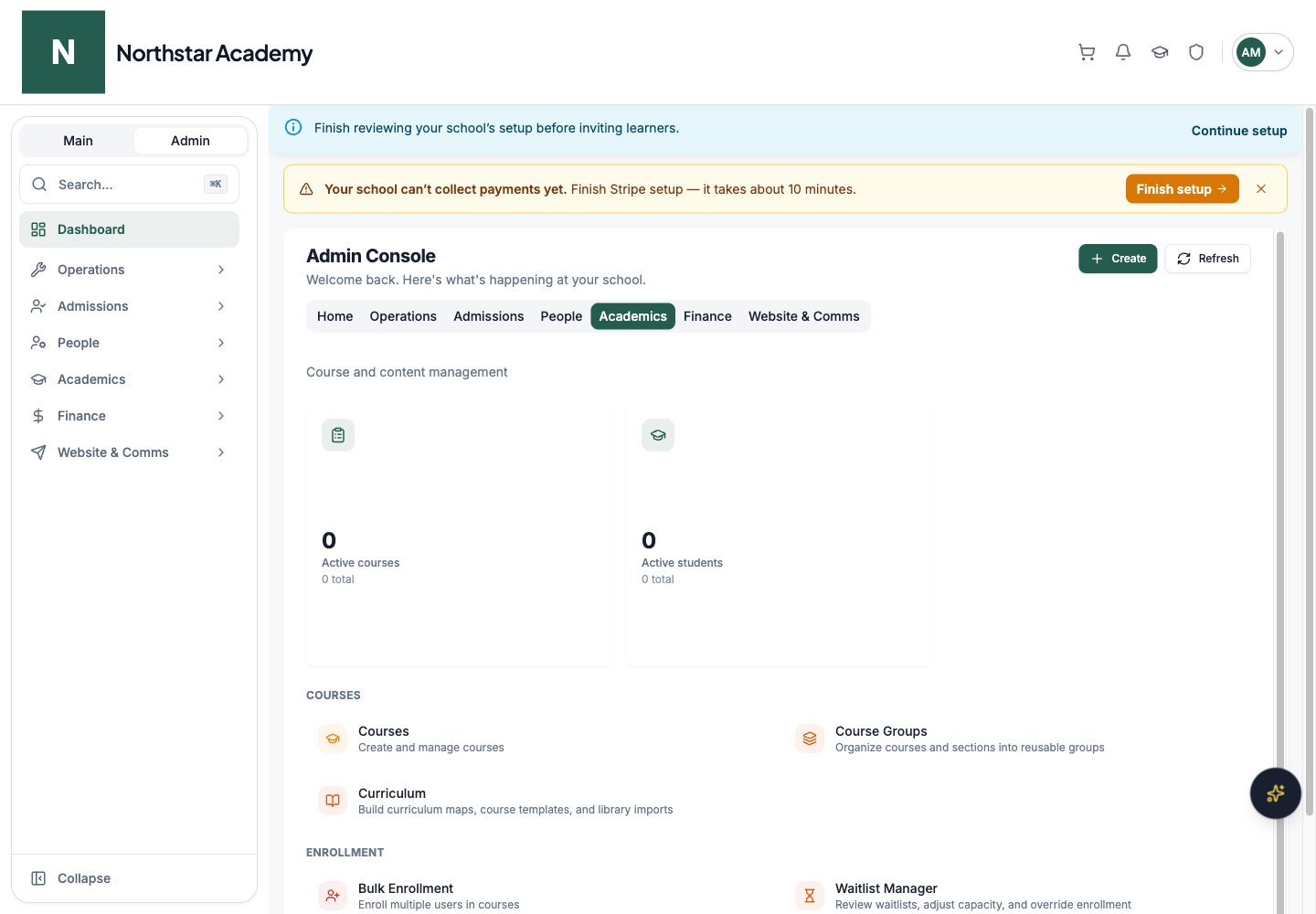
Northstar demo — Admin Console — Academics
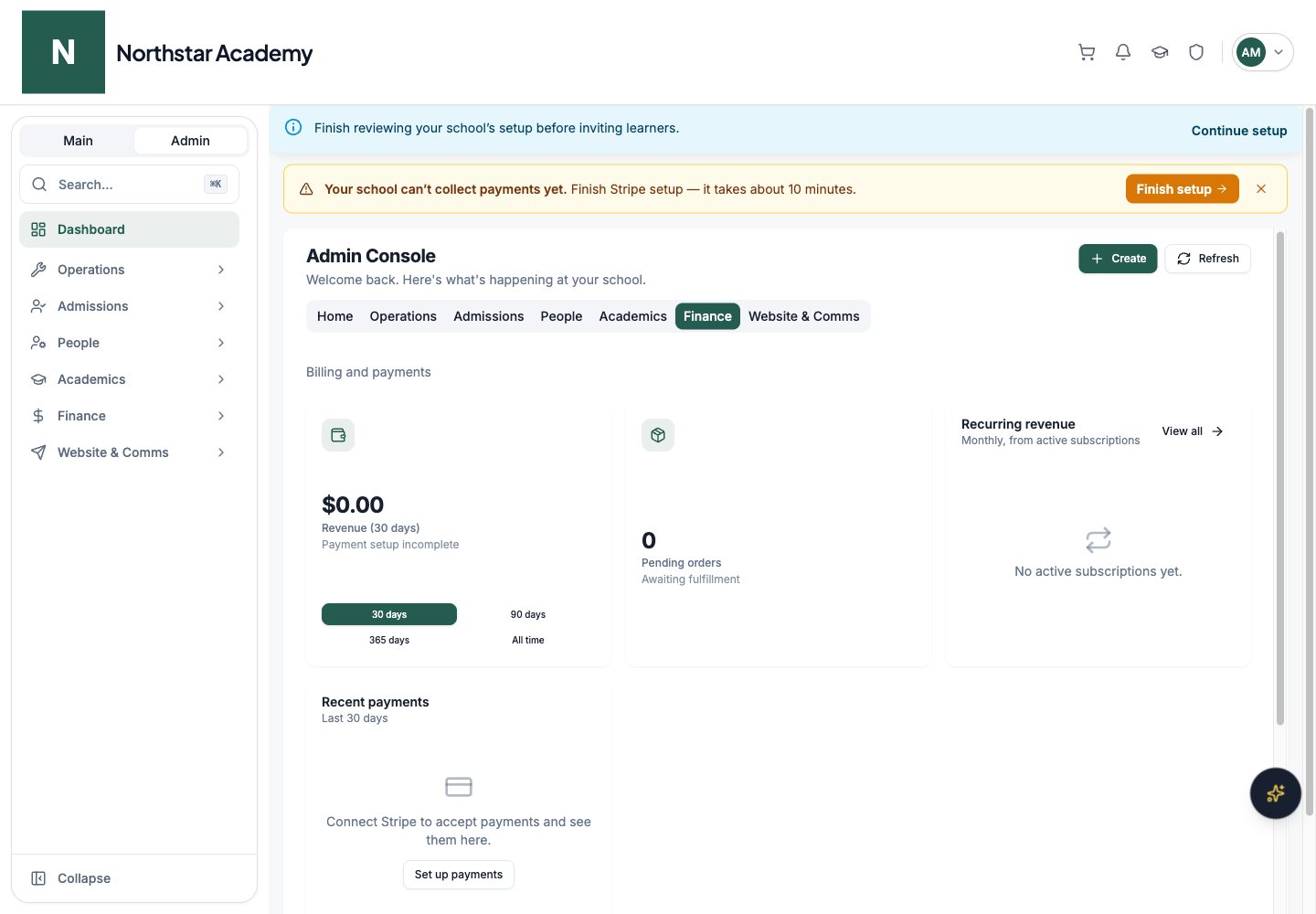
Finance pages
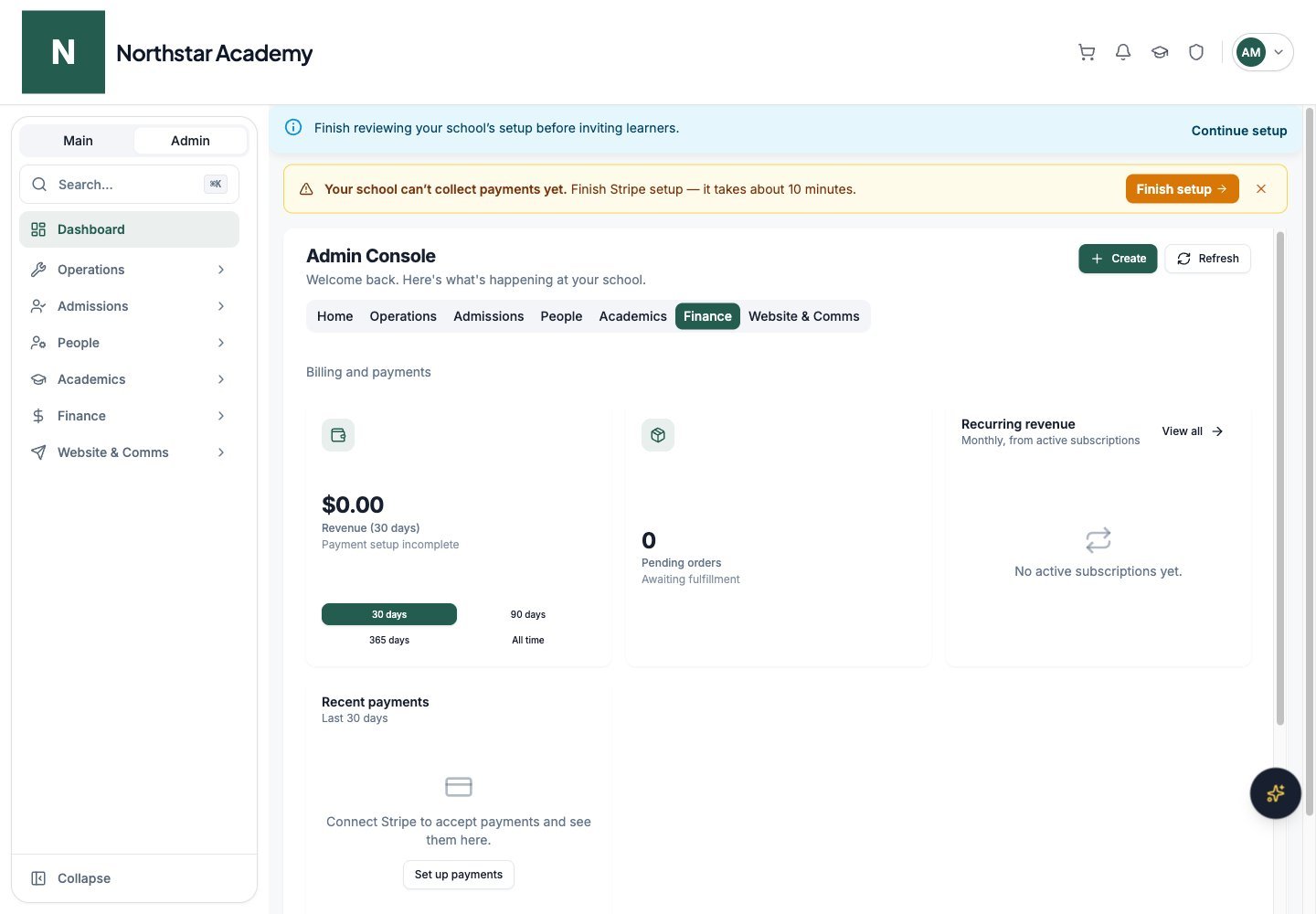
Northstar demo — Admin Console — Finance
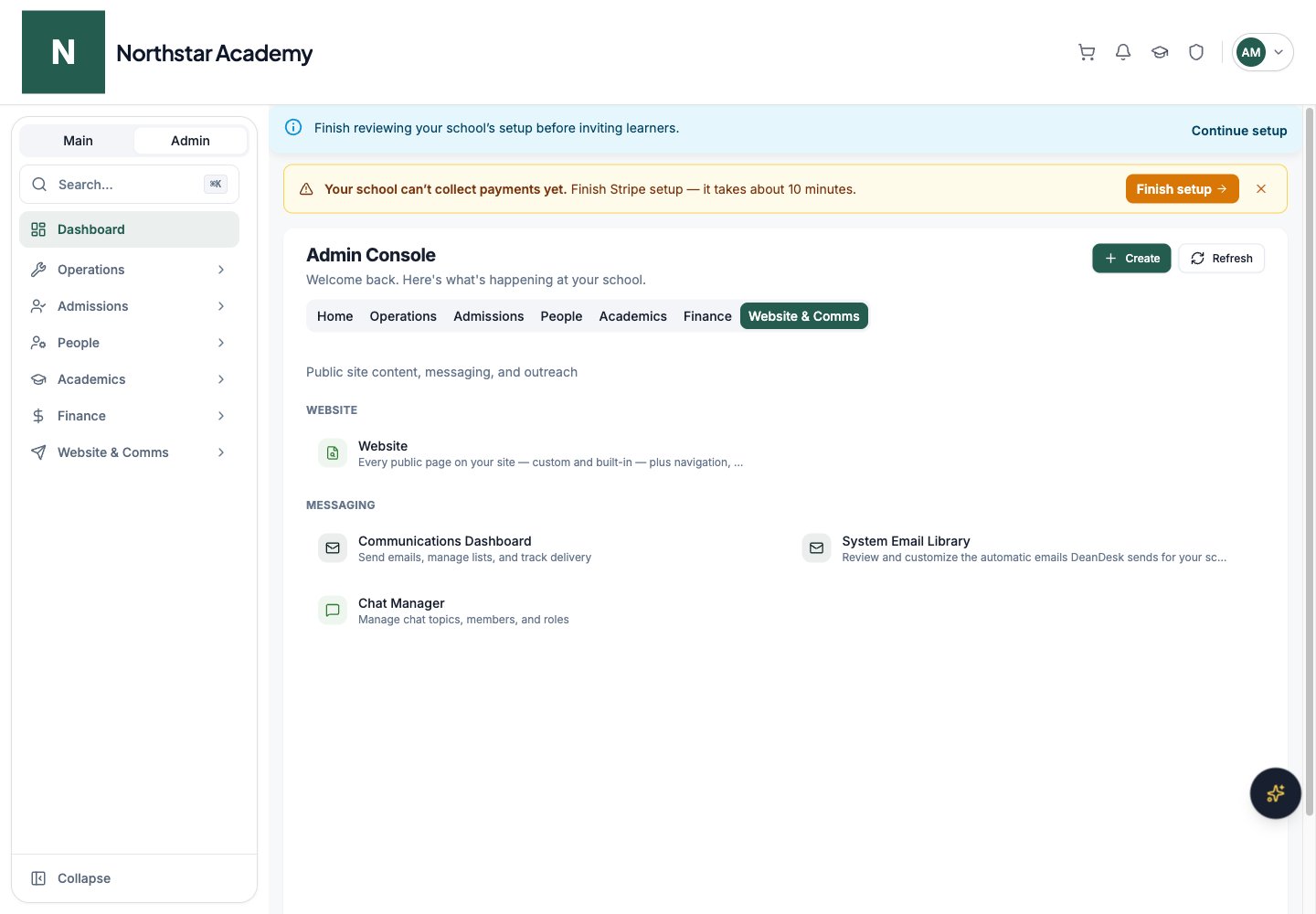
Website & Comms pages
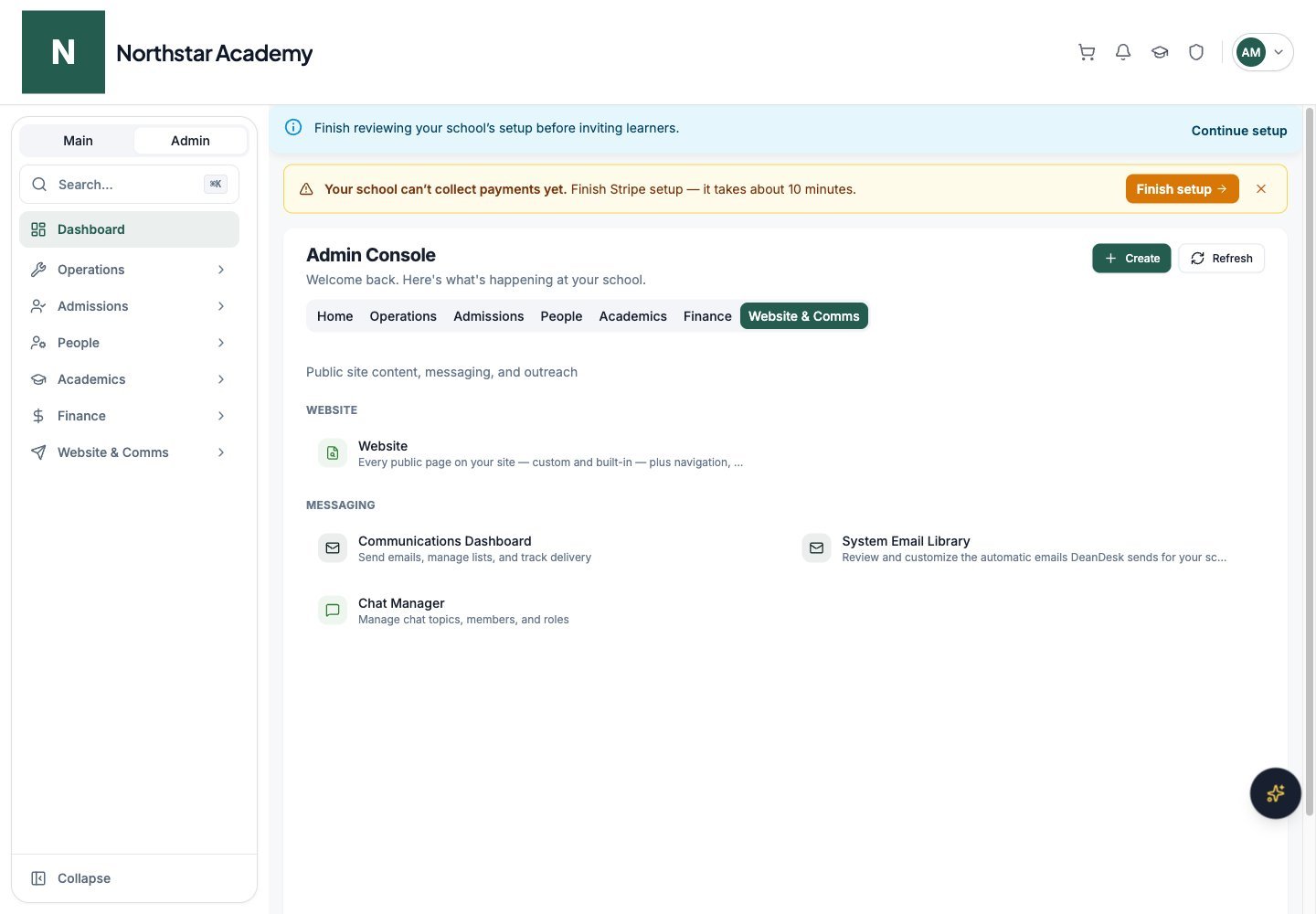
Northstar demo — Admin Console — Website & Comms