

School-level feature — managed within your school portal at
yourschool.deandesk.com.Video walkthrough
This walkthrough uses the real DeanDesk interface with the fictional Northstar Academy demo school and a calm, AI-generated English voice. Payments and outside services are not connected in the demo.
Product types
DeanDesk supports five product types. Choose the one that matches what you are selling.All prices use your school’s sales currency (USD, GBP, EUR, or CAD). The currency is chosen when the school is created and cannot be changed — individual products and prices do not carry their own currency.
Create a product
Go to Finance → Products & Donations and click Create product. The dialog walks you through a four-step wizard — click any step in the stepper at the top to jump back to it.1
Choose a type
Pick the kind of product you are creating:
- Tuition — a recurring or one-time charge for enrolled students, optionally linked to a course
- Program — a publicly available program anyone can browse and purchase
- Donation Campaign — a fundraising campaign with a goal, deadline, and suggested amounts
- Physical Item — a stocked item with optional variants and shipping details
- Booking Session — a scheduled session with a staff member, with availability and payment at checkout
2
Enter details
Fill in the product’s details:
- Name — what students and families see when purchasing (e.g., “Full-Time Tuition”, “Summer Camp Registration”)
- Description — a short explanation of the product. Use the product details page’s Public Page tab for the full public content and presentation.
- Audience — choose the available audience restriction: adults or children, children only, or adults only to restrict who the product applies to
- YouTube Video URL — paste a YouTube link to embed a video on the public product page
- Tags — comma-separated labels used for filtering and public catalog chips
- Page Content (HTML) — optional richer content shown on the public page
- Benefits — optional product benefits in the creation form
- Images — add images for the product page and catalog; the product details page also supports selecting from the image library
3
Configure type-specific settings
The third step depends on the product type you chose:
- Tuition — Course & Access
- Program — Checkout Form
- Booking Session — Session & Availability
- Donation — Campaign
- Tuition Access — choose Anyone can select or Members only to restrict purchasing to users with an active membership
- Eligible Memberships (members-only products) — leave empty to allow any active membership, or pick one or more specific membership plans that gate purchase. Useful when only certain tiers (e.g. “Supporter Family”) should unlock a specific tuition rate.
- Course association — choose No course, Create new course, or Attach existing to link a course to the product. When a student purchases the product, they gain access to the linked course. You can also manage course associations later from the product details page.
4
Set pricing
Add one or more price rows. Each row has:
- Label — a name for this pricing option (e.g., “Monthly Plan”)
- Amount — the price, in your school’s currency
- Price Type — Recurring, One-time, or Free
The Pricing step is skipped for donation campaigns (donors choose their own amounts) and when editing an existing product — manage existing prices from the product details page instead. Physical items and booking sessions offer One-time and Free prices only.
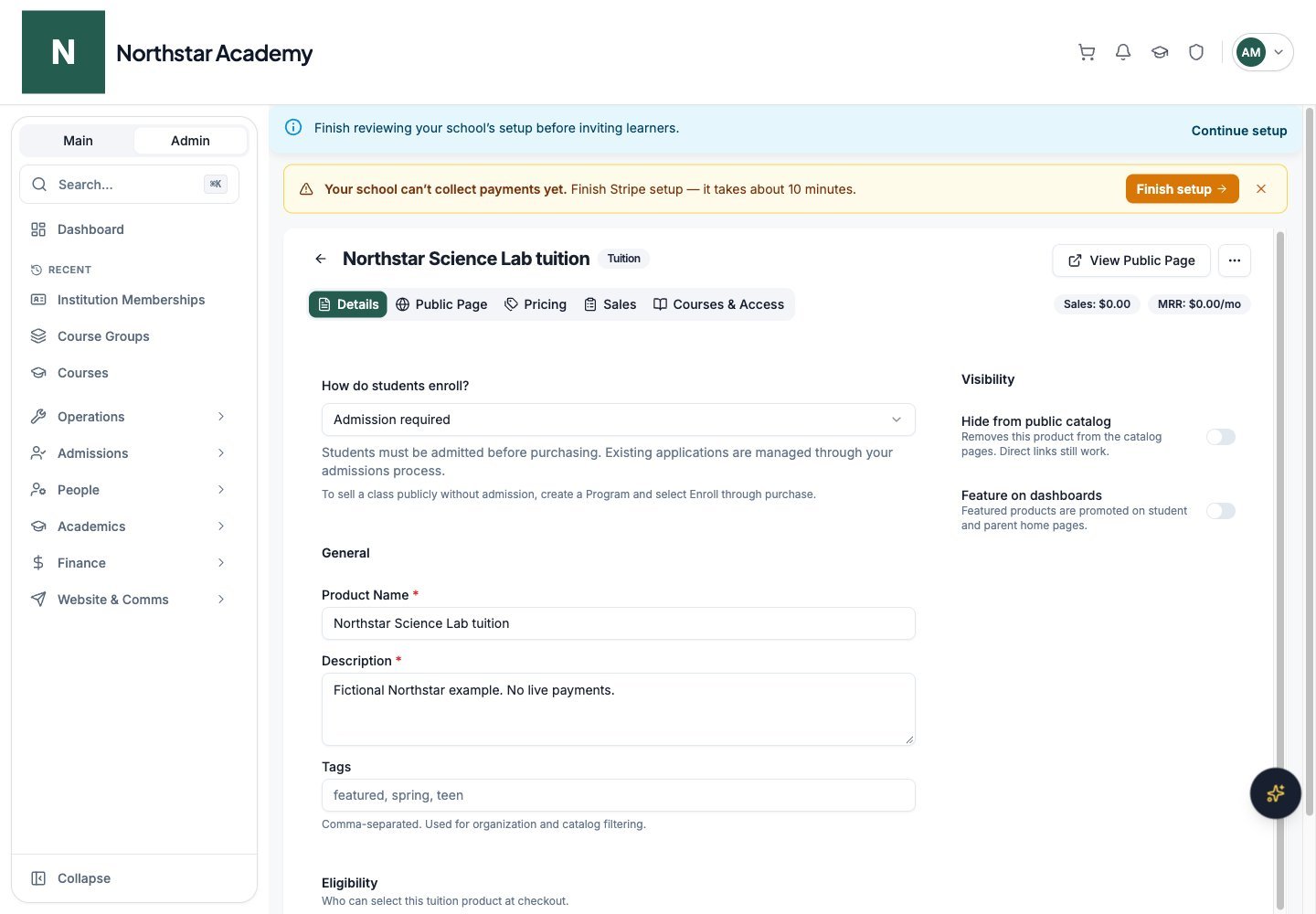
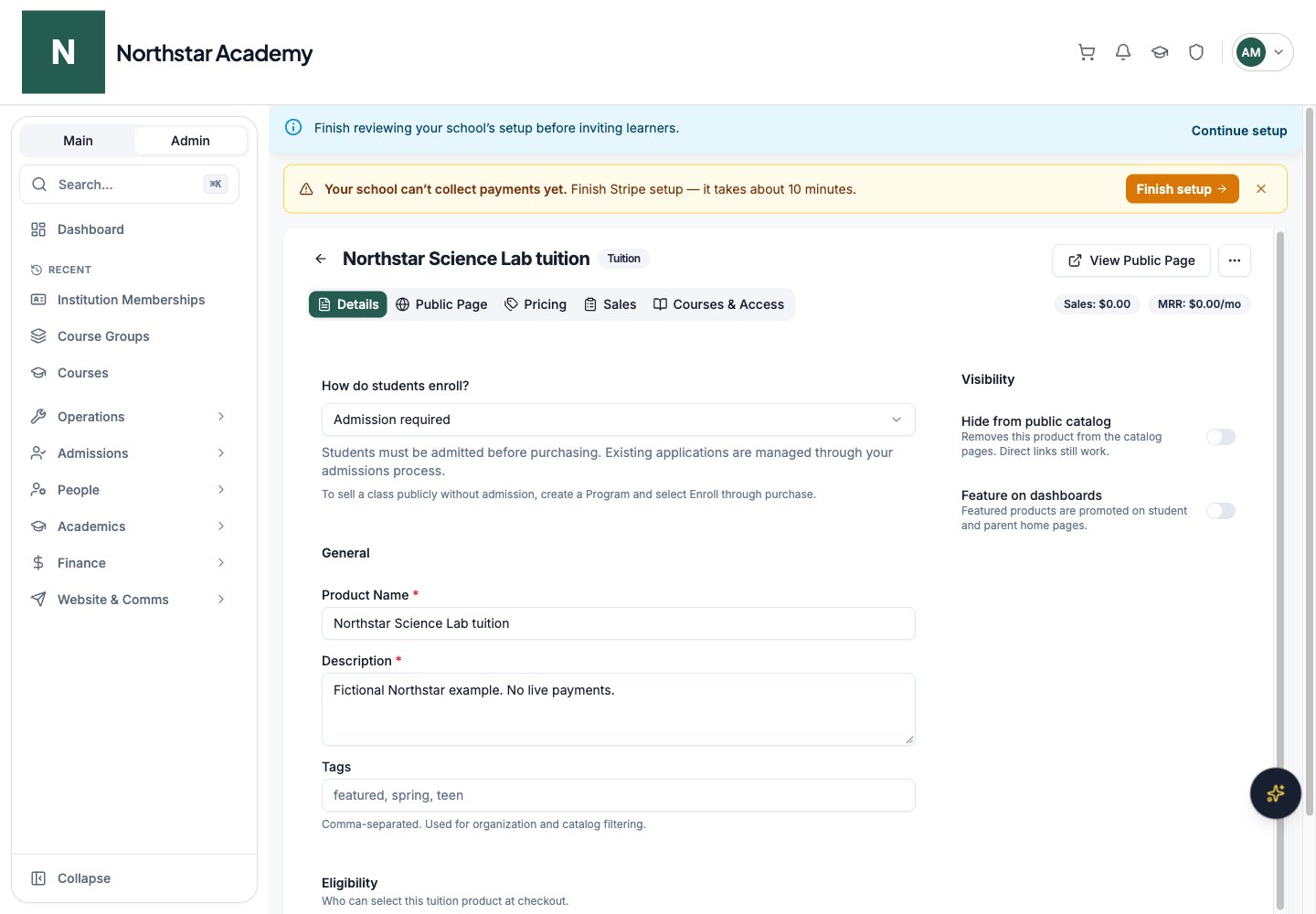
Northstar demo — Product details — Details
Pricing plans
Tuition, program, physical, and booking products use pricing plans to define the charge. A product can have multiple plans to give buyers flexibility; donation campaigns let donors choose their amount instead.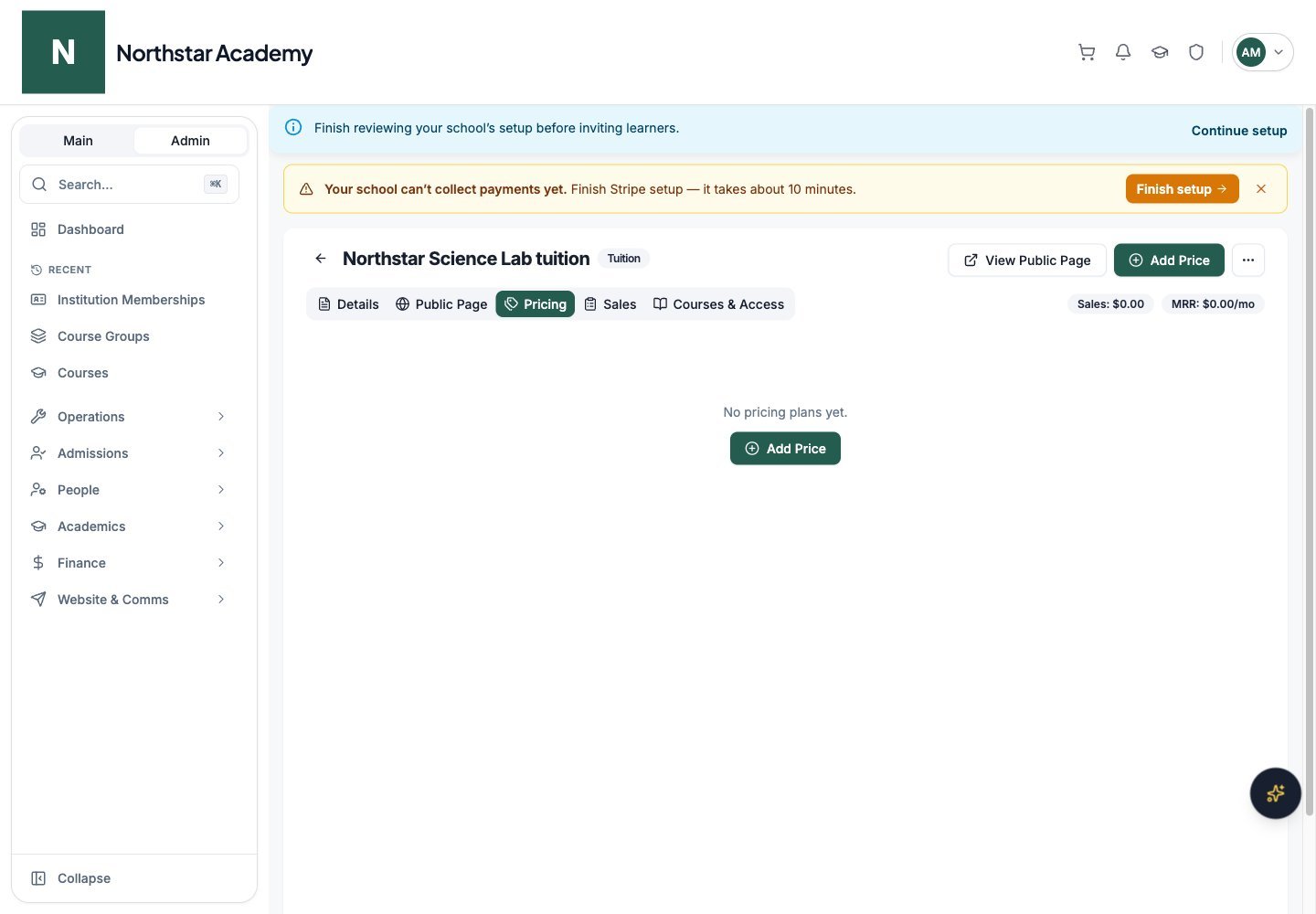
Northstar demo — Product details — Pricing
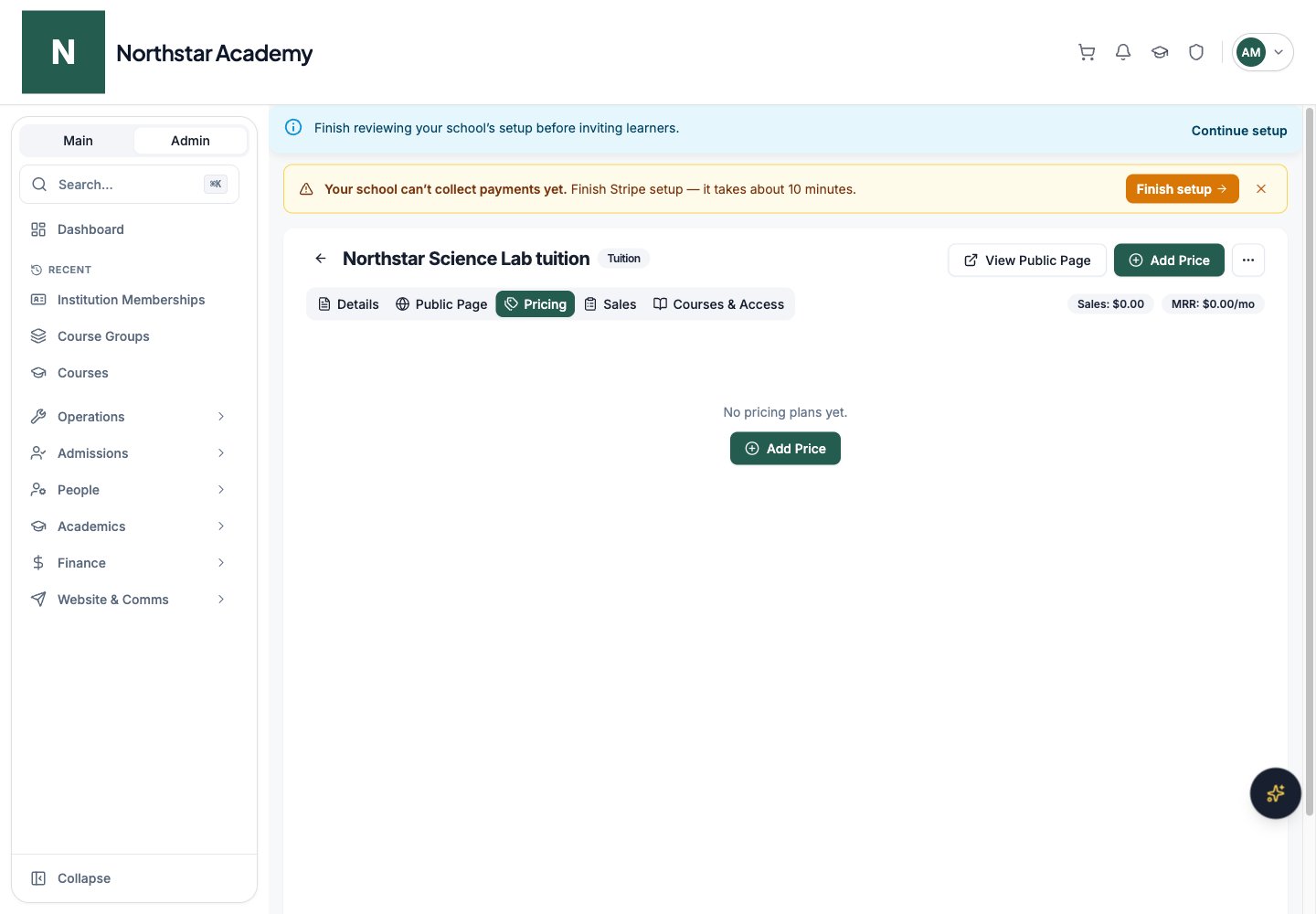
Add a pricing plan
1
Open the product
From Finance → Products & Donations, click on the product to open its details page.
2
Click Add Price
Open the Pricing tab and click Add Price.
3
Configure the plan
- Plan Name — a label for this pricing option (e.g., “Monthly Plan”, “Annual Plan”, “One-Time Payment”)
- Amount — the price to charge, in your school’s currency (e.g., 25.00 for $25)
- Currency — shown for reference and locked to your school’s sales currency, so there is no per-plan currency setting
- Billing Type — choose Recurring or One-time. For one-time plans, turn on Free price (no payment required) to offer the plan at no cost.
- Special Pricing — optionally hide this plan from public listings (see Edit prices and offer private pricing)
4
Configure recurring billing (if applicable)
For recurring plans:
- Billing Interval — how often to charge: Daily, Weekly, Monthly, or Yearly
- Interval Count — the number of intervals between charges (e.g., set to 3 with Monthly for quarterly billing)
- Finite subscription (ends after a specific number of payments) — turn this on and set Number of Payment Cycles to stop billing after a set number of payments. For example, 12 cycles on a monthly plan charges the student monthly for one year, then stops automatically.
- First Payment (finite plans) — choose Charge when purchased to bill immediately, or Charge after one billing cycle to delay the first charge until one interval later. Delayed billing gives access now and starts paid billing one interval later. The cart shows “Starts after one billing cycle” and the order summary uses Due today instead of a single total.
5
Create the price
Click Create Price. The pricing plan is now available to buyers. When you edit an existing plan, the button reads Update Price.
Example pricing configurations
Edit prices and offer private pricing
On the Pricing tab, edit a price’s name, Special Pricing setting, and first-payment setting for a finite plan. An existing price’s amount, currency, and billing interval cannot be changed; create a replacement price and archive the old one when needed. First-payment changes apply to future purchases, not existing subscriptions. Turn on Special Pricing to hide an option from public listings and normal enrollment areas. Use Copy checkout link to share that active price directly, or explicitly include it in a form. The pricing table identifies these options as Private link.A private price link controls discoverability; recipients can share the link. Product access and audience restrictions still apply.
Archive a pricing plan
To remove a pricing plan without deleting it, click the Archive button next to the plan. Archived plans are no longer available for new purchases, but existing subscriptions on that plan continue unaffected.Linking courses and programs
Products can be linked to courses and programs so that purchasing the product automatically grants access to the associated content.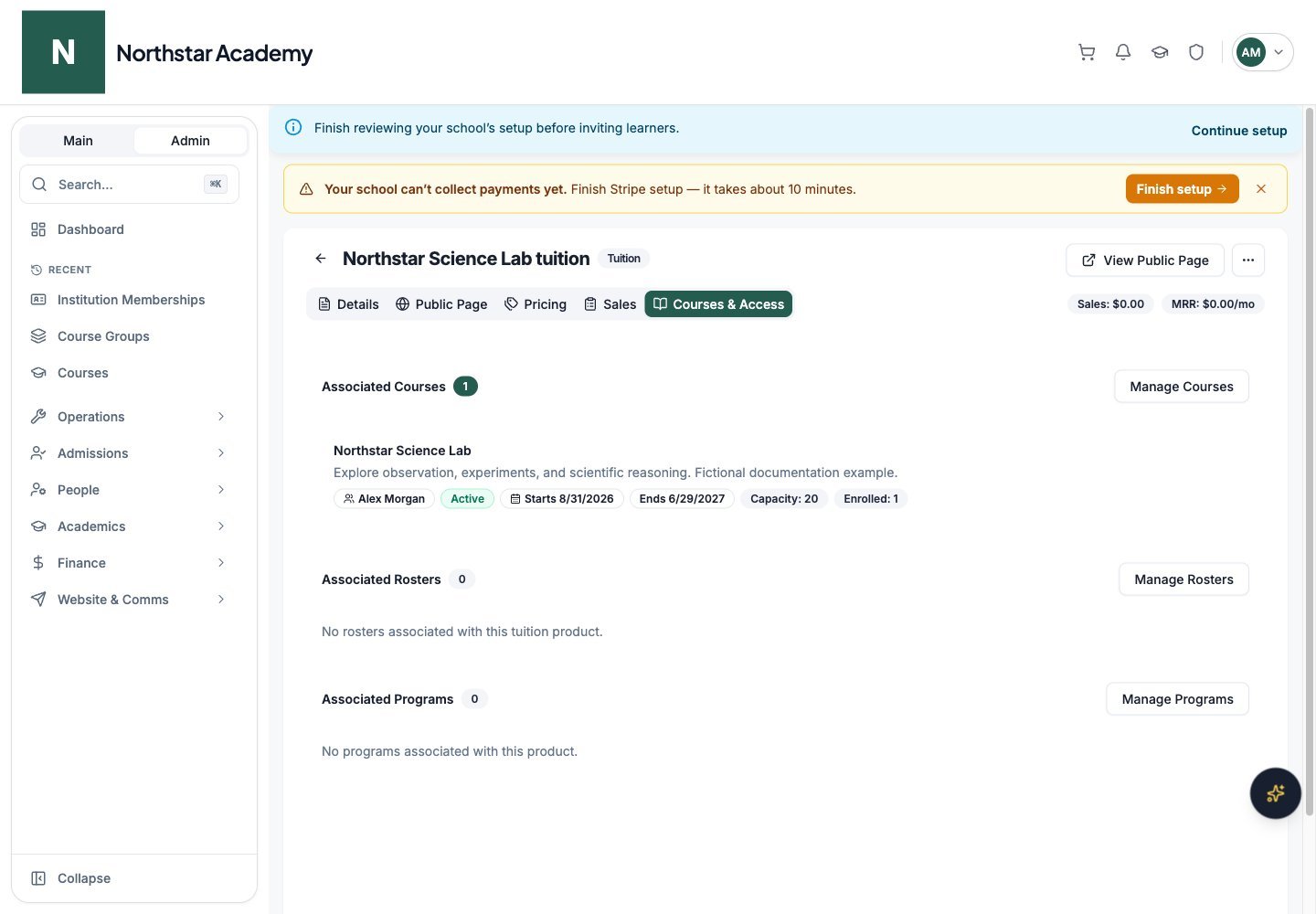
Northstar demo — Product details — Courses & Access
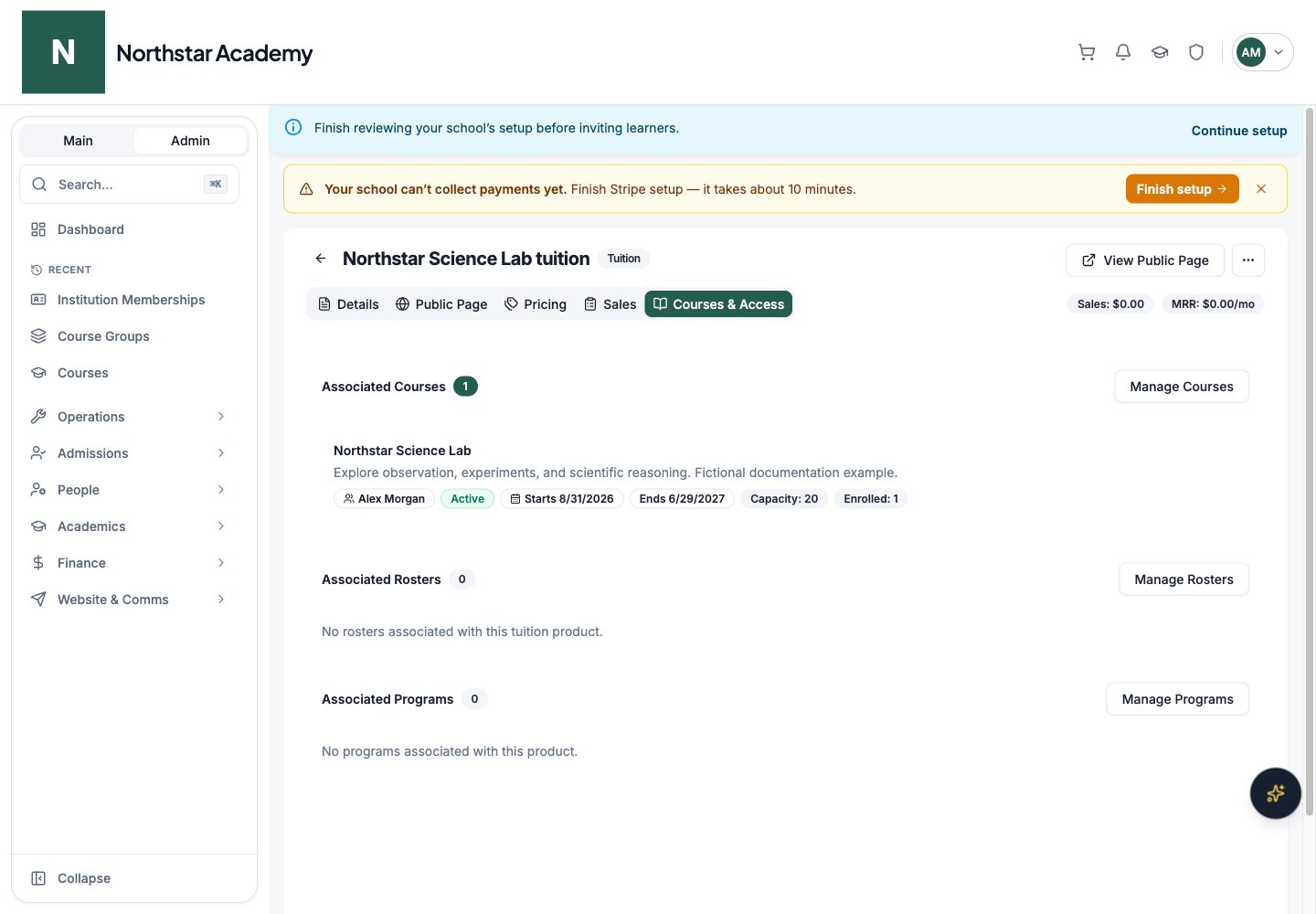
Manage course associations
From Courses & Access on the product details page, click Manage Courses to:- Search and link existing courses — select courses that already exist in your school
- Create a new course — create a course directly from the product page with title, description, instructor, dates, enrollment code, term, capacity, and active status
- Remove a course — unlink a course from the product
Manage program associations
Click Manage Programs to link or unlink programs. The process is the same as courses — search existing programs or create a new one.Courses can be linked to Tuition products and to any other product type whose initial signup role is student. Program products can be linked to programs. Donation campaigns do not support course or program associations.
Linking rosters
Tuition products can also be associated with rosters. Purchasing the linked tuition product adds students to its associated rosters. The association also surfaces the product on the roster for enrollment review.1
Open the product
From Finance → Products & Donations, open a tuition product.
2
Open Manage Rosters
In the Associated Rosters section, click Manage Rosters.
3
Add or remove rosters
Use the picker to add rosters or click the remove icon next to a roster to detach it.
4
Save
Save. The association takes effect immediately and is visible on both the product detail page and the linked rosters.
Public product URLs
Every product has a public landing page at a URL based on its slug:
Slugs must be unique within the school. If you try to save a product with a slug already in use, you’ll see: That URL slug is already in use by another product. Slugs are auto-derived from the product name on creation; you can override the slug when editing.
Catalog visibility and public page content
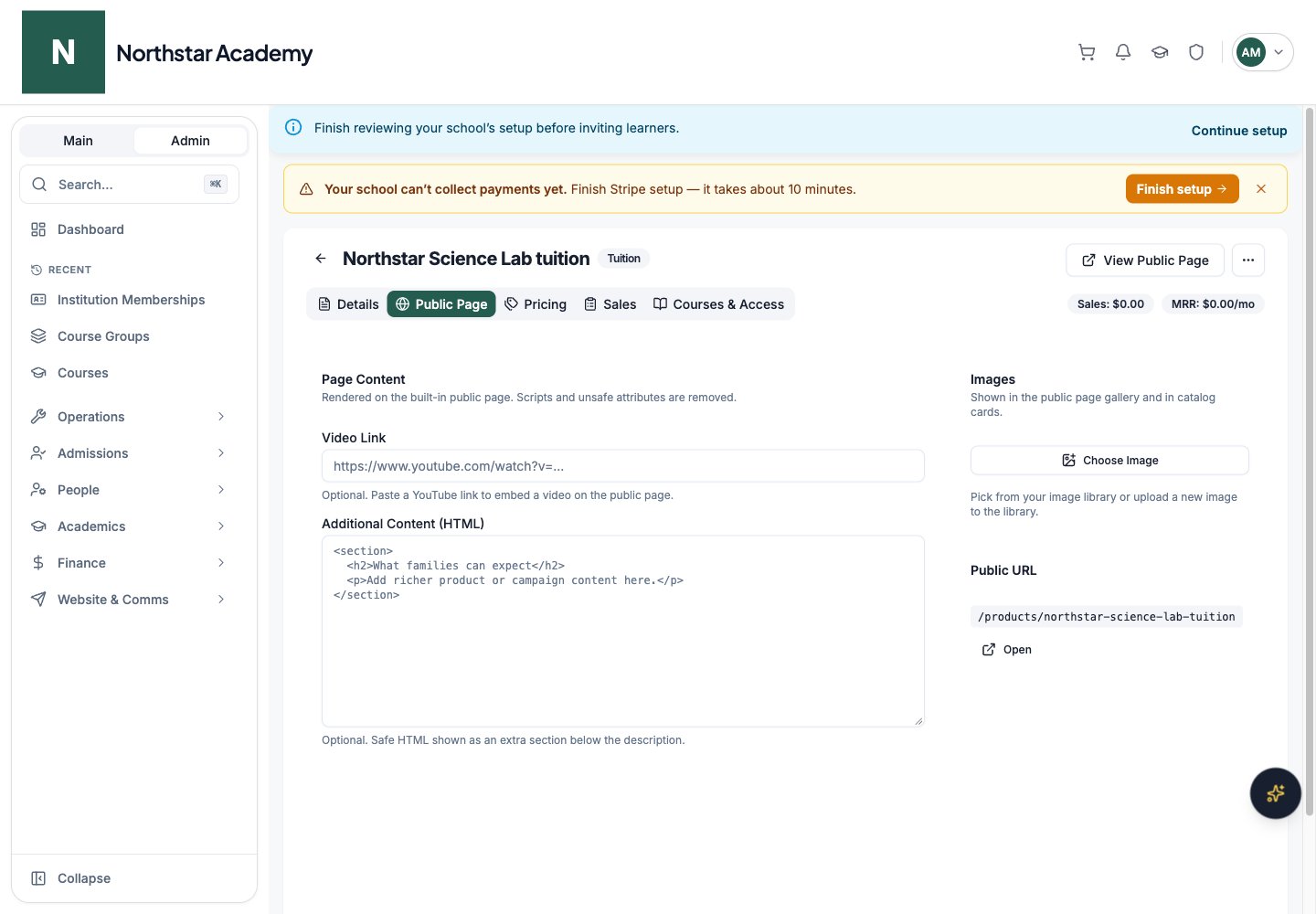
On Details, turn on Hide from public catalog to remove a product from catalog listings while keeping its direct link available. This differs from archiving, which prevents new purchases. Use Public Page to edit images, a YouTube video link, and Additional Content (HTML) shown below the description. Unsafe scripts and attributes are removed. The tab also displays the public URL; edit the slug and promotion settings in Details. Details and Public Page share a save bar; save your changes before checking View Public Page. Built-in product pages can also use your school’s configured page templates.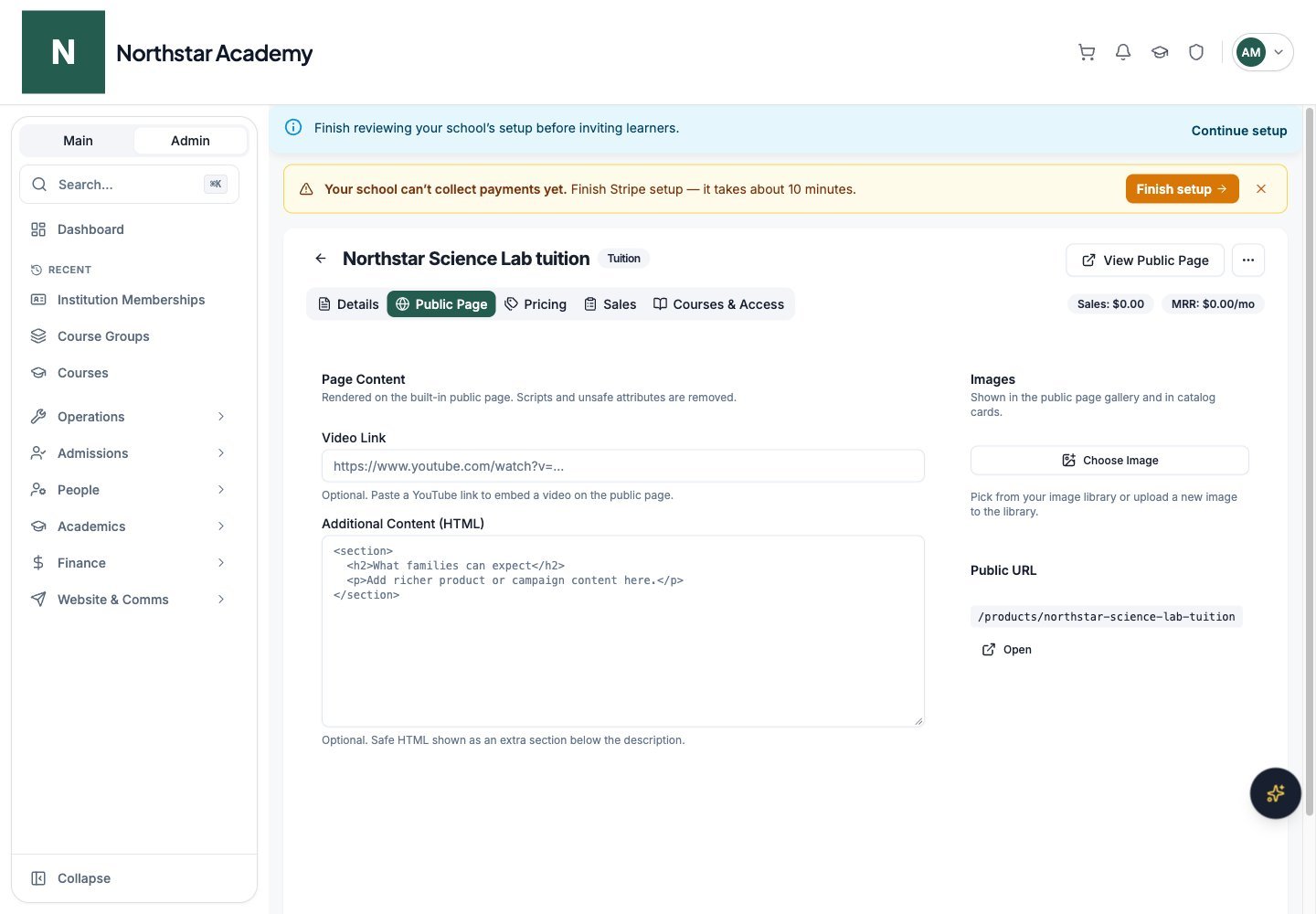
Northstar demo — Product details — Public Page
Program browsing
On the public Products page, program tags appear as clickable chips — visitors click a chip to filter the catalog. When your school has three or more programs, a search box also appears automatically so visitors can search by name.Cart and checkout
Visitors and families can add products to a cart from the public Products page, product detail pages, and the program enrollment flow, then pay for everything in a single checkout.- Cart icon — when the cart has items, a cart icon with an item-count badge appears in the top bar. Clicking it opens a slide-out Your cart panel with quantity controls and a Checkout button.
- Family member assignment — for family accounts, each cart item can be assigned to a specific family member, so a parent can purchase for several children in one order.
- Order Summary — checkout breaks down the total into Due today, recurring amounts per billing interval, installment plans (including delayed first payments), named discount lines, fees, and a Total of all payments for finite plans.
- Confirmation email — after purchase, buyers receive a confirmation email with the same billing breakdown. This works for guest checkout too.
- Saved form answers — in-progress checkout form answers are saved locally, so buyers who leave and return don’t lose their responses.
Donation campaigns
Donation products include additional features for running fundraising campaigns.Donation page
Each donation product has a public donation page where supporters can:- Choose from preset donation amounts (the quick-select buttons you configured)
- Enter a custom amount
- Leave an optional message
- Choose to donate anonymously
- Set up a recurring donation on a schedule
Donation page appearance
Beyond the goal, deadline, preset amounts, and donor wall toggle, each campaign has appearance settings:- Donation Form Headline — the heading shown above the donation form. Use the
{campaignName}placeholder to insert the campaign name — the default is “Help Move Forward”. - Donation Form Intro Text — introductory text displayed with the donation form
- Donation button color — a hex color for the donate button
Donor wall
If enabled, the donation page displays a wall showing donor names, amounts, and messages. Anonymous donors appear as “Anonymous” on the wall.Viewing donations
From the product details page, the Donations section shows:- Total number of donations
- Total amount raised
- A paginated table of every donation with donor name, email, amount, message, anonymous status, recurring indicator, status, and date
Tags and sort order
Products can be organized with tags and a sort order value to control how they appear in lists and on the public Enroll-In-Program cards.
Set tags and sort order on the create/edit product form, or update them in bulk using Edit products mode.
Reorder tuition products
For tuition products, open the More menu in the toolbar and choose Reorder tuition to open a dialog for arranging tuition products. The order you set controls how tuition products appear to enrolling families.Featured products and promos
Products can be promoted to logged-in students and parents directly on their dashboards. On the create/edit product dialog, turn on the Feature on dashboards switch — featured products are promoted on student and parent home pages. When the switch is on, two more fields appear:- Promo Headline — short promotional text shown with the product (e.g., “Fall enrollment is now open!”)
- Promo expiry date — a date after which the promo stops applying
- A dismissible promo alert showing the promo headline and product name, with Enroll Now and Dismiss actions
- A featured programs rail of up to three cards, alongside an Explore Programs quick link
The Explore Programs page
When the school enables program navigation, logged-in users have a Programs item in the sidebar. It opens the Explore Programs page at/programs — “Browse open programs and enroll yourself or your children in a few clicks.”
On this page, users can:
- Search for programs by name
- Sort by — Featured, A-Z, Price lowest to highest, Tag A-Z, Most recent, or Least recent
- Filter using tag chips
- See badges on each card — Featured, Members Only, Children Only, Adults Only
Logged-out visitors who reach
/programs are sent to the public products catalog instead.Editing, archiving, and deleting products
- Edit — click the edit button on any product to update its name, description, type settings, metadata, images, tags, and sort order
- Archive — archiving a product deactivates it so it can no longer be purchased. Existing subscriptions and enrollments are not affected.
- Unarchive — on an archived product’s details page, click Unarchive Product to restore it. You can optionally reactivate its pricing plans at the same time.
- Delete — hide an archived product while preserving its past purchases (see below)
Delete a product
Deleting is separate from archiving and removes the product from the catalog and admin product lists.1
Archive the product first
Only archived products can be deleted. Attempting to delete an active product is refused with Archive the product before deleting it.
2
Click Delete Product
On the archived product’s details page (or from the product list), click Delete Product.
3
Confirm by typing the product name
The confirmation dialog warns: The product will be hidden from DeanDesk, but its record will be retained so subscriptions, purchases, and other dependent records continue to work. Type the exact product name to confirm — the delete button stays disabled until it matches.
Bulk import
Use the Bulk Product Import dialog to create many products at once.1
Open Bulk import
From Finance → Products & Donations, open the More menu in the toolbar and choose Bulk import.
2
Provide your rows
Upload a CSV or paste rows directly into the dialog. Each row represents a product with fields like name, description, type, access (anyone / members only), audience (adults+children / children only), tags, and sort order.
3
Review
DeanDesk parses your rows and shows a preview with type, access, audience, and tags surfaced for each product. Fix any rows that show validation errors.
4
Push to Stripe
Submit. DeanDesk creates the products in DeanDesk and pushes them to Stripe in both your test and live environments.
Bulk edit (Edit products mode)
For updating fields across many existing products at once, switch the product table into an inline edit mode.1
Enter edit mode
From Finance → Products & Donations, click Edit products in the toolbar. The table switches to editable cells.
2
Edit cells
Edit mode makes the Product name, Description, Type, Sort, Tags, Featured, Catalog (visible or hidden), Promotion (headline and end date), Access, and Audience columns editable. The Status column is shown for reference.
3
Save changes
Click Save changes (n) — the button counts how many products you’ve modified — or Cancel to discard your edits. Only the products you changed are updated; untouched products are left alone.
Product list
The Finance → Products & Donations page shows all your products in a table with:
The toolbar has three main actions: Edit products (inline edit mode — see Bulk edit), a More menu housing Bulk import, Reorder tuition, and Refresh products, and Create product.
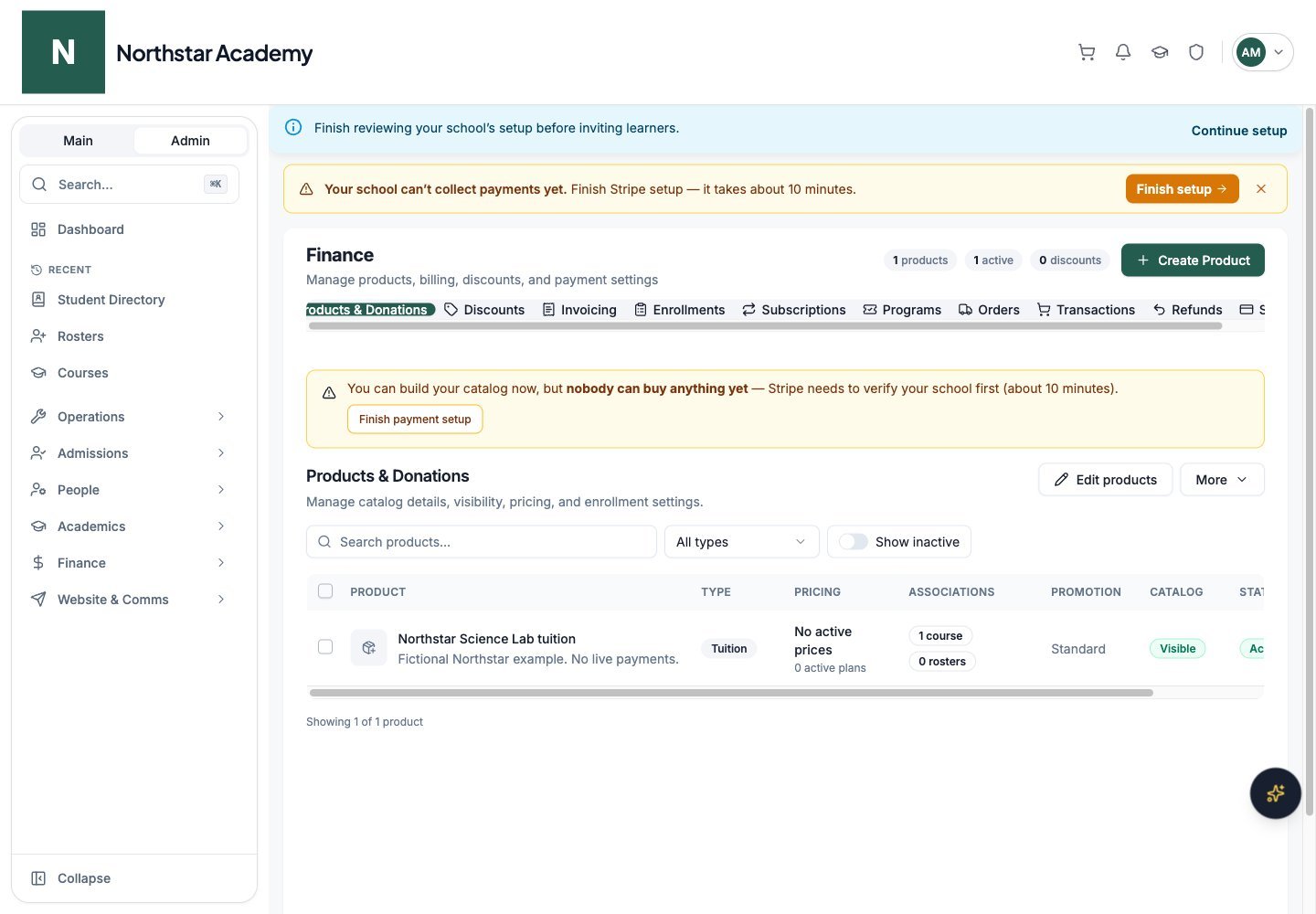
Northstar demo — Products & Donations
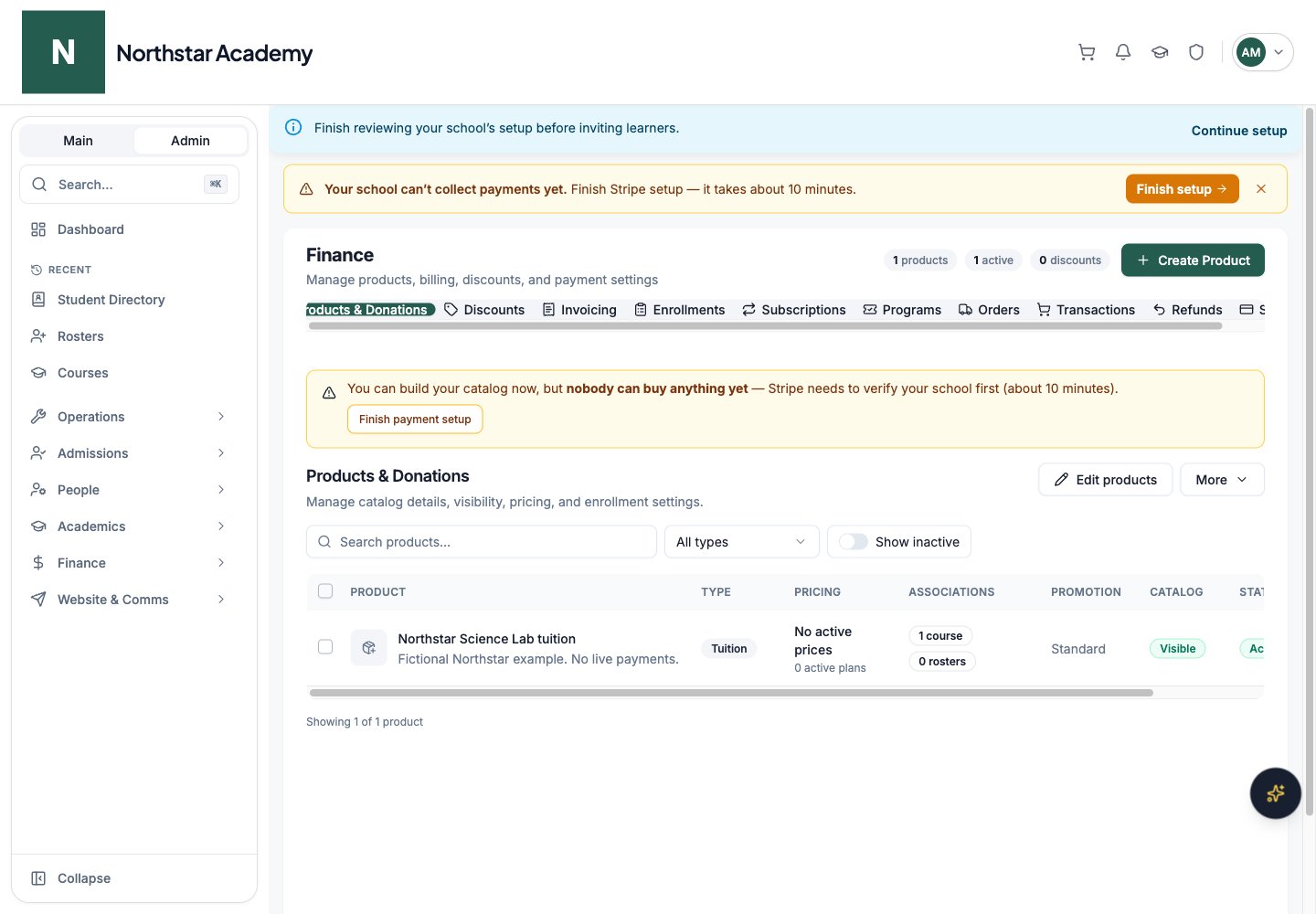
Filters and search
The product list supports:- Search by product name
- All types dropdown — filter to a single product type
- Show inactive switch — archived products are hidden by default; flip the switch to include them (the label shows how many are hidden)
Row selection and per-row actions
Select rows to reveal a bulk action bar with Archive, Restore, Delete, and Clear. Each row also has a ⋯ menu with View details, Open public page, Archive/Restore, and Delete. Click any product to open its details page where you can manage pricing plans, courses, programs, and view donations.Sales and buyer communication
Open a product’s Sales tab (or Donations for a campaign) to review sales totals, recurring revenue when available, and orders with buyer, plan, purchase type, amount, and status. Recurring revenue is a billing estimate; it is separate from collected sales. Click Email buyers to compose a message to the product’s purchasers. Review the selected recipients before sending. A purchaser can be a parent or guest rather than the student attending. For physical products, use Physical products & orders to manage stock, variants, fulfillment, and shipping labels. For booking sessions, use Booking sessions to manage confirmed sessions. For program purchases, see the Program attendees view described in Enrollments.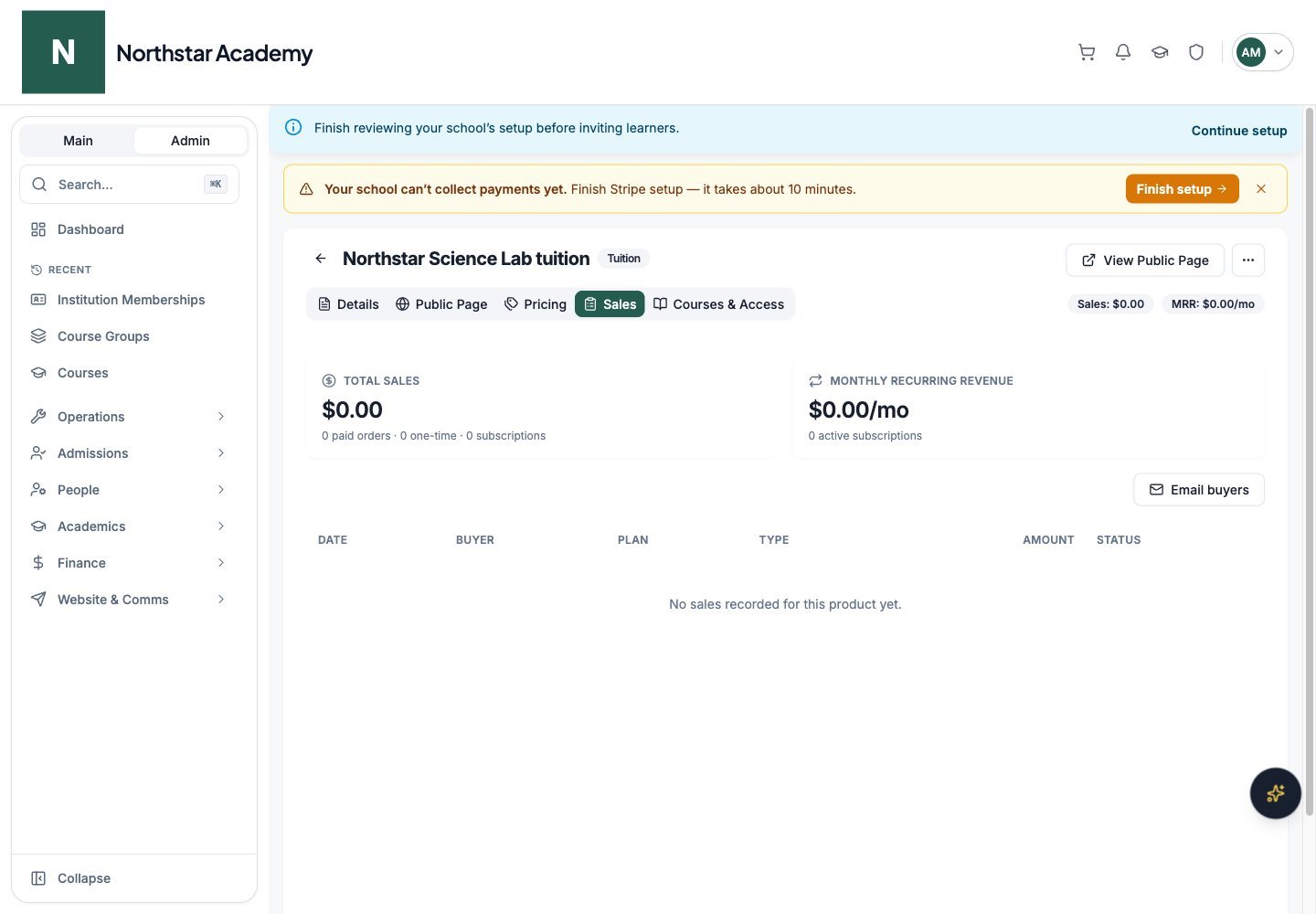
Northstar demo — Product details — Sales
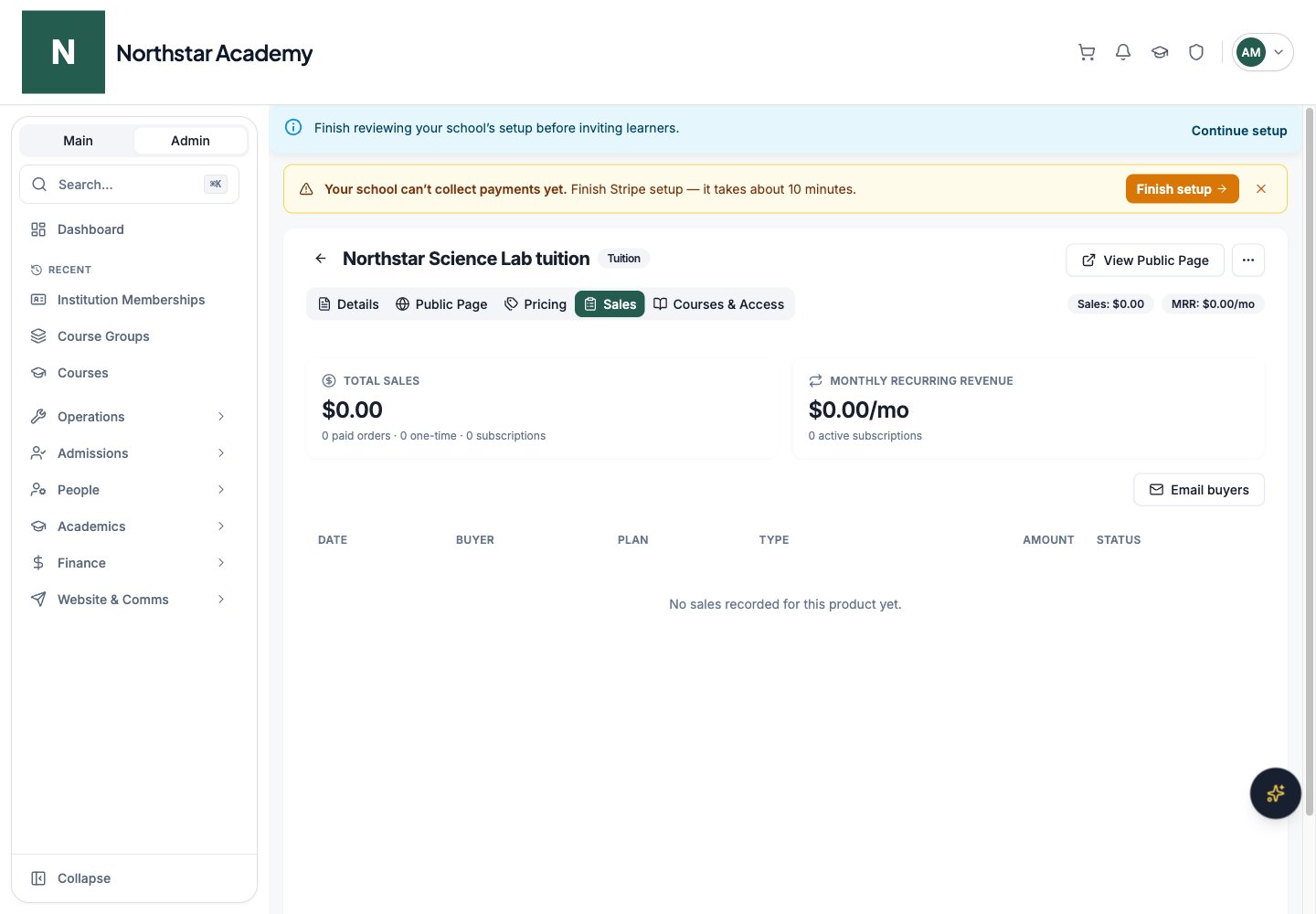
Product detail tabs
Open a product from Products & Donations to see its dedicated detail page.
The sales tab is named Donations for donation products. Some tabs and controls depend on product type. Changing product associations should be reviewed alongside existing enrollments; editing a catalog entry is not evidence of a completed purchase.