School-level feature — managed within your school portal at
yourschool.deandesk.com.Video walkthrough
This walkthrough uses the real DeanDesk interface with the fictional Northstar Academy demo school and a calm, AI-generated English voice. Payments and outside services are not connected in the demo.
Create invoices
1
Open the invoice form
Click New invoice to open the Create Stripe invoice form. Click Close to hide it again.
2
Select recipients
In Recipients, search for users and narrow the list by role, adult or child account, and account status, then check the users who should receive the invoice. You can select multiple users — each one receives their own individual invoice with the same line items.
3
Add line items
Click Add line item for each additional charge. Each line item has:
- Description — what the charge is for (e.g., tuition, books, or a fee)
- Amount — the amount in your school’s currency, shown in the label (e.g., Amount (USD))
4
Apply credits with negative amounts
To reduce the invoice total, add a line item with a negative amount (e.g., -50.00 for a $50 credit). This reduces the invoice total. The final amount must remain greater than zero, including after aid rates are applied.
5
Choose how payment is collected
Use the Payment collection dropdown:
- Email invoice for payment — each recipient gets an email with a link to view and pay the invoice. Set Due in days to control the payment window.
- Charge saved default method — each recipient’s saved default payment method is charged automatically. See Charge a saved payment method for how fallbacks work.
6
Review and submit
Review the line items and total, then submit — the button reads Create & send, Create & charge, or Save drafts depending on your collection and timing choices, or Create schedules for a recurring invoice. DeanDesk creates one invoice (or schedule) per selected recipient.
Charge a saved payment method
When you pick Charge saved default method, DeanDesk charges each recipient’s saved default payment method as soon as the invoice is finalized. Each saved default payment method is charged separately, and for a child recipient, the child’s own saved method is checked before the parent’s. After submitting, the results tell you what happened to each invoice:- Paid — the charge succeeded
- Awaiting customer authentication — the payer’s bank requires extra verification (such as 3-D Secure); the payer is emailed a secure payment link to complete it
- Routed to email — the recipient had no saved default payment method, so the invoice was emailed with a payment link instead (e.g., “3 routed to email because no default payment method was available”)
Recurring invoices
To bill the same charge on a schedule, open Advanced options and turn on Create a recurring invoice. Then set:- Repeat every — a count plus an interval of Day(s), Week(s), Month(s), or Year(s). The count is capped per interval: up to 1095 days, 156 weeks, 36 months, or 3 years between invoices.
- Ends — Never — until canceled, After a number of invoices (1–500), or On a specific date (must be in the future).
Recurring billing starts immediately when you create the schedule — recurring invoices cannot be saved as drafts. Submit with Create schedules, then review or cancel the ongoing schedule from Scheduled invoices on this page. Stripe handles subsequent billing.
Apply scholarship and financial aid rates
Turn on the Apply scholarship and financial aid rates toggle to reduce each recipient’s invoice by their stored rates. Rates are per-user waived percentages managed on the Scholarship & Financial Aid Rates page — for example, a student with a 50% total waiver invoiced for $200 receives a $100 invoice. Each recipient’s invoice reflects their own rates, so you never calculate discounted amounts manually.The toggle uses each recipient’s current stored rates at the moment the invoice is created. For recurring invoices, the adjusted amount is fixed when the schedule is created — later rate changes do not update an existing schedule.
What happens when an invoice is sent
When you create invoices with Email invoice for payment:- Invoice created — one invoice is saved per recipient with a unique batch ID linking them together
- Email sent — each student receives an email notification with a link to view and pay the invoice
- Balance updated — the invoice amount appears as an outstanding balance on the student’s Billing History page
Invoice statuses
Viewing invoices
Students see their invoices on their Billing History page, which shows:- Each invoice with its line items and amounts
- The creation date
- The total amount
- Their outstanding balance from unpaid invoices
Best practices
- Use descriptive line item names. Students should be able to understand what each charge is for without contacting your office.
- Batch related charges into one invoice. If a student owes a registration fee and materials fee, include both as line items on a single invoice rather than sending two separate invoices.
- Issue credits as negative line items rather than deleting invoices. This creates a clear audit trail.
- Use rates instead of manual math. If recipients have scholarship or financial aid rates, turn on Apply scholarship and financial aid rates — each invoice is reduced by that recipient’s own rates automatically. Manage the rates themselves on the Scholarship & Financial Aid Rates page.
Manage the invoice ledger
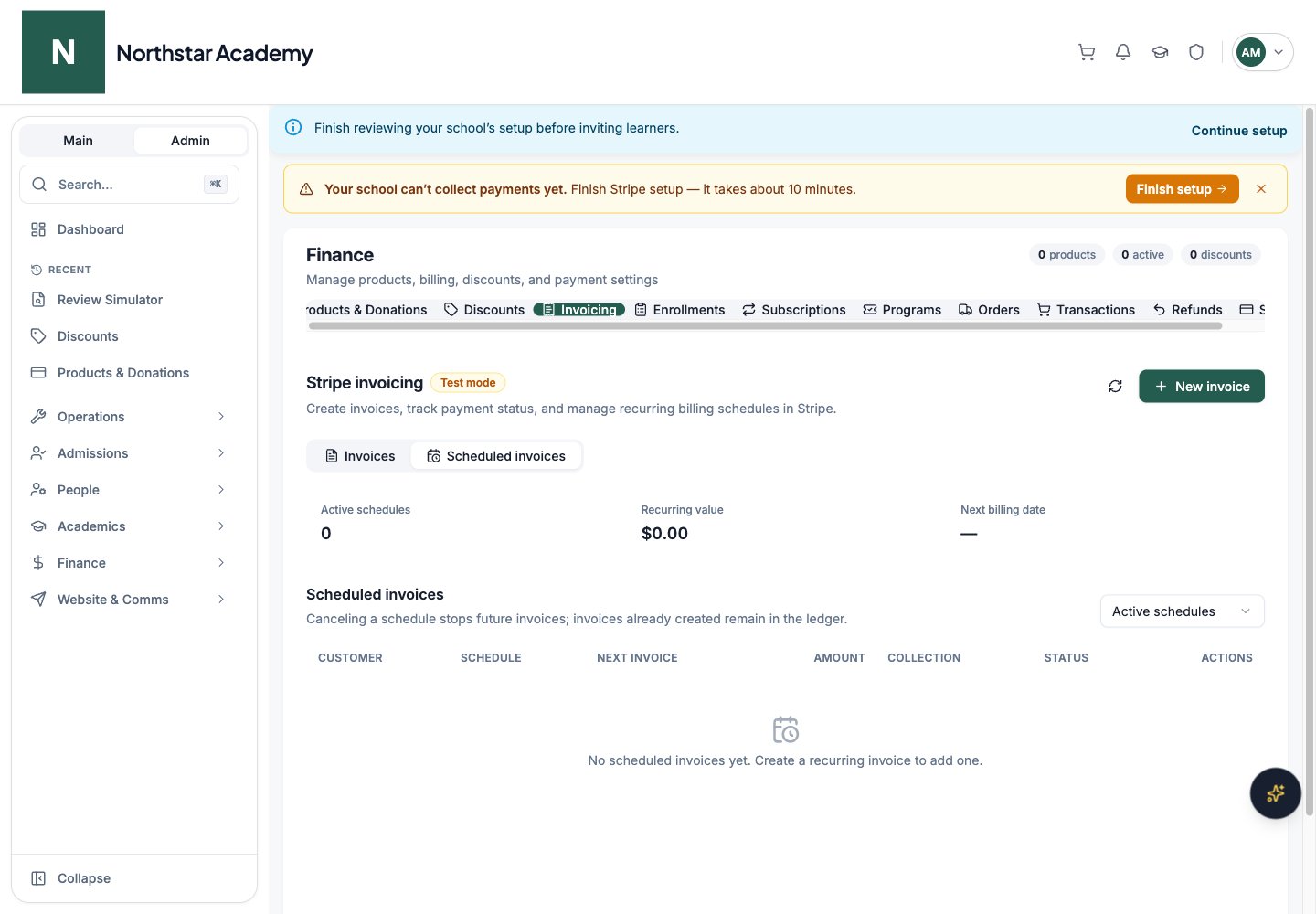
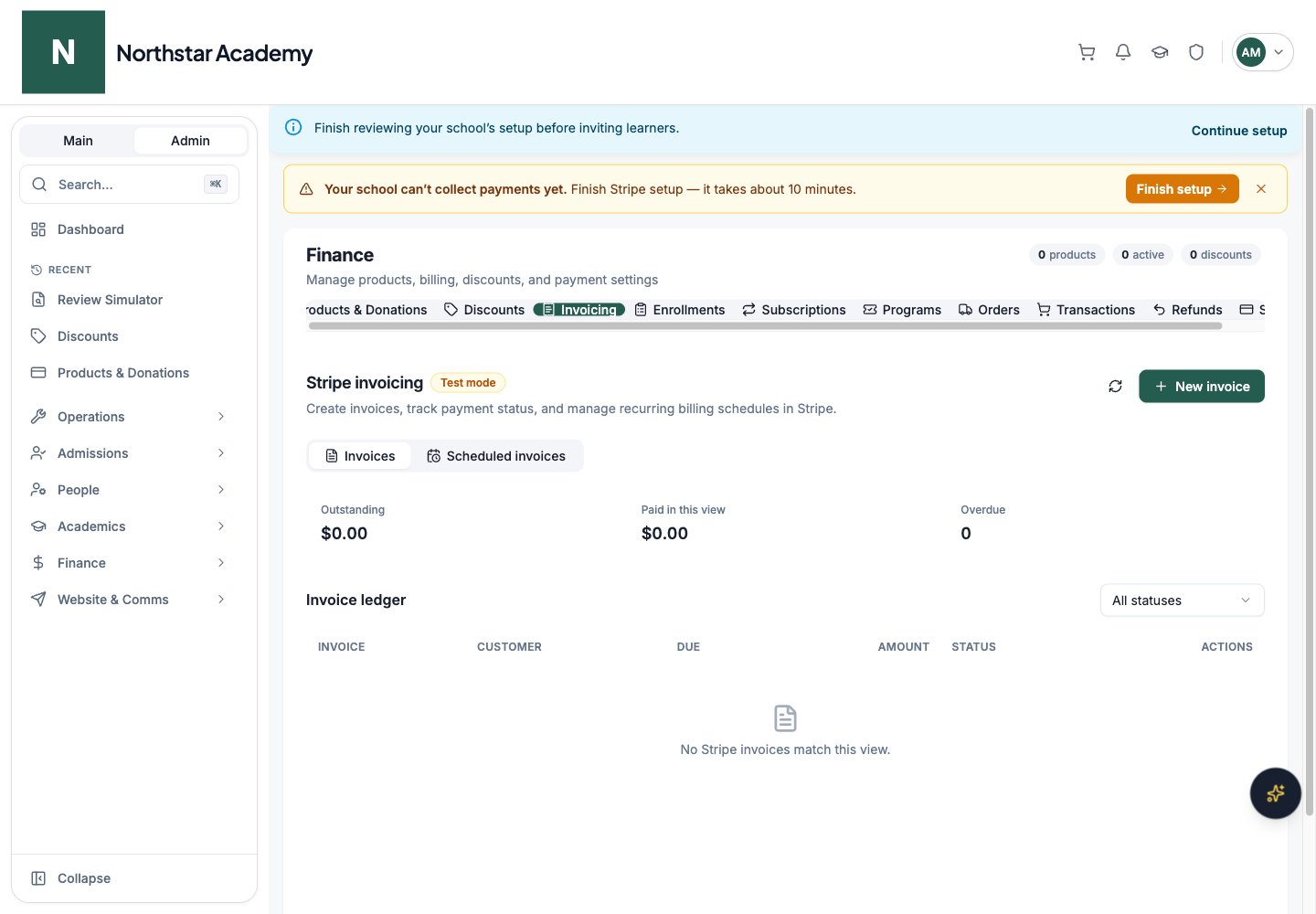
The Invoices tab lists Stripe invoices with customer, due date, amount, and status. Filter by status and use Load more for additional records. The Outstanding, Paid in this view, and Overdue summaries reflect the loaded view.- Finalize a draft to begin the selected collection process. A saved draft does not charge the recipient.
- Resend an open invoice to send its payment link again.
- Void an open invoice when it should no longer be collected. Confirm the action; it cannot be undone.
- Open the hosted invoice or download its PDF when available.
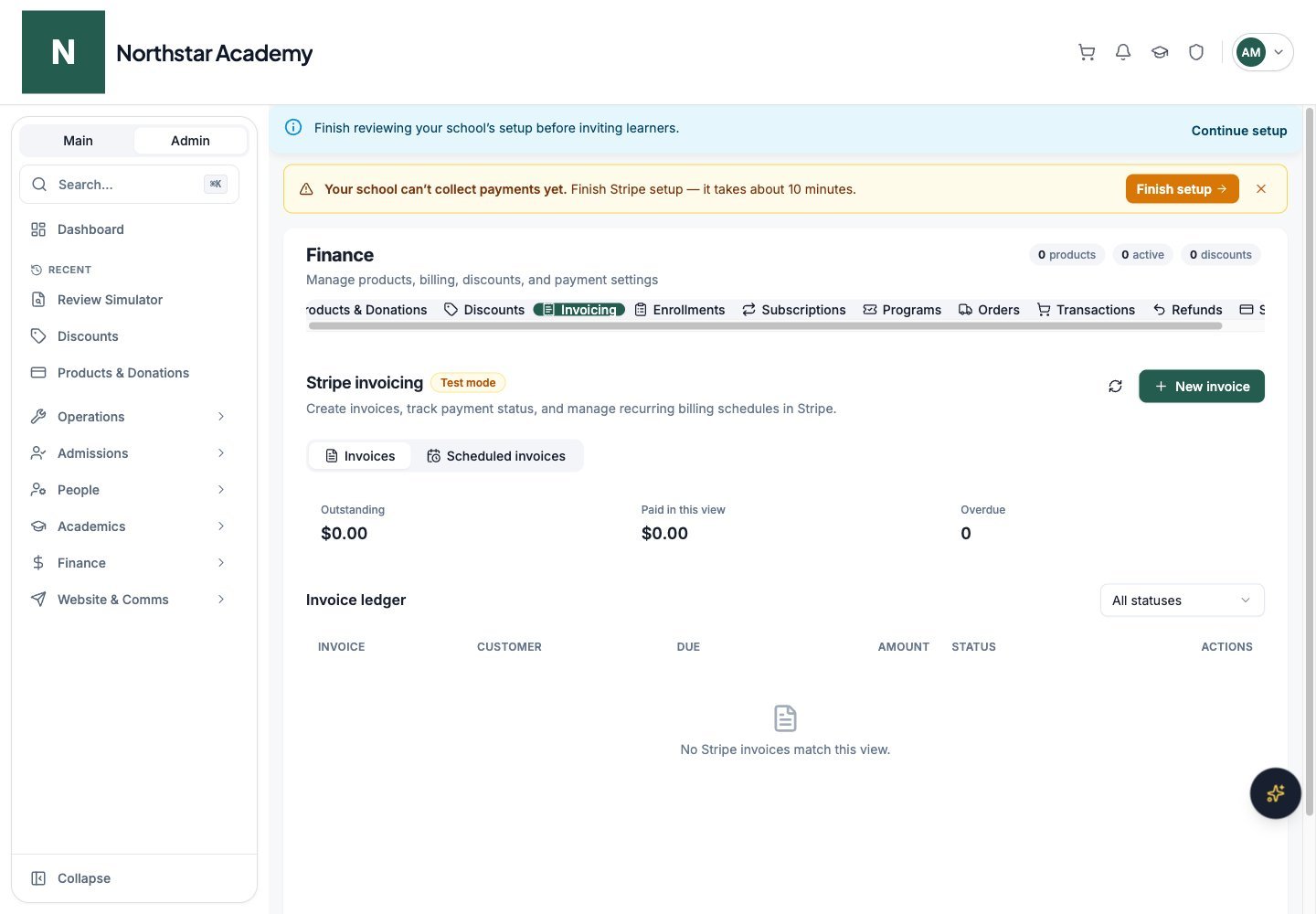
Northstar demo — Invoicing — Invoices
Manage scheduled invoices
Open Scheduled invoices to view active or ended recurring schedules. Each row shows the customer, cadence, next invoice date, amount, collection method, and status. Summary cards show active schedules, recurring value, and the next billing date. Click Cancel on an active schedule to stop future invoices. Invoices already created remain in the ledger and must be handled separately. To use a newly changed aid rate, cancel the old schedule and create a new one with the current rate.Due in days sets the payment window for emailed invoices; it does not postpone an automatic charge to a saved method. Review the per-recipient result after creation or finalization, including any payment or email-delivery failures.
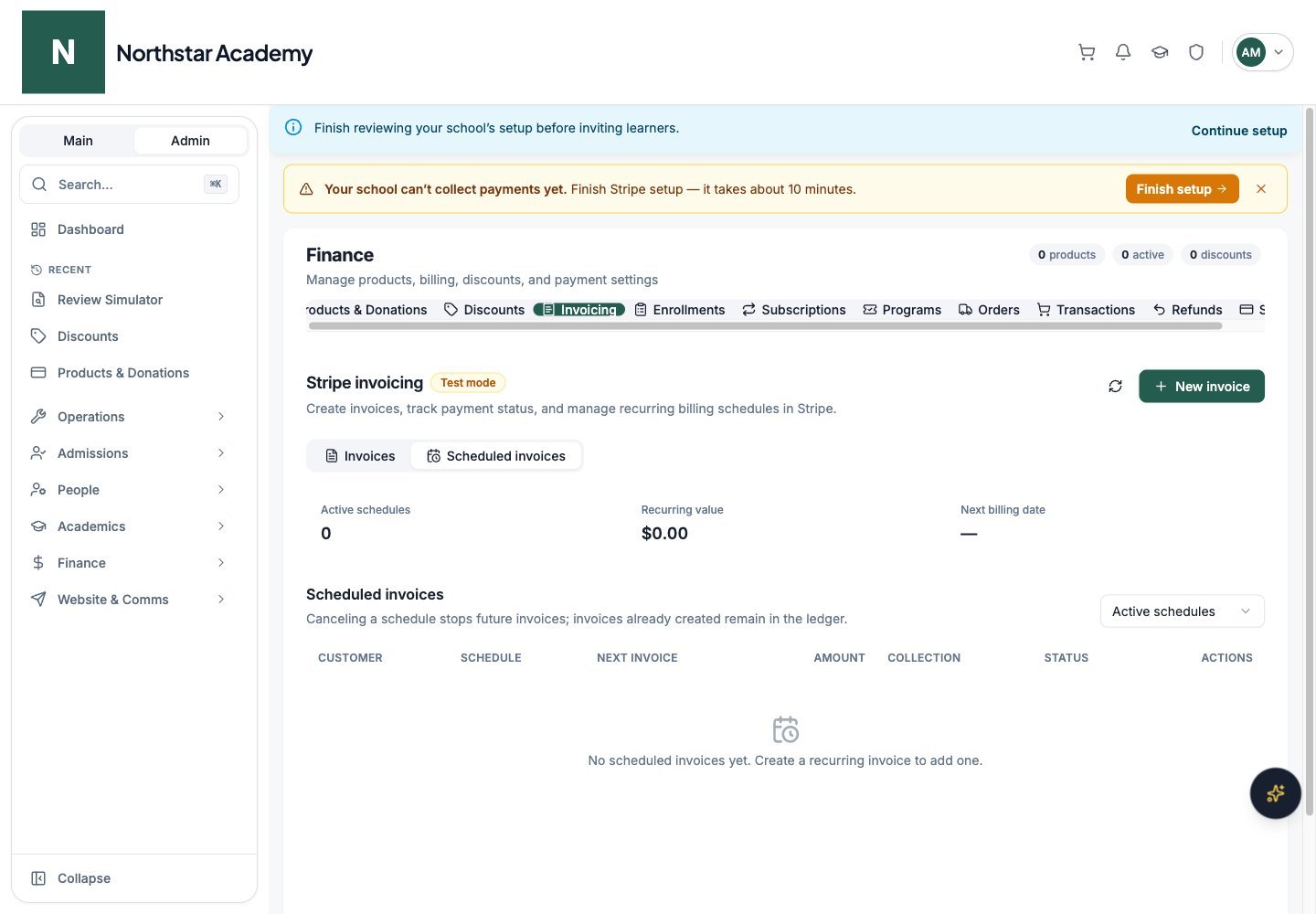
Northstar demo — Invoicing — Scheduled invoices