School-level feature — managed within your school portal at
yourschool.deandesk.com.Video walkthrough
This walkthrough uses the real DeanDesk interface with the fictional Northstar Academy demo school and a calm, AI-generated English voice. Payments and outside services are not connected in the demo.
Preview a family’s choices
1
Select the user
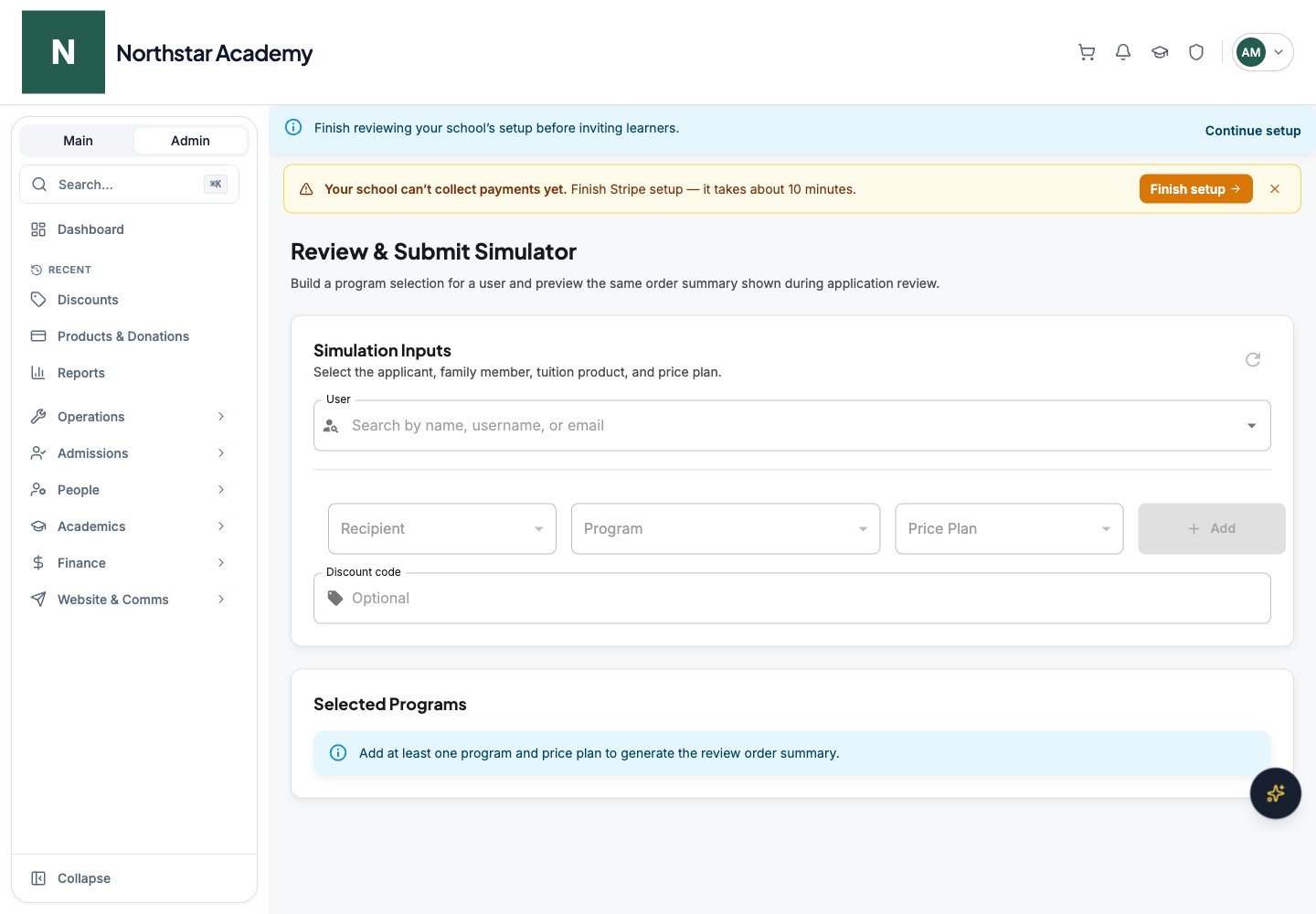
In User, search for and select the school User. Wait for their family and application context to load. An adult User appears as their own recipient; linked children and child applications appear as additional recipients.
2
Add program selections
Choose the Recipient, Program, and Price Plan, then click Add. The Program list shows your school’s active Tuition products; Program-type products do not appear here. Add a selection for each relevant learner and tuition product, and review them under Selected Programs. Use Remove to drop a selection.
3
Check discounts
Enter an optional Discount code and review the application order summary. Compare the displayed selections, discounts, and totals. Change the recipient or plan to investigate differences.
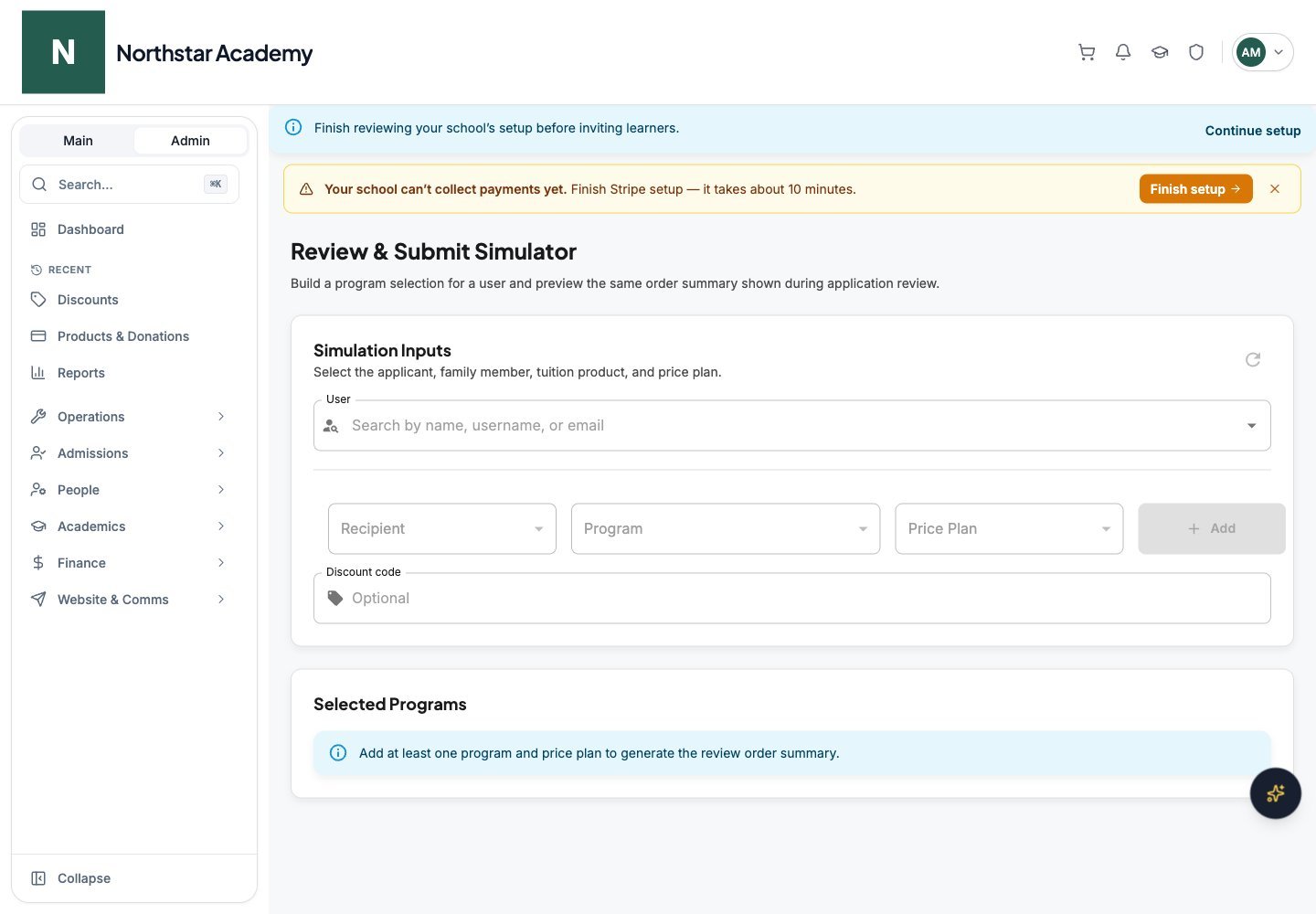
Northstar demo — Review Simulator