

School-level feature — managed within your school portal at
yourschool.deandesk.com.Video walkthrough
This walkthrough uses the real DeanDesk interface with the fictional Northstar Academy demo school and a calm, AI-generated English voice. Payments and outside services are not connected in the demo.
Buyers can purchase multiple products in a single cart checkout, so one order can produce several enrollments — you may see the same order reference across multiple rows.
Enrollment list
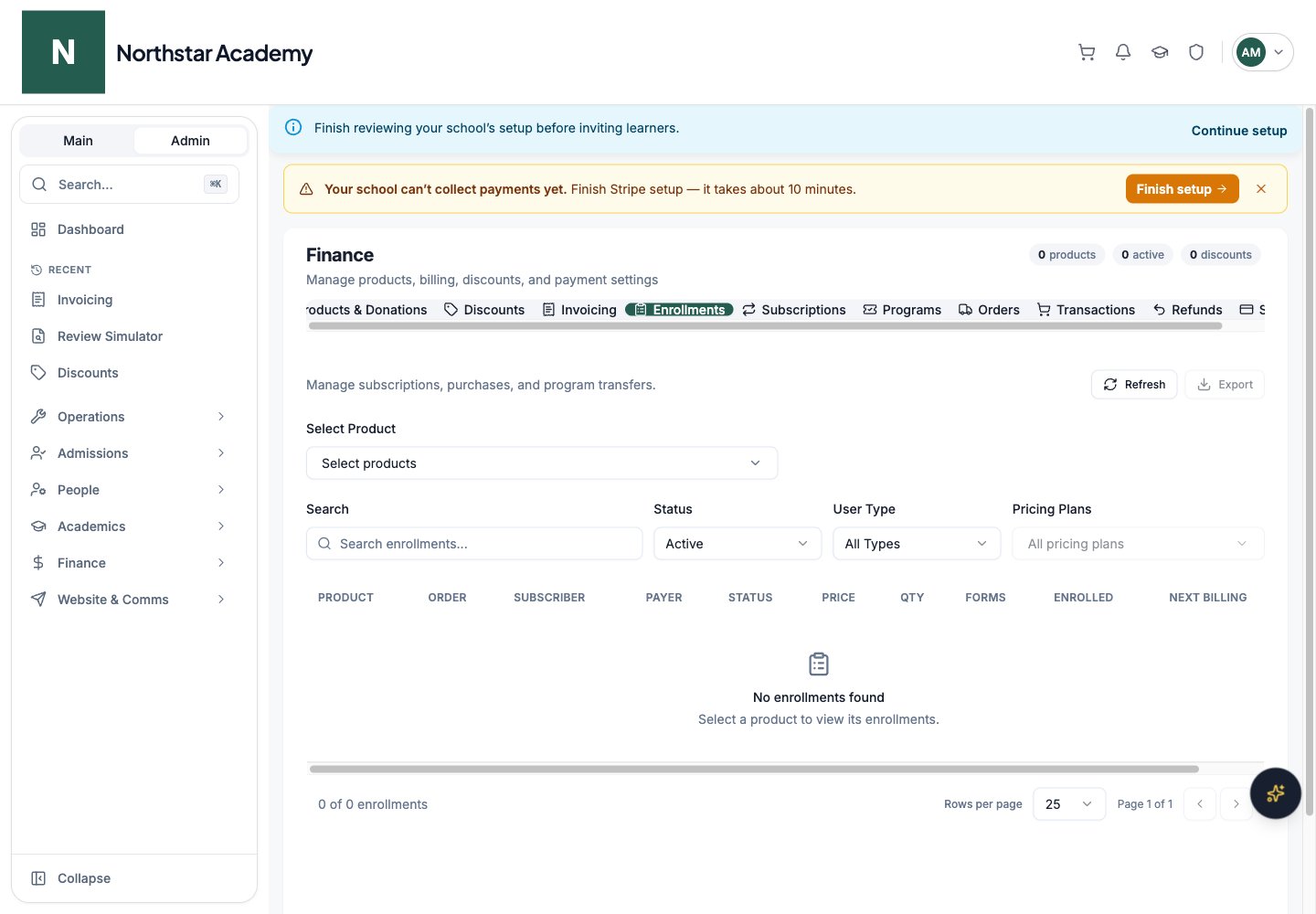
The enrollment list displays one row per purchase with the following columns: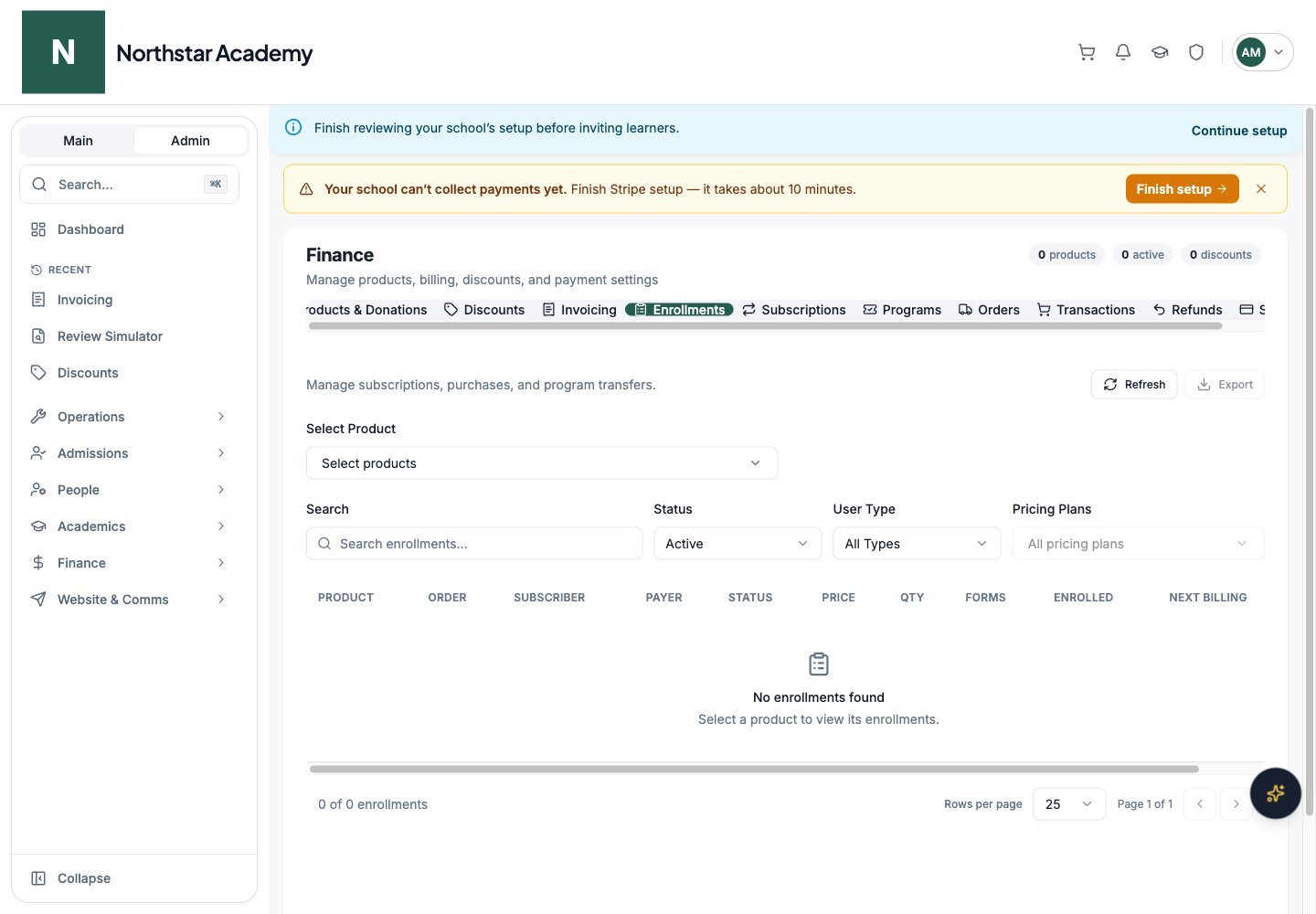
Northstar demo — Enrollments
Filtering and searching
Product filter
Use the Select Product selector at the top of the page to choose which products to view. It’s a checkbox list — check one product, several, or use Select all to view enrollments across every product at once. All other filters and the statistics apply to the combined set of selected products. Until you select a product, the list stays empty.Search
Search across subscriber name, payer name, email, order reference, or subscription ID. The search applies to the currently loaded data.Status filter
Filter by enrollment status:- All Statuses — show everything
- Active — currently active subscriptions (default)
- Canceled — canceled subscriptions
- Past Due — subscriptions with a failed payment
User type filter
Filter by subscriber type:- All Types — everyone
- Adults — adult student accounts
- Children — child accounts (where a parent is the payer)
Pricing plans filter
Use Pricing Plans to narrow the list to one or more prices of the selected products. It shows All pricing plans by default and is available once you select at least one product.Enrollment statuses
Cancel a subscription
1
Find the enrollment
Use the filters and search to locate the subscription you want to cancel.
2
Open the actions menu
Click the three-dot menu on the enrollment row.
3
Select Cancel Subscription
Click Cancel Subscription. The subscription will continue through the end of the current billing period and then stop. The status changes to Ending soon.
Restricting early cancellation of finite plans
For limited-billing plans (e.g. “12 monthly payments”), you can prevent students and families from cancelling before the plan completes. Go to Finance → Stripe and, in the Customer Subscription Cancellation card, turn Allow customers to cancel finite subscriptions early off. When this is off:- Students see Contact the school office to change this finite payment plan on their subscription tab instead of a Cancel button
- Admins can still cancel finite subscriptions from the Enrollments tab on the student’s behalf
Reactivate a subscription
If a subscription is pending cancellation (status: Ending soon), you can reverse the cancellation.1
Find the enrollment
Locate the enrollment with the Ending soon status.
2
Open the actions menu
Click the three-dot menu.
3
Select Reactivate Subscription
Click Reactivate Subscription. The subscription resumes normal billing and the status changes back to Active.
Transfer an enrollment
Admins can move a program or tuition purchase to a different program. Transfer enrollment appears in the actions menu for program and tuition enrollments.1
Open the transfer dialog
Click the three-dot menu on the enrollment row and select Transfer enrollment.
2
Choose the destination
Select the Destination program and Destination payment plan.
3
Decide how prior payments carry over
Under Prior payment credit, choose Apply all net payments, Apply a custom amount / manual proration, or Do not carry over payments. Then choose where the credit applies (Apply credit to) and what happens if the credit is more than the destination total (If credit exceeds the destination total): keep the excess as payer account credit or refund it to the original payments.
4
Choose course access
Under Old program course access, choose Keep existing courses and rosters or Withdraw from old-only courses, programs, and rosters. Shared courses, completed coursework, and access through other purchases or rosters are always preserved.
5
Preview and confirm
Click Preview transfer to review the amounts, payment schedule, and enrollment changes. Check the acknowledgement box, then click Confirm transfer.
View enrollment details
Click View Details from the actions menu (or click the forms count in the Forms column) to open Enrollment Details:- Subscriber Information — name, email, type (adult or child)
- Payer Information — name and email of the person who paid
- Purchase Details — product, order reference, subscription or payment ID, purchase type (one-time or subscription), status, price paid, billing interval, quantity, start date, and current billing period
- Checkout Forms — if the product requires a checkout form, each participant’s form submission is listed with a link to view the full response
Statistics
Once you select at least one product, four statistics cards summarize the enrollments matching your current filters:Export to CSV
Click the Export button to download enrollment data as a CSV file. The export includes:- Order reference, subscription ID, and payment ID
- Product name, purchase type, and status
- Subscriber and payer names, emails, and types
- Price, currency, billing interval, and dates
- Checkout form responses (one column per form question)