

School-level feature — managed within your school portal at
yourschool.deandesk.com.Video walkthrough
This walkthrough uses the real DeanDesk interface with the fictional Northstar Academy demo school and a calm, AI-generated English voice. Payments and outside services are not connected in the demo.
Enabling the feature
Disciplinary records are turned off by default. An administrator enables them in school settings:1
Open School Configuration
Go to Admin Dashboard → School Configuration and open the Features tab.
2
Turn on disciplinary records
In the Disciplinary Records card, switch on Enable disciplinary records.
3
Save
Save your configuration. The disciplinary workspace becomes available from the admin and teacher dashboards.
- Admins see Disciplinary Records under the Operations section of the Admin Dashboard sidebar.
- Teachers see a Report Incident quick link on their Teacher Dashboard.
Reporting an incident
Both teachers and admins can report incidents. Click Report incident to open the Report an incident dialog.
Click Submit incident to save. Each record receives a reference number (for example
DR-2026-A1B2C3) that appears on the case and in searches.
Categories
Every incident is filed under one of nine categories: Behavior, Bullying or harassment, Attendance, Academic integrity, Safety, Technology, Property, Substance-related, or Other.Severities
Incidents carry one of four severity levels: Low, Moderate, High, or Critical.The status workflow
Every record moves through a status lifecycle. New incidents start as Reported.
Only administrators can change a record’s status. Open a record, choose a new Status in the Administrative decision section, and click Save decision.
Sending a parent email from a record does not change its status automatically. Update the status to Parent contacted yourself once you have reached the family.
Admin and teacher views
- Admin
- Teacher
Admins open Admin Dashboard → Operations → Disciplinary Records and see Incident records — every record in the school. The workspace includes:
- A search box covering student names, reference numbers, incident titles, descriptions, and locations
- Quick status filter buttons plus Status and Category dropdown filters
- A sortable table showing student, incident, date and location, severity, status, and reference number
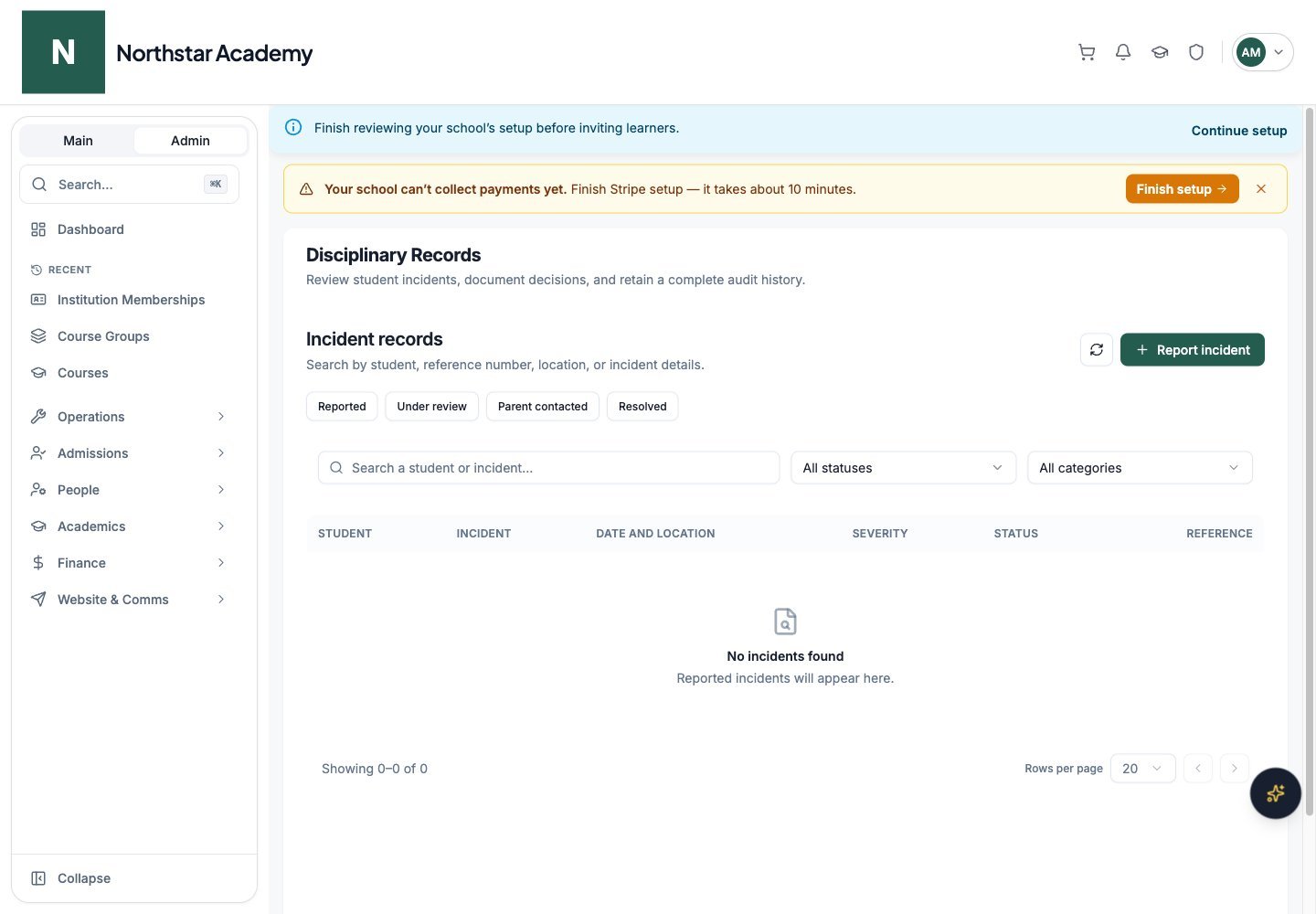
Northstar demo — Disciplinary Records
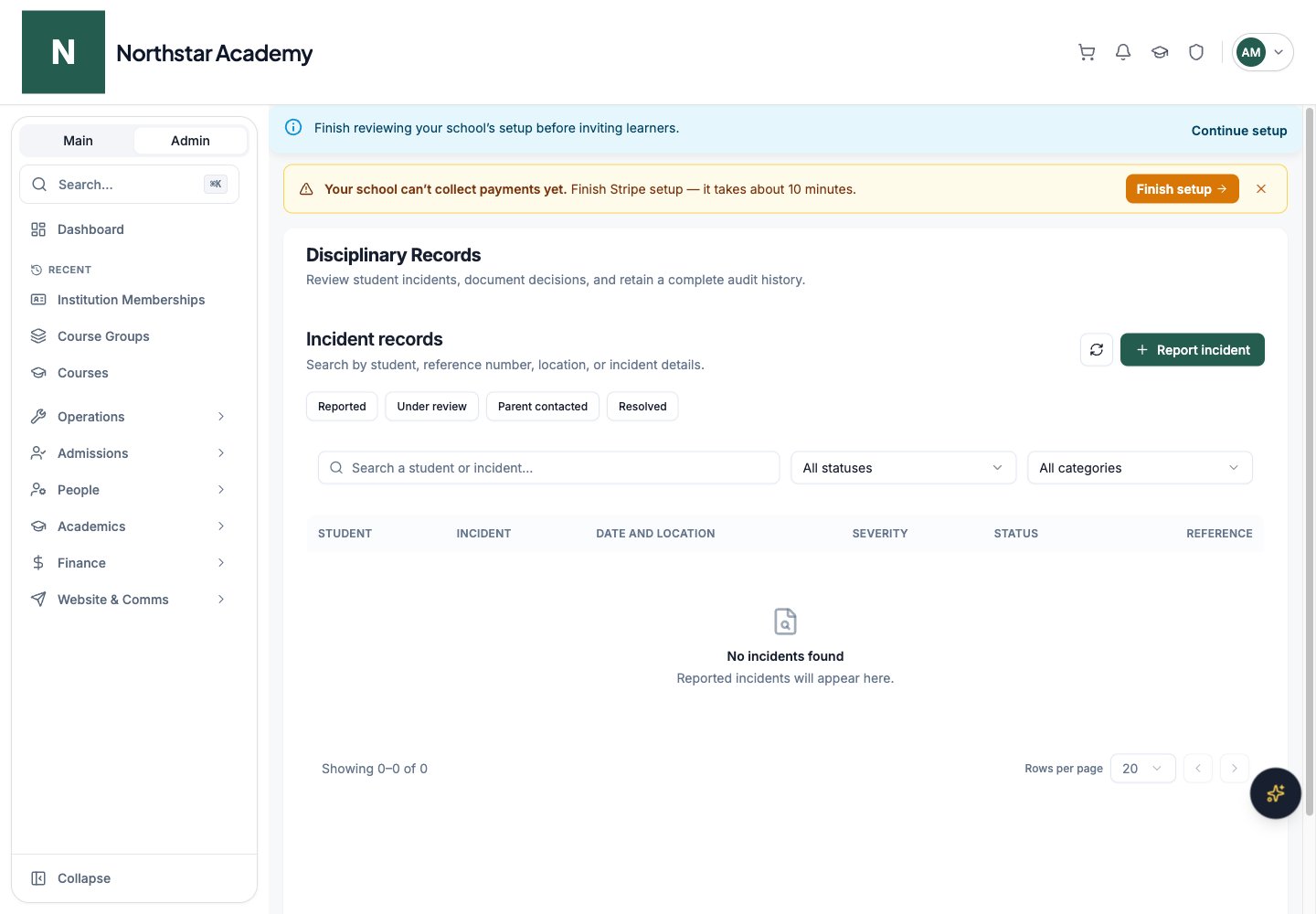
Recording a decision
Administrators document their handling of a case in the Administrative decision section of the record:- Status — move the case through the workflow
- Administrator notes — internal notes about the investigation
- Consequence or decision — the outcome (detention, warning, no action, etc.)
- Reason for this update — optional context that is saved into the audit trail
Emailing parents
From a record, an administrator can click Email parents to open the Email parents or guardians dialog. The subject and message are pre-filled with a neutral follow-up template you can edit before sending.- The email goes to every parent or guardian linked to the student who has an email address on file.
- Recipients are hidden from one another.
- The record logs the contact date and adds a Parent or guardian emailed entry to the audit trail.
The audit trail
Every record keeps a chronological audit trail that cannot be edited or deleted. Entries include:- Incident reported — when the record was created and by whom
- Status changed — from which status to which, with the acting administrator
- Parent or guardian emailed — each parent contact, with the email subject
- Record updated — which fields changed