School-level feature — school admins manage Support Tickets within
yourschool.deandesk.com. Institution and DeanDesk staff may also assist when they have access to a ticket.Video walkthrough
This walkthrough uses the real DeanDesk interface with the fictional Northstar Academy demo school and a calm, AI-generated English voice. Payments and outside services are not connected in the demo.
Request help as a member
Choose Get support in the school portal, select a topic, and describe the issue. After submission, keep the reference code and use View your support tickets to open your requests at/support. The support form requires sign-in; visitors who cannot sign in are directed to DeanDesk support by email.
Find and triage tickets
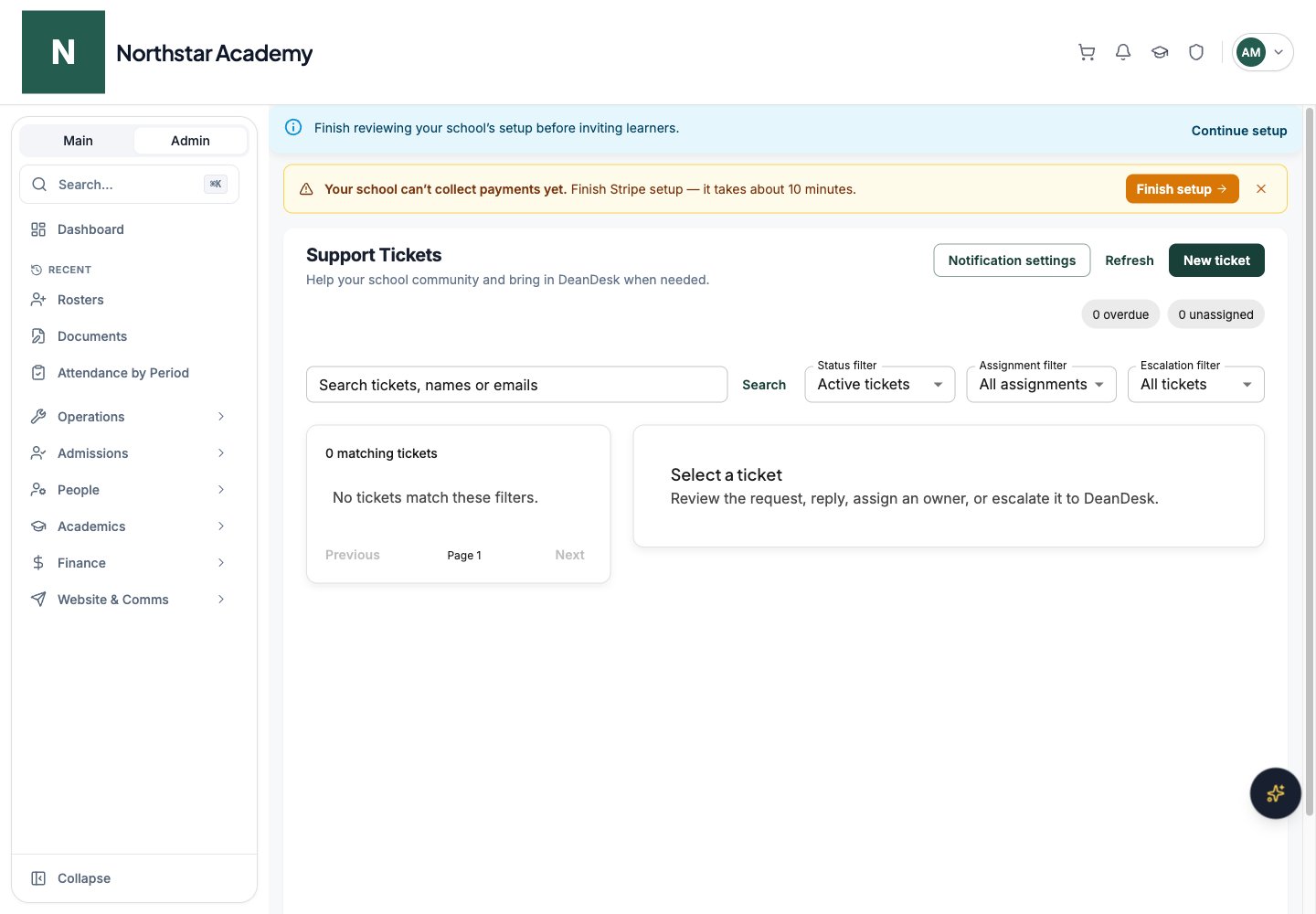
In the Admin Dashboard sidebar, open Operations → Support Tickets. Use Search tickets, names or emails and the status, assignment, and escalation filters to narrow the queue. Active tickets excludes resolved/closed work; choose All statuses to review completed requests. Open a ticket to see its reference code, requester details, original description, available page/application context, response due date, and conversation. The queue highlights urgent or high-priority requests and overdue tickets.1
Assign an administrator
Choose an Assigned administrator, or leave the ticket unassigned while routing it.
2
Set priority
Choose Low, Medium, High, or Urgent.
3
Update status
Use New, Open, In progress, Waiting on staff, Waiting on requester, Resolved, or Closed to reflect the next action. Changes are saved when you select them.
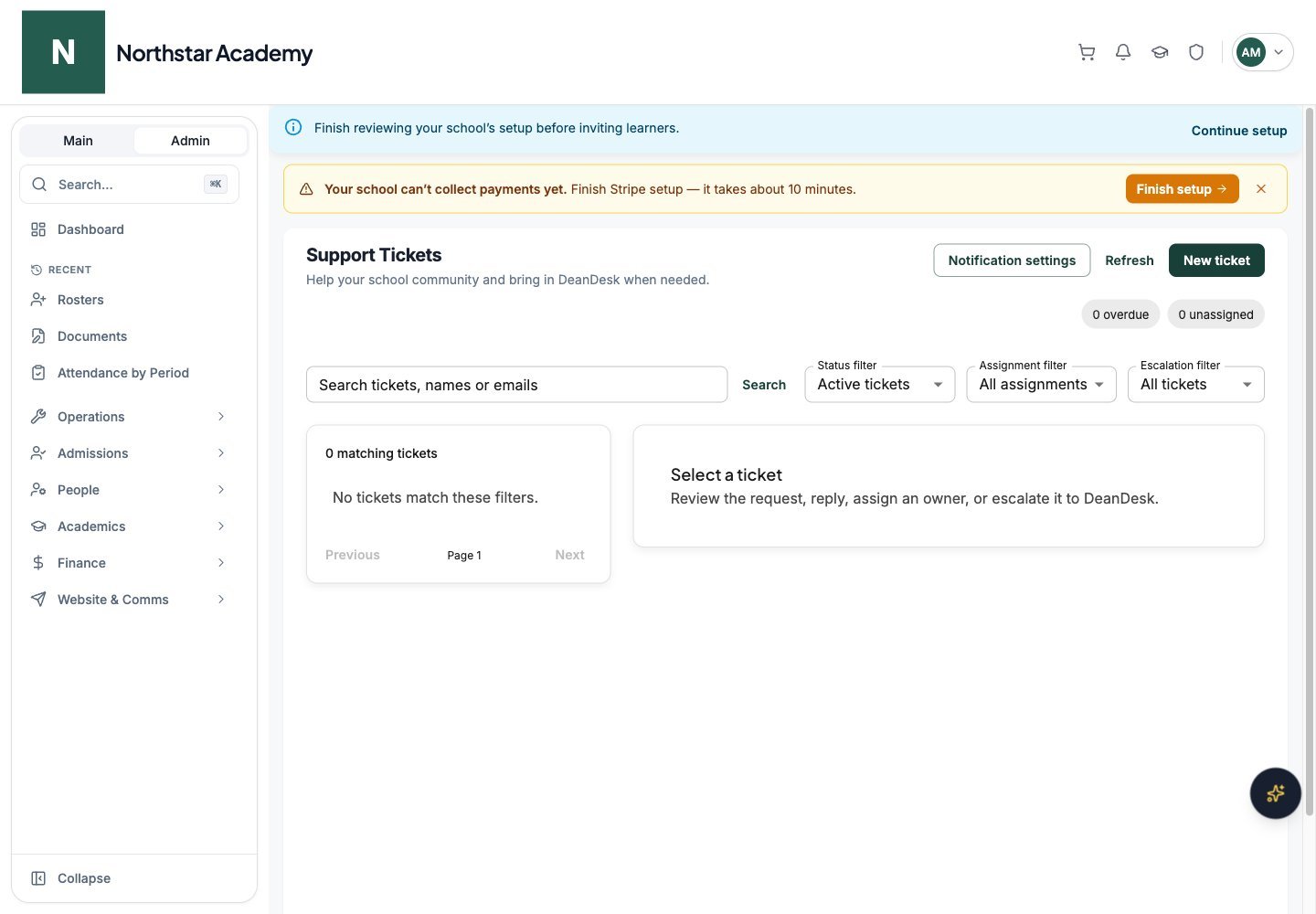
Northstar demo — Support Tickets