Institution-level feature — open Finance at
deandesk.com/dashboard. This workspace requires an institution Super Admin Identity. School finance tools are documented under Transactions, Products, and Student billing.Video walkthrough
This walkthrough uses the real DeanDesk interface with the fictional Northstar Academy demo school and a calm, AI-generated English voice. Payments and outside services are not connected in the demo.
Connect the right account
Open Settings → Stripe to connect an account or review its onboarding, charges, and payouts status. Finance pages link back through Stripe settings. Without a connected account, each finance page shows Connect Stripe to manage finances with a Connect Stripe button. Check the Live mode or Test mode badge before working. The selected institution environment controls which account and records you see. Test and live data are separate.Payments and subscriptions from schools that share the institution’s connected account can appear here. A school’s independent connected account is managed from that school’s finance tools. Do not interpret institution finance as a consolidated view of every independent Stripe account.
Transactions
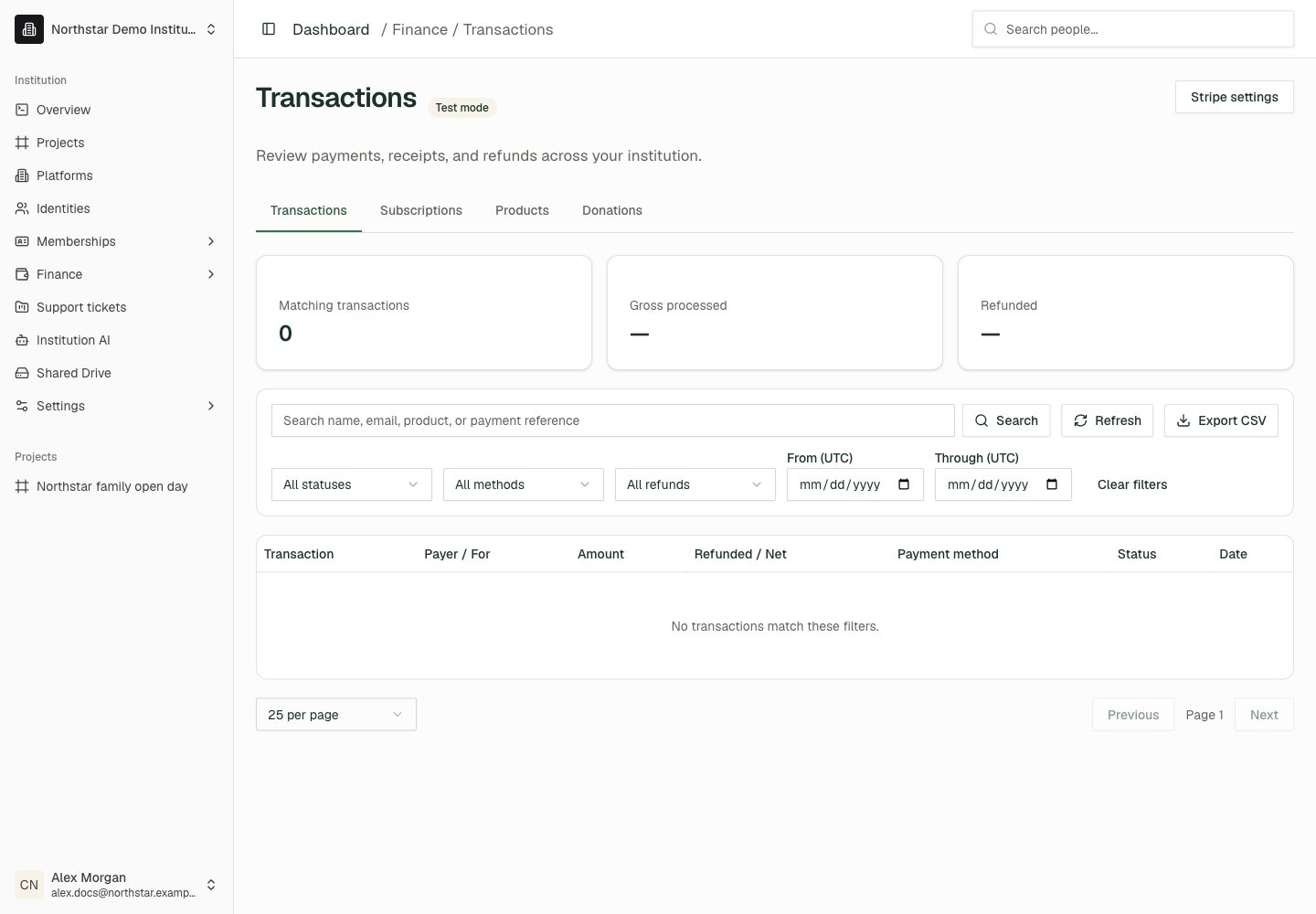
Open Finance → Transactions to search by name, email, product, or payment reference. Narrow the results by date range, transaction status, payment method, and refund state. The summary shows matching transaction counts, gross processed amounts, and refunded amounts. Amounts are grouped by currency rather than combined into a misleading single total. Use Export CSV to export the filtered results. Open a transaction to inspect its payer, payment details, refunded amount, refundable balance, and available receipt or invoice links. Some older records may have fewer details.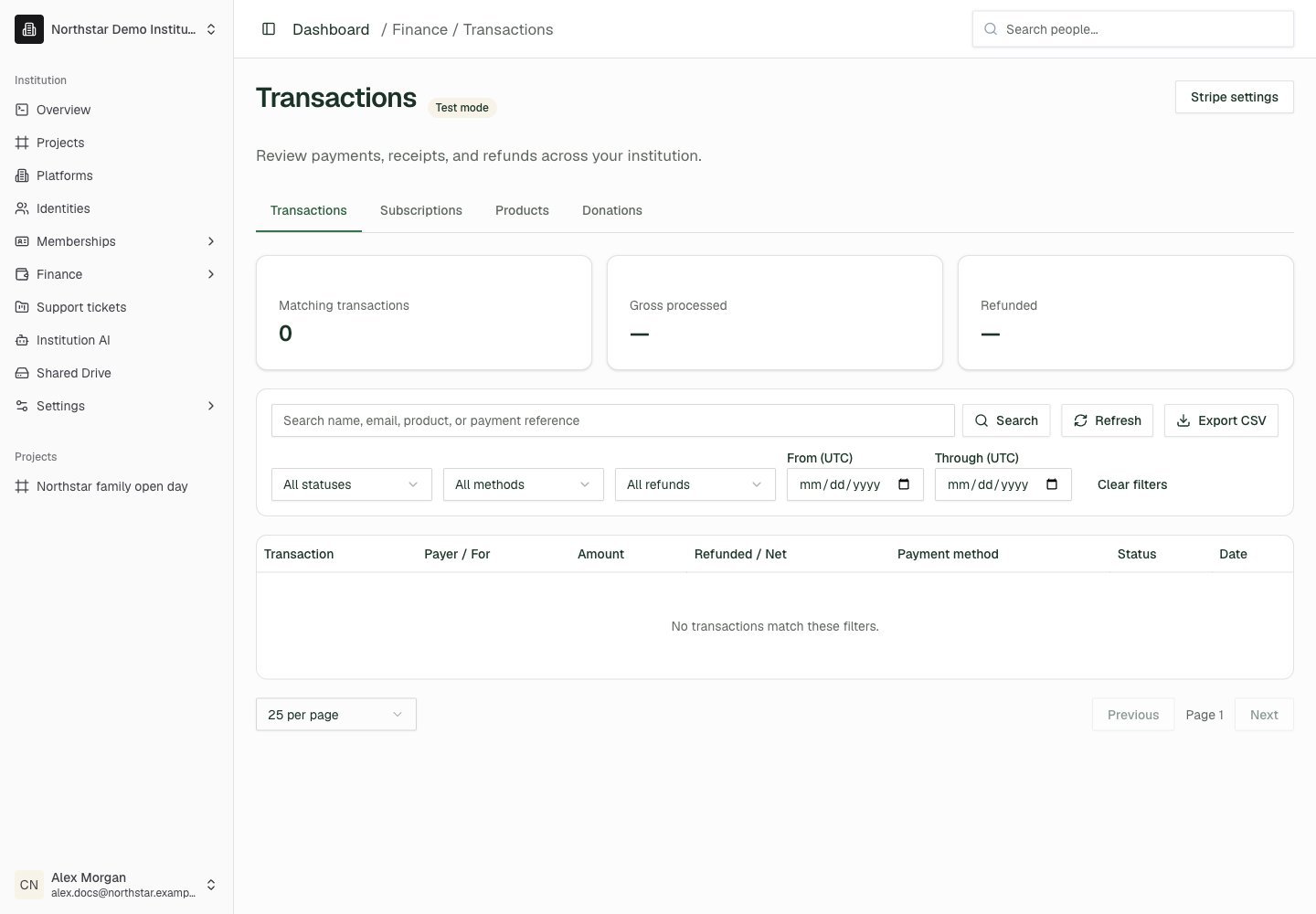
Northstar demo — Transactions
Issue a refund
1
Open the payment
Find the transaction and open its details. The refund form appears when a refundable balance remains.
2
Enter the amount
Enter a full or partial refund up to the displayed refundable balance. The balance already excludes the non-refundable online processing fee. Add an optional Internal note.
3
Review and confirm
Click Review refund, check the amount and recipient, then Confirm refund. This submits the refund to Stripe.
Subscriptions
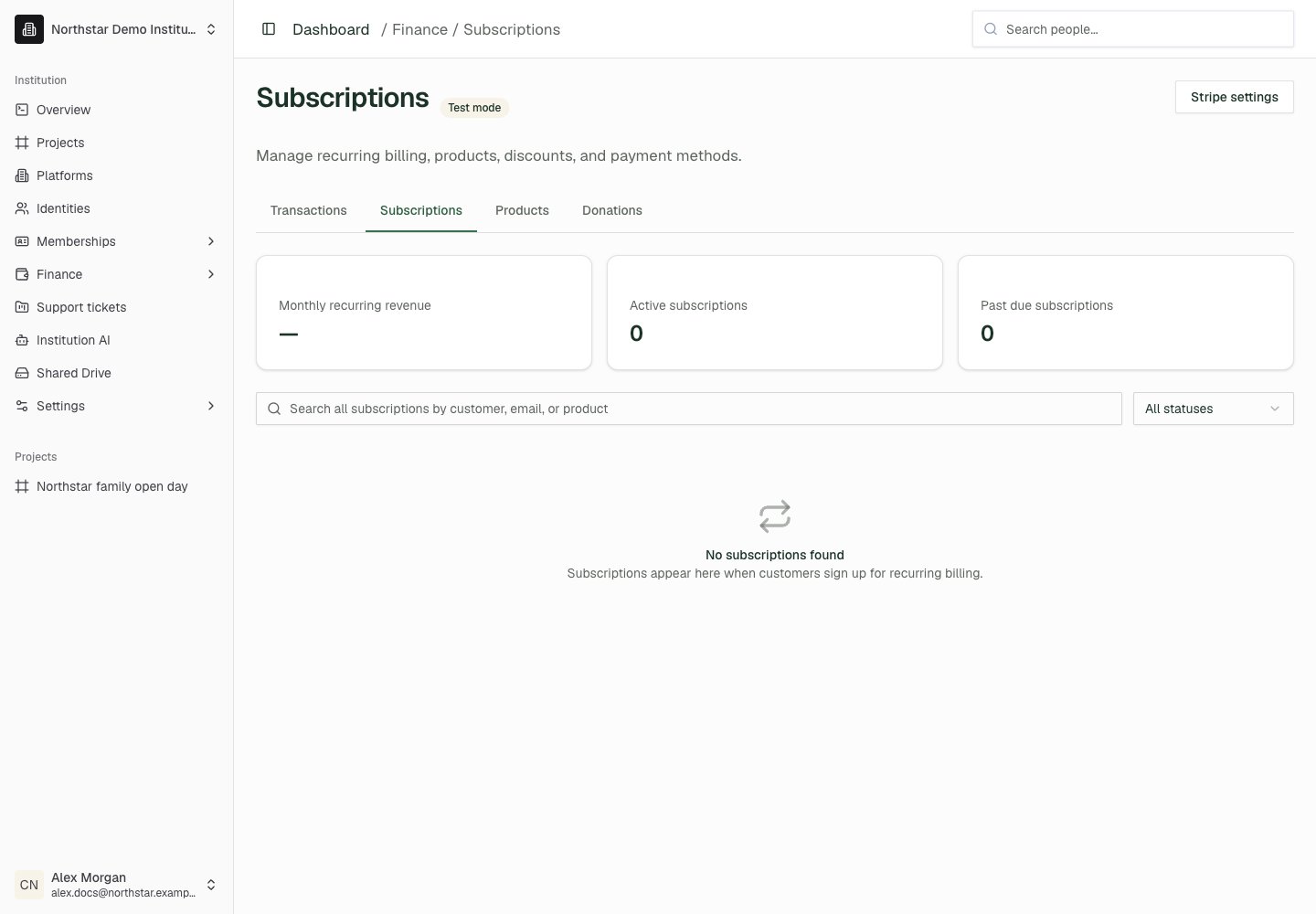
Open Finance → Subscriptions. Search subscriptions by customer, email, or product, and filter by status. Summary cards show Monthly recurring revenue by currency, Active subscriptions, and Past due subscriptions. Open a subscription to inspect its current period, products, payment method, discounts, cancellation state, and average yearly total. For editable subscriptions you can:- Add or remove products, switch prices, and change quantities. A subscription must retain at least one product.
- Select one or more existing institution Stripe coupons in Discounts.
- Set Duration to renew until canceled, cancel at the end of the current period, or cancel on a specific date.
- Reset the billing cycle to today and choose the displayed Proration behavior when changing products or the billing anchor.
- Select a specific saved payment method or use Customer default.
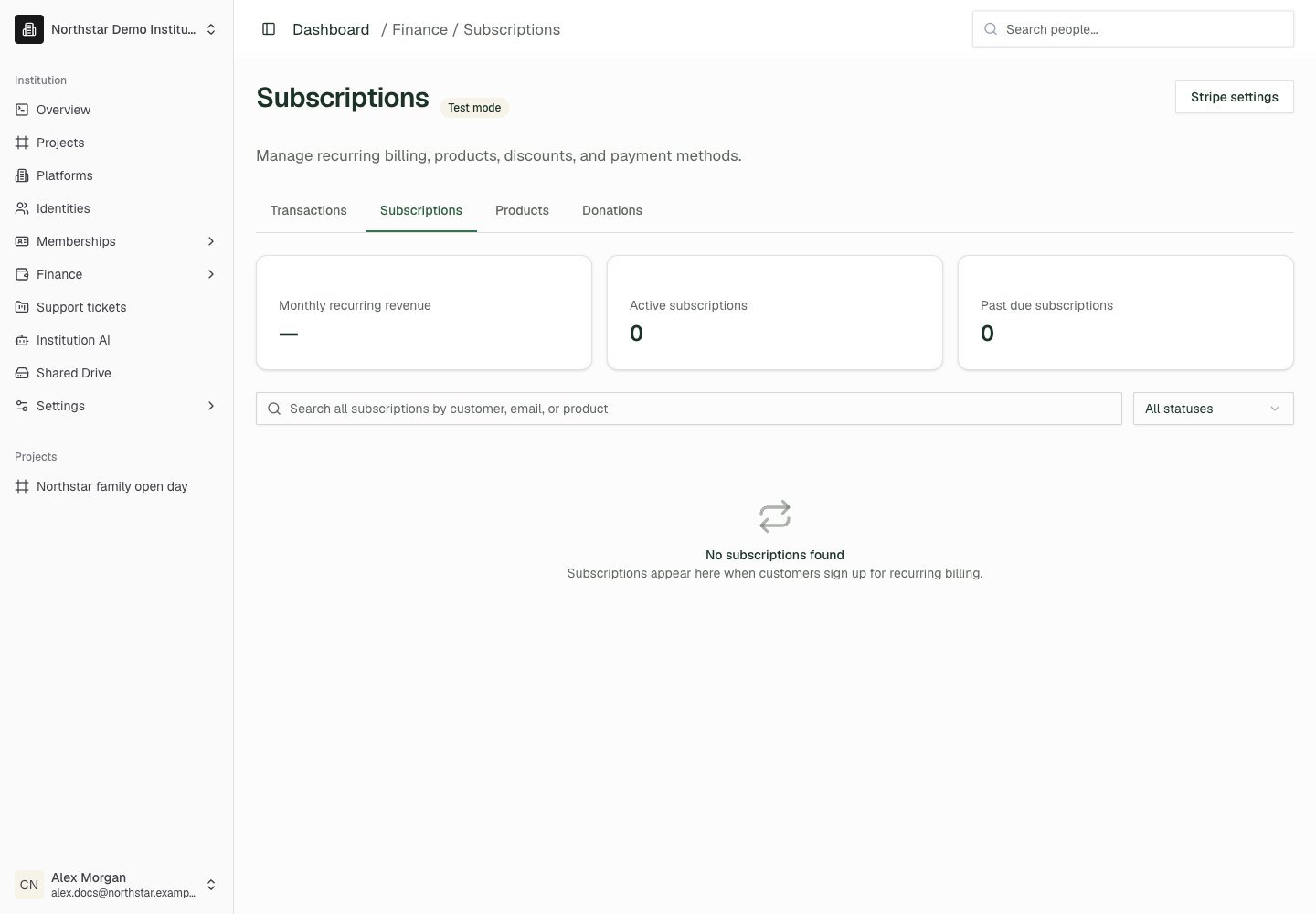
Northstar demo — Subscriptions
Cancel or keep a subscription
The cancellation confirmation defaults to the end of the current period. Select the immediate-cancellation option only when the subscription should stop now. If cancellation is scheduled but has not completed, the subscription detail view lets you reactivate it. A completed cancellation cannot be undone through that action.Products and catalog
Open Finance → Products to search names, descriptions, or tags; filter by product type or active/archived status; and sort the catalog. Create and edit products, add prices, and archive products or prices that should no longer be offered. Select products to Archive selected or restore archived products, then review and confirm the bulk action. Product details include pricing and sales information. Prices can be one-time or recurring; recurring prices support an interval, an interval count, and optional payment cycles. Review the displayed currency before creating a price. In Catalog & promotion, configure:
Click Save catalog settings to apply these fields. Hiding a product from a catalog does not cancel subscriptions already using it.
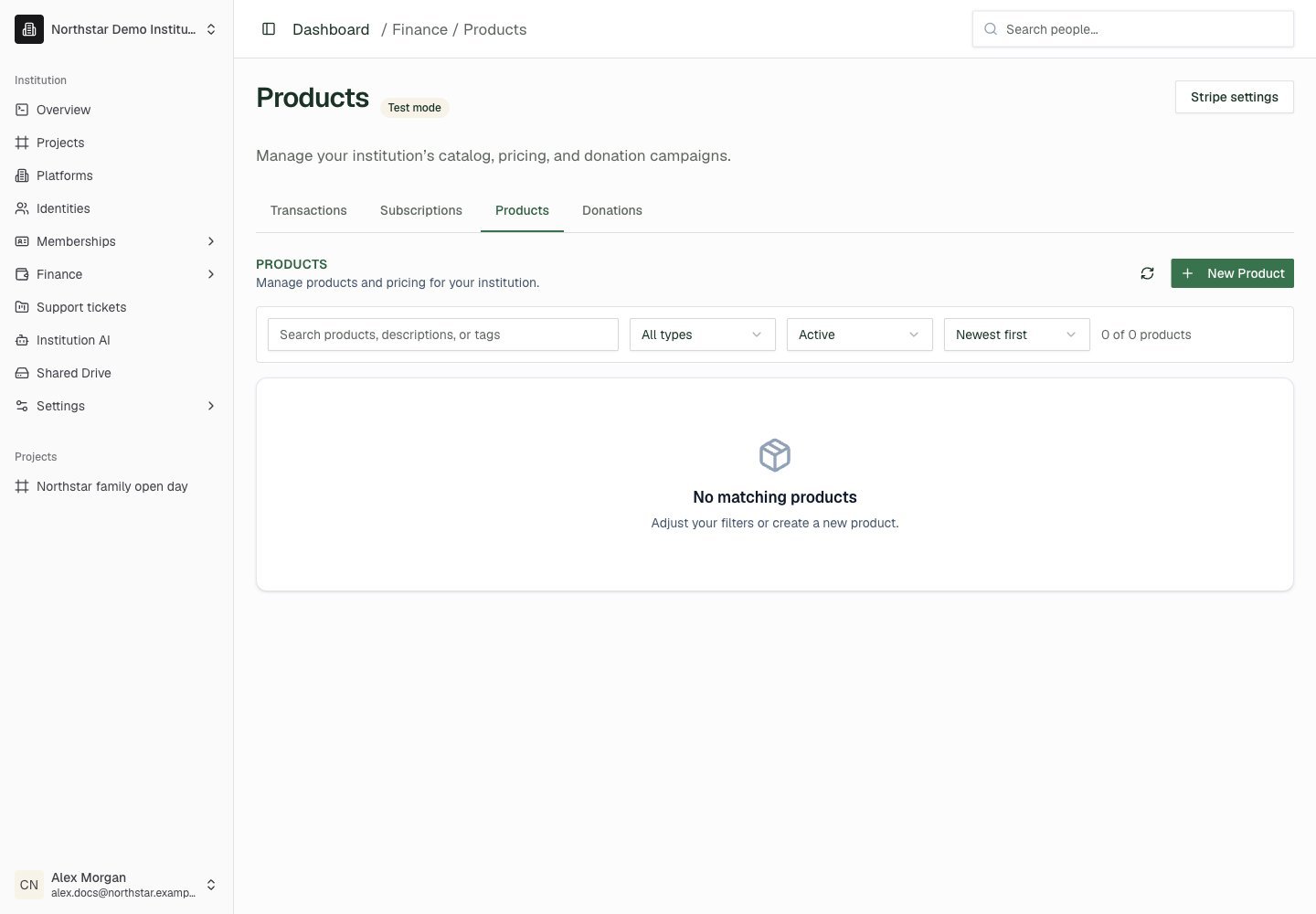
Northstar demo — Products
Donations and campaigns
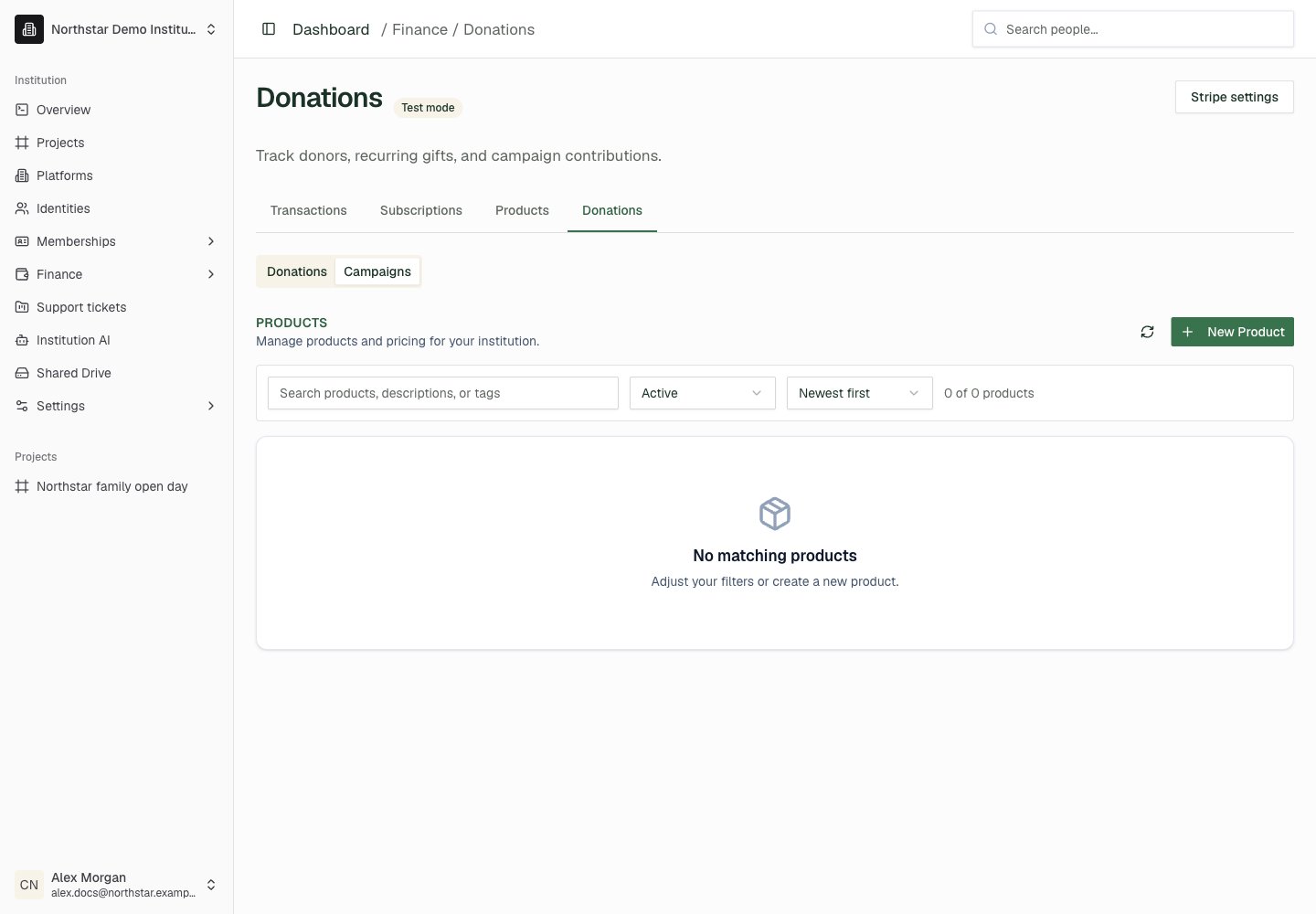
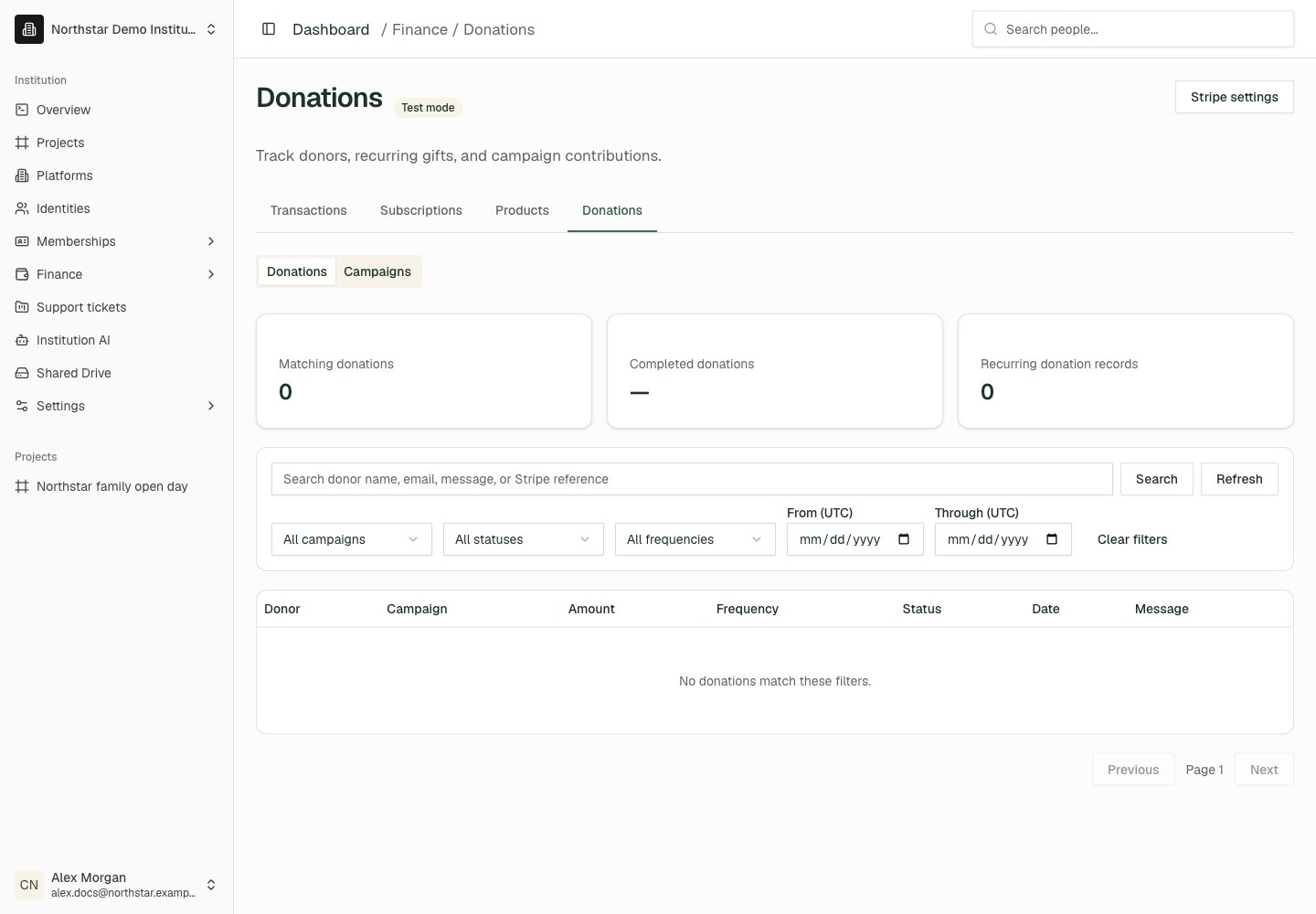
Open Finance → Donations. The Donations tab searches donor name, email, message, or Stripe reference and filters by campaign, status, frequency, and date. Summary cards show matching donations, completed donation totals by currency, and recurring donation records. Open a donation for donor details, message, amount, status, and payment references. Cancel recurring donation schedules cancellation at the end of the current billing period. Review or change that schedule from Subscriptions. The donation record retains the original payment status; it is not the current subscription status. The Campaigns tab opens the donation-product catalog. Campaign settings include an image, YouTube video, goal, deadline, preset amounts, and donor-wall visibility. Use the product’s sales details to review contributions. Public donation access also depends on Settings → Institution → Public portal navigation → Donate tab.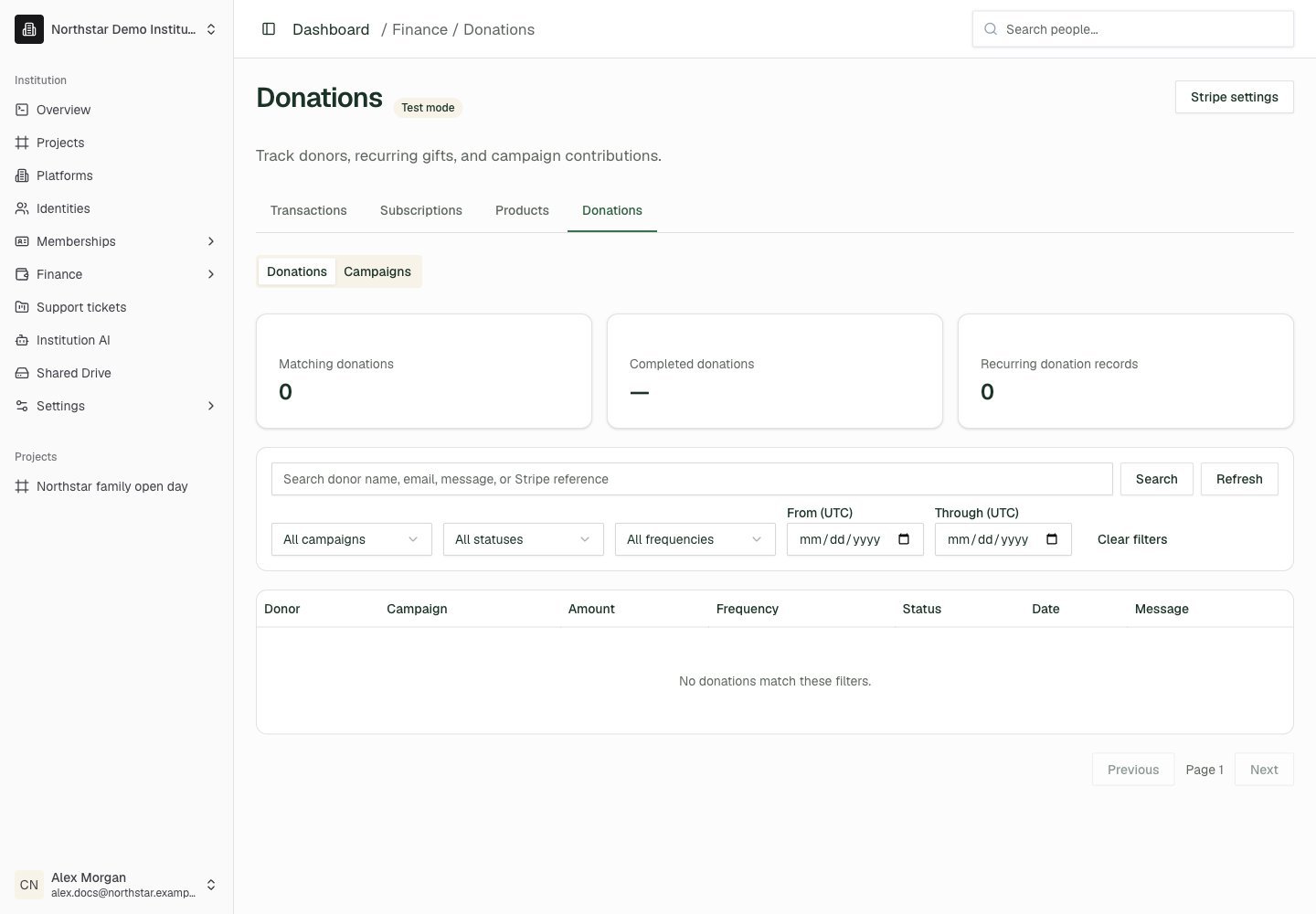
Northstar demo — Donations — Donations
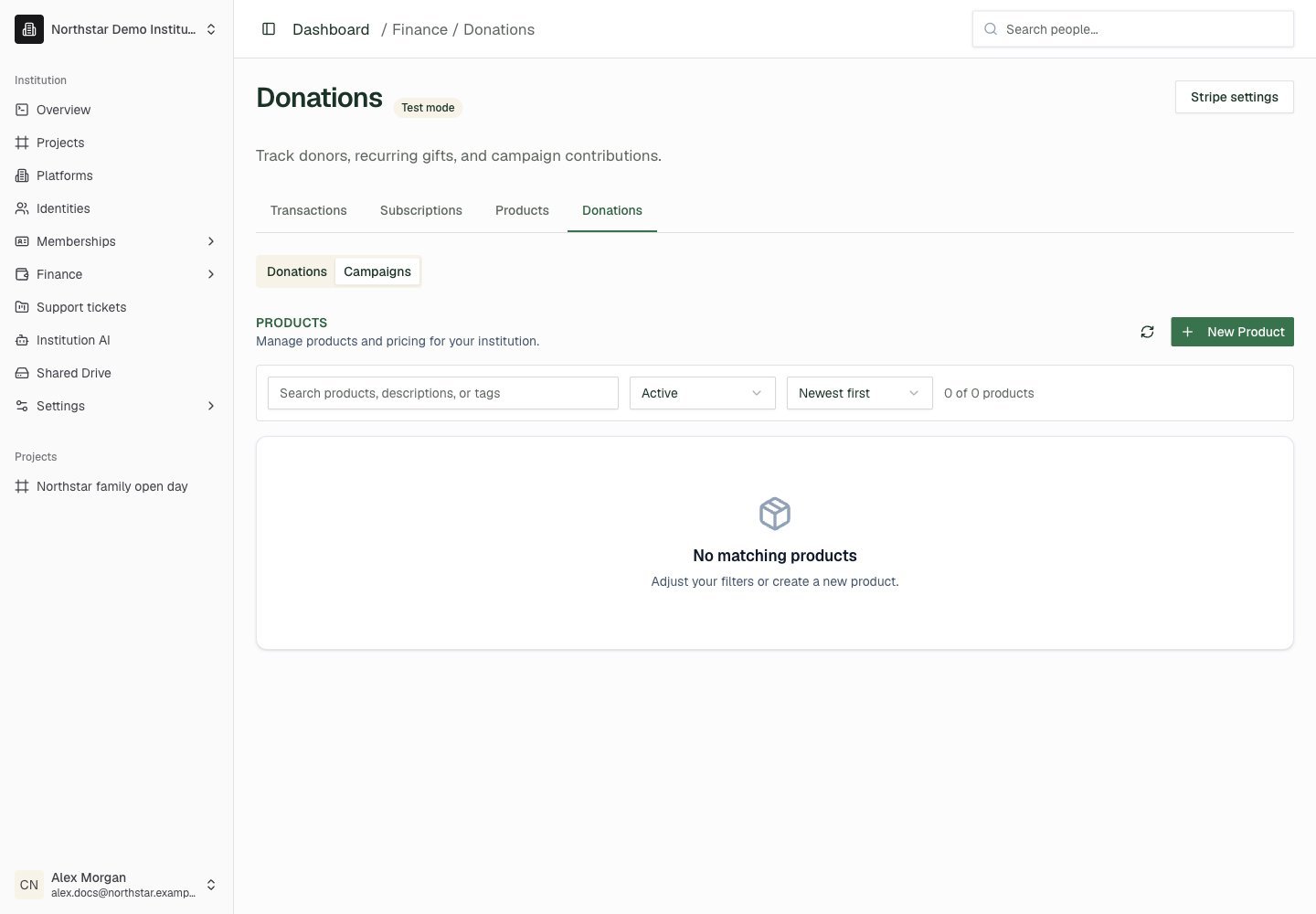
Northstar demo — Donations — Campaigns