

School-level feature — managed within your school portal at
yourschool.deandesk.com.Video walkthrough
This walkthrough uses the real DeanDesk interface with the fictional Northstar Academy demo school and a calm, AI-generated English voice. Payments and outside services are not connected in the demo.
Purchased spots are separate from school account enrollment and eligibility. An attendee may be the purchaser, another person, or a person whose details were not recorded. Do not use this list as proof of a course enrollment.
Find and inspect attendees
1
Choose the program and audience
Use the All programs dropdown to select a single Program product, or leave it on All programs. Use the All attendee types dropdown to narrow the list to Purchaser, Someone else, or Not recorded.
2
Search
Enter an attendee name or email, purchaser, program, or order in the search box (“Search attendee, purchaser, program, or order”). The summary shows Purchased spots, Named attendees, Someone else, and Not recorded counts.
3
Review the order
The table shows Attendee, Program, Purchaser, Order, and Purchased. Click View on a row to inspect the purchase and the other attendees attached to it. Use the page controls to browse additional spots.
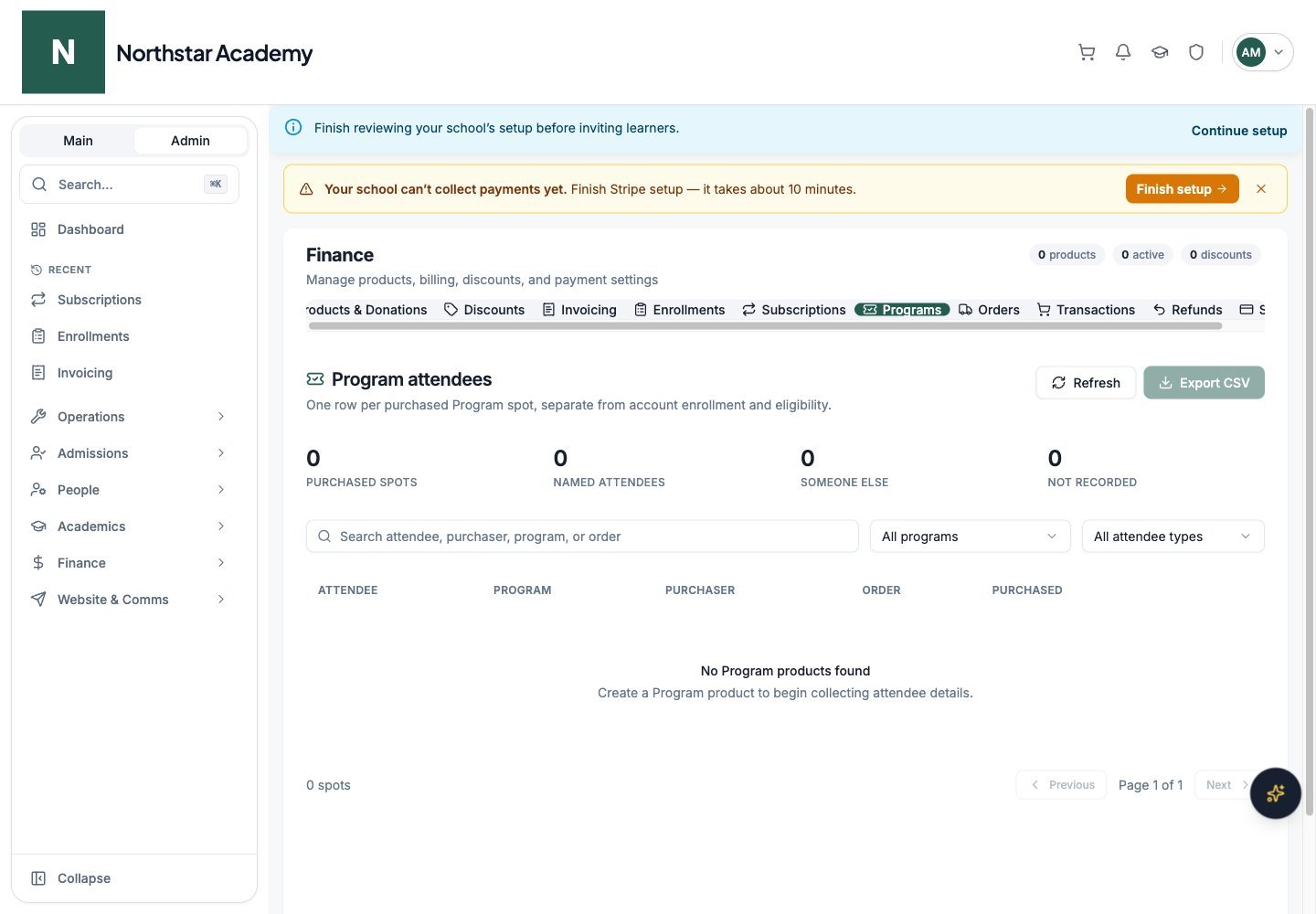
Northstar demo — Programs
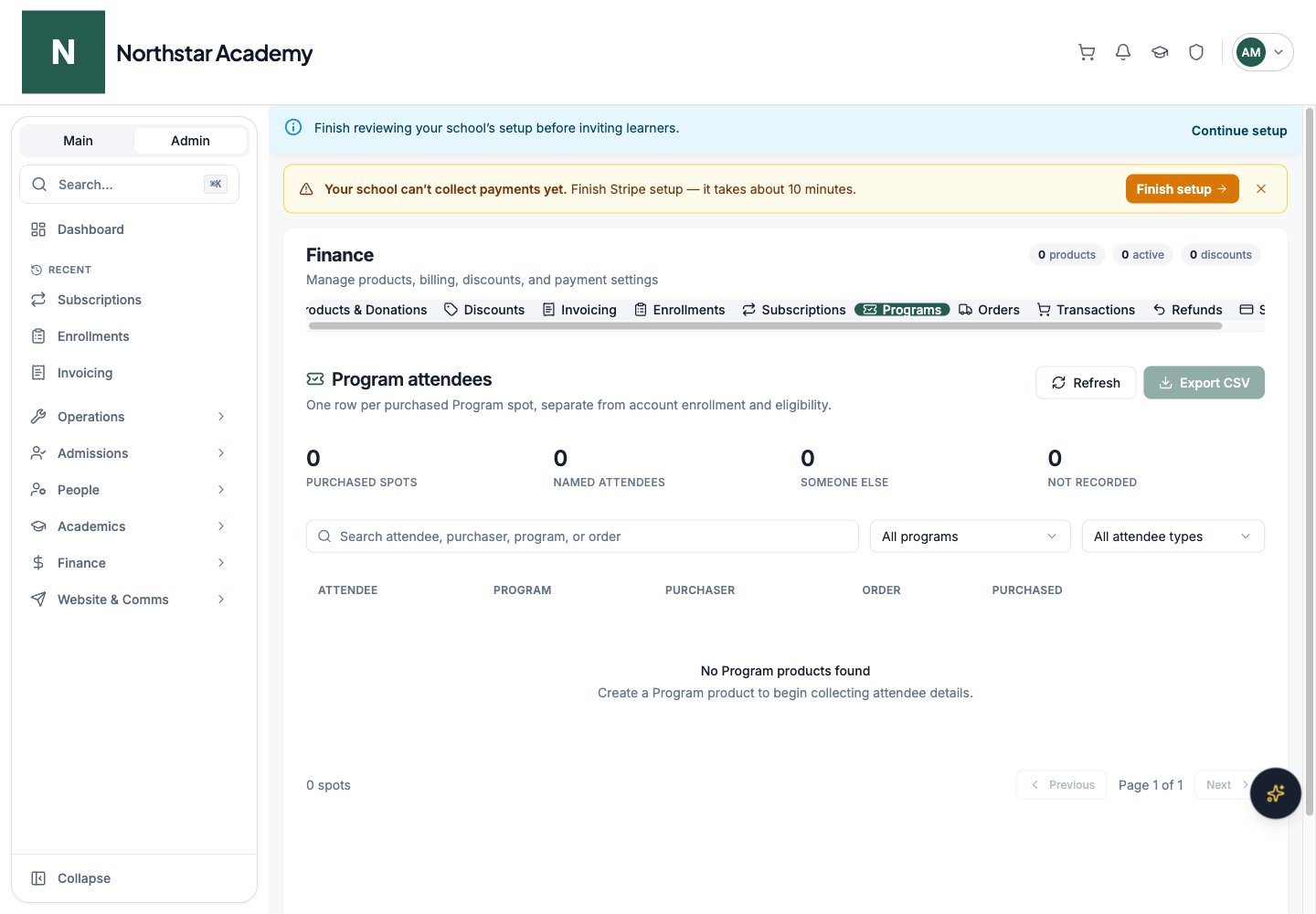
Export a program list
1
Apply filters
Select the program, attendee type, and search text you want included. Click Refresh first if new orders have arrived.
2
Download the list
Click Export CSV. The export contains the matching attendee rows across pages. It is unavailable when no rows match.