School-level feature — managed within your school portal at
yourschool.deandesk.com.Video walkthrough
This walkthrough uses the real DeanDesk interface with the fictional Northstar Academy demo school and a calm, AI-generated English voice. Payments and outside services are not connected in the demo.
Configure a scale
1
Start with a preset or your current scale
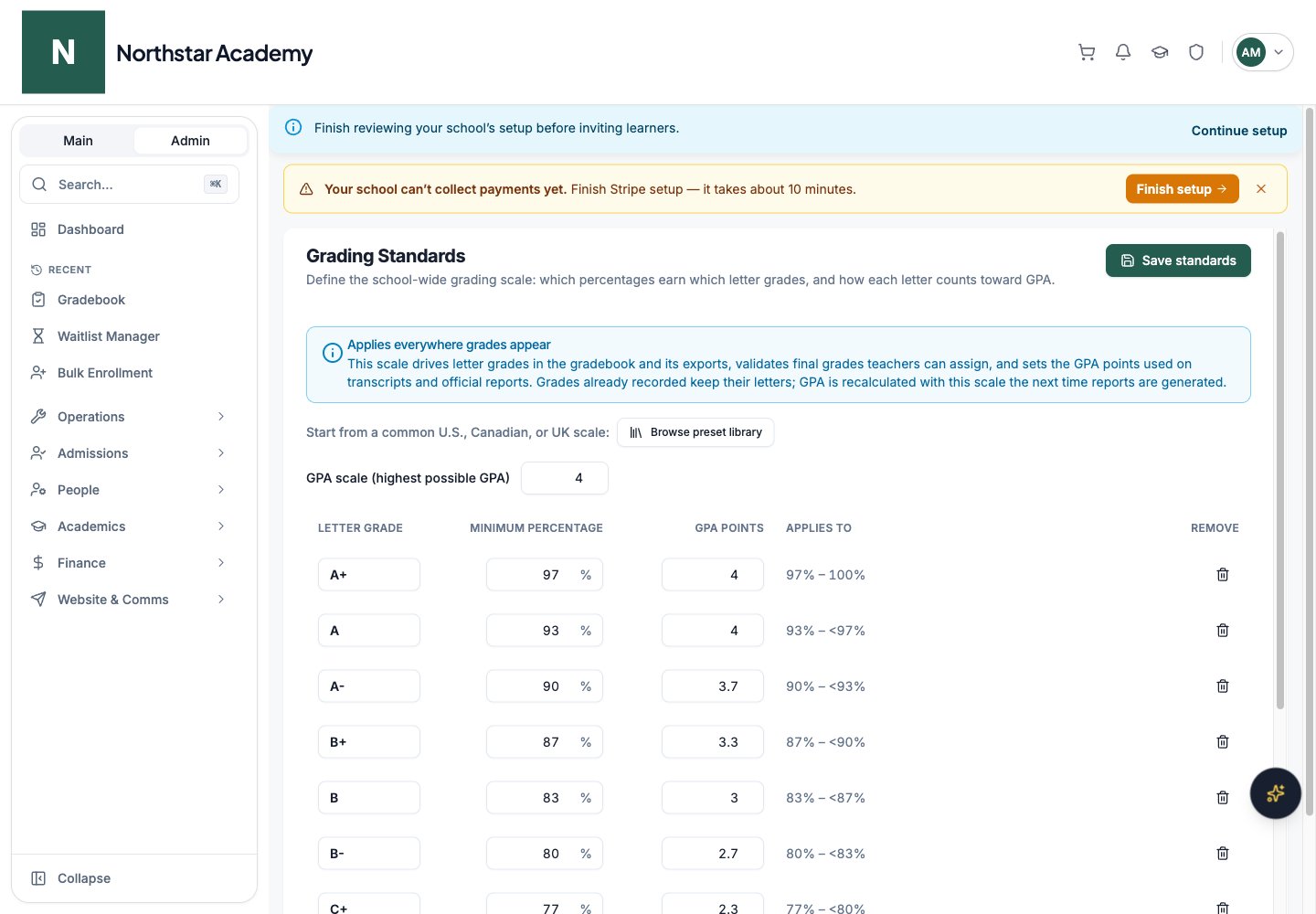
Click Browse preset library to inspect common U.S., Canadian, and UK scales. Choose a suitable starting point and review its bands before saving.
2
Set GPA and percentage bands
Set GPA scale (highest possible GPA). For each row, enter a Letter grade, Minimum percentage, and GPA points. The Applies to column shows the resulting percentage range. Use Add grade band or remove a row to adjust the scale.
3
Add non-numeric grades
Add outcomes such as P, I, or W under Non-numeric grades. These can be assigned directly and never count toward GPA.
4
Save standards
Resolve any validation message, then click Save standards. Review a course gradebook and generate a sample report to confirm the scale matches your policy.
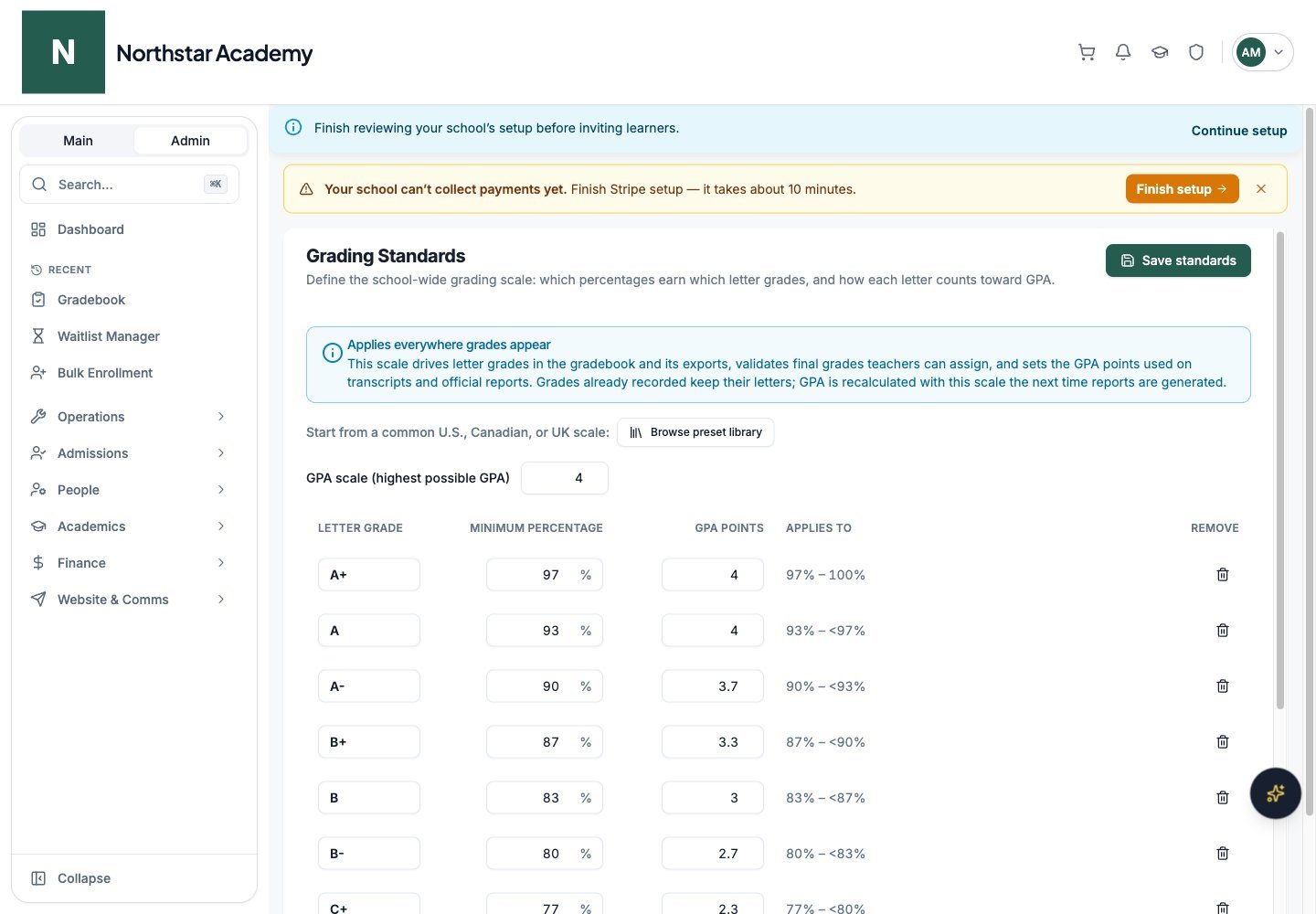
Northstar demo — Grading Standards