yourschool.deandesk.com.Video walkthrough
How admissions works in DeanDesk
The admissions process has three parts:- Configuration — Admins set up the enrollment method, applicant journey, admissions team, and rounds in the Onboarding Policy Manager.
- Application — Applicants sign up at your school’s portal and work through a step-by-step dashboard to complete all requirements and submit their application.
- Review — Your admissions team reviews submitted applications in the Admissions Queue, moves applicants between stages, and approves or rejects them.
Configure admissions with the Onboarding Policy Manager
Open Admin Dashboard → Admissions → Enrollment & Admissions. The page has four tabs: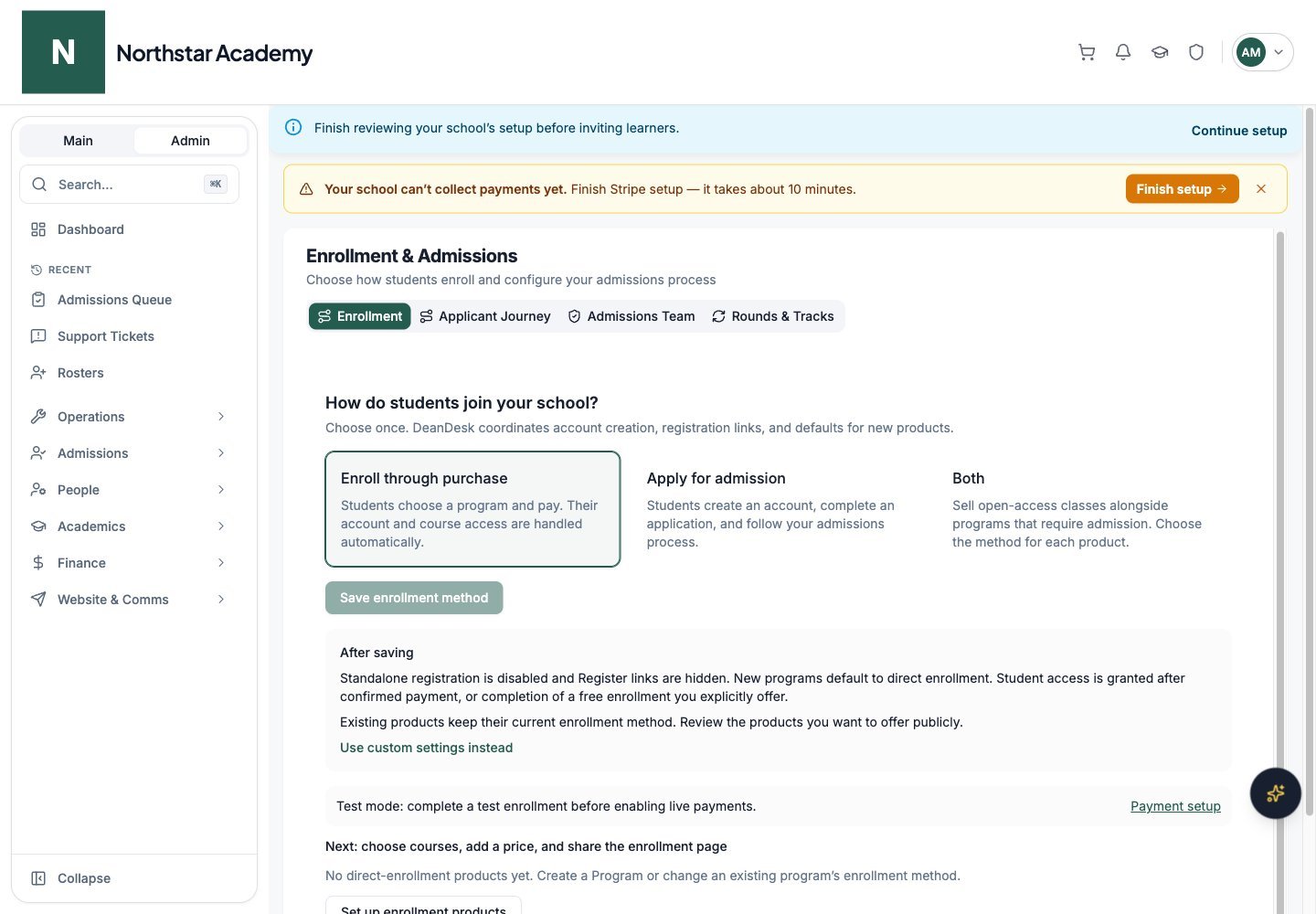
Northstar demo — Enrollment & Admissions — Enrollment
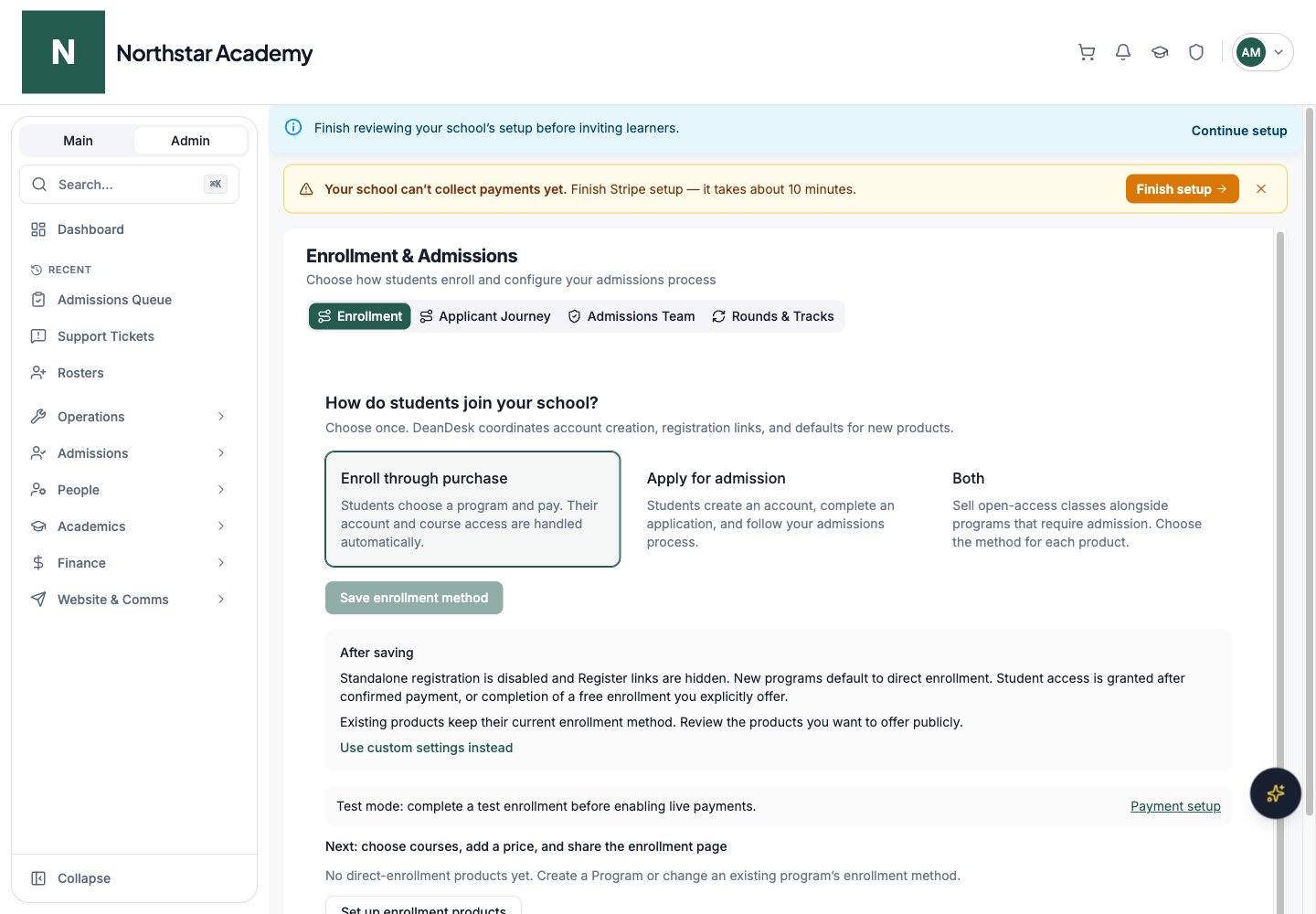
Enrollment: how students join
The Enrollment tab asks How do students join your school? Choose one method:Applicant Journey: the step list
The Applicant Journey tab shows the path an applicant follows as a list of steps. Select a step to configure it. Check a step to add it to the journey; uncheck it to remove it. Steps marked Auto turn on when their content is filled in, for example when you select a form or enter terms text. Switch between Edit and Preview at the top of the list to see the journey as applicants will. If your school uses rounds and tracks, choose what you are editing from Applicant journey for at the top of the tab: Default policies (the starting point for every journey) or a specific round and track. Track settings override the defaults for that track only.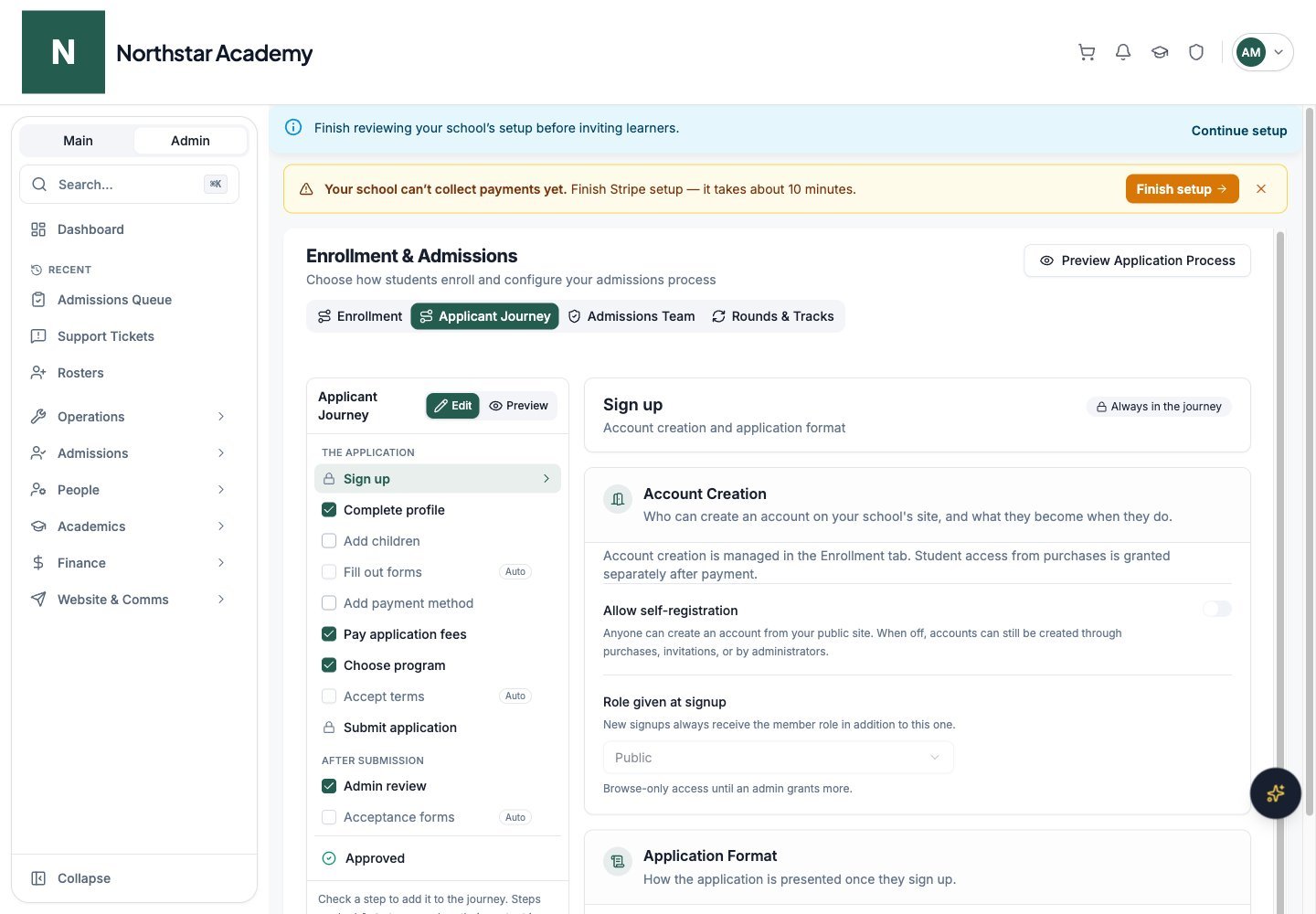
Northstar demo — Enrollment & Admissions — Applicant Journey
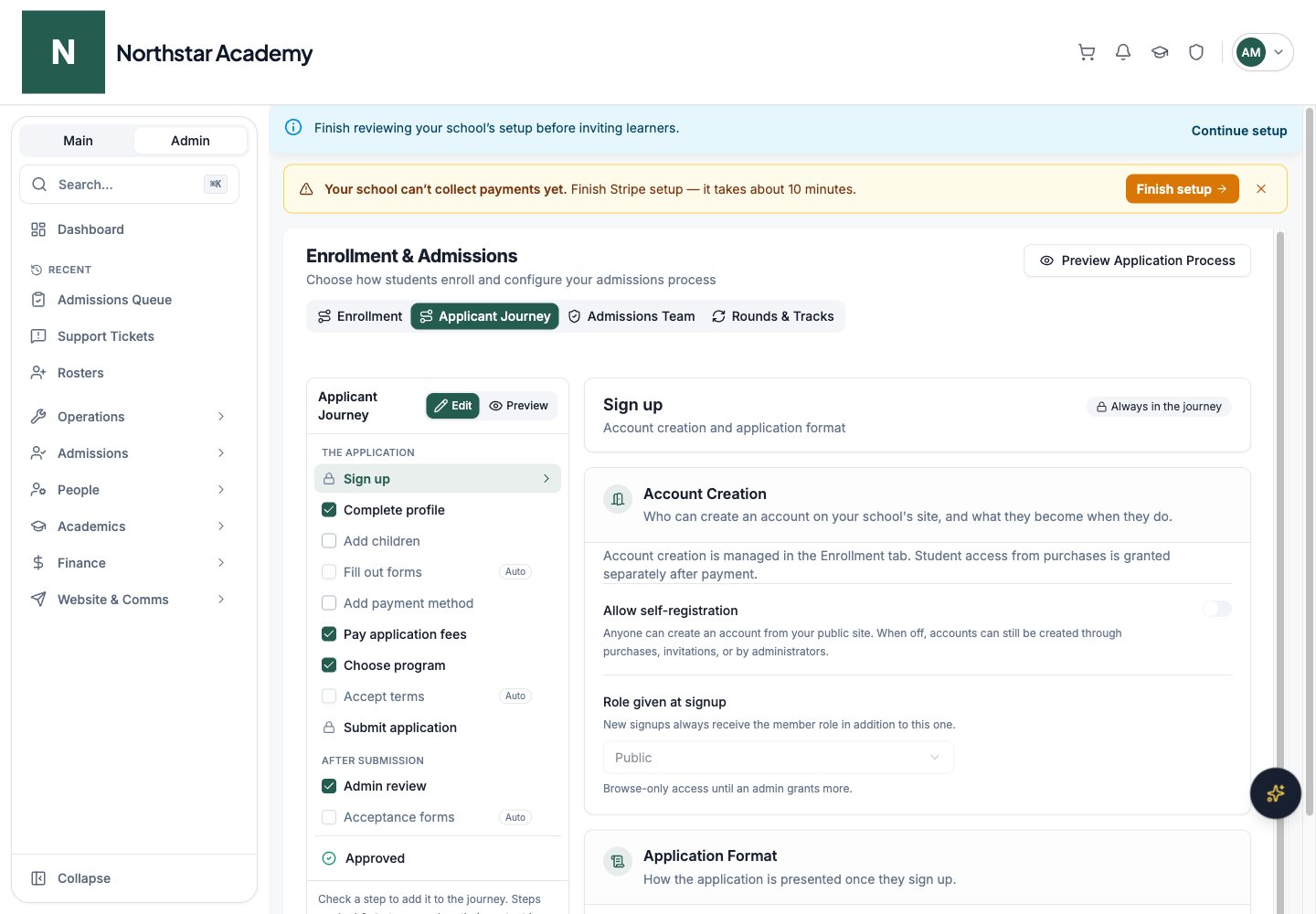
Applicant Journey: forms
This is where you attach forms to your admissions process. Forms are created in the Form Manager and then selected here in the Onboarding Policy Manager.Create your forms in the Form Manager
Select forms in the Onboarding Policy Manager
- Required forms — Must be completed before the application can be submitted.
- Optional forms — Shown during onboarding, but applicants can submit without completing them.
- Child required forms — Assigned to every child application submitted by a parent (in the Add children step).
Save
Application statuses
Select the Admin review step within Applicant Journey to manage the Application Workflow. If your school uses rounds and tracks, workflow stages belong to each track: choose a round and track in Applicant journey for first. Application statuses define the stages of your review pipeline. DeanDesk includes locked system stages:- Title and Description
- Color for visual identification in the queue
- Default Email Subject and an Auto-Response Email Template, which is sent to the applicant automatically when their status changes to this stage. Dynamic placeholders include
{{firstName}},{{lastName}},{{username}},{{email}},{{statusTitle}}, and{{statusDescription}}.
Admissions Team
Control who on your team can access and manage applications.Set the Admissions Head
Add teachers with full admissions access (optional)
Assign stage committees (optional)
Save
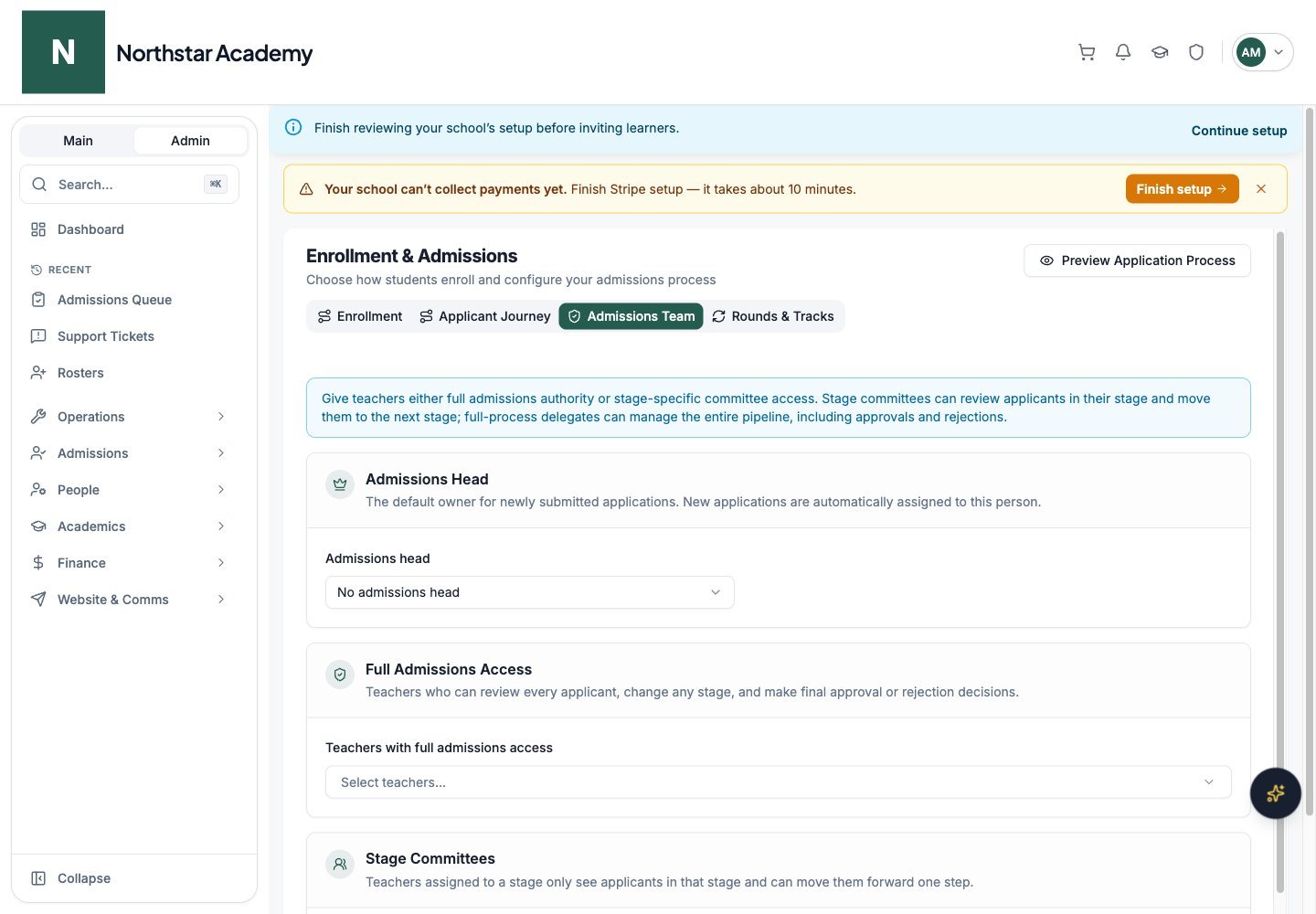
Northstar demo — Enrollment & Admissions — Admissions Team
Rounds & Tracks
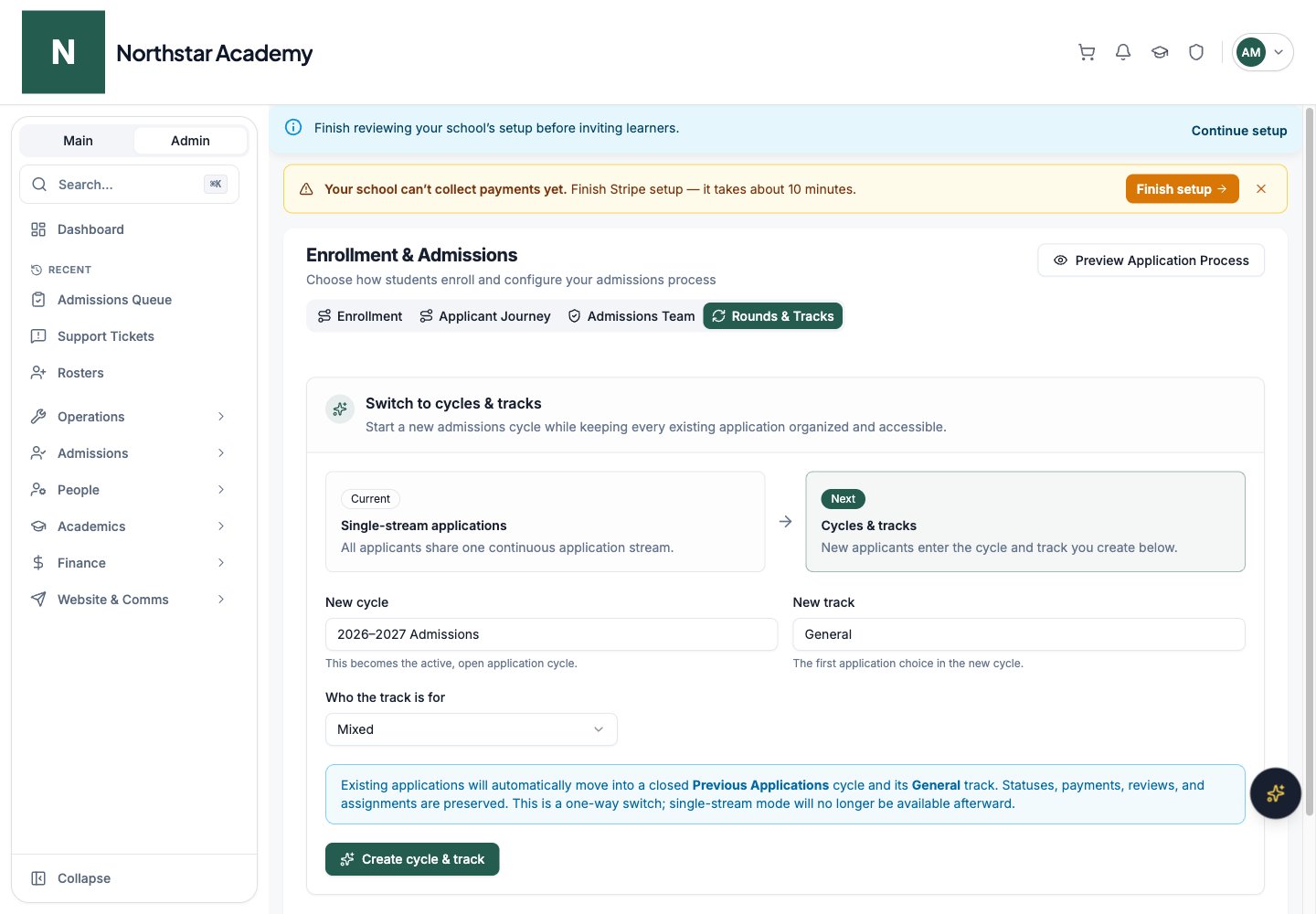
Schools begin with Single-stream applications, where every applicant moves through one continuous queue. When the next cohort arrives, open Rounds & Tracks and use Switch to cycles & tracks: enter a New cycle name, a New track name, and Who the track is for, then click Create cycle & track. DeanDesk automatically moves all existing applications into a closed Previous Applications cycle and General track, then opens the new cycle and track for applicants. The switch to cycles and tracks is permanent. Existing statuses, payments, reviews, and assignments are preserved, and there is no rollback workflow to manage. See Admission Cycles below for details.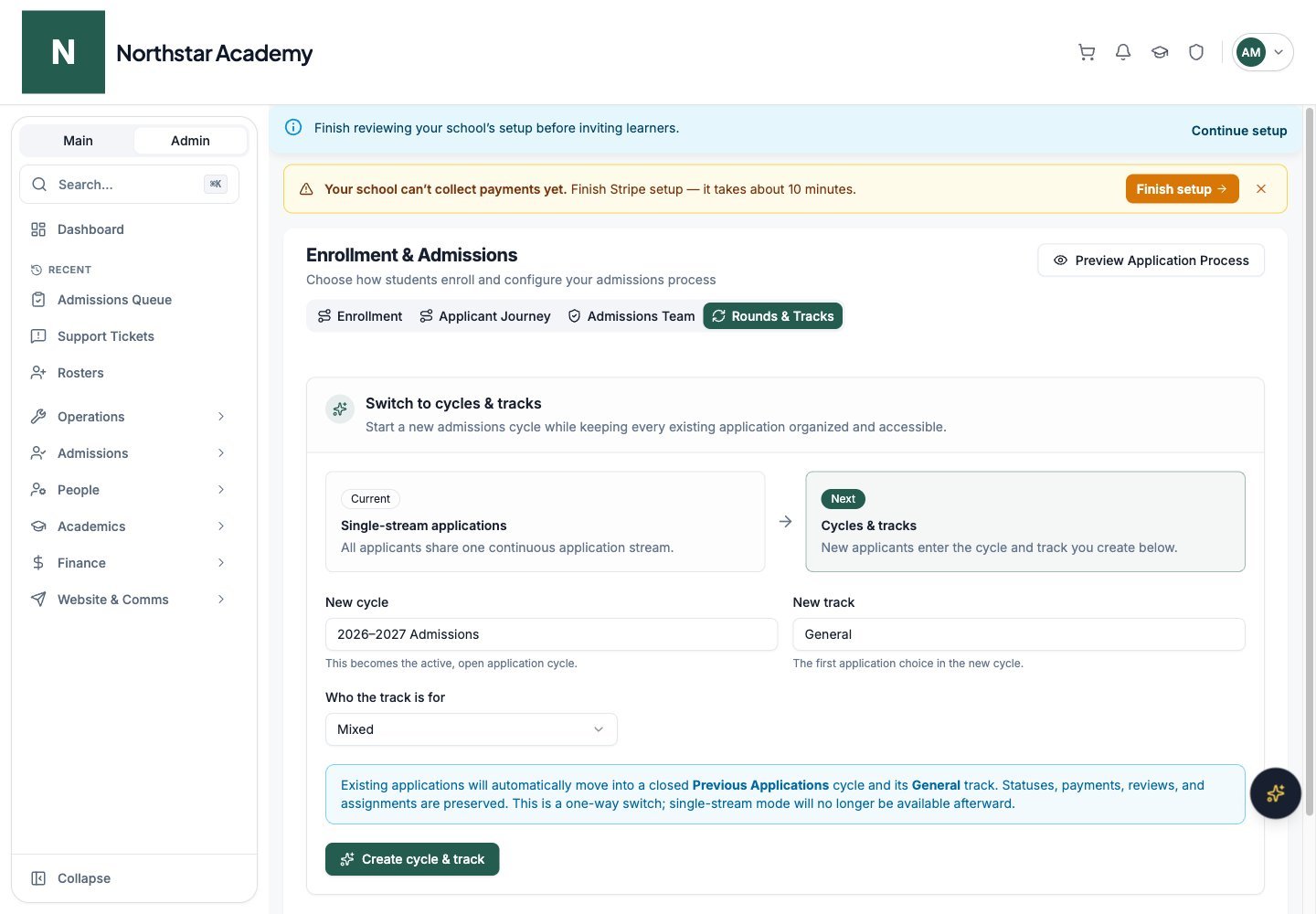
Northstar demo — Enrollment & Admissions — Rounds & Tracks
Managed application forms
A public form can create an Applicant account and manage its application. Configure this in Form Manager, including the destination cycle and track where applicable. Successful submission of a managed form replaces the ordinary form-owned application steps. The form’s Automatically accept applicants setting determines whether the application is approved immediately or enters Under Review with the Admissions Head assigned. A notice at the top of the Applicant Journey tab names the managing form and links to Edit form. You can also change the form’s auto-accept behavior from the Admin review step; click Save Changes before leaving. Only one form can manage a single-stream journey or a particular cycle and track. The policy editor keeps profile completion, admin review, and acceptance forms configurable while marking form-owned steps inactive. Turning account creation on without managed-application mode leaves an application in Draft for the applicant to finish manually.Application fees
You can require applicants to pay fees before submitting their application. Fees are configured in the Pay application fees step of the Applicant Journey tab.Add the step
Add fees
Allow waivers (optional)
Add a card surcharge (optional)
Connect Stripe and save
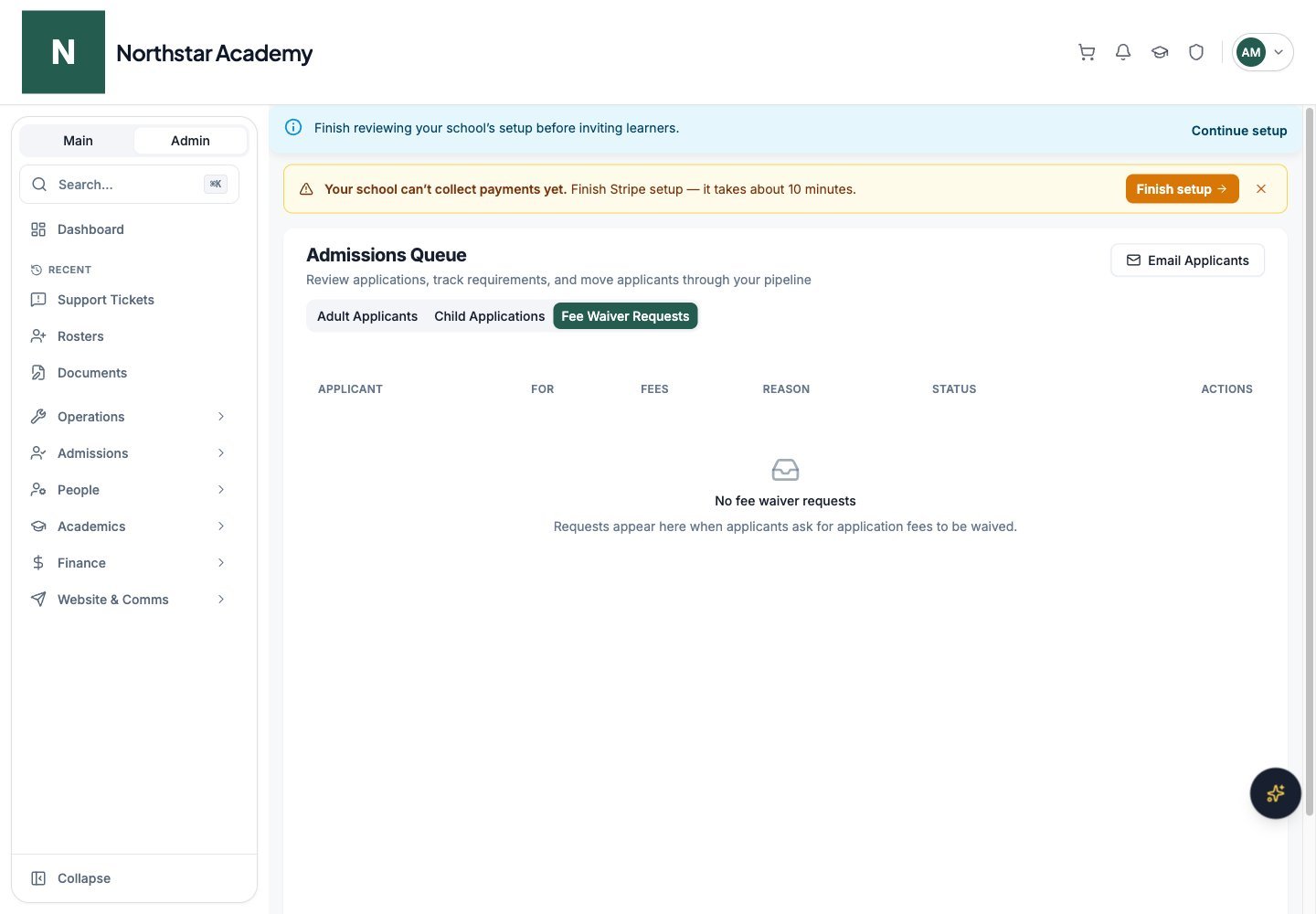
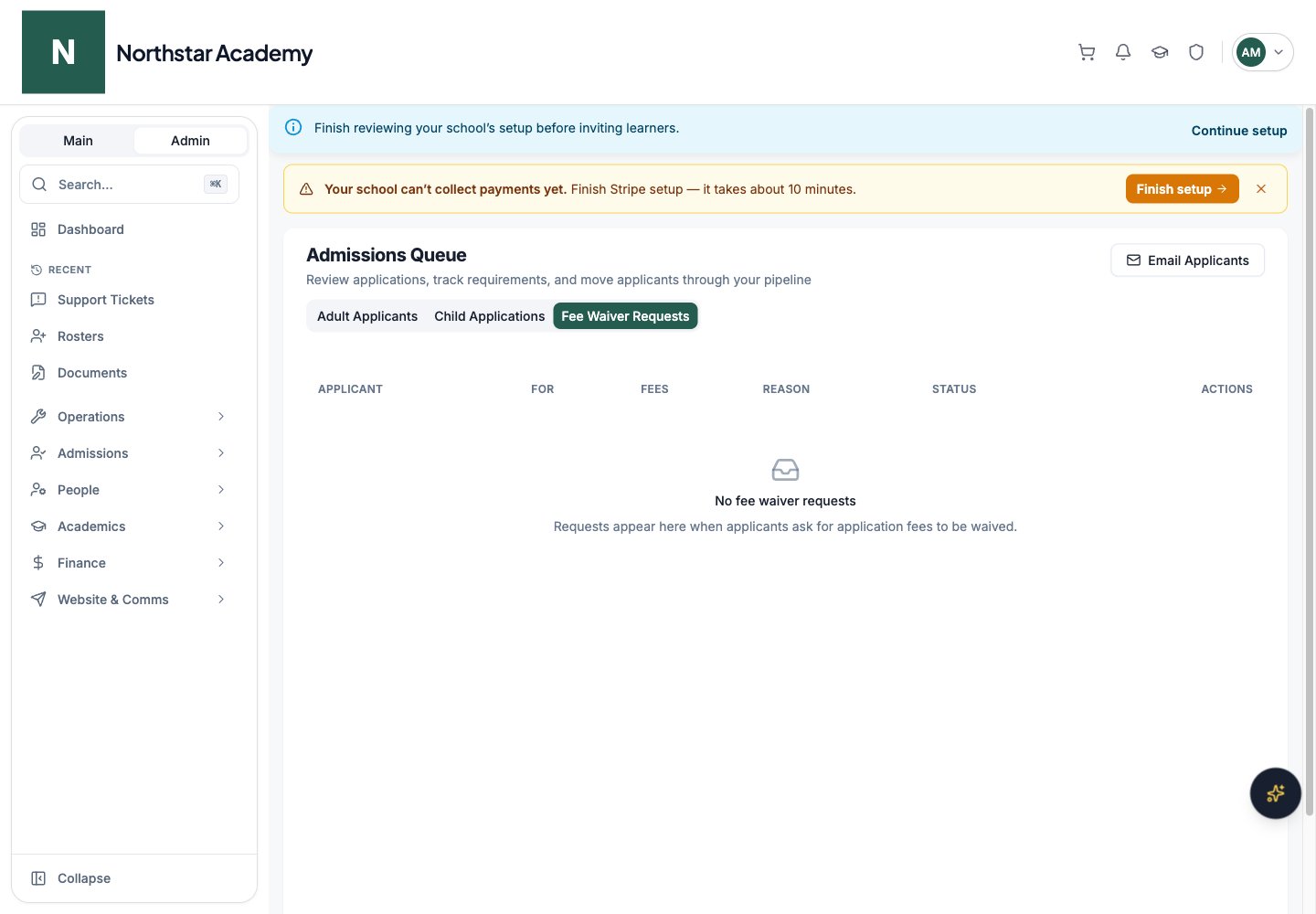
Northstar demo — Admissions Queue — Fee Waiver Requests
Preview pricing with the Review Simulator
The Review Simulator (in the Finance area of the Admin Dashboard) previews the application Review & Submit order summary for any user — without creating a test application. Pick an applicant, a family member, a tuition product, and a price plan, and the simulator shows exactly the order summary and discount behavior that applicant would see at review time.Apply Now flow
Visitors can begin an application before they have an account. Clicking Apply Now on your school’s public site does the following:- The visitor selects a cycle and (if applicable) a track first.
- DeanDesk prompts them to log in or sign up. Their cycle/track choice is preserved across the auth flow.
- After signing in, they land directly inside the application workspace for the cycle/track they chose — no need to navigate back.
The applicant experience
Applicants access your school’s portal (e.g.yourschool.deandesk.com), create an account, and are presented with the Application Workspace — a guided, single-screen view of their entire application with a stepper, progress bar, status chips, and a requirements summary.
The workspace shows every step the policy requires, the current status of each, and back/next/submit controls along the bottom. The steps shown depend on the policies you configured in the Onboarding Policy Manager.
Onboarding steps
The applicant dashboard walks applicants through the following steps. Each step appears only if it is in the journey on the Applicant Journey tab:Complete profile
Register children (if enabled)
Complete required forms
Add payment method (if required)
Select program enrollment (if required)
Pay application fees (if enabled)
Accept terms and submit
Single-page application layout
By default, applicants move through the application one step at a time. If you prefer a single scrollable form, turn on Single-page application in the Sign up step of the Applicant Journey tab. When single-page mode is enabled:- All application steps render as sections on one scrollable page.
- The sidebar checklist becomes a table of contents — clicking an item scrolls to that section instead of navigating to a separate step.
- Per-step save buttons disappear. Profile answers auto-save shortly after the applicant stops typing, with a saving/saved indicator so applicants know their work is captured.
- Review & Submit remains its own page, reached from a single call to action at the bottom of the application (or from the checklist).
Post-submission donation prompt
After an applicant submits, you can have DeanDesk show a donation prompt that surfaces your active donation campaigns. This is an opt-in nudge for new families who have just completed signup and may be motivated to support your school.Create or pick a donation product
Enable the prompt
Applicants see the prompt
Application Process Preview
Admins can preview the entire applicant flow without signing up as a test applicant. From the Onboarding Policy Manager, click Preview Application Process in the page header (on any tab except Enrollment) to walk through every step exactly as an applicant would see it — including the steps the current policy adds for adults, children, and any selected track.Admissions setup workspace
Schools on an admissions-only plan start in the System Setup workspace (/admin/system-setup). A short guide explains the three stages — System Setup, Fine Tune & Publish, and Application Review — and Begin Setup opens the checklist. Click Show guide in the page header to see it again.
The dashboard and most admin tools unlock after the three System Setup steps are complete. Steps open in order; the header shows your progress, and Refresh reloads it.
Stripe Setup
Application System
School Setup
The Admissions Queue
The Admissions Queue is where your team reviews and manages submitted applications. Go to Admin Dashboard → Admissions → Admissions Queue.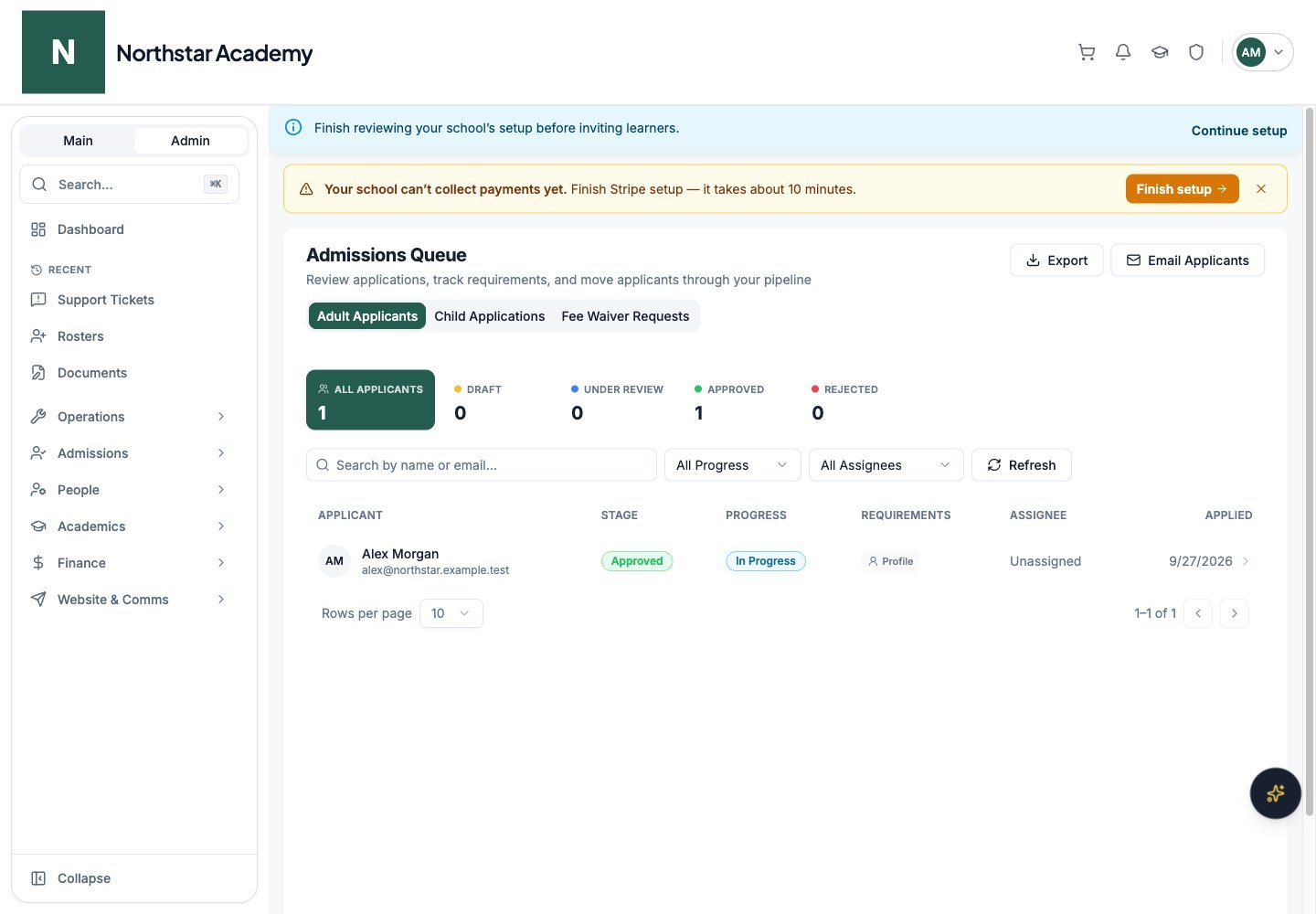
Northstar demo — Admissions Queue — Adult Applicants
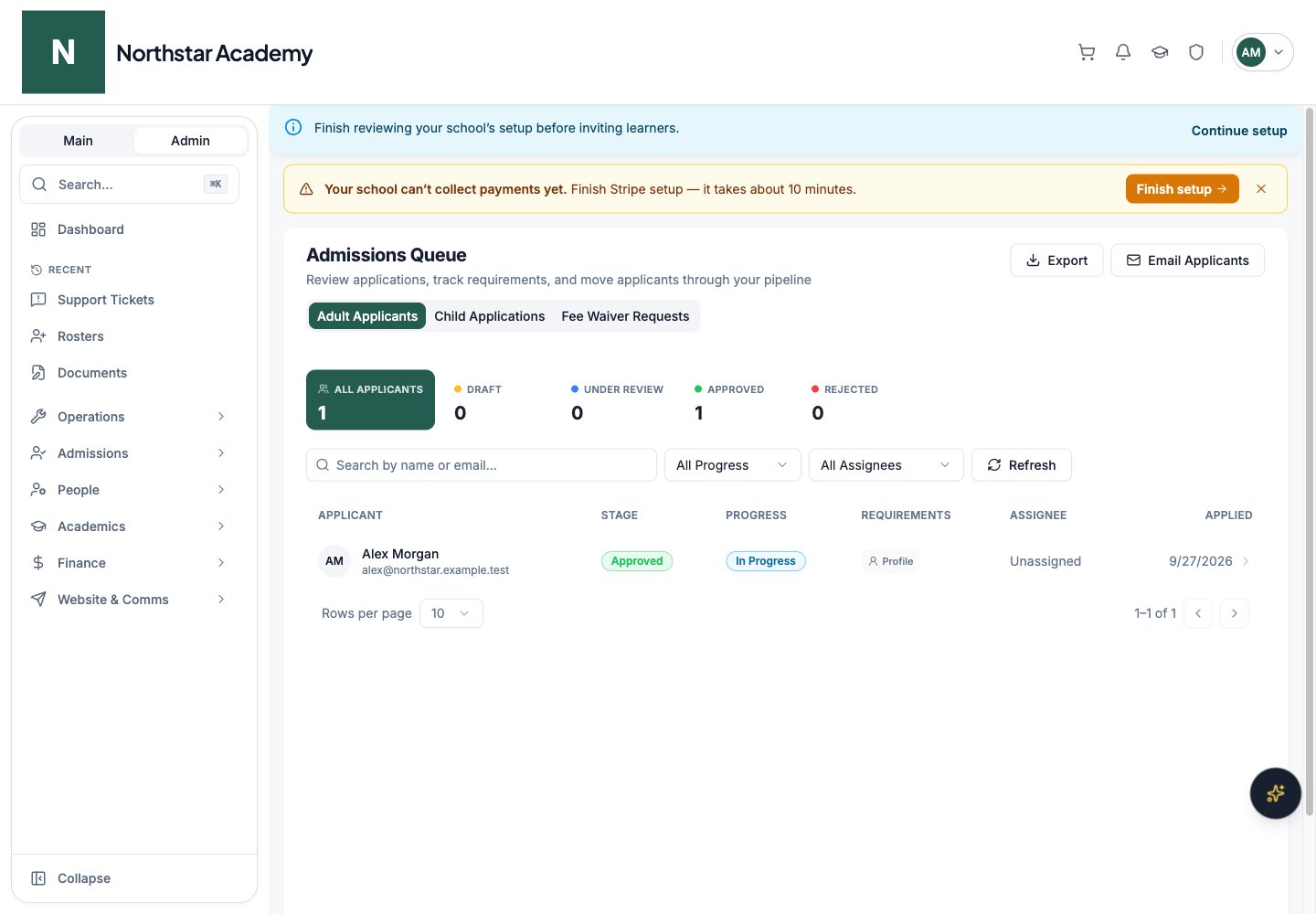
Viewing applications
The Adult Applicants tab opens with a row of stage counts. Click a stage tile to filter the queue to that stage. The table shows each applicant’s:- Applicant name and contact details
- Track (cycle-based admissions only)
- Stage, color-coded to match your configured stages
- Progress and outstanding Requirements
- Assignee — the assigned reviewer, or the Admissions Head by default
- Applied date
Export applicants
Use the Export header action (next to Email Applicants) on the Adult Applicants tab to download applications as an Excel workbook.Open the export dialog
Choose what to include
Download
.xlsx file.Reviewing an application
Open the application
Review submitted information
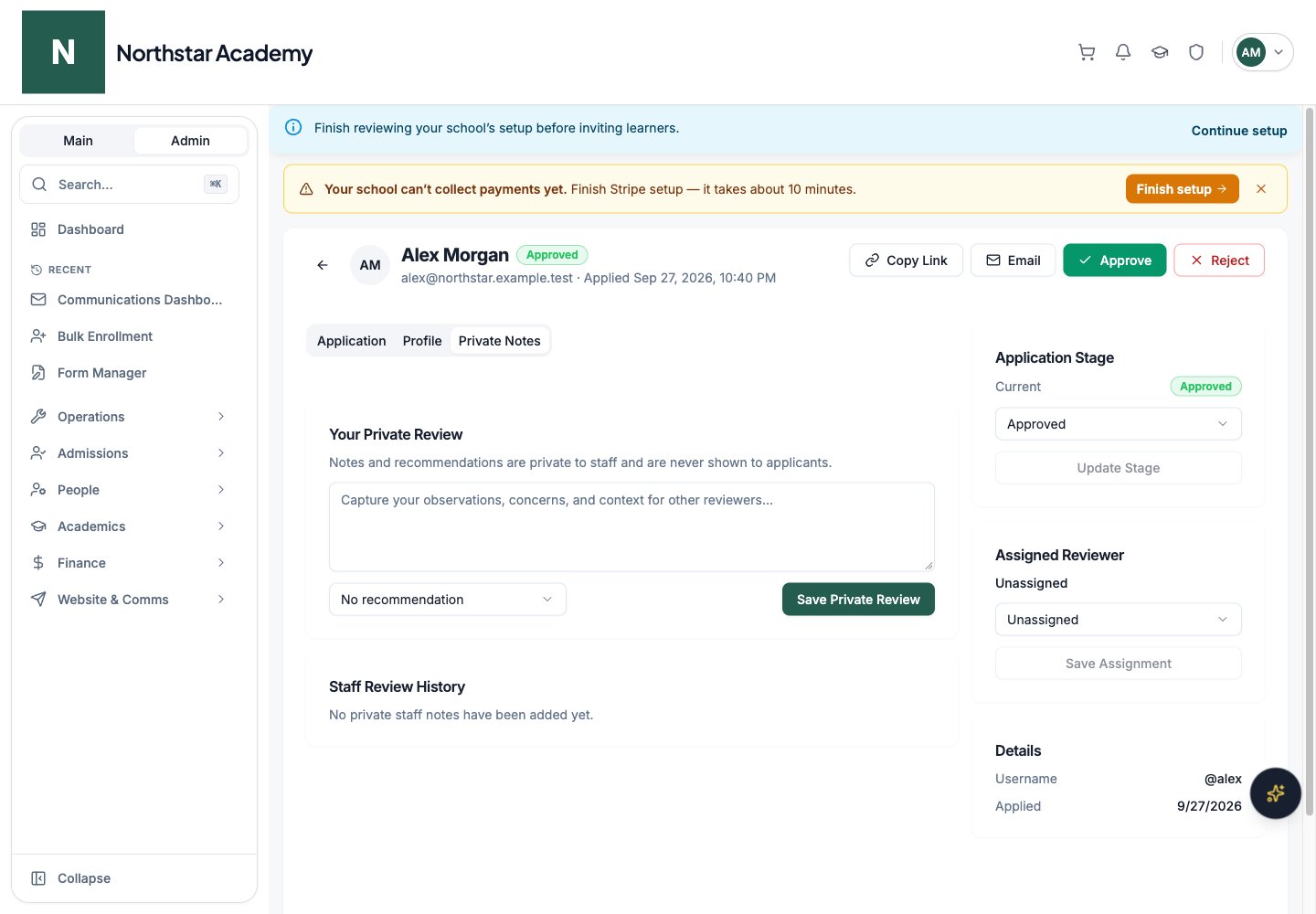
Leave a private review
Assign a reviewer (optional)
Update the stage
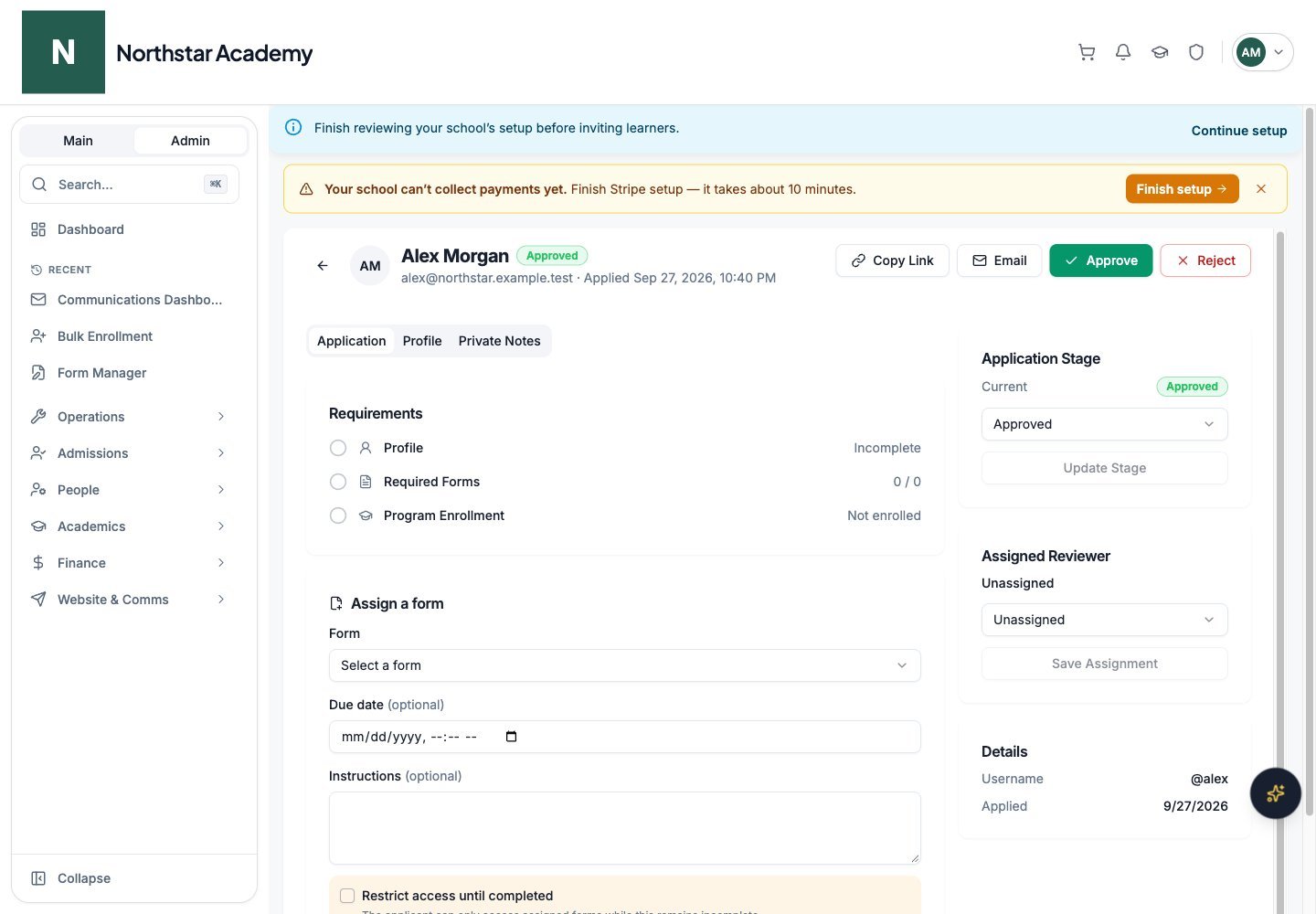
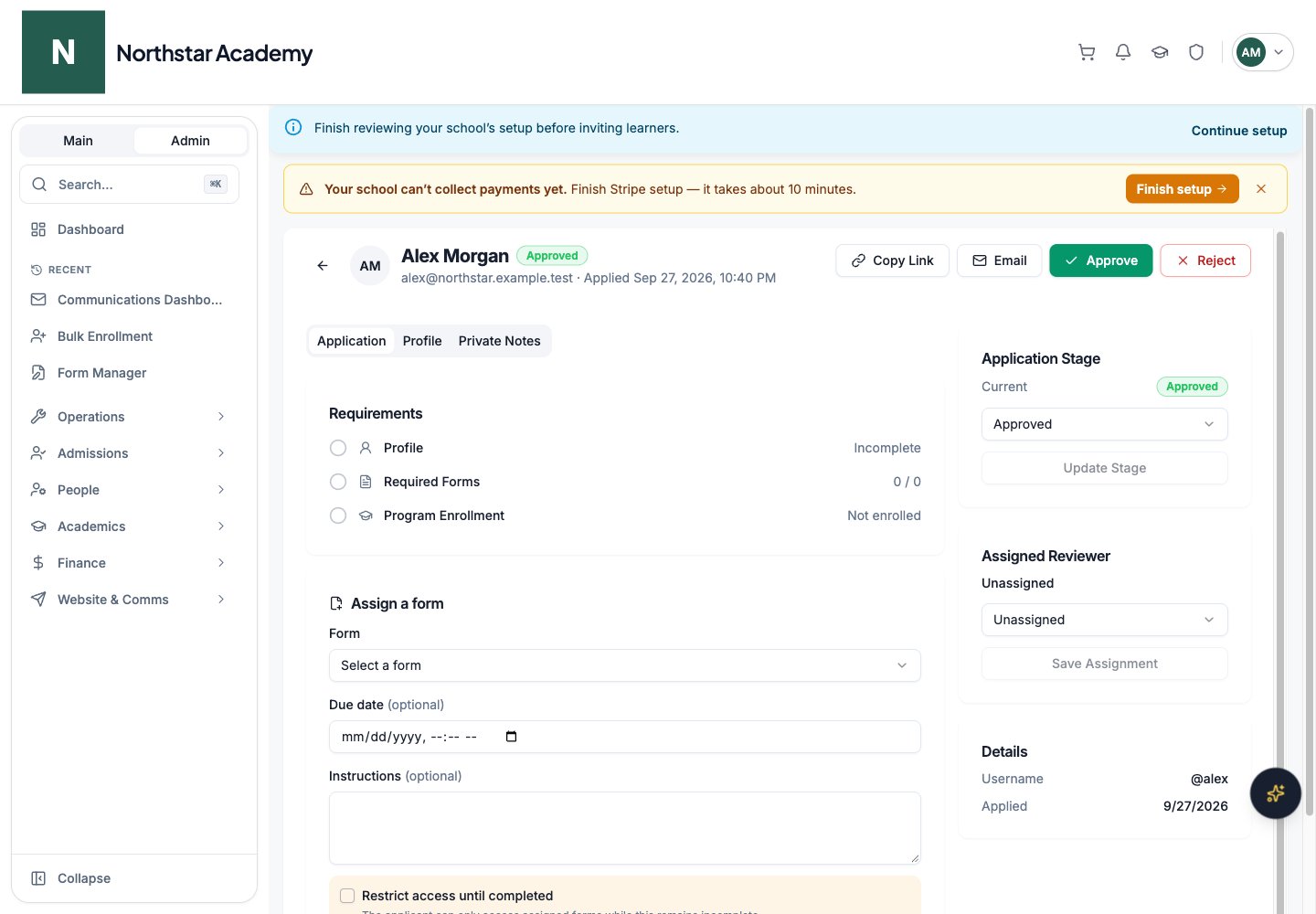
Northstar demo — Applicant detail — Application
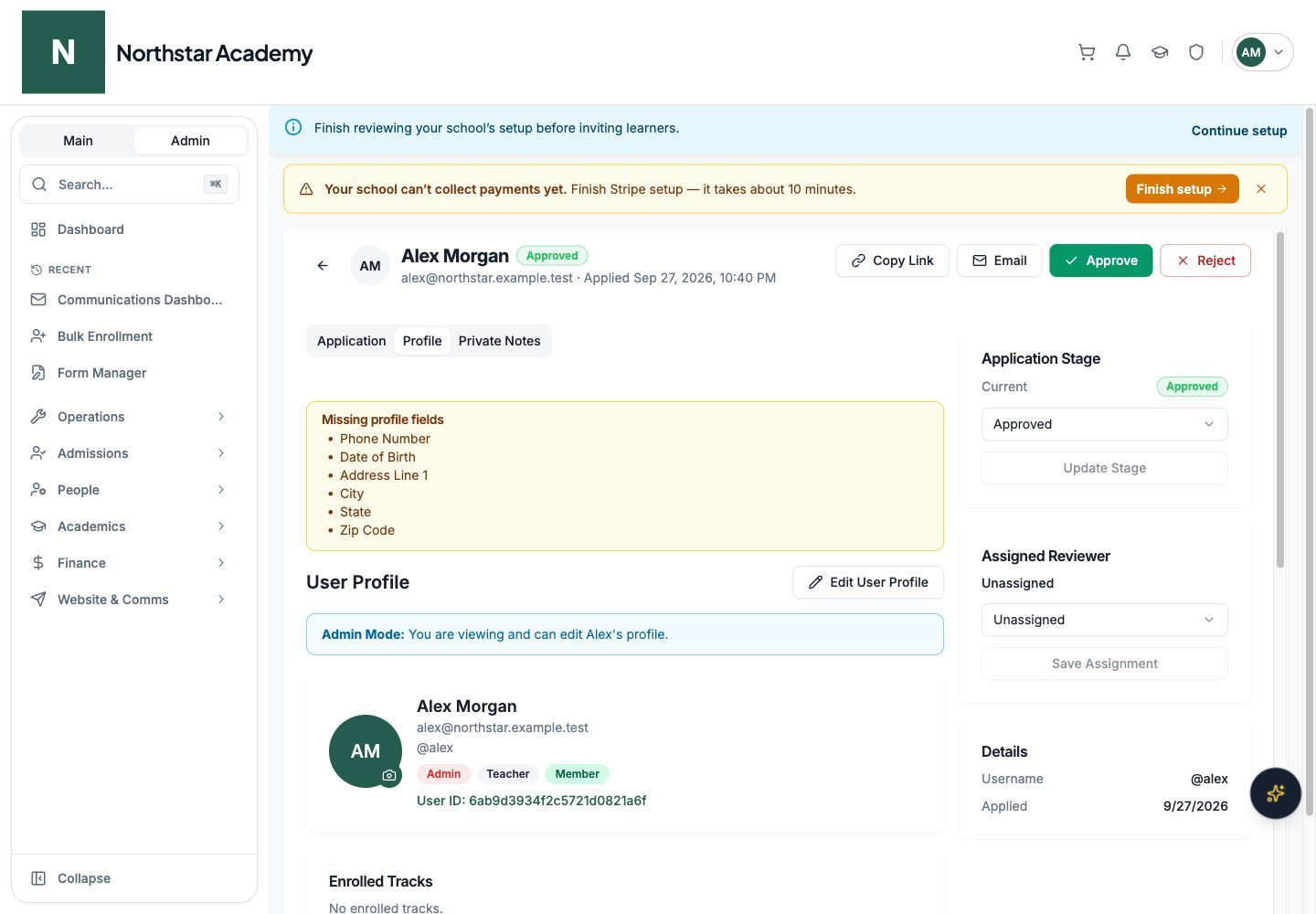
Northstar demo — Applicant detail — Profile
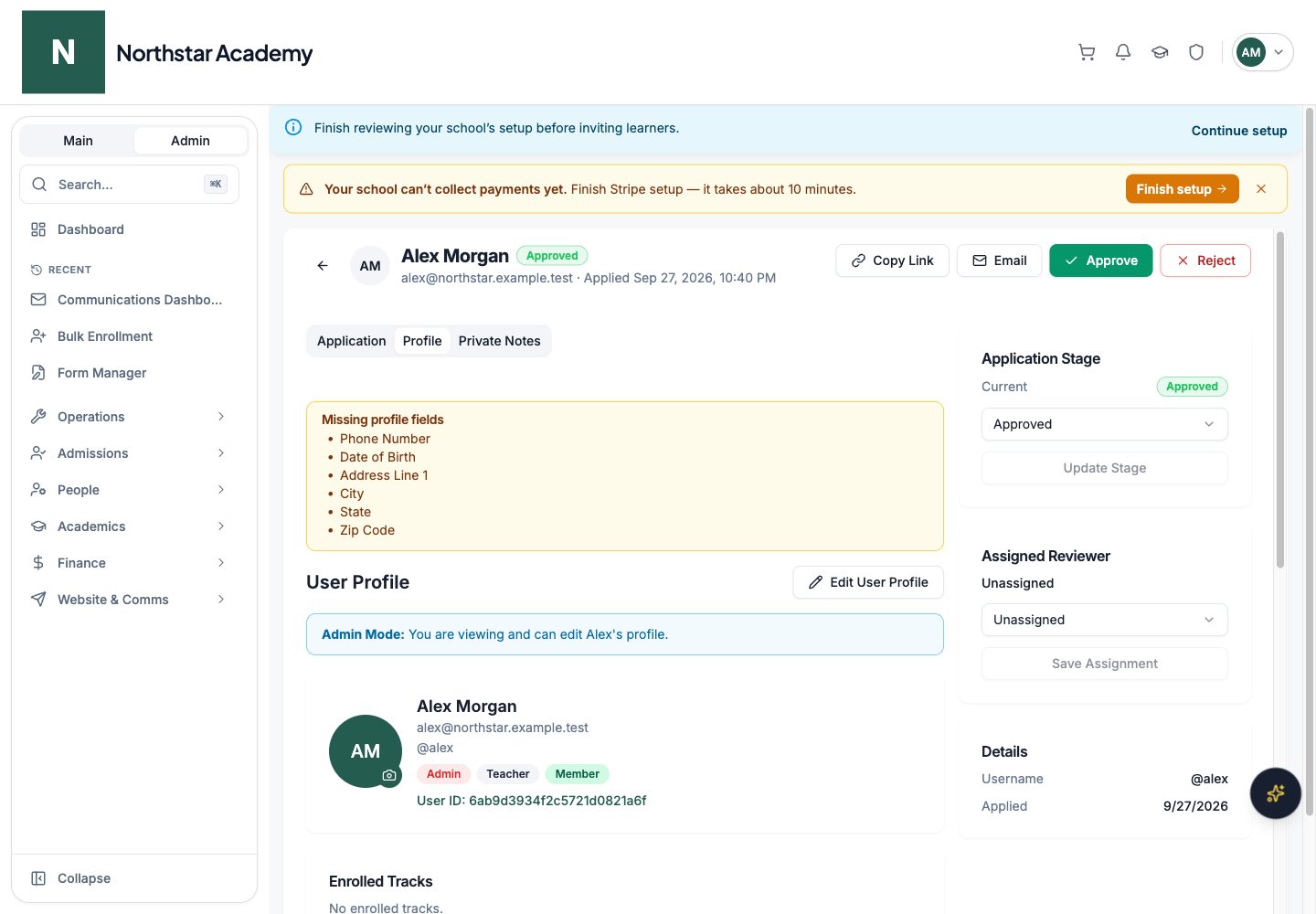
Request additional forms during review
On the applicant’s Application tab, use Assign a form to request an additional form, with an optional Due date and Instructions. Review the assignment and submission status from the application. These requests are separate from the reusable form requirements configured for the whole journey.Approving an applicant
When you click Approve, the Approve Applicant dialog lets you choose roles under Assign Roles and optionally set Course Enrollment, Project Enrollment, Add to Roster, a Welcome Email, and Email Attachments. Click Approve & Send Email. When an application is approved:- The applicant receives the acceptance notification (if an email template is configured for the Approved status).
- The applicant’s account is automatically set to active — no separate activation step is needed. This applies to manual approvals and auto-accepted applications alike.
- For child applications, admins can click Create Account on the Child Applications tab to convert the child record into a full student account with the Student role.
- The student can then be enrolled in courses either manually through User Management or automatically if program enrollment was completed during the application process.
Acceptance requirements
Some schools accept an applicant first and collect tuition (or signed enrollment paperwork) afterward. Acceptance requirements handle this: you pick one or more forms that every accepted applicant must complete before they are fully approved. Because forms can include payment questions, a tuition payment form is the most common requirement. Acceptance settings are available when Admin review is on. A direct restrictive form assignment is a separate control and can restrict the recipient’s access until completion. Configure them in the Onboarding Policy Manager: open Applicant Journey and select the Acceptance forms step.Choose the acceptance forms
Choose the access level while requirements are pending
- Restricted (default) — the applicant keeps application-only access until every requirement is complete.
- Full — the applicant receives their portal access at acceptance, and the requirements appear as pending to-dos with a reminder banner.
Save
- When you approve, the application moves to the Accepted stage instead of straight to Approved. The applicant is notified and emailed a list of their remaining requirements, and the forms are assigned to them automatically.
- When the applicant completes the last required form (including any payment it collects), their approval finalizes automatically: their role, course enrollments, rosters, and welcome email are applied, and the application moves to Approved. Your admissions team is notified.
- An email you compose in the dialog when moving the applicant (only if you edit the pre-filled content).
- The email template configured on the Accepted stage in the Admin review step’s workflow. For cycle-based admissions, each track’s status set can carry its own Accepted template — use this when different cycles or tracks need different next-steps emails.
- The Application Accepted — Next Steps system email, editable in the system email library.
{{formNames}} placeholder is also available if you want to reference the forms inline.
Admission Cycles
For schools that run multiple admissions rounds, DeanDesk supports a cycle-based admissions system. This is an advanced feature that builds on top of the standard onboarding flow.What cycles and tracks are
- Admission cycle (round) — A single admissions round, usually a year or admissions season (e.g. “2026 Admissions”, “Fall 2026”). In the Onboarding Policy Manager, cycles are called Application Rounds.
- Application track — An application choice inside a round with its own requirements, forms, fees, and workflow stages (e.g. “Full Time”, “Part Time”, “Weekend”). Tracks let you customize the admissions experience for different applicant groups within the same round.
Creating a round
Create a new round
Set the round status
Make it the active round
Creating tracks within a round
Select the round
Add a track
Configure the track's journey (optional)
How cycle-based applications work for applicants
In cycle-based mode, applicants see a dashboard that lists all their applications. They can start a new application by selecting a cycle and optionally a track. Each application has its own set of requirements (based on the track’s overrides or the school defaults) and progresses independently through the review pipeline.Parent and child applications
When the Add children step is in the applicant journey, the admissions flow supports a two-layer application structure:- Parent application — The parent completes their own profile, forms, and fees.
- Child applications — The parent creates one or more child applications within their own application. Each child has their own name, date of birth, medical information, and dedicated set of forms (configured as Child required forms in the Onboarding Policy Manager).
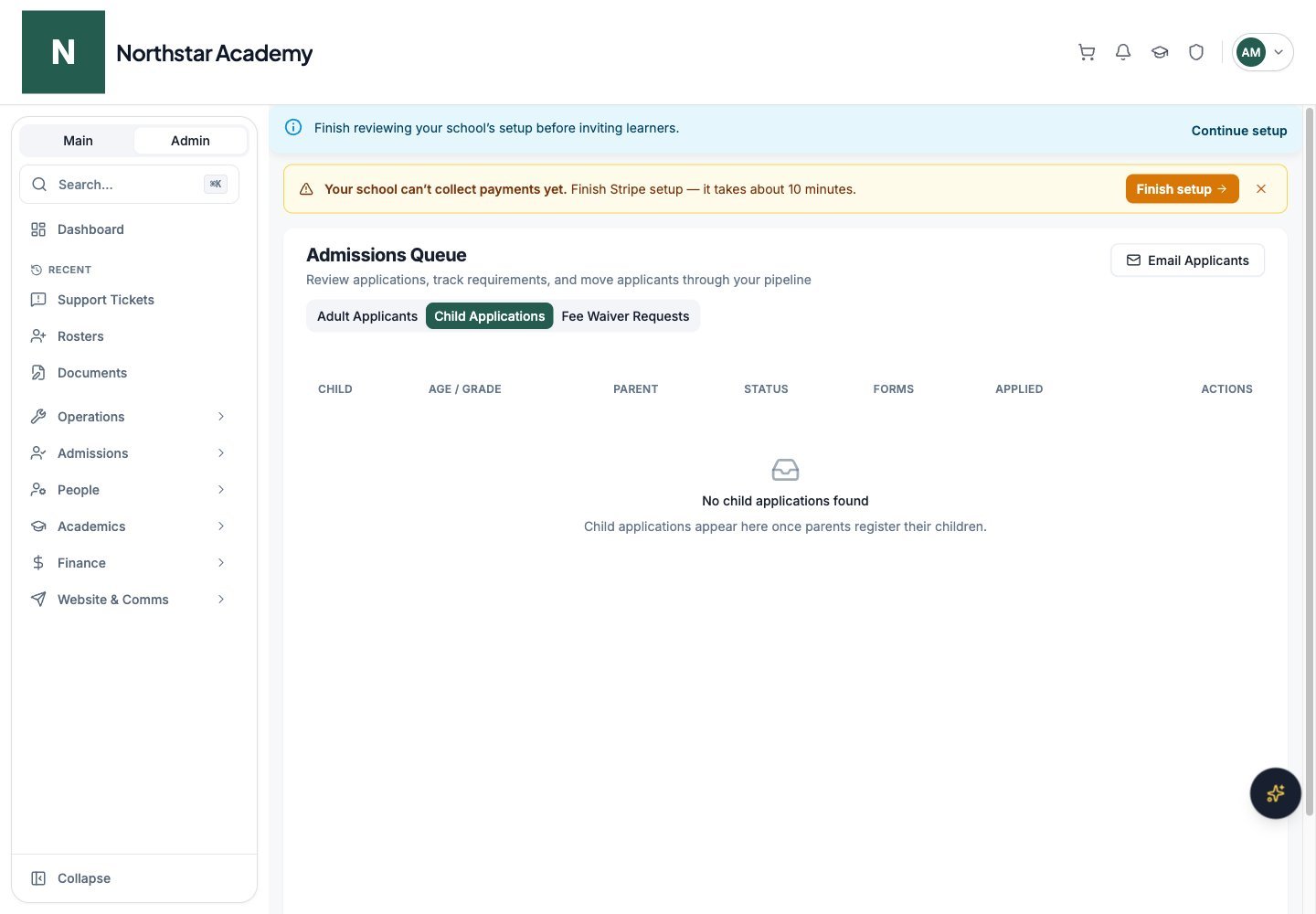
Northstar demo — Admissions Queue — Child Applications
The Accepted Parent role
At schools where the Add children step is on and Allow the parent to enroll too is off — that is, only children actually enroll — an adult approved through admissions receives the Accepted Parent role (together with Parent and Member) instead of the Student role. Accepted Parents keep the same access they had before: they can reach everything a student-gated area allowed. The difference is that they are no longer labeled as students and don’t receive student resources. The Accepted Parent role appears everywhere roles are selectable, including:- Role editing in User Management
- Email recipient role lists
- The Approve Applicant dialog (as a checkbox)
- Bulk user creation
- Page visibility settings
Parents adding more children later
Parents are not limited to the children they register during their initial application. They can add additional children at any time from two places in their portal:- Profile → Family tab — the Add Child button creates a new child application directly from the family view.
- Profile → Program Enrollment — parents can pick a family member (themselves or a child) and run them through program selection + checkout in a single flow.
Cycle-based application review
In addition to the standard review tools described in the Admissions Queue section above, cycle-based admissions have a few extras:Filter by track
The queue and the Email Applicants dialog can be filtered by cycle and track, not just by stage. Choose All Tracks to see stage counts across every track in the cycle, or pick one track to see where that cohort is in the pipeline.Private review notes
On any application, reviewers can leave a private review (up to 4,000 characters) and optionally include a recommendation — Recommend reject or a move to the immediate next stage. Reviews are visible to staff on the application but never to the applicant.Open an application
Add a review
Save
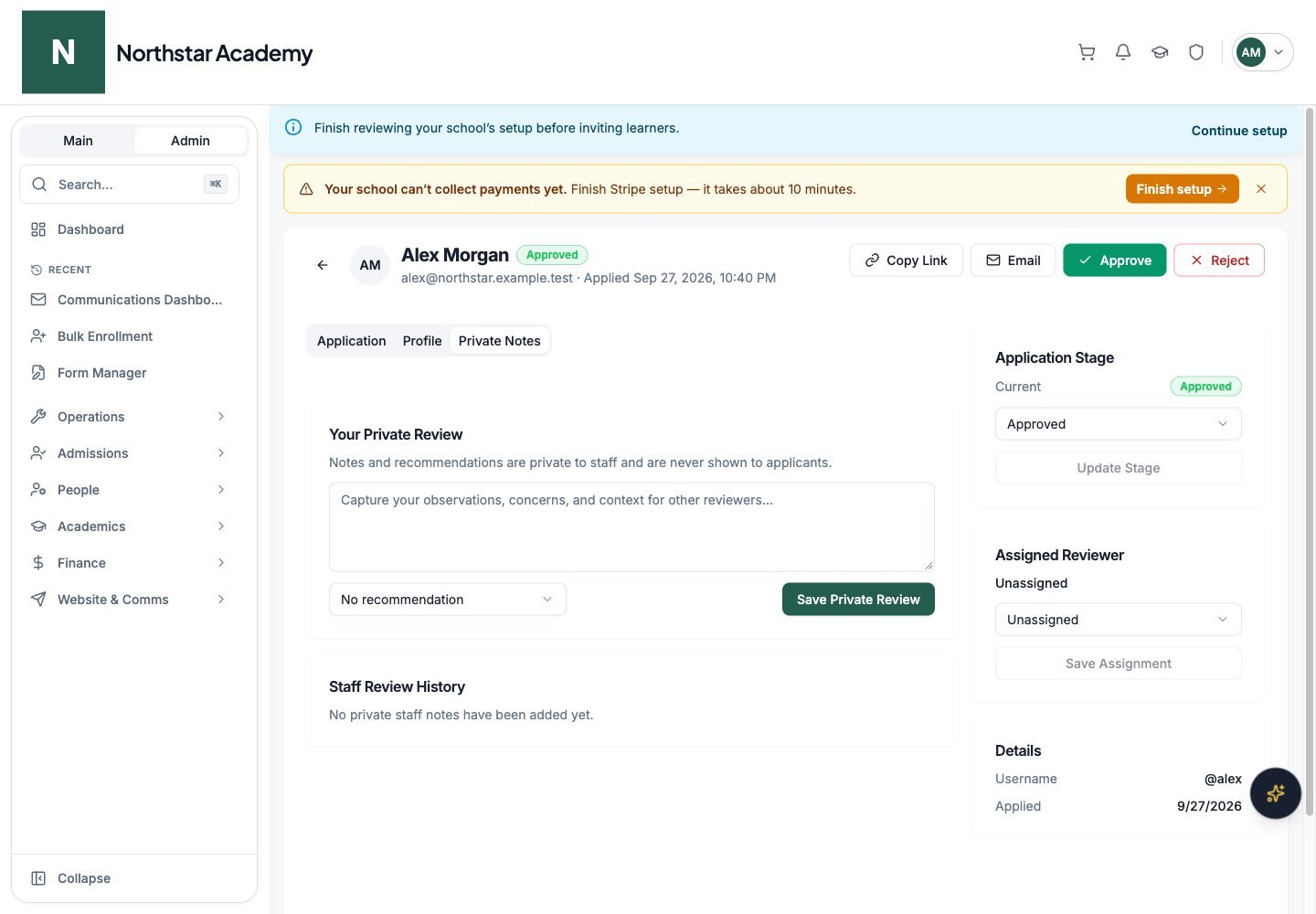
Northstar demo — Applicant detail — Private Notes