

School-level feature — managed within your school portal at
yourschool.deandesk.com. Your school’s Stripe account is configured here. Institution membership collection and DeanDesk platform subscription billing are managed separately from the institution dashboard.Video walkthrough
This walkthrough uses the real DeanDesk interface with the fictional Northstar Academy demo school and a calm, AI-generated English voice. Payments and outside services are not connected in the demo.
School and institution billing
This page manages the connected Stripe account that receives your school’s customer payments. Manage the institution’s DeanDesk plan and its payment method from the institution dashboard. Those settings do not select the account that receives school tuition or program payments.Connecting your Stripe account
The Setup Progress card guides you through four steps:1
Create Stripe account
Click Create Account. In the Create Stripe Account dialog, provide:
- Email Address — the email address for your Stripe account
- Country — where your organization is located (US, Canada, UK, Australia, Germany, or France)
- Account Type — choose Standard (full Stripe dashboard access with more customization) or Express (simplified setup with limited dashboard access)
2
Complete onboarding
Complete the embedded Stripe onboarding form on this page. Start Onboarding brings that form into view. Stripe walks you through:
- Business information (name, type, address)
- Identity verification (government ID, tax identification number)
- Bank account for payouts
- Any additional compliance requirements
3
Verify capabilities
After onboarding, Stripe verifies your account. The Verify Capabilities step shows whether Charges (accepting payments) and Payouts (receiving funds) are enabled. This may take a few minutes or require additional documentation.
4
Ready for payments
Once both capabilities are enabled, the Ready for Payments step shows All Systems Go and you can start collecting payments.
Stripe may request additional documentation after onboarding if it cannot automatically verify your identity or business. Check your email for any follow-up requests from Stripe.
Account status
The Account Status card shows your Stripe account health at a glance:- Account ID — your Stripe Connect account identifier
- Type — Standard or Express
- Charges — Enabled or Disabled; whether your account can accept payments
- Payouts — Enabled or Disabled; whether your account can receive payouts to your bank
- Environment — whether you are in test or live mode
- Setup Progress — a progress bar showing your completion percentage
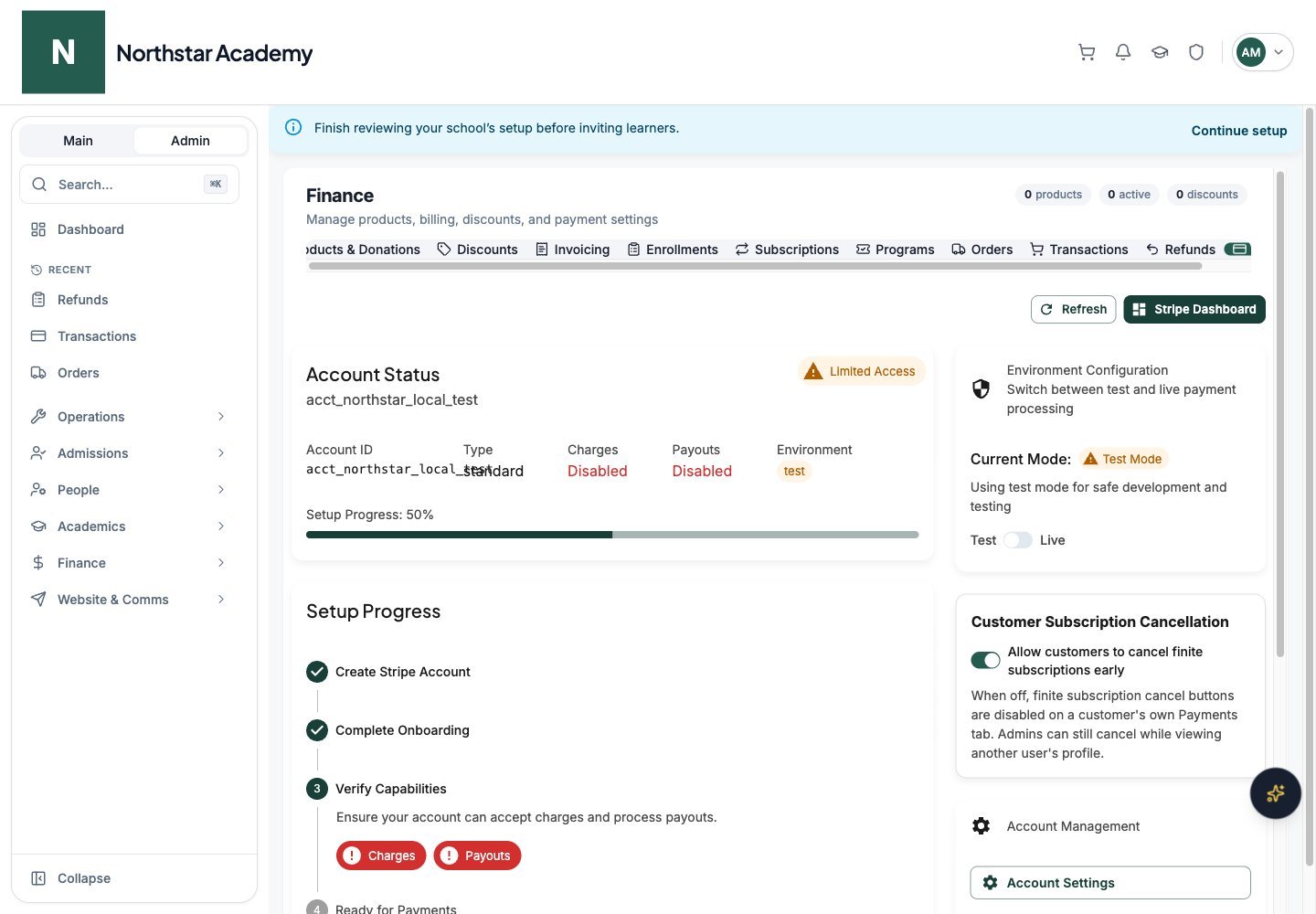
Northstar demo — Stripe
Account requirements
If Stripe requires additional information or verification, an alert appears at the top of the page with the number of outstanding items:- Action Required — Stripe needs information now; payments or payouts may be blocked until you complete it
- Upcoming Requirements — Stripe will need information later for ongoing compliance
Account balance
Once connected, the Account Balance card displays:- Available — funds ready to transfer to your bank account
- Pending — funds still settling; timing depends on your Stripe account and payment method
Test mode vs live mode
The Environment Configuration card shows the Current Mode (Test Mode or Live Mode). Use the switch between the Test and Live labels to change modes.
Switching modes requires confirmation. A Switch to Live Mode? or Switch to Test Mode? dialog explains the implications; click Switch to Live Mode or Switch to Test Mode to confirm, or Cancel to keep the current mode.
Managing your account
From the Account Management card, you can:- Account Settings — open the Stripe-hosted account update page to change business information, bank details, or complete verification requirements
- Replace Account — disconnect your current Stripe account and create a new one. Your old Stripe account remains active in Stripe but is no longer connected to DeanDesk. Use this if you need to start fresh with a different account.
- Disconnect Account — remove the connection between your school and your Stripe account without creating a replacement. This stops your school from accepting new payments until you reconnect.