

School-level feature — managed within your school portal at
yourschool.deandesk.com, but access is institution-gated: institution super-admins always have access, and they can grant individual school admins access from this page. See Institutions & Schools for how the two levels relate.Video walkthrough
This walkthrough uses the real DeanDesk interface with the fictional Northstar Academy demo school and a calm, AI-generated English voice. Payments and outside services are not connected in the demo.
How rates work
Rates are the percentage that is waived, not the percentage charged. A 25% scholarship means the user is charged 75% of the invoice amount. Each user has three figures:- Scholarship waiver — the scholarship percentage (0–100)
- Financial aid waiver — the financial aid percentage (0–100)
- Total waiver — the two added together, capped at a 100% waiver
Find users
The page lists your school’s users with their name, username, email, roles, account type, and active state. Inactive users are marked Inactive. To narrow the list, use the search box to search by name, email, username, or role. The ” of users” counter shows how many match.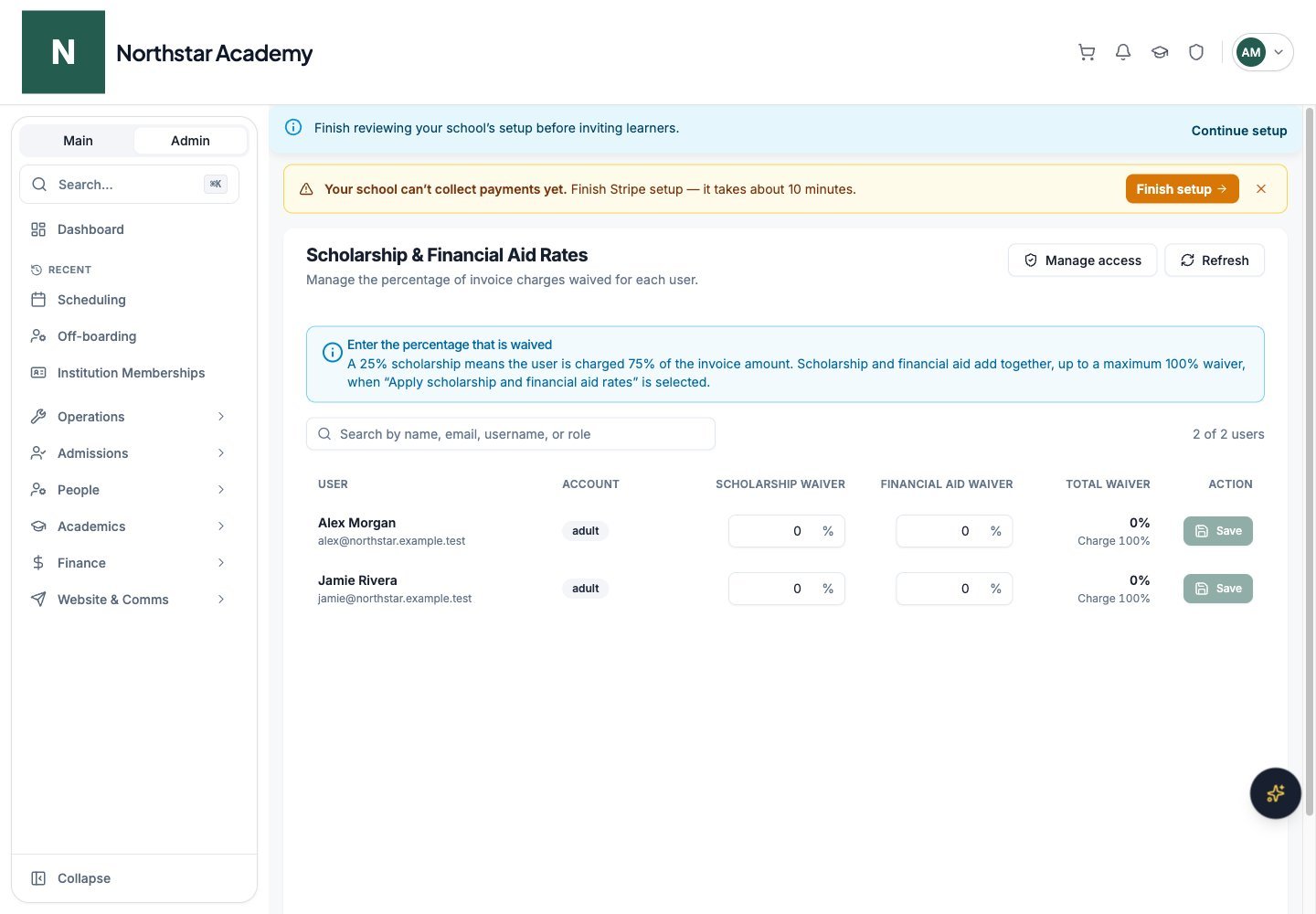
Northstar demo — Scholarship & Aid Rates
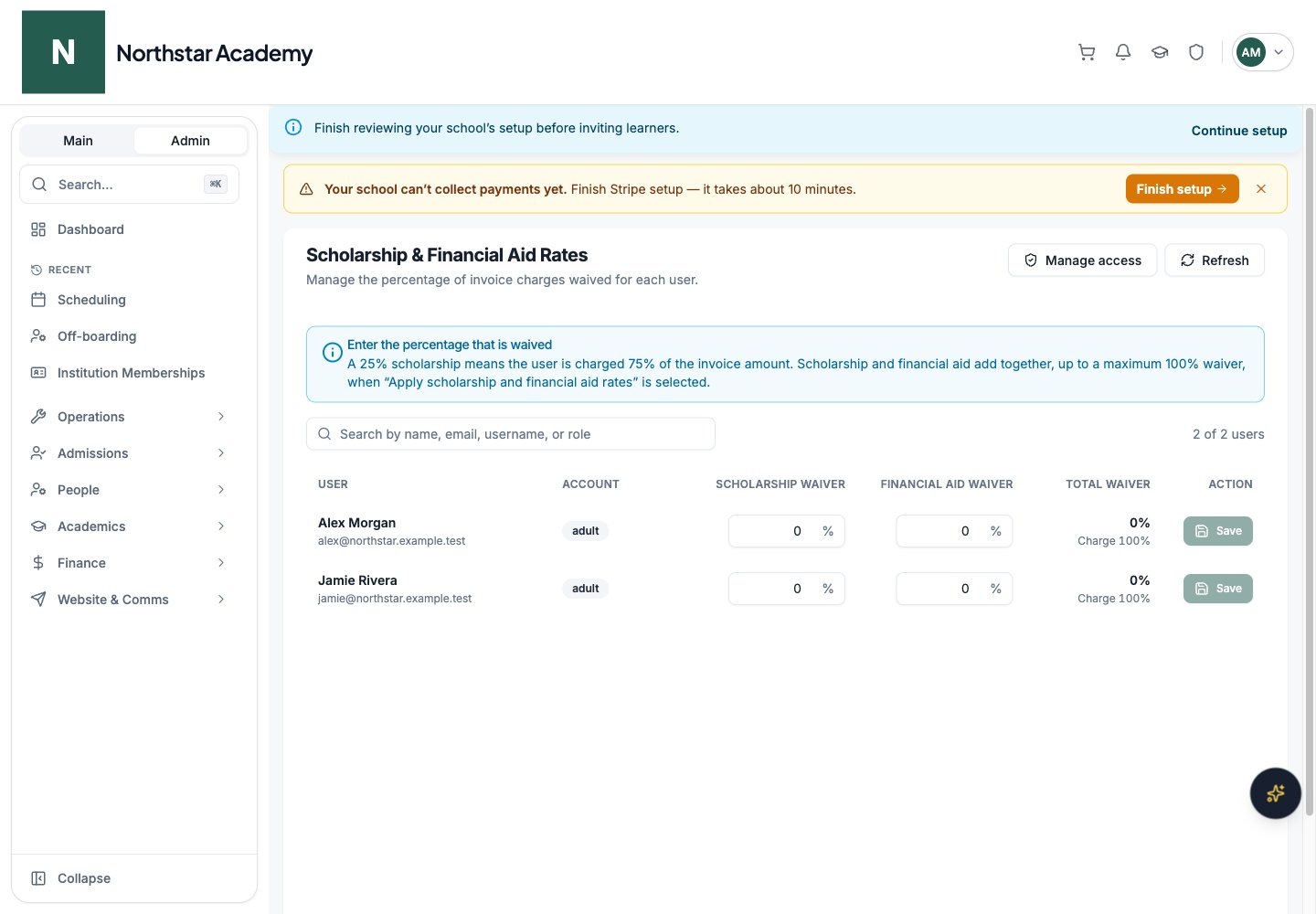
Edit rates
Rates are edited inline: type the scholarship and financial aid percentages directly into a user’s row, then click that row’s Save button. The total waiver and resulting charge update as you type. Use Refresh in the header to reload the list.How rates apply to invoices
Rates take effect when an invoice is created with the Apply scholarship and financial aid rates toggle turned on — see Invoicing. Each recipient’s invoice is reduced by their current total waiver, so you never calculate discounted amounts by hand.For recurring invoices, the adjusted amount is fixed when the schedule is created — changing a user’s rates later does not update an existing recurring schedule. Cancel and recreate a schedule in Invoicing to use a new rate.
Who can manage rates
Institution super-admins always have access to this page. They can also grant individual school admins access without giving them an institution-level role:- Click Manage access in the page header.
- In the Manage rates access dialog, toggle access per admin. Institution super-admins are shown locked — their access cannot be removed.
Saving rates does not change product prices, refund past payments, or update existing invoices. Invoice creation requires a positive total after rate adjustments; a fully waived charge does not need a payment invoice.