

This guide covers institution-level setup at
deandesk.com. See Institutions & Schools for how these levels relate.Video walkthrough
This walkthrough uses the real DeanDesk interface with the fictional Northstar Academy demo school and a calm, AI-generated English voice. Payments and outside services are not connected in the demo.
deandesk.com/dashboard is where you configure the parts of DeanDesk that span all of your schools — your institution’s branding, public-facing landing page, schools, staff identities, and DeanDesk subscription.
Open institution settings
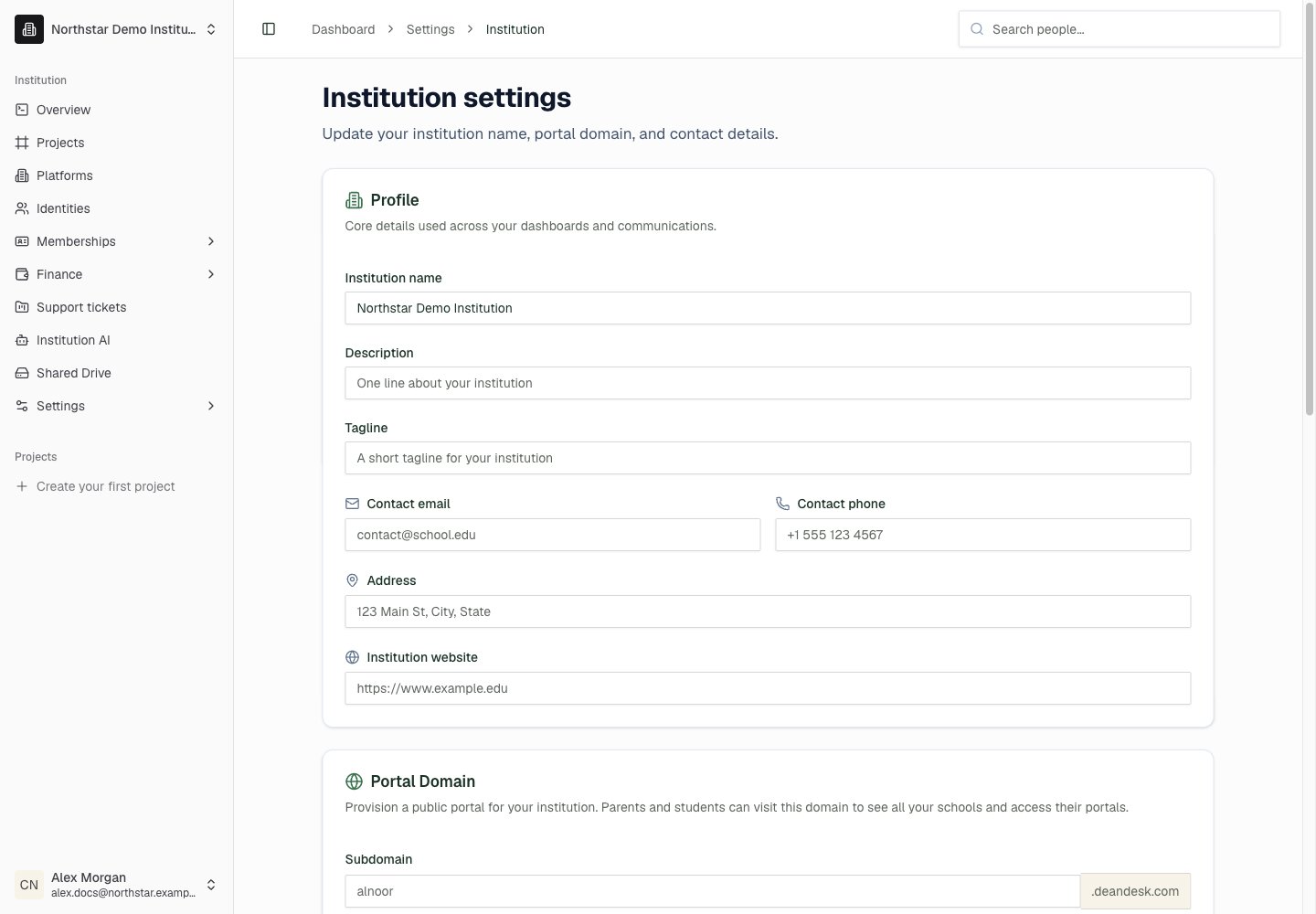
From the institution dashboard, go to Settings → Institution. The page is organized into four cards: Profile, Portal Domain, Public portal navigation, and Branding. Click Save changes at the bottom of the page to save the Profile, Portal Domain, and Public portal navigation cards. The Branding card has its own Save branding button.Profile
The Profile card holds the core details used across your dashboards and communications.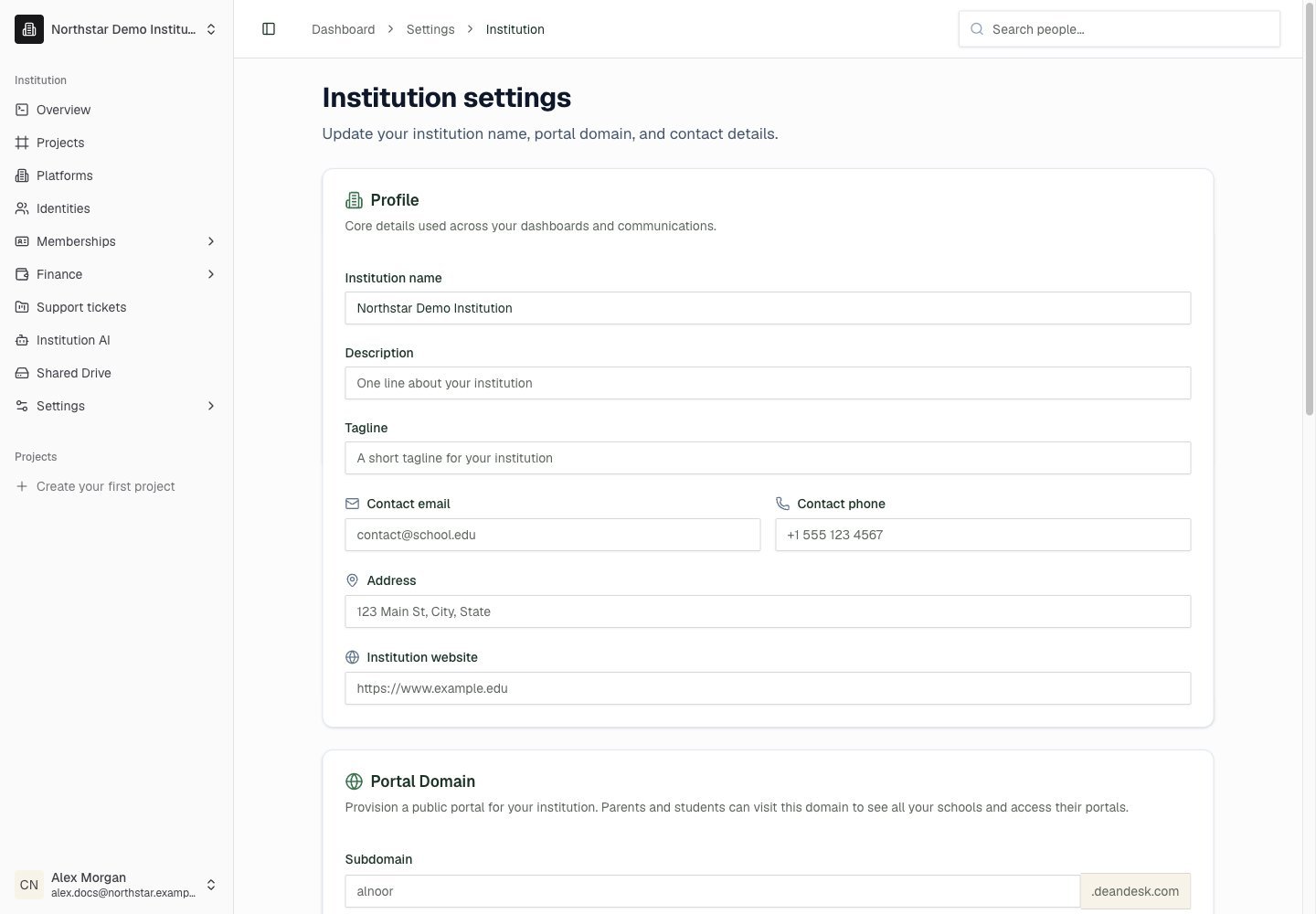
Northstar demo — Institution
Branding
The Branding card on the institution settings page controls how your institution looks ondeandesk.com and across its public pages.
Click Save branding at the bottom of the card to publish branding changes. Save changes does not save branding. Branding edits don’t affect individual school portals — see School branding for those.
Portal domain
The Portal Domain card provisions a public portal for your institution, where parents and students can see all of your schools and reach their portals. Staff continue to usedeandesk.com/dashboard for institution management.
Enter a Subdomain to publish the portal at yourname.deandesk.com. Use lowercase letters, numbers, and hyphens, with at least 3 characters. DeanDesk checks availability as you type and shows an error if the subdomain is already taken. Leave the field blank if you don’t need a public portal.
Click Save changes to provision the new address. Once saved, the card links to your live portal. If DNS provisioning fails, the save is blocked and your current domain stays in place.
To use your own domain instead of a deandesk.com subdomain, contact DeanDesk support. The support team sets up custom domains for you.
After changing your domain, update published links and verify the new address. An old DNS record remaining in place is not a guarantee that the old address still resolves to your institution.
Public portal navigation
The Public portal navigation card on the institution settings page controls which tabs and schools appear on your institution home page. All three toggles are on by default.
Click Save changes to apply your navigation choices. Hiding the Membership or Donate tab also disables the corresponding public pages — visitors who open those URLs are redirected to your home page.
Visible schools
When the Schools tab is on, a Visible schools panel lets you choose which schools appear publicly. Check or uncheck individual schools, or use Show all and Hide all.Until you customize the list, all current and future schools are visible by default.
Schools
Manage your schools from Platforms in the dashboard sidebar.Sales currency
When creating a school, choose its Sales Currency: USD - US Dollar (the default), CAD - Canadian Dollar, GBP - British Pound, or EUR - Euro. All of the school’s product prices use this currency. School cards and the platforms list display each school’s sales currency.Subdomain provisioning
When you create a school, enter its DeanDesk web address, which is suffixed with.deandesk.com. DeanDesk validates the address (lowercase letters, numbers, and hyphens only) and checks that it’s available. DNS is provisioned automatically and the school is reachable at the new URL within minutes. After creation, the school edit page shows the Hostname as Immutable.
To serve a school on your own domain, click Request custom domain under Custom Domain on the school edit page. The DeanDesk support team follows up with the DNS records to add at your domain provider.
Admin Console quick-jump
Both the school cards on the institution dashboard home and each school’s detail page (/dashboard/platforms/[id]) include an Admin Console button that signs you straight into that school’s Admin Dashboard via SSO — no separate login required. See Institutions & Schools.
Staff identities
Identities are institution-level accounts. Their roles determine staff management access, and they can link to accounts in your schools. Manage them in Identities.
See Identities for managing identities, viewing AI insights, and using global search.