This walkthrough uses the real DeanDesk interface with the fictional Northstar Academy demo school and a calm, AI-generated English voice. Payments and outside services are not connected in the demo.
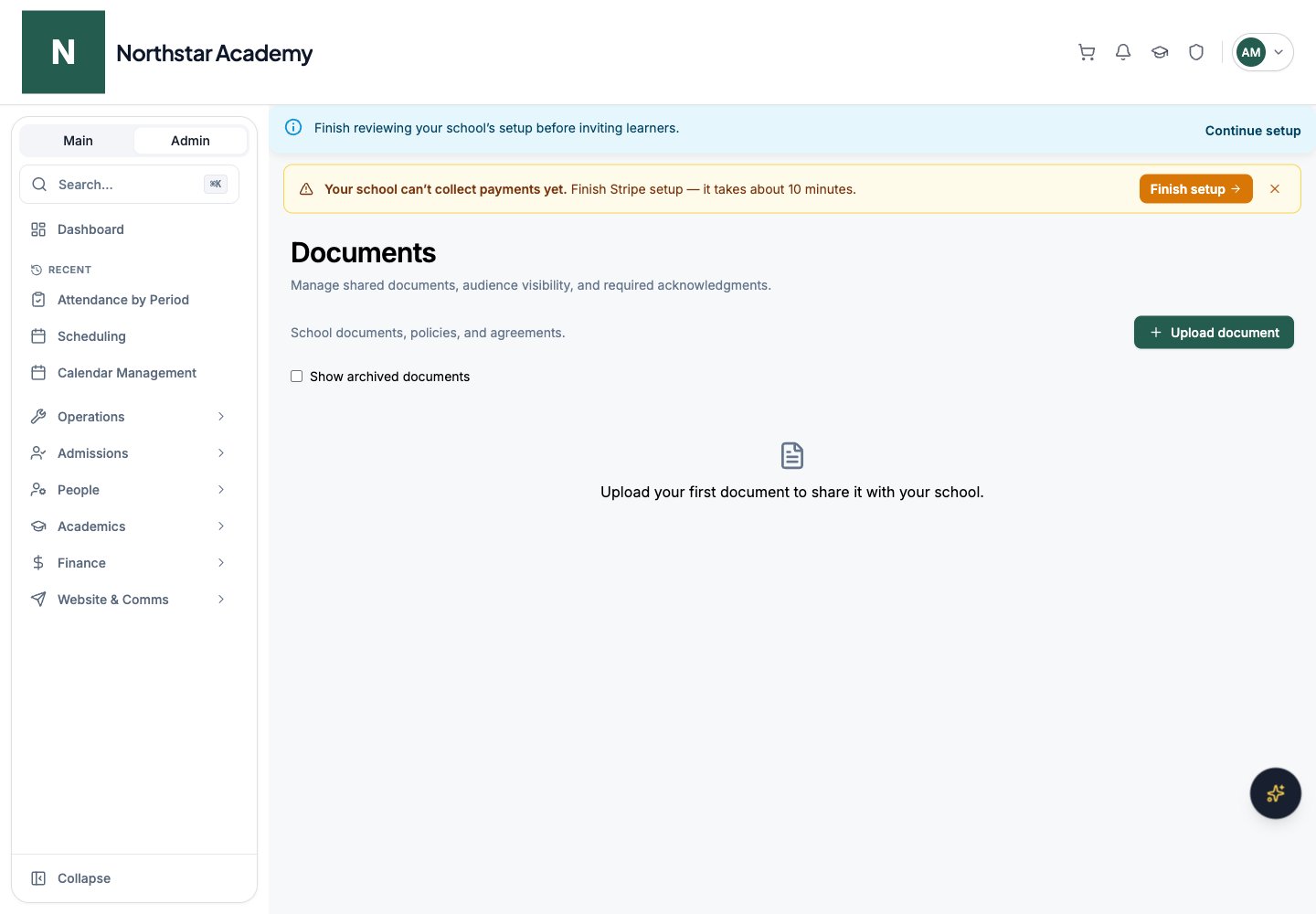
Screenshots use fictional Northstar demo data.Open Operations → Documents in the Admin Dashboard. Use this page for handbooks, policies, and agreements that school Users need to download or acknowledge. It has a document list and dialogs for uploading, editing, archiving, and reviewing acknowledgments.
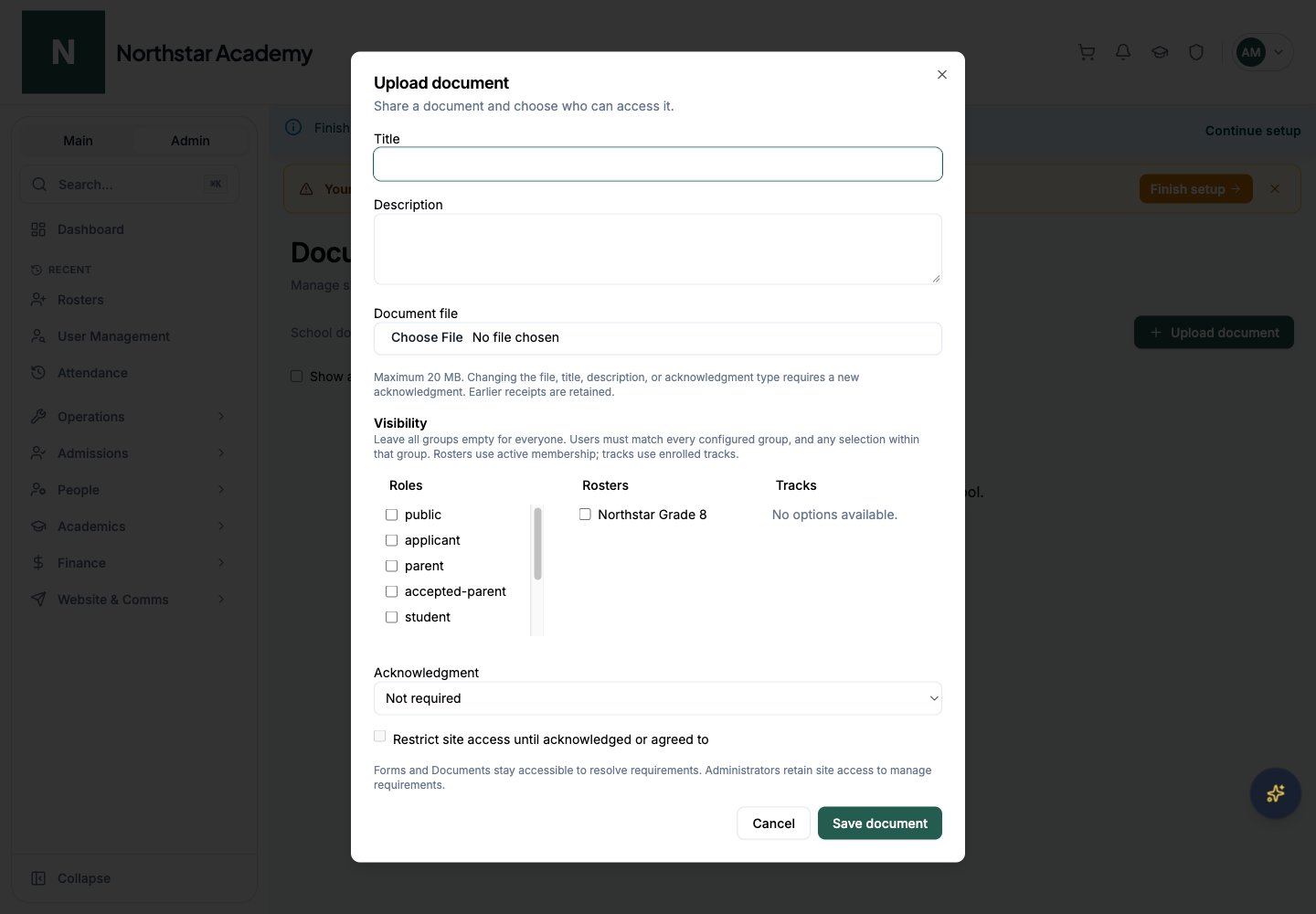
Select Roles, Rosters, and Tracks, or leave all three empty to make the document visible to everyone in the school. A person must match every group you configure and at least one choice within each group. Rosters use active membership; tracks use enrolled tracks.For example, selecting Parent under Roles and two rosters limits access to parents who match at least one of those rosters. Selecting two roles does not require both roles.
3
Set the acknowledgment requirement
Choose Not required, Require acknowledgment, or Require agreement. If acknowledgment or agreement is required, you can also enable Restrict site access until acknowledged or agreed to.
4
Save and review
Click Save document. Check the title, filename, audience, and requirement badges on the document card. Use Download to inspect the uploaded file.
When access is restricted, Forms and Documents remain available so Users can complete outstanding requirements. Administrators retain access to manage them.
Click Edit on an active document. You can revise the title, description, audience, requirement, or replace the file. A replacement file is optional when editing.
Changing the file, title, description, or acknowledgment type requires a new acknowledgment. Earlier receipts remain available. Review the requirement before distributing a revised policy.
Click Acknowledgments on a document to inspect the saved receipts. Receipts identify the person, acknowledgment or agreement, document version, and time. Use this view to distinguish acknowledgment of an earlier version from acknowledgment of the current version.From their document view, Users choose Review & acknowledge or Review & agree, download and review the file, select the confirmation checkbox, and submit. Their view then displays the completion time.
Click Archive and review the confirmation. Archived documents stop appearing to recipients and stop blocking access. Use Show archived documents to find archived documents and review their acknowledgment history. Archiving retains the record and receipts.
Use Form Assignment when you need answers or submissions. Use Files to browse uploaded learning resources. Document audience settings do not create course enrollments or institution memberships.
Was this page helpful?
⌘I
{"docsConfig":{"theme":"almond","$schema":"https://mintlify.com/docs.json","name":"DeanDesk","colors":{"primary":"#7c7c7c","light":"#080808","dark":"#c1c1c1"},"logo":{"light":"https://mintcdn.com/deandesk/fdE4kIsjz9Yc7EsS/images/logo-light.svg?fit=max\u0026auto=format\u0026n=fdE4kIsjz9Yc7EsS\u0026q=85\u0026s=36694fe1a3c1a808d37352d463b6ea86","dark":"https://mintcdn.com/deandesk/fdE4kIsjz9Yc7EsS/images/logo-dark.svg?fit=max\u0026auto=format\u0026n=fdE4kIsjz9Yc7EsS\u0026q=85\u0026s=f4f44881ecac8d74a6400d22000b44b3"},"favicon":"https://mintcdn.com/deandesk/7hPKdyCX79jlDRgL/images/favicon.png?fit=max\u0026auto=format\u0026n=7hPKdyCX79jlDRgL\u0026q=85\u0026s=25ccd86c5c2e369deca23f92cdde87a1","navbar":{"primary":{"type":"button","label":"Get Started Free","href":"https://deandesk.com/get-started"}},"styling":{"latex":true},"navigation":{"pages":[]}},"deployment":{"deploymentMetadataValue":{"subdomain":"deandesk","hasAudioNarration":false,"actualSubdomain":"deandesk","customDomains":["docs.deandesk.com"],"gitSource":{"type":"github","owner":"uthmanq","repo":"docs","deployBranch":"main","isPrivate":true,"contentDirectory":"","mountPath":"","label":""},"chroma":{"liveDeploymentHistoryId":"6ad7f39d011c0457d0ac18e5","collectionId":"281ee397-a7d8-4727-9a3c-3b727dd0589f","schemaVersion":"v3","latestBuiltDeploymentHistoryId":"6ad7f39d011c0457d0ac18e5"},"feedback":{"thumbs":true},"entitlements":{},"buildId":"6ada59180387e457c218a510","clientVersion":"0.0.3933","searchFilterCounts":[{"language":"default","tag":"Documentation","count":104},{"language":"default","tag":"Setup","count":15},{"language":"default","tag":"Finance","count":14},{"language":"default","tag":"Institution Management","count":14},{"language":"default","tag":"Learning Management","count":14},{"language":"default","tag":"Teaching a course","count":12},{"language":"default","tag":"Student Management","count":9},{"language":"default","tag":"School onboarding","count":8},{"language":"default","tag":"Get Started","count":6},{"language":"default","tag":"Communication","count":4}]},"assistantConfig":{"enableAskAiButton":false,"enableStarterQuestions":false,"enableContextualStarterQuestions":false,"enableAskAiSearchBar":true},"hasChatPermissions":false,"hasWebMcpPermissions":false,"toggles":[],"isAtlas":false,"googleFontsInlined":true},"customCss":[],"page":{"pagePath":"setup/documents","slug":"/setup/documents","pageMetadata":{"title":"Documents and acknowledgments","description":"Share school documents, target an audience, collect agreements, and review receipts.","href":"/setup/documents"},"description":{"compiledSource":"\"use strict\";\nconst {jsx: _jsx} = arguments[0];\nconst {useMDXComponents: _provideComponents} = arguments[0];\nfunction _createMdxContent(props) {\n const _components = {\n p: \"p\",\n ..._provideComponents(),\n ...props.components\n };\n return _jsx(_components.p, {\n children: \"Share school documents, target an audience, collect agreements, and review receipts.\"\n });\n}\nfunction MDXContent(props = {}) {\n const {wrapper: MDXLayout} = {\n ..._provideComponents(),\n ...props.components\n };\n return MDXLayout ? _jsx(MDXLayout, {\n ...props,\n children: _jsx(_createMdxContent, {\n ...props\n })\n }) : _createMdxContent(props);\n}\nreturn {\n default: MDXContent\n};\n","frontmatter":{},"scope":{}},"pageType":"default","mdx":{"mdxSource":{"compiledSource":"\"use strict\";const{Fragment:_Fragment,jsx:_jsx,jsxs:_jsxs}=arguments[0];const{useMDXComponents:_provideComponents}=arguments[0];const tutorialCaptions=`WEBVTT\n\n1\n00:00:00.350 --> 00:00:04.570\nIn this video, you'll share a school handbook and ask families to acknowledge it.\n\n2\n00:00:04.890 --> 00:00:05.950\nIt takes about two minutes.\n\n3\n00:00:07.077 --> 00:00:08.997\nClick Upload document.\n\n4\n00:00:10.224 --> 00:00:12.164\nGive the document a clear title.\n\n5\n00:00:14.234 --> 00:00:17.394\nAdd a short description so people know what it covers.\n\n6\n00:00:18.598 --> 00:00:19.778\nChoose the file.\n\n7\n00:00:20.498 --> 00:00:21.958\nIt can be up to 20 megabytes.\n\n8\n00:00:23.068 --> 00:00:24.908\nNext, choose who can see it.\n\n9\n00:00:25.368 --> 00:00:26.808\nUnder Roles, tick parent.\n\n10\n00:00:27.984 --> 00:00:30.764\nUnder Rosters, tick Northstar Grade 8.\n\n11\n00:00:31.304 --> 00:00:33.424\nNow only parents in that roster will see it.\n\n12\n00:00:34.442 --> 00:00:38.282\nIf you leave every group empty, everyone in the school can see the document.\n\n13\n00:00:39.519 --> 00:00:42.759\nOpen Acknowledgment and choose Require acknowledgment.\n\n14\n00:00:43.889 --> 00:00:47.569\nYou can also block access to the site until people respond.\n\n15\n00:00:48.329 --> 00:00:49.049\nWe'll leave that off.\n\n16\n00:00:50.047 --> 00:00:51.727\nClick Save document.\n\n17\n00:00:52.921 --> 00:00:56.921\nThe card shows the title, the audience, and the requirement.\n\n18\n00:00:58.158 --> 00:01:02.278\nClick Acknowledgments to see who has responded, and for which version.\n\n19\n00:01:03.419 --> 00:01:06.499\nWhen a document is out of date, use Archive.\n\n20\n00:01:07.059 --> 00:01:09.259\nWe'll cancel here, since this is a demo.\n\n21\n00:01:10.368 --> 00:01:10.988\nThat's it.\n\n22\n00:01:11.548 --> 00:01:13.848\nYou've shared a document and asked for acknowledgment.\n\n23\n00:01:14.688 --> 00:01:16.908\nNext, see the Forms guide for collecting answers.\n`;const TutorialVideo=({src,poster,captions,title})=>{const _components={a:`a`,..._provideComponents()};const tutorialVideoSources={\"/videos/tutorials/communication-announcements.mp4\":`https://deandesk-static-img.s3.us-east-1.amazonaws.com/docs/tutorials/communication-announcements.d61d0f3aaca06b46208c74b58c34abefd6c4d48c1e3cdd110ce8cef4d97e2059.mp4`,\"/videos/tutorials/communication-discussions.mp4\":`https://deandesk-static-img.s3.us-east-1.amazonaws.com/docs/tutorials/communication-discussions.4265e479beb59bee1f4961fcfe0fda65d9a1ad7bbb34a14f4ce6a7f10ac45547.mp4`,\"/videos/tutorials/communication-emails.mp4\":`https://deandesk-static-img.s3.us-east-1.amazonaws.com/docs/tutorials/communication-emails.66b457bb909678fbe2448e4b67a204218e2c26034773e4c79775de0b3a3e1ab5.mp4`,\"/videos/tutorials/communication-system-emails.mp4\":`https://deandesk-static-img.s3.us-east-1.amazonaws.com/docs/tutorials/communication-system-emails.3521ae73efaf61bb43c243994e2aee1fca807217a479a33f1f579799b7a7ac52.mp4`,\"/videos/tutorials/finance-bookings.mp4\":`https://deandesk-static-img.s3.us-east-1.amazonaws.com/docs/tutorials/finance-bookings.7705236096cdde510d5119e455aade38f340f4097e14836f63e9758005d16920.mp4`,\"/videos/tutorials/finance-discounts.mp4\":`https://deandesk-static-img.s3.us-east-1.amazonaws.com/docs/tutorials/finance-discounts.fe0f1461aa590192cf536326d7d71e8672f3db34ef66e8803d20de15b82796da.mp4`,\"/videos/tutorials/finance-enrollments.mp4\":`https://deandesk-static-img.s3.us-east-1.amazonaws.com/docs/tutorials/finance-enrollments.aeb02026b9167375fd90259c27891d0b5febcc081b87e1c8218415d5d679dc58.mp4`,\"/videos/tutorials/finance-financial-aid.mp4\":`https://deandesk-static-img.s3.us-east-1.amazonaws.com/docs/tutorials/finance-financial-aid.a7032fc9397476bc5de566eab3189512f69f77783b11a1e6da490926ea1988e2.mp4`,\"/videos/tutorials/finance-invoicing.mp4\":`https://deandesk-static-img.s3.us-east-1.amazonaws.com/docs/tutorials/finance-invoicing.64663d238222b75f23745ea3cc86f205c16a6d4c6f5ff7efc4de0f7e931d1b06.mp4`,\"/videos/tutorials/finance-orders.mp4\":`https://deandesk-static-img.s3.us-east-1.amazonaws.com/docs/tutorials/finance-orders.de6ecd4338396ef1971213ee7b0eae11dbd32fc3c2328275888a1e058669dc50.mp4`,\"/videos/tutorials/finance-payroll.mp4\":`https://deandesk-static-img.s3.us-east-1.amazonaws.com/docs/tutorials/finance-payroll.4c6e0cfed614954988cd644288874f97f6c76f6ffd2494aca95d0819d83b6b14.mp4`,\"/videos/tutorials/finance-products.mp4\":`https://deandesk-static-img.s3.us-east-1.amazonaws.com/docs/tutorials/finance-products.b29af3bf767dc239fd9b9cb17d129887f348e9b890af9f5a79e90bacdce0e7ee.mp4`,\"/videos/tutorials/finance-programs.mp4\":`https://deandesk-static-img.s3.us-east-1.amazonaws.com/docs/tutorials/finance-programs.1db3c13a84c8b33289b79a0e1f8b10a31702808e41304dbdd2f9115a31c91b64.mp4`,\"/videos/tutorials/finance-review-simulator.mp4\":`https://deandesk-static-img.s3.us-east-1.amazonaws.com/docs/tutorials/finance-review-simulator.6bc28008dd5ae393e583119032f00a9075642edf2b236a8915009e3ae49ad220.mp4`,\"/videos/tutorials/finance-stripe.mp4\":`https://deandesk-static-img.s3.us-east-1.amazonaws.com/docs/tutorials/finance-stripe.7d2ab077b67b9634828085dc8776d92057732e0e0f8f18eae46626a46cb9ca3b.mp4`,\"/videos/tutorials/finance-subscriptions.mp4\":`https://deandesk-static-img.s3.us-east-1.amazonaws.com/docs/tutorials/finance-subscriptions.d69ab4e2c401f046307c38ada438ee073fc39c6fb8d44cb3c76a6c8a52de7edb.mp4`,\"/videos/tutorials/finance-transactions.mp4\":`https://deandesk-static-img.s3.us-east-1.amazonaws.com/docs/tutorials/finance-transactions.4b36fac8fc8f819222ca6f51264bb59b623fdb982bf68e0fdf081504b30bdecd.mp4`,\"/videos/tutorials/getting-started-first-login.mp4\":`https://deandesk-static-img.s3.us-east-1.amazonaws.com/docs/tutorials/getting-started-first-login.4bf6eb08484b710d515ff5109364ab6fdc6d9484cfff49bc522494a124f3662f.mp4`,\"/videos/tutorials/getting-started-institutions-and-schools.mp4\":`https://deandesk-static-img.s3.us-east-1.amazonaws.com/docs/tutorials/getting-started-institutions-and-schools.3cbc093a108c9e413310b17dbe4ff458ddfebd09696e152e746800d1f59d9fe1.mp4`,\"/videos/tutorials/getting-started-member-account.mp4\":`https://deandesk-static-img.s3.us-east-1.amazonaws.com/docs/tutorials/getting-started-member-account.0bc088c834d0d9167ce51bd7acefd86178d383ae3aa21ee69ce061486ab52f75.mp4`,\"/videos/tutorials/institution-ai-chat.mp4\":`https://deandesk-static-img.s3.us-east-1.amazonaws.com/docs/tutorials/institution-ai-chat.3ecdad2e67a0acdae16b966d0e3e0f5a98d3ed2e4e5b2b448e36771fe5c4eb3a.mp4`,\"/videos/tutorials/institution-billing.mp4\":`https://deandesk-static-img.s3.us-east-1.amazonaws.com/docs/tutorials/institution-billing.201ee3ee09144b2e7b80c40b4190e398272dceb1d84239923635bcad394bb9c5.mp4`,\"/videos/tutorials/institution-cases.mp4\":`https://deandesk-static-img.s3.us-east-1.amazonaws.com/docs/tutorials/institution-cases.fdab373c1af668fee753ead76325b330e4df5bf9104cc344a389dc672a98bd9d.mp4`,\"/videos/tutorials/institution-dashboard.mp4\":`https://deandesk-static-img.s3.us-east-1.amazonaws.com/docs/tutorials/institution-dashboard.87307184cf6778a379293f1b5357c801b490a060f7ddf852521b2fe193b38464.mp4`,\"/videos/tutorials/institution-finance.mp4\":`https://deandesk-static-img.s3.us-east-1.amazonaws.com/docs/tutorials/institution-finance.95437f6c70956bc1936da4c62a40840e7073a464e869b63e03813d4d23f6403e.mp4`,\"/videos/tutorials/institution-identities.mp4\":`https://deandesk-static-img.s3.us-east-1.amazonaws.com/docs/tutorials/institution-identities.a72756bcf9d7805bf414aa8b6dee36793ffd8bafe336c8b7401af5fd8010acd3.mp4`,\"/videos/tutorials/institution-integrations.mp4\":`https://deandesk-static-img.s3.us-east-1.amazonaws.com/docs/tutorials/institution-integrations.3a89663eb72084750398f385e55d36accdd7ebddb25103fac277a2ce67d0a5a6.mp4`,\"/videos/tutorials/institution-memberships.mp4\":`https://deandesk-static-img.s3.us-east-1.amazonaws.com/docs/tutorials/institution-memberships.74c5080634480a5bb47d2a218ff3c6b3c5a6088d2617722384aa05f112e9b69a.mp4`,\"/videos/tutorials/institution-metadata.mp4\":`https://deandesk-static-img.s3.us-east-1.amazonaws.com/docs/tutorials/institution-metadata.c8a6351fc239cdb417de155a8ecd1891cacec43016e71bda5dc7d98a4db4551c.mp4`,\"/videos/tutorials/institution-platforms.mp4\":`https://deandesk-static-img.s3.us-east-1.amazonaws.com/docs/tutorials/institution-platforms.f0e3081c01b5209498f2bdaf6f26d85cd7a7ec477dba6a18e697aa85b7d2e1b0.mp4`,\"/videos/tutorials/institution-projects.mp4\":`https://deandesk-static-img.s3.us-east-1.amazonaws.com/docs/tutorials/institution-projects.9ffb6d4a23521a263b3a910701873b28b9c17df066151c018da1d73989290a5f.mp4`,\"/videos/tutorials/institution-settings.mp4\":`https://deandesk-static-img.s3.us-east-1.amazonaws.com/docs/tutorials/institution-settings.7dade15c52f9dffa4140e40389f24493a465dd390c05105266707dd25226da08.mp4`,\"/videos/tutorials/institution-shared-drive.mp4\":`https://deandesk-static-img.s3.us-east-1.amazonaws.com/docs/tutorials/institution-shared-drive.13fb8e60028e9a8b60391770c412e154d87ba828fab66f40aa3383c95c7705b8.mp4`,\"/videos/tutorials/institution-stripe.mp4\":`https://deandesk-static-img.s3.us-east-1.amazonaws.com/docs/tutorials/institution-stripe.5120978d70c9c57c3331eebcf6aae8c48cc969d65247c743894ebe8375c8afd8.mp4`,\"/videos/tutorials/integrations-edfi.mp4\":`https://deandesk-static-img.s3.us-east-1.amazonaws.com/docs/tutorials/integrations-edfi.e5e746de9ec2d38ad1c58b09f7eb2ceef393640cf16455721d197b7d9012dc4c.mp4`,\"/videos/tutorials/integrations-zoom-google-calendar.mp4\":`https://deandesk-static-img.s3.us-east-1.amazonaws.com/docs/tutorials/integrations-zoom-google-calendar.f1efc38fc01b29b925837f29f72b2d97ecbfd372c629714e1758a64986cd962b.mp4`,\"/videos/tutorials/introduction.mp4\":`https://deandesk-static-img.s3.us-east-1.amazonaws.com/docs/tutorials/introduction.e7ea81bfc1299fe677a64c779a854c620544167b4e60964e9536525090d6222a.mp4`,\"/videos/tutorials/lms-assignments.mp4\":`https://deandesk-static-img.s3.us-east-1.amazonaws.com/docs/tutorials/lms-assignments.cdcd86e44be5e7f935a166d08d7f3dbea8660d9cf8c994d0a5d881e9cb10d84c.mp4`,\"/videos/tutorials/lms-attendance.mp4\":`https://deandesk-static-img.s3.us-east-1.amazonaws.com/docs/tutorials/lms-attendance.d47f1a8878bcd2666fde728c70b5d96d952156348924614886ae6d0f1b372175.mp4`,\"/videos/tutorials/lms-bulk-enrollment.mp4\":`https://deandesk-static-img.s3.us-east-1.amazonaws.com/docs/tutorials/lms-bulk-enrollment.4f3fecef2abcd3caec39799e1f04bfcf3820dd839fb1b74ca71371ac389c240e.mp4`,\"/videos/tutorials/lms-course-groups.mp4\":`https://deandesk-static-img.s3.us-east-1.amazonaws.com/docs/tutorials/lms-course-groups.cd4757d20152c97b59460cdff9071e0c38e04399872aff50684c2be81e016878.mp4`,\"/videos/tutorials/lms-courses.mp4\":`https://deandesk-static-img.s3.us-east-1.amazonaws.com/docs/tutorials/lms-courses.2625072aad429340f6c852294ab8b8383ef2d6d941fda0b1bc11f8c797d75a84.mp4`,\"/videos/tutorials/lms-curriculum-maps.mp4\":`https://deandesk-static-img.s3.us-east-1.amazonaws.com/docs/tutorials/lms-curriculum-maps.dd7618e3c3eca7229a44b0708d8361ac98a157552b6bf1b37edda024d15fbabc.mp4`,\"/videos/tutorials/lms-gradebook.mp4\":`https://deandesk-static-img.s3.us-east-1.amazonaws.com/docs/tutorials/lms-gradebook.544a98a7050f823fcf69fb98a118e83e4a80426332cce97c5b82a58f90e6f991.mp4`,\"/videos/tutorials/lms-grading-standards.mp4\":`https://deandesk-static-img.s3.us-east-1.amazonaws.com/docs/tutorials/lms-grading-standards.3718f8fa6989d91e12a925ec0970e87e48b048e7d7c309a6c304073648129d7b.mp4`,\"/videos/tutorials/lms-live-classes.mp4\":`https://deandesk-static-img.s3.us-east-1.amazonaws.com/docs/tutorials/lms-live-classes.69bf4279fb8142e8b716c4d7a8fc0941710ee2f8b562865e6c78531ee1639588.mp4`,\"/videos/tutorials/lms-pages.mp4\":`https://deandesk-static-img.s3.us-east-1.amazonaws.com/docs/tutorials/lms-pages.06f155d5269da81708c790e9de8905f6adbaa733fe7603c8bdc7164e2a522e9d.mp4`,\"/videos/tutorials/lms-programs-and-events.mp4\":`https://deandesk-static-img.s3.us-east-1.amazonaws.com/docs/tutorials/lms-programs-and-events.e643aaf472e92f6cb8d2f121c6854a7accf08174e6e909849bada6d3db54f66a.mp4`,\"/videos/tutorials/lms-surveys.mp4\":`https://deandesk-static-img.s3.us-east-1.amazonaws.com/docs/tutorials/lms-surveys.cda5e35ca06c08be5f4db2b96708b167b6856df970c02c043b67430392450560.mp4`,\"/videos/tutorials/lms-waitlists.mp4\":`https://deandesk-static-img.s3.us-east-1.amazonaws.com/docs/tutorials/lms-waitlists.939bf49e062d7dee2f4e9298b6ccf1414fd8bc2fbf6c32946d4dc35a8a68a8e0.mp4`,\"/videos/tutorials/mobile-overview.mp4\":`https://deandesk-static-img.s3.us-east-1.amazonaws.com/docs/tutorials/mobile-overview.6ab058e957e745d8cc25f73a7829b3cb26c366248925d5fa081555947eaa2851.mp4`,\"/videos/tutorials/mobile-push-notifications.mp4\":`https://deandesk-static-img.s3.us-east-1.amazonaws.com/docs/tutorials/mobile-push-notifications.ef7d361233ad52f20b75796d5e4af63bdc0968a8d2e81443728cbc1596e86872.mp4`,\"/videos/tutorials/quickstart.mp4\":`https://deandesk-static-img.s3.us-east-1.amazonaws.com/docs/tutorials/quickstart.83867da9d56a5bfa522b1ac660891ea3489086c851f1462916c69a88f3562b5b.mp4`,\"/videos/tutorials/reports-financial-reports.mp4\":`https://deandesk-static-img.s3.us-east-1.amazonaws.com/docs/tutorials/reports-financial-reports.3a4aec5296b7dcd5d5c1b52e82e802a49a9dfc845701b16e5acebc6a4ad96171.mp4`,\"/videos/tutorials/reports-student-reports.mp4\":`https://deandesk-static-img.s3.us-east-1.amazonaws.com/docs/tutorials/reports-student-reports.66c297c7207c78072ffac0e200a665bc1bb77990a3b49d2a5beae360a72e404a.mp4`,\"/videos/tutorials/school-setup-index.mp4\":`https://deandesk-static-img.s3.us-east-1.amazonaws.com/docs/tutorials/school-setup-index.9ec195ef71468d1b4111b94327c807be2809dcb83bbab6f49218a7ecf23978c3.mp4`,\"/videos/tutorials/setup-admin-ai.mp4\":`https://deandesk-static-img.s3.us-east-1.amazonaws.com/docs/tutorials/setup-admin-ai.445dea379159898c5e8f655396ec32036859532397e90e9d825939899f49a64e.mp4`,\"/videos/tutorials/setup-admin-dashboard.mp4\":`https://deandesk-static-img.s3.us-east-1.amazonaws.com/docs/tutorials/setup-admin-dashboard.44d727b88c08744447c17aee22e5fe0c4acb37bc2dcaf56d8aee1ad137dd2ebb.mp4`,\"/videos/tutorials/setup-branding.mp4\":`https://deandesk-static-img.s3.us-east-1.amazonaws.com/docs/tutorials/setup-branding.c4a554fd99e61fff0de991e237a3b2abba47525abceaf9501585b9855bb9b5c3.mp4`,\"/videos/tutorials/setup-calendar.mp4\":`https://deandesk-static-img.s3.us-east-1.amazonaws.com/docs/tutorials/setup-calendar.8fdb564160abd2c218280957cf451161118960be0c65eb30e75b8cc3e13c1cfe.mp4`,\"/videos/tutorials/setup-courses.mp4\":`https://deandesk-static-img.s3.us-east-1.amazonaws.com/docs/tutorials/setup-courses.80a0fb26a225cceef9f54de289de5720c82219836d8e133d550cb774cd237fa3.mp4`,\"/videos/tutorials/setup-documents.mp4\":`https://deandesk-static-img.s3.us-east-1.amazonaws.com/docs/tutorials/setup-documents.93fe7de38dc6ab7fa79bbc5ca1e53e0de481d40028bab1fac949f25372e76650.mp4`,\"/videos/tutorials/setup-files.mp4\":`https://deandesk-static-img.s3.us-east-1.amazonaws.com/docs/tutorials/setup-files.92c1863756bcdfb01ed84727b238d2dea3cbade69a4e2e61c2e77cfc2539f1a0.mp4`,\"/videos/tutorials/setup-forms.mp4\":`https://deandesk-static-img.s3.us-east-1.amazonaws.com/docs/tutorials/setup-forms.29b27a36108e1def085b71d730e3104971aa0512c39d0d59fc21b592673d0f92.mp4`,\"/videos/tutorials/setup-payments.mp4\":`https://deandesk-static-img.s3.us-east-1.amazonaws.com/docs/tutorials/setup-payments.19b7f4da71ab5e757dc219d1834f8bc8ac3d350f50e5a874e53535d1afe7eebb.mp4`,\"/videos/tutorials/setup-profile-forms.mp4\":`https://deandesk-static-img.s3.us-east-1.amazonaws.com/docs/tutorials/setup-profile-forms.9605222ab15be4ad034927c4ed71c3258210ba181004b11fcd8af1a6f698b98a.mp4`,\"/videos/tutorials/setup-scheduling.mp4\":`https://deandesk-static-img.s3.us-east-1.amazonaws.com/docs/tutorials/setup-scheduling.7aa52ef49c66b62c0fa496364faad5c8324817ebaca956487be5208dbf513b2f.mp4`,\"/videos/tutorials/setup-school-settings.mp4\":`https://deandesk-static-img.s3.us-east-1.amazonaws.com/docs/tutorials/setup-school-settings.4630268d1ae7037a4db0301fb3b44c6c68ee3c3c1f45dd144d574086e6cf9d81.mp4`,\"/videos/tutorials/setup-support.mp4\":`https://deandesk-static-img.s3.us-east-1.amazonaws.com/docs/tutorials/setup-support.7aa86b7535b728696a5d6b70b25802e387c44f9535c496b149ecb5d147ec103b.mp4`,\"/videos/tutorials/setup-users.mp4\":`https://deandesk-static-img.s3.us-east-1.amazonaws.com/docs/tutorials/setup-users.1e5f754622a2a70cfd9dc925bd7e236f9ed0000edf90f8a78982be02a7c9ff58.mp4`,\"/videos/tutorials/setup-website.mp4\":`https://deandesk-static-img.s3.us-east-1.amazonaws.com/docs/tutorials/setup-website.9cac0883b993f455c42c754341da3db441b2a82cd4d4bb8f7e4dba1b5f5d8ba3.mp4`,\"/videos/tutorials/sis-admissions.mp4\":`https://deandesk-static-img.s3.us-east-1.amazonaws.com/docs/tutorials/sis-admissions.610a5bc91a55ab9cb76f445e9417ecdf285e50fca69b4197cd80fba69697bace.mp4`,\"/videos/tutorials/sis-billing.mp4\":`https://deandesk-static-img.s3.us-east-1.amazonaws.com/docs/tutorials/sis-billing.236bbd626e9acfcfae9bffd7cb95c4c89fbaceeac13d7213cb1213c18935a15e.mp4`,\"/videos/tutorials/sis-delete-user.mp4\":`https://deandesk-static-img.s3.us-east-1.amazonaws.com/docs/tutorials/sis-delete-user.80ff44703e0b6dab407b1078fbf146822250759ef1d2a554d1df3c98c16e5c28.mp4`,\"/videos/tutorials/sis-disciplinary-records.mp4\":`https://deandesk-static-img.s3.us-east-1.amazonaws.com/docs/tutorials/sis-disciplinary-records.e78deb5905754cfbf1bea3e76b64455657101a67cd0914896ed6139bf25d2723.mp4`,\"/videos/tutorials/sis-institution-memberships.mp4\":`https://deandesk-static-img.s3.us-east-1.amazonaws.com/docs/tutorials/sis-institution-memberships.c9963739a5b7b191cf95a2a118fa574915235cda66d21acac29d016a99e56799.mp4`,\"/videos/tutorials/sis-offboarding.mp4\":`https://deandesk-static-img.s3.us-east-1.amazonaws.com/docs/tutorials/sis-offboarding.485cd42fec23236ac033690e1b03a311803ed3739695d4d7a9f98172019cb759.mp4`,\"/videos/tutorials/sis-rosters.mp4\":`https://deandesk-static-img.s3.us-east-1.amazonaws.com/docs/tutorials/sis-rosters.76d53f90654b092fb0a7614f59b9defb02129009b9d67a7e49bae88f9fca1eec.mp4`,\"/videos/tutorials/sis-student-records.mp4\":`https://deandesk-static-img.s3.us-east-1.amazonaws.com/docs/tutorials/sis-student-records.0b14caf50fb157b6feac8fb8039f56116ed3c82686bc0ca8ef233807dff28930.mp4`,\"/videos/tutorials/sis-volunteers.mp4\":`https://deandesk-static-img.s3.us-east-1.amazonaws.com/docs/tutorials/sis-volunteers.5d09ff1a9c7e48f1fc5443f52e19ede54a7050ce5da59ab5d3ee6c183f200461.mp4`,\"/videos/tutorials/teaching-announcements.mp4\":`https://deandesk-static-img.s3.us-east-1.amazonaws.com/docs/tutorials/teaching-announcements.e54cab96ce83d445785e9b5fd11fffcd63146d6e04fb4f81087c49d4cecb26d5.mp4`,\"/videos/tutorials/teaching-assignments.mp4\":`https://deandesk-static-img.s3.us-east-1.amazonaws.com/docs/tutorials/teaching-assignments.608e3f31230d4697ddf9fb0583bf38ff69e353302abd15d66ecb6d90f4cd74fb.mp4`,\"/videos/tutorials/teaching-attendance.mp4\":`https://deandesk-static-img.s3.us-east-1.amazonaws.com/docs/tutorials/teaching-attendance.474ebc2ad8d3ee811734e1c10c32737ccba26deee56f76b5c8e697e8283fbda2.mp4`,\"/videos/tutorials/teaching-chat.mp4\":`https://deandesk-static-img.s3.us-east-1.amazonaws.com/docs/tutorials/teaching-chat.5da291eb2789f02c0137793b19827642e3a0da999e659b362df744921fa44a87.mp4`,\"/videos/tutorials/teaching-course-tour.mp4\":`https://deandesk-static-img.s3.us-east-1.amazonaws.com/docs/tutorials/teaching-course-tour.a81774160c8d4f396fd12c5880eced420436010b34f7c56015652d567b0662a9.mp4`,\"/videos/tutorials/teaching-curriculum.mp4\":`https://deandesk-static-img.s3.us-east-1.amazonaws.com/docs/tutorials/teaching-curriculum.389b47bdde4949b813aec6ae4d7d84729c7e9ba380970eb5b1c46573d22b1e17.mp4`,\"/videos/tutorials/teaching-discussions.mp4\":`https://deandesk-static-img.s3.us-east-1.amazonaws.com/docs/tutorials/teaching-discussions.b7a94892f207664f9005b4984d05179d0b8e8f8c0a63302a8c9f91e0e21e98a8.mp4`,\"/videos/tutorials/teaching-gradebook.mp4\":`https://deandesk-static-img.s3.us-east-1.amazonaws.com/docs/tutorials/teaching-gradebook.151560959e3ada107a1c763524432eb7aba36d9775f3ac1c7b530e3eacdd6f36.mp4`,\"/videos/tutorials/teaching-materials.mp4\":`https://deandesk-static-img.s3.us-east-1.amazonaws.com/docs/tutorials/teaching-materials.067c839503bab716f343df2f790a8ef9a1168877647a4af615b71c6d9d867ce9.mp4`,\"/videos/tutorials/teaching-overview.mp4\":`https://deandesk-static-img.s3.us-east-1.amazonaws.com/docs/tutorials/teaching-overview.f8bf741d5ce22b650111d9e49db4931dee417d33f7ae5315f736f3ea36ff1a3f.mp4`,\"/videos/tutorials/teaching-students.mp4\":`https://deandesk-static-img.s3.us-east-1.amazonaws.com/docs/tutorials/teaching-students.a4895c5dc68271dd5d9694578974134ca4bc398ce47e7824d5fc866e0615b8d4.mp4`,\"/videos/tutorials/teaching-surveys.mp4\":`https://deandesk-static-img.s3.us-east-1.amazonaws.com/docs/tutorials/teaching-surveys.d57d6fc33789f1cf46f22df4c52b6dd588b14d7c203a1390690f18547133e935.mp4`};const captionUrl=`data:text/vtt;charset=utf-8,`+encodeURIComponent(captions);const playbackSrc=tutorialVideoSources[src]||src;return _jsxs(`div`,{children:[_jsxs(`video`,{controls:true,playsInline:true,preload:`metadata`,poster,width:`100%`,\"aria-label\":title,children:[_jsx(`source`,{src:playbackSrc,type:`video/mp4`}),_jsx(`track`,{kind:`captions`,src:captionUrl,srcLang:`en`,label:`English`,default:true}),`Your browser does not support embedded video. `,_jsx(_components.a,{href:playbackSrc,children:`Open the video`}),`.`]}),_jsxs(`p`,{children:[_jsx(_components.a,{href:src,download:true,children:`Download the video`}),` · `,_jsx(_components.a,{href:captionUrl,download:`english-captions.vtt`,children:`Download English captions`})]})]})};function _createMdxContent(props){const _components={a:`a`,code:`code`,p:`p`,strong:`strong`,..._provideComponents(),...props.components},{Frame,Heading,Info,Note,OptimizedImage,Step,Steps,_MdxComponentBoundary}=_components;if(!Frame)_missingMdxReference(`Frame`,true);if(!Heading)_missingMdxReference(`Heading`,true);if(!Info)_missingMdxReference(`Info`,true);if(!Note)_missingMdxReference(`Note`,true);if(!OptimizedImage)_missingMdxReference(`OptimizedImage`,true);if(!Step)_missingMdxReference(`Step`,true);if(!Steps)_missingMdxReference(`Steps`,true);if(!_MdxComponentBoundary)_missingMdxReference(`_MdxComponentBoundary`,true);return _jsxs(_Fragment,{children:[_jsx(Info,{children:_jsxs(_components.p,{children:[_jsx(_components.strong,{children:`School-level feature`}),` — managed within your school portal at `,_jsx(_components.code,{children:`yourschool.deandesk.com`}),`.`]})}),`\n`,_jsx(Heading,{level:`2`,id:`video-walkthrough`,children:`Video walkthrough`}),`\n`,_jsx(_MdxComponentBoundary,{name:`TutorialVideo`,children:_jsx(TutorialVideo,{src:`/videos/tutorials/setup-documents.mp4`,poster:`/images/tutorials/setup-documents.jpg`,captions:tutorialCaptions,title:`Documents and acknowledgments walkthrough`})}),`\n`,_jsx(Note,{children:`This walkthrough uses the real DeanDesk interface with the fictional Northstar Academy demo school and a calm, AI-generated English voice. Payments and outside services are not connected in the demo.`}),`\n`,_jsx(_components.p,{children:`Screenshots use fictional Northstar demo data.`}),`\n`,_jsxs(_components.p,{children:[`Open `,_jsx(_components.strong,{children:`Operations → Documents`}),` in the Admin Dashboard. Use this page for handbooks, policies, and agreements that school Users need to download or acknowledge. It has a document list and dialogs for uploading, editing, archiving, and reviewing acknowledgments.`]}),`\n`,_jsx(Frame,{caption:`Northstar demo — Documents`,children:_jsx(OptimizedImage,{src:`https://mintcdn.com/deandesk/w4Aa5fKkcT4IMz-4/images/dashboard/school/documents.jpg?fit=max\u0026auto=format\u0026n=w4Aa5fKkcT4IMz-4\u0026q=85\u0026s=41b6e41ccb6b1e81892e0339503eca26`,alt:`Northstar demo: Documents`,loading:`lazy`,\"data-og-width\":`1440`,width:`1440`,\"data-og-height\":`1000`,height:`1000`,\"data-path\":`images/dashboard/school/documents.jpg`,\"data-optimize\":`true`,\"data-opv\":`3`,srcset:`https://mintcdn.com/deandesk/w4Aa5fKkcT4IMz-4/images/dashboard/school/documents.jpg?w=280\u0026fit=max\u0026auto=format\u0026n=w4Aa5fKkcT4IMz-4\u0026q=85\u0026s=53da77923785d0f28702fd6b140fb4aa 280w, https://mintcdn.com/deandesk/w4Aa5fKkcT4IMz-4/images/dashboard/school/documents.jpg?w=560\u0026fit=max\u0026auto=format\u0026n=w4Aa5fKkcT4IMz-4\u0026q=85\u0026s=feb1b5b3568d88b6804244e009ba583e 560w, https://mintcdn.com/deandesk/w4Aa5fKkcT4IMz-4/images/dashboard/school/documents.jpg?w=840\u0026fit=max\u0026auto=format\u0026n=w4Aa5fKkcT4IMz-4\u0026q=85\u0026s=59489a373dfe8f6cbbfaae2d842a1d94 840w, https://mintcdn.com/deandesk/w4Aa5fKkcT4IMz-4/images/dashboard/school/documents.jpg?w=1100\u0026fit=max\u0026auto=format\u0026n=w4Aa5fKkcT4IMz-4\u0026q=85\u0026s=875e192ffe0017f8266bf5b83f84156a 1100w, https://mintcdn.com/deandesk/w4Aa5fKkcT4IMz-4/images/dashboard/school/documents.jpg?w=1650\u0026fit=max\u0026auto=format\u0026n=w4Aa5fKkcT4IMz-4\u0026q=85\u0026s=5179c9c79583877127e652fbda24b1bd 1650w, https://mintcdn.com/deandesk/w4Aa5fKkcT4IMz-4/images/dashboard/school/documents.jpg?w=2500\u0026fit=max\u0026auto=format\u0026n=w4Aa5fKkcT4IMz-4\u0026q=85\u0026s=814ab8c3904c1ba826077d98c8466cb7 2500w`})}),`\n`,_jsx(_components.p,{children:_jsx(_components.a,{href:`/images/dashboard/school/documents.jpg`,children:`Open full-size screenshot`})}),`\n`,_jsx(Heading,{level:`2`,id:`upload-a-document`,children:`Upload a document`}),`\n`,_jsxs(Steps,{children:[_jsxs(Step,{title:`Choose a file`,children:[_jsxs(_components.p,{children:[`Click `,_jsx(_components.strong,{children:`Upload document`}),`. Enter a title and optional description, then select a file no larger than `,_jsx(_components.strong,{children:`20 MB`}),`.`]}),_jsx(Frame,{caption:`Northstar demo — Documents — Upload document`,children:_jsx(OptimizedImage,{src:`https://mintcdn.com/deandesk/w4Aa5fKkcT4IMz-4/images/dashboard/school/documents--upload-document.jpg?fit=max\u0026auto=format\u0026n=w4Aa5fKkcT4IMz-4\u0026q=85\u0026s=97c5b059f3a8faa2946c696d84f18d24`,alt:`Northstar demo: Documents — Upload document`,loading:`lazy`,\"data-og-width\":`1440`,width:`1440`,\"data-og-height\":`1000`,height:`1000`,\"data-path\":`images/dashboard/school/documents--upload-document.jpg`,\"data-optimize\":`true`,\"data-opv\":`3`,srcset:`https://mintcdn.com/deandesk/w4Aa5fKkcT4IMz-4/images/dashboard/school/documents--upload-document.jpg?w=280\u0026fit=max\u0026auto=format\u0026n=w4Aa5fKkcT4IMz-4\u0026q=85\u0026s=97b5b1be66c23f7f331e16216e3a25d0 280w, https://mintcdn.com/deandesk/w4Aa5fKkcT4IMz-4/images/dashboard/school/documents--upload-document.jpg?w=560\u0026fit=max\u0026auto=format\u0026n=w4Aa5fKkcT4IMz-4\u0026q=85\u0026s=55c6a9f65f4b04180f65595623331507 560w, https://mintcdn.com/deandesk/w4Aa5fKkcT4IMz-4/images/dashboard/school/documents--upload-document.jpg?w=840\u0026fit=max\u0026auto=format\u0026n=w4Aa5fKkcT4IMz-4\u0026q=85\u0026s=36c42083bd1a945985eae554a75ff7b4 840w, https://mintcdn.com/deandesk/w4Aa5fKkcT4IMz-4/images/dashboard/school/documents--upload-document.jpg?w=1100\u0026fit=max\u0026auto=format\u0026n=w4Aa5fKkcT4IMz-4\u0026q=85\u0026s=b67552df3de7375c2cc4cefa3be5f93d 1100w, https://mintcdn.com/deandesk/w4Aa5fKkcT4IMz-4/images/dashboard/school/documents--upload-document.jpg?w=1650\u0026fit=max\u0026auto=format\u0026n=w4Aa5fKkcT4IMz-4\u0026q=85\u0026s=470011dcaa10c45a53e2cff6301660d6 1650w, https://mintcdn.com/deandesk/w4Aa5fKkcT4IMz-4/images/dashboard/school/documents--upload-document.jpg?w=2500\u0026fit=max\u0026auto=format\u0026n=w4Aa5fKkcT4IMz-4\u0026q=85\u0026s=129dff6199ee062fd08c4c6d8f4ae158 2500w`})}),_jsx(_components.p,{children:_jsx(_components.a,{href:`/images/dashboard/school/documents--upload-document.jpg`,children:`Open full-size screenshot`})})]}),_jsxs(Step,{title:`Choose the audience`,children:[_jsxs(_components.p,{children:[`Select `,_jsx(_components.strong,{children:`Roles`}),`, `,_jsx(_components.strong,{children:`Rosters`}),`, and `,_jsx(_components.strong,{children:`Tracks`}),`, or leave all three empty to make the document visible to everyone in the school. A person must match every group you configure and at least one choice within each group. Rosters use active membership; tracks use enrolled tracks.`]}),_jsx(_components.p,{children:`For example, selecting Parent under Roles and two rosters limits access to parents who match at least one of those rosters. Selecting two roles does not require both roles.`})]}),_jsx(Step,{title:`Set the acknowledgment requirement`,children:_jsxs(_components.p,{children:[`Choose `,_jsx(_components.strong,{children:`Not required`}),`, `,_jsx(_components.strong,{children:`Require acknowledgment`}),`, or `,_jsx(_components.strong,{children:`Require agreement`}),`. If acknowledgment or agreement is required, you can also enable `,_jsx(_components.strong,{children:`Restrict site access until acknowledged or agreed to`}),`.`]})}),_jsx(Step,{title:`Save and review`,children:_jsxs(_components.p,{children:[`Click `,_jsx(_components.strong,{children:`Save document`}),`. Check the title, filename, audience, and requirement badges on the document card. Use `,_jsx(_components.strong,{children:`Download`}),` to inspect the uploaded file.`]})})]}),`\n`,_jsx(_components.p,{children:`When access is restricted, Forms and Documents remain available so Users can complete outstanding requirements. Administrators retain access to manage them.`}),`\n`,_jsx(Heading,{level:`2`,id:`update-an-existing-document`,children:`Update an existing document`}),`\n`,_jsxs(_components.p,{children:[`Click `,_jsx(_components.strong,{children:`Edit`}),` on an active document. You can revise the title, description, audience, requirement, or replace the file. A replacement file is optional when editing.`]}),`\n`,_jsx(Note,{children:_jsx(_components.p,{children:`Changing the file, title, description, or acknowledgment type requires a new acknowledgment. Earlier receipts remain available. Review the requirement before distributing a revised policy.`})}),`\n`,_jsx(Heading,{level:`2`,id:`review-acknowledgments`,children:`Review acknowledgments`}),`\n`,_jsxs(_components.p,{children:[`Click `,_jsx(_components.strong,{children:`Acknowledgments`}),` on a document to inspect the saved receipts. Receipts identify the person, acknowledgment or agreement, document version, and time. Use this view to distinguish acknowledgment of an earlier version from acknowledgment of the current version.`]}),`\n`,_jsxs(_components.p,{children:[`From their document view, Users choose `,_jsx(_components.strong,{children:`Review \u0026 acknowledge`}),` or `,_jsx(_components.strong,{children:`Review \u0026 agree`}),`, download and review the file, select the confirmation checkbox, and submit. Their view then displays the completion time.`]}),`\n`,_jsx(Heading,{level:`2`,id:`archive-a-document`,children:`Archive a document`}),`\n`,_jsxs(_components.p,{children:[`Click `,_jsx(_components.strong,{children:`Archive`}),` and review the confirmation. Archived documents stop appearing to recipients and stop blocking access. Use `,_jsx(_components.strong,{children:`Show archived documents`}),` to find archived documents and review their acknowledgment history. Archiving retains the record and receipts.`]}),`\n`,_jsx(Heading,{level:`2`,id:`related-tools`,children:`Related tools`}),`\n`,_jsxs(_components.p,{children:[`Use `,_jsx(_components.a,{href:`/setup/forms#assign-forms-to-users`,children:`Form Assignment`}),` when you need answers or submissions. Use `,_jsx(_components.a,{href:`/setup/files`,children:`Files`}),` to browse uploaded learning resources. Document audience settings do not create course enrollments or institution memberships.`]})]})}function MDXContent(props={}){const{wrapper:MDXLayout}={..._provideComponents(),...props.components};return MDXLayout?_jsx(MDXLayout,{...props,children:_jsx(_createMdxContent,{...props})}):_createMdxContent(props)}return{tutorialCaptions,TutorialVideo,default:MDXContent};function _missingMdxReference(id,component){throw new Error(`Expected `+(component?`component`:`object`)+\" `\"+id+\"` to be defined: you likely forgot to import, pass, or provide it.\")}","frontmatter":{},"scope":{"config":{},"pageMetadata":{"title":"Documents and acknowledgments","description":"Share school documents, target an audience, collect agreements, and review receipts.","href":"/setup/documents"}}},"mdxSourceWithNoJs":null,"noJsSplices":[[134,145,"TutorialVideo=()=>null;const tutorialCap"],[1910,21513,""],[31429,31469,"TutorialVideo,tutorialCaptions,default:M"]]},"mdxExtracts":{"tableOfContents":[{"title":"Video walkthrough","slug":"video-walkthrough","depth":2,"children":[]},{"title":"Upload a document","slug":"upload-a-document","depth":2,"children":[]},{"title":"Update an existing document","slug":"update-an-existing-document","depth":2,"children":[]},{"title":"Review acknowledgments","slug":"review-acknowledgments","depth":2,"children":[]},{"title":"Archive a document","slug":"archive-a-document","depth":2,"children":[]},{"title":"Related tools","slug":"related-tools","depth":2,"children":[]}],"codeExamples":{}},"jsLinks":[],"subdomain":"deandesk","siteName":"DeanDesk","title":"Documents and acknowledgments - DeanDesk","navMaps":{"firstHrefInVersion":{},"firstHrefInLanguage":{}},"lastModified":"2026-10-20T23:06:05.185Z","originalFileLocation":"setup/documents.mdx"},"headHtml":"\u003cscript data-mint-head>(function(){var d=document.documentElement,p=null;if(!p){try{p=localStorage.getItem(\"isDarkMode\")}catch(e){}if(p==='true')p='dark';else if(p==='false')p='light';if(p!=='light'\u0026\u0026p!=='dark'\u0026\u0026p!=='system')p=\"system\"}var r=p==='system'?(matchMedia(\"(prefers-color-scheme: dark)\").matches?'dark':'light'):p;d.classList.remove(r==='dark'?'light':'dark');d.classList.add(r);d.setAttribute(\"data-theme-preference\",p)})();\u003c/script>\u003cmeta data-mint-head name=\"description\" content=\"Share school documents, target an audience, collect agreements, and review receipts.\">\u003cmeta data-mint-head name=\"application-name\" content=\"DeanDesk\">\u003cmeta data-mint-head name=\"generator\" content=\"Mintlify\">\u003clink data-mint-head rel=\"icon\" type=\"image/png\" sizes=\"192x192\" href=\"/mintlify-assets/_mintlify/favicons/deandesk/wAy75GituRfENpuV/_generated/favicon/android-chrome-192x192.png\" media=\"(prefers-color-scheme: light)\">\u003clink data-mint-head rel=\"apple-touch-icon\" type=\"image/png\" sizes=\"180x180\" href=\"/mintlify-assets/_mintlify/favicons/deandesk/wAy75GituRfENpuV/_generated/favicon/apple-touch-icon.png\">\u003clink data-mint-head rel=\"icon\" type=\"image/png\" sizes=\"16x16\" href=\"/mintlify-assets/_mintlify/favicons/deandesk/wAy75GituRfENpuV/_generated/favicon/favicon-16x16.png\" media=\"(prefers-color-scheme: light)\">\u003clink data-mint-head rel=\"icon\" type=\"image/png\" sizes=\"32x32\" href=\"/mintlify-assets/_mintlify/favicons/deandesk/wAy75GituRfENpuV/_generated/favicon/favicon-32x32.png\" media=\"(prefers-color-scheme: light)\">\u003clink data-mint-head rel=\"shortcut icon\" type=\"image/x-icon\" href=\"/mintlify-assets/_mintlify/favicons/deandesk/wAy75GituRfENpuV/_generated/favicon/favicon.ico\" media=\"(prefers-color-scheme: light)\">\u003clink data-mint-head rel=\"icon\" type=\"image/png\" sizes=\"192x192\" href=\"/mintlify-assets/_mintlify/favicons/deandesk/wAy75GituRfENpuV/_generated/favicon-dark/android-chrome-192x192.png\" media=\"(prefers-color-scheme: dark)\">\u003clink data-mint-head rel=\"icon\" type=\"image/png\" sizes=\"16x16\" href=\"/mintlify-assets/_mintlify/favicons/deandesk/wAy75GituRfENpuV/_generated/favicon-dark/favicon-16x16.png\" media=\"(prefers-color-scheme: dark)\">\u003clink data-mint-head rel=\"icon\" type=\"image/png\" sizes=\"32x32\" href=\"/mintlify-assets/_mintlify/favicons/deandesk/wAy75GituRfENpuV/_generated/favicon-dark/favicon-32x32.png\" media=\"(prefers-color-scheme: dark)\">\u003clink data-mint-head rel=\"shortcut icon\" type=\"image/x-icon\" href=\"/mintlify-assets/_mintlify/favicons/deandesk/wAy75GituRfENpuV/_generated/favicon-dark/favicon.ico\" media=\"(prefers-color-scheme: dark)\">\u003cmeta data-mint-head property=\"og:title\" content=\"Documents and acknowledgments - DeanDesk\">\u003cmeta data-mint-head property=\"og:description\" content=\"Share school documents, target an audience, collect agreements, and review receipts.\">\u003cmeta data-mint-head property=\"og:site_name\" content=\"DeanDesk\">\u003cmeta data-mint-head property=\"og:url\" content=\"https://docs.deandesk.com/setup/documents\">\u003cmeta data-mint-head property=\"og:type\" content=\"website\">\u003cmeta data-mint-head property=\"og:image\" content=\"https://deandesk.mintlify.app/_mintlify/api/og/v2?division=Setup\u0026amp;title=Documents+and+acknowledgments\u0026amp;description=Share+school+documents%2C+target+an+audience%2C+collect+agreements%2C+and+review+receipts.\u0026amp;theme=4e434e52de398c186cf0595b\u0026amp;signature=5756c614ce0ff97ad6ae11b2f86e42805480d4f0552b9eb2c5f8ddf8717d95fe\">\u003cmeta data-mint-head property=\"og:image:width\" content=\"1200\">\u003cmeta data-mint-head property=\"og:image:height\" content=\"630\">\u003cmeta data-mint-head name=\"twitter:card\" content=\"summary_large_image\">\u003cmeta data-mint-head name=\"twitter:title\" content=\"Documents and acknowledgments - DeanDesk\">\u003cmeta data-mint-head name=\"twitter:description\" content=\"Share school documents, target an audience, collect agreements, and review receipts.\">\u003cmeta data-mint-head name=\"twitter:image\" content=\"https://deandesk.mintlify.app/_mintlify/api/og/v2?division=Setup\u0026amp;title=Documents+and+acknowledgments\u0026amp;description=Share+school+documents%2C+target+an+audience%2C+collect+agreements%2C+and+review+receipts.\u0026amp;theme=4e434e52de398c186cf0595b\u0026amp;signature=5756c614ce0ff97ad6ae11b2f86e42805480d4f0552b9eb2c5f8ddf8717d95fe\">\u003cmeta data-mint-head name=\"twitter:image:width\" content=\"1200\">\u003cmeta data-mint-head name=\"twitter:image:height\" content=\"630\">\u003cmeta data-mint-head name=\"msapplication-config\" content=\"/mintlify-assets/_mintlify/favicons/deandesk/wAy75GituRfENpuV/_generated/favicon/browserconfig.xml\">\u003cmeta data-mint-head name=\"apple-mobile-web-app-title\" content=\"DeanDesk\">\u003cmeta data-mint-head name=\"msapplication-TileColor\" content=\"#7c7c7c\">\u003clink data-mint-head rel=\"canonical\" href=\"https://docs.deandesk.com/setup/documents\">\u003clink data-mint-head rel=\"alternate\" type=\"application/xml\" href=\"/sitemap.xml\">\u003clink data-mint-head rel=\"alternate\" type=\"text/markdown\" href=\"/setup/documents.md\">\u003cscript data-mint-head type=\"application/ld+json\">{\"@context\":\"https://schema.org\",\"@graph\":[{\"@type\":\"Organization\",\"@id\":\"https://docs.deandesk.com/#organization\",\"name\":\"DeanDesk\",\"url\":\"https://docs.deandesk.com\",\"logo\":{\"@type\":\"ImageObject\",\"url\":\"https://mintcdn.com/deandesk/fdE4kIsjz9Yc7EsS/images/logo-light.svg?fit=max\u0026auto=format\u0026n=fdE4kIsjz9Yc7EsS\u0026q=85\u0026s=36694fe1a3c1a808d37352d463b6ea86\"}},{\"@type\":\"WebSite\",\"@id\":\"https://docs.deandesk.com#website\",\"name\":\"DeanDesk\",\"url\":\"https://docs.deandesk.com\",\"publisher\":{\"@id\":\"https://docs.deandesk.com/#organization\"}},{\"@type\":\"WebPage\",\"@id\":\"https://docs.deandesk.com/setup/documents#webpage\",\"url\":\"https://docs.deandesk.com/setup/documents\",\"name\":\"Documents and acknowledgments\",\"description\":\"Share school documents, target an audience, collect agreements, and review receipts.\",\"dateModified\":\"2026-10-20T23:06:05.185Z\",\"isPartOf\":{\"@id\":\"https://docs.deandesk.com#website\"},\"breadcrumb\":{\"@id\":\"https://docs.deandesk.com/setup/documents#breadcrumb\"}},{\"@type\":\"BreadcrumbList\",\"@id\":\"https://docs.deandesk.com/setup/documents#breadcrumb\",\"itemListElement\":[{\"@type\":\"ListItem\",\"position\":1,\"name\":\"Setup\",\"item\":\"https://docs.deandesk.com/setup/admin-dashboard\"},{\"@type\":\"ListItem\",\"position\":2,\"name\":\"Documents and acknowledgments\",\"item\":\"https://docs.deandesk.com/setup/documents\"}]},{\"@type\":[\"Article\",\"TechArticle\"],\"@id\":\"https://docs.deandesk.com/setup/documents#article\",\"headline\":\"Documents and acknowledgments\",\"name\":\"Documents and acknowledgments\",\"description\":\"Share school documents, target an audience, collect agreements, and review receipts.\",\"url\":\"https://docs.deandesk.com/setup/documents\",\"mainEntityOfPage\":{\"@id\":\"https://docs.deandesk.com/setup/documents#webpage\"},\"dateModified\":\"2026-10-20T23:06:05.185Z\",\"publisher\":{\"@id\":\"https://docs.deandesk.com/#organization\"},\"isPartOf\":{\"@id\":\"https://docs.deandesk.com#website\"}}]}\u003c/script>\u003cscript data-mint-head type=\"application/ld+json\">{\"@context\":\"https://schema.org\",\"@type\":\"WebSite\",\"name\":\"DeanDesk\",\"creator\":{\"@type\":\"Organization\",\"name\":\"Mintlify\",\"url\":\"https://mintlify.com\"}}\u003c/script>","siteName":"DeanDesk","nav":{"global":null,"tabs":[{"tab":"Documentation","groups":[{"group":"Get Started","pages":[{"title":"Welcome to DeanDesk","href":"/introduction"},{"title":"Institutions \u0026 Schools","href":"/getting-started/institutions-and-schools"},{"title":"Quick start","href":"/quickstart"},{"title":"First login","href":"/getting-started/first-login"},{"title":"Your account \u0026 family portal","href":"/getting-started/member-account"},{"title":"Understanding your payment","href":"/getting-started/payment-breakdown"}]},{"group":"School onboarding","pages":[{"title":"School setup, one step at a time","href":"/school-setup/index"},{"title":"1. School identity and branding","href":"/school-setup/school-identity"},{"title":"2. Enrollment and admissions","href":"/school-setup/enrollment"},{"title":"3. Courses and learning material","href":"/school-setup/courses-and-materials"},{"title":"4. Staff, learners and families","href":"/school-setup/people-and-families"},{"title":"5. Products, prices and payments","href":"/school-setup/products-and-payments"},{"title":"6. Website and content","href":"/school-setup/website"},{"title":"7. Test the complete experience","href":"/school-setup/test-and-launch"}]},{"group":"Institution Management","pages":[{"title":"Institution dashboard directory","href":"/institution/dashboard"},{"title":"Platforms and school setup","href":"/institution/platforms"},{"title":"Identity metadata","href":"/institution/metadata"},{"title":"Institution Stripe","href":"/institution/stripe"},{"title":"Institution settings","href":"/institution/settings"},{"title":"DeanDesk subscription and billing","href":"/institution/billing"},{"title":"Institution finance","href":"/institution/finance"},{"title":"Identities","href":"/institution/identities"},{"title":"Membership Management","href":"/institution/memberships"},{"title":"Support tickets and cases","href":"/institution/cases"},{"title":"Institution AI","href":"/institution/ai-chat"},{"title":"Shared Drive","href":"/institution/shared-drive"},{"title":"Projects and task lists","href":"/institution/projects"},{"title":"Integrations","href":"/institution/integrations"}]},{"group":"Setup","pages":[{"title":"Admin Dashboard directory","description":"Find every school administration page, its tabs, and the guide for completing the task.","href":"/setup/admin-dashboard"},{"title":"Documents and acknowledgments","href":"/setup/documents"},{"title":"Website workspace","description":"Manage all eight Website tabs, from public pages and blog posts to menus, media, and analytics.","href":"/setup/website"},{"title":"Academic calendar","href":"/setup/calendar"},{"title":"Scheduling \u0026 calendars","href":"/setup/scheduling"},{"title":"Add users","href":"/setup/users"},{"title":"Create courses","href":"/setup/courses"},{"title":"Profile forms \u0026 metadata","href":"/setup/profile-forms"},{"title":"Forms","href":"/setup/forms"},{"title":"School branding","href":"/setup/branding"},{"title":"School configuration","href":"/setup/school-settings"},{"title":"File library","href":"/setup/files"},{"title":"DeanDesk AI for admins","href":"/setup/admin-ai"},{"title":"Payment setup","href":"/setup/payments"},{"title":"School support tickets","href":"/setup/support"}]},{"group":"Learning Management","pages":[{"title":"Course groups","href":"/lms/course-groups"},{"title":"Bulk enrollment","href":"/lms/bulk-enrollment"},{"title":"Waitlist manager","href":"/lms/waitlists"},{"title":"Grading standards","href":"/lms/grading-standards"},{"title":"Courses","href":"/lms/courses"},{"title":"Course not showing on a student's dashboard","sidebarTitle":"Missing course troubleshooting","href":"/lms/course-not-showing"},{"title":"Curriculum maps","href":"/lms/curriculum-maps"},{"title":"Assignments","href":"/lms/assignments"},{"title":"Surveys","href":"/lms/surveys"},{"title":"Gradebook","href":"/lms/gradebook"},{"title":"Attendance","href":"/lms/attendance"},{"title":"Live classes","href":"/lms/live-classes"},{"title":"Pages","href":"/lms/pages"},{"title":"Programs \u0026 events","href":"/lms/programs-and-events"}]},{"group":"Teaching a course","pages":[{"title":"Course sidebar tour","href":"/teaching/course-tour"},{"title":"Overview","href":"/teaching/overview"},{"title":"Materials","href":"/teaching/materials"},{"title":"Assignments","href":"/teaching/assignments"},{"title":"Surveys","href":"/teaching/surveys"},{"title":"Curriculum","href":"/teaching/curriculum"},{"title":"Announcements","href":"/teaching/announcements"},{"title":"Discussions","href":"/teaching/discussions"},{"title":"Chat","href":"/teaching/chat"},{"title":"Students","href":"/teaching/students"},{"title":"Attendance","href":"/teaching/attendance"},{"title":"Gradebook","href":"/teaching/gradebook"}]},{"group":"Student Management","pages":[{"title":"Off-boarding","href":"/sis/offboarding"},{"title":"Institution memberships in your school","href":"/sis/institution-memberships"},{"title":"Student records","href":"/sis/student-records"},{"title":"Delete a user","href":"/sis/delete-user"},{"title":"Rosters","href":"/sis/rosters"},{"title":"Admissions","href":"/sis/admissions"},{"title":"Billing \u0026 payments","href":"/sis/billing"},{"title":"Disciplinary records","href":"/sis/disciplinary-records"},{"title":"Volunteers \u0026 volunteer hours","href":"/sis/volunteers"}]},{"group":"Communication","pages":[{"title":"Emails","href":"/communication/emails"},{"title":"System emails","href":"/communication/system-emails"},{"title":"Announcements","href":"/communication/announcements"},{"title":"Chat \u0026 discussions","href":"/communication/discussions"}]},{"group":"Finance","pages":[{"title":"Review simulator","href":"/finance/review-simulator"},{"title":"Program attendees","href":"/finance/programs"},{"title":"Products","href":"/finance/products"},{"title":"Discounts","href":"/finance/discounts"},{"title":"Scholarship \u0026 financial aid rates","href":"/finance/financial-aid"},{"title":"Invoicing","href":"/finance/invoicing"},{"title":"Subscriptions","href":"/finance/subscriptions"},{"title":"Enrollments","href":"/finance/enrollments"},{"title":"Physical products \u0026 orders","href":"/finance/orders"},{"title":"Booking sessions","href":"/finance/bookings"},{"title":"Transactions \u0026 refunds","href":"/finance/transactions"},{"title":"Online processing fee","href":"/finance/online-processing-fee"},{"title":"Stripe configuration","href":"/finance/stripe"},{"title":"Time and payroll","href":"/finance/payroll"}]},{"group":"Reports \u0026 Analytics","pages":[{"title":"Student reports","href":"/reports/student-reports"},{"title":"Financial reports","href":"/reports/financial-reports"}]},{"group":"Integrations","pages":[{"title":"Ed-Fi export","href":"/integrations/edfi"},{"title":"MCP server","href":"/integrations/mcp"},{"title":"DeanDesk Sync","href":"/integrations/deandesk-sync"},{"title":"Zoom \u0026 Google Calendar","href":"/integrations/zoom-google-calendar"}]},{"group":"Mobile App","pages":[{"title":"Mobile app","href":"/mobile/overview"},{"title":"Push notifications","href":"/mobile/push-notifications"}]}]}]},"title":"Documents and acknowledgments - DeanDesk","buildId":"dpl_GnxaU9nEer7XK27kw3dpfPrs9geh","deploymentId":"dpl_GnxaU9nEer7XK27kw3dpfPrs9geh","dynamics":["07c022d89b","a74be98ba7"],"chunks":["Frame-C1EX3v38.js","DynamicMarkdown-BPGty-u8.js","zoom-image-lightbox-Cv5hibpS.js","PlusIcon-owOTCErD.js","lightbox-handle-r17bVUz3.js"]}