This walkthrough uses the real DeanDesk interface with the fictional Northstar Academy demo school and a calm, AI-generated English voice. Payments and outside services are not connected in the demo.
Screenshots use fictional Northstar demo data.Create a course from the course management area, or use the Bulk Edit Courses spreadsheet to add and update many courses. Schools using class terminology see Class in place of Course.
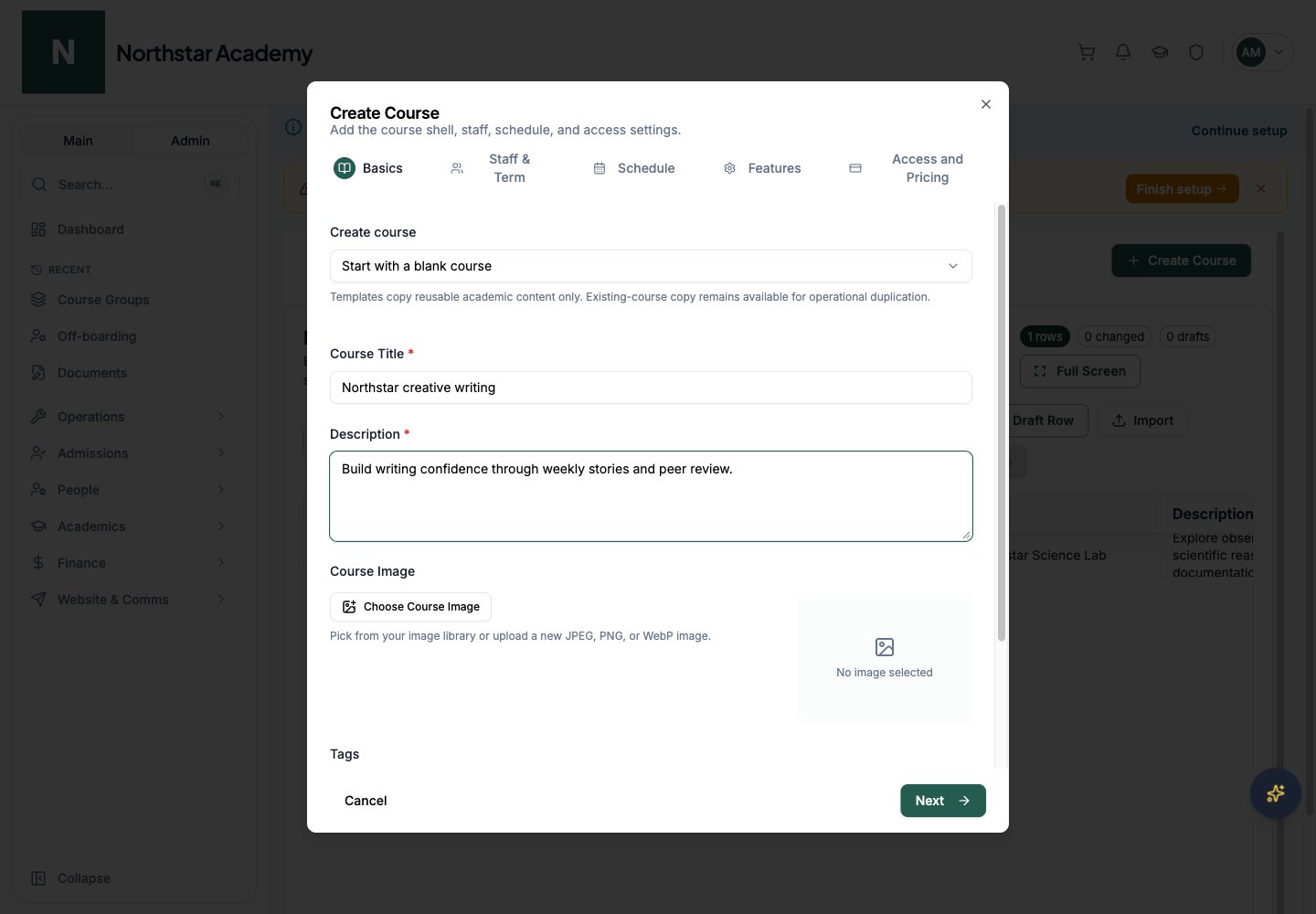
Open Academics → Courses → Create Course. Admins can start with a blank course or template. When copying an existing course, review which reusable content to include.
1
Basics
Choose Start with a blank course, start from a course template, or copy an existing live course. Set the required Course Title and Description, then click Choose Course Image to add an image. Add Tags, and scroll below them to set the Course Status. Complete required fields before clicking Next.
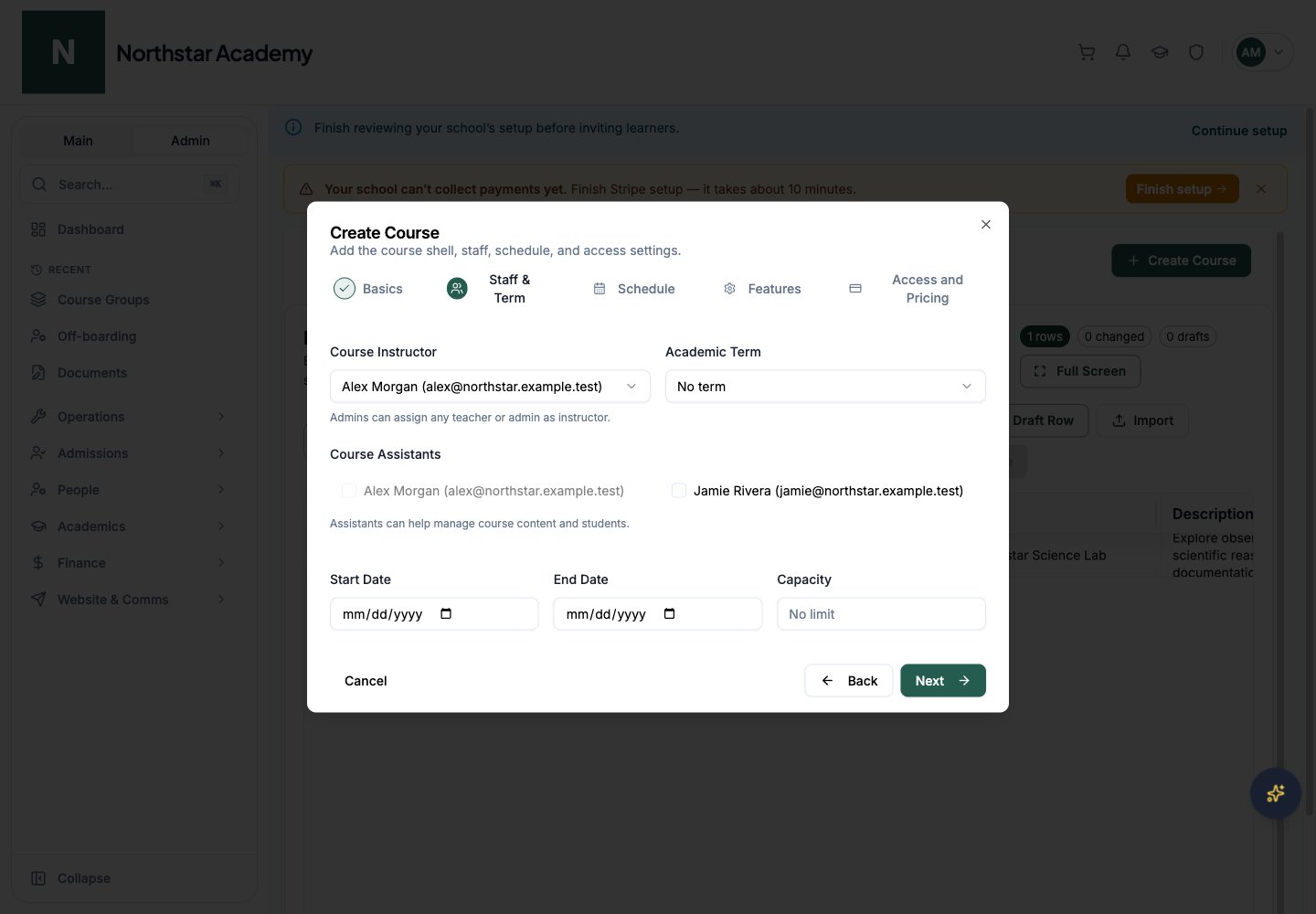
Choose the Course Instructor, optional Course Assistants, Academic Term, course dates, and capacity. Admins can assign staff; teachers create courses under their own account.
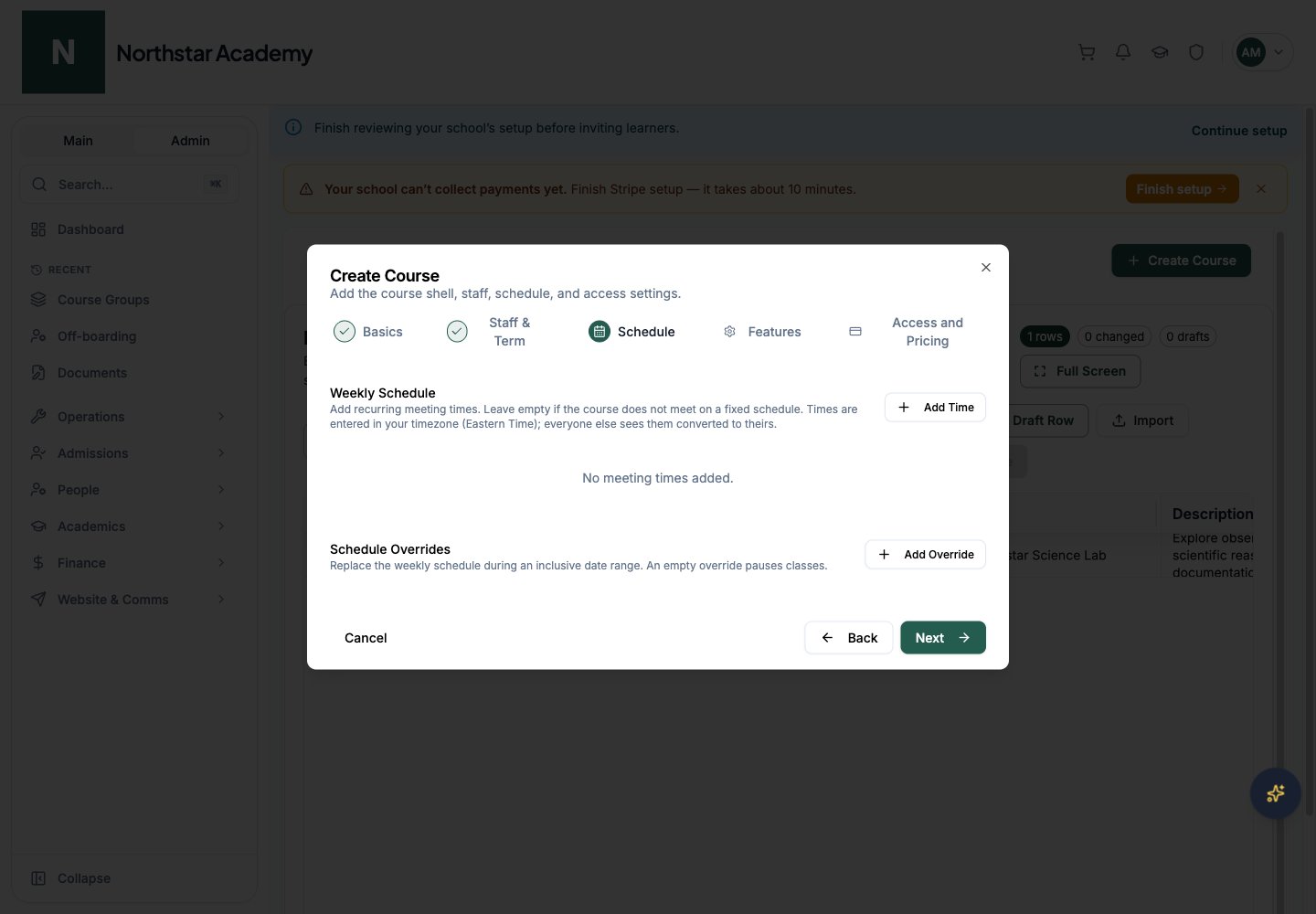
Under Weekly Schedule, click Add Time and set the Day, Start, and End for each session, plus a Location or Online meeting details. Under Schedule Overrides, click Add Override to set a temporary weekly schedule. Admins can use the Teacher/TA picker to assign a teacher or TA to individual sessions.
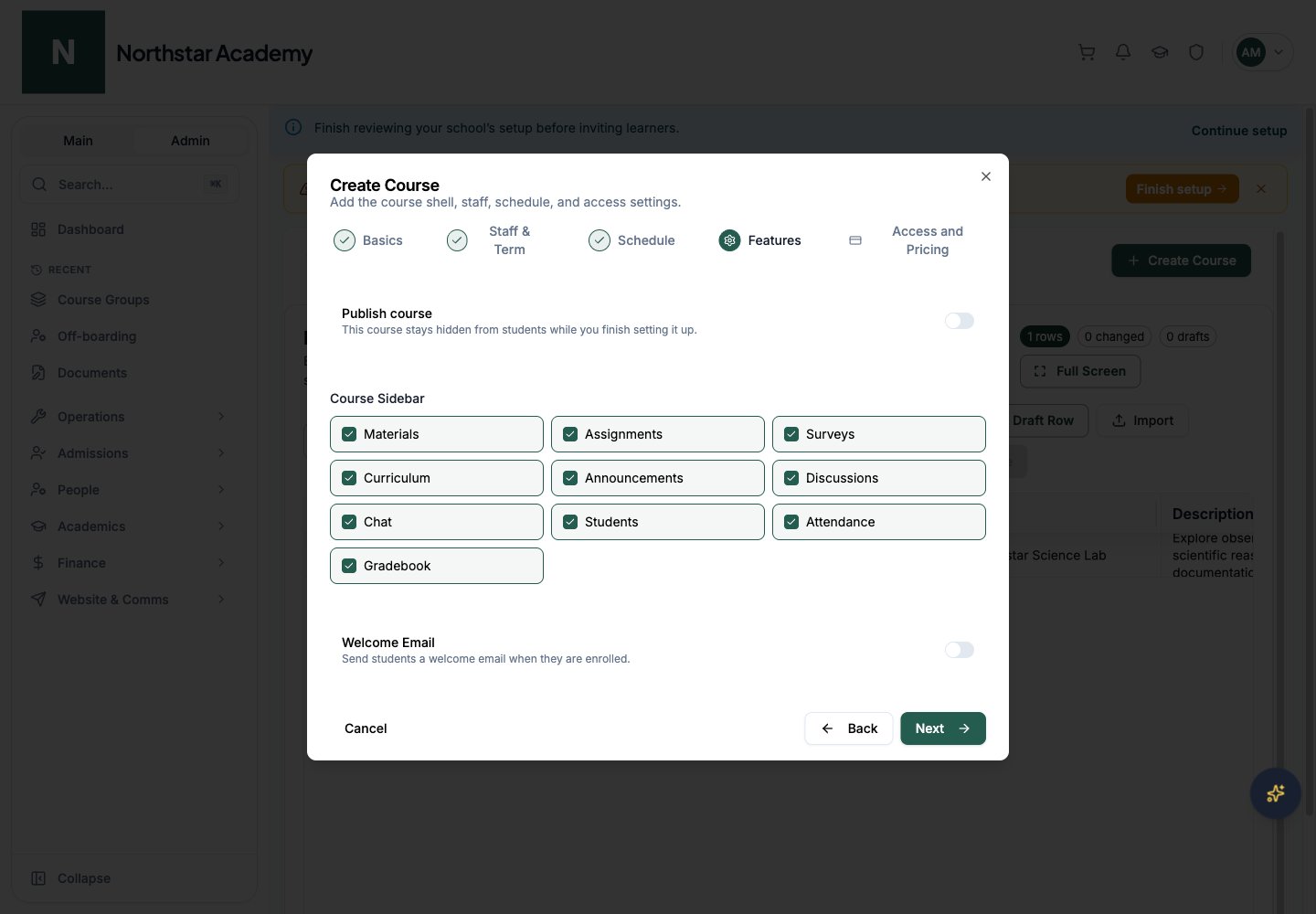
Turn Publish course on or off, choose which learning sections appear under Course Sidebar, and set up the Welcome Email. Review available sections before inviting learners.
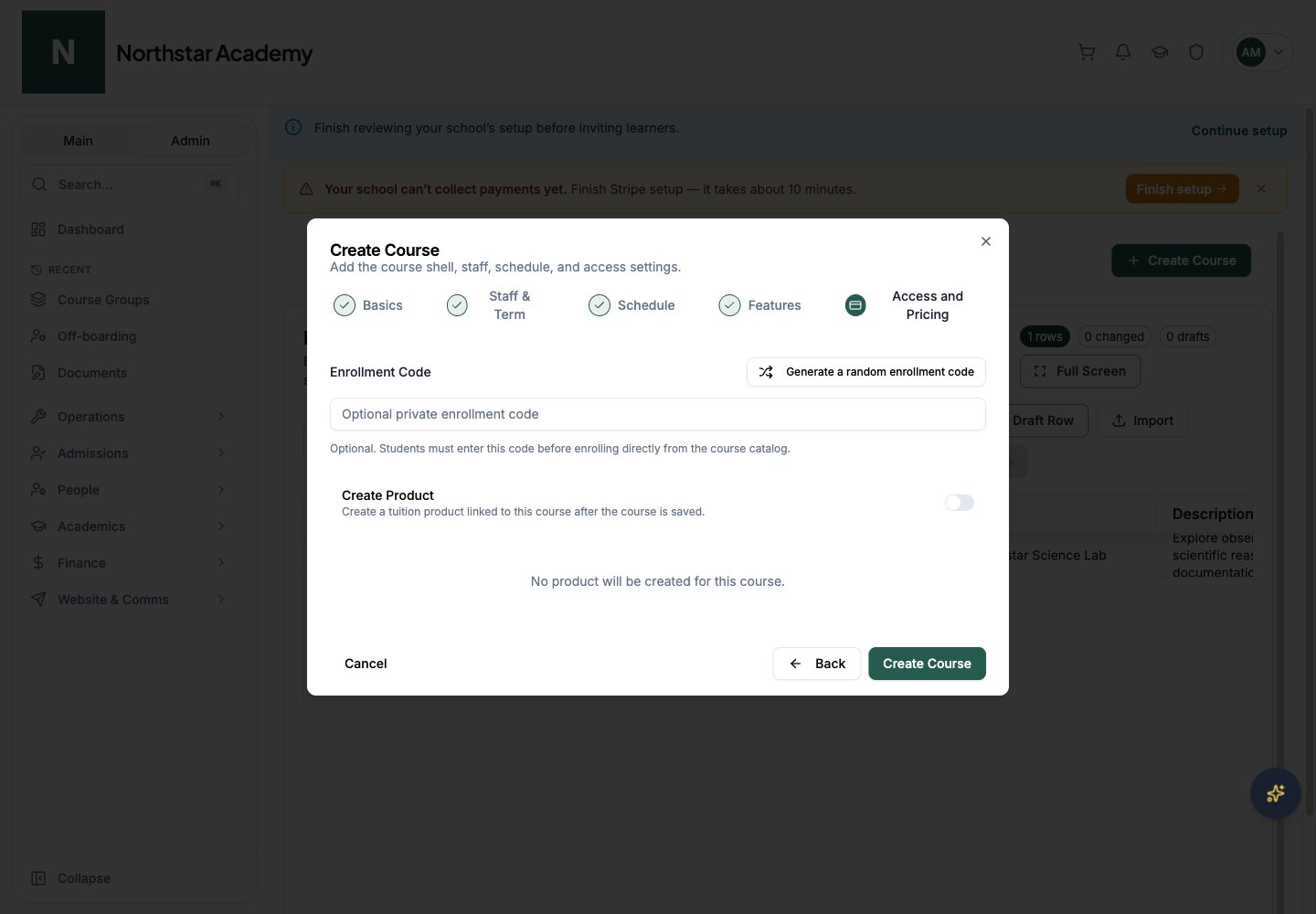
Set the Enrollment Code and, when appropriate, turn on Create Product to set up a course product and Pricing Options. See Courses for course access and Products for pricing. Review your choices, then click Create Course.
Use Back to review an earlier step. Cancel closes an unsaved course. Creating the course shell is the start of setup; review its learning material and enrollments before inviting learners.
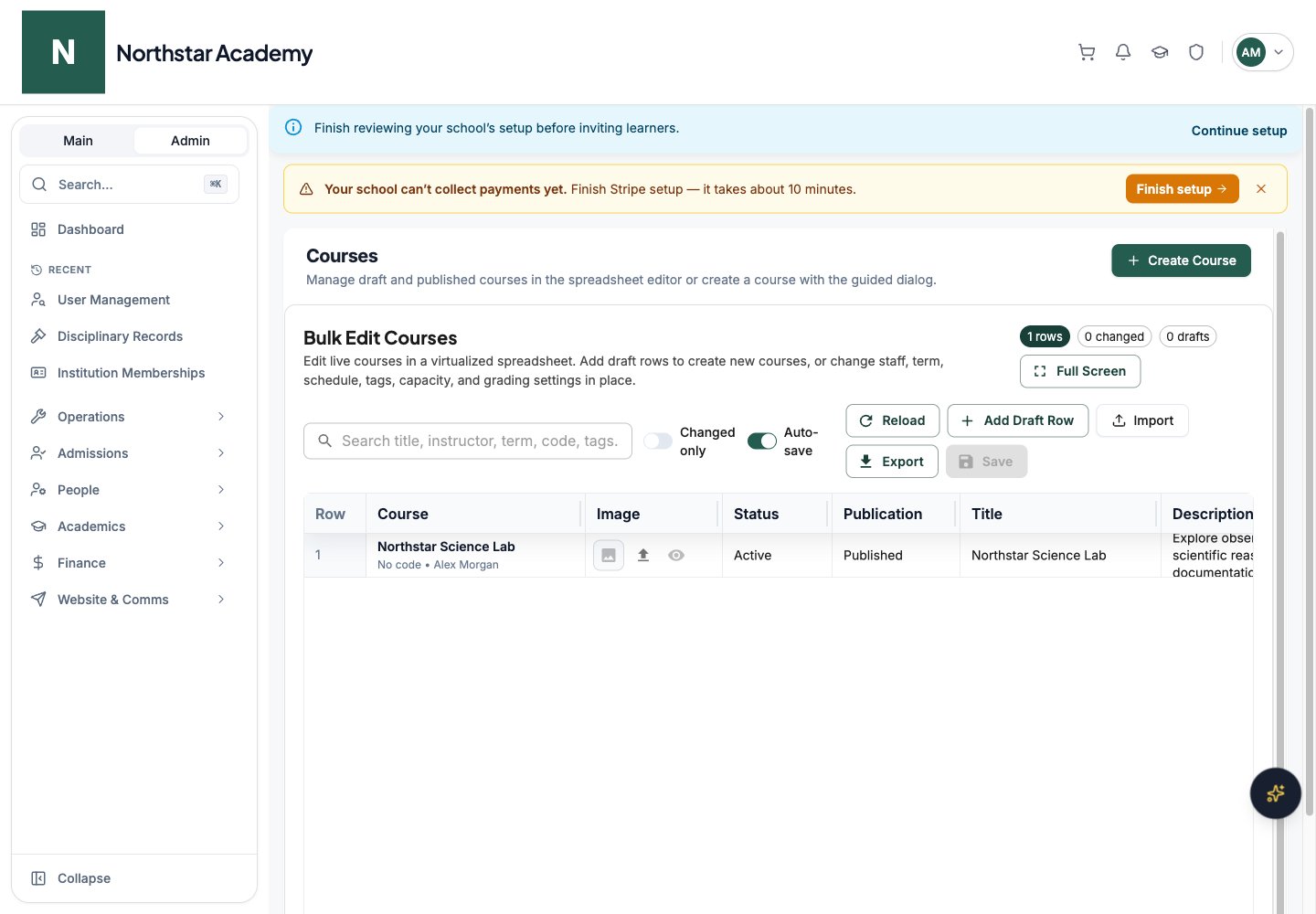
The Bulk Edit Courses spreadsheet sits below the Create Course button on the Courses page. It handles both existing courses and new rows. Search and filter the list, edit cells, and click Add Draft Row for new courses. Use Reload to refresh the list, Changed only to show just the rows you’ve edited, and Full Screen for more room. Columns include title, description, status, publication, instructor, assistants, term, dates, code, grading configuration, and schedule.Use the schedule editor for recurring sessions and temporary overrides. An override replaces the default schedule within its date range; an empty override pauses meetings. Save a new course row before uploading its image.
Auto-save is on by default and saves changed rows once their required details are valid. The grid distinguishes new, changed, saving, and failed rows. You can also click Save to submit pending changes; the button shows how many rows have changed.After saving, review the counts of updated and created courses and any row-specific failures. Correct failed rows and save again.
Click Import and choose a DeanDesk course package in JSON format, up to 10 MB. Wait for verification, review included courses and content, and assign an eligible instructor to every course. You can assign all courses at once and override individual assignments.Imported courses are new unpublished drafts. Inspect their schedules, staff assignments, content, and enrollment settings before publishing. Review any warnings and partial failures in the import result.
Open Academics → Courses → Create Course. The dialog has five steps:
Step
What to configure
Basics
Blank course, template, or copy of a live course; required Course Title and Description, image, Tags, and Course Status
Staff & Term
Course Instructor, Course Assistants, Academic Term, and course dates
Schedule
Weekly meeting times, location or online details, and schedule overrides
Features
Publish course, the Course Sidebar sections available in the course, and Welcome Email settings
Access and Pricing
Enrollment Code, and Create Product with its pricing options
Complete required details before Next becomes available. Use Back to review your choices before creating the course. Cancel closes an unsaved course. Creating the course shell is the start of setup; review its learning material and enrollments before inviting learners.
Was this page helpful?
⌘I
{"docsConfig":{"theme":"almond","$schema":"https://mintlify.com/docs.json","name":"DeanDesk","colors":{"primary":"#7c7c7c","light":"#080808","dark":"#c1c1c1"},"logo":{"light":"https://mintcdn.com/deandesk/fdE4kIsjz9Yc7EsS/images/logo-light.svg?fit=max\u0026auto=format\u0026n=fdE4kIsjz9Yc7EsS\u0026q=85\u0026s=36694fe1a3c1a808d37352d463b6ea86","dark":"https://mintcdn.com/deandesk/fdE4kIsjz9Yc7EsS/images/logo-dark.svg?fit=max\u0026auto=format\u0026n=fdE4kIsjz9Yc7EsS\u0026q=85\u0026s=f4f44881ecac8d74a6400d22000b44b3"},"favicon":"https://mintcdn.com/deandesk/7hPKdyCX79jlDRgL/images/favicon.png?fit=max\u0026auto=format\u0026n=7hPKdyCX79jlDRgL\u0026q=85\u0026s=25ccd86c5c2e369deca23f92cdde87a1","navbar":{"primary":{"type":"button","label":"Get Started Free","href":"https://deandesk.com/get-started"}},"styling":{"latex":true},"navigation":{"pages":[]}},"deployment":{"deploymentMetadataValue":{"subdomain":"deandesk","hasAudioNarration":false,"actualSubdomain":"deandesk","customDomains":["docs.deandesk.com"],"gitSource":{"type":"github","owner":"uthmanq","repo":"docs","deployBranch":"main","isPrivate":true,"contentDirectory":"","mountPath":"","label":""},"chroma":{"liveDeploymentHistoryId":"6ad7f39d011c0457d0ac18e5","collectionId":"281ee397-a7d8-4727-9a3c-3b727dd0589f","schemaVersion":"v3","latestBuiltDeploymentHistoryId":"6ad7f39d011c0457d0ac18e5"},"feedback":{"thumbs":true},"entitlements":{},"buildId":"6ada59180387e457c218a510","clientVersion":"0.0.3933","searchFilterCounts":[{"language":"default","tag":"Documentation","count":104},{"language":"default","tag":"Setup","count":15},{"language":"default","tag":"Finance","count":14},{"language":"default","tag":"Institution Management","count":14},{"language":"default","tag":"Learning Management","count":14},{"language":"default","tag":"Teaching a course","count":12},{"language":"default","tag":"Student Management","count":9},{"language":"default","tag":"School onboarding","count":8},{"language":"default","tag":"Get Started","count":6},{"language":"default","tag":"Communication","count":4}]},"assistantConfig":{"enableAskAiButton":false,"enableStarterQuestions":false,"enableContextualStarterQuestions":false,"enableAskAiSearchBar":true},"hasChatPermissions":false,"hasWebMcpPermissions":false,"toggles":[{"name":"kill-isr","enabled":true,"variant":{"name":"disabled","enabled":false,"feature_enabled":true},"impressionData":false},{"name":"agent-mintlify-slack","enabled":true,"variant":{"name":"disabled","enabled":false,"feature_enabled":true},"impressionData":false},{"name":"editor-v7-file-tree","enabled":true,"variant":{"name":"disabled","enabled":false,"feature_enabled":true},"impressionData":false},{"name":"agent-integrations-settings","enabled":true,"variant":{"name":"disabled","enabled":false,"feature_enabled":true},"impressionData":false},{"name":"automations-pr-grouping","enabled":true,"variant":{"name":"disabled","enabled":false,"feature_enabled":true},"impressionData":false},{"name":"custom-prefix","enabled":true,"variant":{"name":"disabled","enabled":false,"feature_enabled":true},"impressionData":false},{"name":"analytics-v7","enabled":true,"variant":{"name":"disabled","enabled":false,"feature_enabled":true},"impressionData":false},{"name":"user-flows-analytics","enabled":true,"variant":{"name":"disabled","enabled":false,"feature_enabled":true},"impressionData":false},{"name":"no-publish-flow","enabled":true,"variant":{"name":"disabled","enabled":false,"feature_enabled":true},"impressionData":false},{"name":"workos-onboarding","enabled":true,"variant":{"name":"disabled","enabled":false,"feature_enabled":true},"impressionData":false},{"name":"llms-txt-v2","enabled":true,"variant":{"name":"disabled","enabled":false,"feature_enabled":true},"impressionData":false},{"name":"pause-universal-search-reconcile","enabled":true,"variant":{"name":"disabled","enabled":false,"feature_enabled":true},"impressionData":false},{"name":"snapshot-serving-live","enabled":true,"variant":{"name":"disabled","enabled":false,"feature_enabled":true},"impressionData":false},{"name":"stripTemperatureMiddleware","enabled":true,"variant":{"name":"disabled","enabled":false,"feature_enabled":true},"impressionData":false},{"name":"per-site-search-delta","enabled":true,"variant":{"name":"disabled","enabled":false,"feature_enabled":true},"impressionData":false},{"name":"support-platform-pylon-zendesk","enabled":true,"variant":{"name":"disabled","enabled":false,"feature_enabled":true},"impressionData":false},{"name":"snapshot-serving","enabled":true,"variant":{"name":"disabled","enabled":false,"feature_enabled":true},"impressionData":false},{"name":"instant-rollback","enabled":true,"variant":{"name":"disabled","enabled":false,"feature_enabled":true},"impressionData":false},{"name":"granular-notifications-server","enabled":true,"variant":{"name":"disabled","enabled":false,"feature_enabled":true},"impressionData":false},{"name":"granular-notifications","enabled":true,"variant":{"name":"disabled","enabled":false,"feature_enabled":true},"impressionData":false},{"name":"editor-private-page-search","enabled":true,"variant":{"name":"disabled","enabled":false,"feature_enabled":true},"impressionData":false},{"name":"automations-fable","enabled":true,"variant":{"name":"disabled","enabled":false,"feature_enabled":true},"impressionData":false},{"name":"fixed-ai-action-pricing","enabled":true,"variant":{"name":"disabled","enabled":false,"feature_enabled":true},"impressionData":false},{"name":"automation-resolve-merge-conflict","enabled":true,"variant":{"name":"disabled","enabled":false,"feature_enabled":true},"impressionData":false},{"name":"scoped-publishing","enabled":true,"variant":{"name":"disabled","enabled":false,"feature_enabled":true},"impressionData":false},{"name":"mintql","enabled":true,"variant":{"name":"disabled","enabled":false,"feature_enabled":true},"impressionData":false},{"name":"page-level-analytics","enabled":true,"variant":{"name":"disabled","enabled":false,"feature_enabled":true},"impressionData":false},{"name":"editor-version-history-v2","enabled":true,"variant":{"name":"disabled","enabled":false,"feature_enabled":true},"impressionData":false},{"name":"editor-nav-generations","enabled":true,"variant":{"name":"disabled","enabled":false,"feature_enabled":true},"impressionData":false},{"name":"billing-page-v2","enabled":true,"variant":{"name":"disabled","enabled":false,"feature_enabled":true},"impressionData":false},{"name":"vite-origin","enabled":true,"variant":{"name":"disabled","enabled":false,"feature_enabled":true},"impressionData":false},{"name":"workspace-projects","enabled":true,"variant":{"name":"disabled","enabled":false,"feature_enabled":true},"impressionData":false},{"name":"assistant-v5","enabled":true,"variant":{"name":"disabled","enabled":false,"feature_enabled":true},"impressionData":false},{"name":"byok-sep-25","enabled":true,"variant":{"name":"disabled","enabled":false,"feature_enabled":true},"impressionData":false},{"name":"fork-pr-previews","enabled":true,"variant":{"name":"disabled","enabled":false,"feature_enabled":true},"impressionData":false},{"name":"revalidation-jwt","enabled":true,"variant":{"name":"disabled","enabled":false,"feature_enabled":true},"impressionData":false},{"name":"editor-agent-model-picker","enabled":true,"variant":{"name":"disabled","enabled":false,"feature_enabled":true},"impressionData":false},{"name":"billing-updated-9-15","enabled":true,"variant":{"name":"disabled","enabled":false,"feature_enabled":true},"impressionData":false},{"name":"hobby-abuse-scan","enabled":true,"variant":{"name":"disabled","enabled":false,"feature_enabled":true},"impressionData":false},{"name":"dashboard-inbox","enabled":true,"variant":{"name":"disabled","enabled":false,"feature_enabled":true},"impressionData":false}],"isAtlas":false,"googleFontsInlined":true},"customCss":[],"page":{"pagePath":"setup/courses","slug":"/setup/courses","pageMetadata":{"title":"Create courses","description":"Create courses individually, edit courses in bulk, and import or export reusable course packages.","href":"/setup/courses"},"description":{"compiledSource":"\"use strict\";\nconst {jsx: _jsx} = arguments[0];\nconst {useMDXComponents: _provideComponents} = arguments[0];\nfunction _createMdxContent(props) {\n const _components = {\n p: \"p\",\n ..._provideComponents(),\n ...props.components\n };\n return _jsx(_components.p, {\n children: \"Create courses individually, edit courses in bulk, and import or export reusable course packages.\"\n });\n}\nfunction MDXContent(props = {}) {\n const {wrapper: MDXLayout} = {\n ..._provideComponents(),\n ...props.components\n };\n return MDXLayout ? _jsx(MDXLayout, {\n ...props,\n children: _jsx(_createMdxContent, {\n ...props\n })\n }) : _createMdxContent(props);\n}\nreturn {\n default: MDXContent\n};\n","frontmatter":{},"scope":{}},"pageType":"default","mdx":{"mdxSource":{"compiledSource":"\"use strict\";const{Fragment:_Fragment,jsx:_jsx,jsxs:_jsxs}=arguments[0];const{useMDXComponents:_provideComponents}=arguments[0];const tutorialCaptions=`WEBVTT\n\n1\n00:00:00.350 --> 00:00:06.170\nIn this video, you'll create a course with the guided dialog, then find it in the course spreadsheet.\n\n2\n00:00:06.850 --> 00:00:08.150\nIt takes about two minutes.\n\n3\n00:00:09.255 --> 00:00:10.815\nClick Create Course.\n\n4\n00:00:11.920 --> 00:00:16.180\nYou can start blank, from a template, or by copying a course.\n\n5\n00:00:16.940 --> 00:00:18.100\nWe'll start blank.\n\n6\n00:00:19.171 --> 00:00:20.811\nEnter the course title.\n\n7\n00:00:22.741 --> 00:00:23.701\nAdd a description.\n\n8\n00:00:24.761 --> 00:00:25.961\nBoth fields are required.\n\n9\n00:00:27.075 --> 00:00:27.915\nClick Next.\n\n10\n00:00:28.999 --> 00:00:31.019\nChoose the instructor and the term.\n\n11\n00:00:31.679 --> 00:00:33.219\nAdmins can assign any teacher.\n\n12\n00:00:34.296 --> 00:00:35.376\nClick Next.\n\n13\n00:00:36.520 --> 00:00:40.040\nUnder Weekly Schedule, click Add Time.\n\n14\n00:00:40.880 --> 00:00:43.660\nSet the day, the times, and a room.\n\n15\n00:00:45.930 --> 00:00:46.930\nClick Next.\n\n16\n00:00:48.069 --> 00:00:50.009\nLeave Publish course off.\n\n17\n00:00:50.969 --> 00:00:52.889\nStudents won't see the course until you're ready.\n\n18\n00:00:53.953 --> 00:00:58.653\nChoose which sections learners see, like Materials, Assignments, or Gradebook.\n\n19\n00:00:59.711 --> 00:01:00.751\nClick Next.\n\n20\n00:01:01.858 --> 00:01:06.638\nYou can add an optional enrollment code, and you can also create a tuition product here.\n\n21\n00:01:07.278 --> 00:01:08.158\nWe'll skip both.\n\n22\n00:01:09.202 --> 00:01:10.882\nClick Create Course.\n\n23\n00:01:11.995 --> 00:01:14.395\nThe new course appears in the spreadsheet.\n\n24\n00:01:15.135 --> 00:01:17.335\nHere you can edit many courses at once.\n\n25\n00:01:18.395 --> 00:01:20.135\nChanges save automatically.\n\n26\n00:01:21.195 --> 00:01:24.155\nImport and Export move courses between schools as packages.\n\n27\n00:01:25.405 --> 00:01:26.065\nThat's it.\n\n28\n00:01:26.485 --> 00:01:27.905\nYou've created a draft course.\n\n29\n00:01:28.565 --> 00:01:31.705\nNext, see Manage courses to add materials and students.\n`;const TutorialVideo=({src,poster,captions,title})=>{const _components={a:`a`,..._provideComponents()};const tutorialVideoSources={\"/videos/tutorials/communication-announcements.mp4\":`https://deandesk-static-img.s3.us-east-1.amazonaws.com/docs/tutorials/communication-announcements.d61d0f3aaca06b46208c74b58c34abefd6c4d48c1e3cdd110ce8cef4d97e2059.mp4`,\"/videos/tutorials/communication-discussions.mp4\":`https://deandesk-static-img.s3.us-east-1.amazonaws.com/docs/tutorials/communication-discussions.4265e479beb59bee1f4961fcfe0fda65d9a1ad7bbb34a14f4ce6a7f10ac45547.mp4`,\"/videos/tutorials/communication-emails.mp4\":`https://deandesk-static-img.s3.us-east-1.amazonaws.com/docs/tutorials/communication-emails.66b457bb909678fbe2448e4b67a204218e2c26034773e4c79775de0b3a3e1ab5.mp4`,\"/videos/tutorials/communication-system-emails.mp4\":`https://deandesk-static-img.s3.us-east-1.amazonaws.com/docs/tutorials/communication-system-emails.3521ae73efaf61bb43c243994e2aee1fca807217a479a33f1f579799b7a7ac52.mp4`,\"/videos/tutorials/finance-bookings.mp4\":`https://deandesk-static-img.s3.us-east-1.amazonaws.com/docs/tutorials/finance-bookings.7705236096cdde510d5119e455aade38f340f4097e14836f63e9758005d16920.mp4`,\"/videos/tutorials/finance-discounts.mp4\":`https://deandesk-static-img.s3.us-east-1.amazonaws.com/docs/tutorials/finance-discounts.fe0f1461aa590192cf536326d7d71e8672f3db34ef66e8803d20de15b82796da.mp4`,\"/videos/tutorials/finance-enrollments.mp4\":`https://deandesk-static-img.s3.us-east-1.amazonaws.com/docs/tutorials/finance-enrollments.aeb02026b9167375fd90259c27891d0b5febcc081b87e1c8218415d5d679dc58.mp4`,\"/videos/tutorials/finance-financial-aid.mp4\":`https://deandesk-static-img.s3.us-east-1.amazonaws.com/docs/tutorials/finance-financial-aid.a7032fc9397476bc5de566eab3189512f69f77783b11a1e6da490926ea1988e2.mp4`,\"/videos/tutorials/finance-invoicing.mp4\":`https://deandesk-static-img.s3.us-east-1.amazonaws.com/docs/tutorials/finance-invoicing.64663d238222b75f23745ea3cc86f205c16a6d4c6f5ff7efc4de0f7e931d1b06.mp4`,\"/videos/tutorials/finance-orders.mp4\":`https://deandesk-static-img.s3.us-east-1.amazonaws.com/docs/tutorials/finance-orders.de6ecd4338396ef1971213ee7b0eae11dbd32fc3c2328275888a1e058669dc50.mp4`,\"/videos/tutorials/finance-payroll.mp4\":`https://deandesk-static-img.s3.us-east-1.amazonaws.com/docs/tutorials/finance-payroll.4c6e0cfed614954988cd644288874f97f6c76f6ffd2494aca95d0819d83b6b14.mp4`,\"/videos/tutorials/finance-products.mp4\":`https://deandesk-static-img.s3.us-east-1.amazonaws.com/docs/tutorials/finance-products.b29af3bf767dc239fd9b9cb17d129887f348e9b890af9f5a79e90bacdce0e7ee.mp4`,\"/videos/tutorials/finance-programs.mp4\":`https://deandesk-static-img.s3.us-east-1.amazonaws.com/docs/tutorials/finance-programs.1db3c13a84c8b33289b79a0e1f8b10a31702808e41304dbdd2f9115a31c91b64.mp4`,\"/videos/tutorials/finance-review-simulator.mp4\":`https://deandesk-static-img.s3.us-east-1.amazonaws.com/docs/tutorials/finance-review-simulator.6bc28008dd5ae393e583119032f00a9075642edf2b236a8915009e3ae49ad220.mp4`,\"/videos/tutorials/finance-stripe.mp4\":`https://deandesk-static-img.s3.us-east-1.amazonaws.com/docs/tutorials/finance-stripe.7d2ab077b67b9634828085dc8776d92057732e0e0f8f18eae46626a46cb9ca3b.mp4`,\"/videos/tutorials/finance-subscriptions.mp4\":`https://deandesk-static-img.s3.us-east-1.amazonaws.com/docs/tutorials/finance-subscriptions.d69ab4e2c401f046307c38ada438ee073fc39c6fb8d44cb3c76a6c8a52de7edb.mp4`,\"/videos/tutorials/finance-transactions.mp4\":`https://deandesk-static-img.s3.us-east-1.amazonaws.com/docs/tutorials/finance-transactions.4b36fac8fc8f819222ca6f51264bb59b623fdb982bf68e0fdf081504b30bdecd.mp4`,\"/videos/tutorials/getting-started-first-login.mp4\":`https://deandesk-static-img.s3.us-east-1.amazonaws.com/docs/tutorials/getting-started-first-login.4bf6eb08484b710d515ff5109364ab6fdc6d9484cfff49bc522494a124f3662f.mp4`,\"/videos/tutorials/getting-started-institutions-and-schools.mp4\":`https://deandesk-static-img.s3.us-east-1.amazonaws.com/docs/tutorials/getting-started-institutions-and-schools.3cbc093a108c9e413310b17dbe4ff458ddfebd09696e152e746800d1f59d9fe1.mp4`,\"/videos/tutorials/getting-started-member-account.mp4\":`https://deandesk-static-img.s3.us-east-1.amazonaws.com/docs/tutorials/getting-started-member-account.0bc088c834d0d9167ce51bd7acefd86178d383ae3aa21ee69ce061486ab52f75.mp4`,\"/videos/tutorials/institution-ai-chat.mp4\":`https://deandesk-static-img.s3.us-east-1.amazonaws.com/docs/tutorials/institution-ai-chat.3ecdad2e67a0acdae16b966d0e3e0f5a98d3ed2e4e5b2b448e36771fe5c4eb3a.mp4`,\"/videos/tutorials/institution-billing.mp4\":`https://deandesk-static-img.s3.us-east-1.amazonaws.com/docs/tutorials/institution-billing.201ee3ee09144b2e7b80c40b4190e398272dceb1d84239923635bcad394bb9c5.mp4`,\"/videos/tutorials/institution-cases.mp4\":`https://deandesk-static-img.s3.us-east-1.amazonaws.com/docs/tutorials/institution-cases.fdab373c1af668fee753ead76325b330e4df5bf9104cc344a389dc672a98bd9d.mp4`,\"/videos/tutorials/institution-dashboard.mp4\":`https://deandesk-static-img.s3.us-east-1.amazonaws.com/docs/tutorials/institution-dashboard.87307184cf6778a379293f1b5357c801b490a060f7ddf852521b2fe193b38464.mp4`,\"/videos/tutorials/institution-finance.mp4\":`https://deandesk-static-img.s3.us-east-1.amazonaws.com/docs/tutorials/institution-finance.95437f6c70956bc1936da4c62a40840e7073a464e869b63e03813d4d23f6403e.mp4`,\"/videos/tutorials/institution-identities.mp4\":`https://deandesk-static-img.s3.us-east-1.amazonaws.com/docs/tutorials/institution-identities.a72756bcf9d7805bf414aa8b6dee36793ffd8bafe336c8b7401af5fd8010acd3.mp4`,\"/videos/tutorials/institution-integrations.mp4\":`https://deandesk-static-img.s3.us-east-1.amazonaws.com/docs/tutorials/institution-integrations.3a89663eb72084750398f385e55d36accdd7ebddb25103fac277a2ce67d0a5a6.mp4`,\"/videos/tutorials/institution-memberships.mp4\":`https://deandesk-static-img.s3.us-east-1.amazonaws.com/docs/tutorials/institution-memberships.74c5080634480a5bb47d2a218ff3c6b3c5a6088d2617722384aa05f112e9b69a.mp4`,\"/videos/tutorials/institution-metadata.mp4\":`https://deandesk-static-img.s3.us-east-1.amazonaws.com/docs/tutorials/institution-metadata.c8a6351fc239cdb417de155a8ecd1891cacec43016e71bda5dc7d98a4db4551c.mp4`,\"/videos/tutorials/institution-platforms.mp4\":`https://deandesk-static-img.s3.us-east-1.amazonaws.com/docs/tutorials/institution-platforms.f0e3081c01b5209498f2bdaf6f26d85cd7a7ec477dba6a18e697aa85b7d2e1b0.mp4`,\"/videos/tutorials/institution-projects.mp4\":`https://deandesk-static-img.s3.us-east-1.amazonaws.com/docs/tutorials/institution-projects.9ffb6d4a23521a263b3a910701873b28b9c17df066151c018da1d73989290a5f.mp4`,\"/videos/tutorials/institution-settings.mp4\":`https://deandesk-static-img.s3.us-east-1.amazonaws.com/docs/tutorials/institution-settings.7dade15c52f9dffa4140e40389f24493a465dd390c05105266707dd25226da08.mp4`,\"/videos/tutorials/institution-shared-drive.mp4\":`https://deandesk-static-img.s3.us-east-1.amazonaws.com/docs/tutorials/institution-shared-drive.13fb8e60028e9a8b60391770c412e154d87ba828fab66f40aa3383c95c7705b8.mp4`,\"/videos/tutorials/institution-stripe.mp4\":`https://deandesk-static-img.s3.us-east-1.amazonaws.com/docs/tutorials/institution-stripe.5120978d70c9c57c3331eebcf6aae8c48cc969d65247c743894ebe8375c8afd8.mp4`,\"/videos/tutorials/integrations-edfi.mp4\":`https://deandesk-static-img.s3.us-east-1.amazonaws.com/docs/tutorials/integrations-edfi.e5e746de9ec2d38ad1c58b09f7eb2ceef393640cf16455721d197b7d9012dc4c.mp4`,\"/videos/tutorials/integrations-zoom-google-calendar.mp4\":`https://deandesk-static-img.s3.us-east-1.amazonaws.com/docs/tutorials/integrations-zoom-google-calendar.f1efc38fc01b29b925837f29f72b2d97ecbfd372c629714e1758a64986cd962b.mp4`,\"/videos/tutorials/introduction.mp4\":`https://deandesk-static-img.s3.us-east-1.amazonaws.com/docs/tutorials/introduction.e7ea81bfc1299fe677a64c779a854c620544167b4e60964e9536525090d6222a.mp4`,\"/videos/tutorials/lms-assignments.mp4\":`https://deandesk-static-img.s3.us-east-1.amazonaws.com/docs/tutorials/lms-assignments.cdcd86e44be5e7f935a166d08d7f3dbea8660d9cf8c994d0a5d881e9cb10d84c.mp4`,\"/videos/tutorials/lms-attendance.mp4\":`https://deandesk-static-img.s3.us-east-1.amazonaws.com/docs/tutorials/lms-attendance.d47f1a8878bcd2666fde728c70b5d96d952156348924614886ae6d0f1b372175.mp4`,\"/videos/tutorials/lms-bulk-enrollment.mp4\":`https://deandesk-static-img.s3.us-east-1.amazonaws.com/docs/tutorials/lms-bulk-enrollment.4f3fecef2abcd3caec39799e1f04bfcf3820dd839fb1b74ca71371ac389c240e.mp4`,\"/videos/tutorials/lms-course-groups.mp4\":`https://deandesk-static-img.s3.us-east-1.amazonaws.com/docs/tutorials/lms-course-groups.cd4757d20152c97b59460cdff9071e0c38e04399872aff50684c2be81e016878.mp4`,\"/videos/tutorials/lms-courses.mp4\":`https://deandesk-static-img.s3.us-east-1.amazonaws.com/docs/tutorials/lms-courses.2625072aad429340f6c852294ab8b8383ef2d6d941fda0b1bc11f8c797d75a84.mp4`,\"/videos/tutorials/lms-curriculum-maps.mp4\":`https://deandesk-static-img.s3.us-east-1.amazonaws.com/docs/tutorials/lms-curriculum-maps.dd7618e3c3eca7229a44b0708d8361ac98a157552b6bf1b37edda024d15fbabc.mp4`,\"/videos/tutorials/lms-gradebook.mp4\":`https://deandesk-static-img.s3.us-east-1.amazonaws.com/docs/tutorials/lms-gradebook.544a98a7050f823fcf69fb98a118e83e4a80426332cce97c5b82a58f90e6f991.mp4`,\"/videos/tutorials/lms-grading-standards.mp4\":`https://deandesk-static-img.s3.us-east-1.amazonaws.com/docs/tutorials/lms-grading-standards.3718f8fa6989d91e12a925ec0970e87e48b048e7d7c309a6c304073648129d7b.mp4`,\"/videos/tutorials/lms-live-classes.mp4\":`https://deandesk-static-img.s3.us-east-1.amazonaws.com/docs/tutorials/lms-live-classes.69bf4279fb8142e8b716c4d7a8fc0941710ee2f8b562865e6c78531ee1639588.mp4`,\"/videos/tutorials/lms-pages.mp4\":`https://deandesk-static-img.s3.us-east-1.amazonaws.com/docs/tutorials/lms-pages.06f155d5269da81708c790e9de8905f6adbaa733fe7603c8bdc7164e2a522e9d.mp4`,\"/videos/tutorials/lms-programs-and-events.mp4\":`https://deandesk-static-img.s3.us-east-1.amazonaws.com/docs/tutorials/lms-programs-and-events.e643aaf472e92f6cb8d2f121c6854a7accf08174e6e909849bada6d3db54f66a.mp4`,\"/videos/tutorials/lms-surveys.mp4\":`https://deandesk-static-img.s3.us-east-1.amazonaws.com/docs/tutorials/lms-surveys.cda5e35ca06c08be5f4db2b96708b167b6856df970c02c043b67430392450560.mp4`,\"/videos/tutorials/lms-waitlists.mp4\":`https://deandesk-static-img.s3.us-east-1.amazonaws.com/docs/tutorials/lms-waitlists.939bf49e062d7dee2f4e9298b6ccf1414fd8bc2fbf6c32946d4dc35a8a68a8e0.mp4`,\"/videos/tutorials/mobile-overview.mp4\":`https://deandesk-static-img.s3.us-east-1.amazonaws.com/docs/tutorials/mobile-overview.6ab058e957e745d8cc25f73a7829b3cb26c366248925d5fa081555947eaa2851.mp4`,\"/videos/tutorials/mobile-push-notifications.mp4\":`https://deandesk-static-img.s3.us-east-1.amazonaws.com/docs/tutorials/mobile-push-notifications.ef7d361233ad52f20b75796d5e4af63bdc0968a8d2e81443728cbc1596e86872.mp4`,\"/videos/tutorials/quickstart.mp4\":`https://deandesk-static-img.s3.us-east-1.amazonaws.com/docs/tutorials/quickstart.83867da9d56a5bfa522b1ac660891ea3489086c851f1462916c69a88f3562b5b.mp4`,\"/videos/tutorials/reports-financial-reports.mp4\":`https://deandesk-static-img.s3.us-east-1.amazonaws.com/docs/tutorials/reports-financial-reports.3a4aec5296b7dcd5d5c1b52e82e802a49a9dfc845701b16e5acebc6a4ad96171.mp4`,\"/videos/tutorials/reports-student-reports.mp4\":`https://deandesk-static-img.s3.us-east-1.amazonaws.com/docs/tutorials/reports-student-reports.66c297c7207c78072ffac0e200a665bc1bb77990a3b49d2a5beae360a72e404a.mp4`,\"/videos/tutorials/school-setup-index.mp4\":`https://deandesk-static-img.s3.us-east-1.amazonaws.com/docs/tutorials/school-setup-index.9ec195ef71468d1b4111b94327c807be2809dcb83bbab6f49218a7ecf23978c3.mp4`,\"/videos/tutorials/setup-admin-ai.mp4\":`https://deandesk-static-img.s3.us-east-1.amazonaws.com/docs/tutorials/setup-admin-ai.445dea379159898c5e8f655396ec32036859532397e90e9d825939899f49a64e.mp4`,\"/videos/tutorials/setup-admin-dashboard.mp4\":`https://deandesk-static-img.s3.us-east-1.amazonaws.com/docs/tutorials/setup-admin-dashboard.44d727b88c08744447c17aee22e5fe0c4acb37bc2dcaf56d8aee1ad137dd2ebb.mp4`,\"/videos/tutorials/setup-branding.mp4\":`https://deandesk-static-img.s3.us-east-1.amazonaws.com/docs/tutorials/setup-branding.c4a554fd99e61fff0de991e237a3b2abba47525abceaf9501585b9855bb9b5c3.mp4`,\"/videos/tutorials/setup-calendar.mp4\":`https://deandesk-static-img.s3.us-east-1.amazonaws.com/docs/tutorials/setup-calendar.8fdb564160abd2c218280957cf451161118960be0c65eb30e75b8cc3e13c1cfe.mp4`,\"/videos/tutorials/setup-courses.mp4\":`https://deandesk-static-img.s3.us-east-1.amazonaws.com/docs/tutorials/setup-courses.80a0fb26a225cceef9f54de289de5720c82219836d8e133d550cb774cd237fa3.mp4`,\"/videos/tutorials/setup-documents.mp4\":`https://deandesk-static-img.s3.us-east-1.amazonaws.com/docs/tutorials/setup-documents.93fe7de38dc6ab7fa79bbc5ca1e53e0de481d40028bab1fac949f25372e76650.mp4`,\"/videos/tutorials/setup-files.mp4\":`https://deandesk-static-img.s3.us-east-1.amazonaws.com/docs/tutorials/setup-files.92c1863756bcdfb01ed84727b238d2dea3cbade69a4e2e61c2e77cfc2539f1a0.mp4`,\"/videos/tutorials/setup-forms.mp4\":`https://deandesk-static-img.s3.us-east-1.amazonaws.com/docs/tutorials/setup-forms.29b27a36108e1def085b71d730e3104971aa0512c39d0d59fc21b592673d0f92.mp4`,\"/videos/tutorials/setup-payments.mp4\":`https://deandesk-static-img.s3.us-east-1.amazonaws.com/docs/tutorials/setup-payments.19b7f4da71ab5e757dc219d1834f8bc8ac3d350f50e5a874e53535d1afe7eebb.mp4`,\"/videos/tutorials/setup-profile-forms.mp4\":`https://deandesk-static-img.s3.us-east-1.amazonaws.com/docs/tutorials/setup-profile-forms.9605222ab15be4ad034927c4ed71c3258210ba181004b11fcd8af1a6f698b98a.mp4`,\"/videos/tutorials/setup-scheduling.mp4\":`https://deandesk-static-img.s3.us-east-1.amazonaws.com/docs/tutorials/setup-scheduling.7aa52ef49c66b62c0fa496364faad5c8324817ebaca956487be5208dbf513b2f.mp4`,\"/videos/tutorials/setup-school-settings.mp4\":`https://deandesk-static-img.s3.us-east-1.amazonaws.com/docs/tutorials/setup-school-settings.4630268d1ae7037a4db0301fb3b44c6c68ee3c3c1f45dd144d574086e6cf9d81.mp4`,\"/videos/tutorials/setup-support.mp4\":`https://deandesk-static-img.s3.us-east-1.amazonaws.com/docs/tutorials/setup-support.7aa86b7535b728696a5d6b70b25802e387c44f9535c496b149ecb5d147ec103b.mp4`,\"/videos/tutorials/setup-users.mp4\":`https://deandesk-static-img.s3.us-east-1.amazonaws.com/docs/tutorials/setup-users.1e5f754622a2a70cfd9dc925bd7e236f9ed0000edf90f8a78982be02a7c9ff58.mp4`,\"/videos/tutorials/setup-website.mp4\":`https://deandesk-static-img.s3.us-east-1.amazonaws.com/docs/tutorials/setup-website.9cac0883b993f455c42c754341da3db441b2a82cd4d4bb8f7e4dba1b5f5d8ba3.mp4`,\"/videos/tutorials/sis-admissions.mp4\":`https://deandesk-static-img.s3.us-east-1.amazonaws.com/docs/tutorials/sis-admissions.610a5bc91a55ab9cb76f445e9417ecdf285e50fca69b4197cd80fba69697bace.mp4`,\"/videos/tutorials/sis-billing.mp4\":`https://deandesk-static-img.s3.us-east-1.amazonaws.com/docs/tutorials/sis-billing.236bbd626e9acfcfae9bffd7cb95c4c89fbaceeac13d7213cb1213c18935a15e.mp4`,\"/videos/tutorials/sis-delete-user.mp4\":`https://deandesk-static-img.s3.us-east-1.amazonaws.com/docs/tutorials/sis-delete-user.80ff44703e0b6dab407b1078fbf146822250759ef1d2a554d1df3c98c16e5c28.mp4`,\"/videos/tutorials/sis-disciplinary-records.mp4\":`https://deandesk-static-img.s3.us-east-1.amazonaws.com/docs/tutorials/sis-disciplinary-records.e78deb5905754cfbf1bea3e76b64455657101a67cd0914896ed6139bf25d2723.mp4`,\"/videos/tutorials/sis-institution-memberships.mp4\":`https://deandesk-static-img.s3.us-east-1.amazonaws.com/docs/tutorials/sis-institution-memberships.c9963739a5b7b191cf95a2a118fa574915235cda66d21acac29d016a99e56799.mp4`,\"/videos/tutorials/sis-offboarding.mp4\":`https://deandesk-static-img.s3.us-east-1.amazonaws.com/docs/tutorials/sis-offboarding.485cd42fec23236ac033690e1b03a311803ed3739695d4d7a9f98172019cb759.mp4`,\"/videos/tutorials/sis-rosters.mp4\":`https://deandesk-static-img.s3.us-east-1.amazonaws.com/docs/tutorials/sis-rosters.76d53f90654b092fb0a7614f59b9defb02129009b9d67a7e49bae88f9fca1eec.mp4`,\"/videos/tutorials/sis-student-records.mp4\":`https://deandesk-static-img.s3.us-east-1.amazonaws.com/docs/tutorials/sis-student-records.0b14caf50fb157b6feac8fb8039f56116ed3c82686bc0ca8ef233807dff28930.mp4`,\"/videos/tutorials/sis-volunteers.mp4\":`https://deandesk-static-img.s3.us-east-1.amazonaws.com/docs/tutorials/sis-volunteers.5d09ff1a9c7e48f1fc5443f52e19ede54a7050ce5da59ab5d3ee6c183f200461.mp4`,\"/videos/tutorials/teaching-announcements.mp4\":`https://deandesk-static-img.s3.us-east-1.amazonaws.com/docs/tutorials/teaching-announcements.e54cab96ce83d445785e9b5fd11fffcd63146d6e04fb4f81087c49d4cecb26d5.mp4`,\"/videos/tutorials/teaching-assignments.mp4\":`https://deandesk-static-img.s3.us-east-1.amazonaws.com/docs/tutorials/teaching-assignments.608e3f31230d4697ddf9fb0583bf38ff69e353302abd15d66ecb6d90f4cd74fb.mp4`,\"/videos/tutorials/teaching-attendance.mp4\":`https://deandesk-static-img.s3.us-east-1.amazonaws.com/docs/tutorials/teaching-attendance.474ebc2ad8d3ee811734e1c10c32737ccba26deee56f76b5c8e697e8283fbda2.mp4`,\"/videos/tutorials/teaching-chat.mp4\":`https://deandesk-static-img.s3.us-east-1.amazonaws.com/docs/tutorials/teaching-chat.5da291eb2789f02c0137793b19827642e3a0da999e659b362df744921fa44a87.mp4`,\"/videos/tutorials/teaching-course-tour.mp4\":`https://deandesk-static-img.s3.us-east-1.amazonaws.com/docs/tutorials/teaching-course-tour.a81774160c8d4f396fd12c5880eced420436010b34f7c56015652d567b0662a9.mp4`,\"/videos/tutorials/teaching-curriculum.mp4\":`https://deandesk-static-img.s3.us-east-1.amazonaws.com/docs/tutorials/teaching-curriculum.389b47bdde4949b813aec6ae4d7d84729c7e9ba380970eb5b1c46573d22b1e17.mp4`,\"/videos/tutorials/teaching-discussions.mp4\":`https://deandesk-static-img.s3.us-east-1.amazonaws.com/docs/tutorials/teaching-discussions.b7a94892f207664f9005b4984d05179d0b8e8f8c0a63302a8c9f91e0e21e98a8.mp4`,\"/videos/tutorials/teaching-gradebook.mp4\":`https://deandesk-static-img.s3.us-east-1.amazonaws.com/docs/tutorials/teaching-gradebook.151560959e3ada107a1c763524432eb7aba36d9775f3ac1c7b530e3eacdd6f36.mp4`,\"/videos/tutorials/teaching-materials.mp4\":`https://deandesk-static-img.s3.us-east-1.amazonaws.com/docs/tutorials/teaching-materials.067c839503bab716f343df2f790a8ef9a1168877647a4af615b71c6d9d867ce9.mp4`,\"/videos/tutorials/teaching-overview.mp4\":`https://deandesk-static-img.s3.us-east-1.amazonaws.com/docs/tutorials/teaching-overview.f8bf741d5ce22b650111d9e49db4931dee417d33f7ae5315f736f3ea36ff1a3f.mp4`,\"/videos/tutorials/teaching-students.mp4\":`https://deandesk-static-img.s3.us-east-1.amazonaws.com/docs/tutorials/teaching-students.a4895c5dc68271dd5d9694578974134ca4bc398ce47e7824d5fc866e0615b8d4.mp4`,\"/videos/tutorials/teaching-surveys.mp4\":`https://deandesk-static-img.s3.us-east-1.amazonaws.com/docs/tutorials/teaching-surveys.d57d6fc33789f1cf46f22df4c52b6dd588b14d7c203a1390690f18547133e935.mp4`};const captionUrl=`data:text/vtt;charset=utf-8,`+encodeURIComponent(captions);const playbackSrc=tutorialVideoSources[src]||src;return _jsxs(`div`,{children:[_jsxs(`video`,{controls:true,playsInline:true,preload:`metadata`,poster,width:`100%`,\"aria-label\":title,children:[_jsx(`source`,{src:playbackSrc,type:`video/mp4`}),_jsx(`track`,{kind:`captions`,src:captionUrl,srcLang:`en`,label:`English`,default:true}),`Your browser does not support embedded video. `,_jsx(_components.a,{href:playbackSrc,children:`Open the video`}),`.`]}),_jsxs(`p`,{children:[_jsx(_components.a,{href:src,download:true,children:`Download the video`}),` · `,_jsx(_components.a,{href:captionUrl,download:`english-captions.vtt`,children:`Download English captions`})]})]})};function _createMdxContent(props){const _components={a:`a`,code:`code`,p:`p`,strong:`strong`,tbody:`tbody`,td:`td`,th:`th`,thead:`thead`,tr:`tr`,..._provideComponents(),...props.components},{Card,CardGroup,Frame,Heading,Info,Note,OptimizedImage,Step,Steps,Table,_MdxComponentBoundary}=_components;if(!Card)_missingMdxReference(`Card`,true);if(!CardGroup)_missingMdxReference(`CardGroup`,true);if(!Frame)_missingMdxReference(`Frame`,true);if(!Heading)_missingMdxReference(`Heading`,true);if(!Info)_missingMdxReference(`Info`,true);if(!Note)_missingMdxReference(`Note`,true);if(!OptimizedImage)_missingMdxReference(`OptimizedImage`,true);if(!Step)_missingMdxReference(`Step`,true);if(!Steps)_missingMdxReference(`Steps`,true);if(!Table)_missingMdxReference(`Table`,true);if(!_MdxComponentBoundary)_missingMdxReference(`_MdxComponentBoundary`,true);return _jsxs(_Fragment,{children:[_jsx(Info,{children:_jsxs(_components.p,{children:[_jsx(_components.strong,{children:`School-level feature`}),` — managed within your school portal at `,_jsx(_components.code,{children:`yourschool.deandesk.com`}),`.`]})}),`\n`,_jsx(Heading,{level:`2`,id:`video-walkthrough`,children:`Video walkthrough`}),`\n`,_jsx(_MdxComponentBoundary,{name:`TutorialVideo`,children:_jsx(TutorialVideo,{src:`/videos/tutorials/setup-courses.mp4`,poster:`/images/tutorials/setup-courses.jpg`,captions:tutorialCaptions,title:`Create courses walkthrough`})}),`\n`,_jsx(Note,{children:`This walkthrough uses the real DeanDesk interface with the fictional Northstar Academy demo school and a calm, AI-generated English voice. Payments and outside services are not connected in the demo.`}),`\n`,_jsx(_components.p,{children:`Screenshots use fictional Northstar demo data.`}),`\n`,_jsxs(_components.p,{children:[`Create a course from the course management area, or use the `,_jsx(_components.strong,{children:`Bulk Edit Courses`}),` spreadsheet to add and update many courses. Schools using class terminology see `,_jsx(_components.strong,{children:`Class`}),` in place of `,_jsx(_components.strong,{children:`Course`}),`.`]}),`\n`,_jsx(Heading,{level:`2`,id:`create-a-course`,children:`Create a course`}),`\n`,_jsxs(_components.p,{children:[`Open `,_jsx(_components.strong,{children:`Academics → Courses → Create Course`}),`. Admins can start with a blank course or template. When copying an existing course, review which reusable content to include.`]}),`\n`,_jsxs(Steps,{children:[_jsxs(Step,{title:`Basics`,children:[_jsxs(_components.p,{children:[`Choose `,_jsx(_components.strong,{children:`Start with a blank course`}),`, start from a course template, or copy an existing live course. Set the required `,_jsx(_components.strong,{children:`Course Title`}),` and `,_jsx(_components.strong,{children:`Description`}),`, then click `,_jsx(_components.strong,{children:`Choose Course Image`}),` to add an image. Add `,_jsx(_components.strong,{children:`Tags`}),`, and scroll below them to set the `,_jsx(_components.strong,{children:`Course Status`}),`. Complete required fields before clicking `,_jsx(_components.strong,{children:`Next`}),`.`]}),_jsx(Frame,{caption:`Northstar demo — Courses — Basics`,children:_jsx(OptimizedImage,{src:`https://mintcdn.com/deandesk/w4Aa5fKkcT4IMz-4/images/dashboard/school/bulk-courses--basics.jpg?fit=max\u0026auto=format\u0026n=w4Aa5fKkcT4IMz-4\u0026q=85\u0026s=fb6791497a9e4d400a96b70c68aaf769`,alt:`Northstar demo: Courses — Basics`,loading:`lazy`,\"data-og-width\":`1440`,width:`1440`,\"data-og-height\":`1000`,height:`1000`,\"data-path\":`images/dashboard/school/bulk-courses--basics.jpg`,\"data-optimize\":`true`,\"data-opv\":`3`,srcset:`https://mintcdn.com/deandesk/w4Aa5fKkcT4IMz-4/images/dashboard/school/bulk-courses--basics.jpg?w=280\u0026fit=max\u0026auto=format\u0026n=w4Aa5fKkcT4IMz-4\u0026q=85\u0026s=d2f9101ccb29748a1b9e6aded2c048f3 280w, https://mintcdn.com/deandesk/w4Aa5fKkcT4IMz-4/images/dashboard/school/bulk-courses--basics.jpg?w=560\u0026fit=max\u0026auto=format\u0026n=w4Aa5fKkcT4IMz-4\u0026q=85\u0026s=a6b144c8d458c059a6da25f1de1f9e8c 560w, https://mintcdn.com/deandesk/w4Aa5fKkcT4IMz-4/images/dashboard/school/bulk-courses--basics.jpg?w=840\u0026fit=max\u0026auto=format\u0026n=w4Aa5fKkcT4IMz-4\u0026q=85\u0026s=ef297d099afc6457c2a3c079e3ad05ac 840w, https://mintcdn.com/deandesk/w4Aa5fKkcT4IMz-4/images/dashboard/school/bulk-courses--basics.jpg?w=1100\u0026fit=max\u0026auto=format\u0026n=w4Aa5fKkcT4IMz-4\u0026q=85\u0026s=d3c421b99bf8d0a93348cb4a0a80de22 1100w, https://mintcdn.com/deandesk/w4Aa5fKkcT4IMz-4/images/dashboard/school/bulk-courses--basics.jpg?w=1650\u0026fit=max\u0026auto=format\u0026n=w4Aa5fKkcT4IMz-4\u0026q=85\u0026s=d2f381ea45edf1cdc63fc86be0642e0b 1650w, https://mintcdn.com/deandesk/w4Aa5fKkcT4IMz-4/images/dashboard/school/bulk-courses--basics.jpg?w=2500\u0026fit=max\u0026auto=format\u0026n=w4Aa5fKkcT4IMz-4\u0026q=85\u0026s=db478ce51d3cb86a8ebab6563d94a564 2500w`})}),_jsx(_components.p,{children:_jsx(_components.a,{href:`/images/dashboard/school/bulk-courses--basics.jpg`,children:`Open full-size screenshot`})})]}),_jsxs(Step,{title:`Staff \u0026 Term`,children:[_jsxs(_components.p,{children:[`Choose the `,_jsx(_components.strong,{children:`Course Instructor`}),`, optional `,_jsx(_components.strong,{children:`Course Assistants`}),`, `,_jsx(_components.strong,{children:`Academic Term`}),`, course dates, and capacity. Admins can assign staff; teachers create courses under their own account.`]}),_jsx(Frame,{caption:`Northstar demo — Courses — Staff \u0026 Term`,children:_jsx(OptimizedImage,{src:`https://mintcdn.com/deandesk/w4Aa5fKkcT4IMz-4/images/dashboard/school/bulk-courses--staff-term.jpg?fit=max\u0026auto=format\u0026n=w4Aa5fKkcT4IMz-4\u0026q=85\u0026s=559a7e62607f813c0bb0dd151180c8e9`,alt:`Northstar demo: Courses — Staff \u0026 Term`,loading:`lazy`,\"data-og-width\":`1440`,width:`1440`,\"data-og-height\":`1000`,height:`1000`,\"data-path\":`images/dashboard/school/bulk-courses--staff-term.jpg`,\"data-optimize\":`true`,\"data-opv\":`3`,srcset:`https://mintcdn.com/deandesk/w4Aa5fKkcT4IMz-4/images/dashboard/school/bulk-courses--staff-term.jpg?w=280\u0026fit=max\u0026auto=format\u0026n=w4Aa5fKkcT4IMz-4\u0026q=85\u0026s=2dbbd9d95d7a09682b11cb91515a19c5 280w, https://mintcdn.com/deandesk/w4Aa5fKkcT4IMz-4/images/dashboard/school/bulk-courses--staff-term.jpg?w=560\u0026fit=max\u0026auto=format\u0026n=w4Aa5fKkcT4IMz-4\u0026q=85\u0026s=8526829008cc9f786a92c4a0ba874316 560w, https://mintcdn.com/deandesk/w4Aa5fKkcT4IMz-4/images/dashboard/school/bulk-courses--staff-term.jpg?w=840\u0026fit=max\u0026auto=format\u0026n=w4Aa5fKkcT4IMz-4\u0026q=85\u0026s=d1936d9379d8ff3fad086c52ba75ca7e 840w, https://mintcdn.com/deandesk/w4Aa5fKkcT4IMz-4/images/dashboard/school/bulk-courses--staff-term.jpg?w=1100\u0026fit=max\u0026auto=format\u0026n=w4Aa5fKkcT4IMz-4\u0026q=85\u0026s=cd451ccf6055600463e7a1cf9963bdb0 1100w, https://mintcdn.com/deandesk/w4Aa5fKkcT4IMz-4/images/dashboard/school/bulk-courses--staff-term.jpg?w=1650\u0026fit=max\u0026auto=format\u0026n=w4Aa5fKkcT4IMz-4\u0026q=85\u0026s=a10d43d653c7fa6d96e2b840ae8e3adb 1650w, https://mintcdn.com/deandesk/w4Aa5fKkcT4IMz-4/images/dashboard/school/bulk-courses--staff-term.jpg?w=2500\u0026fit=max\u0026auto=format\u0026n=w4Aa5fKkcT4IMz-4\u0026q=85\u0026s=89f7f25929cdc6b753387cc890491a08 2500w`})}),_jsx(_components.p,{children:_jsx(_components.a,{href:`/images/dashboard/school/bulk-courses--staff-term.jpg`,children:`Open full-size screenshot`})})]}),_jsxs(Step,{title:`Schedule`,children:[_jsxs(_components.p,{children:[`Under `,_jsx(_components.strong,{children:`Weekly Schedule`}),`, click `,_jsx(_components.strong,{children:`Add Time`}),` and set the `,_jsx(_components.strong,{children:`Day`}),`, `,_jsx(_components.strong,{children:`Start`}),`, and `,_jsx(_components.strong,{children:`End`}),` for each session, plus a `,_jsx(_components.strong,{children:`Location`}),` or `,_jsx(_components.strong,{children:`Online`}),` meeting details. Under `,_jsx(_components.strong,{children:`Schedule Overrides`}),`, click `,_jsx(_components.strong,{children:`Add Override`}),` to set a temporary weekly schedule. Admins can use the `,_jsx(_components.strong,{children:`Teacher/TA`}),` picker to assign a teacher or TA to individual sessions.`]}),_jsx(Frame,{caption:`Northstar demo — Courses — Schedule`,children:_jsx(OptimizedImage,{src:`https://mintcdn.com/deandesk/w4Aa5fKkcT4IMz-4/images/dashboard/school/bulk-courses--schedule.jpg?fit=max\u0026auto=format\u0026n=w4Aa5fKkcT4IMz-4\u0026q=85\u0026s=06f3363576b06fdee479f6a2051a02e8`,alt:`Northstar demo: Courses — Schedule`,loading:`lazy`,\"data-og-width\":`1440`,width:`1440`,\"data-og-height\":`1000`,height:`1000`,\"data-path\":`images/dashboard/school/bulk-courses--schedule.jpg`,\"data-optimize\":`true`,\"data-opv\":`3`,srcset:`https://mintcdn.com/deandesk/w4Aa5fKkcT4IMz-4/images/dashboard/school/bulk-courses--schedule.jpg?w=280\u0026fit=max\u0026auto=format\u0026n=w4Aa5fKkcT4IMz-4\u0026q=85\u0026s=fe7ee02010d7cdbf0025ede7ad734197 280w, https://mintcdn.com/deandesk/w4Aa5fKkcT4IMz-4/images/dashboard/school/bulk-courses--schedule.jpg?w=560\u0026fit=max\u0026auto=format\u0026n=w4Aa5fKkcT4IMz-4\u0026q=85\u0026s=97b8b76db7c704f48b066183ad1da2bc 560w, https://mintcdn.com/deandesk/w4Aa5fKkcT4IMz-4/images/dashboard/school/bulk-courses--schedule.jpg?w=840\u0026fit=max\u0026auto=format\u0026n=w4Aa5fKkcT4IMz-4\u0026q=85\u0026s=1ade9ae35bb87e7834732f06bae5fa39 840w, https://mintcdn.com/deandesk/w4Aa5fKkcT4IMz-4/images/dashboard/school/bulk-courses--schedule.jpg?w=1100\u0026fit=max\u0026auto=format\u0026n=w4Aa5fKkcT4IMz-4\u0026q=85\u0026s=7c63ae5822436f6d37ea9dc1c95bf1a0 1100w, https://mintcdn.com/deandesk/w4Aa5fKkcT4IMz-4/images/dashboard/school/bulk-courses--schedule.jpg?w=1650\u0026fit=max\u0026auto=format\u0026n=w4Aa5fKkcT4IMz-4\u0026q=85\u0026s=c51483ba915ce33df1f9736ed5b1ca53 1650w, https://mintcdn.com/deandesk/w4Aa5fKkcT4IMz-4/images/dashboard/school/bulk-courses--schedule.jpg?w=2500\u0026fit=max\u0026auto=format\u0026n=w4Aa5fKkcT4IMz-4\u0026q=85\u0026s=da4bc00d06bece5627dd4cc23114fb31 2500w`})}),_jsx(_components.p,{children:_jsx(_components.a,{href:`/images/dashboard/school/bulk-courses--schedule.jpg`,children:`Open full-size screenshot`})})]}),_jsxs(Step,{title:`Features`,children:[_jsxs(_components.p,{children:[`Turn `,_jsx(_components.strong,{children:`Publish course`}),` on or off, choose which learning sections appear under `,_jsx(_components.strong,{children:`Course Sidebar`}),`, and set up the `,_jsx(_components.strong,{children:`Welcome Email`}),`. Review available sections before inviting learners.`]}),_jsx(Frame,{caption:`Northstar demo — Courses — Features`,children:_jsx(OptimizedImage,{src:`https://mintcdn.com/deandesk/w4Aa5fKkcT4IMz-4/images/dashboard/school/bulk-courses--features.jpg?fit=max\u0026auto=format\u0026n=w4Aa5fKkcT4IMz-4\u0026q=85\u0026s=de52352c309adbc678a7892441bd0777`,alt:`Northstar demo: Courses — Features`,loading:`lazy`,\"data-og-width\":`1440`,width:`1440`,\"data-og-height\":`1000`,height:`1000`,\"data-path\":`images/dashboard/school/bulk-courses--features.jpg`,\"data-optimize\":`true`,\"data-opv\":`3`,srcset:`https://mintcdn.com/deandesk/w4Aa5fKkcT4IMz-4/images/dashboard/school/bulk-courses--features.jpg?w=280\u0026fit=max\u0026auto=format\u0026n=w4Aa5fKkcT4IMz-4\u0026q=85\u0026s=5e83b5a0058f43b4922880942d48f2a7 280w, https://mintcdn.com/deandesk/w4Aa5fKkcT4IMz-4/images/dashboard/school/bulk-courses--features.jpg?w=560\u0026fit=max\u0026auto=format\u0026n=w4Aa5fKkcT4IMz-4\u0026q=85\u0026s=93de86725ca309abf71d96b1533e1e93 560w, https://mintcdn.com/deandesk/w4Aa5fKkcT4IMz-4/images/dashboard/school/bulk-courses--features.jpg?w=840\u0026fit=max\u0026auto=format\u0026n=w4Aa5fKkcT4IMz-4\u0026q=85\u0026s=c768d004cb1749a7b9f2b6c1f9319099 840w, https://mintcdn.com/deandesk/w4Aa5fKkcT4IMz-4/images/dashboard/school/bulk-courses--features.jpg?w=1100\u0026fit=max\u0026auto=format\u0026n=w4Aa5fKkcT4IMz-4\u0026q=85\u0026s=d3ad929c104cf4a80bad29b4306661ac 1100w, https://mintcdn.com/deandesk/w4Aa5fKkcT4IMz-4/images/dashboard/school/bulk-courses--features.jpg?w=1650\u0026fit=max\u0026auto=format\u0026n=w4Aa5fKkcT4IMz-4\u0026q=85\u0026s=e249d7749a834283f045443b23726f94 1650w, https://mintcdn.com/deandesk/w4Aa5fKkcT4IMz-4/images/dashboard/school/bulk-courses--features.jpg?w=2500\u0026fit=max\u0026auto=format\u0026n=w4Aa5fKkcT4IMz-4\u0026q=85\u0026s=86afc98ad4df5fceccaa866309d366ce 2500w`})}),_jsx(_components.p,{children:_jsx(_components.a,{href:`/images/dashboard/school/bulk-courses--features.jpg`,children:`Open full-size screenshot`})})]}),_jsxs(Step,{title:`Access and Pricing`,children:[_jsxs(_components.p,{children:[`Set the `,_jsx(_components.strong,{children:`Enrollment Code`}),` and, when appropriate, turn on `,_jsx(_components.strong,{children:`Create Product`}),` to set up a course product and `,_jsx(_components.strong,{children:`Pricing Options`}),`. See `,_jsx(_components.a,{href:`/lms/courses`,children:`Courses`}),` for course access and `,_jsx(_components.a,{href:`/finance/products`,children:`Products`}),` for pricing. Review your choices, then click `,_jsx(_components.strong,{children:`Create Course`}),`.`]}),_jsx(Frame,{caption:`Northstar demo — Courses — Access and Pricing`,children:_jsx(OptimizedImage,{src:`https://mintcdn.com/deandesk/w4Aa5fKkcT4IMz-4/images/dashboard/school/bulk-courses--access-and-pricing.jpg?fit=max\u0026auto=format\u0026n=w4Aa5fKkcT4IMz-4\u0026q=85\u0026s=eb3df695a075dfb65c016ecd435f7986`,alt:`Northstar demo: Courses — Access and Pricing`,loading:`lazy`,\"data-og-width\":`1440`,width:`1440`,\"data-og-height\":`1000`,height:`1000`,\"data-path\":`images/dashboard/school/bulk-courses--access-and-pricing.jpg`,\"data-optimize\":`true`,\"data-opv\":`3`,srcset:`https://mintcdn.com/deandesk/w4Aa5fKkcT4IMz-4/images/dashboard/school/bulk-courses--access-and-pricing.jpg?w=280\u0026fit=max\u0026auto=format\u0026n=w4Aa5fKkcT4IMz-4\u0026q=85\u0026s=607c038c57a6c1451d7157844be3b83f 280w, https://mintcdn.com/deandesk/w4Aa5fKkcT4IMz-4/images/dashboard/school/bulk-courses--access-and-pricing.jpg?w=560\u0026fit=max\u0026auto=format\u0026n=w4Aa5fKkcT4IMz-4\u0026q=85\u0026s=d4e2f9109444dbe11ce8b2ca52b139da 560w, https://mintcdn.com/deandesk/w4Aa5fKkcT4IMz-4/images/dashboard/school/bulk-courses--access-and-pricing.jpg?w=840\u0026fit=max\u0026auto=format\u0026n=w4Aa5fKkcT4IMz-4\u0026q=85\u0026s=7743976e9bdf5518f63722d5e11562e1 840w, https://mintcdn.com/deandesk/w4Aa5fKkcT4IMz-4/images/dashboard/school/bulk-courses--access-and-pricing.jpg?w=1100\u0026fit=max\u0026auto=format\u0026n=w4Aa5fKkcT4IMz-4\u0026q=85\u0026s=993373b37fcf4abe5e507a99fbc0195f 1100w, https://mintcdn.com/deandesk/w4Aa5fKkcT4IMz-4/images/dashboard/school/bulk-courses--access-and-pricing.jpg?w=1650\u0026fit=max\u0026auto=format\u0026n=w4Aa5fKkcT4IMz-4\u0026q=85\u0026s=6b5126c0c62372de39091993eb5ce154 1650w, https://mintcdn.com/deandesk/w4Aa5fKkcT4IMz-4/images/dashboard/school/bulk-courses--access-and-pricing.jpg?w=2500\u0026fit=max\u0026auto=format\u0026n=w4Aa5fKkcT4IMz-4\u0026q=85\u0026s=9422b30b0914568418f8c0abbb239ce4 2500w`})}),_jsx(_components.p,{children:_jsx(_components.a,{href:`/images/dashboard/school/bulk-courses--access-and-pricing.jpg`,children:`Open full-size screenshot`})})]})]}),`\n`,_jsxs(_components.p,{children:[`Use `,_jsx(_components.strong,{children:`Back`}),` to review an earlier step. `,_jsx(_components.strong,{children:`Cancel`}),` closes an unsaved course. Creating the course shell is the start of setup; review its learning material and enrollments before inviting learners.`]}),`\n`,_jsx(Heading,{level:`2`,id:`bulk-edit-courses`,children:`Bulk Edit Courses`}),`\n`,_jsxs(_components.p,{children:[`The `,_jsx(_components.strong,{children:`Bulk Edit Courses`}),` spreadsheet sits below the `,_jsx(_components.strong,{children:`Create Course`}),` button on the `,_jsx(_components.strong,{children:`Courses`}),` page. It handles both existing courses and new rows. Search and filter the list, edit cells, and click `,_jsx(_components.strong,{children:`Add Draft Row`}),` for new courses. Use `,_jsx(_components.strong,{children:`Reload`}),` to refresh the list, `,_jsx(_components.strong,{children:`Changed only`}),` to show just the rows you’ve edited, and `,_jsx(_components.strong,{children:`Full Screen`}),` for more room. Columns include title, description, status, publication, instructor, assistants, term, dates, code, grading configuration, and schedule.`]}),`\n`,_jsx(_components.p,{children:`Use the schedule editor for recurring sessions and temporary overrides. An override replaces the default schedule within its date range; an empty override pauses meetings. Save a new course row before uploading its image.`}),`\n`,_jsx(Frame,{caption:`Northstar demo — Courses`,children:_jsx(OptimizedImage,{src:`https://mintcdn.com/deandesk/w4Aa5fKkcT4IMz-4/images/dashboard/school/bulk-courses.jpg?fit=max\u0026auto=format\u0026n=w4Aa5fKkcT4IMz-4\u0026q=85\u0026s=3421bd4d17ac269467309f0dbb14171b`,alt:`Northstar demo: Courses`,loading:`lazy`,\"data-og-width\":`1440`,width:`1440`,\"data-og-height\":`1000`,height:`1000`,\"data-path\":`images/dashboard/school/bulk-courses.jpg`,\"data-optimize\":`true`,\"data-opv\":`3`,srcset:`https://mintcdn.com/deandesk/w4Aa5fKkcT4IMz-4/images/dashboard/school/bulk-courses.jpg?w=280\u0026fit=max\u0026auto=format\u0026n=w4Aa5fKkcT4IMz-4\u0026q=85\u0026s=21b8f18c466c70463e2acba7eb35dc9e 280w, https://mintcdn.com/deandesk/w4Aa5fKkcT4IMz-4/images/dashboard/school/bulk-courses.jpg?w=560\u0026fit=max\u0026auto=format\u0026n=w4Aa5fKkcT4IMz-4\u0026q=85\u0026s=c9f6069dc7836cf55a0233c5e6545835 560w, https://mintcdn.com/deandesk/w4Aa5fKkcT4IMz-4/images/dashboard/school/bulk-courses.jpg?w=840\u0026fit=max\u0026auto=format\u0026n=w4Aa5fKkcT4IMz-4\u0026q=85\u0026s=fe4825f6cae154dad5b834b5745563c3 840w, https://mintcdn.com/deandesk/w4Aa5fKkcT4IMz-4/images/dashboard/school/bulk-courses.jpg?w=1100\u0026fit=max\u0026auto=format\u0026n=w4Aa5fKkcT4IMz-4\u0026q=85\u0026s=5525b66a1056cee0e2e928403ca0503e 1100w, https://mintcdn.com/deandesk/w4Aa5fKkcT4IMz-4/images/dashboard/school/bulk-courses.jpg?w=1650\u0026fit=max\u0026auto=format\u0026n=w4Aa5fKkcT4IMz-4\u0026q=85\u0026s=b319061f3ecd03d2decd2c9c1b773e19 1650w, https://mintcdn.com/deandesk/w4Aa5fKkcT4IMz-4/images/dashboard/school/bulk-courses.jpg?w=2500\u0026fit=max\u0026auto=format\u0026n=w4Aa5fKkcT4IMz-4\u0026q=85\u0026s=5dbb77a07831a5acf6a1352fdb86d60e 2500w`})}),`\n`,_jsx(_components.p,{children:_jsx(_components.a,{href:`/images/dashboard/school/bulk-courses.jpg`,children:`Open full-size screenshot`})}),`\n`,_jsx(Heading,{level:`3`,id:`save-and-review-results`,children:`Save and review results`}),`\n`,_jsxs(_components.p,{children:[_jsx(_components.strong,{children:`Auto-save`}),` is on by default and saves changed rows once their required details are valid. The grid distinguishes new, changed, saving, and failed rows. You can also click `,_jsx(_components.strong,{children:`Save`}),` to submit pending changes; the button shows how many rows have changed.`]}),`\n`,_jsx(_components.p,{children:`After saving, review the counts of updated and created courses and any row-specific failures. Correct failed rows and save again.`}),`\n`,_jsx(Heading,{level:`2`,id:`export-course-packages`,children:`Export course packages`}),`\n`,_jsxs(Steps,{children:[_jsx(Step,{title:`Choose courses`,children:_jsxs(_components.p,{children:[`Click `,_jsx(_components.strong,{children:`Export`}),` and select saved courses. Search or use `,_jsx(_components.strong,{children:`Select matching`}),`. A package can contain up to 100 courses.`]})}),_jsx(Step,{title:`Choose content`,children:_jsxs(_components.p,{children:[`Course details are always included. Optionally include `,_jsx(_components.strong,{children:`Materials`}),`, `,_jsx(_components.strong,{children:`Assignments`}),`, `,_jsx(_components.strong,{children:`Surveys`}),`, and `,_jsx(_components.strong,{children:`Curriculum`}),`.`]})}),_jsx(Step,{title:`Download`,children:_jsx(_components.p,{children:`Export the DeanDesk course package for later import. It contains reusable teaching content rather than student records.`})})]}),`\n`,_jsx(_components.p,{children:`Packages exclude students, grades, submissions, survey responses, enrollment codes, and meeting credentials.`}),`\n`,_jsx(Heading,{level:`2`,id:`import-course-packages`,children:`Import course packages`}),`\n`,_jsxs(_components.p,{children:[`Click `,_jsx(_components.strong,{children:`Import`}),` and choose a DeanDesk course package in JSON format, up to 10 MB. Wait for verification, review included courses and content, and assign an eligible instructor to every course. You can assign all courses at once and override individual assignments.`]}),`\n`,_jsxs(_components.p,{children:[`Imported courses are new `,_jsx(_components.strong,{children:`unpublished drafts`}),`. Inspect their schedules, staff assignments, content, and enrollment settings before publishing. Review any warnings and partial failures in the import result.`]}),`\n`,_jsx(Heading,{level:`2`,id:`next-steps`,children:`Next steps`}),`\n`,_jsxs(CardGroup,{cols:2,children:[_jsx(Card,{title:`Manage courses`,icon:`chalkboard-teacher`,href:`/lms/courses`,children:_jsx(_components.p,{children:`Add curriculum, materials, students, and live sessions.`})}),_jsx(Card,{title:`Configure grading`,icon:`table`,href:`/lms/gradebook`,children:_jsx(_components.p,{children:`Set points or weighted grading and your school’s grade scale.`})})]}),`\n`,_jsx(Heading,{level:`2`,id:`guided-course-dialog`,children:`Guided course dialog`}),`\n`,_jsxs(_components.p,{children:[`Open `,_jsx(_components.strong,{children:`Academics → Courses → Create Course`}),`. The dialog has five steps:`]}),`\n`,_jsxs(Table,{children:[_jsx(_components.thead,{children:_jsxs(_components.tr,{children:[_jsx(_components.th,{children:`Step`}),_jsx(_components.th,{children:`What to configure`})]})}),_jsxs(_components.tbody,{children:[_jsxs(_components.tr,{children:[_jsx(_components.td,{children:_jsx(_components.strong,{children:`Basics`})}),_jsxs(_components.td,{children:[`Blank course, template, or copy of a live course; required `,_jsx(_components.strong,{children:`Course Title`}),` and `,_jsx(_components.strong,{children:`Description`}),`, image, `,_jsx(_components.strong,{children:`Tags`}),`, and `,_jsx(_components.strong,{children:`Course Status`})]})]}),_jsxs(_components.tr,{children:[_jsx(_components.td,{children:_jsx(_components.strong,{children:`Staff \u0026 Term`})}),_jsxs(_components.td,{children:[_jsx(_components.strong,{children:`Course Instructor`}),`, `,_jsx(_components.strong,{children:`Course Assistants`}),`, `,_jsx(_components.strong,{children:`Academic Term`}),`, and course dates`]})]}),_jsxs(_components.tr,{children:[_jsx(_components.td,{children:_jsx(_components.strong,{children:`Schedule`})}),_jsx(_components.td,{children:`Weekly meeting times, location or online details, and schedule overrides`})]}),_jsxs(_components.tr,{children:[_jsx(_components.td,{children:_jsx(_components.strong,{children:`Features`})}),_jsxs(_components.td,{children:[_jsx(_components.strong,{children:`Publish course`}),`, the `,_jsx(_components.strong,{children:`Course Sidebar`}),` sections available in the course, and `,_jsx(_components.strong,{children:`Welcome Email`}),` settings`]})]}),_jsxs(_components.tr,{children:[_jsx(_components.td,{children:_jsx(_components.strong,{children:`Access and Pricing`})}),_jsxs(_components.td,{children:[_jsx(_components.strong,{children:`Enrollment Code`}),`, and `,_jsx(_components.strong,{children:`Create Product`}),` with its pricing options`]})]})]})]}),`\n`,_jsxs(_components.p,{children:[`Complete required details before `,_jsx(_components.strong,{children:`Next`}),` becomes available. Use `,_jsx(_components.strong,{children:`Back`}),` to review your choices before creating the course. `,_jsx(_components.strong,{children:`Cancel`}),` closes an unsaved course. Creating the course shell is the start of setup; review its learning material and enrollments before inviting learners.`]})]})}function MDXContent(props={}){const{wrapper:MDXLayout}={..._provideComponents(),...props.components};return MDXLayout?_jsx(MDXLayout,{...props,children:_jsx(_createMdxContent,{...props})}):_createMdxContent(props)}return{tutorialCaptions,TutorialVideo,default:MDXContent};function _missingMdxReference(id,component){throw new Error(`Expected `+(component?`component`:`object`)+\" `\"+id+\"` to be defined: you likely forgot to import, pass, or provide it.\")}","frontmatter":{},"scope":{"config":{},"pageMetadata":{"title":"Create courses","description":"Create courses individually, edit courses in bulk, and import or export reusable course packages.","href":"/setup/courses"}}},"mdxSourceWithNoJs":null,"noJsSplices":[[134,145,"TutorialVideo=()=>null;const tutorialCap"],[2180,21783,""],[45006,45046,"TutorialVideo,tutorialCaptions,default:M"]]},"mdxExtracts":{"tableOfContents":[{"title":"Video walkthrough","slug":"video-walkthrough","depth":2,"children":[]},{"title":"Create a course","slug":"create-a-course","depth":2,"children":[]},{"title":"Bulk Edit Courses","slug":"bulk-edit-courses","depth":2,"children":[{"title":"Save and review results","slug":"save-and-review-results","depth":3,"children":[]}]},{"title":"Export course packages","slug":"export-course-packages","depth":2,"children":[]},{"title":"Import course packages","slug":"import-course-packages","depth":2,"children":[]},{"title":"Next steps","slug":"next-steps","depth":2,"children":[]},{"title":"Guided course dialog","slug":"guided-course-dialog","depth":2,"children":[]}],"codeExamples":{}},"jsLinks":[],"subdomain":"deandesk","siteName":"DeanDesk","title":"Create courses - DeanDesk","navMaps":{"firstHrefInVersion":{},"firstHrefInLanguage":{}},"lastModified":"2026-10-20T23:06:05.186Z","originalFileLocation":"setup/courses.mdx"},"headHtml":"\u003cscript data-mint-head>(function(){var d=document.documentElement,p=null;if(!p){try{p=localStorage.getItem(\"isDarkMode\")}catch(e){}if(p==='true')p='dark';else if(p==='false')p='light';if(p!=='light'\u0026\u0026p!=='dark'\u0026\u0026p!=='system')p=\"system\"}var r=p==='system'?(matchMedia(\"(prefers-color-scheme: dark)\").matches?'dark':'light'):p;d.classList.remove(r==='dark'?'light':'dark');d.classList.add(r);d.setAttribute(\"data-theme-preference\",p)})();\u003c/script>\u003cmeta data-mint-head name=\"description\" content=\"Create courses individually, edit courses in bulk, and import or export reusable course packages.\">\u003cmeta data-mint-head name=\"application-name\" content=\"DeanDesk\">\u003cmeta data-mint-head name=\"generator\" content=\"Mintlify\">\u003clink data-mint-head rel=\"icon\" type=\"image/png\" sizes=\"192x192\" href=\"/mintlify-assets/_mintlify/favicons/deandesk/wAy75GituRfENpuV/_generated/favicon/android-chrome-192x192.png\" media=\"(prefers-color-scheme: light)\">\u003clink data-mint-head rel=\"apple-touch-icon\" type=\"image/png\" sizes=\"180x180\" href=\"/mintlify-assets/_mintlify/favicons/deandesk/wAy75GituRfENpuV/_generated/favicon/apple-touch-icon.png\">\u003clink data-mint-head rel=\"icon\" type=\"image/png\" sizes=\"16x16\" href=\"/mintlify-assets/_mintlify/favicons/deandesk/wAy75GituRfENpuV/_generated/favicon/favicon-16x16.png\" media=\"(prefers-color-scheme: light)\">\u003clink data-mint-head rel=\"icon\" type=\"image/png\" sizes=\"32x32\" href=\"/mintlify-assets/_mintlify/favicons/deandesk/wAy75GituRfENpuV/_generated/favicon/favicon-32x32.png\" media=\"(prefers-color-scheme: light)\">\u003clink data-mint-head rel=\"shortcut icon\" type=\"image/x-icon\" href=\"/mintlify-assets/_mintlify/favicons/deandesk/wAy75GituRfENpuV/_generated/favicon/favicon.ico\" media=\"(prefers-color-scheme: light)\">\u003clink data-mint-head rel=\"icon\" type=\"image/png\" sizes=\"192x192\" href=\"/mintlify-assets/_mintlify/favicons/deandesk/wAy75GituRfENpuV/_generated/favicon-dark/android-chrome-192x192.png\" media=\"(prefers-color-scheme: dark)\">\u003clink data-mint-head rel=\"icon\" type=\"image/png\" sizes=\"16x16\" href=\"/mintlify-assets/_mintlify/favicons/deandesk/wAy75GituRfENpuV/_generated/favicon-dark/favicon-16x16.png\" media=\"(prefers-color-scheme: dark)\">\u003clink data-mint-head rel=\"icon\" type=\"image/png\" sizes=\"32x32\" href=\"/mintlify-assets/_mintlify/favicons/deandesk/wAy75GituRfENpuV/_generated/favicon-dark/favicon-32x32.png\" media=\"(prefers-color-scheme: dark)\">\u003clink data-mint-head rel=\"shortcut icon\" type=\"image/x-icon\" href=\"/mintlify-assets/_mintlify/favicons/deandesk/wAy75GituRfENpuV/_generated/favicon-dark/favicon.ico\" media=\"(prefers-color-scheme: dark)\">\u003cmeta data-mint-head property=\"og:title\" content=\"Create courses - DeanDesk\">\u003cmeta data-mint-head property=\"og:description\" content=\"Create courses individually, edit courses in bulk, and import or export reusable course packages.\">\u003cmeta data-mint-head property=\"og:site_name\" content=\"DeanDesk\">\u003cmeta data-mint-head property=\"og:url\" content=\"https://docs.deandesk.com/setup/courses\">\u003cmeta data-mint-head property=\"og:type\" content=\"website\">\u003cmeta data-mint-head property=\"og:image\" content=\"https://deandesk.mintlify.app/_mintlify/api/og/v2?division=Setup\u0026amp;title=Create+courses\u0026amp;description=Create+courses+individually%2C+edit+courses+in+bulk%2C+and+import+or+export+reusable+course+packages.\u0026amp;theme=4e434e52de398c186cf0595b\u0026amp;signature=18639662e17026f7f6ec8a4c196552cc92fab1abe41f9f2cea296621cfc70826\">\u003cmeta data-mint-head property=\"og:image:width\" content=\"1200\">\u003cmeta data-mint-head property=\"og:image:height\" content=\"630\">\u003cmeta data-mint-head name=\"twitter:card\" content=\"summary_large_image\">\u003cmeta data-mint-head name=\"twitter:title\" content=\"Create courses - DeanDesk\">\u003cmeta data-mint-head name=\"twitter:description\" content=\"Create courses individually, edit courses in bulk, and import or export reusable course packages.\">\u003cmeta data-mint-head name=\"twitter:image\" content=\"https://deandesk.mintlify.app/_mintlify/api/og/v2?division=Setup\u0026amp;title=Create+courses\u0026amp;description=Create+courses+individually%2C+edit+courses+in+bulk%2C+and+import+or+export+reusable+course+packages.\u0026amp;theme=4e434e52de398c186cf0595b\u0026amp;signature=18639662e17026f7f6ec8a4c196552cc92fab1abe41f9f2cea296621cfc70826\">\u003cmeta data-mint-head name=\"twitter:image:width\" content=\"1200\">\u003cmeta data-mint-head name=\"twitter:image:height\" content=\"630\">\u003cmeta data-mint-head name=\"msapplication-config\" content=\"/mintlify-assets/_mintlify/favicons/deandesk/wAy75GituRfENpuV/_generated/favicon/browserconfig.xml\">\u003cmeta data-mint-head name=\"apple-mobile-web-app-title\" content=\"DeanDesk\">\u003cmeta data-mint-head name=\"msapplication-TileColor\" content=\"#7c7c7c\">\u003clink data-mint-head rel=\"canonical\" href=\"https://docs.deandesk.com/setup/courses\">\u003clink data-mint-head rel=\"alternate\" type=\"application/xml\" href=\"/sitemap.xml\">\u003clink data-mint-head rel=\"alternate\" type=\"text/markdown\" href=\"/setup/courses.md\">\u003cscript data-mint-head type=\"application/ld+json\">{\"@context\":\"https://schema.org\",\"@graph\":[{\"@type\":\"Organization\",\"@id\":\"https://docs.deandesk.com/#organization\",\"name\":\"DeanDesk\",\"url\":\"https://docs.deandesk.com\",\"logo\":{\"@type\":\"ImageObject\",\"url\":\"https://mintcdn.com/deandesk/fdE4kIsjz9Yc7EsS/images/logo-light.svg?fit=max\u0026auto=format\u0026n=fdE4kIsjz9Yc7EsS\u0026q=85\u0026s=36694fe1a3c1a808d37352d463b6ea86\"}},{\"@type\":\"WebSite\",\"@id\":\"https://docs.deandesk.com#website\",\"name\":\"DeanDesk\",\"url\":\"https://docs.deandesk.com\",\"publisher\":{\"@id\":\"https://docs.deandesk.com/#organization\"}},{\"@type\":\"WebPage\",\"@id\":\"https://docs.deandesk.com/setup/courses#webpage\",\"url\":\"https://docs.deandesk.com/setup/courses\",\"name\":\"Create courses\",\"description\":\"Create courses individually, edit courses in bulk, and import or export reusable course packages.\",\"dateModified\":\"2026-10-20T23:06:05.186Z\",\"isPartOf\":{\"@id\":\"https://docs.deandesk.com#website\"},\"breadcrumb\":{\"@id\":\"https://docs.deandesk.com/setup/courses#breadcrumb\"}},{\"@type\":\"BreadcrumbList\",\"@id\":\"https://docs.deandesk.com/setup/courses#breadcrumb\",\"itemListElement\":[{\"@type\":\"ListItem\",\"position\":1,\"name\":\"Setup\",\"item\":\"https://docs.deandesk.com/setup/admin-dashboard\"},{\"@type\":\"ListItem\",\"position\":2,\"name\":\"Create courses\",\"item\":\"https://docs.deandesk.com/setup/courses\"}]},{\"@type\":[\"Article\",\"TechArticle\"],\"@id\":\"https://docs.deandesk.com/setup/courses#article\",\"headline\":\"Create courses\",\"name\":\"Create courses\",\"description\":\"Create courses individually, edit courses in bulk, and import or export reusable course packages.\",\"url\":\"https://docs.deandesk.com/setup/courses\",\"mainEntityOfPage\":{\"@id\":\"https://docs.deandesk.com/setup/courses#webpage\"},\"dateModified\":\"2026-10-20T23:06:05.186Z\",\"publisher\":{\"@id\":\"https://docs.deandesk.com/#organization\"},\"isPartOf\":{\"@id\":\"https://docs.deandesk.com#website\"}}]}\u003c/script>\u003cscript data-mint-head type=\"application/ld+json\">{\"@context\":\"https://schema.org\",\"@type\":\"WebSite\",\"name\":\"DeanDesk\",\"creator\":{\"@type\":\"Organization\",\"name\":\"Mintlify\",\"url\":\"https://mintlify.com\"}}\u003c/script>","siteName":"DeanDesk","nav":{"global":null,"tabs":[{"tab":"Documentation","groups":[{"group":"Get Started","pages":[{"title":"Welcome to DeanDesk","href":"/introduction"},{"title":"Institutions \u0026 Schools","href":"/getting-started/institutions-and-schools"},{"title":"Quick start","href":"/quickstart"},{"title":"First login","href":"/getting-started/first-login"},{"title":"Your account \u0026 family portal","href":"/getting-started/member-account"},{"title":"Understanding your payment","href":"/getting-started/payment-breakdown"}]},{"group":"School onboarding","pages":[{"title":"School setup, one step at a time","href":"/school-setup/index"},{"title":"1. School identity and branding","href":"/school-setup/school-identity"},{"title":"2. Enrollment and admissions","href":"/school-setup/enrollment"},{"title":"3. Courses and learning material","href":"/school-setup/courses-and-materials"},{"title":"4. Staff, learners and families","href":"/school-setup/people-and-families"},{"title":"5. Products, prices and payments","href":"/school-setup/products-and-payments"},{"title":"6. Website and content","href":"/school-setup/website"},{"title":"7. Test the complete experience","href":"/school-setup/test-and-launch"}]},{"group":"Institution Management","pages":[{"title":"Institution dashboard directory","href":"/institution/dashboard"},{"title":"Platforms and school setup","href":"/institution/platforms"},{"title":"Identity metadata","href":"/institution/metadata"},{"title":"Institution Stripe","href":"/institution/stripe"},{"title":"Institution settings","href":"/institution/settings"},{"title":"DeanDesk subscription and billing","href":"/institution/billing"},{"title":"Institution finance","href":"/institution/finance"},{"title":"Identities","href":"/institution/identities"},{"title":"Membership Management","href":"/institution/memberships"},{"title":"Support tickets and cases","href":"/institution/cases"},{"title":"Institution AI","href":"/institution/ai-chat"},{"title":"Shared Drive","href":"/institution/shared-drive"},{"title":"Projects and task lists","href":"/institution/projects"},{"title":"Integrations","href":"/institution/integrations"}]},{"group":"Setup","pages":[{"title":"Admin Dashboard directory","href":"/setup/admin-dashboard"},{"title":"Documents and acknowledgments","href":"/setup/documents"},{"title":"Website workspace","href":"/setup/website"},{"title":"Academic calendar","href":"/setup/calendar"},{"title":"Scheduling \u0026 calendars","href":"/setup/scheduling"},{"title":"Add users","description":"Create accounts for instructors and students and get them onboarded.","href":"/setup/users"},{"title":"Create courses","href":"/setup/courses"},{"title":"Profile forms \u0026 metadata","description":"Configure which profile sections appear on user accounts and add custom sections and fields for adults, children, or both.","href":"/setup/profile-forms"},{"title":"Forms","href":"/setup/forms"},{"title":"School branding","href":"/setup/branding"},{"title":"School configuration","href":"/setup/school-settings"},{"title":"File library","href":"/setup/files"},{"title":"DeanDesk AI for admins","href":"/setup/admin-ai"},{"title":"Payment setup","href":"/setup/payments"},{"title":"School support tickets","href":"/setup/support"}]},{"group":"Learning Management","pages":[{"title":"Course groups","href":"/lms/course-groups"},{"title":"Bulk enrollment","href":"/lms/bulk-enrollment"},{"title":"Waitlist manager","href":"/lms/waitlists"},{"title":"Grading standards","href":"/lms/grading-standards"},{"title":"Courses","href":"/lms/courses"},{"title":"Course not showing on a student's dashboard","sidebarTitle":"Missing course troubleshooting","href":"/lms/course-not-showing"},{"title":"Curriculum maps","href":"/lms/curriculum-maps"},{"title":"Assignments","href":"/lms/assignments"},{"title":"Surveys","href":"/lms/surveys"},{"title":"Gradebook","href":"/lms/gradebook"},{"title":"Attendance","href":"/lms/attendance"},{"title":"Live classes","href":"/lms/live-classes"},{"title":"Pages","href":"/lms/pages"},{"title":"Programs \u0026 events","href":"/lms/programs-and-events"}]},{"group":"Teaching a course","pages":[{"title":"Course sidebar tour","href":"/teaching/course-tour"},{"title":"Overview","href":"/teaching/overview"},{"title":"Materials","href":"/teaching/materials"},{"title":"Assignments","href":"/teaching/assignments"},{"title":"Surveys","href":"/teaching/surveys"},{"title":"Curriculum","href":"/teaching/curriculum"},{"title":"Announcements","href":"/teaching/announcements"},{"title":"Discussions","href":"/teaching/discussions"},{"title":"Chat","href":"/teaching/chat"},{"title":"Students","href":"/teaching/students"},{"title":"Attendance","href":"/teaching/attendance"},{"title":"Gradebook","href":"/teaching/gradebook"}]},{"group":"Student Management","pages":[{"title":"Off-boarding","href":"/sis/offboarding"},{"title":"Institution memberships in your school","href":"/sis/institution-memberships"},{"title":"Student records","href":"/sis/student-records"},{"title":"Delete a user","href":"/sis/delete-user"},{"title":"Rosters","href":"/sis/rosters"},{"title":"Admissions","href":"/sis/admissions"},{"title":"Billing \u0026 payments","href":"/sis/billing"},{"title":"Disciplinary records","href":"/sis/disciplinary-records"},{"title":"Volunteers \u0026 volunteer hours","href":"/sis/volunteers"}]},{"group":"Communication","pages":[{"title":"Emails","href":"/communication/emails"},{"title":"System emails","href":"/communication/system-emails"},{"title":"Announcements","href":"/communication/announcements"},{"title":"Chat \u0026 discussions","href":"/communication/discussions"}]},{"group":"Finance","pages":[{"title":"Review simulator","href":"/finance/review-simulator"},{"title":"Program attendees","href":"/finance/programs"},{"title":"Products","href":"/finance/products"},{"title":"Discounts","href":"/finance/discounts"},{"title":"Scholarship \u0026 financial aid rates","href":"/finance/financial-aid"},{"title":"Invoicing","href":"/finance/invoicing"},{"title":"Subscriptions","href":"/finance/subscriptions"},{"title":"Enrollments","href":"/finance/enrollments"},{"title":"Physical products \u0026 orders","href":"/finance/orders"},{"title":"Booking sessions","href":"/finance/bookings"},{"title":"Transactions \u0026 refunds","href":"/finance/transactions"},{"title":"Online processing fee","href":"/finance/online-processing-fee"},{"title":"Stripe configuration","href":"/finance/stripe"},{"title":"Time and payroll","href":"/finance/payroll"}]},{"group":"Reports \u0026 Analytics","pages":[{"title":"Student reports","href":"/reports/student-reports"},{"title":"Financial reports","href":"/reports/financial-reports"}]},{"group":"Integrations","pages":[{"title":"Ed-Fi export","href":"/integrations/edfi"},{"title":"MCP server","href":"/integrations/mcp"},{"title":"DeanDesk Sync","href":"/integrations/deandesk-sync"},{"title":"Zoom \u0026 Google Calendar","href":"/integrations/zoom-google-calendar"}]},{"group":"Mobile App","pages":[{"title":"Mobile app","href":"/mobile/overview"},{"title":"Push notifications","href":"/mobile/push-notifications"}]}]}]},"title":"Create courses - DeanDesk","buildId":"dpl_GnxaU9nEer7XK27kw3dpfPrs9geh","deploymentId":"dpl_GnxaU9nEer7XK27kw3dpfPrs9geh","dynamics":["07c022d89b","a74be98ba7","a9bb46feb3"],"chunks":["Frame-C1EX3v38.js","DynamicMarkdown-BPGty-u8.js","zoom-image-lightbox-Cv5hibpS.js","PlusIcon-owOTCErD.js","lightbox-handle-r17bVUz3.js","Markdown-DBoyz2JY.js","clsx-BTaOLP1x.js","lib--scc4DXi.js","lib-B8HbPgcC.js","html-void-elements-mCSPHezU.js","dist-BFj0_khV.js","katex-YMM-FMeD.js","marked.esm-CZWythHk.js","AssistantPageLink-BXlqNIdH.js"]}