

This guide covers an institution-level feature at
deandesk.com. See Institutions & Schools for how these levels relate.Video walkthrough
This walkthrough uses the real DeanDesk interface with the fictional Northstar Academy demo school and a calm, AI-generated English voice. Payments and outside services are not connected in the demo.
- Automatic folder creation for each project
- Centralized file storage for all institution projects
- Permission management handled by Google Drive
- A configurable shared institution folder (super admins only)
The Google Drive integration is separate from the Shared Drive. The Shared Drive is DeanDesk’s own file manager whose documents feed the Institution AI Chat as context. The Google Drive integration stores project files in your own Google account. They are unrelated features that live in different sidebar entries.
Connect Google Drive
Only Super Admin identities can connect or disconnect Google Drive; the connection is shared by the whole institution.1
Open Integrations
From the institution dashboard, go to Settings → Integrations. The Google Drive card shows a Connected or Not Connected badge.
2
Click Connect Google Drive
You’re redirected to Google to sign in and grant DeanDesk access to Drive.
3
Approve access
After you approve, you’re returned to the Integrations page with the connection active.
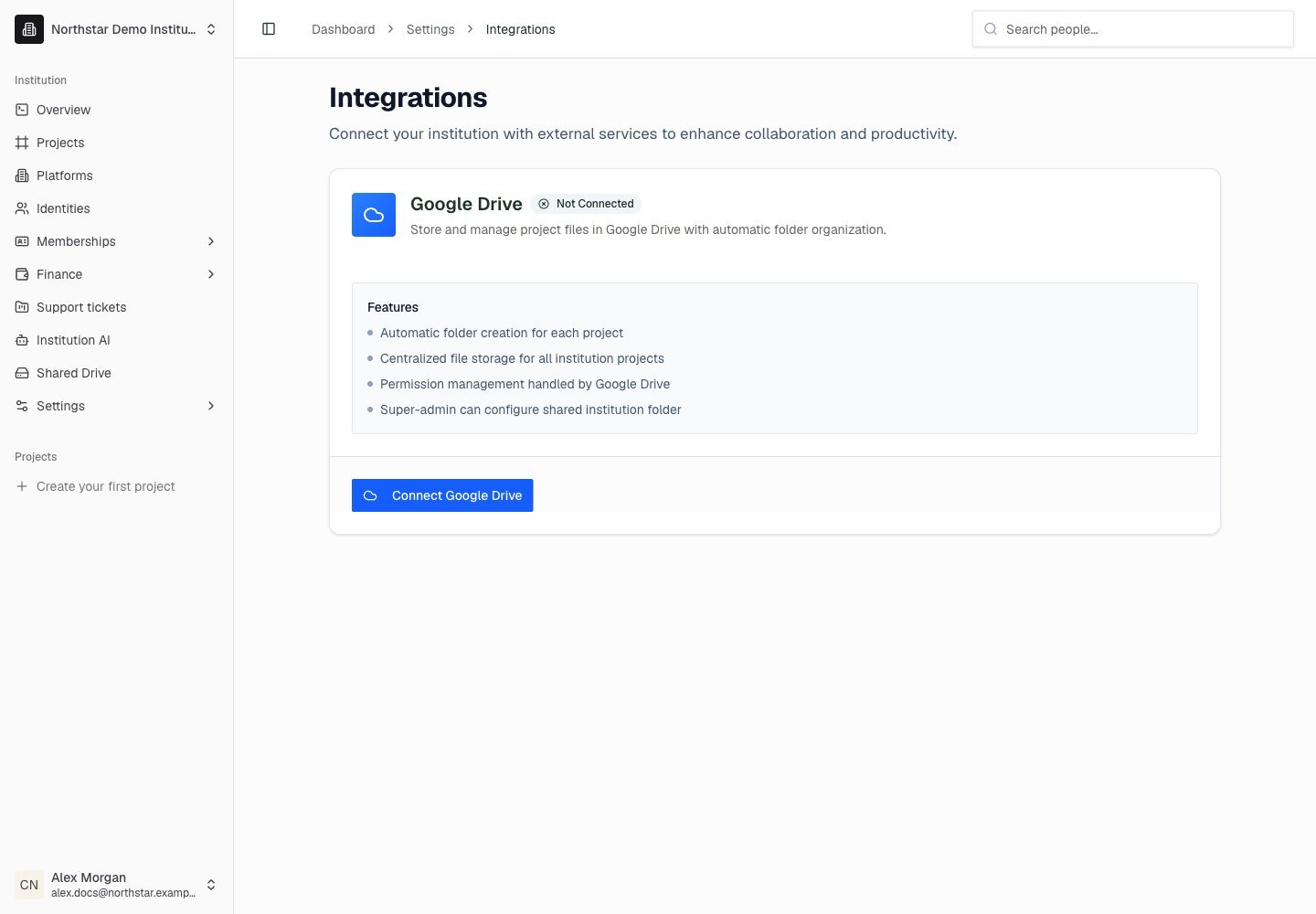
Northstar demo — Integrations
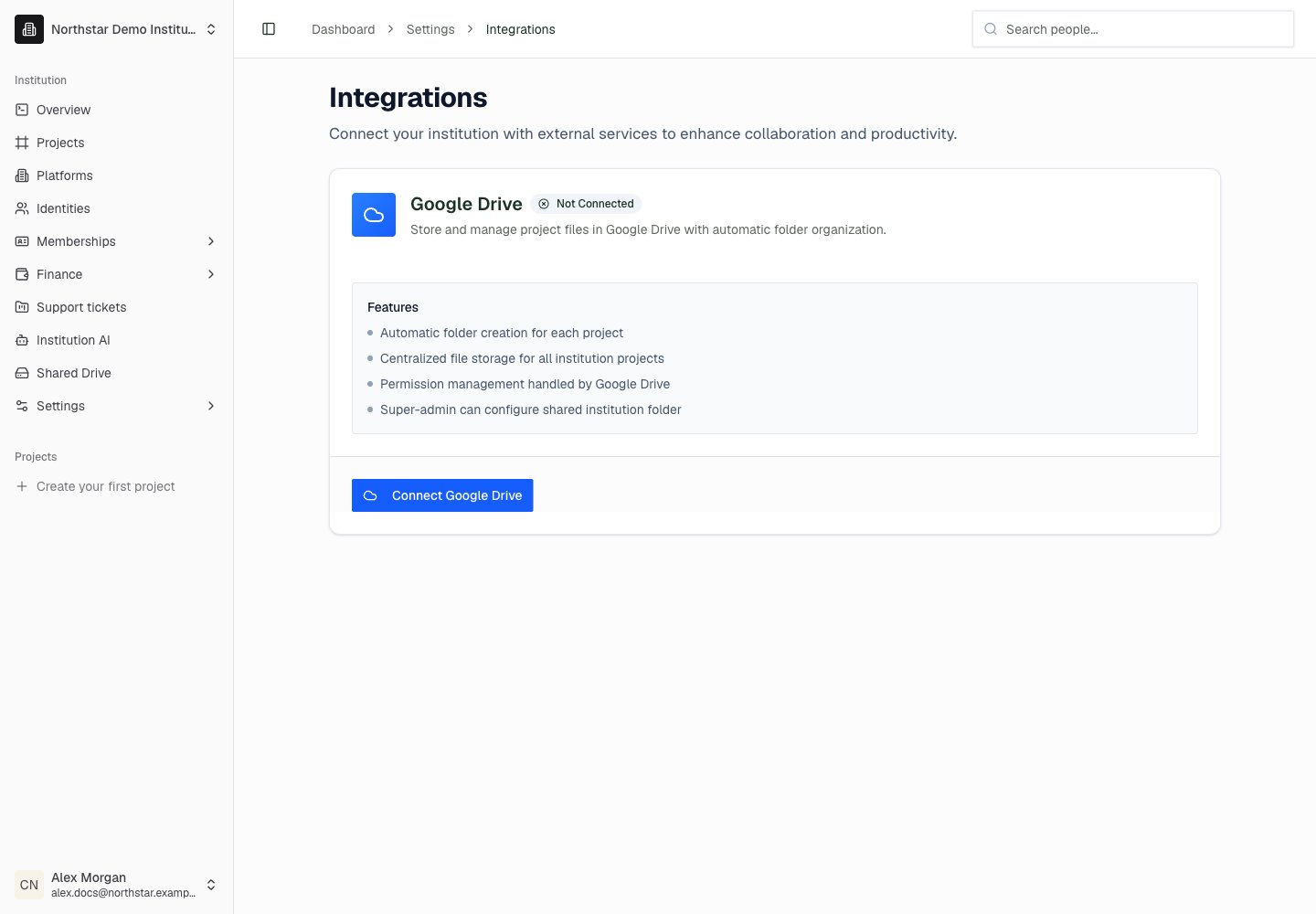
Choose a different root folder
If you’d rather use an existing Drive folder as the parent for project folders:1
Click Choose Root Folder
On the connected Google Drive card, click Choose Root Folder.
2
Pick a folder
The Select institution root folder dialog lists the folders in your Drive. Use the search box to filter, select one, and click Use this folder.
Automatic project folders
Once Google Drive is connected:- Creating a project automatically creates a Drive folder named after the project inside the root folder, and shares it with the project’s members using their identity emails.
- Feed attachments posted in a project are uploaded to that project’s folder.
- The project’s Drive tab lists the folder’s contents inside DeanDesk, and each project can be re-pointed at a different folder with its own Choose Folder picker.
Disconnect
Click Disconnect on the Google Drive card and confirm. Disconnecting:- Does not delete any files or folders in your Google Drive
- Stops automatic folder creation and file syncing for projects