School-level feature — managed within your school portal at
yourschool.deandesk.com. School Users are separate from institution staff Identities.Video walkthrough
This walkthrough uses the real DeanDesk interface with the fictional Northstar Academy demo school and a calm, AI-generated English voice. Payments and outside services are not connected in the demo.
Search for a student
Combine name, username, or email search with filters for roles, adult/child/parent type, account status, grade, rosters, courses, accepted admission tracks, and product purchases. Use Any Status to include inactive accounts. Results include profile identifiers, roles, grade, type, status, and creation date. Open a result to manage the user.Export results to CSV
Set filters first, then click Export to open the Export users dialog. The export includes all matching users, not only the currently loaded page. Choose user columns, optional parent information, and custom metadata. See Export users.View a student’s profile
The user details navigation contains:
The fields shown depend on Profile Form Settings. A child’s profile also lists linked parent/guardian accounts and their contact details.
The page header also provides Start off-boarding and Delete user. Use User search to return to the search grid.
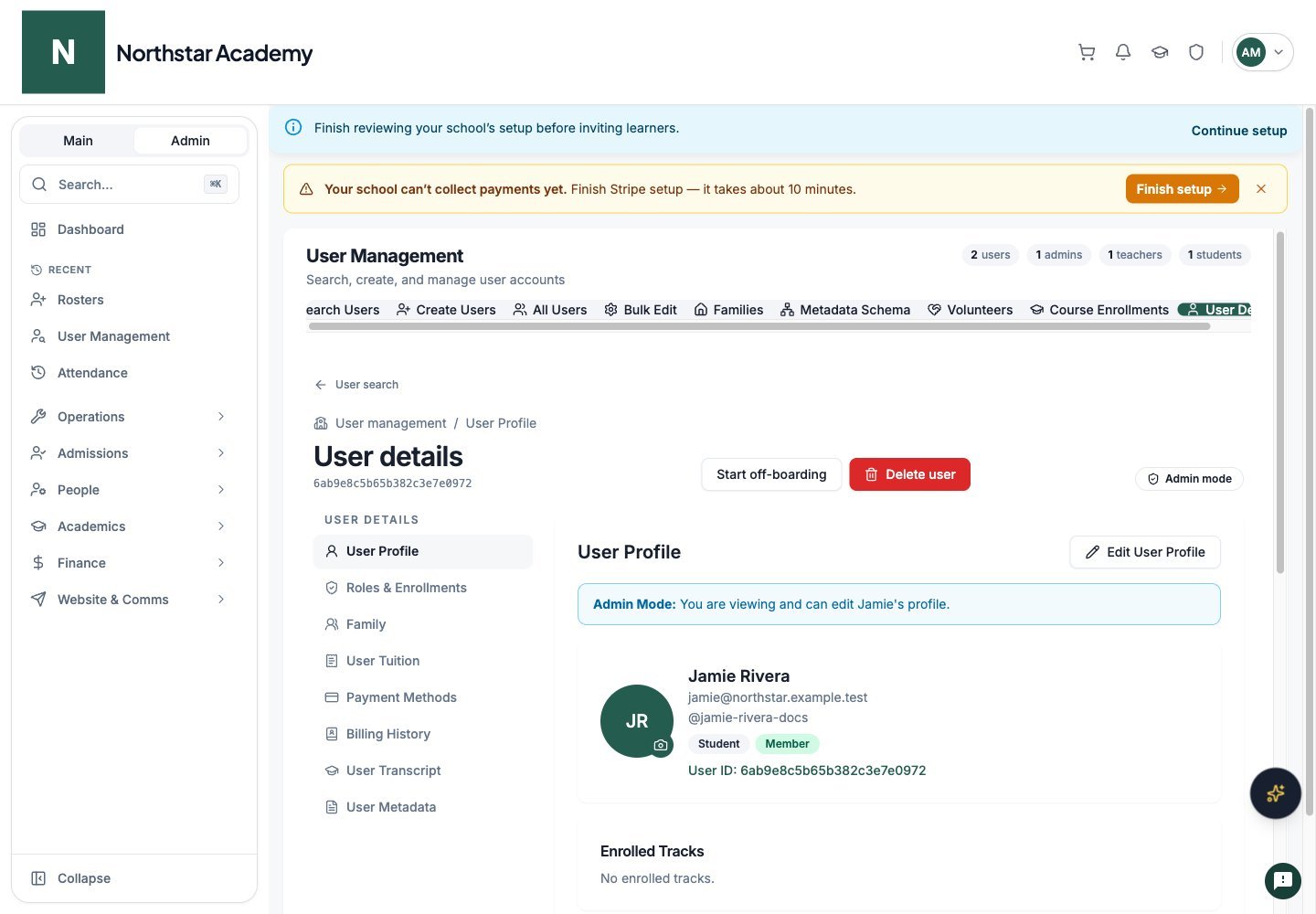
Northstar demo — User Details — User Profile
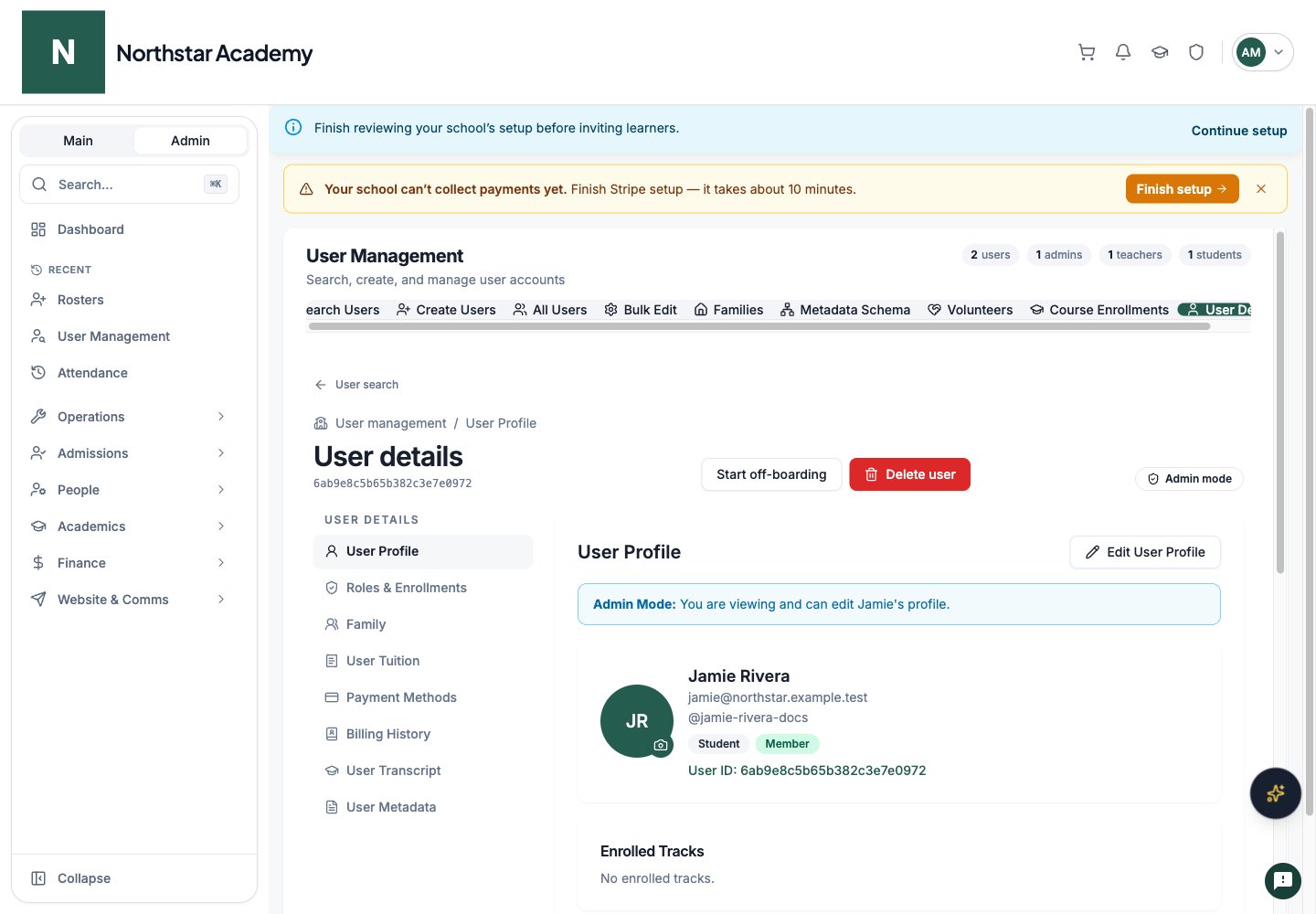
Edit a student’s profile
1
Open User Profile
Find the user in User Management, open their details, and click Edit User Profile in User Profile.
2
Update the relevant fields
Edit contact details and the fields enabled for that account type. Admins can also update Account Status, Account Type, and accepted admission tracks.
3
Save
Save and resolve any required-field validation. Review the updated profile before leaving.
Change a user’s email
1
Open the user's profile
Go to User Management, open the user, and select User Profile → Edit User Profile.
2
Edit the school email
Under Account Information, change Email Address. You can clear the field if the user should have no school contact email.
3
Save and review
Click Save. Email addresses are trimmed and converted to lowercase. An invalid address or an address already used by another user in this school cannot be saved. Correct the address and try again.
This changes the contact email on this school’s User account. It does not change the shared institution login email or the user’s accounts in other schools. See Institutions & Schools for the distinction between Users and Identities.
Manage the profile photo and custom fields
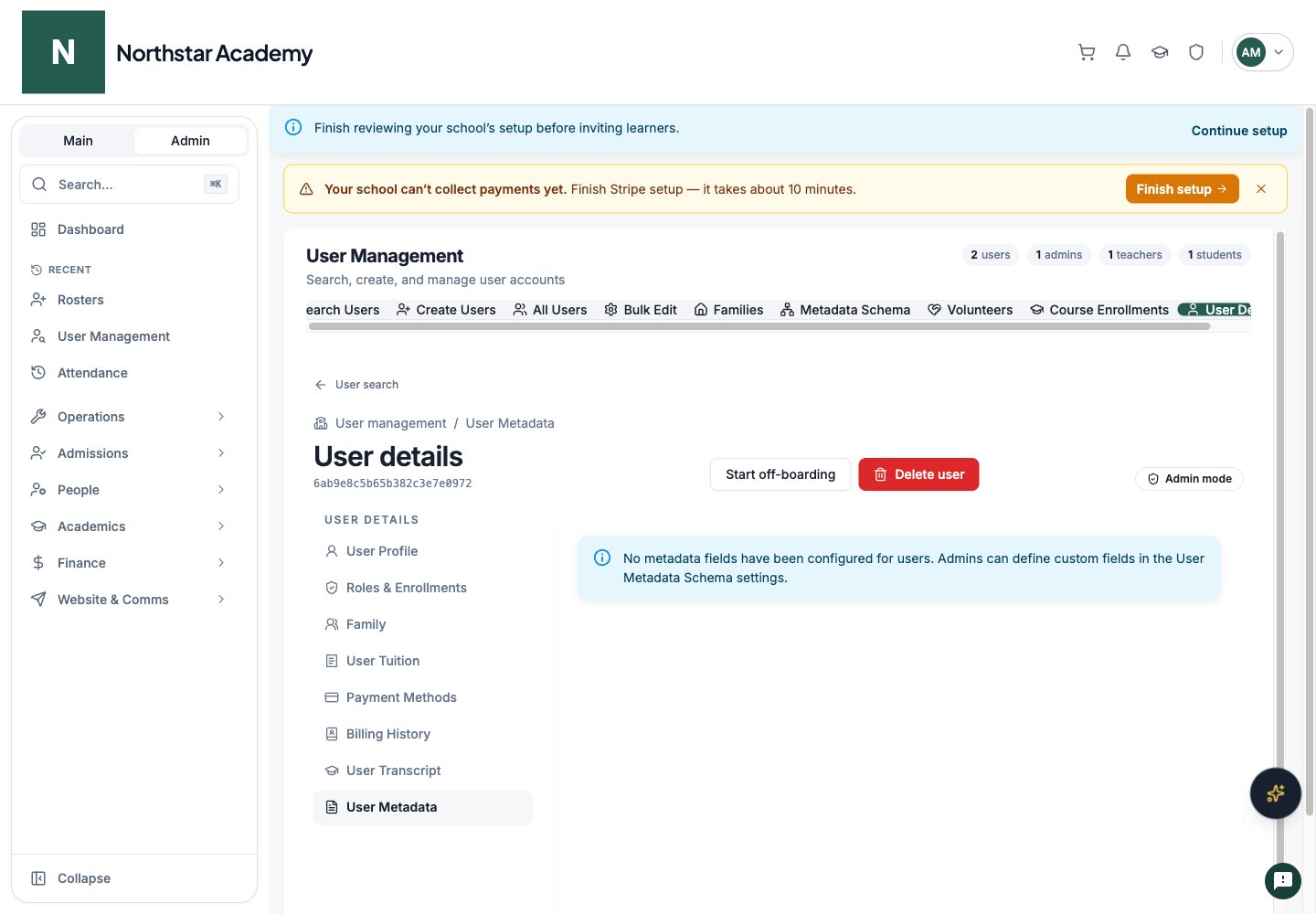
Use the photo controls to upload, replace, or remove a profile picture. Edit the personal, contact, emergency contact, and other profile fields available for the account. Use User Metadata for school-specific custom fields.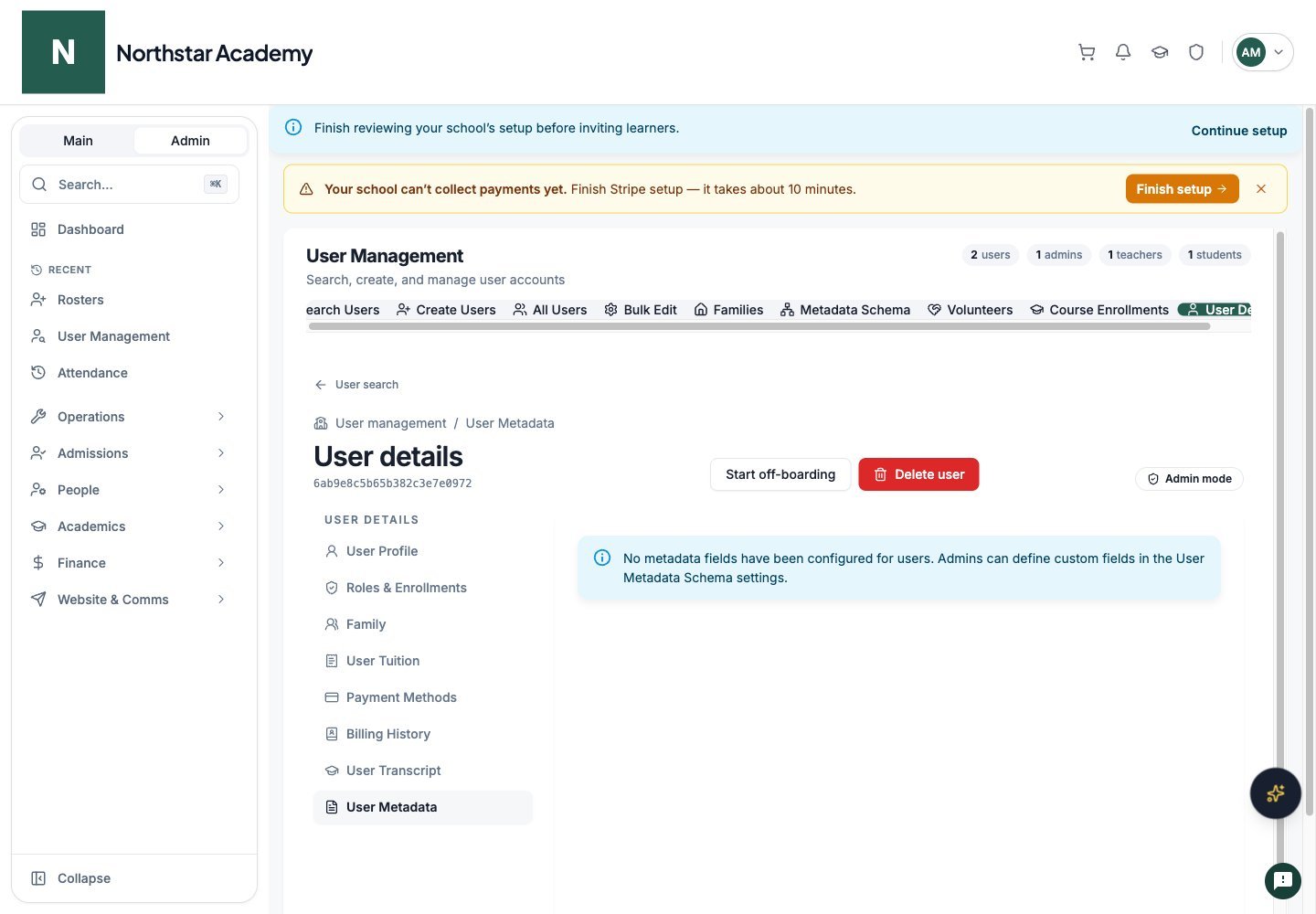
Northstar demo — User Details — User Metadata
Change an adult account to a child
Admins can change Account Type between Adult and Child. When converting an adult to a child, select an eligible parent and complete required child information. Review the family links after saving. Account type describes the person; roles separately determine access.Roles, enrollment, and family links
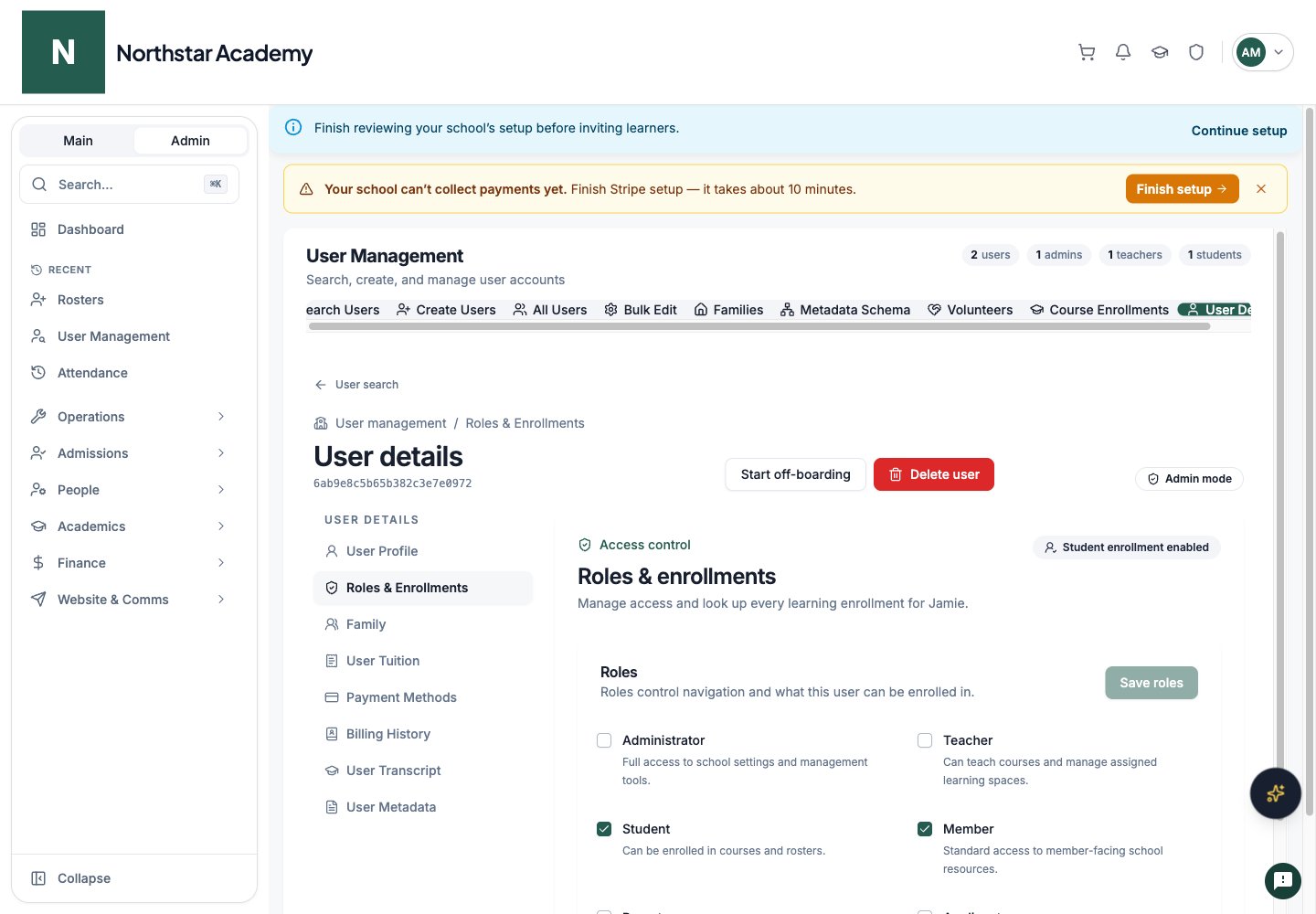
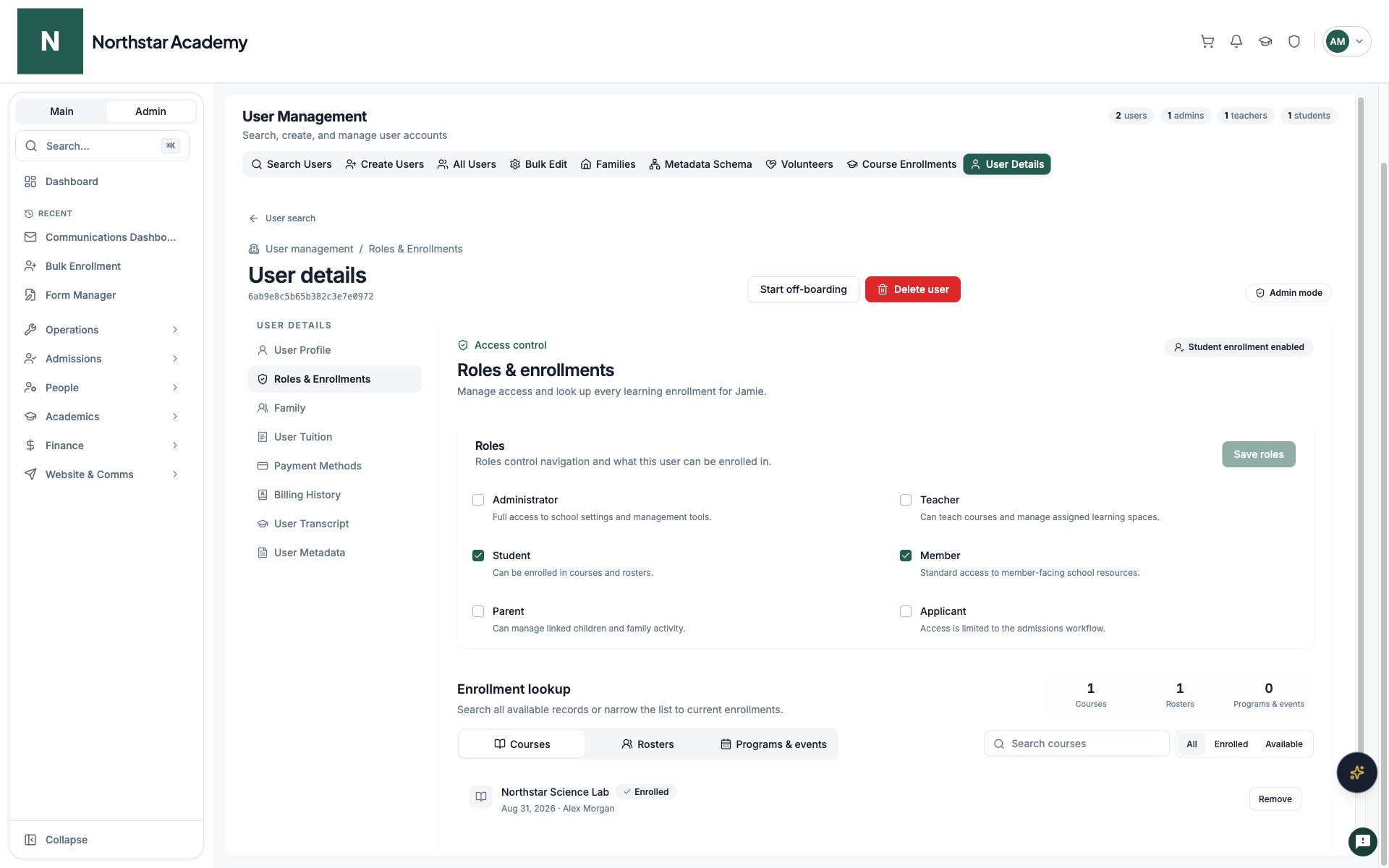
Open Roles & Enrollments to manage roles and enrollment. Click Save roles after changing role selections. The Courses, Rosters, and Programs & events tabs let you search available destinations and filter by enrollment status. Add or remove the user from the appropriate destination.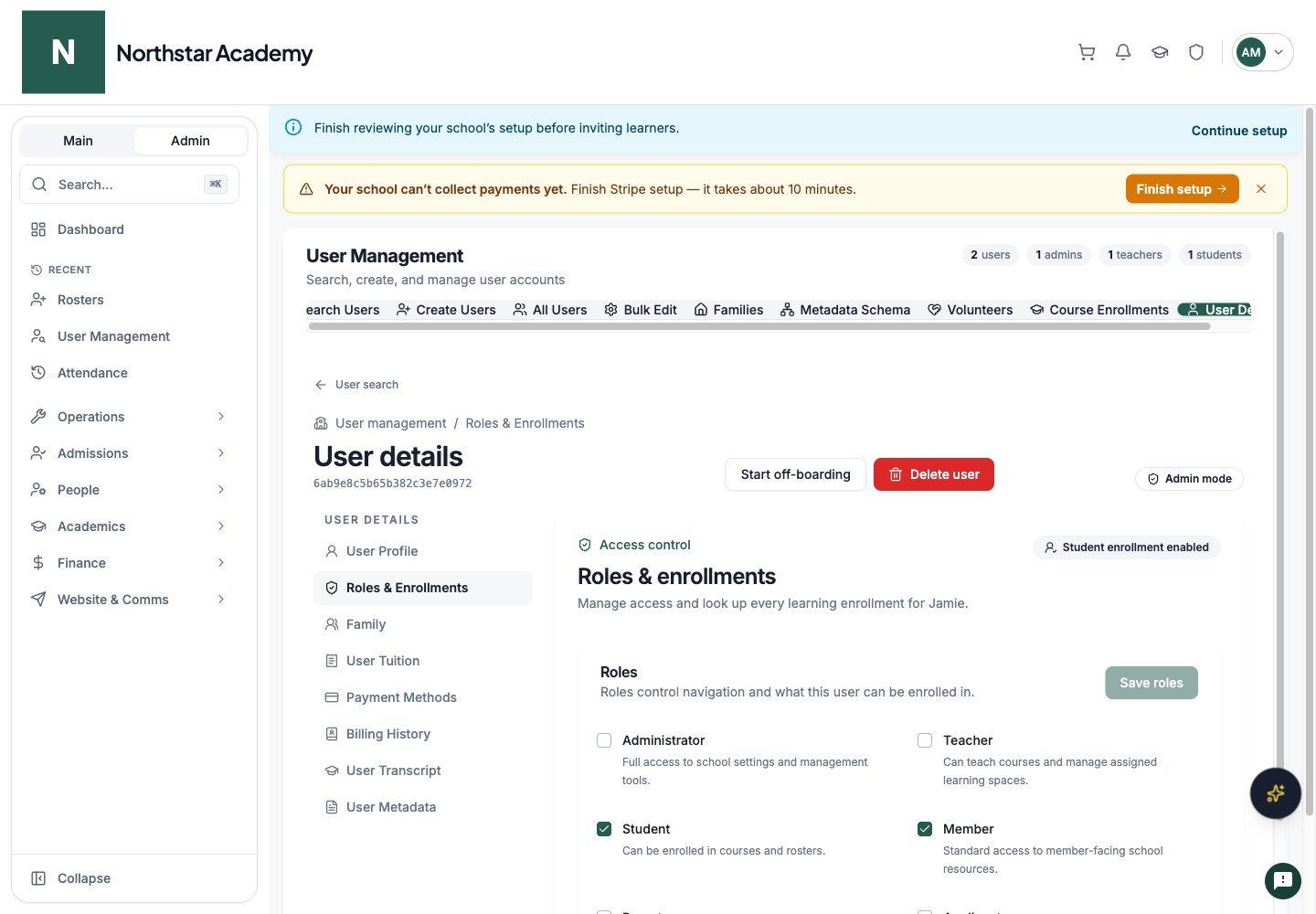
Northstar demo — User Details — Roles & Enrollments
Course enrollments
Choose Courses, search the available courses, and use the enrollment filters to review or change this User’s course access.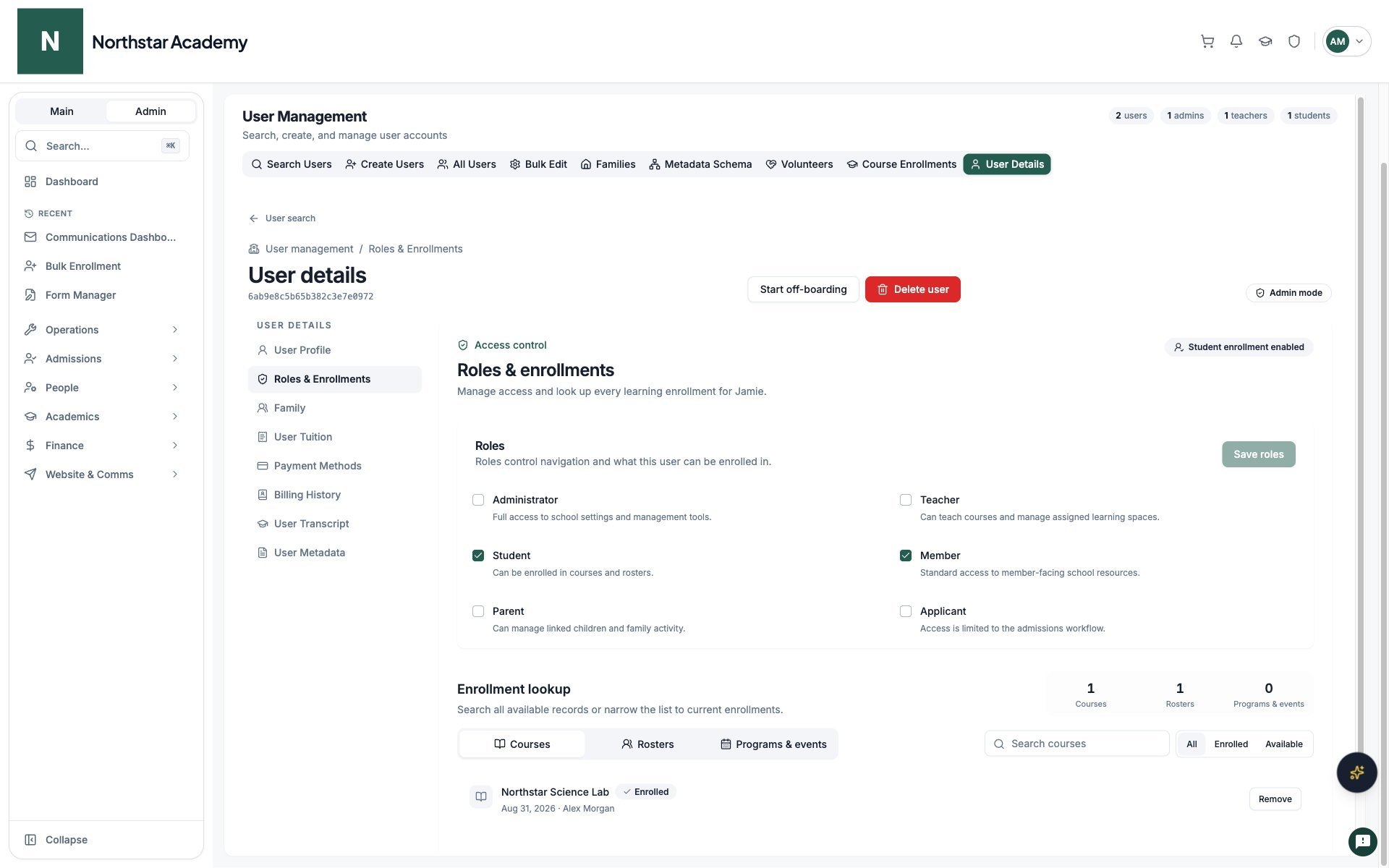
Northstar demo — User Details — Courses
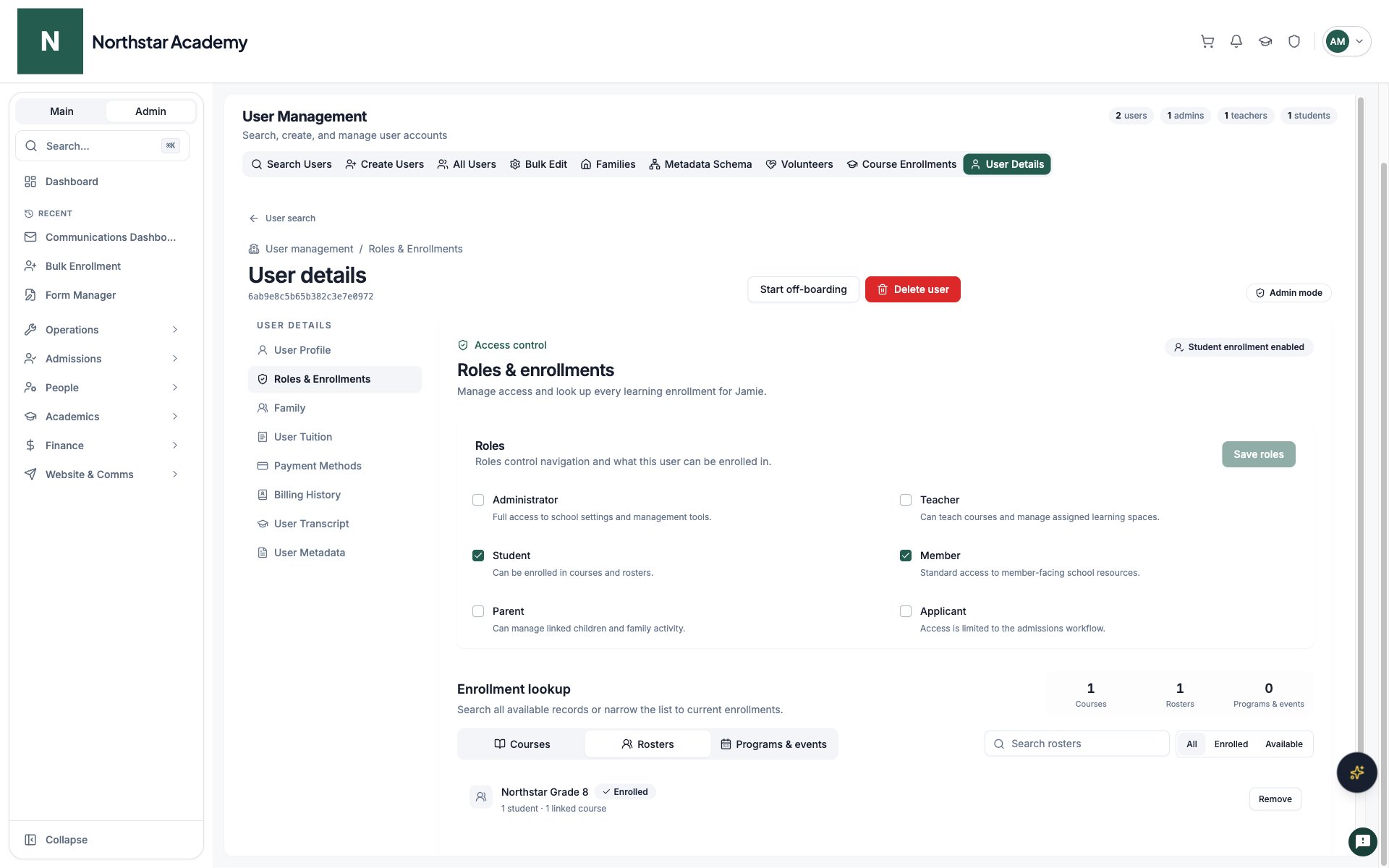
Roster enrollments
Choose Rosters to find the User’s roster memberships and available rosters.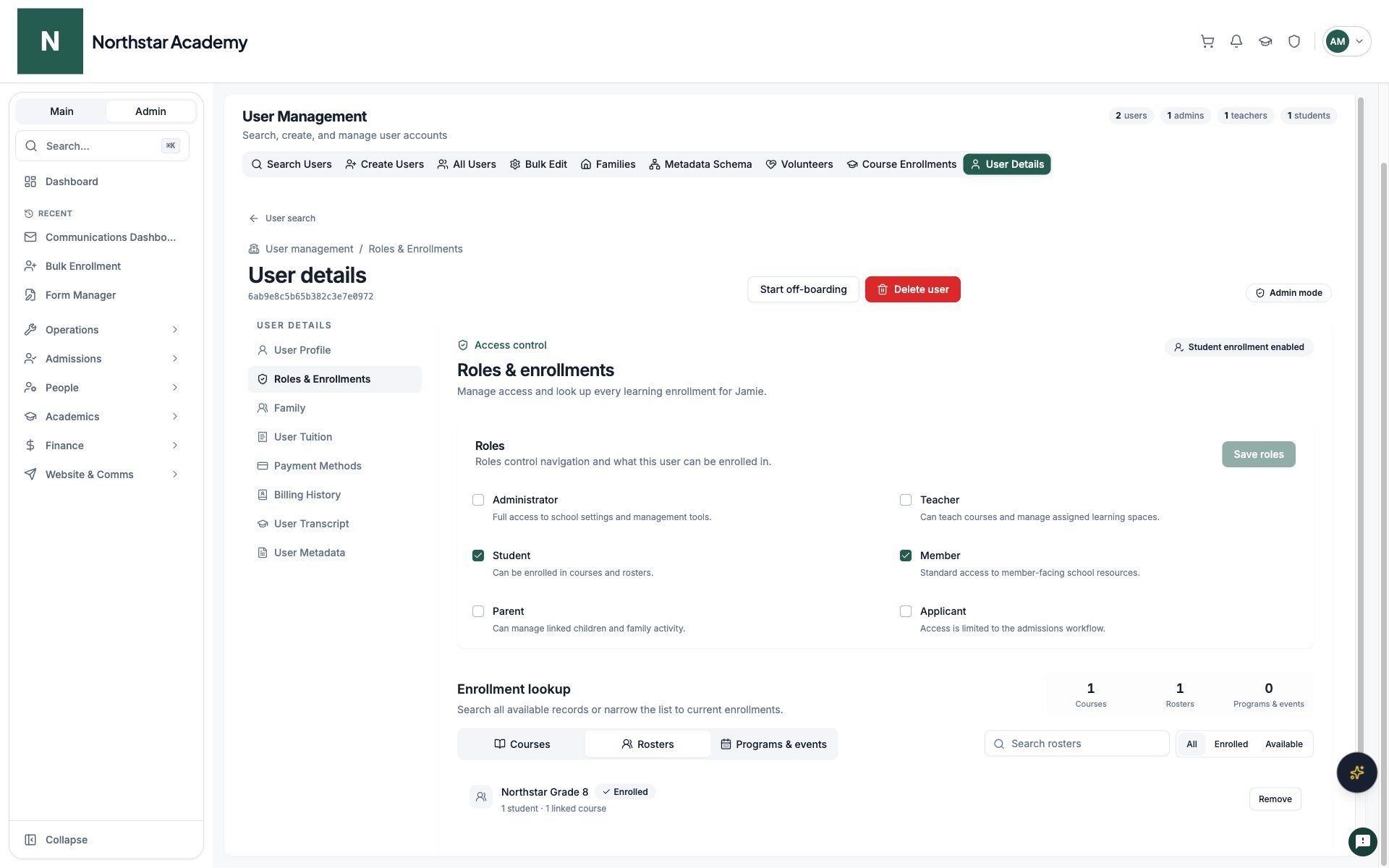
Northstar demo — User Details — Rosters
Program and event enrollments
Choose Programs & events to review the User’s program and event enrollments.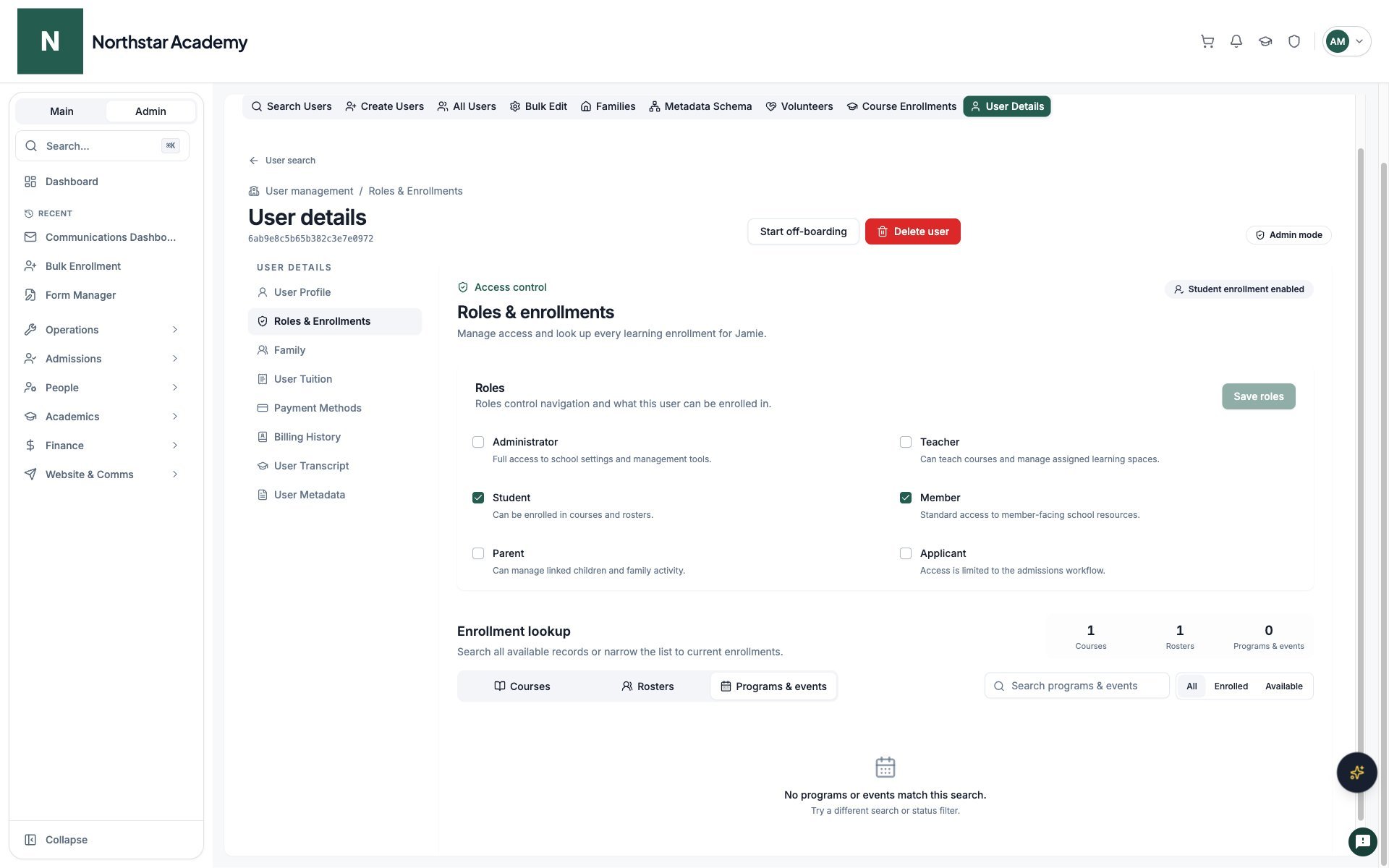
Northstar demo — User Details — Programs & events
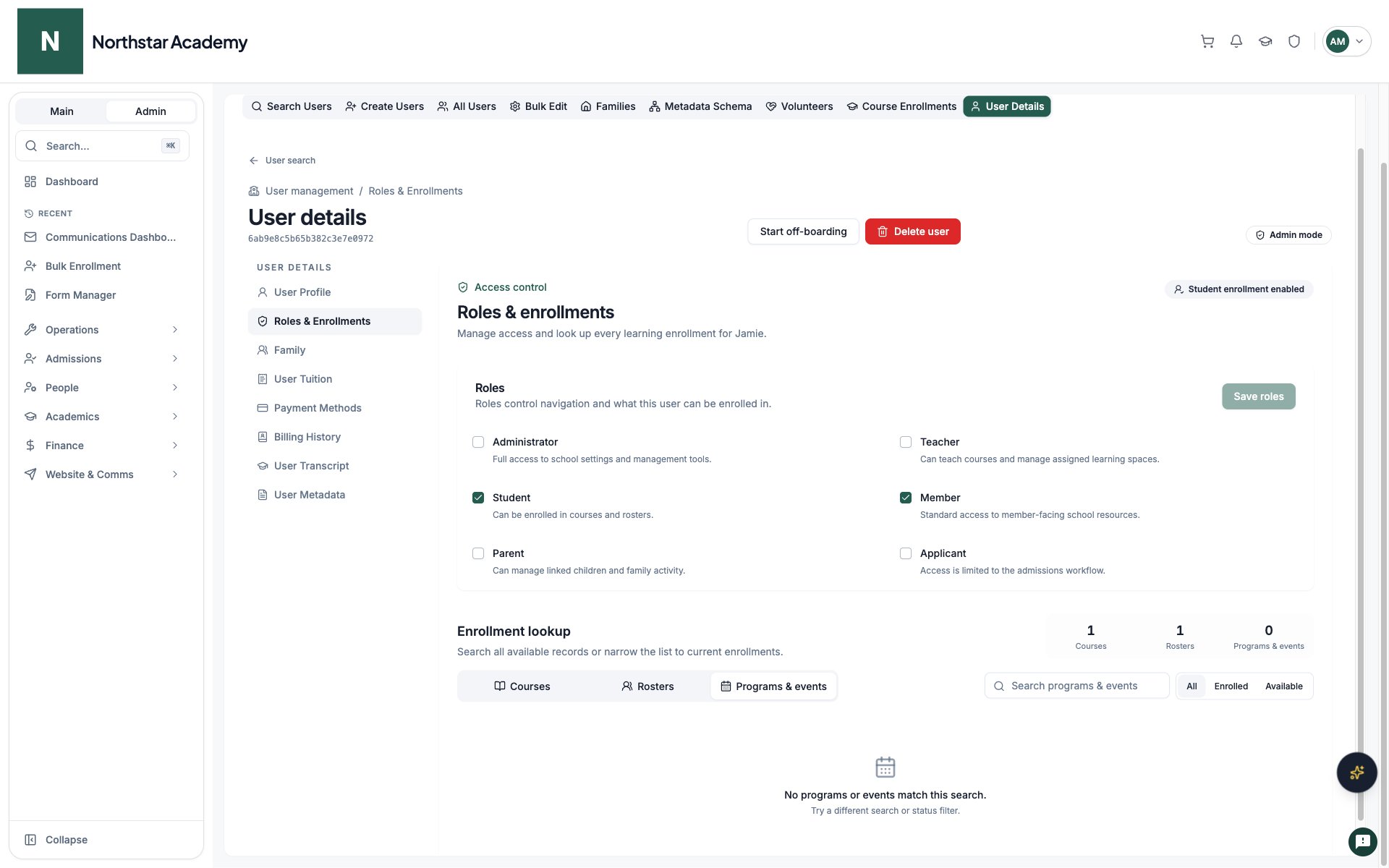
Family relationships
Use Family for parent/child relationships. Being linked to a child is different from enrolling the parent in that child’s courses. See Admissions for the Accepted Parent role at schools where only children enroll.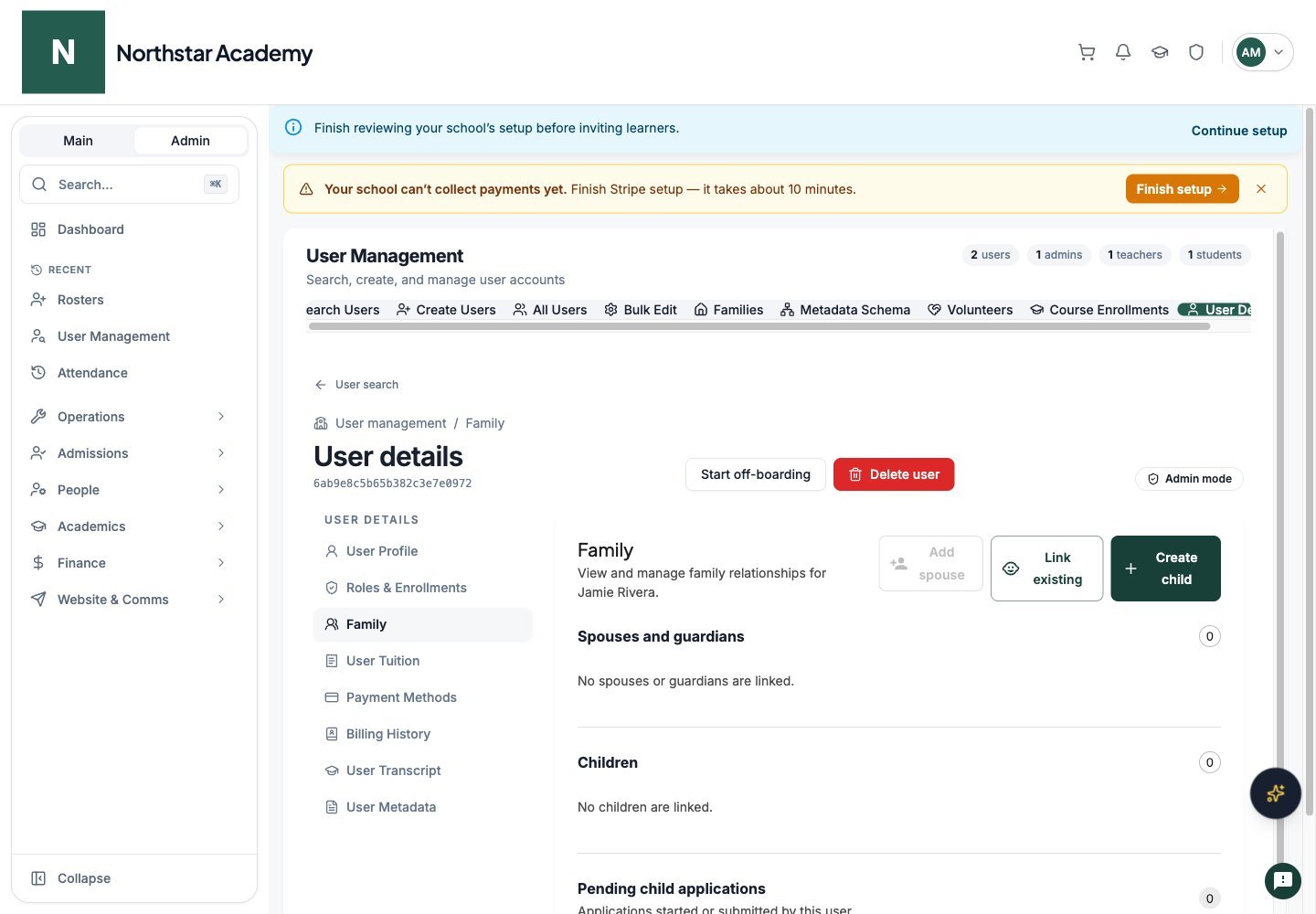
Northstar demo — User Details — Family
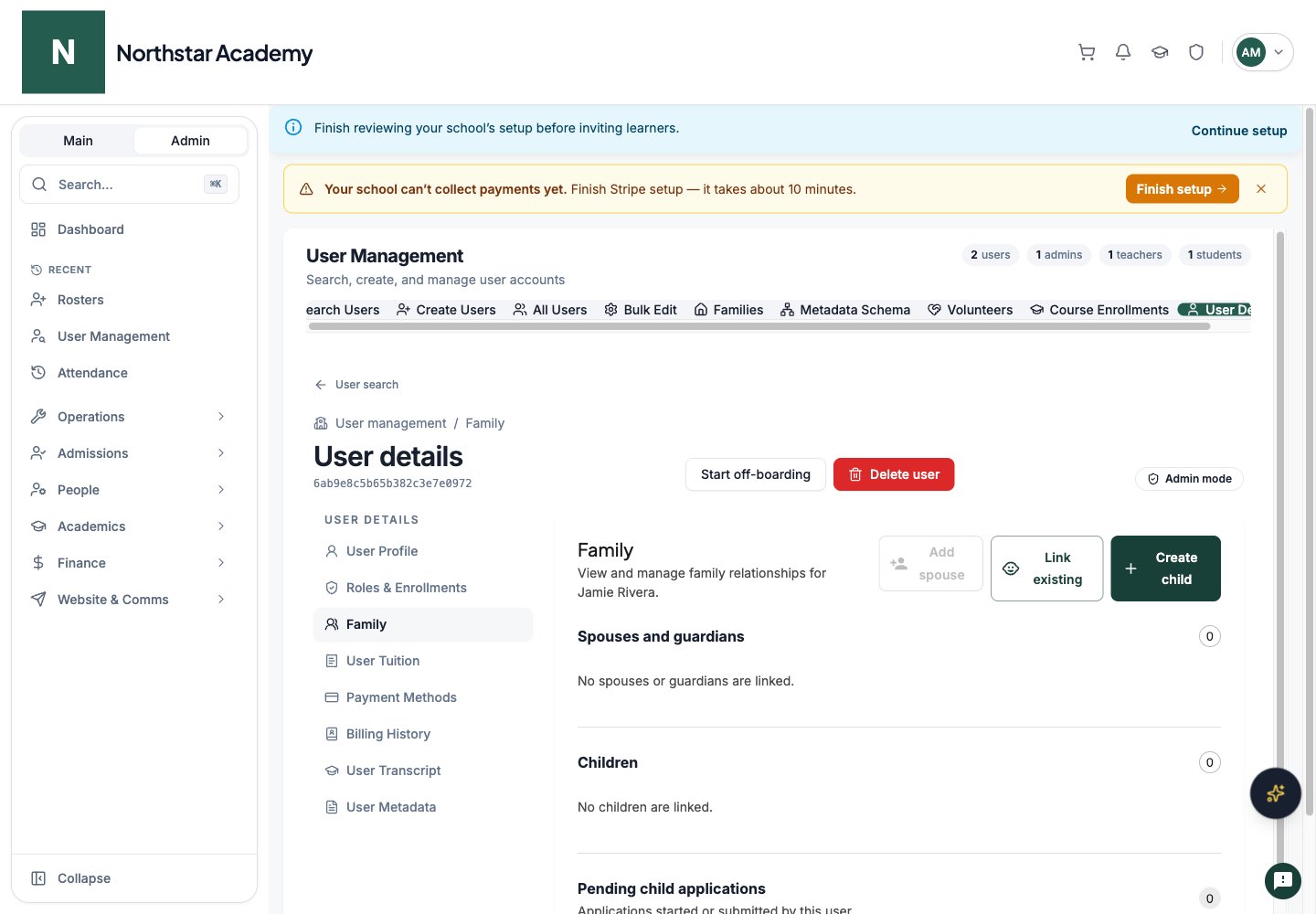
Tuition and billing
User Tuition
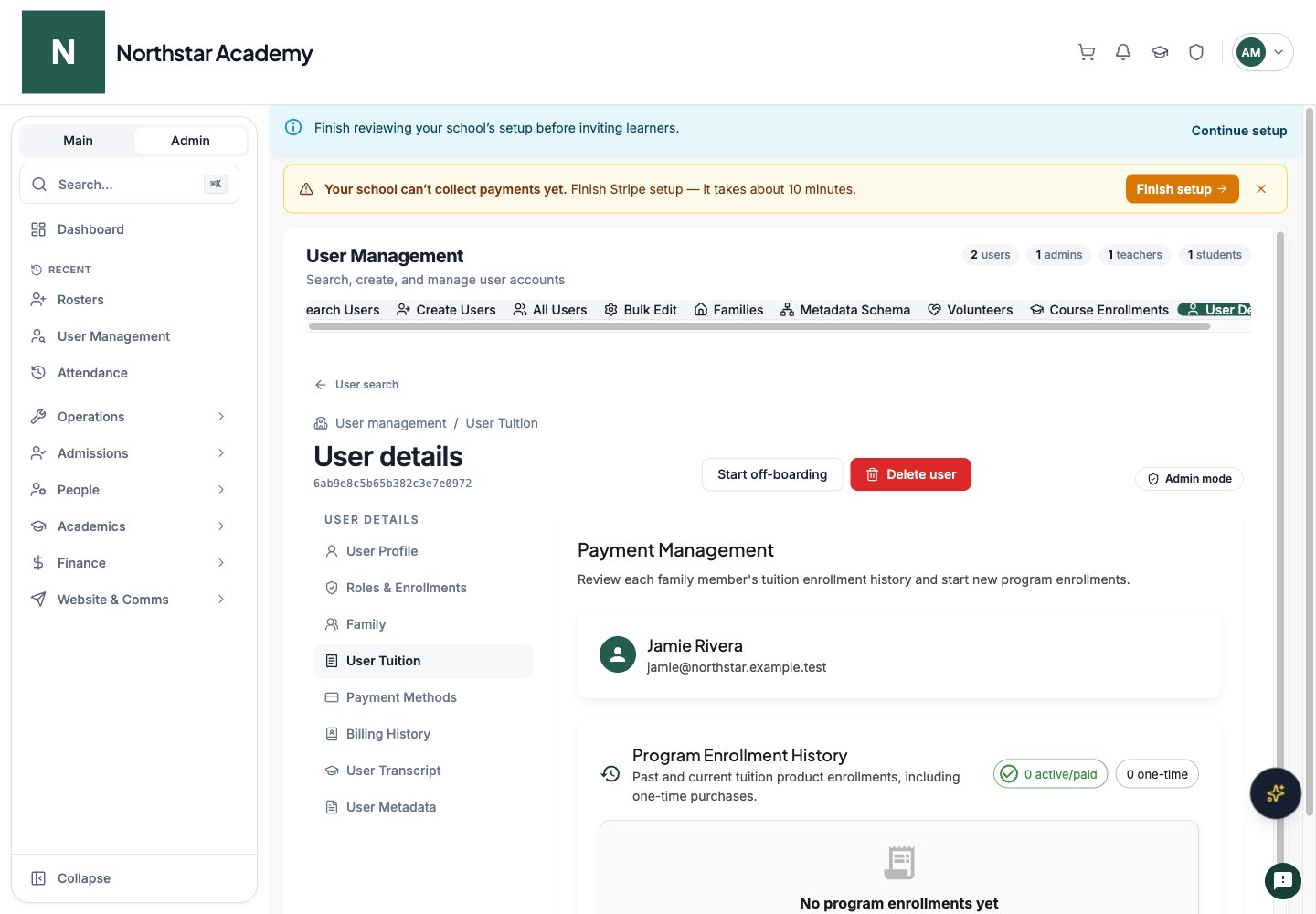
Open User Tuition to review tuition and start an enrollment. Starting a program enrollment keeps you in the selected user’s workspace; review the family member and payer before submitting it.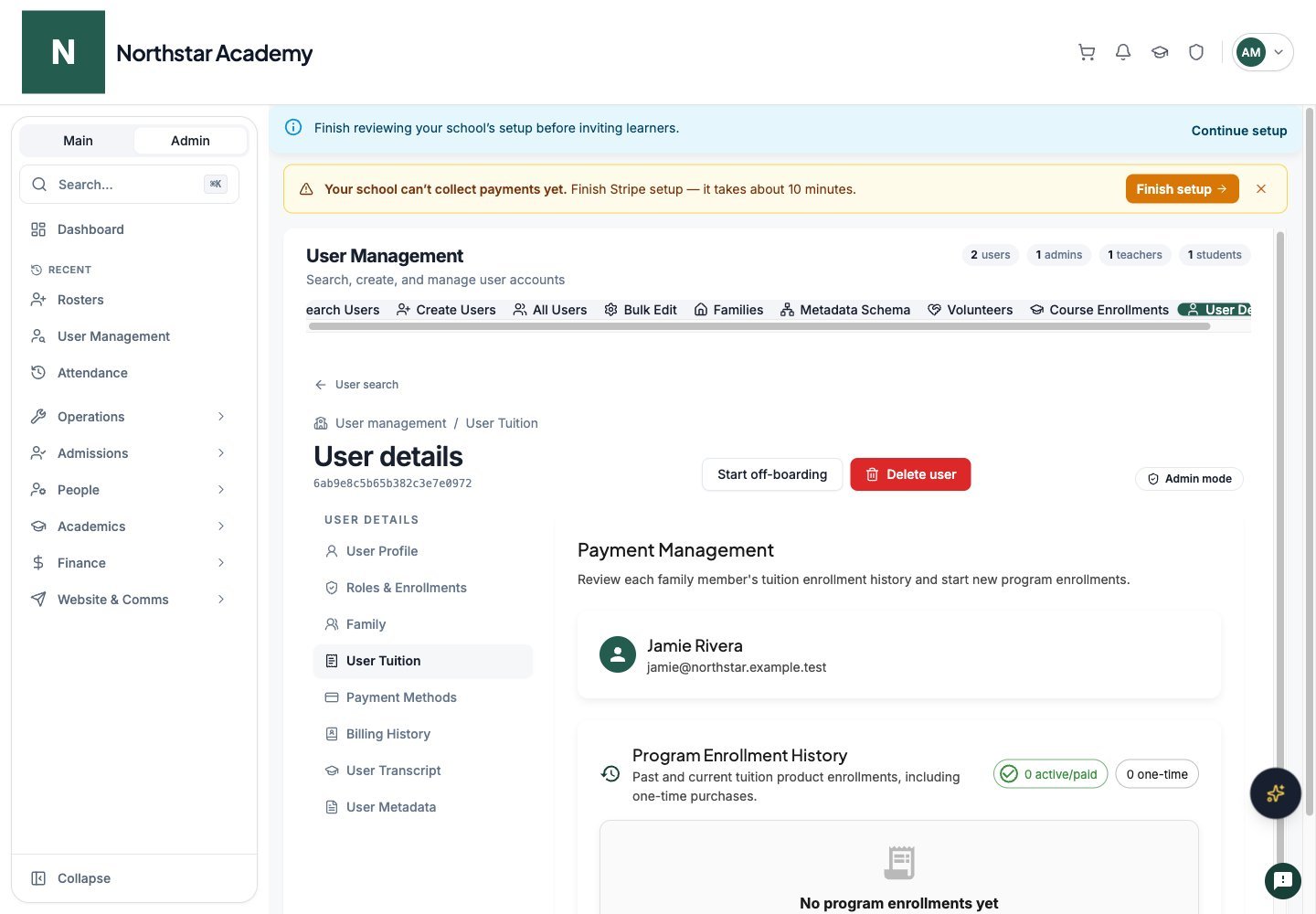
Northstar demo — User Details — User Tuition
Payment Methods
Use Payment Methods to manage saved payment methods and the default payment method.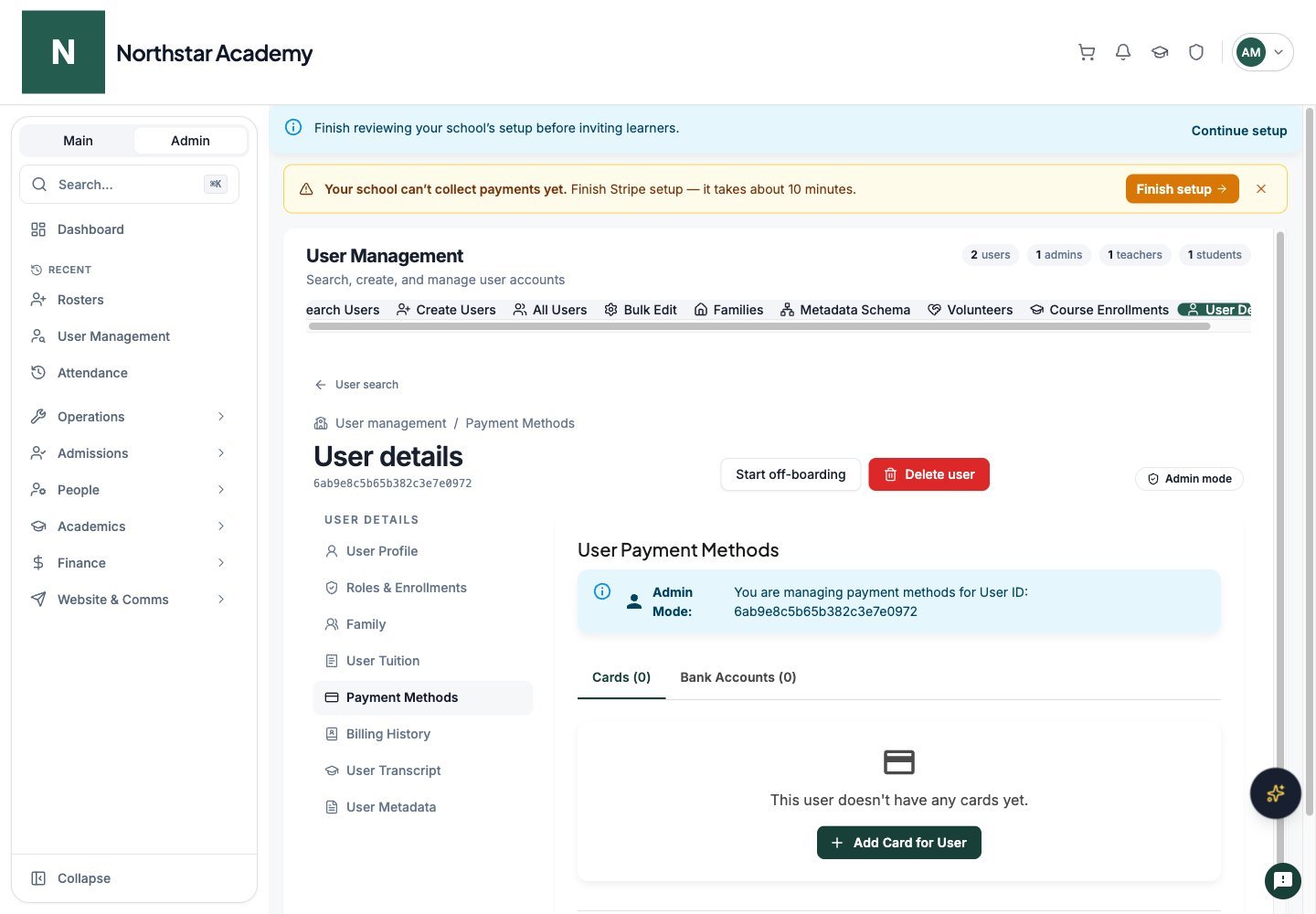
Northstar demo — User Details — Payment Methods
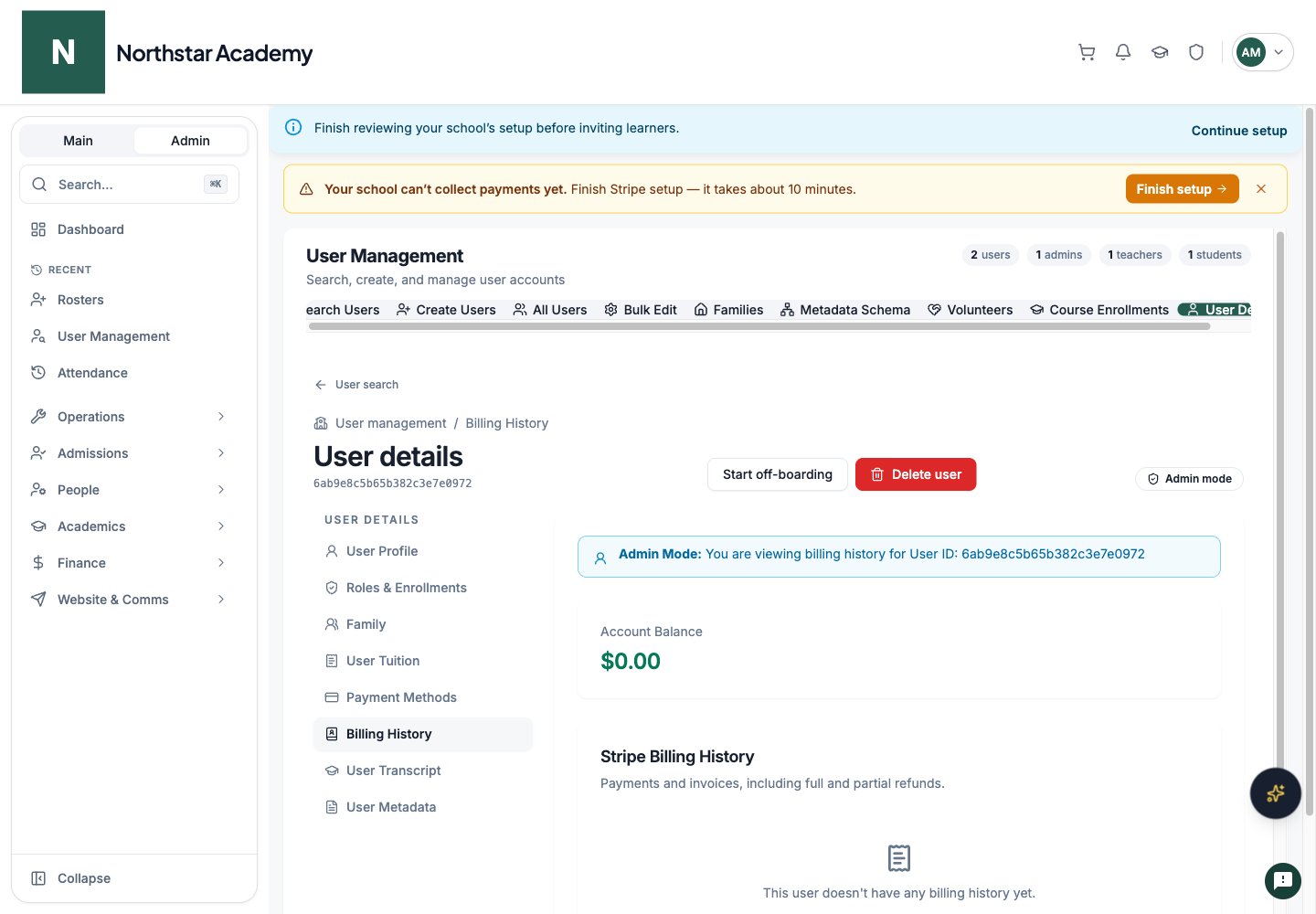
Billing History
Use Billing History to review charges and invoices, open available receipts, and use Refund for eligible transactions. Review billing before deleting a user.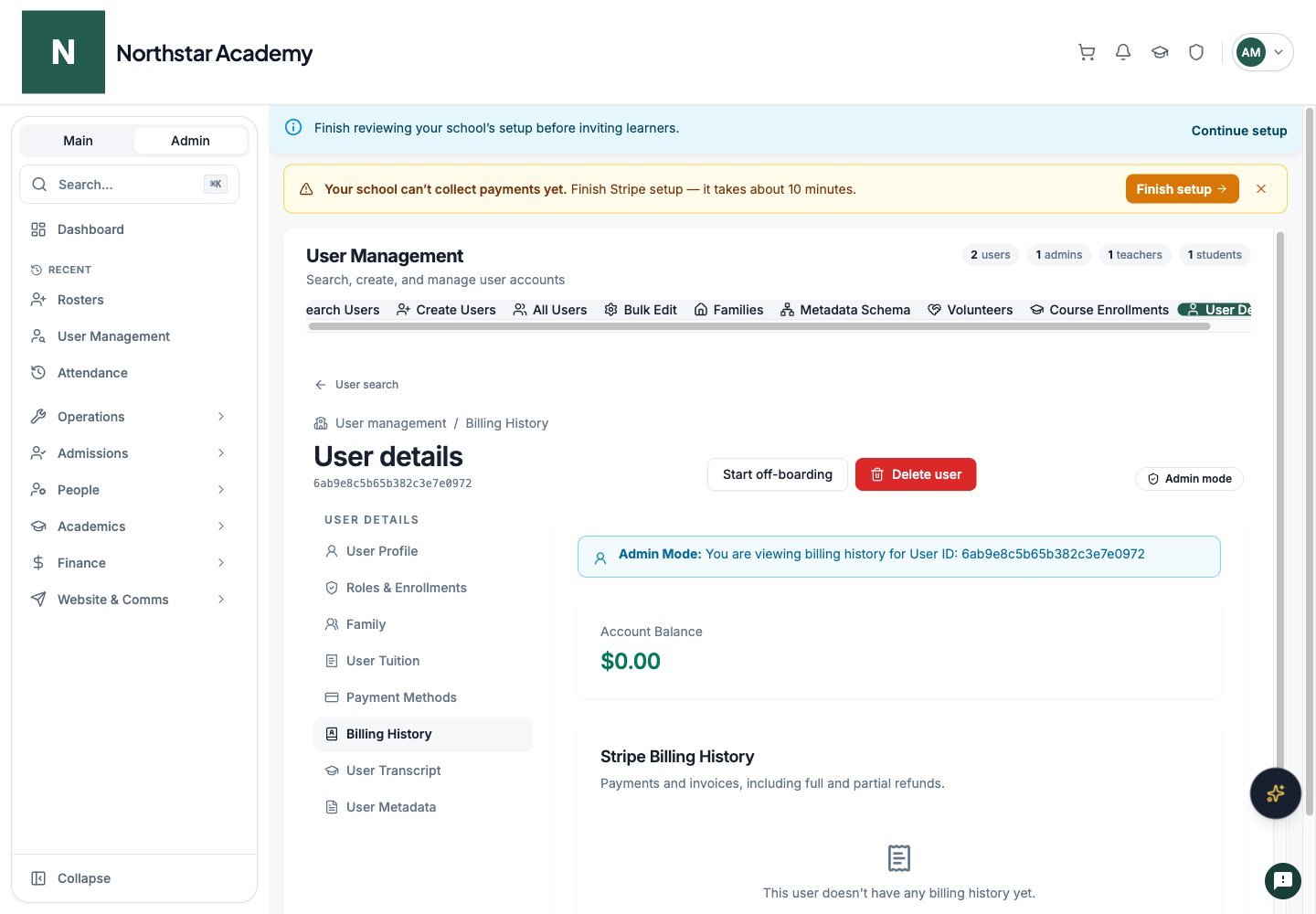
Northstar demo — User Details — Billing History
Off-board or delete a user
Use Start off-boarding for a guided review of the user’s enrollments, roles, subscriptions, billing, and account decision. This opens off-boarding with the current user selected. See Off-boarding for all six review steps and the family workflow. To permanently remove a school account, use Delete user in the page header. See Delete a user for the steps, effects on linked children and records, and the option to deactivate an account instead.Generate a transcript
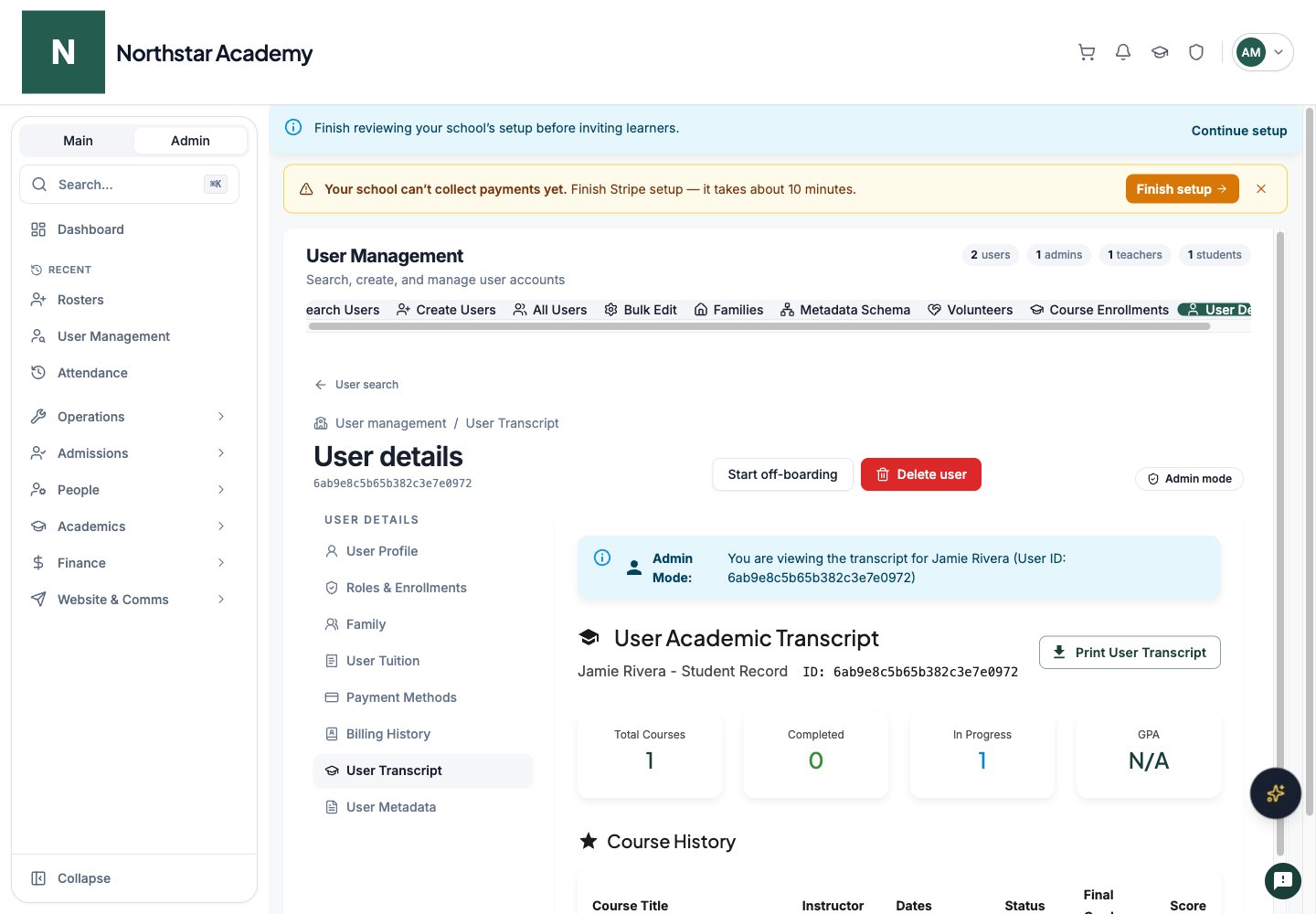
Open User Transcript to review the student’s course history, final grades, and available reports. Check grades before generating academic records. School-wide grading standards determine letter grades and GPA calculations. For configurable official reports, templates, and generation, use Student reports.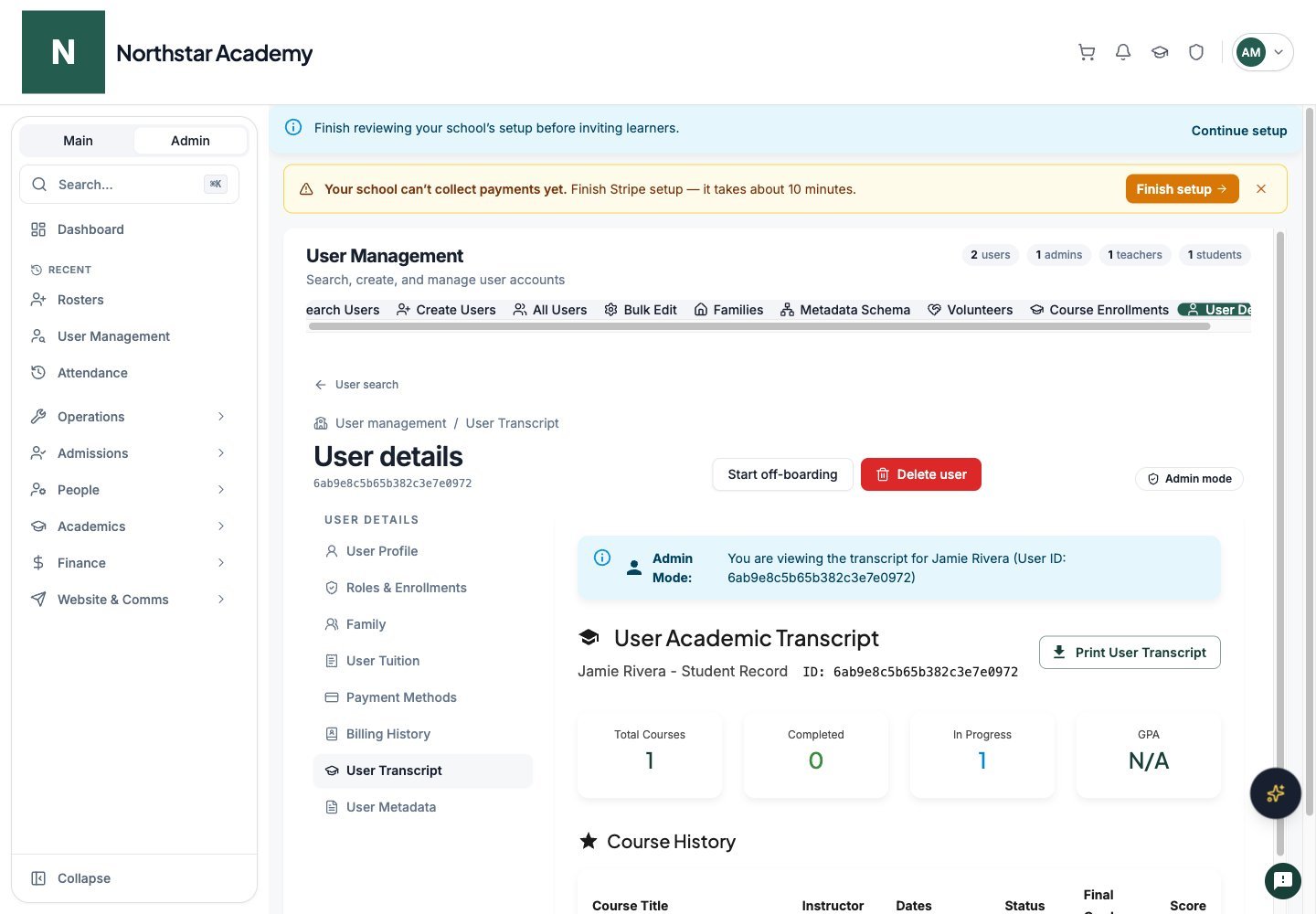
Northstar demo — User Details — User Transcript
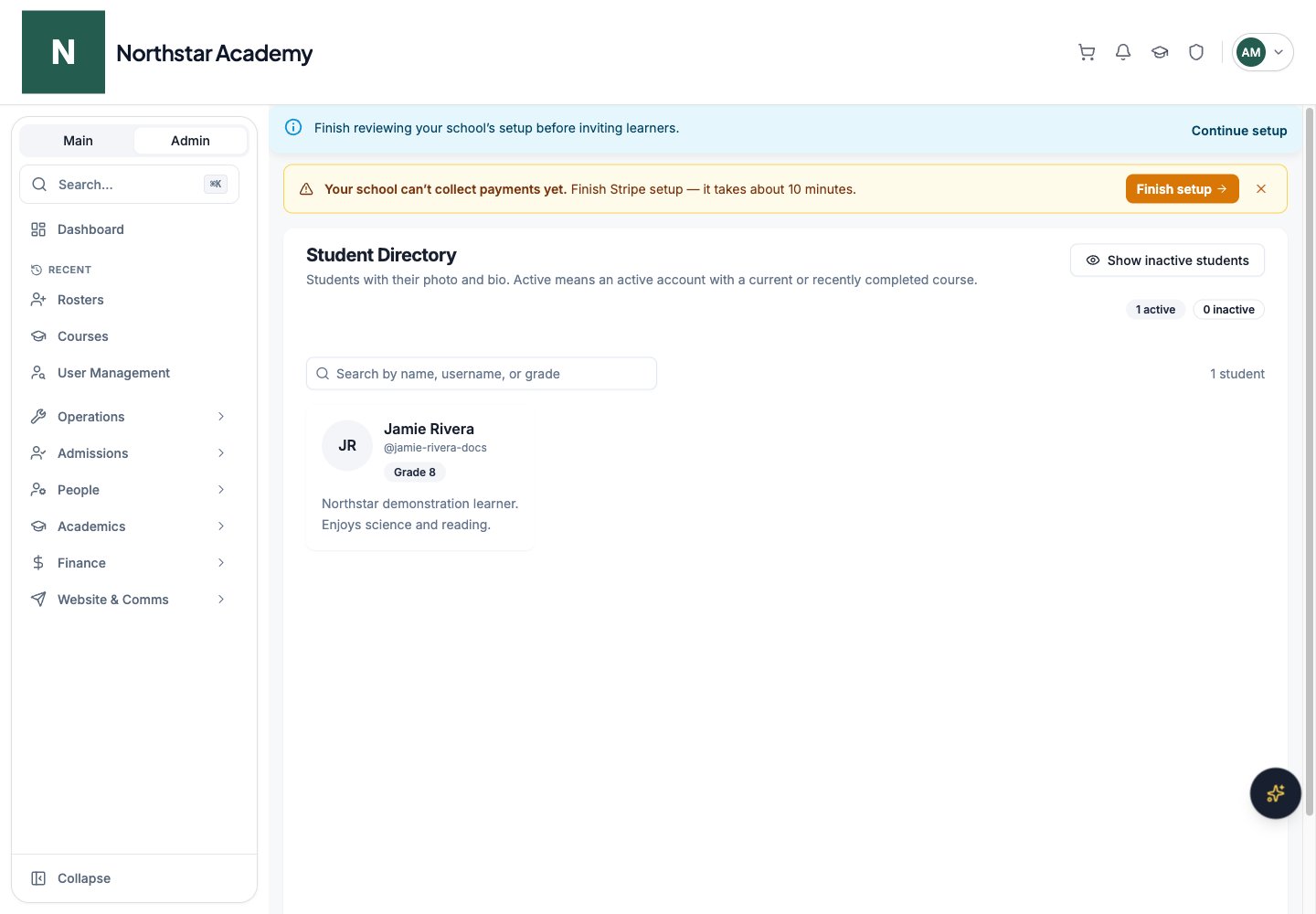
Student directory
The Student Directory gives teachers and administrators a photo-based view of currently active students. Search by name, username, or grade, then open a card for the student’s photo and bio. The admin directory adds Show inactive students, active/inactive counts, and a link to the full user profile. Inactive reasons distinguish Account deactivated from No current enrollment. The teacher directory shows active students only. This directory is not a public community contact list.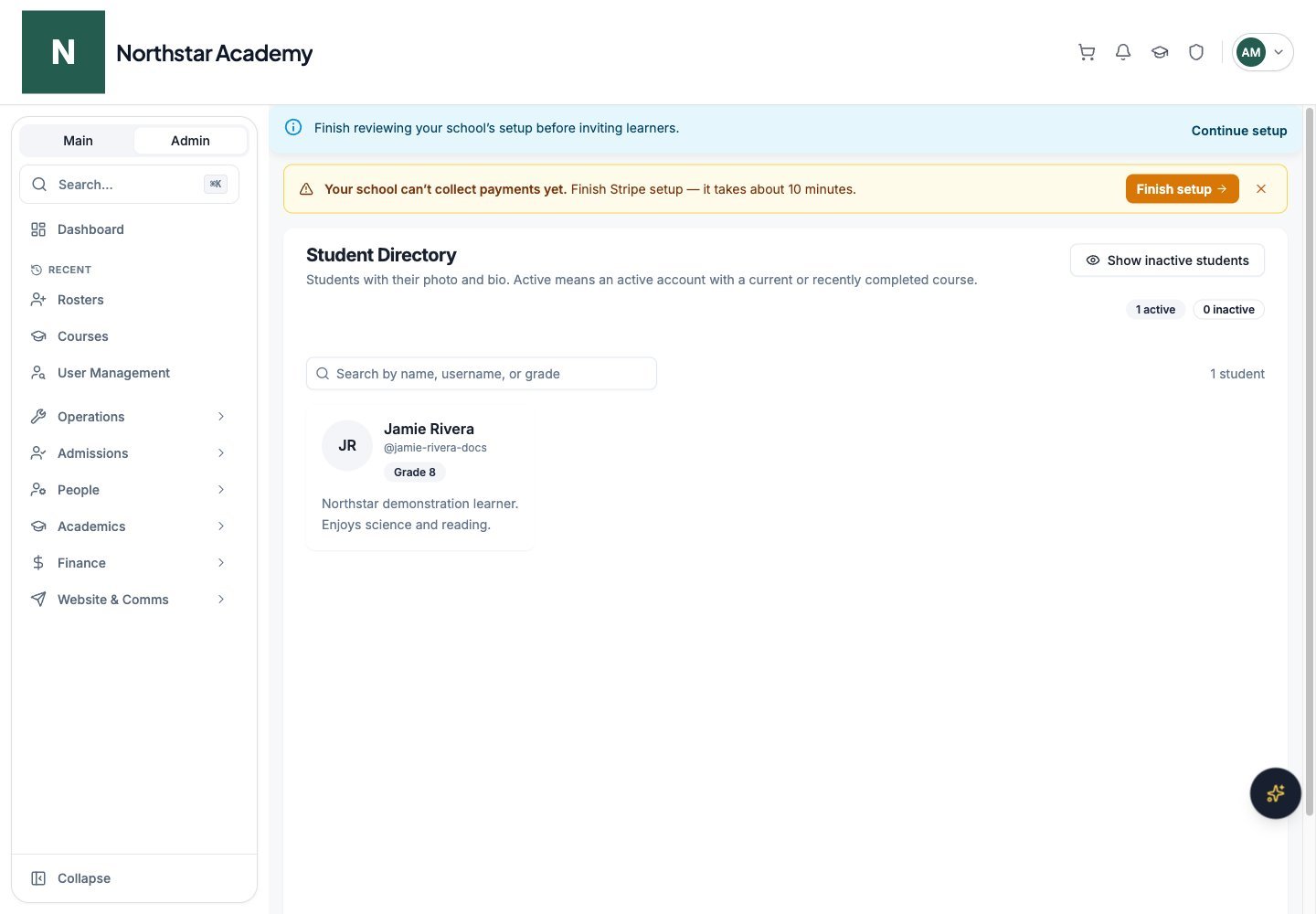
Northstar demo — Student Directory