

School-level feature — managed within your school portal at
yourschool.deandesk.com.Video walkthrough
This walkthrough uses the real DeanDesk interface with the fictional Northstar Academy demo school and a calm, AI-generated English voice. Payments and outside services are not connected in the demo.
Open the page editor
Open Admin Dashboard → Website & Comms → Website. The console opens on the Pages tab and also includes Blog, Built-In Page Templates, Design, Site Navigation, App Menus, Media, and Marketing. Click Create Page for a custom page or open an existing page to edit it. Settings tabs use a shared save bar. Save changes before switching sections; the console offers save, discard, or keep-editing choices when a tab has pending edits.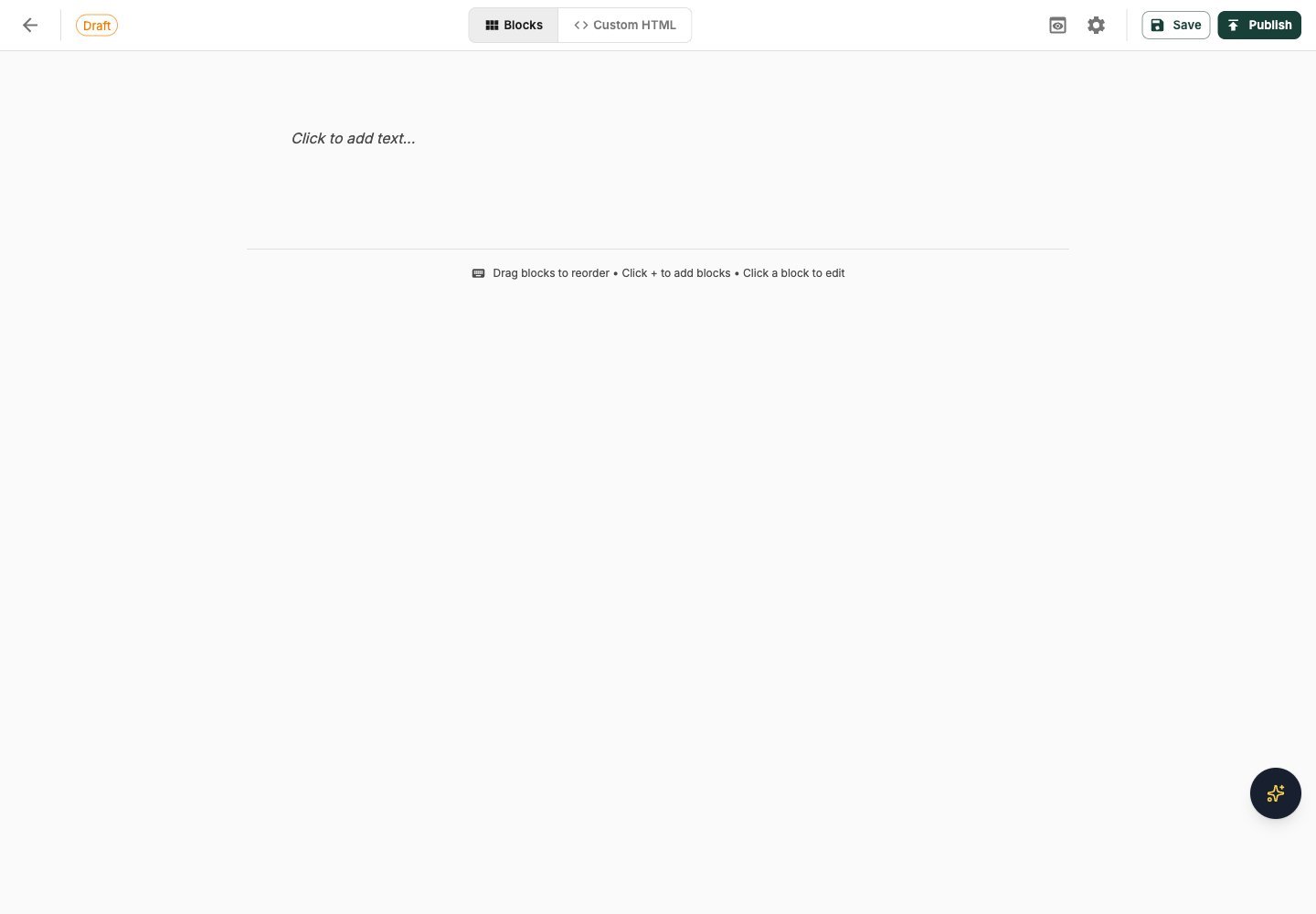
Northstar demo — Create custom page
Page editor modes
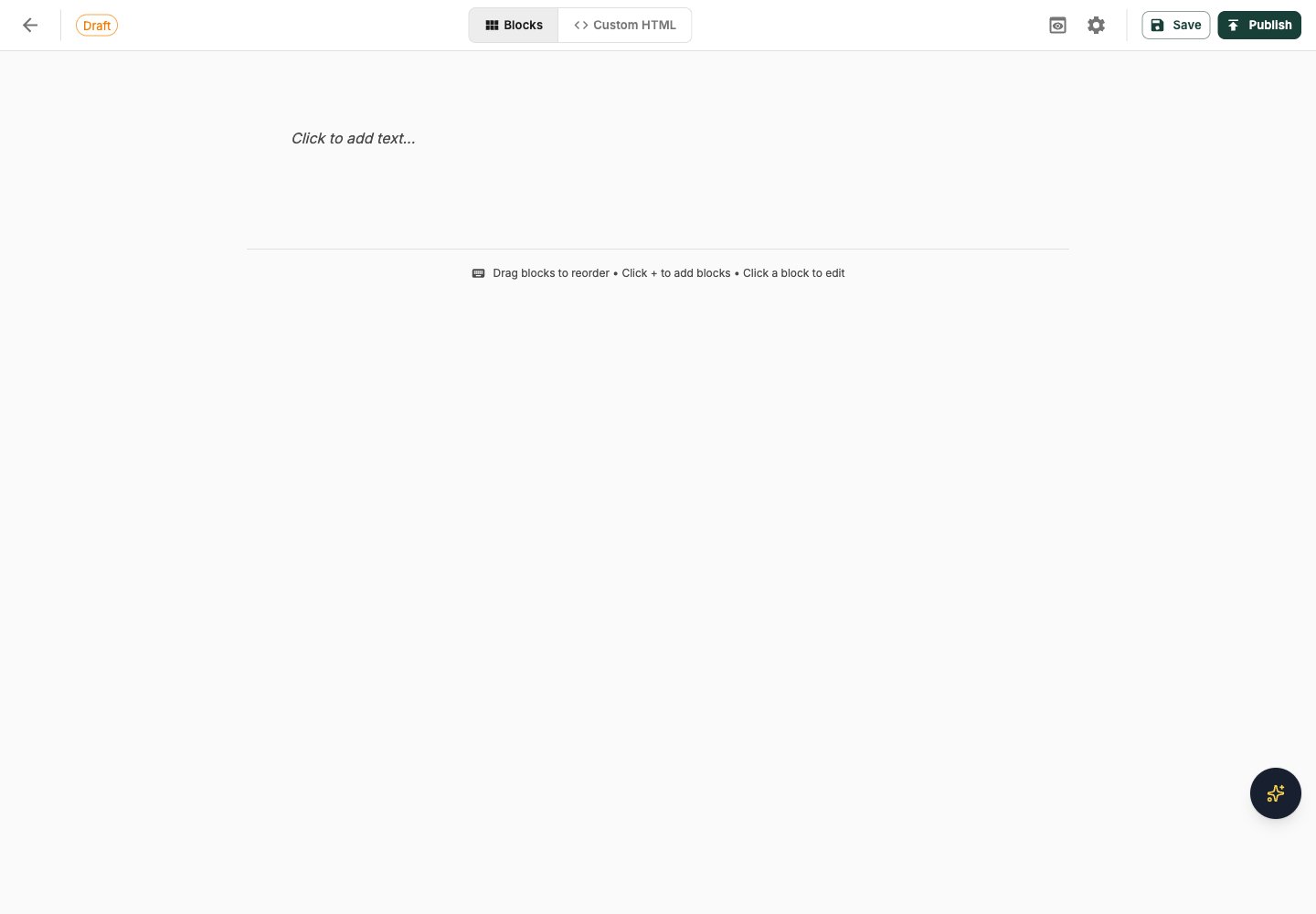
Each page can be edited in one of two modes:
Switch between Blocks and Custom HTML from the editor’s top bar. DeanDesk asks Switch builder mode? before switching, because switching may replace content and styles. Click Switch to continue or Cancel to stay in the current mode.
Block editor
The block editor lets you build a page by stacking blocks. Each block is a self-contained unit (text paragraph, image, button, video, etc.) that you can reorder and edit independently.Available blocks
For a Form block, choose a form from the picker. Private forms still require sign-in and appropriate access; inactive forms do not accept submissions. For embedding a public form on another website, use Form Manager’s embed code.
Custom fonts
Each page can override fonts on a per-page basis. From the editor, click the gear icon to open Page Settings, then use the Fonts section to:- Upload font files (WOFF2, WOFF, TTF, or OTF — 10 MB max each). Save the page before uploading fonts.
- Pick a heading font and a body font from any fonts available to the page (uploaded on this page or in the school-wide page theme)
Custom HTML editor
When you switch to Custom HTML mode, you write the page markup directly in the editor. The top bar adds Insert blog feed, an insert-form button, and a format-HTML button. In Custom HTML mode, Page Settings also shows a Custom CSS section. This CSS is scoped to this page only (it does not leak into the rest of the portal). Custom CSS is automatically scoped via a wrapper so your selectors only apply to the rendered page — you don’t need to namespace your selectors yourself.Visibility & publishing
Each page has a Status and a Visibility setting in Page Settings.
Visibility accepts more than one audience, so you can combine options.
Use visibility to publish internal-only pages (staff handbooks, admin runbooks) without exposing them to the public.
Page slugs and URLs
Each page has a slug (e.g.welcome, apply, staff-handbook). Pages are served at:
Built-in page templates
Open Website → Built-In Page Templates to customize supported built-in catalog and product-detail pages using their HTML/CSS template editor. These templates keep live content such as products, filters, and links connected to the school data. Choose Edit Template, review the available components and starter designs, and use desktop/mobile Preview. Save draft keeps unpublished work; Publish makes the template live. Where a template is already published, the editor also provides an action to disable the published customization and return to the built-in presentation. A shared product-detail template affects the pages using that template. Review the preview with an actual product before publishing.Setting the home page
The Website → Site Navigation home page settings control what visitors see at your school’s root URL (https://yourschool.deandesk.com). Alongside the other home page options, you can set a Product Page as your public home page: choose the Product Page option, then pick the product with the product picker.