yourschool.deandesk.com.Video walkthrough
Discount types at a glance
Code-based discounts
Code-based discounts require the student or parent to enter a discount code during checkout.Open Discounts
Choose the Code-Based type
Fill in the details
- Name — an internal name for this discount (e.g., “Early Bird 2026”)
- Description — optional notes about the discount’s purpose
- Discount Type — choose Percentage (0–100%) or Fixed Amount (dollar value)
- Amount — the discount value (e.g., 20 for 20%, or 50 for $50 off)
- Subscription Discount — for recurring purchases, apply to every cycle or the first cycle only
- Active — toggle on to make the discount available immediately
- Allow combining with other discounts — toggle on to let it stack with other combinable discounts
Enter the discount code
Choose applicable products (optional)
Set usage limits (optional)
- Max Total Uses — how many times the code can be used across all students (leave empty for unlimited)
- Max Uses Per User — how many times a single student can use it
- Valid From / Valid Until — date range when the code is active
Save
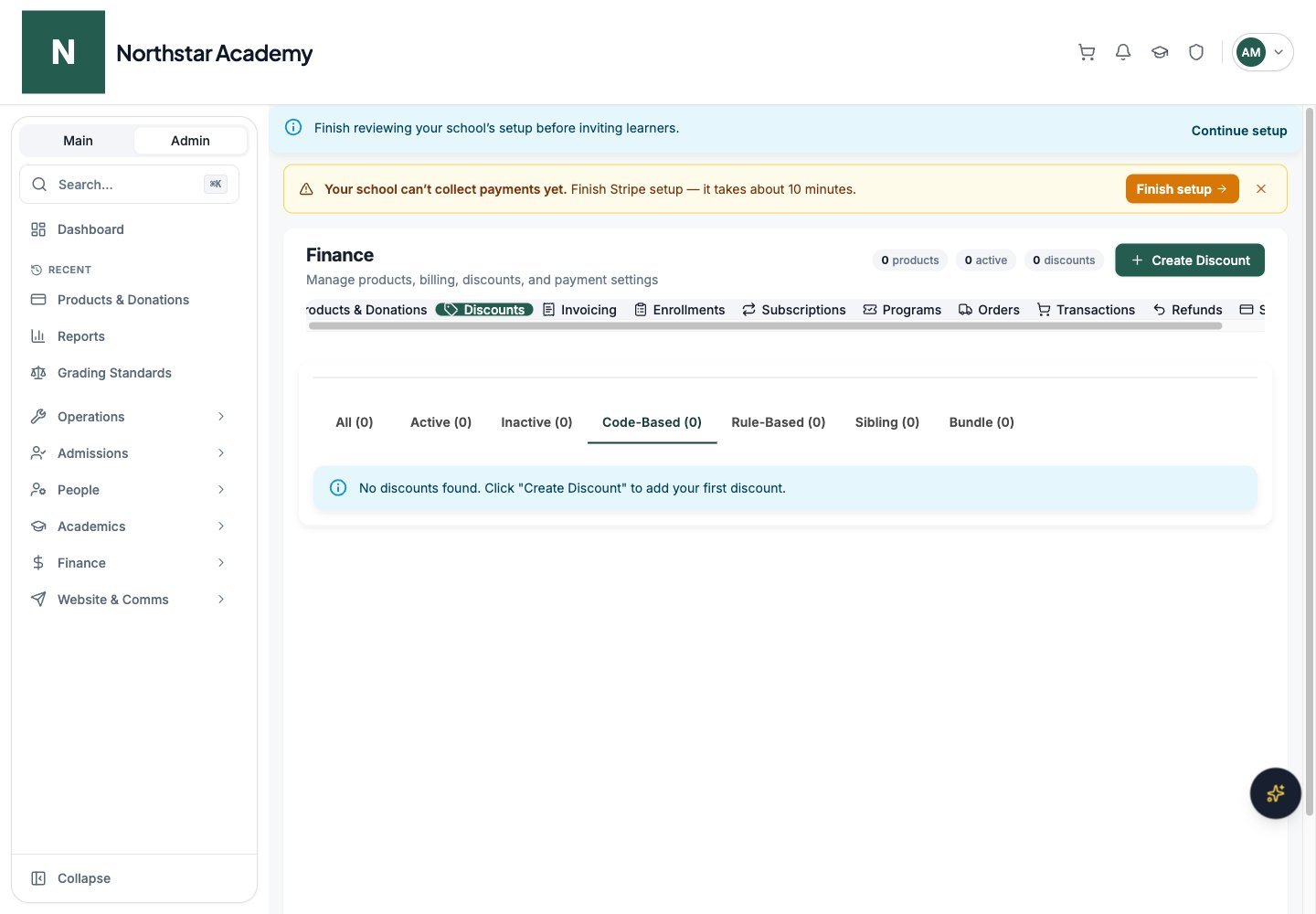
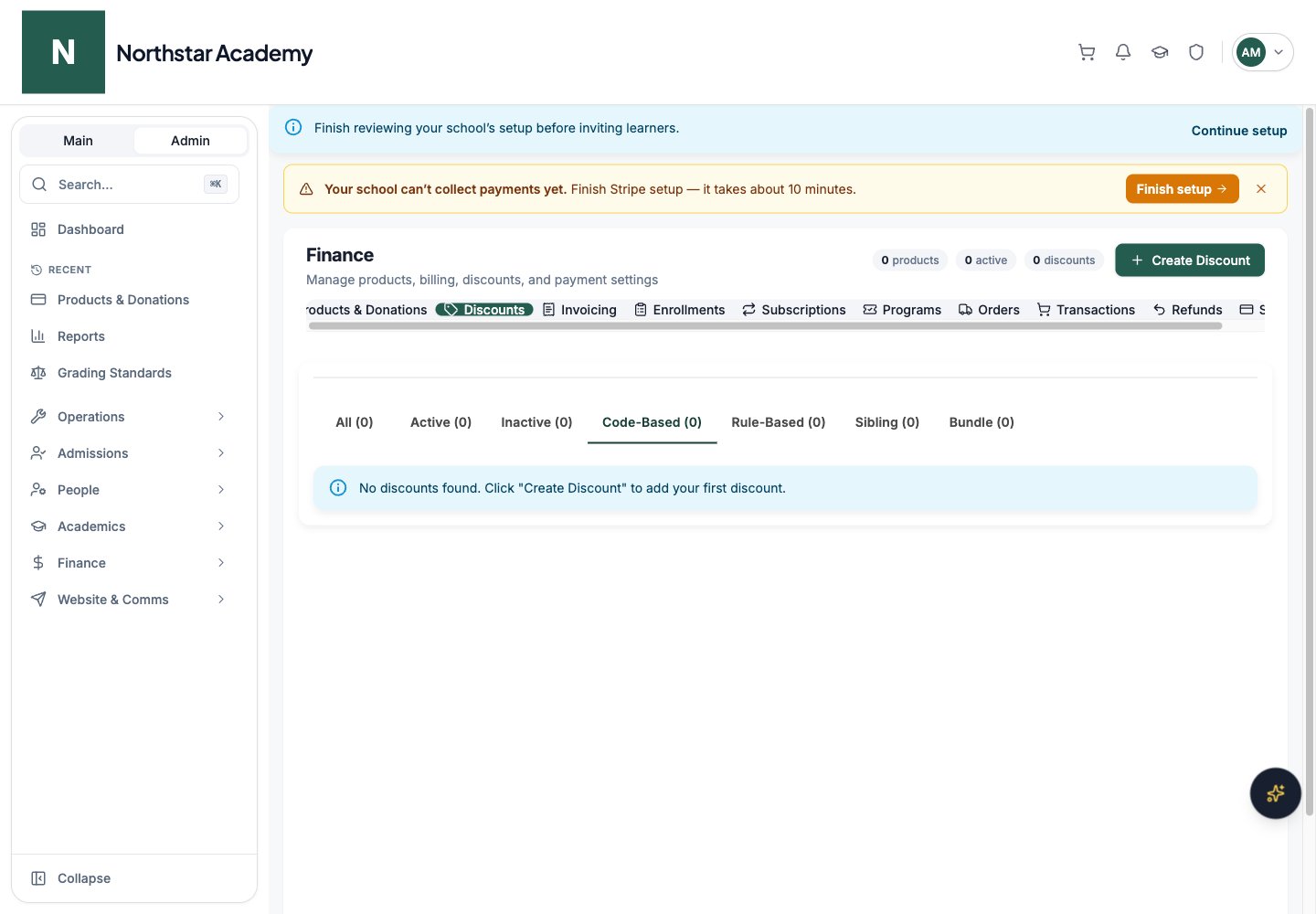
Northstar demo — Discounts — Code-Based
Rule-based discounts
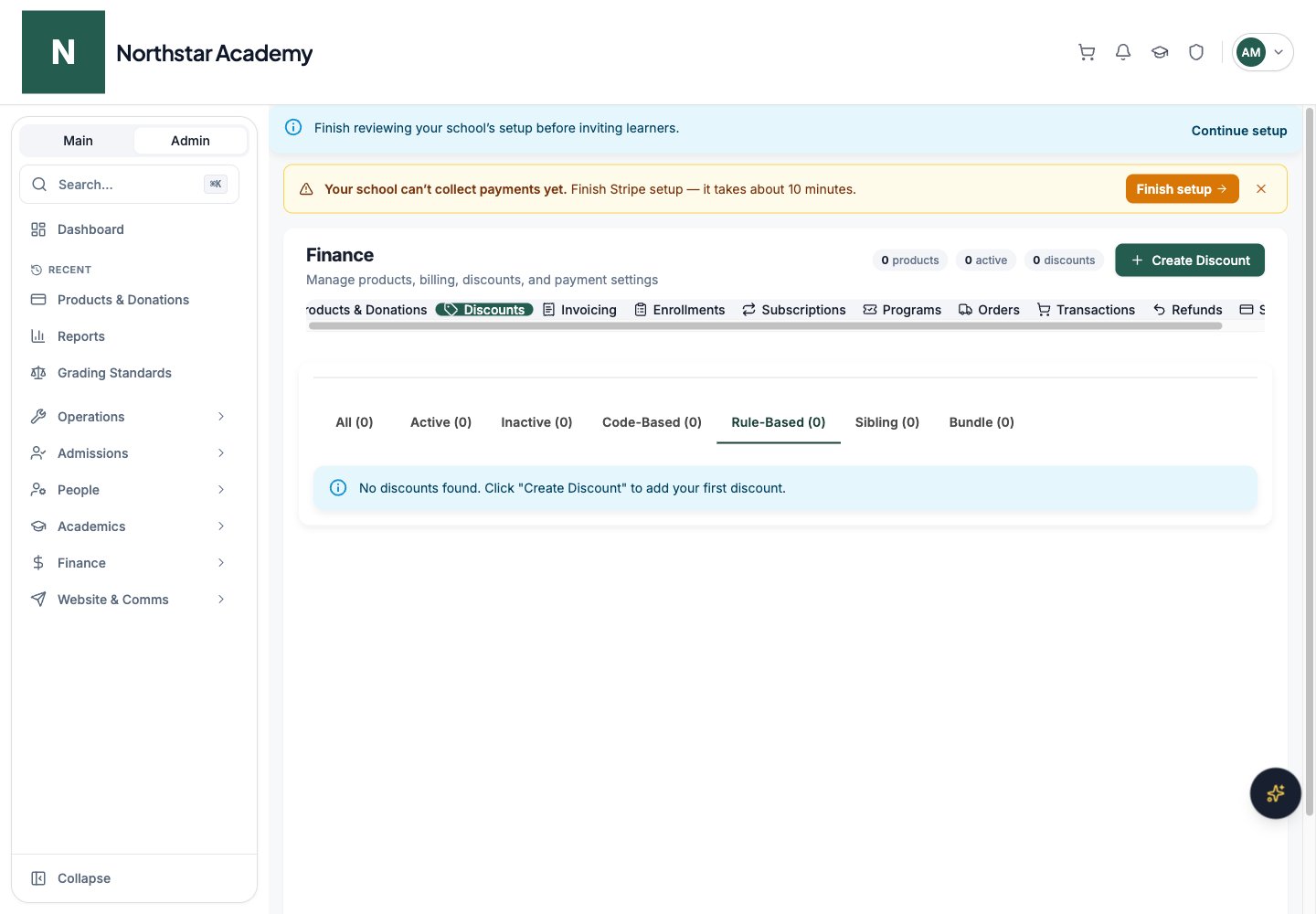
Rule-based discounts are applied automatically at checkout when a student’s profile matches the rules you define. Students never need to enter a code — the discount appears automatically if they qualify.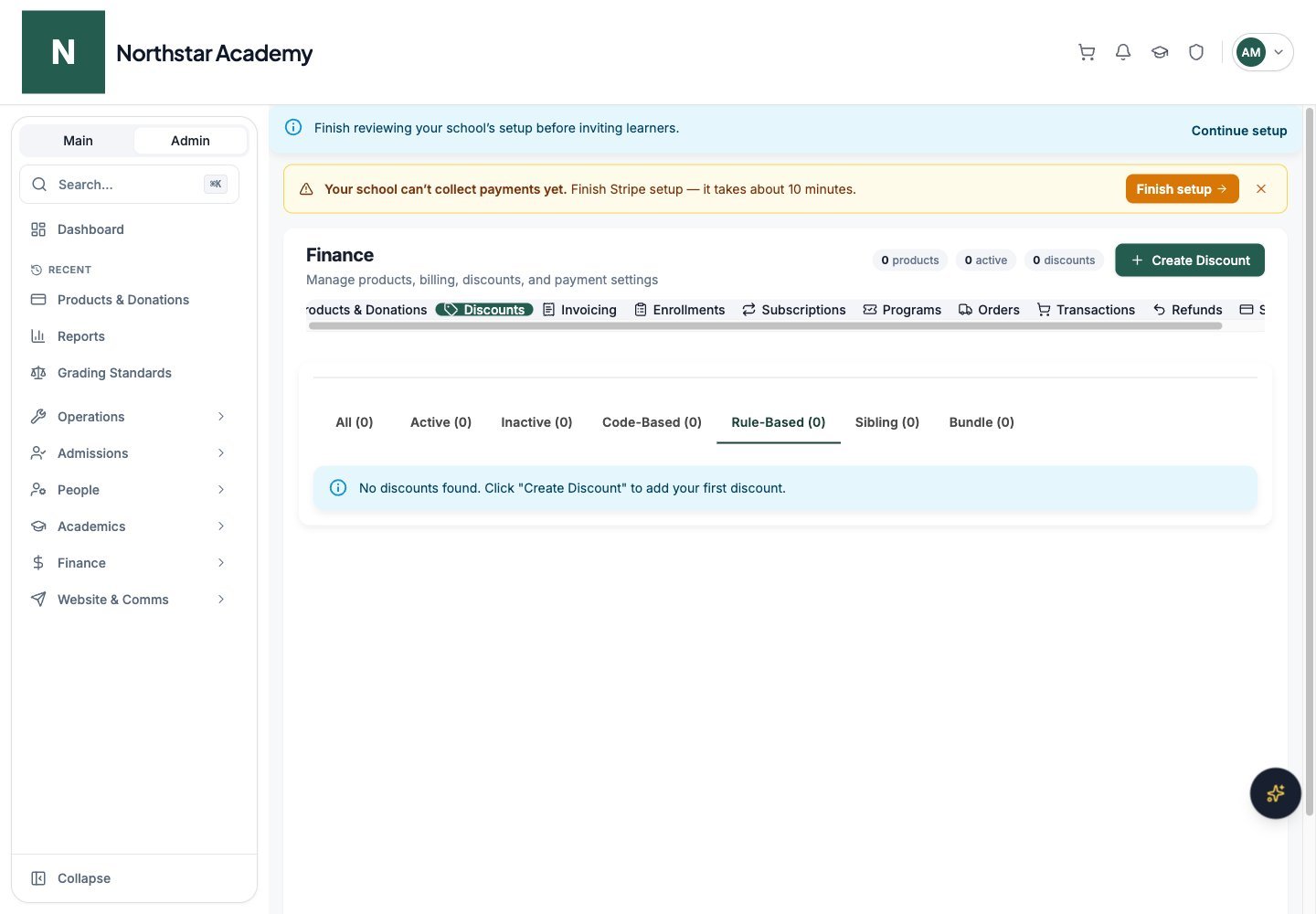
Northstar demo — Discounts — Rule-Based
How rules work
Each rule-based discount contains a rule set — one or more conditions that are evaluated against the student’s data. You choose whether all conditions must be met (AND logic) or any condition is sufficient (OR logic). Each rule has three parts:- Field — the student data field to check (e.g., a custom metadata field like “Residency Status” or a derived field like “Number of Children”)
- Operator — the comparison to make (equals, does not equal, greater than, less than, contains, does not contain)
- Value — the target value to compare against
Available rule fields
Rules can reference three sources of data:Create a rule-based discount
Choose the Rule-Based type
Fill in the details
Choose the match logic
Add rules
- Select the Field from the grouped dropdown (User Fields, Identity Fields, or Derived Fields)
- Select the Operator (the available operators depend on the field type)
- Enter the Value to match against
Choose applicable products (optional)
Save
Example rule configurations
Income-based discount (AND logic):- Rule 1: “Income Bracket” equals “Low Income”
- Rule 2: “Residency Status” equals “In-State”
- Result: 30% off for low-income, in-state students
- Rule 1: “Financial Aid Eligible” equals “Yes”
- Rule 2: “Number of Children” greater than 3
- Result: $200 off if the family qualifies for financial aid OR has more than 3 children
Sibling discounts
Sibling discounts reward families that enroll multiple children. The discount is applied automatically when a family has the required number of actively enrolled children in tuition products.Choose the Sibling type
Fill in the details
Configure sibling settings
- Minimum Active Children — the number of actively enrolled children required before the discount applies (minimum 2). For example, set to 3 if the discount should only apply when a family has 3 or more children enrolled.
- Include first child — toggle on if the discount should also apply to the first child. When off, only the second (and subsequent) children receive the discount.
Choose applicable products (optional)
Save
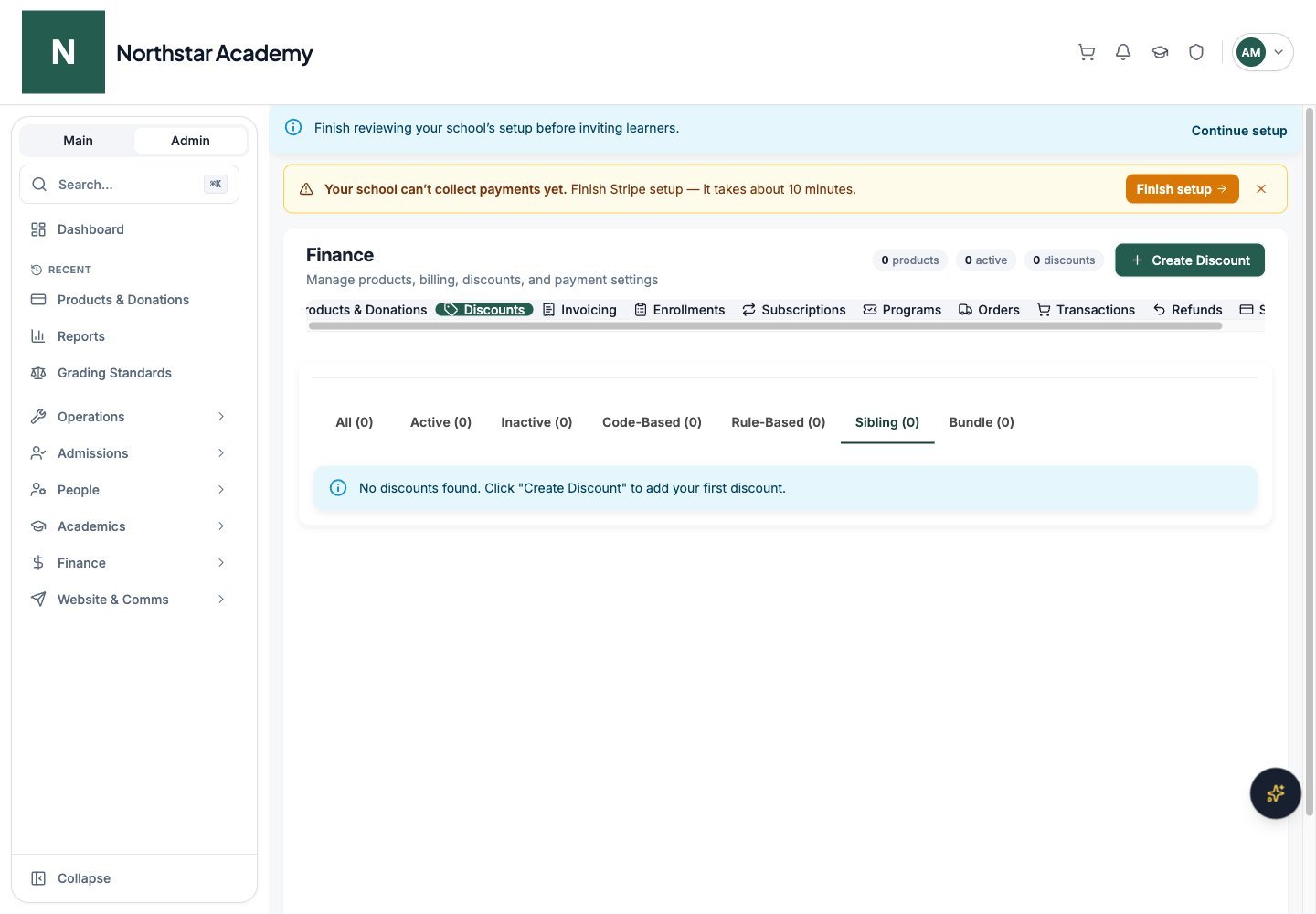
Northstar demo — Discounts — Sibling
Bundle discounts
Bundle discounts apply automatically to eligible products in a single checkout. You can select specific eligible products, or leave the product list blank to make the bundle discount apply to every product.Choose the Bundle type
Fill in the details
Choose whether the first product is discounted
Select eligible bundle products
Save
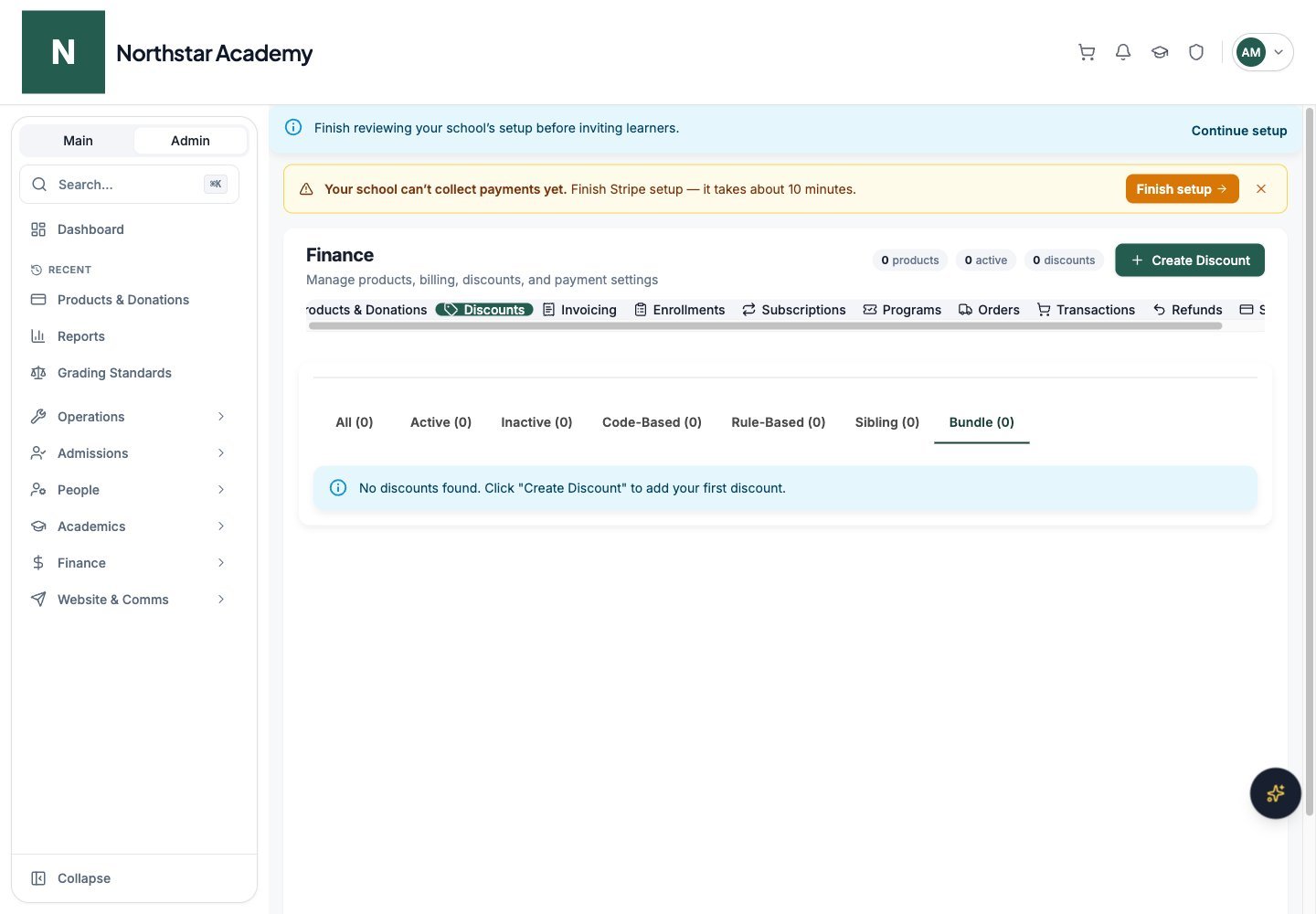
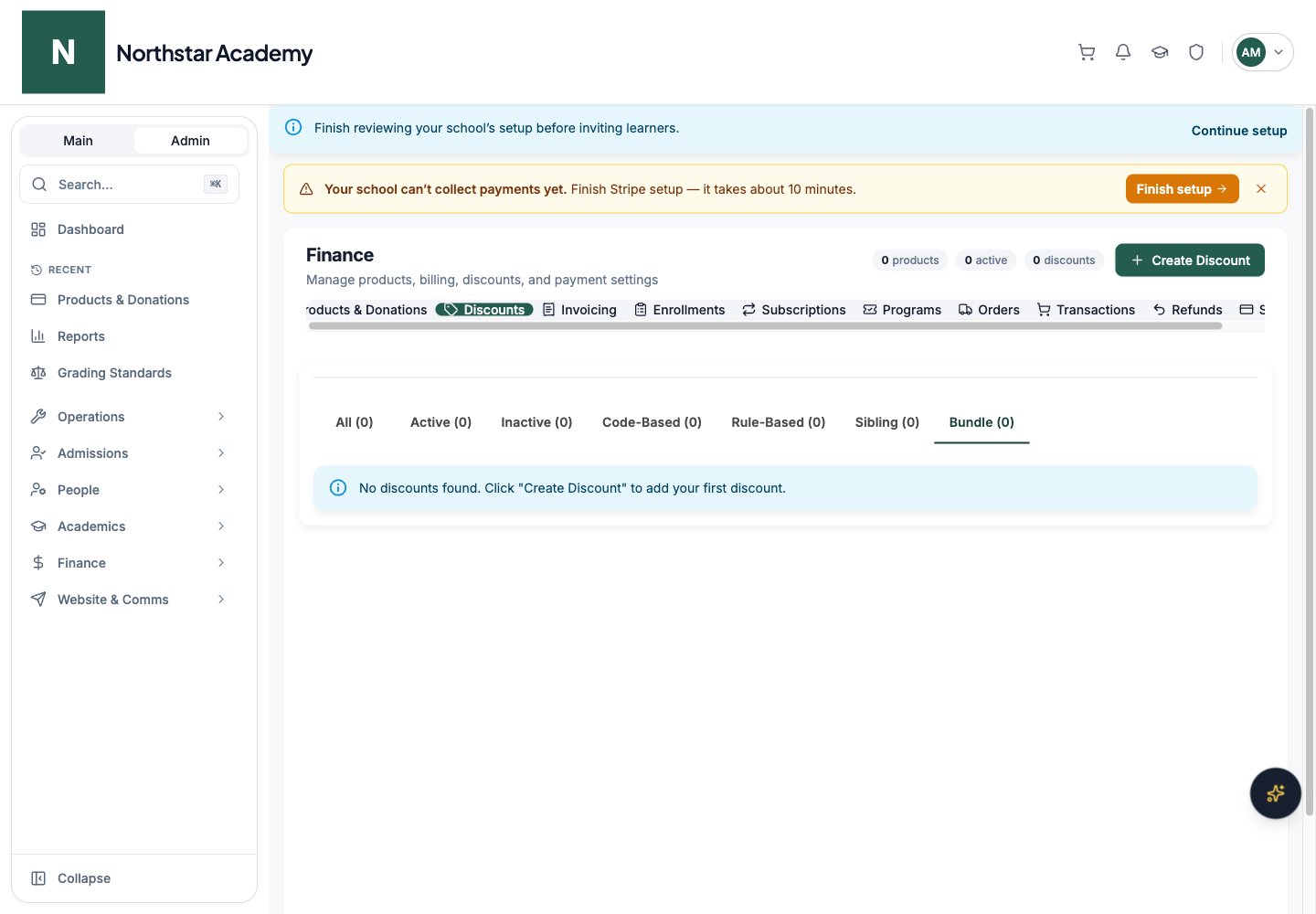
Northstar demo — Discounts — Bundle
Product and price scope
On Scope & Limits, select Applicable Products to include all pricing options of those products. Select Applicable Prices to target individual plans, such as monthly tuition without discounting the annual option. When both lists are populated, a price qualifies if its product is selected or the price itself is selected. To restrict a discount to one price of a product, select the price and leave that product unselected. Leaving both lists empty applies the discount to all eligible products and prices. Sibling discounts remain limited to tuition.Usage constraints
All discount types support optional usage limits:Combinability
By default, discounts cannot be stacked — only one discount applies per purchase. Toggle Allow combining with other discounts on the Details step if you want it to be eligible for stacking with other combinable discounts.Subscription discount duration
When a discount applies to a recurring purchase, you can choose whether it applies to every billing cycle or only the first one. Use the Subscription Discount dropdown on the Details step when creating or editing a discount:Managing discounts
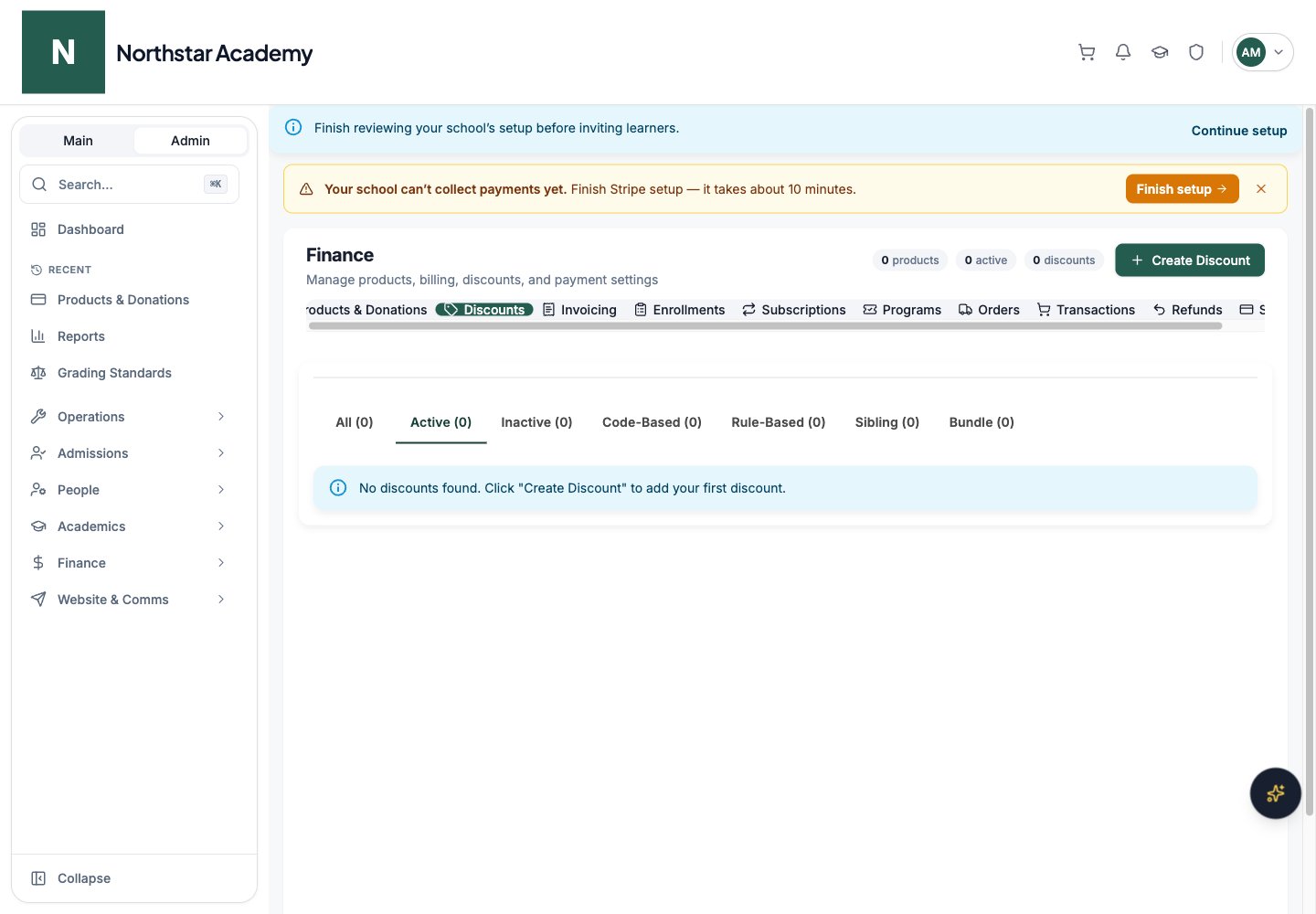
The discount list page shows all your discounts in a filterable table.Filter tabs
Use the tabs at the top to filter the list:- All — every discount
- Active / Inactive — by status
- Code-Based / Rule-Based / Sibling / Bundle — by application type
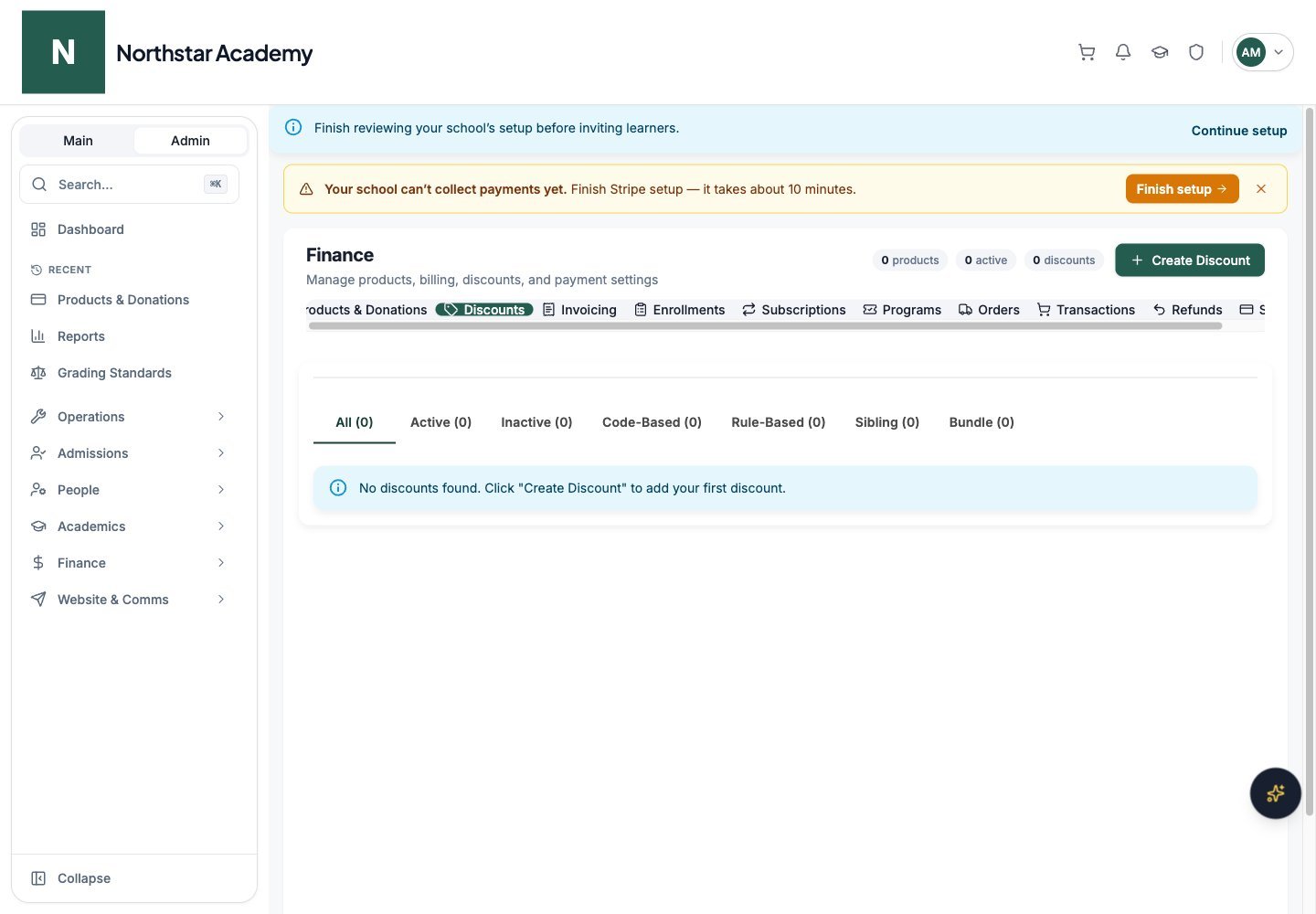
Northstar demo — Discounts — All
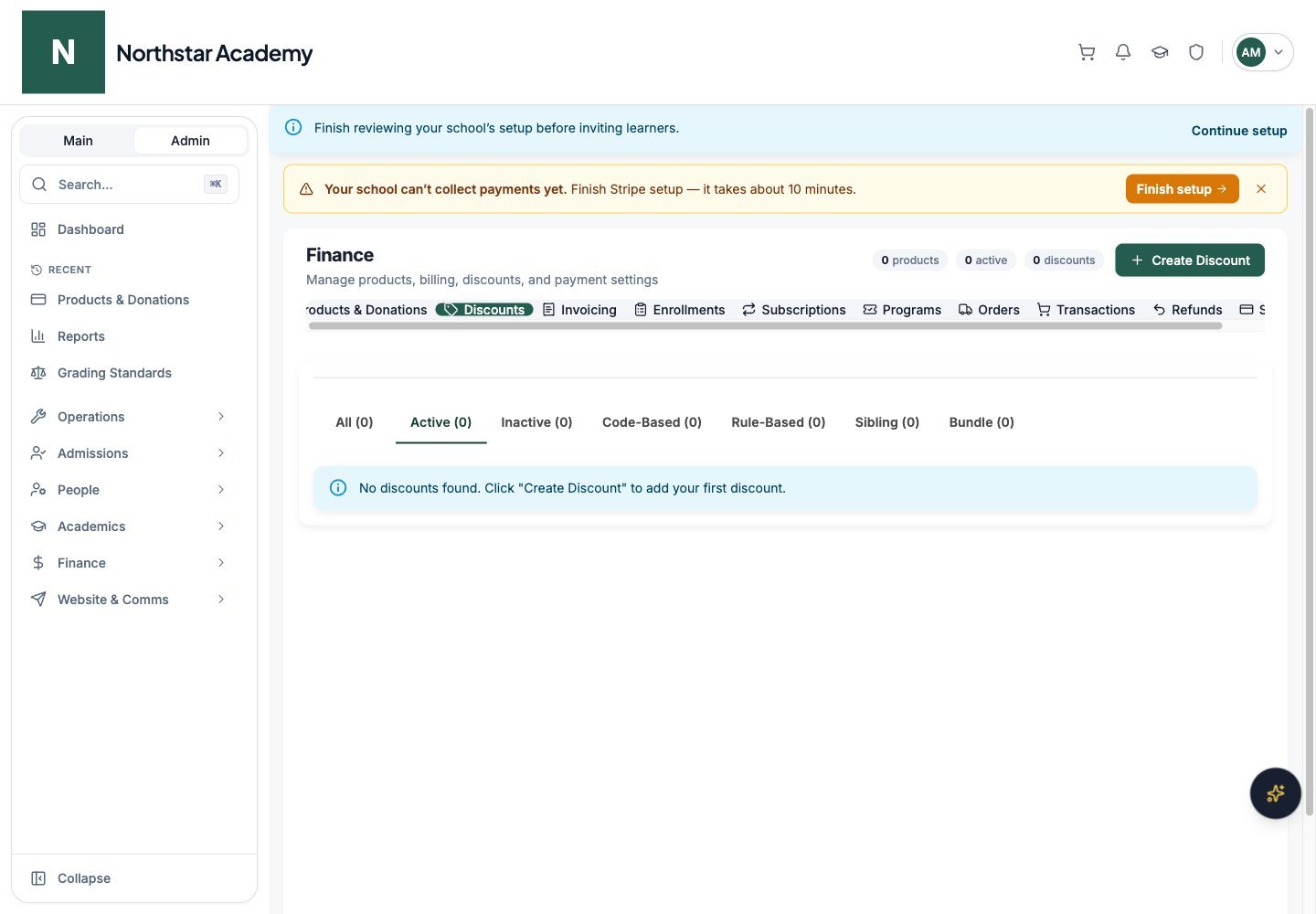
Northstar demo — Discounts — Active
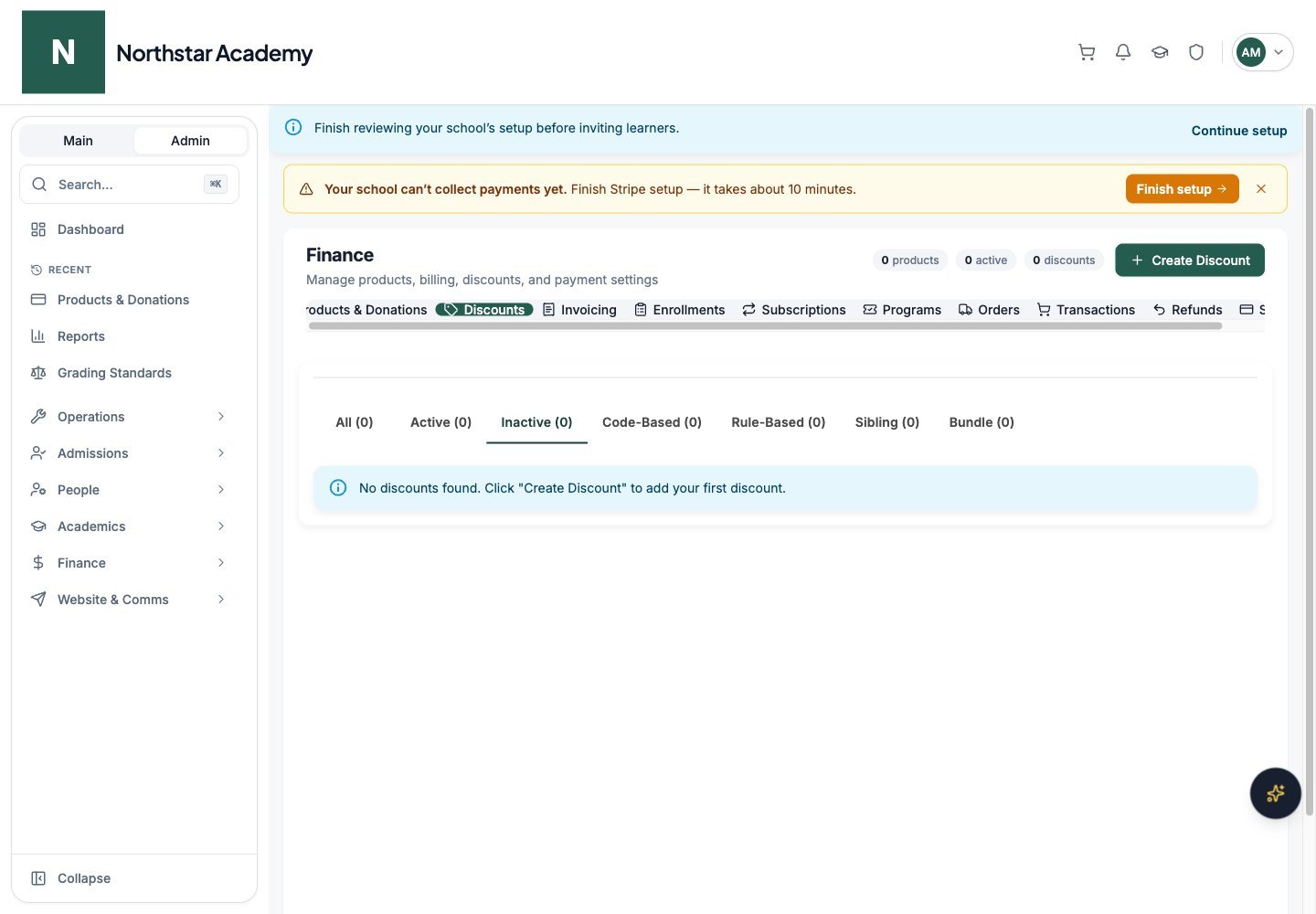
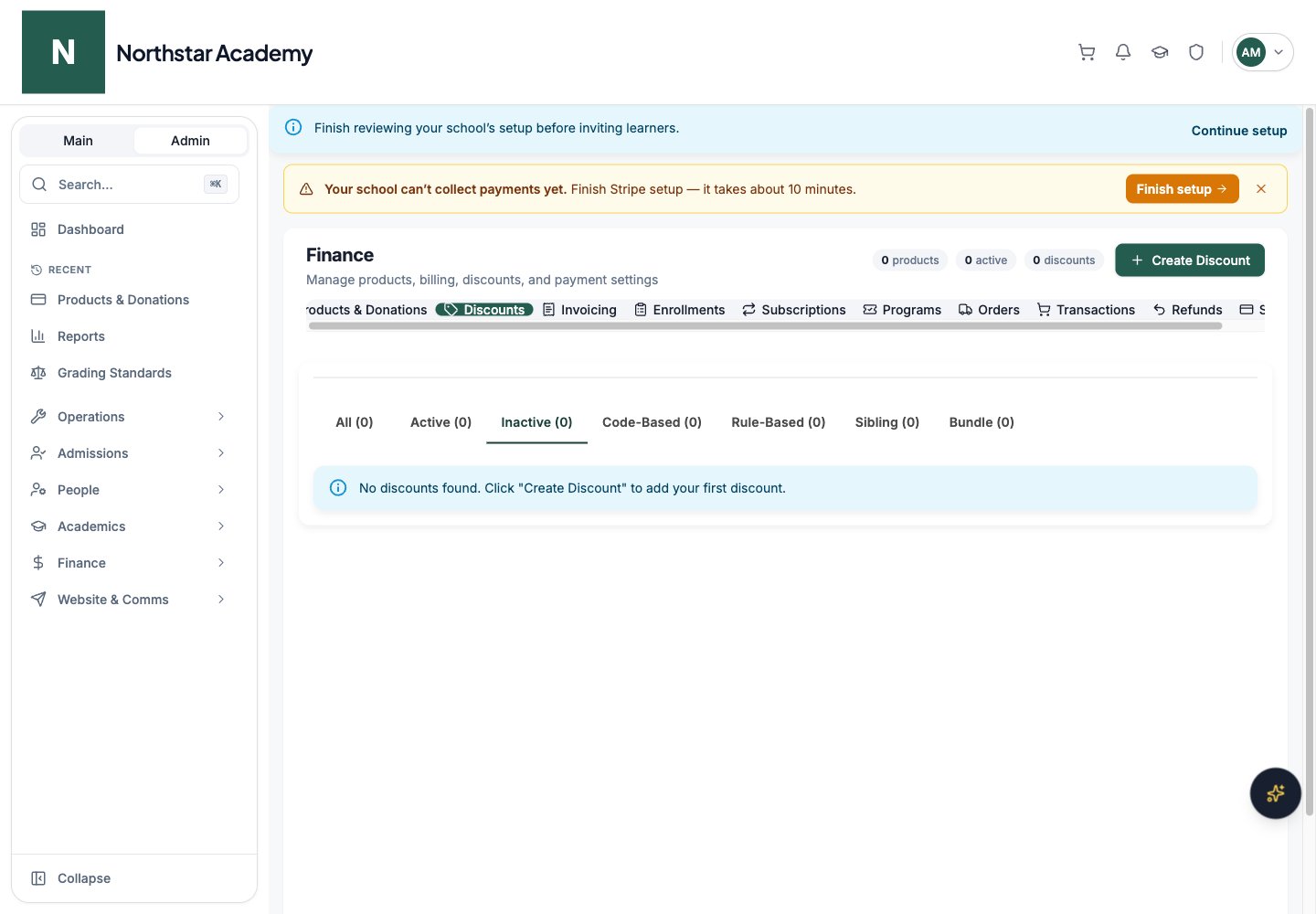
Northstar demo — Discounts — Inactive